Accounting, fiscal, and tax dates
This manual is for accountants entering documents and Accounting Managers deciding
when an entry is recognized. It describes Odoo 18 with pmis_account_dates.
Slovenian manual.
Before you begin
You need an accounting company, accounts, a journal, and normal permission to edit or post the document. Change Fiscal Date and temporary lock exceptions require Accounting Manager. A warehouse role alone does not grant accounting access. Company and record restrictions still apply to every selected entry. In Odoo Community, the Accounting Manager role alone does not necessarily enable the full accounting menus or Journal Items tab. An administrator must also grant the normal full-accounting access needed for those screens; the fiscal-date manager role is not a substitute for those permissions.
The examples use the fictional Alder Workshop Ltd, EUR, and April 2026 posting dates with March recognition. Screenshots show synthetic records. The accounting application may be labeled Invoicing in Community installations.
Understand the three dates
| Field | Meaning | Example |
|---|---|---|
Accounting Date (date) |
Native posting/processing date and accounting sequence context | April 10, 2026 |
Fiscal Date (fiscal_date) |
Financial recognition used by the installed fiscal ledger reports | March 29, 2026 |
Tax Date (tax_date) |
Separate tax-reporting input, interpreted by installed tax-policy addons | April 10, 2026 |
These roles need not be equal or in chronological order. This addon does not decide VAT policy or change the date used by every Odoo report. Journal-item fiscal dates always follow their entry. Journal-item tax dates can differ from the header when a tax policy requires an exception.
1. Enter and post a draft
- Open Accounting / Invoicing > Accounting > Journal Entries, then a draft (or create one with balanced journal items). Invoice forms also expose these dates.
- Set Accounting Date. Without a policy extension or explicit override, fiscal and tax defaults use that date.
- Enter Fiscal Date, for example March 29. Fiscal Date Override records explicit intent, even if the chosen value equals today's default. A later accounting/source-date change will not discard it.
- Review Tax Date separately. In a draft, tax dates still following the old header default, and empty line dates, synchronize with the new header default. Differing line tax dates survive. Section/note lines are excluded.
- Save. Verify the dates before clicking Post. Posting checks recognition locks and fixes the effective fiscal date. Read the resulting Posted state.
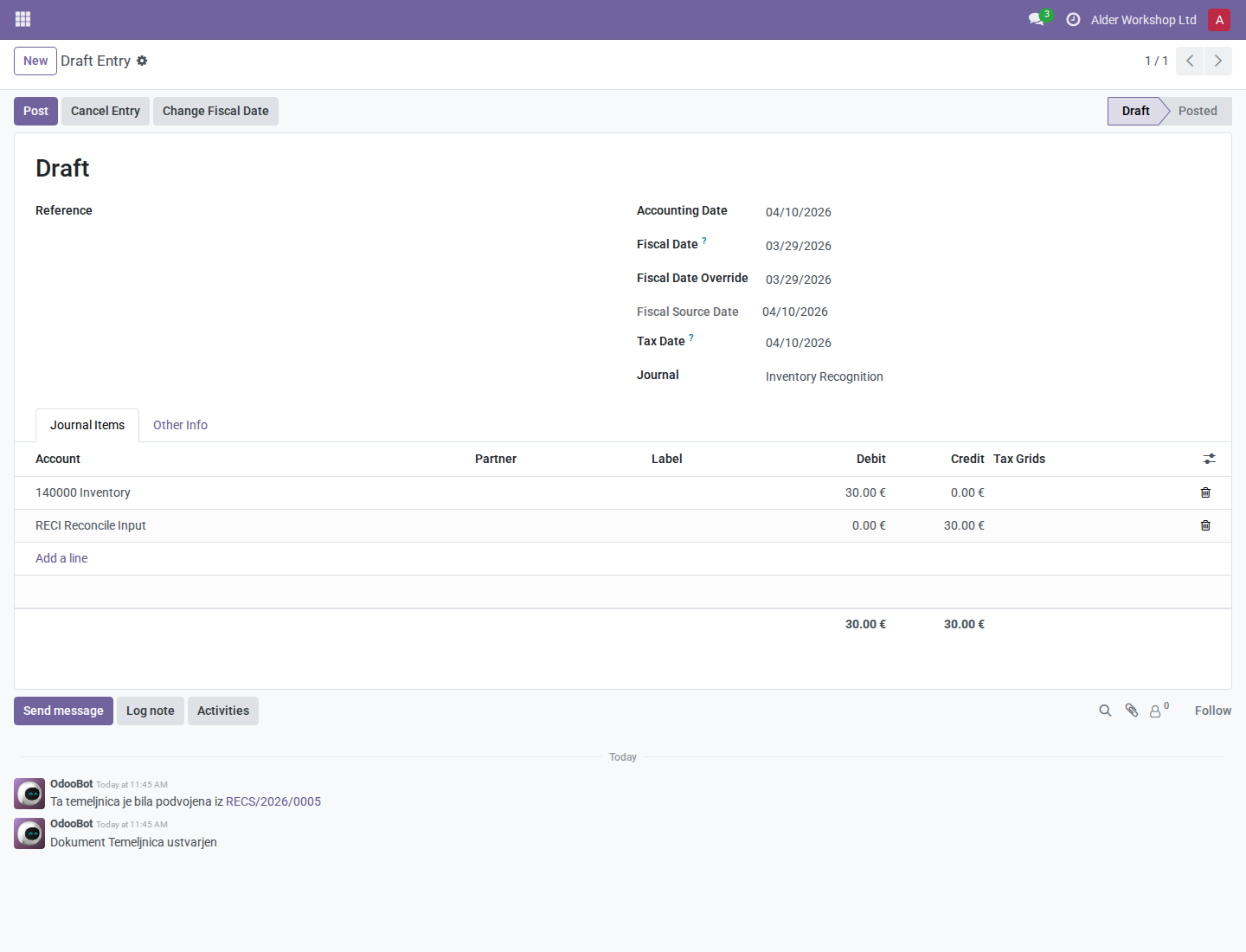
The draft presents the date roles together; Fiscal Source Date shows the current proposal independently of an explicit accounting override.
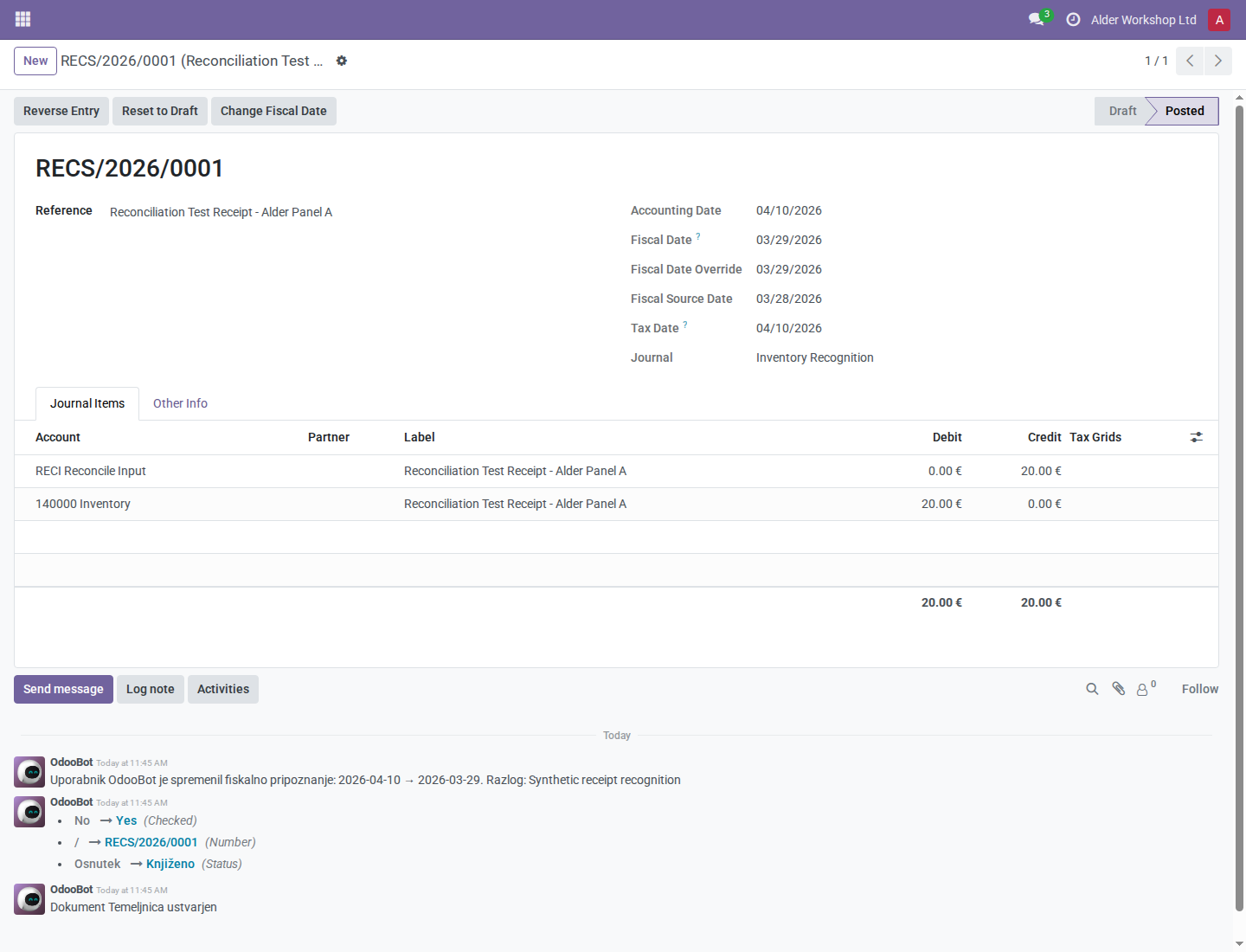
A posted entry's fiscal date is a fixed accounting decision. Direct field editing is no longer the correction workflow.
To restore automatic defaults on a draft, clear Fiscal Date Override, or use Change Fiscal Date > Use Current Source Date. Clearing an override on a posted entry is not permitted. Resetting a posted document to draft, when native permissions and locks allow it, removes its fixed decision; review its dates again before reposting.
For a separate example, suppose Accounting Date is April 11 and the explicit fiscal choice is April 10. That choice remains until cleared. Choosing Use Current Source Date then restores April 11 when no stock instruction applies.
In another example, set the tax header to April 9 and one line to April 8. That differing line remains April 8 when the header changes; the other line follows April 9. Both line fiscal dates remain the entry's April 11 date.
2. Correct one or several entries as a manager
- Open a posted entry and click Change Fiscal Date. For a bulk correction, select the entries in the journal-entry list and choose Actions > Change Fiscal Date.
- Enter the proposed Fiscal Date and a meaningful Reason. For example, “Receipt belongs to the March stock count.” A blank or whitespace-only reason cannot be applied.
- Read the complete preview: entry, company, old/new dates, source proposal, tax/hard cutoffs and whether the change is allowed. With the stock extensions, the preview also shows old/proposed periods and linked valuation-layer counts.
- Click Apply to All Selected Entries. The action checks current permissions and locks again and applies the entire set together. One blocked entry stops the set; entries are not silently skipped.
- Reopen the entries. Verify the new fiscal date, unchanged accounting/tax dates
and amounts, and the chatter message identifying the user, old/new dates and reason.
With
pmis_stock_account, linked valuation layers follow the decision and pending historical layers linked to those entries are resolved.
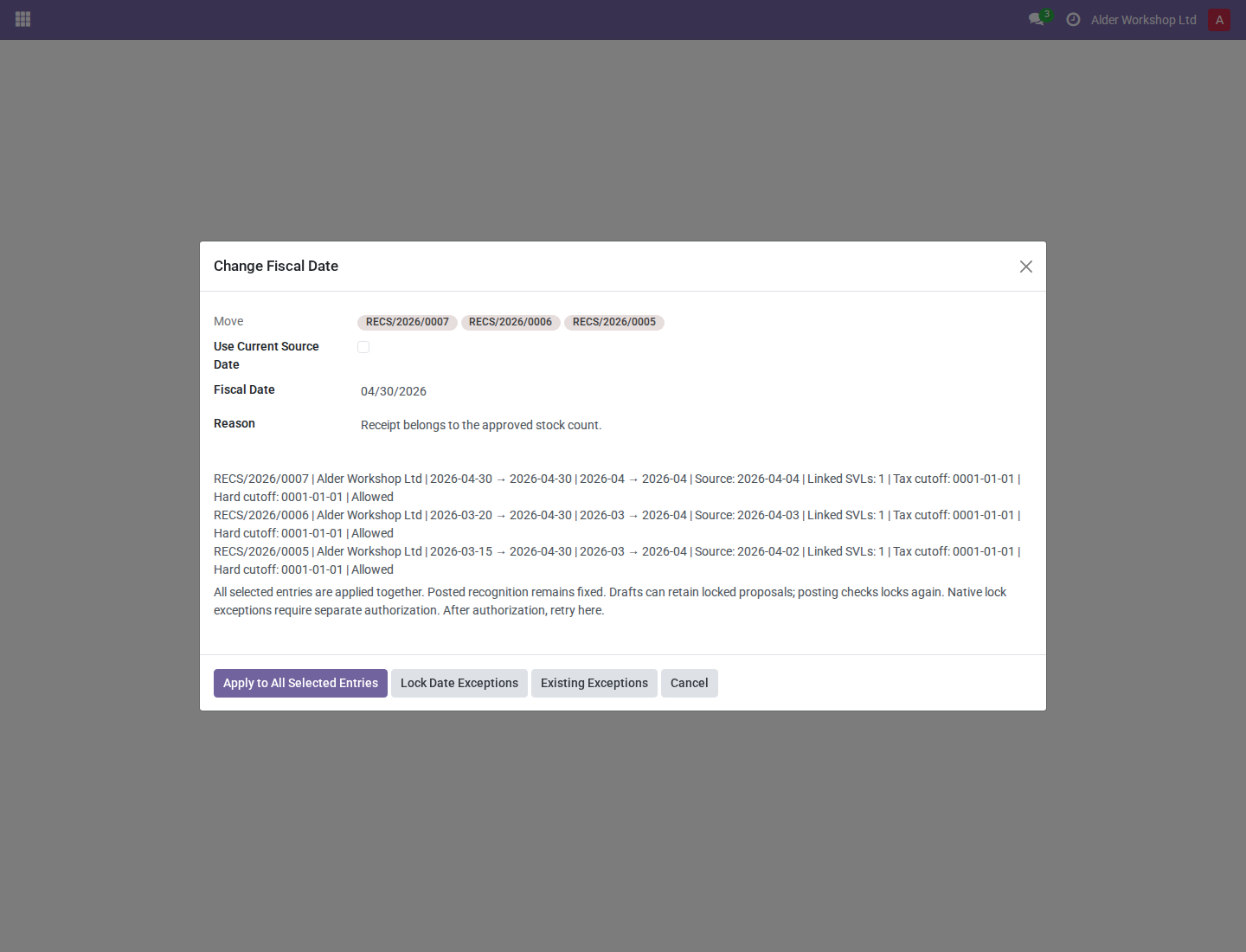
Review the whole selection before applying a common date. The reason becomes part of the accounting audit trail.
The entry retains the recognition decision and its explanation.
An ordinary accounting user can inspect permitted entries and use draft date fields, but does not receive the manager correction button/action.
The ordinary role can read this posted entry; manager-only recognition controls are absent.
3. Adopt the current source date once
- Open Change Fiscal Date and select Use Current Source Date.
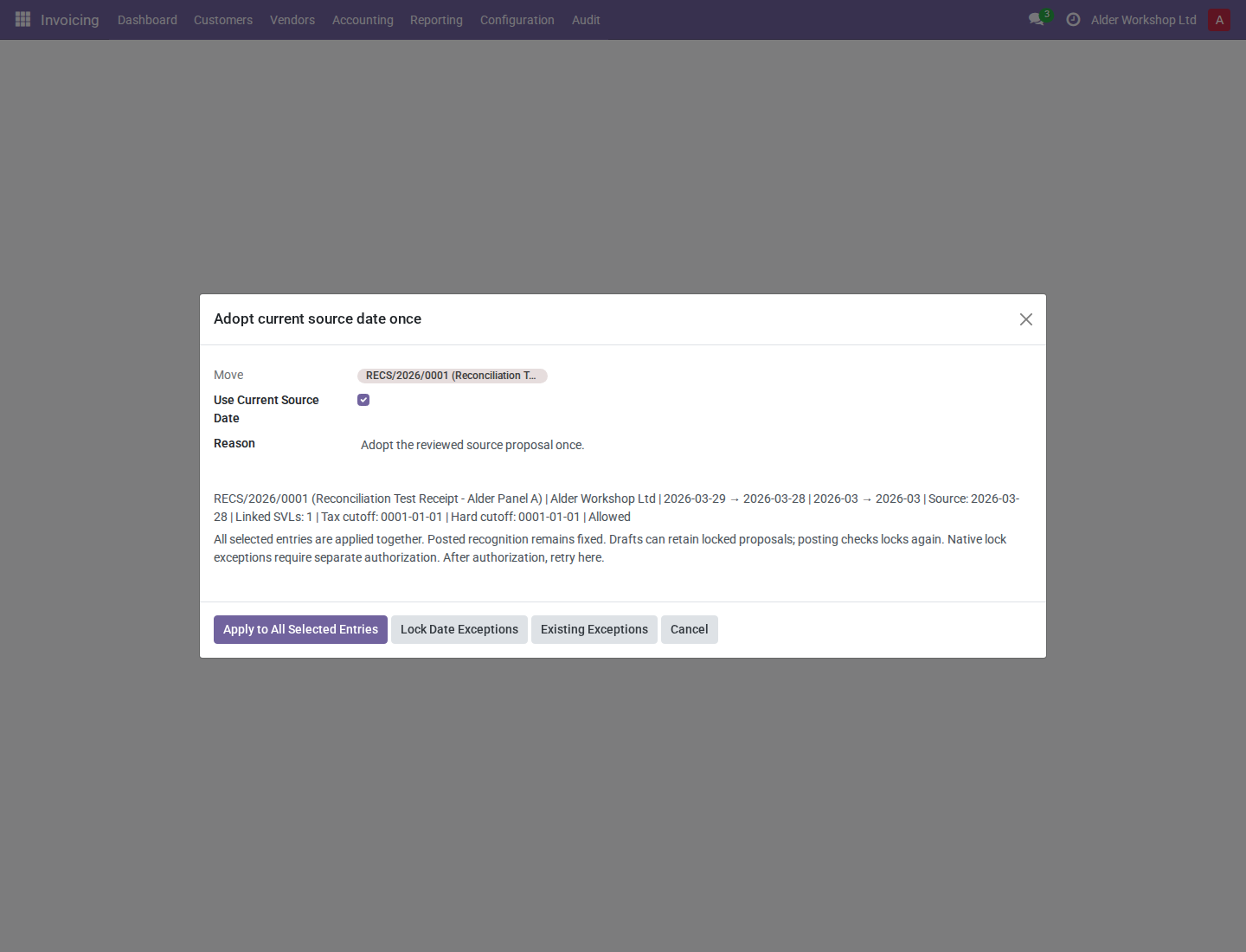
- Read each entry's own proposed date. This can produce different dates in one bulk selection. With stock instructions installed, a move instruction takes precedence over a picking instruction; otherwise the posting date is used.
- Enter the reason and apply. On a draft, this clears explicit accounting intent and restores following defaults. On a posted entry, it fixes the displayed source date as a one-time decision.
- If a stock instruction changes later, reopen the entry: the posted date remains fixed. Use a new manager decision if recognition should change again.
The stock source itself is not edited by this action. See the stock fiscal-date manual for source precedence and navigation.
Use Current Source Date adopts each displayed proposal; posted entries do not resume continuous following.
4. Recover from a recognition lock
The Tax Return Lock Date protects fiscal recognition even for entries without taxes. A posted correction protects both the old interval and the proposed interval. Moving a March entry to April can therefore be blocked by a March cutoff. Native posting locks also remain applicable.
- Read the preview's cutoff. If appropriate, attempt the decision: a denial identifies the blocked fiscal date and lock. The original decision is preserved. Drafts can hold a locked proposal, but cannot be posted until permitted.
The locked old date matters even when the proposed date is later.
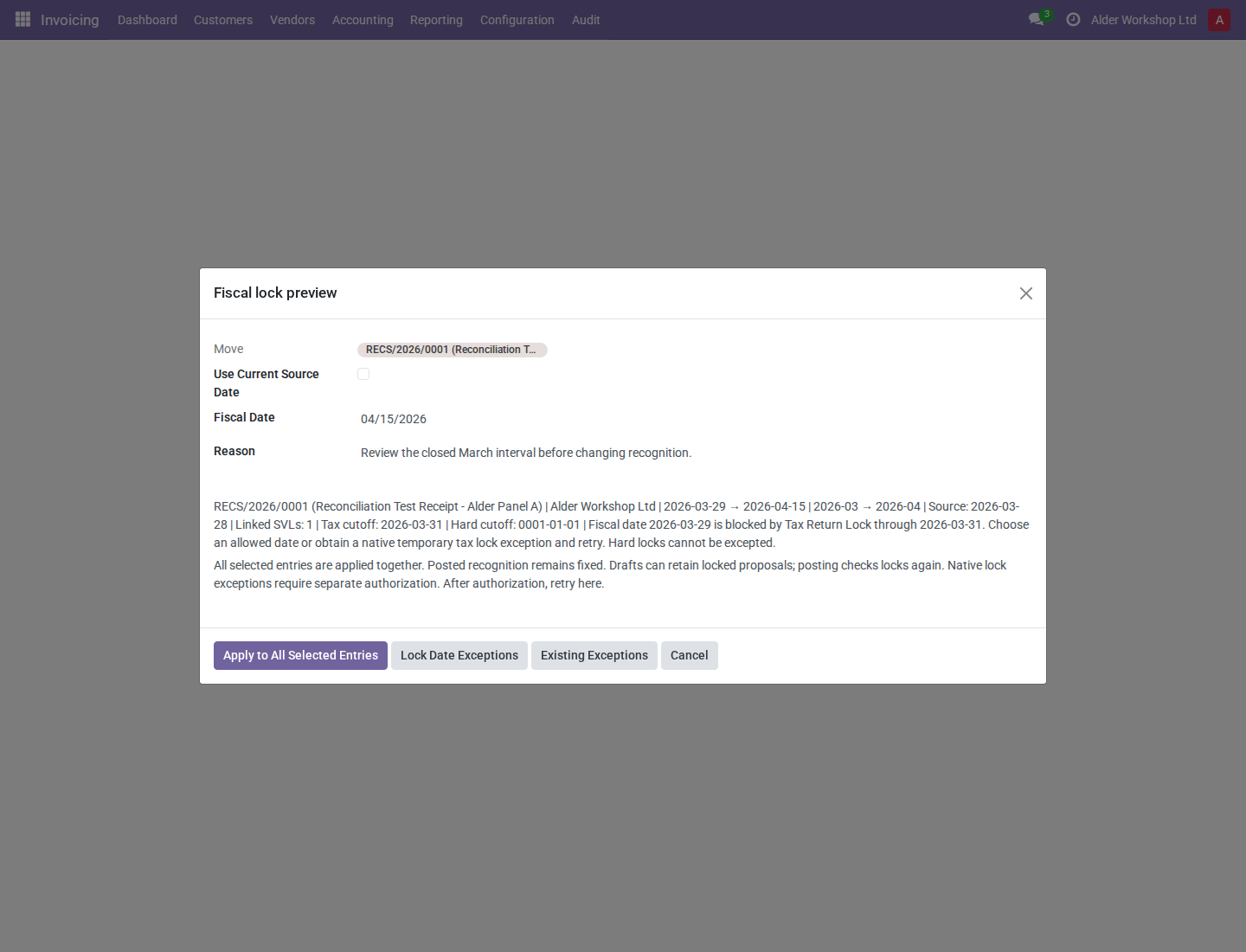
- An authorized Accounting Manager can open Lock Date Exceptions from the decision. For a multi-company selection, choose an authorized Exception Company first; separate company/parent exceptions may be needed.
- Review the native exception: company, Tax Return Lock Date field, replacement cutoff, user scope, reason and expiry. Defaults target the current user, expire after one hour, and use the day before the earliest selected fiscal interval. Clearing the user authorizes everyone; do so only with appropriate authority.
This grants a temporary exception; the company's configured lock dates stay intact.
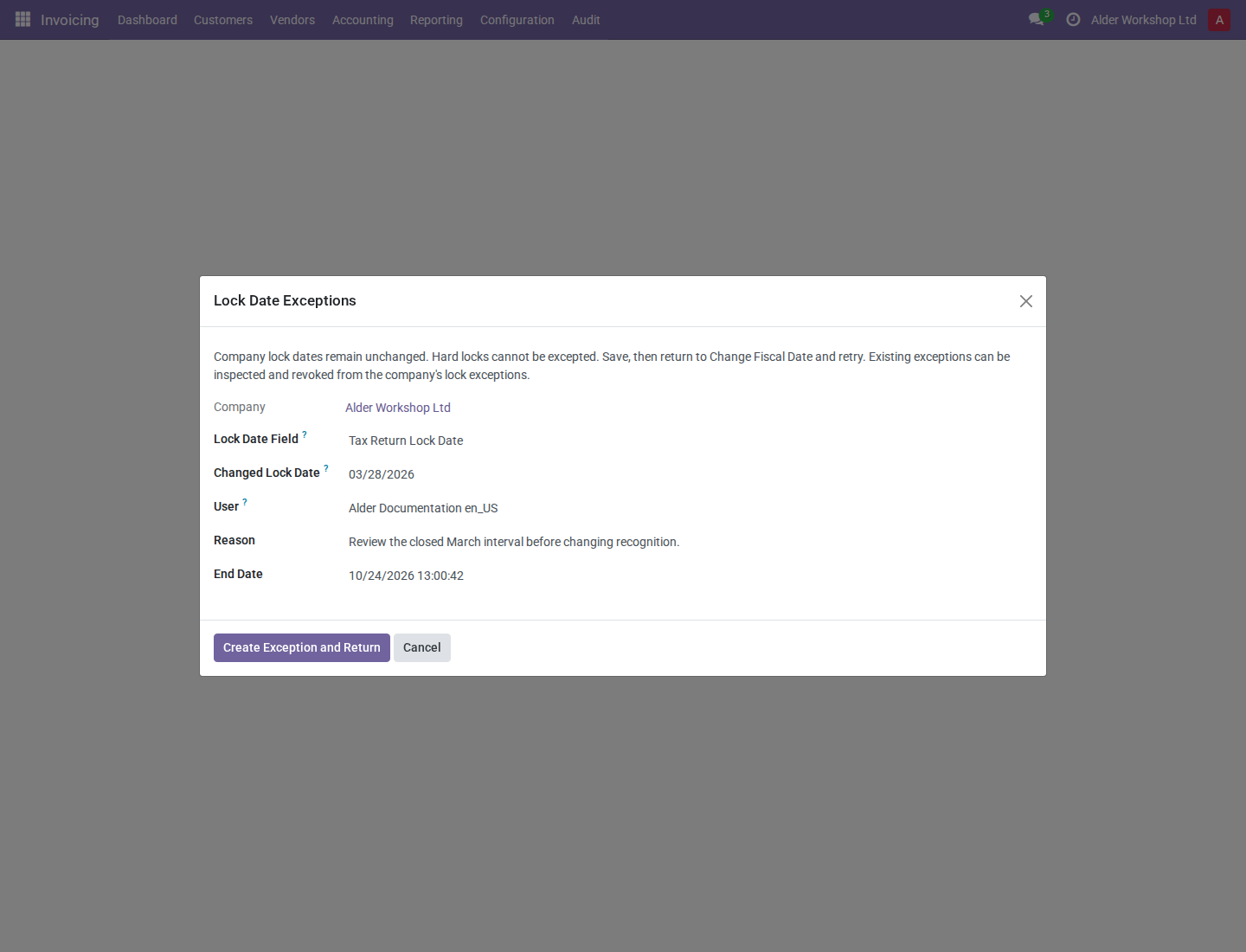
-
Click Create Exception and Return. Confirm that the original dates, selection and reason remain, then click Apply to All Selected Entries again. The retry rechecks the current locks; creating an exception does not itself apply the fiscal-date decision.
-
Use Existing Exceptions to inspect the scoped list. In this build, opening an existing row can choose the creation form and omit the native Revoke button. This is a current UI defect: ask an administrator to arrange authorized early revocation rather than treating that creation form as the native detail screen. Expired or revoked exceptions no longer permit another correction. A date already fixed by a successful change is not automatically undone by expiry/revocation.
The form-selection issue does not remove native expiry or revocation rules. Expiry and revocation remove authority for a further decision; they do not rewrite the decision already recorded on an entry.
Recheck before applying: an exception can expire while a decision is open.
Hard Lock cannot be excepted. Do not lower company lock dates or change source documents to evade a blocked decision. If native posting locks, a hard lock, company restrictions, or an expired exception still block the action, cancel and refer the case to the responsible manager. The preview is information, not a guarantee that a later execution remains allowed.
The initial unsaved preview can under-report linked valuation-layer counts as zero. Verify actual entry/layer links; the persisted/returned decision can show the correct count. This display limitation does not reduce the application scope.
Common problems
| Symptom | What to do |
|---|---|
| Fiscal date does not follow a changed source | Check Fiscal Date Override; posted entries intentionally stay fixed. |
| “Use Change Fiscal Date to change posted recognition” | Use the manager action instead of editing/importing posted dates. |
| A bulk action changes nothing | Read the blocked row and resolve its permission/lock issue, then retry the complete set. |
| Fiscal period is blank | Configure eligible company/shared fiscal-month ranges in the stock extension; the daily date still exists. |
| VAT output differs from a fiscal ledger | Check the report's actual date policy and installed localization; fiscal dating does not convert VAT policy. |