Fiscal inventory valuation and historical recognition
This manual is for inventory accountants, Accounting Managers and administrators
reviewing stock valuation. It covers fiscal dating in pmis_stock_account and the
related correction tools. Slovenian manual.
Migration review: start here
Migration is complete. Historical dates, periods, final proposals, and decisions remain read-only. Conversion, retries, acceptance, and review editing are retired. Open Accounting > Audit > Migrations & Incidents > Fiscal Migration > Fiscal Migration Audit to inspect retained evidence and current consistency findings.
Prerequisites and access
Install the manifest dependencies: pmis_account_dates, stock_account,
purchase_stock, purchase_open_qty, sale_stock,
pmis_stock_move_fiscal_month, and pmis_stock_reconcile. Configure products,
valuation accounts and journals. Automated valuation is needed for the linked
accounting examples. Configure company/shared fiscal-month ranges for useful
classification; their absence does not remove daily recognition.
Use normal stock-valuation/accounting access. Accounting Manager is required for fiscal decisions and read-only historical evidence. Company/read restrictions remain in force; resolving a fiscal hold does not grant general permission to change stock quantities or valuation amounts. The existing reversal, cancellation, price-difference and dropship execution tools additionally require Settings administrator access. A visible reversal button or wizard model access alone does not grant permission to execute its action.
| Access | Available workflow |
|---|---|
| Normal stock-valuation/accounting read access | Audit > Reports > Stock Valuation shortcut. |
| Accounting Manager plus the normal record permissions | Audit overviews, dropship audit, correction reports, and fiscal migration findings. |
| Accounting Manager and Settings administrator, plus normal record permissions | Maintenance and incident repairs, including reversal and cancellation execution. |
In Community, enable the normal full-accounting features when journal-item tabs or accounting menus are required; Accounting Manager alone does not expose every accounting screen.
Chronology and recognition are different
| Layer condition | Fiscal recognition authority |
|---|---|
| Linked to a journal entry | The entry's actual daily fiscal date |
| Unlinked but linked to a stock move | The stock move's effective fiscal date |
| No entry or stock move | Layer creation/processing date fallback |
| Archived migration state | Read-only evidence; current dates follow normal authority |
These rules also cover valued manually valued products and zero-value quantity layers. Fiscal periods derive from the effective date and company. A legacy manual-period field is evidence, not an independent current override.
The layer's Date/creation timestamp is processing chronology. FIFO consumes stock in normal processing order; fiscal dating attributes an already calculated value to a recognition date. It does not reconstruct FIFO, reprice history, reorder processing, or reconstruct warehouse quants.
Examples use Alder Workshop Ltd, EUR. Five Panel A units were received for €80 (2 × €10 + 3 × €20), with April 10, 2026 posting and March 29 recognition. A product correction transfers −€80/+€80 from five Panel A to four Panel B units. Separate synthetic value-only cases of €30, €40 and €50 illustrate approved daily recognition decisions; they are not additional physical receipts or the automatic migration result. March 15/20 are independently approved daily dates; an April posting preserved in March would migrate to March 31 by default.
1. Compare fiscal valuation with the books
- Open Inventory > Reporting > Valuation. Start from valuation layers, not the product quantity-history screen, and click Valuation at Date.
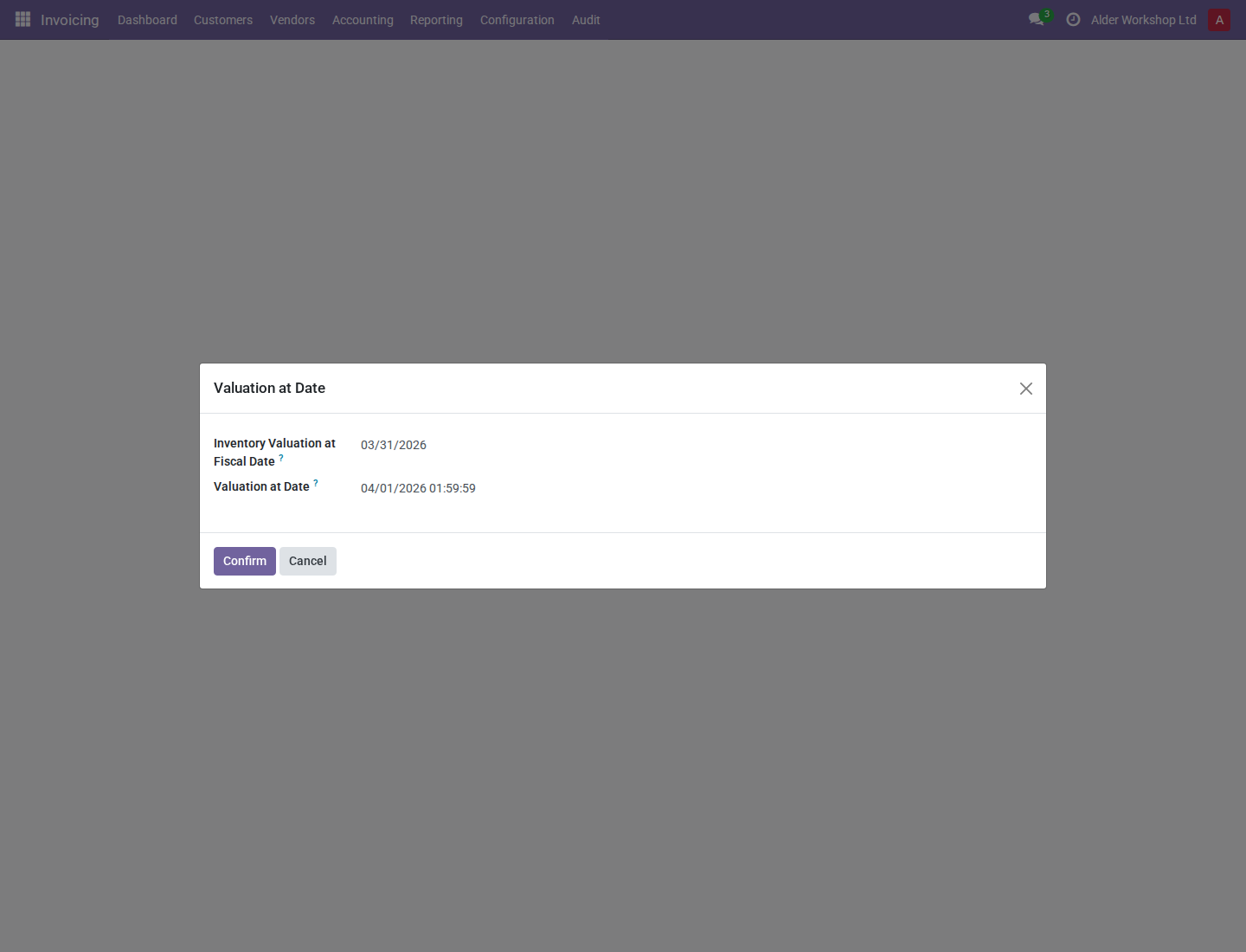
- Set Inventory Valuation at Fiscal Date to March 31, 2026 and confirm. This selects storable-product layers whose effective fiscal date is on or before that day. It is an accumulated valuation selection, not a remaining-value or historical-quantity reconstruction.
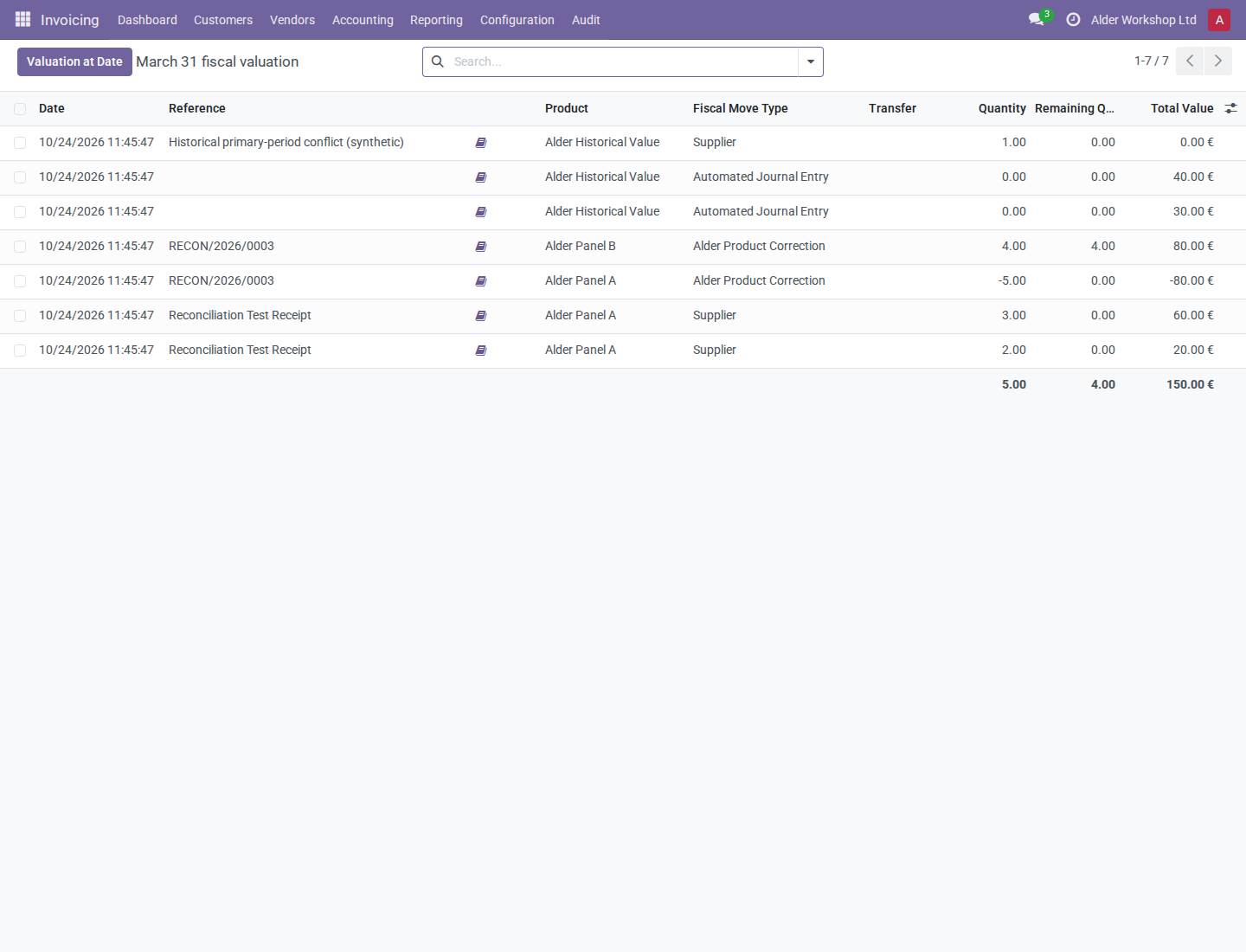
- Inspect layers, products and Total Value. With the approved daily decisions, the example totals €150: €30 + €40 separate value, €80 receipts, and a net-zero product transfer. The €50 case belongs to April after correction.
- Run Trial Balance or General Ledger for account 140000 Inventory, company Alder, posted entries, through March 31. The ending balance is also €150. Use the financial-report procedure.
- If totals differ, compare company, currency, cutoff, accounts, posting status, manual/unlinked valuation, retained historical evidence and actual stock-to-entry links. The valuation selector does not itself apply the ledger's account/status filters. Never combine values of different company currencies into one comparison.
The second field, displayed as Valuation at Date in this installation, is the native registration/processing-time path (also labeled Inventory at Registration Time by this module's view). When launched from valuation layers, a nonempty fiscal-date input takes priority. Clear that input when intentionally using the native registration-time path. From other models, native behavior applies. Check which screen launched the wizard.
2. Change recognition from a valuation layer
- Open a linked layer's form and follow its Journal Entry to inspect accounts, posting date, amounts and recognition. For a recognition-only correction, return to the layer and click Change Fiscal Date as Accounting Manager.
- Enter a date or choose Use Current Source Date, provide a reason and inspect the accounting preview. The action changes the journal entry; the layer follows it.
-
For a bulk decision, select linked layers and use Actions > Change Fiscal Date or the review list's Change Fiscal Date button. Entries are deduplicated: several layers sharing one entry produce one accounting decision, and all its linked layers follow that decision, not only the selected layers.
-
Apply, then verify entry chatter and every linked layer. Accounting/tax dates, quantities, costs and amounts are not changed by fiscal recognition alone. A posted Use Current Source Date decision is fixed once; later source edits do not move it. Unlinked layers cannot use this entry-based action.
- If blocked, protect both old and proposed intervals. Use the authorized native temporary-exception return/retry process in the accounting-date manual. Hard locks cannot be excepted.
The initial, unsaved preview can display Linked SVLs: 0 despite existing links; saving/returning to the decision can display the actual count. Verify the layer/entry links directly before applying rather than relying on that initial count.
3. Monitor historical conversion
Conversion is complete and both scheduled jobs are disabled and inert. The stored legacy dates, periods, final proposals, decisions, and explanation logs remain read-only. Current date changes and period configuration do not refresh archived proposals.
4. Resolve a historical case
Historical decisions can no longer be edited, accepted, or retried. Use the normal Change Fiscal Date workflow for current accounting corrections. Fiscal Migration Audit only reads evidence and current relationships; it cannot recreate missing original evidence.
5. When a date change is not enough
As an Accounting Manager, start at Accounting > Audit > Overview to choose a report or repair tool. The guide explains what each tool shows or changes and what to inspect afterward. The menu order separates lasting tools from temporary workflows:
- Reports: stock valuation and dropship diagnostics.
- Correction Review: recorded corrections and their source journal items.
- Maintenance: reusable reconciliation, cancellation, and correction tools.
- Migrations & Incidents: Fiscal Migration and Incident Repairs, only for affected databases.
Use Reports > Stock Valuation for the ordinary valuation shortcut. An empty historical review or a visible historical menu does not by itself establish whether the database is affected. Each wizard includes scope and effect guidance. Its primary button distinguishes simulation from execution and identifies posting, cancellation, or partner updates.
Recognition changes do not correct quantities, accounts or values. Use the appropriate separate workflow and inspect its resulting accounting:
- For a wrong received product, use product reconciliation, which creates paired stock moves and valuation. For actual physical returns, use the normal stock return workflow.
-
For eligible Automated Journal Entry layers, an authorized Settings administrator who is also an Accounting Manager selects eligible layers in the valuation list and clicks Reverse Automated, opening Reverse Automated Valuation. Select the company and all layers attached to each selected entry. Choose Today, Same as Original Move, or On Date for the accounting move date. Preview before Create and Post Reversals. Preview Valuation Layers opens the candidate list; review it, select the intended layers again and reopen Reverse Automated to execute. Inspect the new negative layers and reversal entries.
-
Do not repeat normal reversal blindly: it is not a general idempotent retry. Update Partner on Existing Reversals is a separate mode for existing reversals. Review the resulting fiscal dates independently of the selected posting-date policy.
- Accounting > Audit > Maintenance provides administrator tools for dropship interim reconciliation, zero-quantity/dropship price differences and automated valuation cancellation. Start with previews/dry runs and inspect source/correction links. Cancellation mutates eligible value-only layers and cancels entries; reversal creates opposite records. Neither substitutes for a physical stock return.
The incident correction is under Audit > Migrations & Incidents > Incident Repairs and uses its implemented fixed December 31, 2025 window; it is not a general historical date-range repair. Dropship paths require the appropriate Anglo-Saxon/product-account setup. These tools do not make every valuation discrepancy safe to correct automatically.
Run the fiscal migration audit
- To inspect retained evidence and current consistency, open Accounting > Audit > Migrations & Incidents > Fiscal Migration > Fiscal Migration Audit as an accounting manager.
- Enable all companies you want to assess in the company switcher, select them in the wizard, and click Run Audit. The audit changes only its temporary report, not business records. Once results exist, company scope is read-only; open a new wizard for another scope.
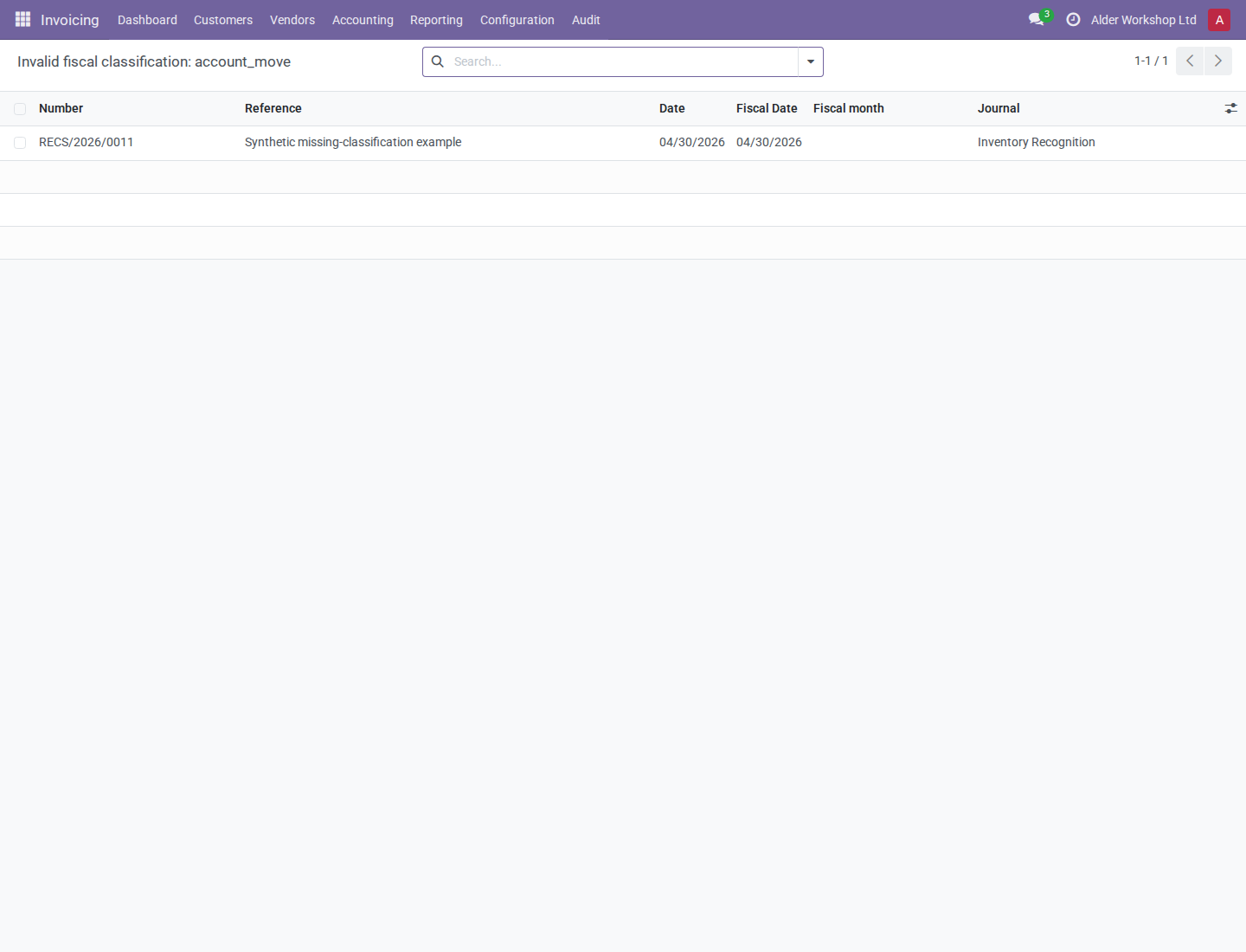
- Live exception counts should be zero. These cover unresolved stock history, missing or inconsistent fiscal classification, journal-item/entry agreement, and valuation-layer authority (entry, otherwise stock move, otherwise UTC creation date). Each nonzero live finding has Show Records on the same row. For Invalid fiscal classification: account_move, this opens affected posted entries with posting date, fiscal date, and fiscal period, not their individual journal items. Check for missing dates or periods, dates outside the assigned period, or periods belonging to another company. The list uses the same check and selected companies, refreshes when opened, and respects normal record access. Opening it does not repair records; an empty list means no visible current exception. Unresolved-history rows open the retained read-only history lists. Journal-item mismatches open the affected journal items. Counts are snapshots: click Run Audit again after resolving records. Upgrade evidence is aggregate proof and cannot identify individual changed records, so it has no record drilldown.
 4. Each company has three Upgrade preservation results: journal entries, journal items,
and valuation layers. These use ordered, per-record fingerprints captured before migration
and verified after conversion. Accounting evidence preserves original periods, posting dates,
posting states, and amounts while allowing the agreed daily fiscal-date alignment.
Valuation evidence preserves quantities, costs, values, remaining amounts, links, and chronology.
5. Passed requires complete preservation evidence and no live exceptions or subsequent changes.
Missing Evidence is not success: the original snapshot cannot be recreated after upgrade.
Missing original evidence cannot be reconstructed after migration retirement.
Changed since upgrade may reflect legitimate new transactions or later edits; investigate it,
but do not interpret it alone as a migration failure. The sealed upgrade result remains available.
4. Each company has three Upgrade preservation results: journal entries, journal items,
and valuation layers. These use ordered, per-record fingerprints captured before migration
and verified after conversion. Accounting evidence preserves original periods, posting dates,
posting states, and amounts while allowing the agreed daily fiscal-date alignment.
Valuation evidence preserves quantities, costs, values, remaining amounts, links, and chronology.
5. Passed requires complete preservation evidence and no live exceptions or subsequent changes.
Missing Evidence is not success: the original snapshot cannot be recreated after upgrade.
Missing original evidence cannot be reconstructed after migration retirement.
Changed since upgrade may reflect legitimate new transactions or later edits; investigate it,
but do not interpret it alone as a migration failure. The sealed upgrade result remains available.
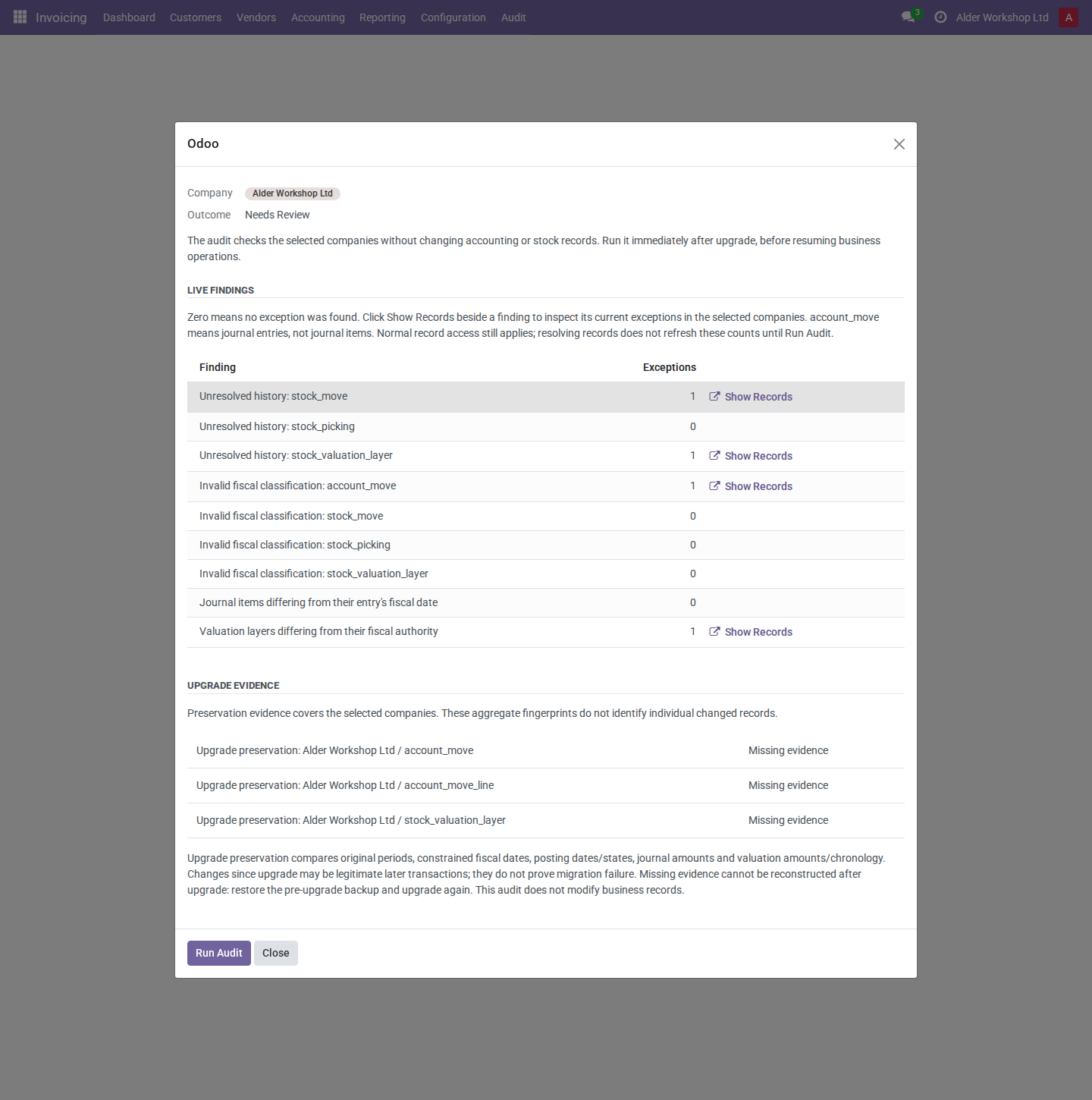
The populated example has deliberately seeded historical exceptions and one missing journal-entry classification. Its outcome is Needs Review and its preservation rows show Missing evidence: a new installation has no original pre-upgrade baseline. This is not evidence of a completed production migration.
Fingerprints are accounting-manager-only and company-restricted. A detected preservation mismatch requires review; the audit does not rewrite sealed evidence. The audit is not a tax opinion, FIFO reconstruction, or general accounting reconciliation, and it does not repair detected problems.
Common mistakes
| Symptom | Recovery |
|---|---|
| March ledger and valuation disagree during rollout | Inspect held layers before accepting proposals; compare the same company/account scope. |
| A source edit leaves a posted layer unchanged | Linked entry recognition is fixed; use Change Fiscal Date. |
| An unlinked layer cannot open Change Fiscal Date | Review its stock/processing fallback; do not attach an unrelated entry to force a date. |
| Converted count increases but value does not change | Historical conversion preserved amounts; its execution is now retired. |
| Reverse Automated or Maintenance is unavailable | Settings administrator access is required; ordinary accounting manager status is insufficient. |
See also accounting dates and financial reporting boundaries.