Correcting a received product
pmis_stock_reconcile corrects inventory assigned to the wrong product by issuing
the wrong product and receiving the replacement. It transfers the outgoing
valuation, including existing valuation corrections, into the replacement.
It is not journal-item or bank-statement reconciliation.
This manual is for warehouse users and accountants reviewing the result.
Slovenian manual.
Prerequisites and permissions
- Install
stock_account,account_move_name_sequence, andpmis_stock_move_fiscal_month. The linked valuation/fiscal review screens in this example also usepmis_stock_account. - Both products must track inventory and use Automated valuation. Configure their category's costing method, valuation/input/output accounts and stock journal.
- Configure an Inventory Loss location with Is a Reconciliation Location? enabled and appropriate accounting. Use the correct internal Source Location.
- Grant Stock Reconcile plus normal stock access. Accounting Managers inherit Stock Reconcile; they still need relevant stock/accounting access. Journal Entries is visible to Accounting users, not to a warehouse-only role. In Community, a manager may also need full-accounting feature access to see the journal-item details. The Stock Reconcile group does not grant that access.
- Enable normal locations, lots/serial numbers, packages, owners or units of measure features when needed. Their corresponding fields depend on these groups.
Defaults choose the active company's first warehouse stock location and first eligible company/shared reconciliation location. Always review them, especially after changing companies. Products, lots, locations and moves must be compatible with the operation's company. Do not use a different company's stock.
Understand execution and recognition
Record Date is the stock execution date and requested native accounting date. Odoo's normal posting-lock rules still apply. Fiscal Date Instruction is an optional, independent daily recognition instruction for both adjustment paths. Without it, each accounting entry defaults to its own accounting date; an explicit accounting override has priority. A draft can contain a locked instruction, but the accounting outcome must satisfy fiscal locks when validated.
The example company is Alder Workshop Ltd, in EUR. Two receipts supplied 2 Panel A units at €10 and 3 at €20: five units worth €80. We replace these with four Panel B units. The incoming value is €80, or €20 per incoming unit; the replacement product's previous standard price does not determine this transfer. Record Date is April 10, 2026; fiscal recognition is March 29, 2026. SVL creation timestamps remain the actual processing time.
1. Prepare the correction
- Open Inventory > Operations > Reconciliations, in the Adjustments group. The action is titled Reconciliation Orders. Click New.
- Set Outgoing Product to Alder Panel A, Outgoing Quantity to 5, Incoming Product to Alder Panel B, and Incoming Quantity to 4. Product selection fills the corresponding unit of measure; verify it. Quantities must be strictly positive at product unit precision and use compatible units.
- Check Source Location, Reconcile Location, and company. Enter a useful Reason, such as “Replace incorrectly received Panel A with Panel B.”
- Set Record Date to April 10 and Fiscal Date Instruction to March 29. Leave the instruction empty when recognition should follow accounting defaults.
- Save and review the draft before validating.
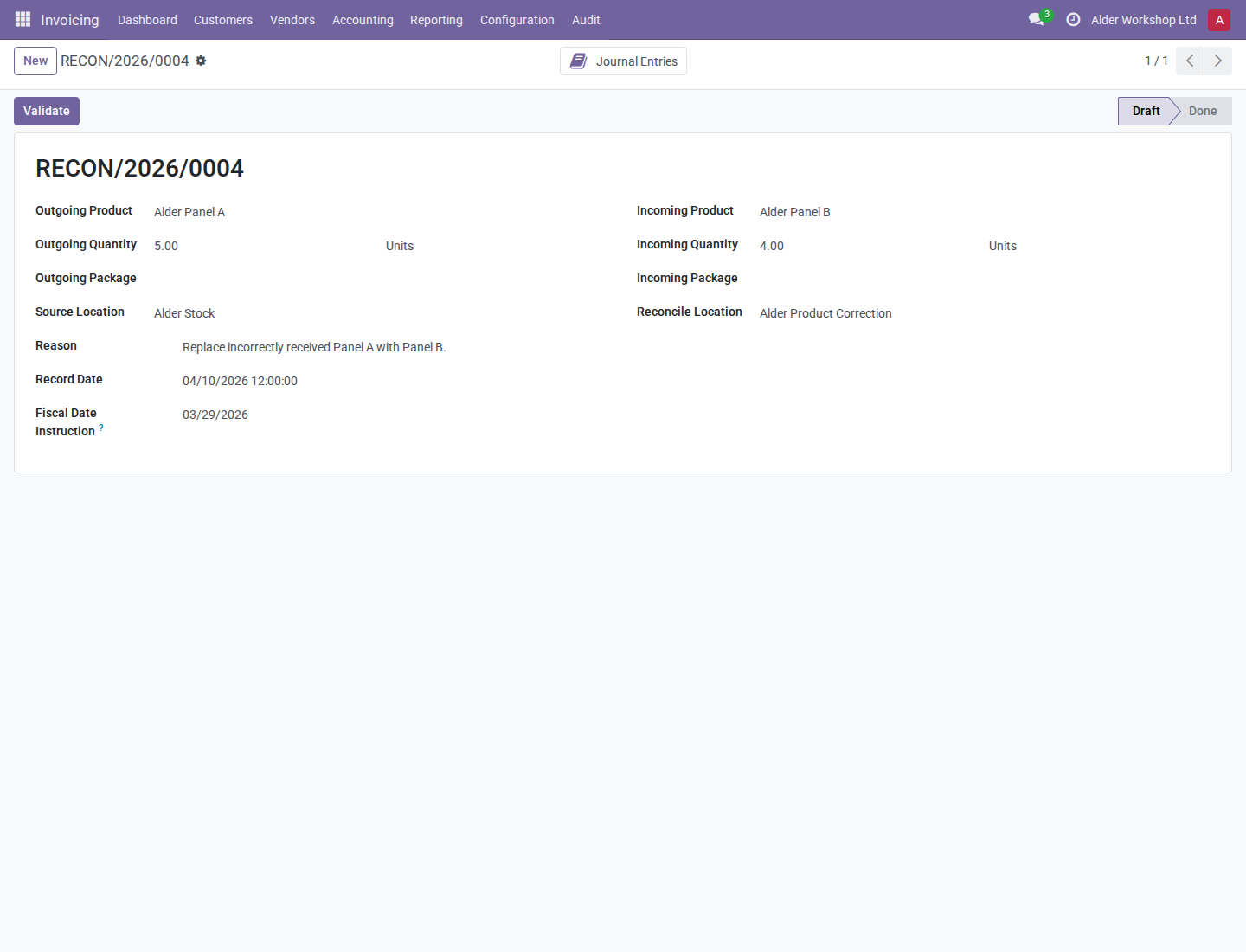
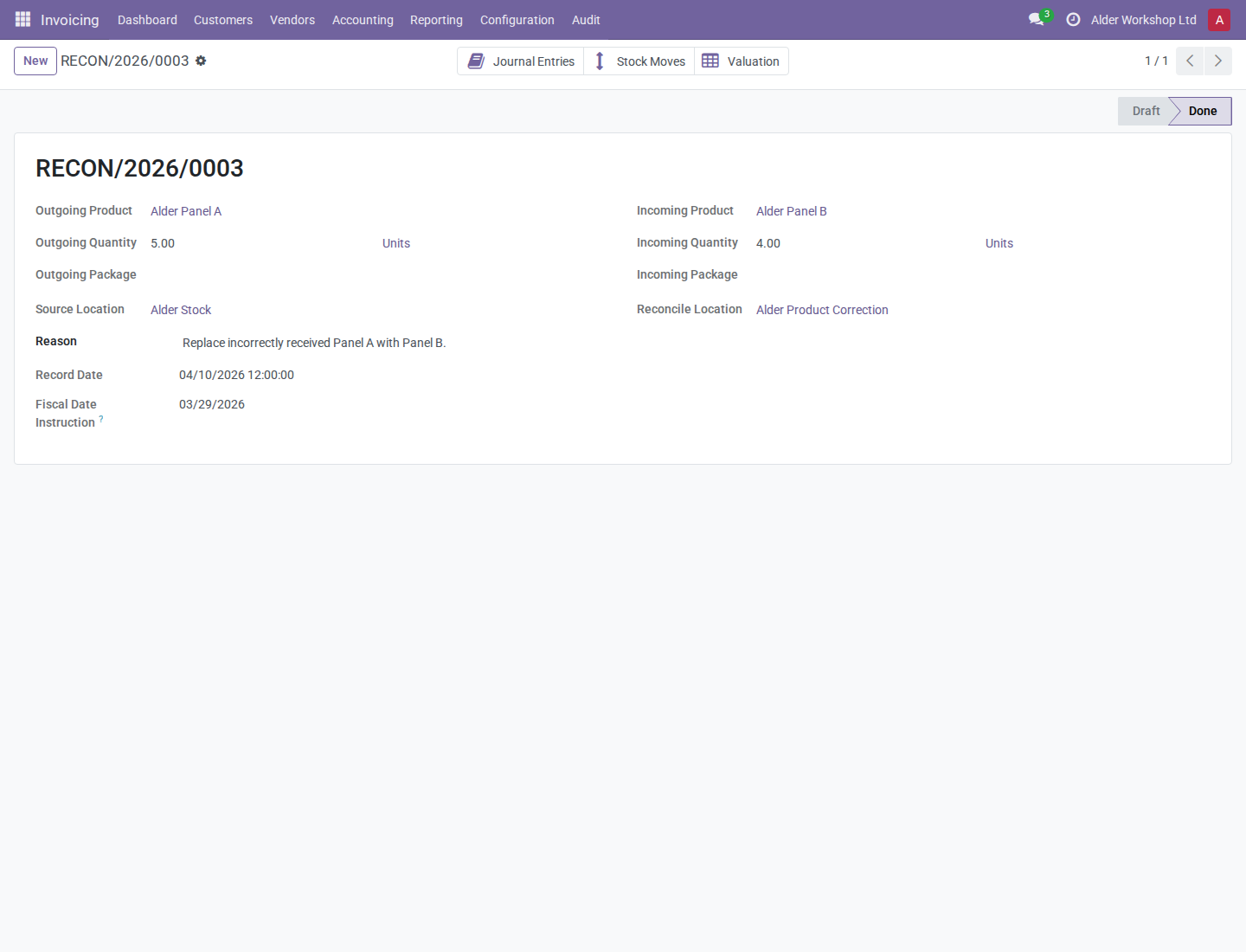
The five outgoing units and four replacement units represent one €80 transfer. The draft and completed screenshots are separate records illustrating the same inputs and result. Check actual available stock before validating a new draft; do not execute a copy simply because a completed example exists.
For tracked products, select existing lots/serial numbers belonging to the respective products and company. The form requires lots for tracked products; normal stock rules also apply. Choose applicable existing packages and owner. The two package inputs are passed to their respective move lines as package information; they do not create lots or packages. Do not assume this form performs a separate repacking operation.
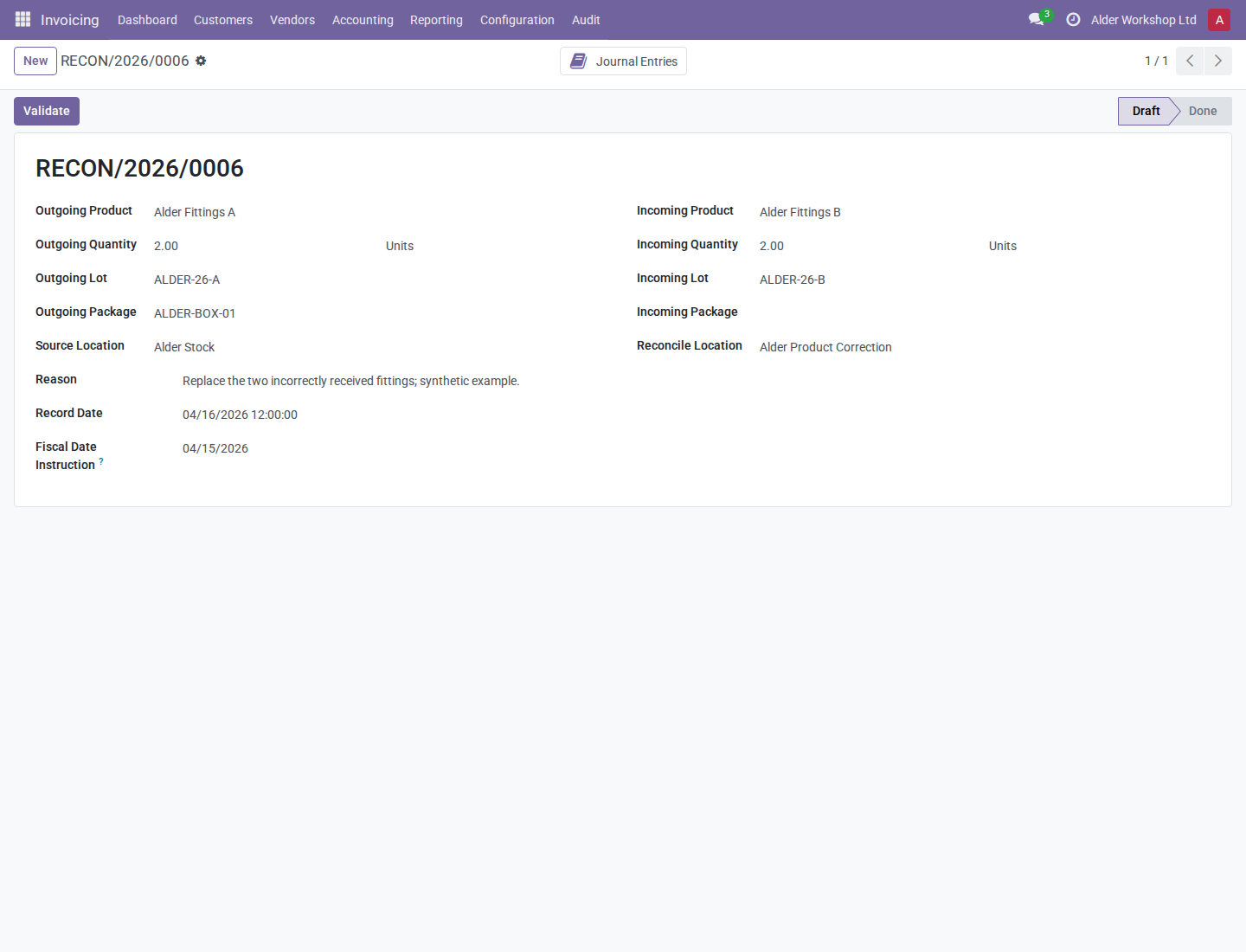
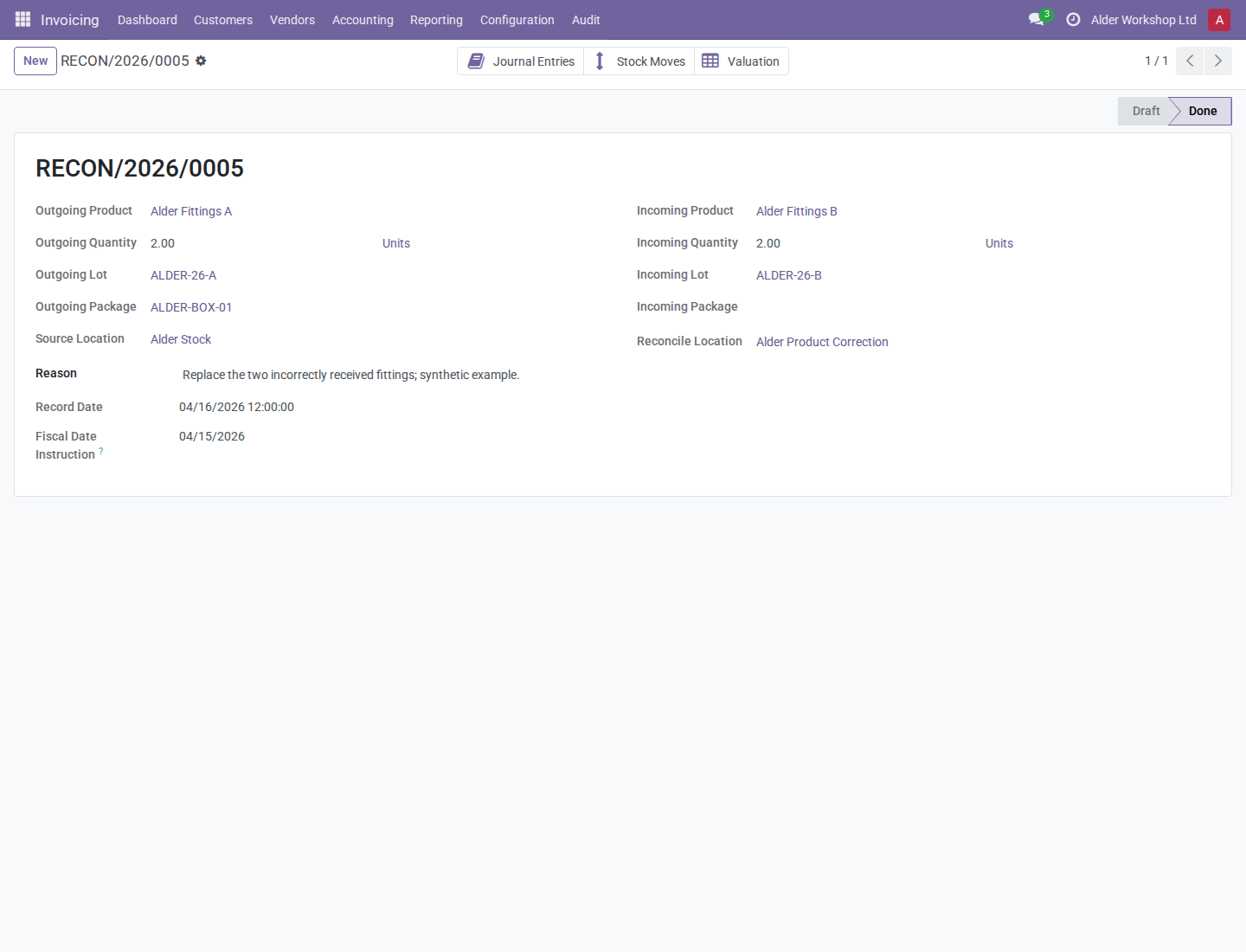
The second example corrects two fittings from ALDER-26-A / ALDER-BOX-01 to ALDER-26-B. These synthetic fittings are separate from the €80 panel example.
2. Validate and verify the paired result
- Click Validate once. Odoo completes the outgoing move, determines its valuation and corrections, allocates that value to incoming quantities, and completes the incoming move. Currency rounding remainder goes to the final incoming layer.
- Confirm Done. Open Stock Moves: there must be an outgoing move from internal stock to the reconciliation location and an incoming replacement move back to internal stock.
- Open Valuation. For the panel example, verify −5 units / −€80 and +4 units / +€80. The net transferred value is zero, while quantities differ because the products differ. Do not interpret the total mixed-product quantity as a meaningful count of one product.
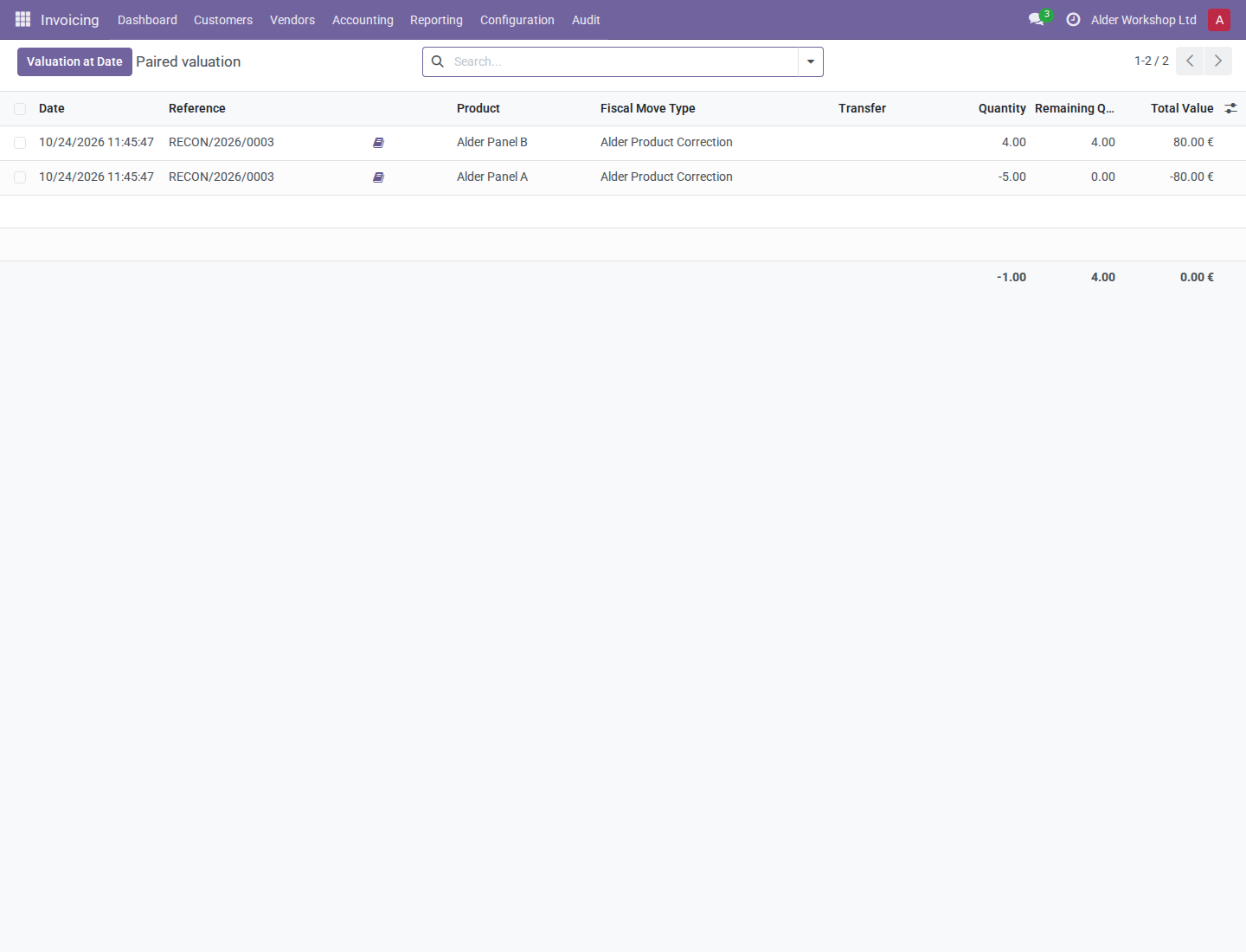
- An accounting user opens Journal Entries. Inspect both posted entries and their items. In this example, the requested accounting date is April 10 and both fiscal dates are March 29. Follow the valuation layer or entry form to verify the exact dates rather than treating the SVL's Date column as fiscal recognition.
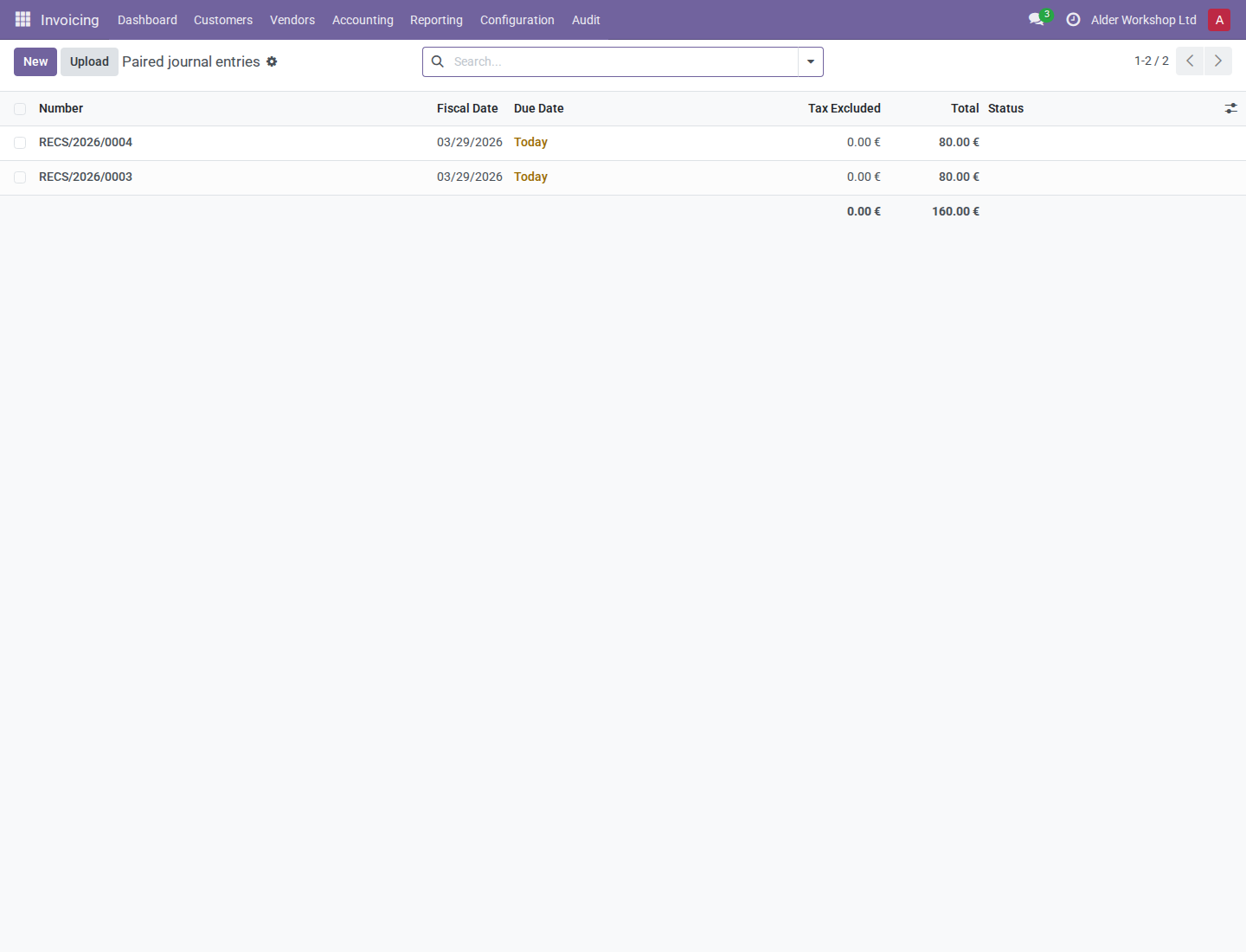
- Compare transferred value and fiscal recognition using the valuation manual and fiscal ledger reports.
3. Recover from a locked accounting outcome
-
Read the denial. With a Tax Return Lock Date of March 31, a March 29 instruction is blocked even though Record Date is in April and there are no taxes.
-
Verify that the operation is still Draft, without linked outgoing/incoming moves or partial valuation. A fiscal-lock failure rolls back both paths.
- Ask the responsible accountant whether the instruction is correct. If an open recognition date is appropriate, correct the draft instruction and retry. The tracked example successfully uses April 15 recognition with April 16 Record Date. Do not change a correct date just to evade a lock.
- If the locked interval is correct, an authorized manager must arrange a native temporary exception with the required user/company scope before retrying, or choose an approved accounting correction process. See lock handling.
- After a successful operation, source edits do not move posted recognition. Open Journal Entries, select the relevant entries, and have an Accounting Manager use Change Fiscal Date with a reason. Check both old and proposed intervals and both sides of the correction.
Restrictions and troubleshooting
| Situation | Recovery |
|---|---|
| Missing valuation layers/accounts or journal | Correct configuration and stock setup; inspect the draft after rollback before retrying. |
| Provisionally valued negative stock | Receive the missing stock first. The operation rejects unsettled negative valuation. |
| Wrong product/lot/company or nonpositive quantity | Correct the draft; use matching company and units. |
| A completed record is selected again | Do not repeat validation. Existing linked moves and completed state prevent another execution. |
| A completed correction is wrong | Use a separate approved stock/accounting correction; the completed record cannot be deleted. Copying creates a clean draft, not an automatic reversal. |
Operational fields become read-only on the completed form; the reason can still be maintained. The correction transfers value known at validation time. It does not rewrite historical FIFO allocations, reorder processing, reconstruct old warehouse quantities, or automatically propagate future revaluations between products.