Daily fiscal instructions for stock
This manual is for warehouse users assigning recognition instructions and
accountants classifying stock transactions. pmis_stock_move_fiscal_month connects
daily stock instructions with accounting-date defaults and fiscal-month ranges.
Slovenian manual.
Migration review: start here
Migration is complete. Historical evidence remains read-only; conversion, retries, acceptance, and explanation editing are retired. Current dates follow ordinary source instructions and accounting authority. The fiscal migration audit remains available.
Prerequisites and roles
Install pmis_account_dates, account_fiscal_month, stock, and purchase_stock.
Use the normal stock permissions for pickings and moves. Accounting users see
Assign Period End and Valuation Journal Entries; these buttons do not
grant permission to otherwise inaccessible accounting records. Historical review
drilldowns described below require pmis_stock_account and Accounting Manager.
Accounting Manager alone does not expose all full-accounting tabs in Community;
normal full-accounting access is also needed to inspect journal items.
Configure fiscal-month ranges under Accounting / Invoicing > Configuration > Date ranges > Date Ranges. Select the fiscal-month range type, start/end dates, and the appropriate company, or leave the company empty for a shared range. Only active fiscal-month ranges for the document's company or shared ranges can be selected using Assign Period End.
Which date wins?
| Record | Effective daily fiscal date |
|---|---|
| Picking/transfer | Fiscal Date Instruction, otherwise actual completion date; an unfinished picking without an instruction may have no date |
| Stock move | Its instruction, then picking instruction, then stock processing date |
| Draft accounting entry | Explicit accounting override, then linked move instruction, then picking instruction, then its own accounting date |
| Posted entry | Fixed posting-time recognition, until an authorized manager decision |
| Journal items | Their entry's fiscal date |
A stock processing date by itself does not replace a journal entry's posting-date default. A picking's scheduled date is not its completion-date fallback. Assign Period End is a convenience: selecting March assigns March 31 as an explicit daily instruction. Use Fiscal Date Instruction for March 29 instead. Entering a daily instruction clears the period-end selector. Clearing the selector clears its instruction and returns to defaults. The displayed fiscal period is derived from the date; it is not a separate recognition decision.
1. Instruct a purchase receipt and verify its result
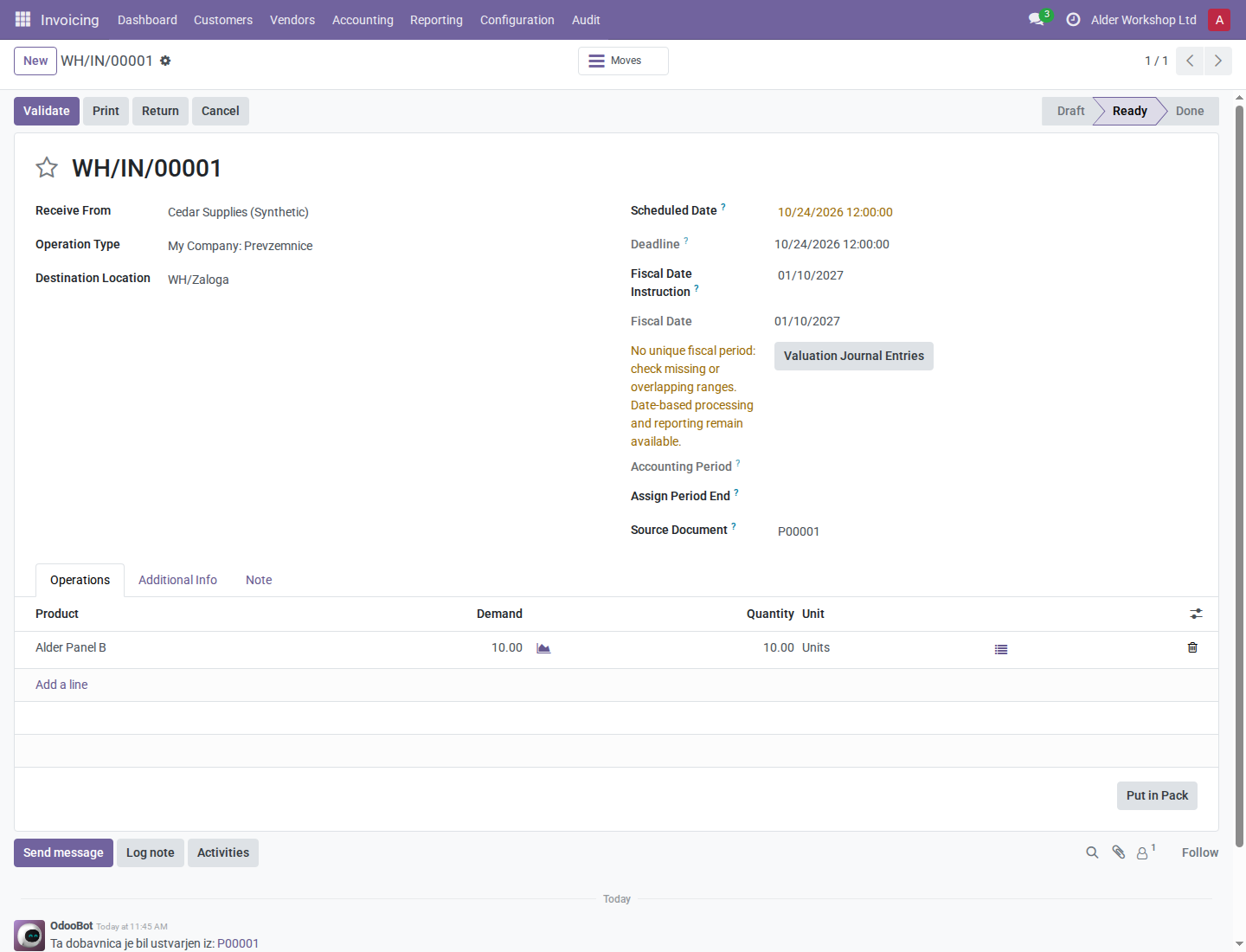
- Confirm a purchase order and open its Receipt or use Inventory > Operations > Receipts. The synthetic example is P00001 for 10 Alder Panel B units at €20 from Cedar Supplies (Synthetic).
- Review Fiscal Date Instruction on the transfer. Enter the desired daily date, save, and inspect Fiscal Date and Accounting Period.
- If one move needs a different instruction, open that stock move from the transfer's Moves navigation and set its Fiscal Date Instruction. Its instruction takes priority over the transfer's instruction for that move's draft valuation entry. Other moves keep their own defaults.
- Check actual quantities, locations and tracking information, then Validate the receipt using the normal stock workflow. Fiscal dating does not replace quantity, lot, valuation-account, company, or accounting-lock checks.
- Open Valuation Journal Entries. Inspect each entry's Accounting Date, Fiscal Date, and derived fiscal month. Confirm that the intended instruction reached accounting; do not infer this from the transfer alone.
The new-year example uses January 10, 2027 recognition although warehouse processing occurs in October 2026. Daily dates can differ from posting dates.
The same instruction rules apply to sales deliveries. Confirm the sale, open its delivery, review any instruction, validate the delivered quantity, and inspect the valuation entry. Without an instruction, the entry uses its own posting date. Inventory/product corrections use the same move-level instruction; see the reconciliation manual.
For example, a delivery of one Panel B unit without a separate instruction uses the resulting entry's own posting date for recognition.
2. Continue processing when a new-year period is missing
- On the demonstration receipt, enter January 10, 2027 before a 2027 range exists. The daily fiscal date remains visible, Accounting Period is empty, and the form warns: “No unique fiscal period: check missing or overlapping ranges. Date-based processing and reporting remain available.”
-
If all normal stock/accounting checks pass, validate. The receipt reaches Done and creates valuation/accounting records even though classification is missing. Recognition locks still apply independently of period configuration.
-
In Date Ranges, create 2027-01, January 1–31, using the fiscal-month type and the correct company. Save the range.
-
Reopen the receipt and entry. Classification refresh fills 2027-01 without changing the daily date, entry amounts or posting date.
Use Unclassified in transfer/move searches to find missing classifications. A unique company range takes precedence over shared ranges. Missing or ambiguous eligible ranges leave classification empty. Correct the configuration rather than inventing a month-end date. Creating ranges or changing their boundaries, company or activity refreshes classifications in batches. Archiving a range can remove classification while retaining the date. Legacy Closed Flag is informational; it is not an accounting lock and does not prohibit selection or posting.
The June 15 daily date first classifies in the shared range, then automatically in 2026-06 Alder when that company range is configured; the date is unchanged.
3. Edit a source after accounting has posted
- Inspect an already posted valuation entry and note its fiscal date. In the panel receipt example, this is March 29 with April 10 accounting date.
- Correct the move's instruction to March 28 if that source instruction is wrong. Save and reopen the entry. Fiscal Source Date becomes March 28, but the posted Fiscal Date remains March 29.
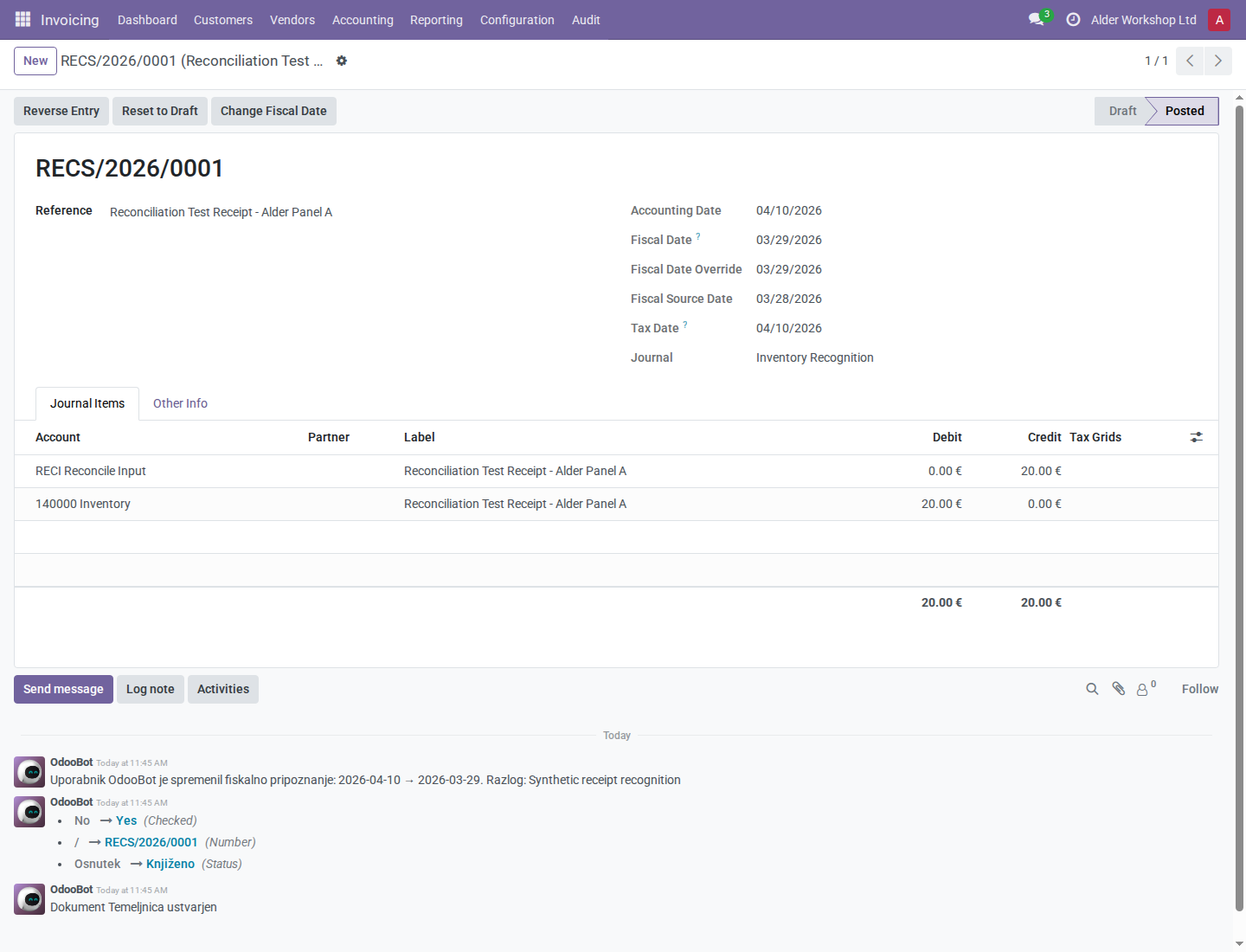
- If accounting recognition should also change, open Valuation Journal Entries and ask an Accounting Manager to use Change Fiscal Date with a reason. Use Current Source Date adopts the current proposal once for a posted entry; it does not enable continuous synchronization. Subsequent source edits again leave the posted decision fixed.
- Verify the entry, related journal items and valuation layers. A linked layer follows the journal entry, not an independently edited stock instruction. Use the accounting-date procedure for preview, bulk scope and lock-exception recovery.
4. Review historical stock-source dates
Open Accounting > Audit > Migrations & Incidents > Fiscal Migration > Fiscal Migration Audit and use Show Records to inspect current findings. Lists are read-only and respect normal record access and enabled companies. Legacy dates, periods, final proposals, and decision logs remain unchanged. Current instructions and accounting Change Fiscal Date controls remain available; they do not rewrite the archived migration decisions.
Troubleshooting and limits
| Symptom | Check |
|---|---|
| Accounting date did not become the stock processing date | Without an explicit stock instruction, accounting uses its own posting date. |
| Assign Period End is unavailable | It is an accounting-user convenience; normal stock access alone does not expose it. |
| Date exists but period is empty | Check fiscal-month type, active ranges, company/shared scope and uniqueness. |
| Editing a source did not change an old date | A historical hold can retain the old date; review its proposal and status. |
| Posted entry did not follow an instruction edit | This is intentional; use the manager's accounting workflow. |
Daily fiscal dating does not reconstruct historical FIFO, costs or warehouse quants. Review date-based inventory valuation and the books using the financial reports manual.