Invoice printing and the PMIS document layout
This manual is for accountants checking invoice output and administrators choosing
the company's document layout. It describes pmis_account_invoice_report on
Odoo 18 Community. Slovenian manual.
Before you begin
- Install
pmis_account_invoice_report; its declared dependency isaccount. - Use normal invoice read, edit, post, and print permissions. Changing the company's document layout requires the corresponding Settings access.
- Configure the company address, logo, contact details, registry number, report footer, and any applicable tax ID. Installation does not select PMIS for every company.
- The examples use fictional Alder Workshop Ltd, EUR, and Maple Studio (Synthetic). Two workshop-service units at €60 total €120, without taxes. This is a layout example, not a tax calculation or a compliance template.
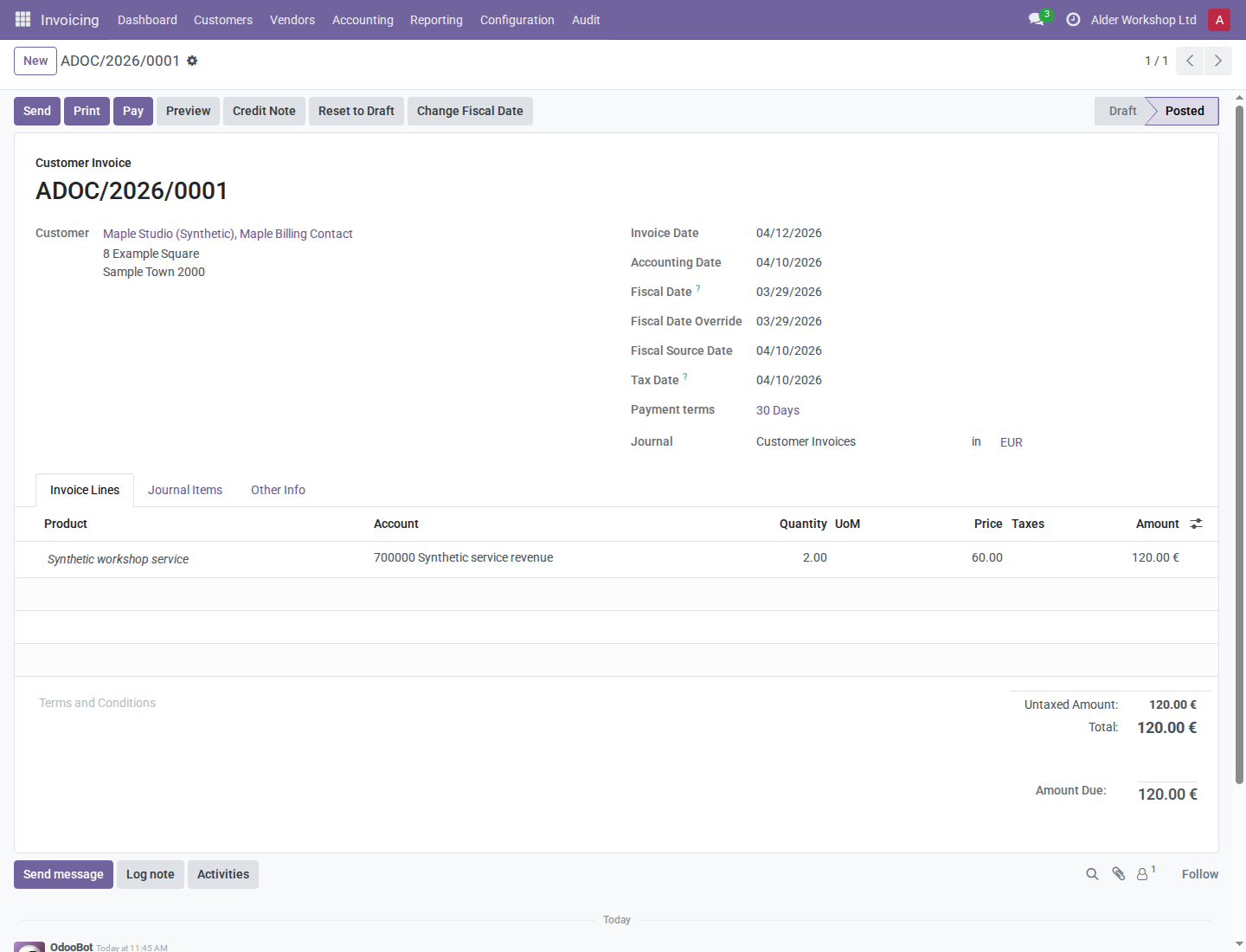
The screenshots also show Fiscal Date and Tax Date because the accounting-date and stock extensions are installed. This invoice-report addon does not introduce those fields or decide their policy. English and Slovenian screenshots show the same records with the corresponding user and customer language selected.
Understand which date is printed
| Field or printed label | Source and meaning in this addon |
|---|---|
| Invoice Date | The invoice's normal invoice_date; April 12, 2026 in the example. |
| Accounting Date | The normal posting date, account.move.date; April 10, 2026 in the example. The form always displays it, including on vendor bills. |
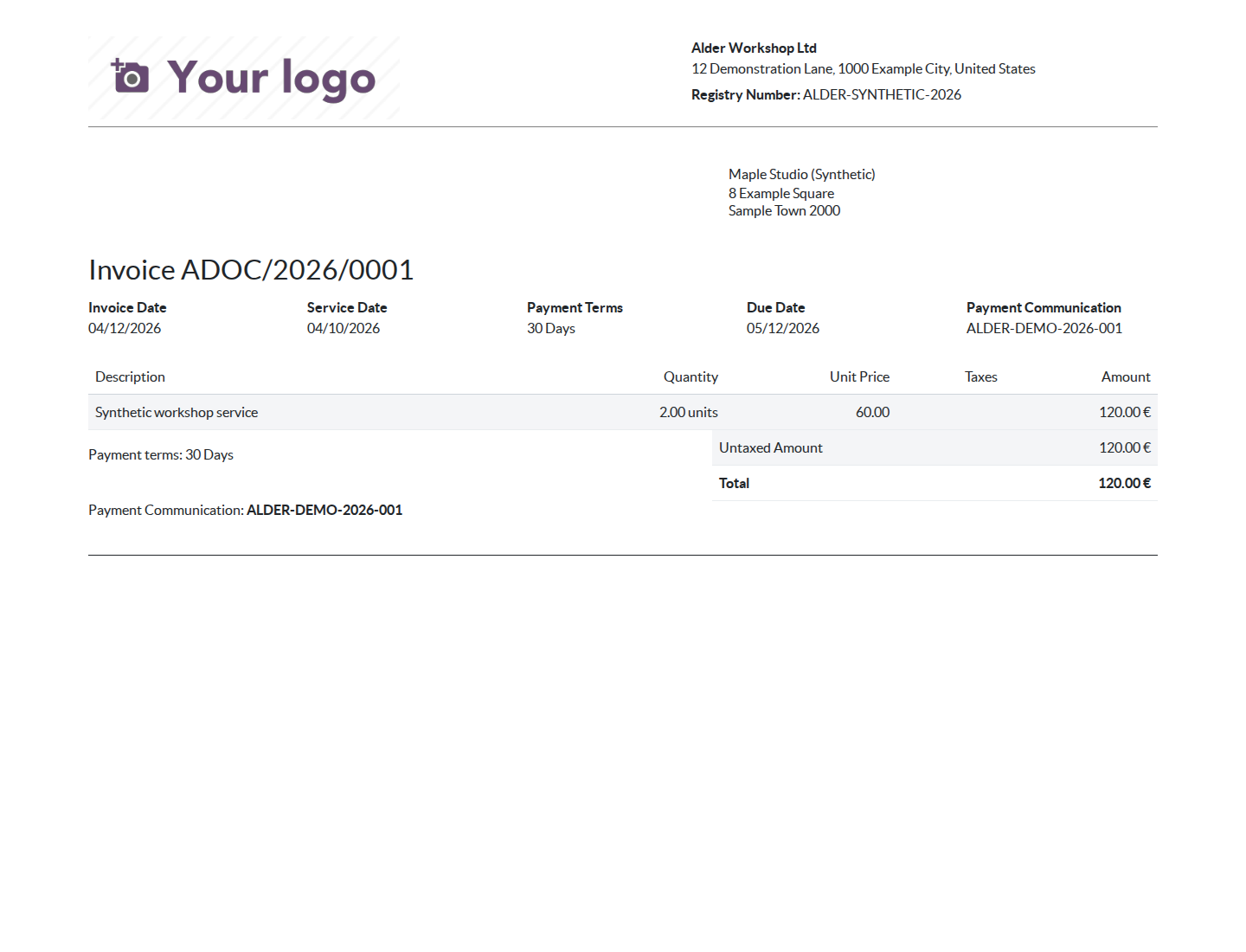
| Service Date | The report's label for that same Accounting Date, not a separate service-date field. |
| Fiscal Date | March 29 in the example, supplied by pmis_account_dates; it is not what this addon prints as Service Date. |
Displaying Accounting Date does not remove native editability, posting, lock, or company restrictions. The report does not change any of these stored dates. For recognition decisions, use the accounting-date manual.
1. Prepare the invoice or bill
- Open Accounting / Invoicing > Customers > Invoices, or the corresponding Vendors > Bills list, and choose the document.
- Check the invoice partner, Invoice Date, Accounting Date, payment term, and payment reference. In the example the term is 30 Days, and Payment Communication is ALDER-DEMO-2026-001.
- Review the service lines and total. The synthetic invoice has two units at €60 and a €120 total. Normal accounting and tax configuration still govern real invoices; this addon only changes the form and printed presentation.
- Save and, when appropriate, post through the normal invoice workflow. Do not change recognition merely to make the printed dates agree.
2. Select the PMIS layout when required
- As an authorized administrator, open Settings > General Settings, locate the company's document-layout configuration, and choose Configure Document Layout.
- Choose PMIS as the layout. Review the company logo, address, registry number, contact information, and footer before saving.
- Preview the result. PMIS supplies the header and footer for reports using the company's standard external-layout mechanism. Reports with their own layout are not necessarily affected.
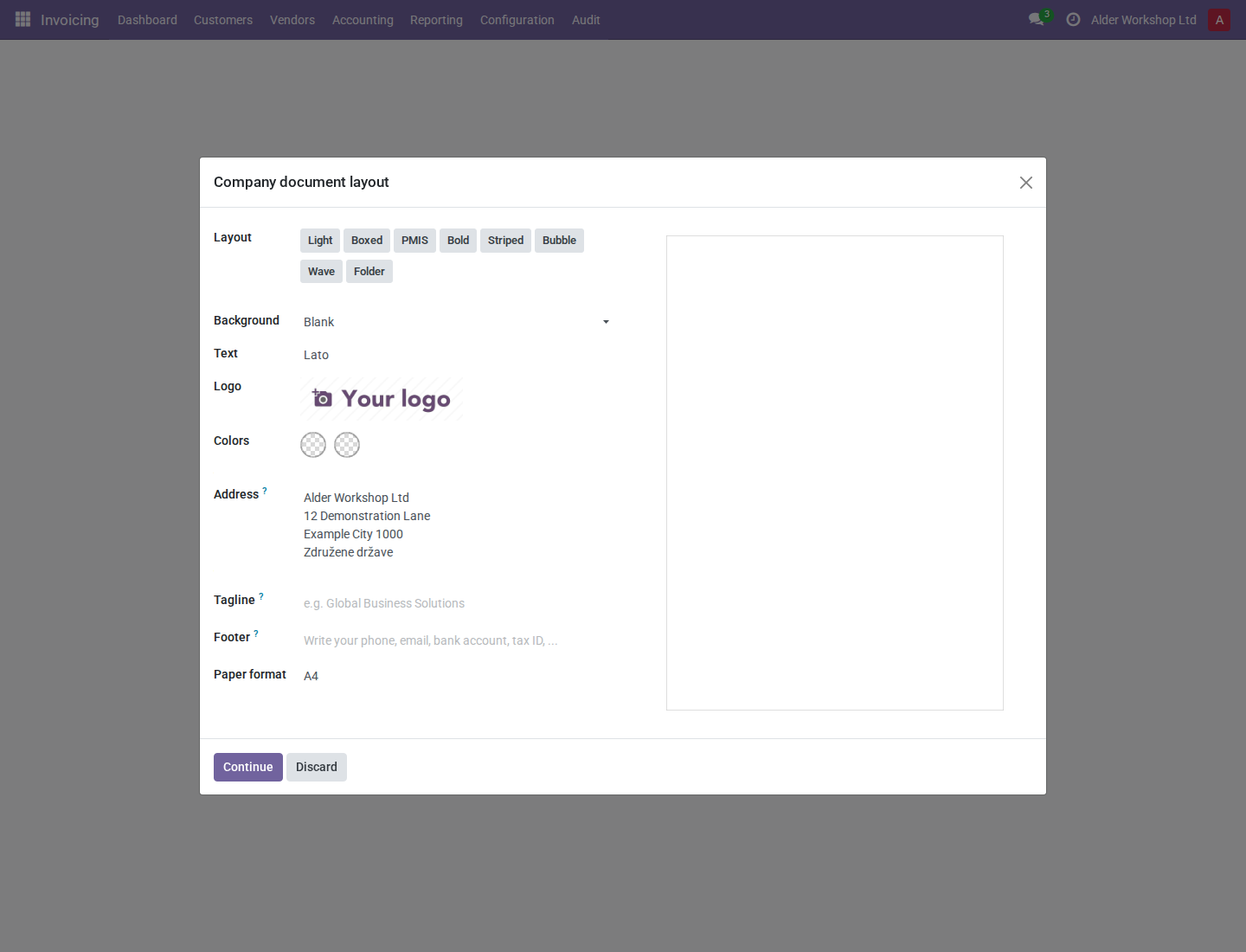
Selecting PMIS is optional. The invoice-field and billing-address changes apply to the standard invoice template even when another external layout is selected. Layout selection does not rewrite invoices or select payment accounts.
3. Print and inspect the output
- Use the document's normal Print > Invoices action. Inspect the actual PDF before sending or printing; the screenshot below is the current HTML report preview, not a PDF certification.
- Check Service Date against Accounting Date. It is April 10, not the April 12 invoice date or the March 29 fiscal date in this example.
- Check Payment Terms and Payment Communication. Each extra block appears only when the corresponding payment term or reference is populated. The native report may also repeat this information further down the document.
- Check the billing address. The example invoice is addressed to Maple Billing Contact, but the report uses its commercial company, Maple Studio (Synthetic), 8 Example Square, rather than the contact's separate address. The separate shipping address is retained when applicable. A tax ID is printed when the commercial partner has one; the invoice partner is the fallback when no commercial partner is available.
- The standard Delivery Date block is hidden by this addon. Its absence does not erase a delivery date from the invoice or prove that no delivery occurred.
For a translated printout, check the invoice customer's language as well as the logged-in user's language. Changing only your interface language does not force every customer report into that language. Product descriptions, partner names, references, and other entered data can remain in their original language.
Limits and common checks
- PMIS does not calculate a new service date, change fiscal recognition, or
determine VAT-reporting dates. The Service Date label always uses
datehere. - Long headings or references can crowd the information row in the current layout. Review the output with your paper format, language, and company details before issuing it; do not assume every translated heading fits identically.
- The addon loads static Slovenian bank names and BICs. This is not a live bank directory. Module updates can reapply the declared seed values; verify bank information before using it for payments.
- PDF pagination and page numbers are PDF-output features; an HTML preview is not evidence of the final page breaks. No invoice is emailed by opening a preview.