Control Officer: review and signing guide
Your task is to review the work and the prepared declaration, then record your own decision. You are not being asked to configure the project, encode the operative's measurements, or repair warehouse/accounting access to make a signature appear successful.
Use the route matching your account:
- Internal Odoo user: open your assigned case and record an authenticated decision in Odoo.
- External contact or portal user with no active internal account: review and sign the case-created OCA PDF invitation. No internal Odoo account is required; this route records acceptance only.
The manager's guide covers setup and assignment. The operative's guide covers the evidence you receive. The general manual is the complete cross-role reference.
Contents
- Before you decide
- A. Review and sign as an internal Odoo user
- B. Review and sign through the OCA portal
- C. When an internal presenter records your Situation signature
- Check what happened after signing
- When you cannot proceed
- Your final review checklist
- About the screens
Before you decide
Check that the request names the correct document, company, project/site, period, and revision. Review the prepared evidence for that revision, not merely a current screen that may have changed since preparation.
For the Training Pavilion example, distinguish 100 m² planned, 40 m² measured, and 38 m² proposed for acceptance. The two unfinished m² are not accepted simply because they appear in the daily activity narrative.
| Document you review | Questions to answer |
|---|---|
| Measurement Book | Are the item/unit, measured versus accepted quantity, basis, calculation, and drawing/supporting evidence correct? |
| Temporary sale Situation | Does certified work match the linked issued measurements? Are price, prior/current/cumulative quantities, adjustments, and period selection justified? |
| Material classification on a sale Situation | Is each included line explicitly material-delivery or no-material, with a sensible product/unit/quantity where applicable? |
| Declaration | Is this the statement and version you intend to accept for this document revision? |
In the financial example, 38 m² at USD 25 gives USD 950 of certified work. Two mounting plates are a separate stock quantity; their USD 14 cost is not the selling value you are certifying.
The Situation PDF currently does not print material mapping. Internal reviewers should check the Situation Lines and Technical / Audit Evidence → Canonical Manifest as well. External reviewers should request the relevant supporting material details from the operative before signing if they are not available in the PDF. The portal does not grant access to the PMIS source form.
If evidence is wrong or incomplete, stop and ask for correction. Do not approve the declaration simply to advance the workflow.
A. Review and sign as an internal Odoo user
Open your assigned case
You need an active internal account with PMIS Sign-off Officer access, allowed company access, and live project/site Control Officer authority. The document's Control Officer contact must match your user contact. Group membership alone is not authority for every project.
- Select the correct company.
- Open Bills of Quantities → Sign-off → Pending Sign-offs and select the assigned document's case. Your operational colleague can give you its reference.
- Check Target Display Name, Document Revision, project/site, and workflow.
- Check Current Sign-off Step and Current Role. The case must be awaiting sign-offs and your step must be current; preceding required steps cannot be skipped.
- Review the prepared snapshot and the operative's measurement/supporting evidence. Ask the operative to explain discrepancies rather than editing the prepared revision yourself.
Decide on the Measurement Book
- Click Record Sign-off.
- Check the workflow step, your identity, Signing Mode, and Declaration Text. For this route, the mode is Authenticated Odoo User.
- Select the outcome deliberately and enter a reason when required.
- Click Confirm Sign-off only when the declaration matches your decision.
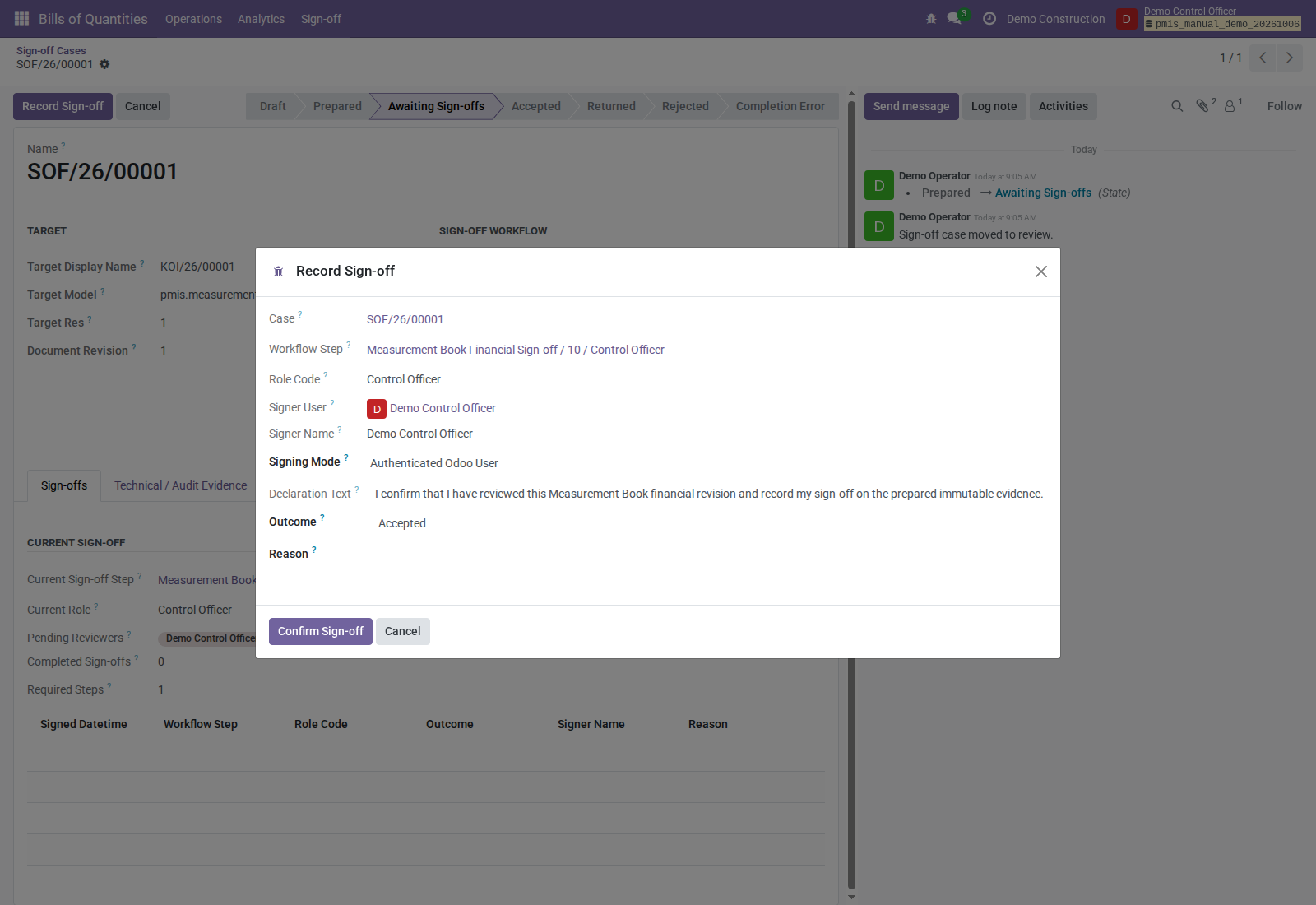
| Outcome | What you are recording |
|---|---|
| Accepted | Positive acceptance of this prepared revision. |
| Accepted with Reservations | Positive acceptance with a stated reason/reservations; it does not pause delivery completion. |
| Returned | Send the revision back for correction, with a reason; it is not a positive approval. |
| Rejected | Reject the revision with a reason; it is not a positive approval. |
Accepted with Reservations, Returned, and Rejected require a reason. Do not use reservations when you intend to prevent completion: both accepted outcomes are positive. The final required positive decision attempts completion.
After successful Measurement Book completion, the book is accepted and the iteration is issued with retained line/PDF evidence. A freshly printed draft is not the issued record. Older screenshots show a retained provisional-print label; check Issued state and retained evidence if that label causes doubt. The current signed measurement PDF shows the issued revision and a visible demonstration signature.
Decide on the Situation
Follow the same case-review steps for Temporary Situation Certification Sign-off, checking the linked issued work, quantities, valuation, and material classification before recording the outcome.
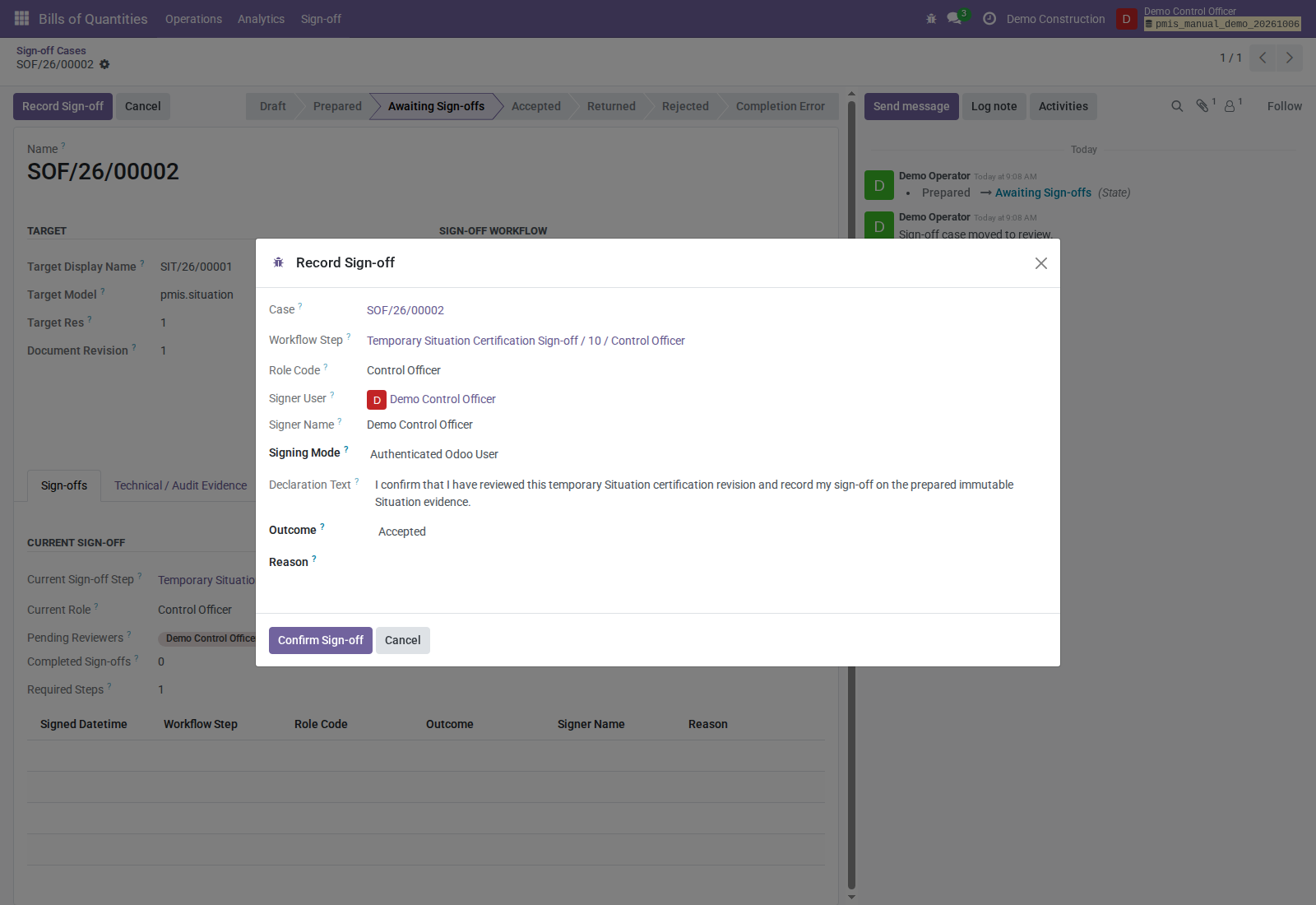
Your last positive sign-off can initiate configured material delivery and accounting completion. It does not mean an invoice was paid. If your account lacks the completion permissions, your valid signature can remain recorded while the case reports Completion Error; the authorized internal responsible handles that error without asking you to sign again.
B. Review and sign through the OCA portal
Use this route only when you are the assigned active Control Officer contact and have no active internal Odoo account. A portal account is optional. An active internal officer continues to use route A.
This route applies to Measurement Books as well as temporary sale Situations. Review the measurements before signing: approval is required for issuance, not just for the later financial Situation. For an external Measurement Book signature, the requesting internal operator needs PMIS Valuation Manager access to finish issuance; you do not need an internal account or internal business permissions.
The operative prepares the case and clicks Send Control Officer Signature at the pending Control Officer step. That creates a bound invitation for you; an ordinary OCA request linked only through Object is not PMIS approval.
Open and review the invitation
- Open your OCA signing invitation link. Check the document title and contact identity. Do not forward your signing link or use a colleague's link.
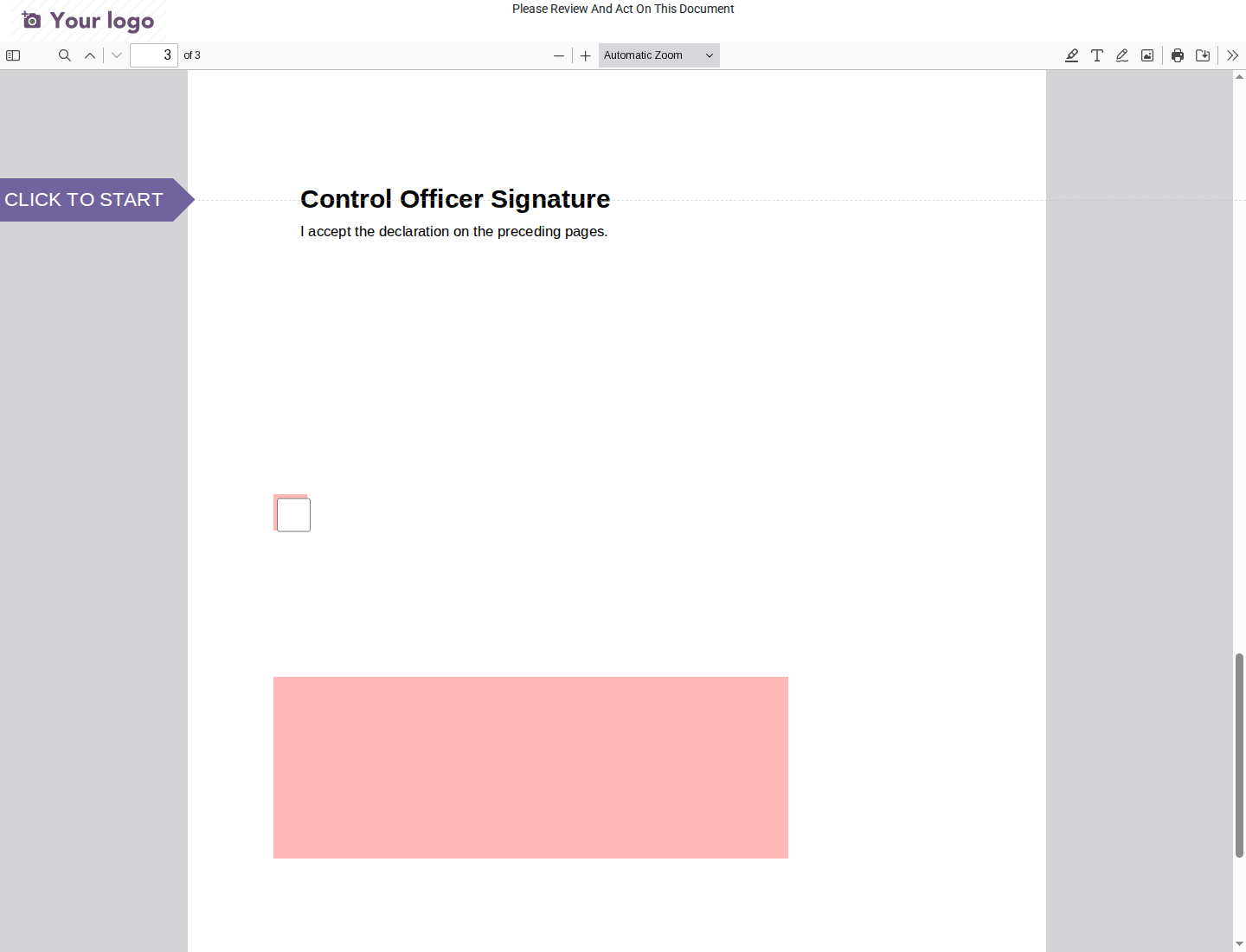
- Review every prepared PDF page, including the appended declaration. Navigate to the final Control Officer Signature page only after that review.
- Ask the operative for missing supporting evidence before continuing. The invitation lets you view/sign this PDF, not browse the PMIS project or case.
Accept and capture your signature
- Select the declaration acceptance checkbox on the signature page.
- Activate the signature field; OCA opens Adopt Your Signature.
- Check Full Name. Use Auto, Draw, or Load as appropriate for your intended signature. The screenshot demonstrates the Auto option.
- Click Adopt & Sign. Check the acceptance checkbox and captured signature on the PDF before the final submission.
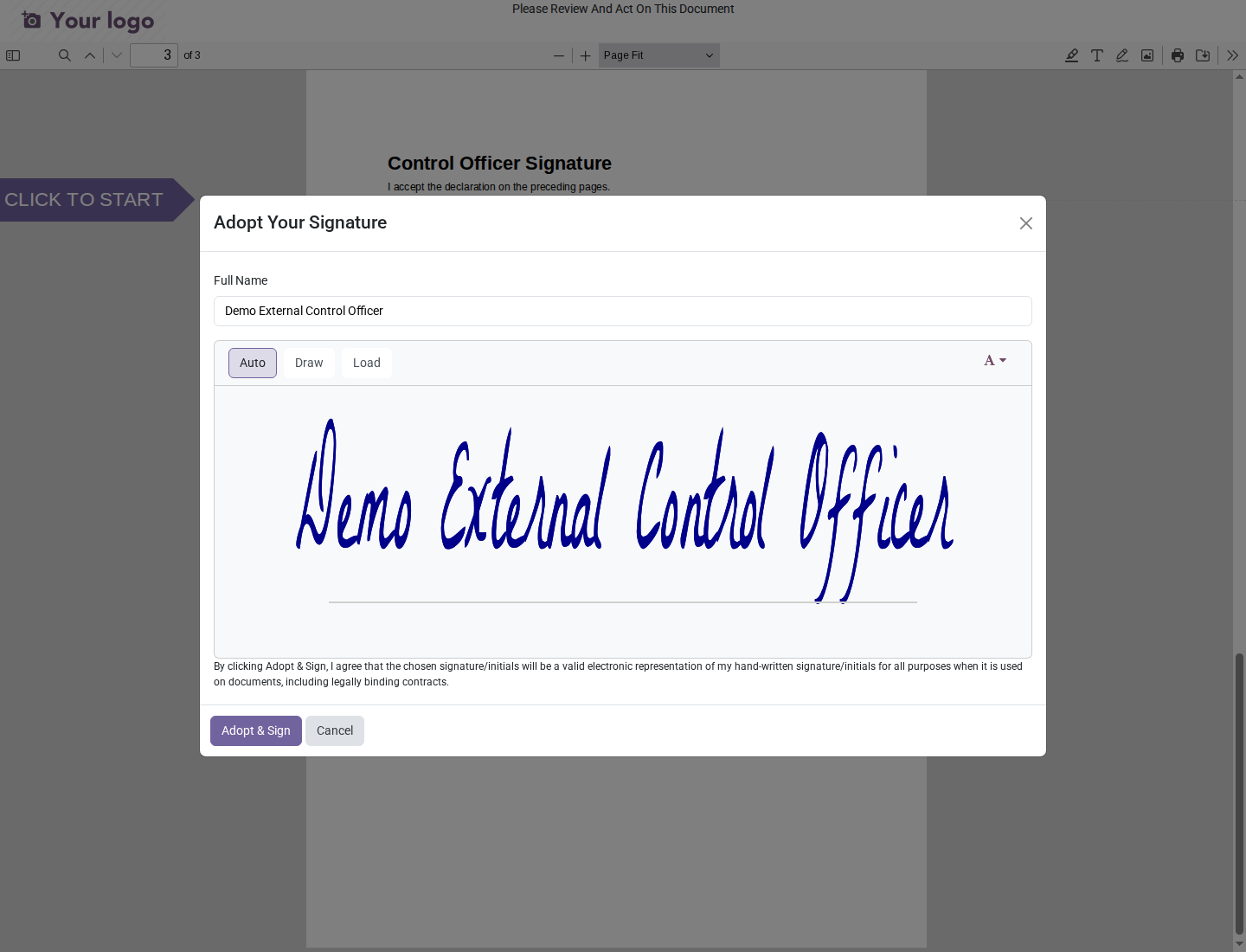
- Click Validate & Send document. Adoption inside the dialog is not by itself the final document submission.
- Wait for the portal's signing confirmation. Ask the operative to confirm the recorded outcome and completion status if you need the internal result.
The signed PDF prints the server-observed Signing IP and UTC signing time beside your signature. The same IP is retained in the immutable sign-off record. This may be a shared network or VPN address; it is audit evidence, not proof of your identity. Only the final submission collects the signing IP.
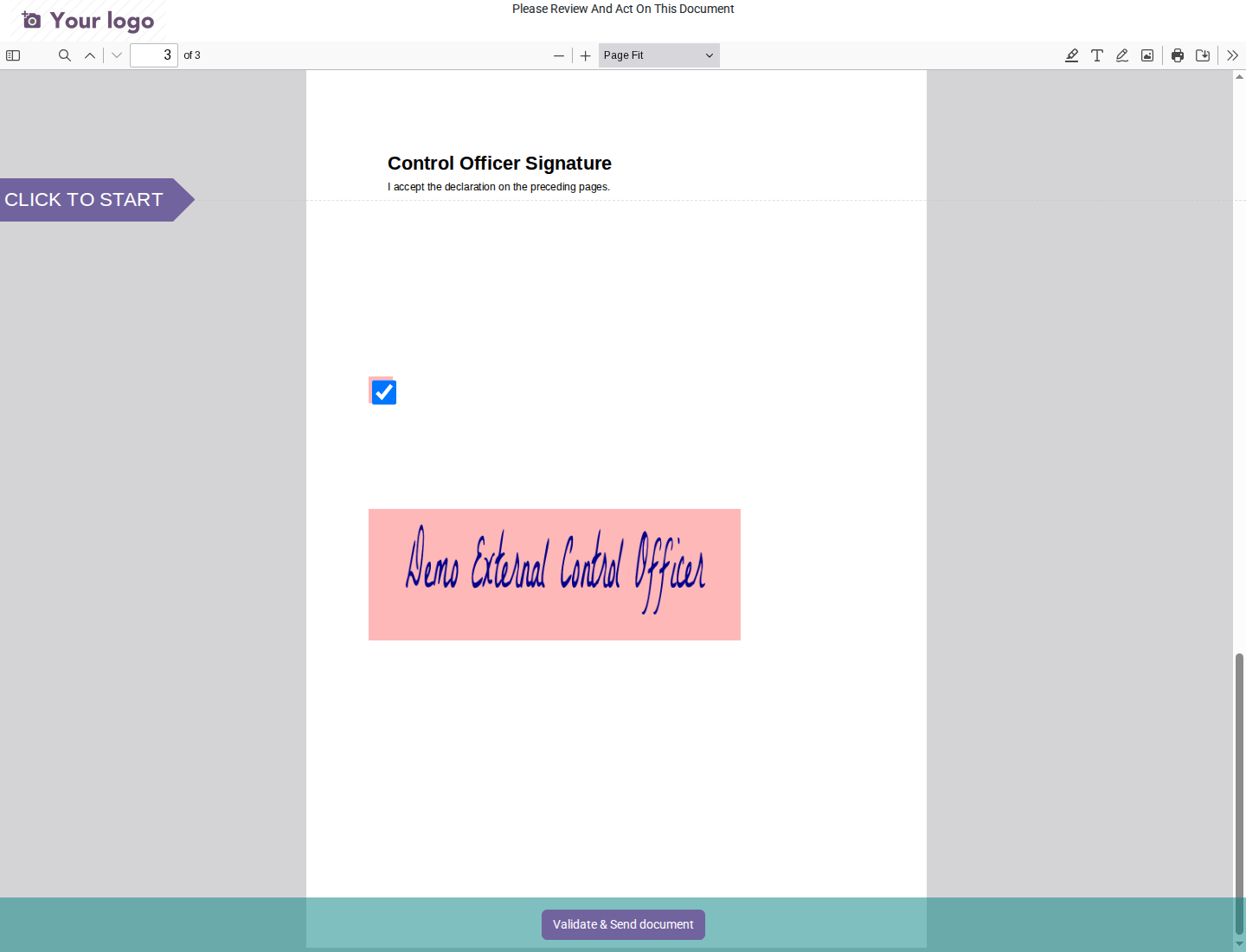
This portal route records Accepted, not reservations, return, or rejection. If you cannot accept the declaration, do not submit a signature. Tell the operative why and ask the team to resolve the document/review route.
The PDF and dialog wording do not establish qualified electronic-signature or statutory compliance. The confirmation page may refer to an email copy; receipt depends on the deployment's email setup and was not tested in the screenshot demo.
C. When an internal presenter records your Situation signature
This is a separate route, not portal signing. An authorized internal presenter may record In-person Device Signature or Uploaded Paper Signature for the assigned Control Officer on a Situation, with actor attestation and the required primary evidence. The record distinguishes you from the presenter.
Review the document/declaration before providing the signature or signed paper. Do not use the presenter's login as your own. If the original paper-signature date/time is unknown, the presenter leaves it unknown rather than inventing it. The supplied Measurement Book workflow does not use this represented route. There is no represented-signature screenshot here because that UI path has not been exercised in the existing screenshot demos.
Check what happened after signing
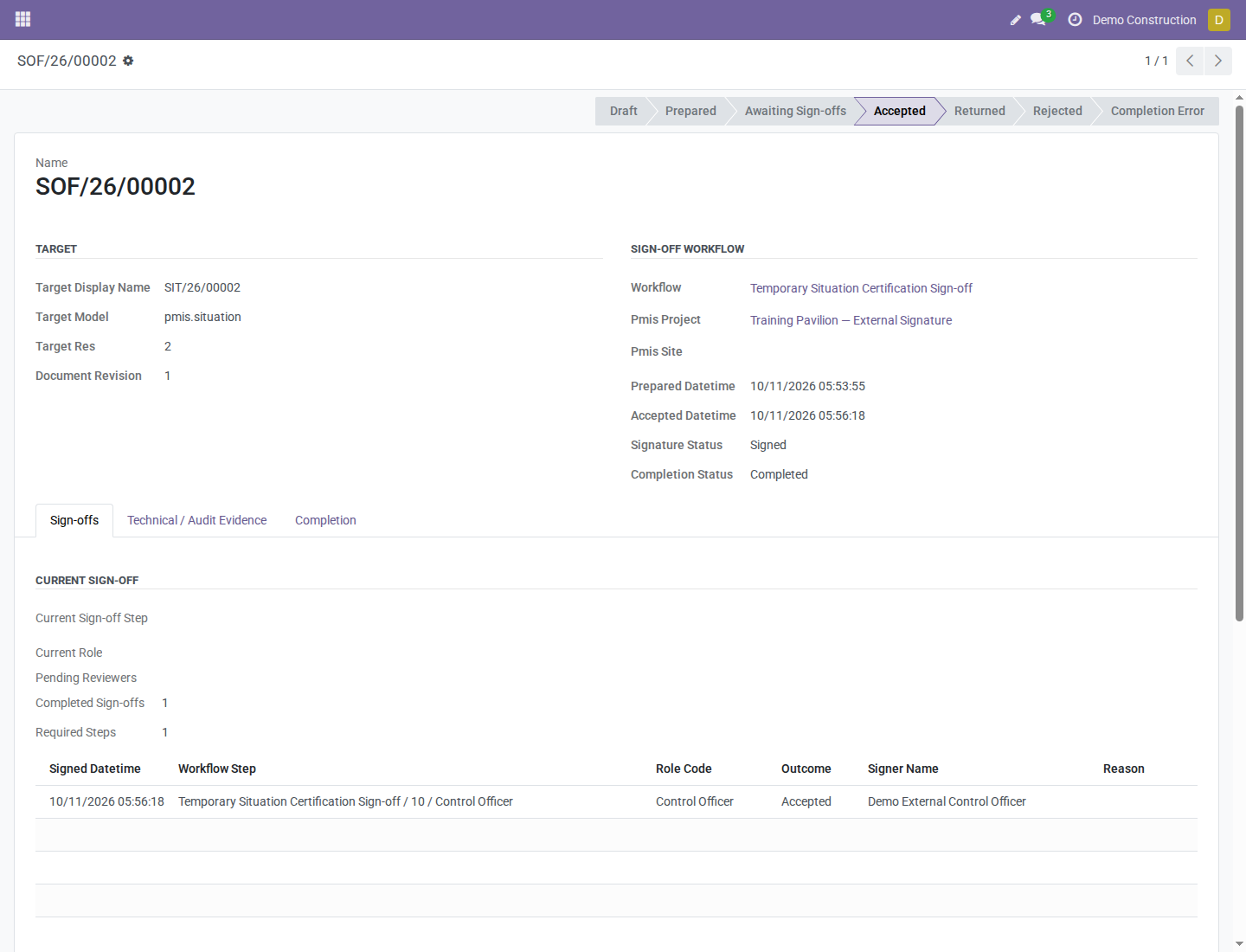
Signature recorded and business completion completed are different.
| Result to ask for or inspect | Meaning |
|---|---|
| Your sign-off and outcome | Your decision is retained for this document/revision. |
| Signature Status: Signed | Signature evidence is recorded, even if completion still needs attention. |
| Accepted / Completion Status: Completed | All required positive decisions and applicable business completion succeeded. |
| Completion Error | Internal issuance, stock, or accounting needs attention; it does not erase the recorded signature. |
The following two screenshots show the internal operator's follow-up, not extra screens granted to an external portal signer:
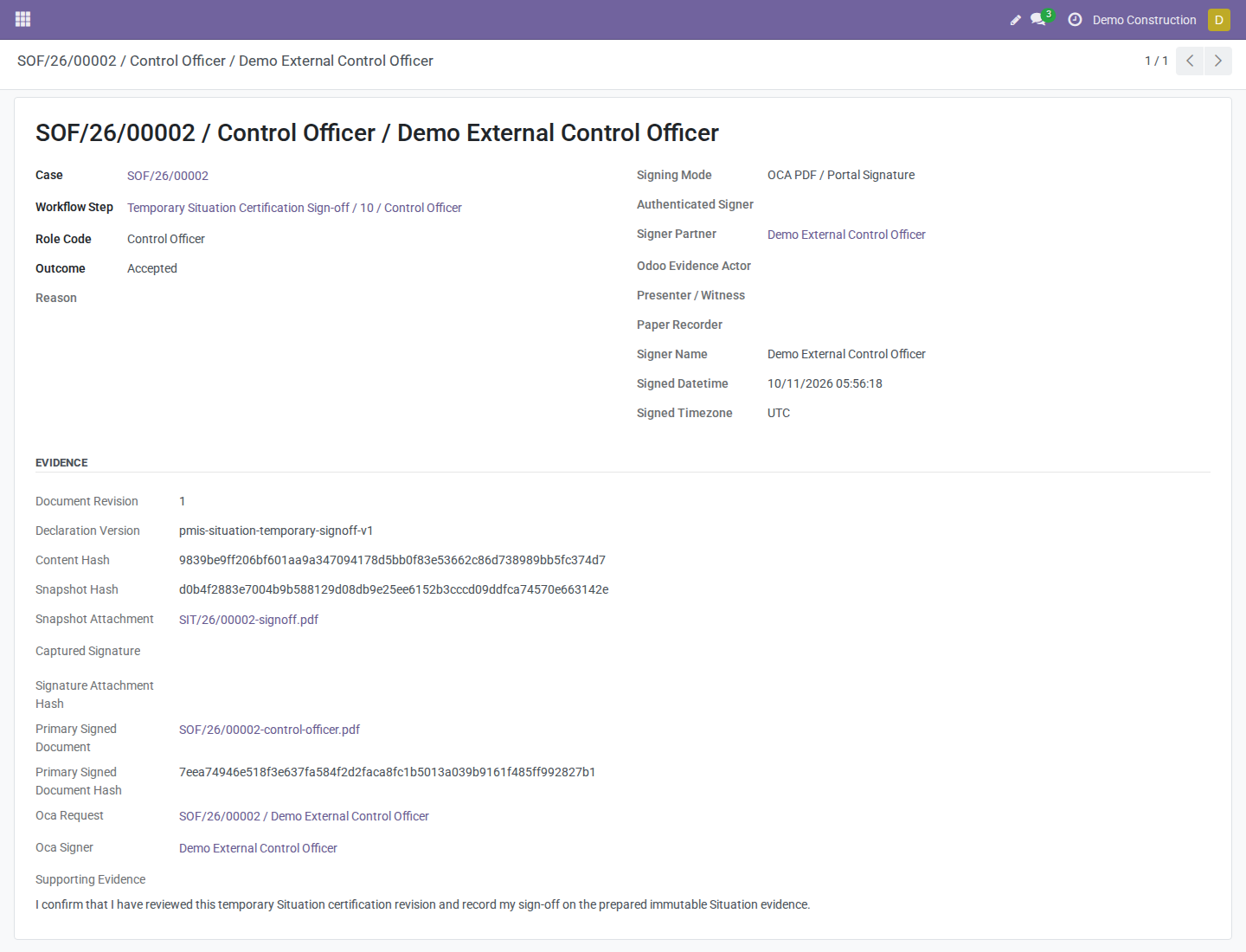
The original prepared PDF is preserved separately from the final OCA signed PDF. A recorded signature cannot be cancelled as an unsigned invitation. Corrections require the authorized document/revision process, not replacement of the retained signature file.
When you cannot proceed
| What you see | Your next action |
|---|---|
| Internal case absent or access denied | Ask the manager to check your company, live authority, group, and matching document contact. Do not borrow another login. |
| Wrong document/revision or unclear measurements | Stop; ask the operative for correction or supporting evidence. |
| Your internal step is not current | Wait for preceding required steps; do not try to bypass them. |
| Portal invitation is invalid/stale | Ask the operative to check assignment, document, declaration, step, and internal requester eligibility, and replace an unsigned invitation where appropriate. |
| You need reservations or cannot accept in the portal | Do not submit; tell the operative that acceptance is not your decision. |
| Positive sign-off followed by Completion Error | Give the case/error reference to the internal completion responsible; do not repeat the signature to fix permissions. |
Your final review checklist
- [ ] Correct company, project/site, document, period, and prepared revision.
- [ ] Measured versus accepted/certified quantities are justified.
- [ ] Required supporting evidence and material details have been reviewed.
- [ ] You understand the declaration and the effect of your chosen outcome.
- [ ] You are using your own account or your own named invitation.
- [ ] You distinguish recorded approval from stock/accounting completion.
About the screens
Screens are actual synthetic captures, not mockups. The internal decision screens show Demo Control Officer in the October 6 workflow. The external screens show a logged-out browser and Demo External Control Officer in a separate October 11, zero-value, certification-only Situation demo. They do not show the external officer reviewing the financial USD 950 example or a portal-signed Measurement Book.
See the internal-demo evidence and OCA-demo evidence. Screens do not prove email delivery, qualified-signature compliance, or every failure path. Some older field captions differ from the current wording; follow the current declaration and outcome labels in your application.