Construction operations: the operative's guide
Use this guide once work has started. You record what happened on site, encode measured quantities, prepare documents for review, and follow their completion. You do not turn daily-log approval into financial acceptance, or sign on behalf of the Control Officer merely because you prepared the document.
Your handoff: reviewable daily evidence, a submitted Measurement Book with clear quantity/basis information, and a prepared Situation based on issued work. The officer's decision and internal completion are separate checkpoints.
The preparations guide is for the manager who sets up your project. The Control Officer guide describes the review/signing handoff. Use the general manual for the complete reference.
Contents
- Start your working day
- 1. Record the daily site evidence
- 2. Enter the measurements
- 3. Send the Measurement Book for sign-off
- 4. Check the issued measurement evidence
- 5. Prepare the temporary sale Situation
- 6. Follow certification and completion
- 7. Correct problems without replacing evidence
- Separate task: internal material consumption
- Before handing over
- About the screens
Start your working day
Check the company, PMIS Project, and Site before entering work. Ask the project manager to resolve missing scope, responsibilities, or routes; do not create a second project just because a filter hides the first one.
Your account needs PMIS Field Service User for encoding logs, Measurement Operator for measurements, and Situation Operator for preparing Situations, as applicable. Preparing/sending cases also requires the relevant operational responsibility and sign-off access. The Bills of Quantities → Operations navigation needs Sales access through its parent menu. Ask the administrator if your assigned task has no visible entry point.
Keep these figures separate in the Training Pavilion example:
| You are recording | Example | Meaning |
|---|---|---|
| Planned scope | 100 m² | Manager's BoQ plan. |
| Work described/measured | 40 m² | Actual activity and measurement, not all accepted. |
| Quantity proposed for acceptance | 38 m² | Two m² still need finishing. |
| Situation certification after issuance | 38 × USD 25 = USD 950 | Work value, not material cost. |
| Explicit delivery material | 2 mounting plates | Stock units, not service area. |
There is no automatic conversion from the diary into measurements. You must enter and justify the quantities, and the officer must review them.
1. Record the daily site evidence
Open the correct log
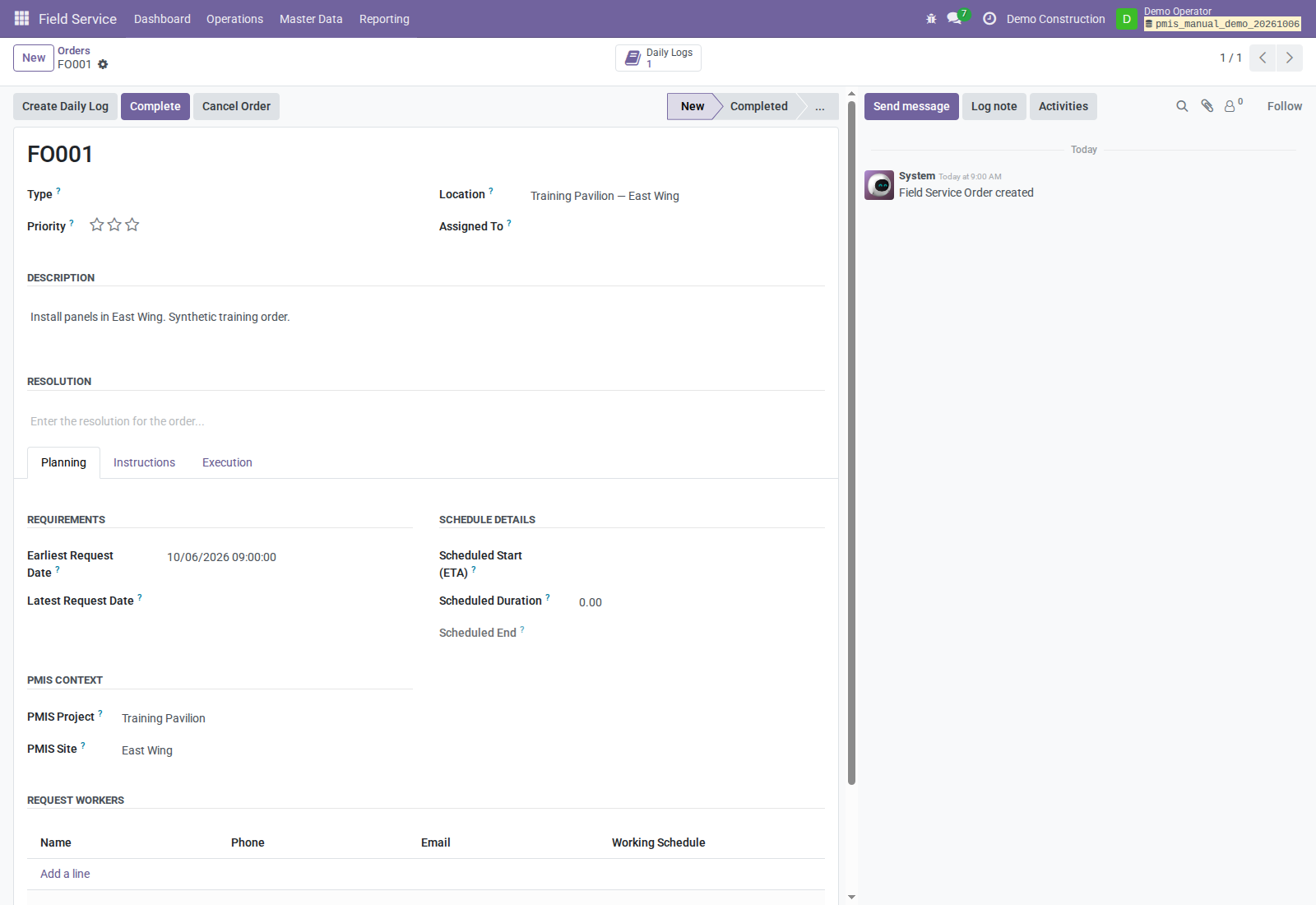
- Open your Field Service order. Check its PMIS Project and PMIS Site.
- Click Create Daily Log. This can reopen the newest visible same-day draft; check the date and reference before creating another log.
- Alternatively, open Bills of Quantities → Operations → Field Operations → Construction Daily Logs and create a standalone log. Project is required; site and Field Service order are optional.
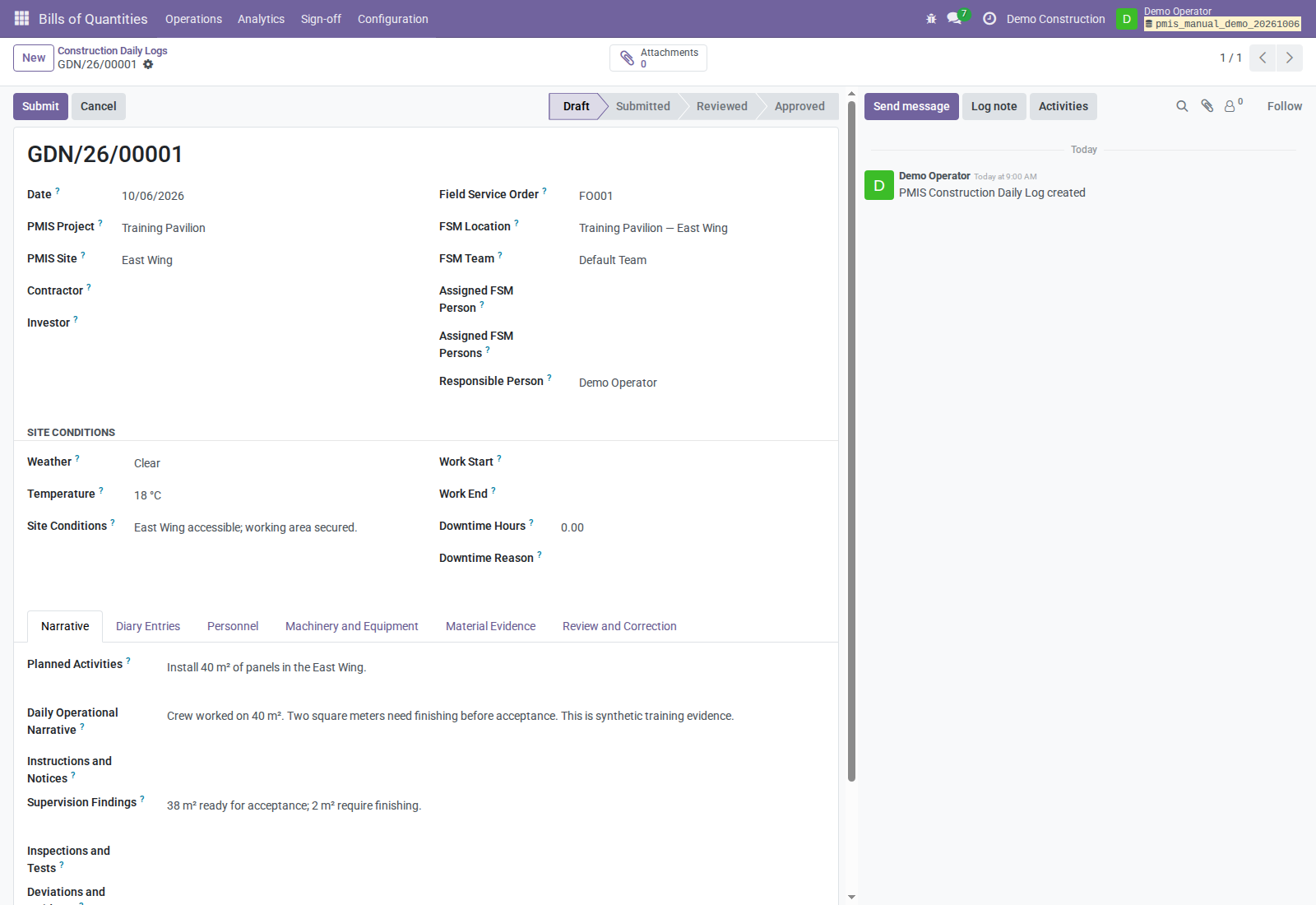
- Check Responsible Person, company, and site conditions.
Describe what actually happened
Work through the tabs rather than putting every fact into one paragraph:
| Screen/tab | What you enter |
|---|---|
| Site Conditions | Weather, temperature, working times, downtime, and the reason. |
| Narrative | Activities, instructions, inspection/test results, findings, incidents, and corrective measures. |
| Diary Entries | Separate dated/timed events and observations where needed. |
| Personnel | People/trades, workforce quantities, and relevant time evidence. |
| Machinery and Equipment | Equipment use and supporting operational details. |
| Material Evidence | Informational delivery, consumption, return, waste, or storage evidence. |
| Attachments | Relevant photos/documents through the attachment smart button. |
In the example, write 40 m² worked; 38 m² ready for acceptance; 2 m² need finishing. Do not label all 40 m² as accepted merely because the crew completed the day's activity.
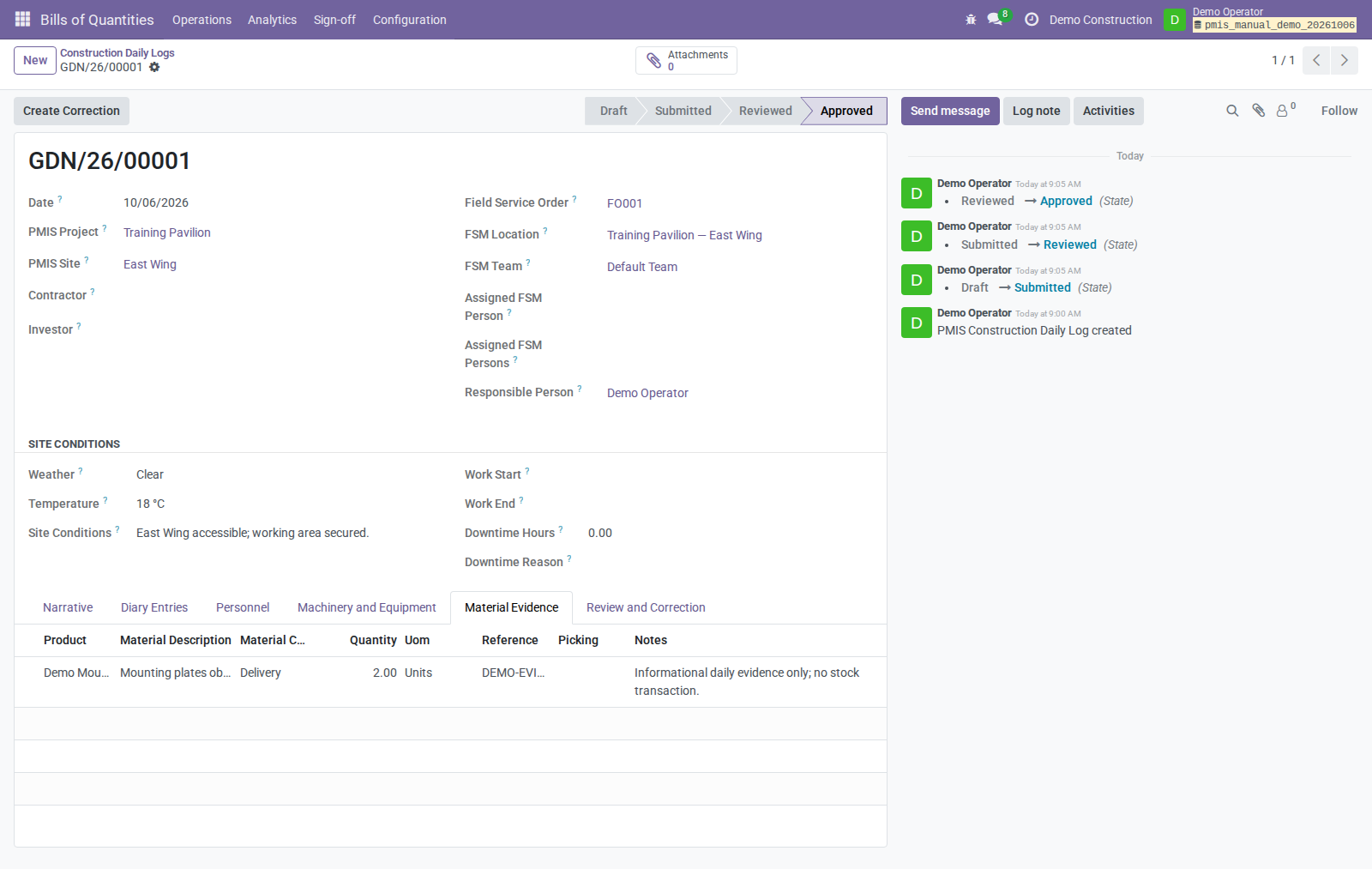
An optional picking link points to an existing stock document. Entering material evidence or linking that picking does not execute a delivery or consumption.
Submit and wait for the reviewer
- Save and use Submit. Supply a narrative or at least one diary entry.
- Hand the log to the daily-log reviewer. Review and Approve belong to the PMIS Field Service Manager, not the ordinary encoding user.
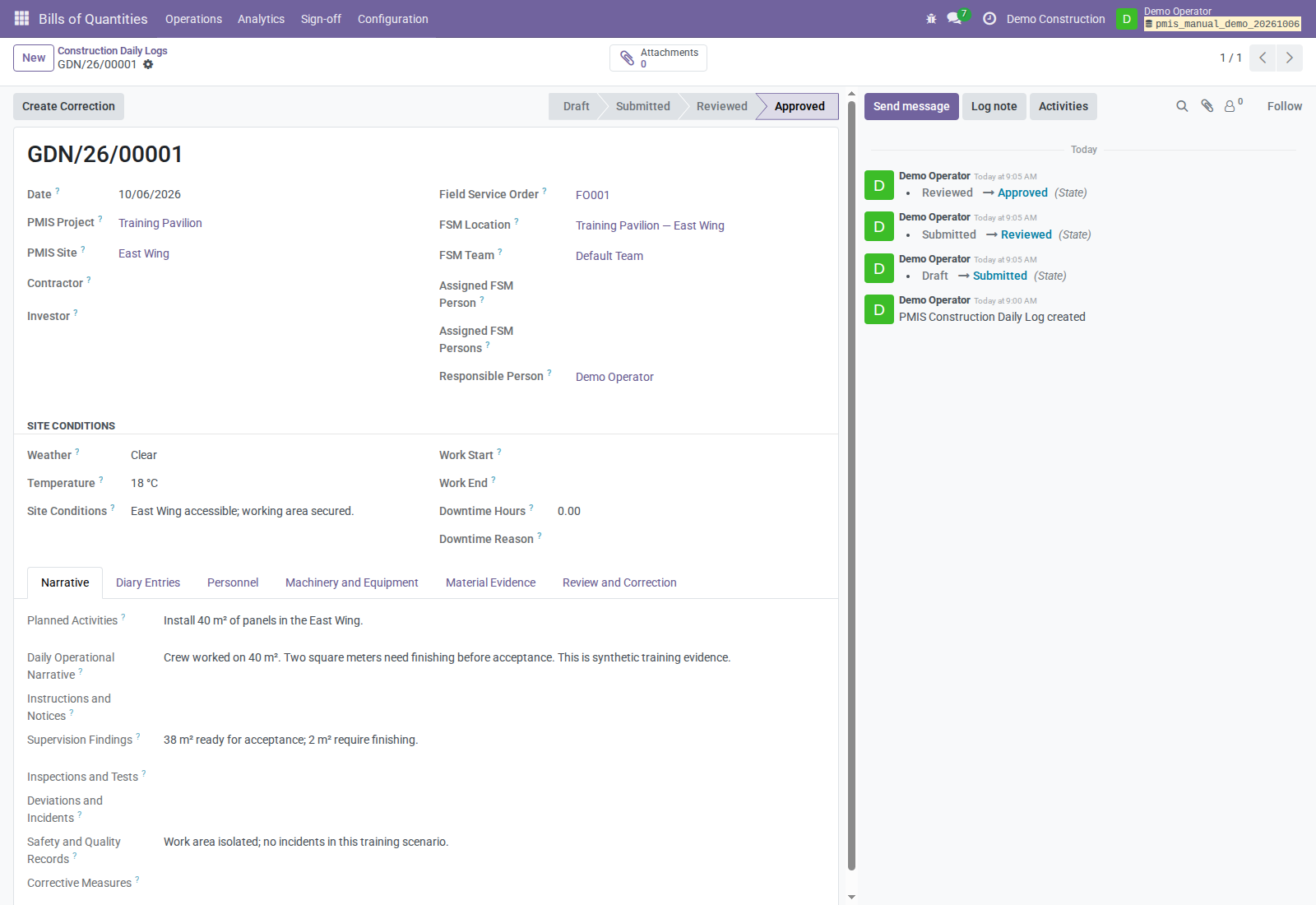
- Check the final state afterward. Approval locks the business evidence; it does not create measurements, certify work, or move stock.
2. Enter the measurements
- Open Bills of Quantities → Analytics → Measurements → Measurement Books.
- Create a book for the correct BoQ, project/site, period, Responsible, and Control Officer. Confirm the assigned officer with the project manager.
- Open Open Active Iteration or the Measurement Lines tab. The initial overview shows Iterations; that list is not the quantity editor.
- Review the draft lines. Initial measured/accepted values can default to the remaining planned scope. Replace them with actual quantities.
- Enter 40 measured and then 38 accepted for the example. Changing the measured quantity can default accepted quantity to the same value, so set the final accepted value afterward and recheck both.
- Enter the measurement basis, calculation, drawing reference, and notes needed to explain the result. Do not ask the officer to reconstruct missing evidence.
- Use Update Lines from Bill of Quantities for missing scope items; it does not overwrite your existing draft quantities.
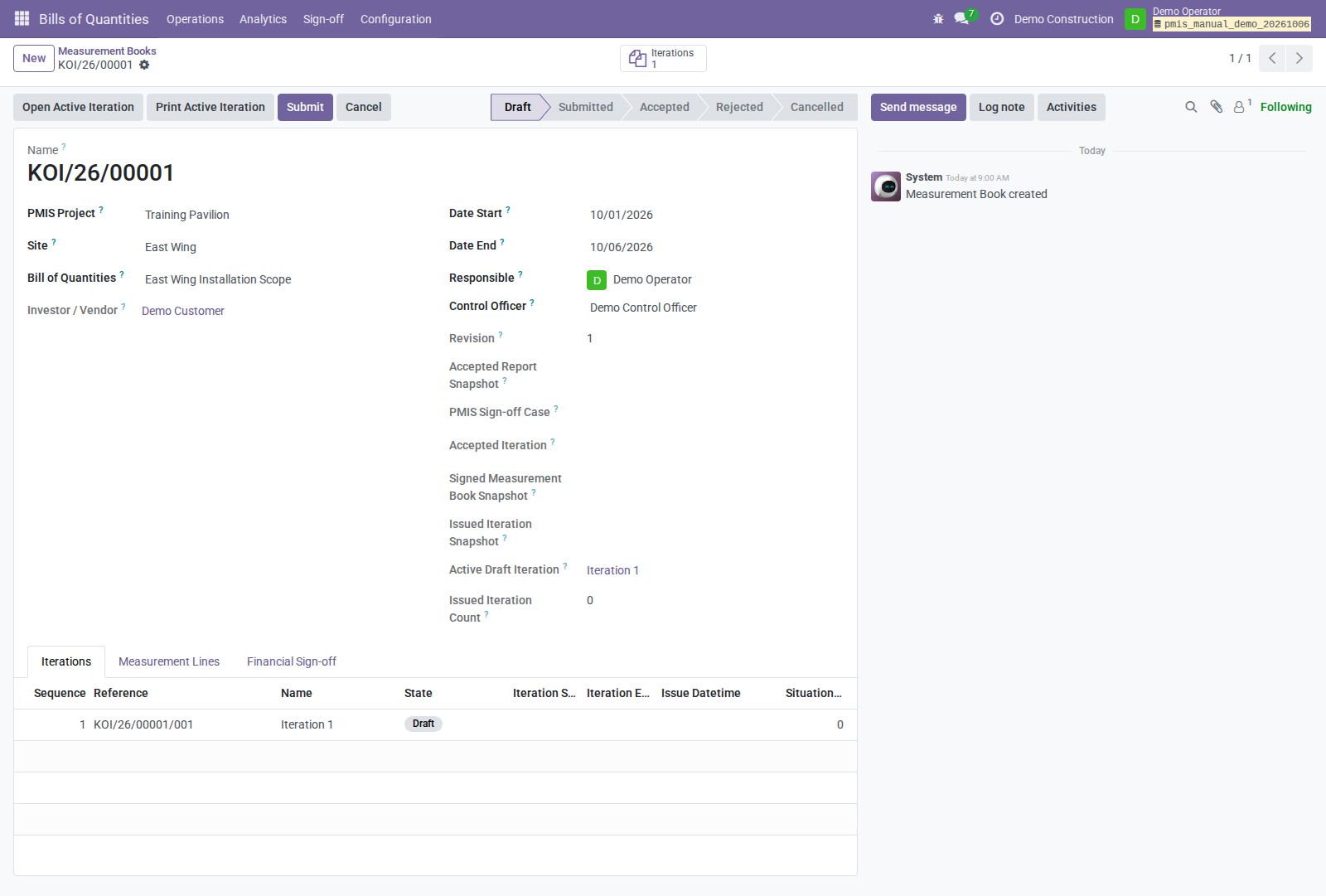
Before submission: verify the unit and item, measured versus accepted quantity, basis/reference, and company/site. An overrun requires a qualifying accepted variation; do not hide it by changing the original planned quantity.
3. Send the Measurement Book for sign-off
Measured quantities require the Control Officer's approval before they can be issued and used for Situation certification. Both the internal review route and the external OCA PDF/portal route apply to Measurement Books.
- On the book, click Submit, then Financial Sign-off as the authorized responsible Measurement Operator.
- On the case, click Prepare for Sign-off. Review the prepared document evidence and the document/revision it refers to.
- Click Send for Sign-off. The case moves to Awaiting Sign-offs.
- Give the officer the case reference and the supporting measurement context. The officer follows the review guide; you wait for their decision rather than recording it with your own account.
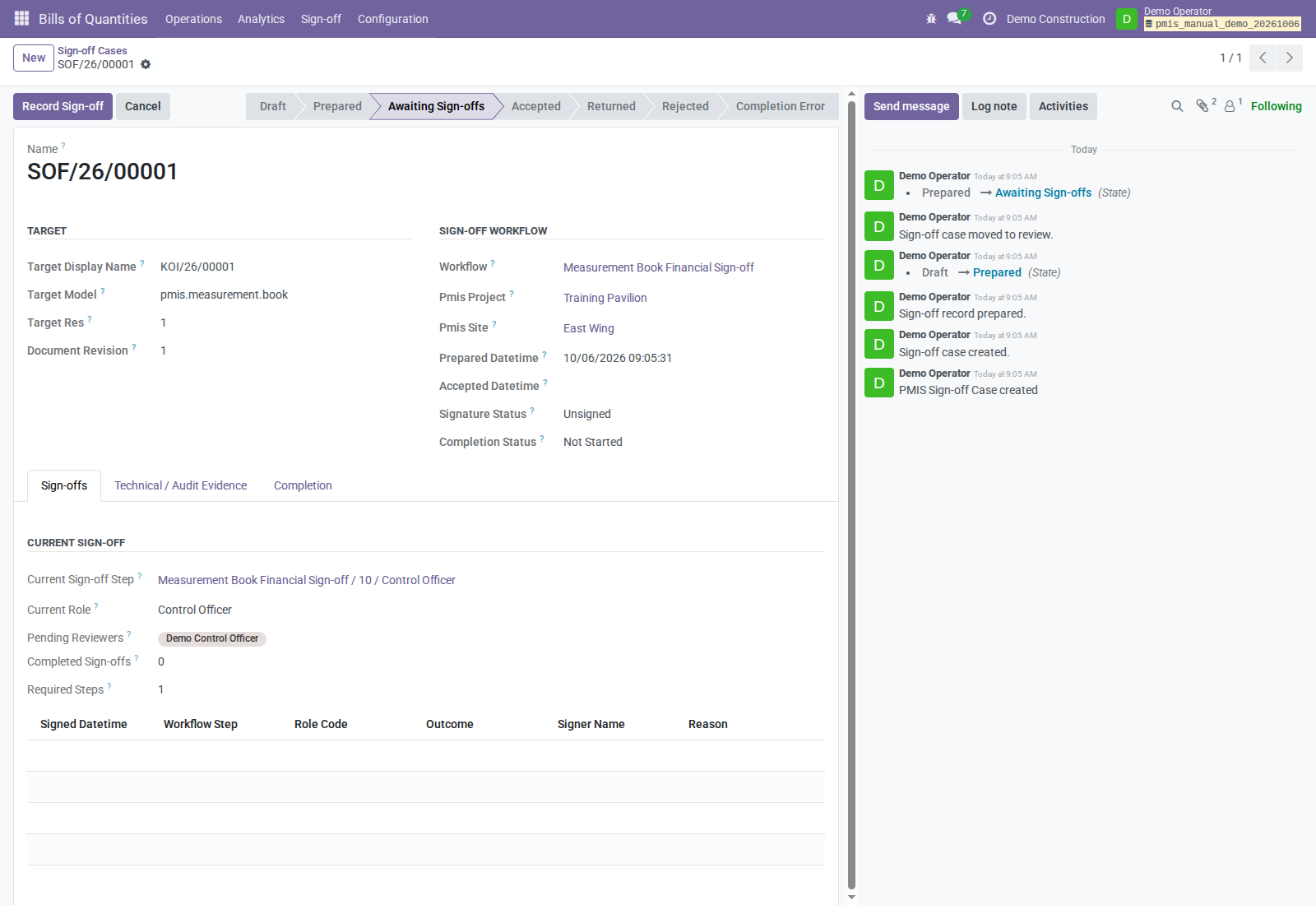
If the Control Officer is external
At the pending Control Officer step, click Send Control Officer Signature. The assigned active contact needs an email address and no active internal Odoo account. A portal user or a contact without any user account can sign.
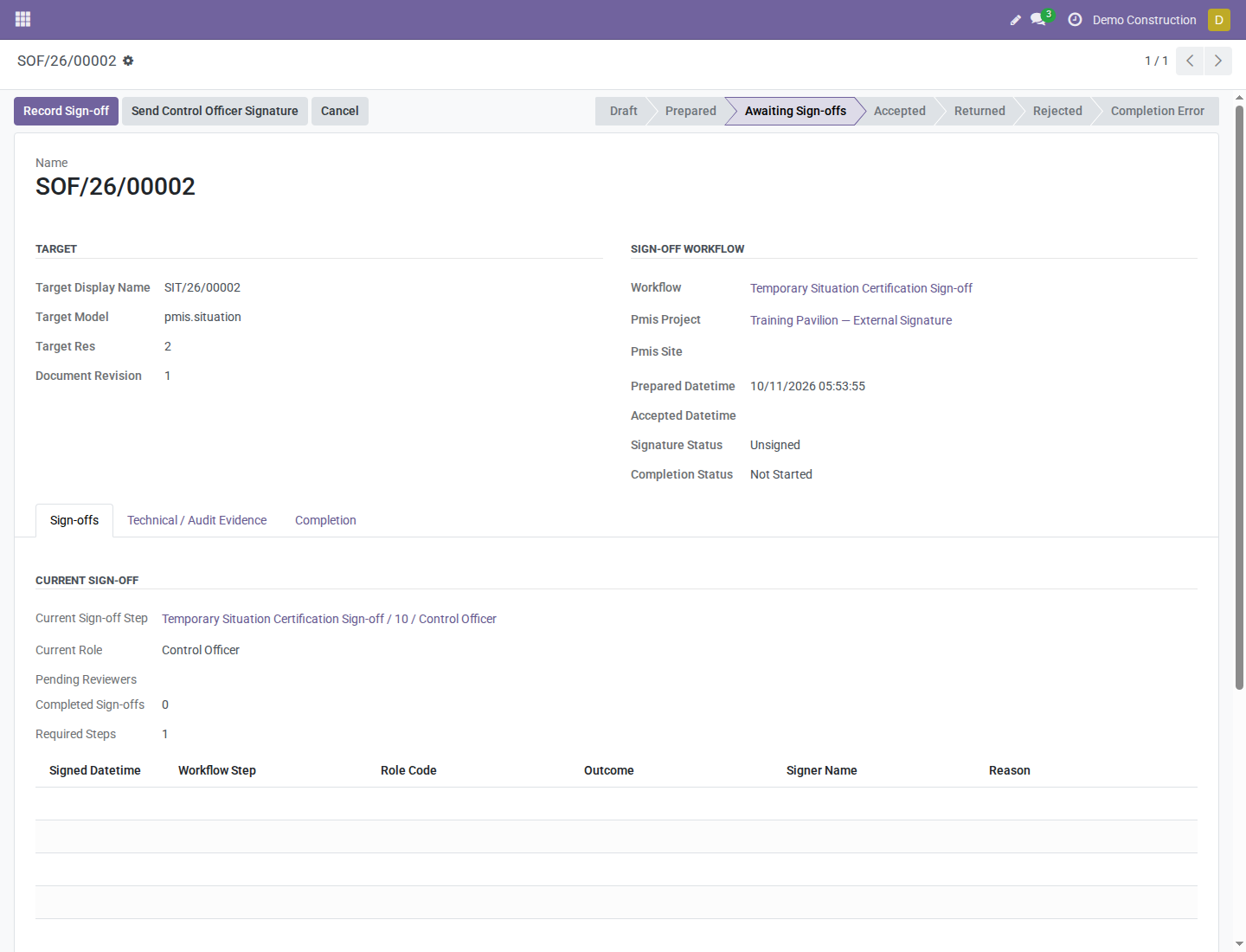
The button creates a bound OCA invitation. Clicking again opens the existing invitation without resending it. An ordinary OCA request linked only through Object does not count as PMIS approval. Never forward the private signing link to another person to obtain the named officer's signature.
Measurement Book completion: the requesting internal operator needs PMIS Valuation Manager access for issuance when the officer signs externally. Arrange this responsibility with the manager; the external signature gives you no additional internal permissions.
The external-case screenshot above is from the separate Situation portal demo; the same case button is available for eligible Measurement Book cases. It is not a screenshot of a portal-signed Measurement Book.
4. Check the issued measurement evidence
After all required positive sign-offs and successful completion:
- Reopen the book. Check Accepted and its accepted/issued iteration links.
- Open the issued iteration. Check Issued and Issued Snapshot.
- Verify the retained 40 m² measured, 38 m² accepted, and 62 m² remaining.
- Use Open Issued PDF for retained evidence, not a fresh draft print.
- Keep the book/iteration reference for Situation preparation.
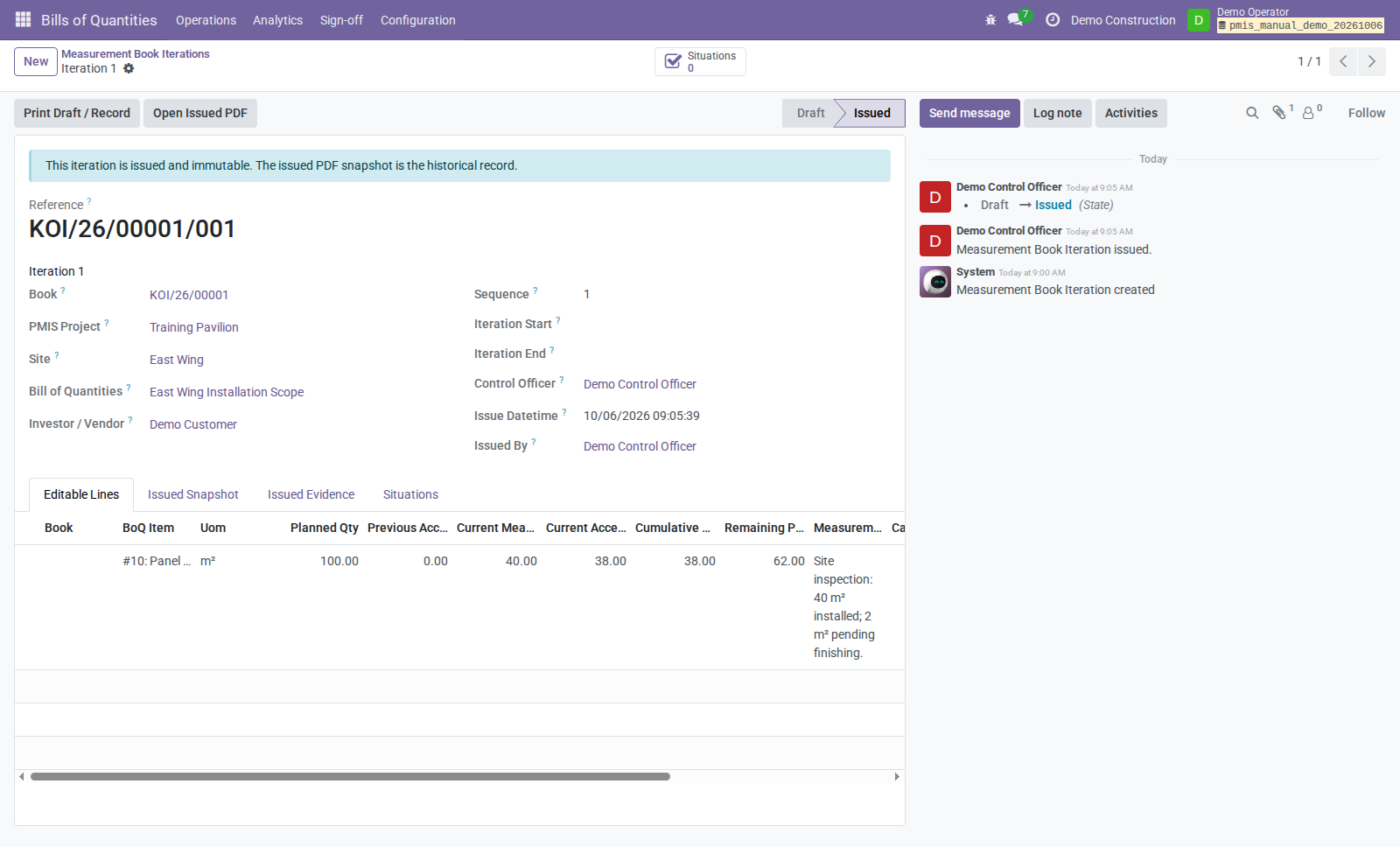
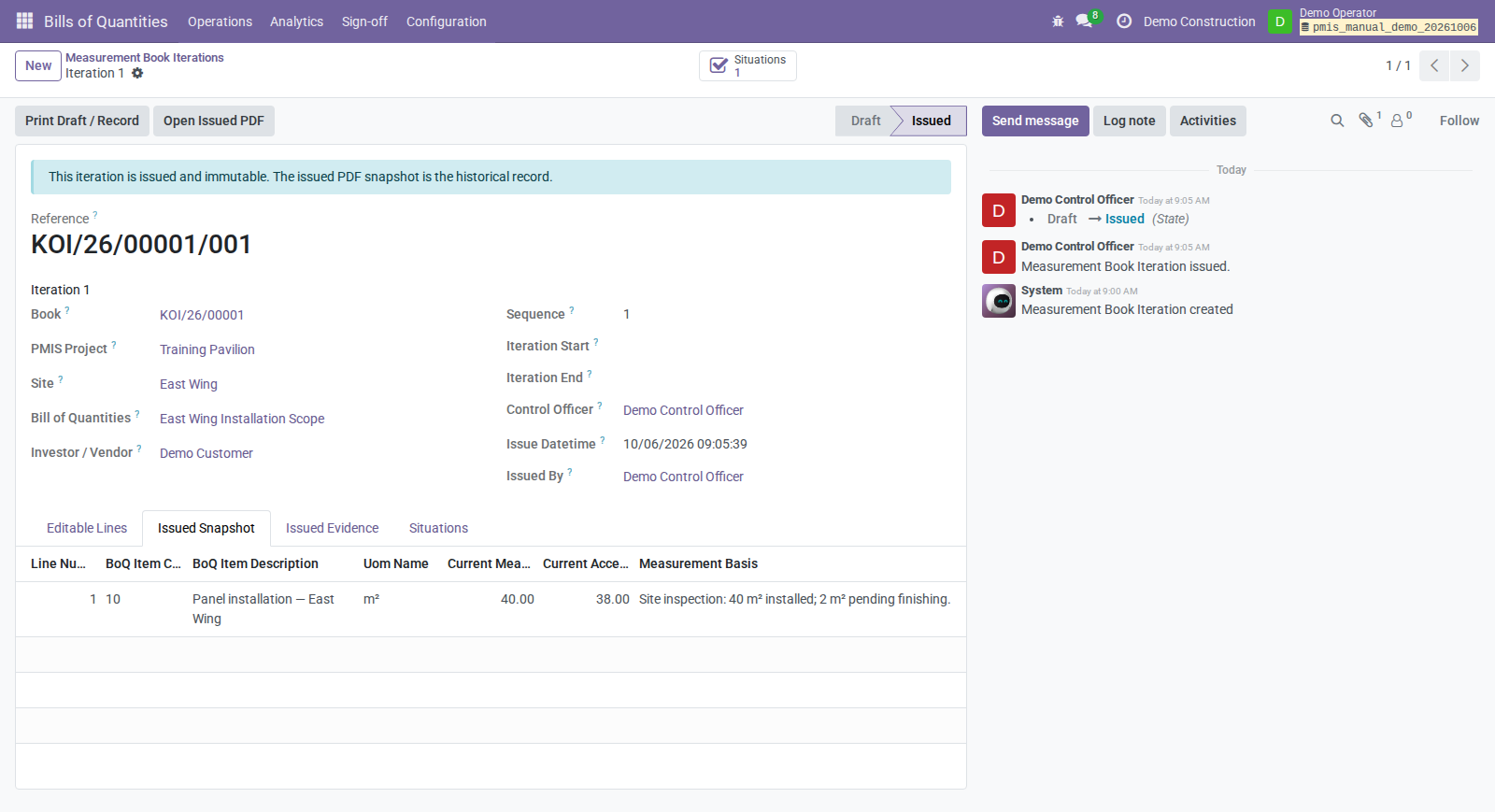
An automatically created next draft is not proof that the accepted book can be resubmitted for a new period through the same clicks. Use the manager-agreed next-period process; the general manual uses a new book. The demo's retained issued PDF has a Draft / Provisional Print label despite Issued model state: check the issued record/evidence and flag that presentation discrepancy.
5. Prepare the temporary sale Situation
- Open Bills of Quantities → Analytics → Valuation → Situations.
- Create a Temporary Situation for the same sale BoQ, company, project/site, and period. Set issue date, Responsible, and Control Officer.
- Click Generate Lines to select eligible issued measurement work.
- Check the actual measurement links and the period's selection. Generate Lines does not filter measurements by the Situation period dates.
- Verify 38 m² at USD 25, totaling USD 950 in the example. Work-line certification comes from linked accepted measurements; do not use an unlinked manually typed quantity as a substitute.
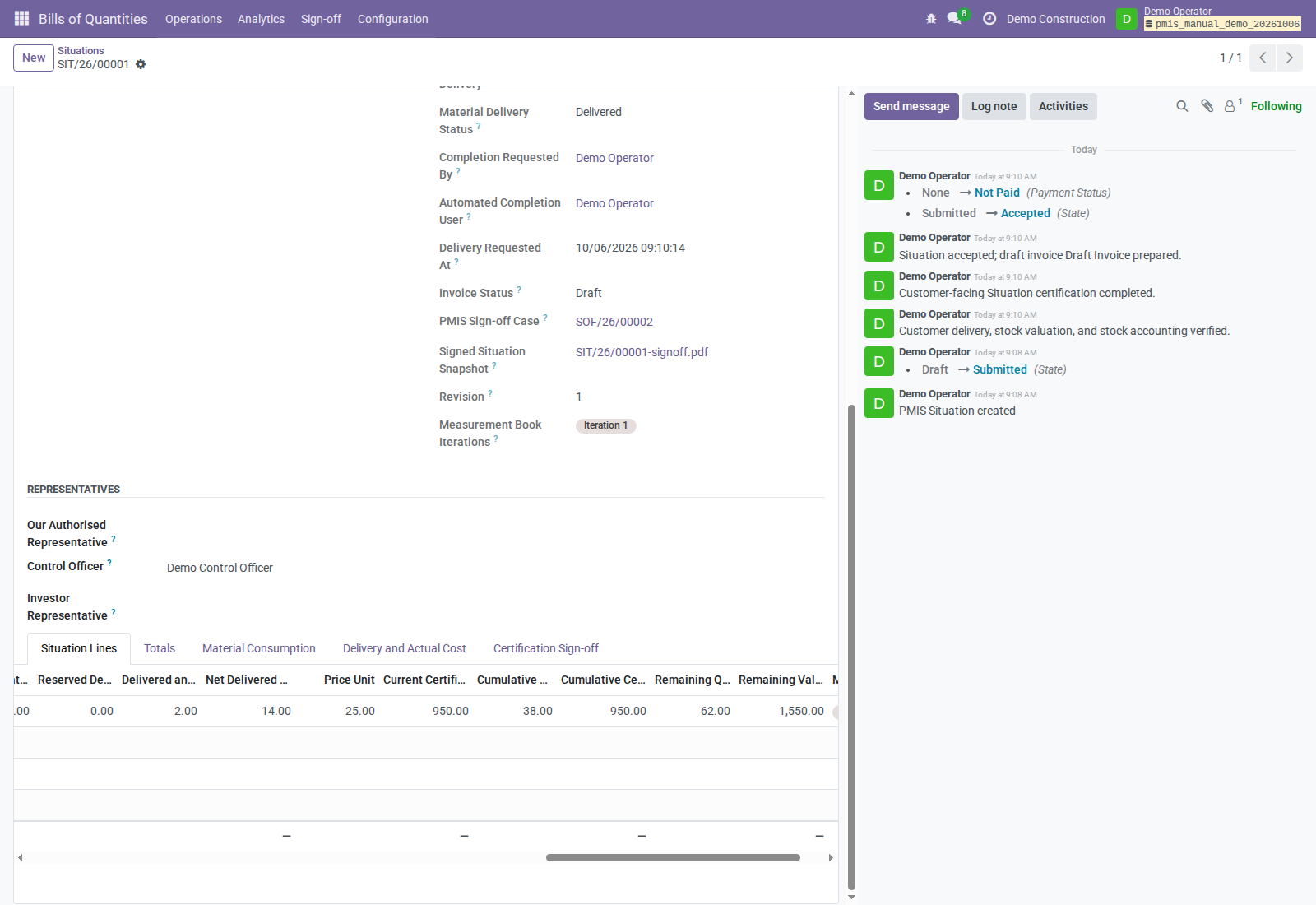
Classify material before sending
For every included work line and accepted variation line:
- If material delivery applies, select Delivery Material, a compatible Delivery Material Unit, and positive Delivery Material Quantity. The example uses 2 mounting plates, separately from 38 m² of service.
- If no material applies, clear the delivery product/unit/quantity and enter a useful No Material Reason. Do not leave the classification undecided.
- Resolve draft variations with the responsible reviewer; only accepted variations contribute invoice lines.
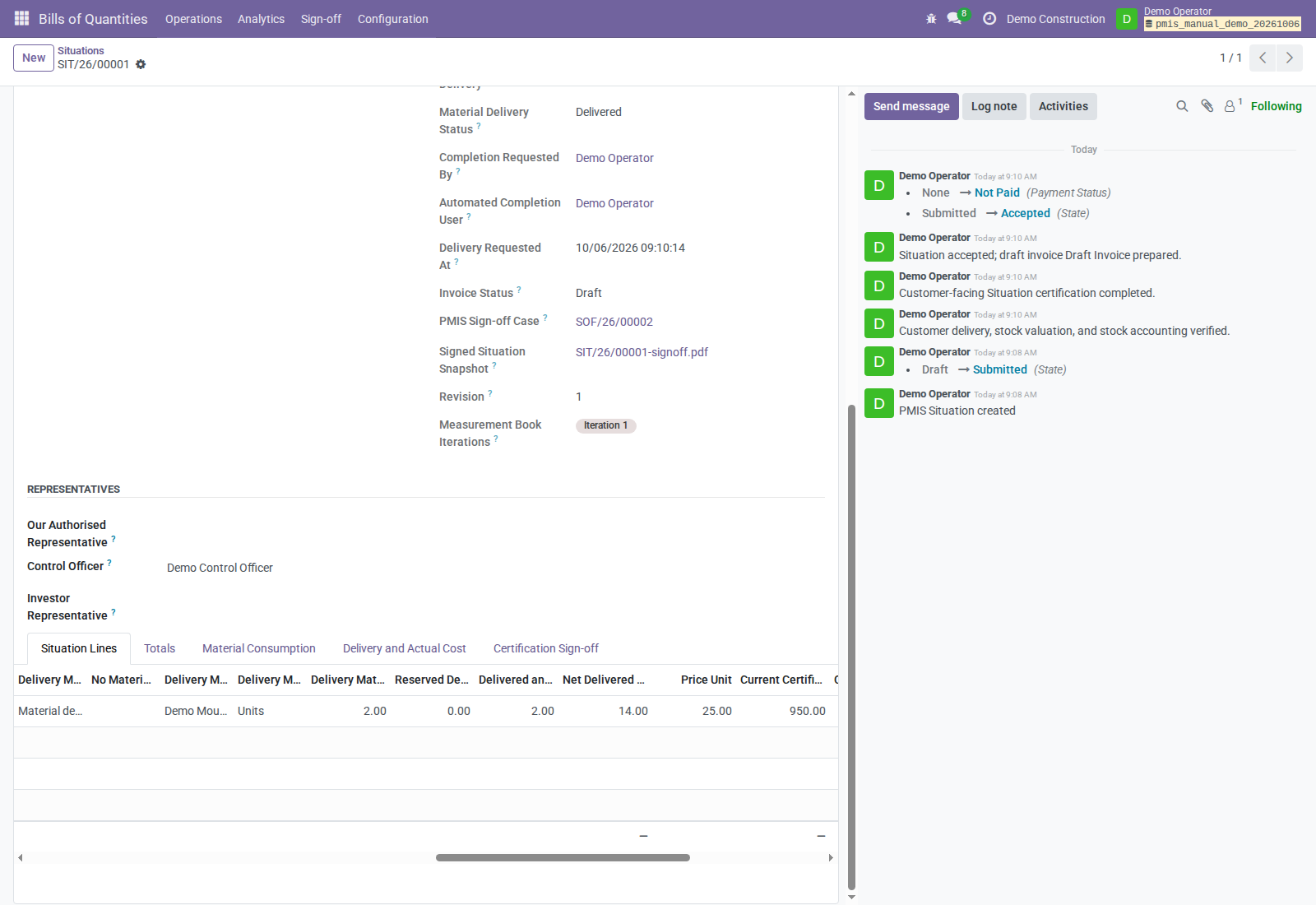
Scroll the wide Lines table horizontally to review all material columns. This screenshot shows a completed record: delivered quantity 2 and material cost 14 are later results, not preparation values to type.
- Review Totals, then click Submit and Certification Sign-off.
- On the case, use Prepare for Sign-off, then Send for Sign-off.
- For an external officer, use Send Control Officer Signature at the pending Control Officer step; otherwise hand the case to the internal officer.
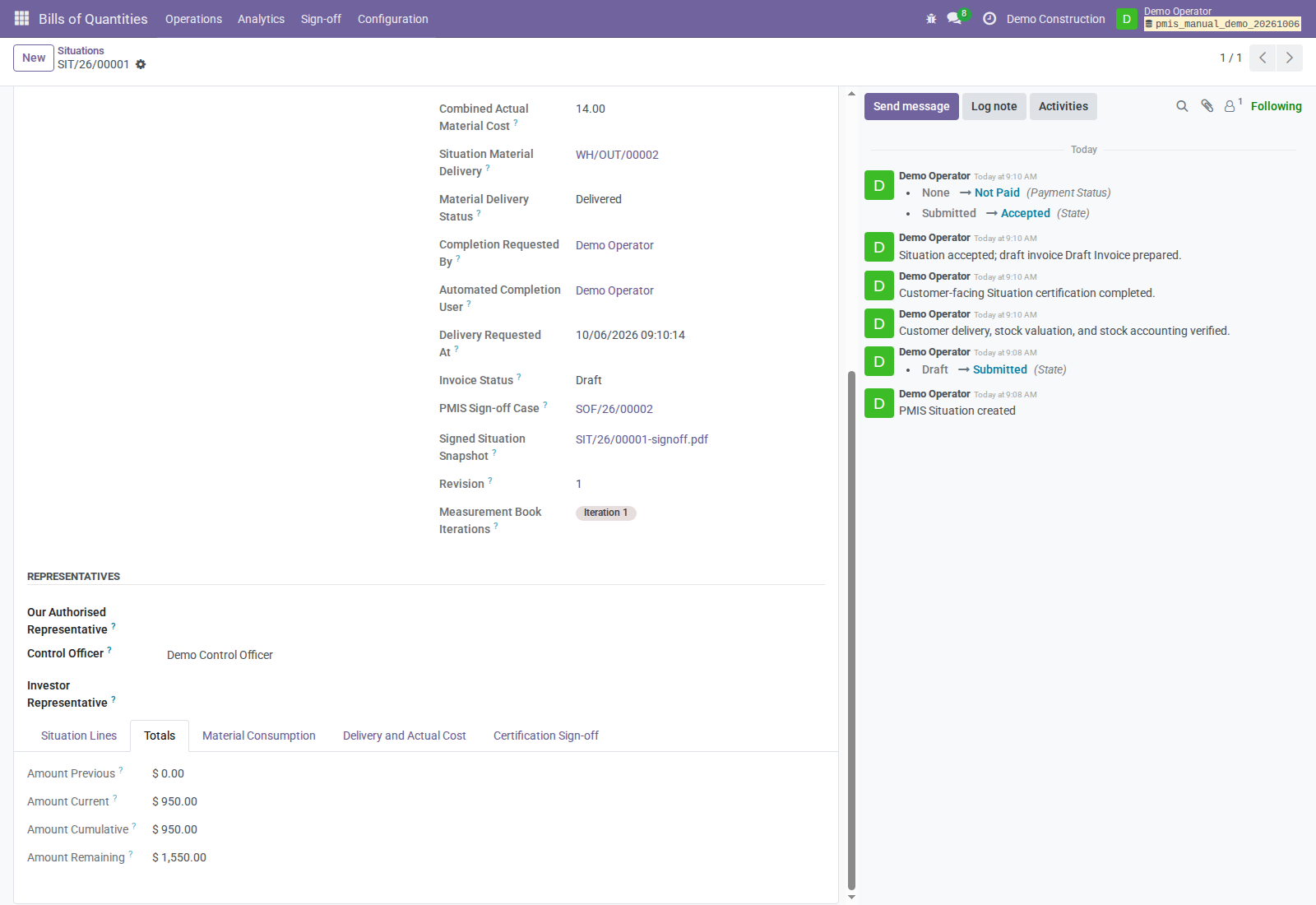
The prepared Situation PDF shows certification values but does not print the material mapping. Review the source Lines and Technical / Audit Evidence → Canonical Manifest alongside the PDF. Unclassified included lines block preparation. Submission by itself moves no stock and posts no accounting entries.
6. Follow certification and completion
Check both statuses on the case, not only the signature row:
| Screen result | What it means for you |
|---|---|
| Awaiting Sign-offs | A required decision is still outstanding. |
| Signature Status: Signed | Signature evidence is recorded; business completion may still be outstanding. |
| Completion Error | Preserve the signature and hand the error to the authorized internal responsible. |
| Accepted and Completion Status: Completed | Required positive decisions and the applicable completion actions succeeded. |
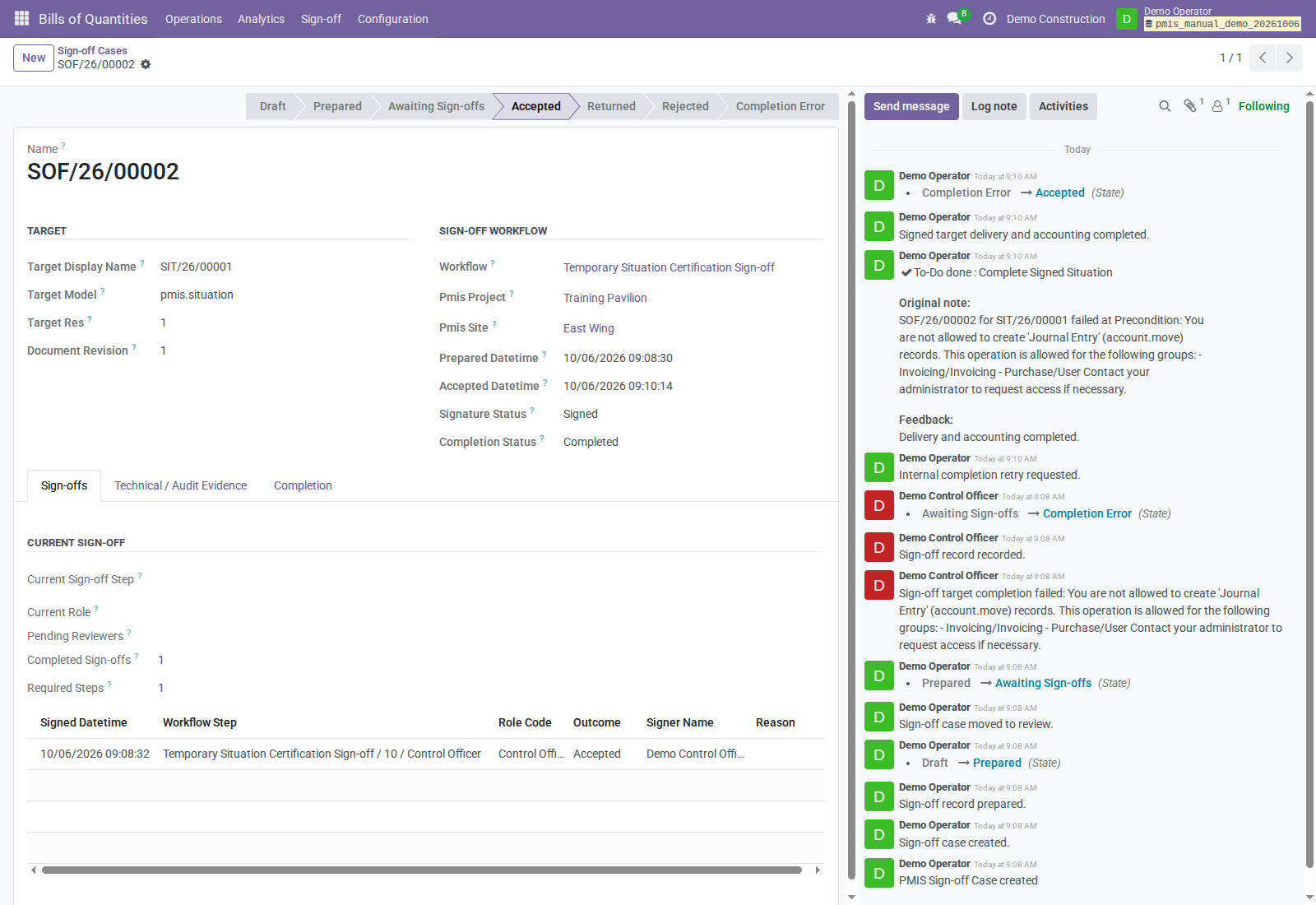
Open the Situation's Delivery and Actual Cost tab. Read the picking, delivery state, valuation, net material cost, and invoice state separately. In the material example the picking is Done for two plates, material cost is USD 14, and the customer invoice is a draft for USD 950, not a paid invoice.
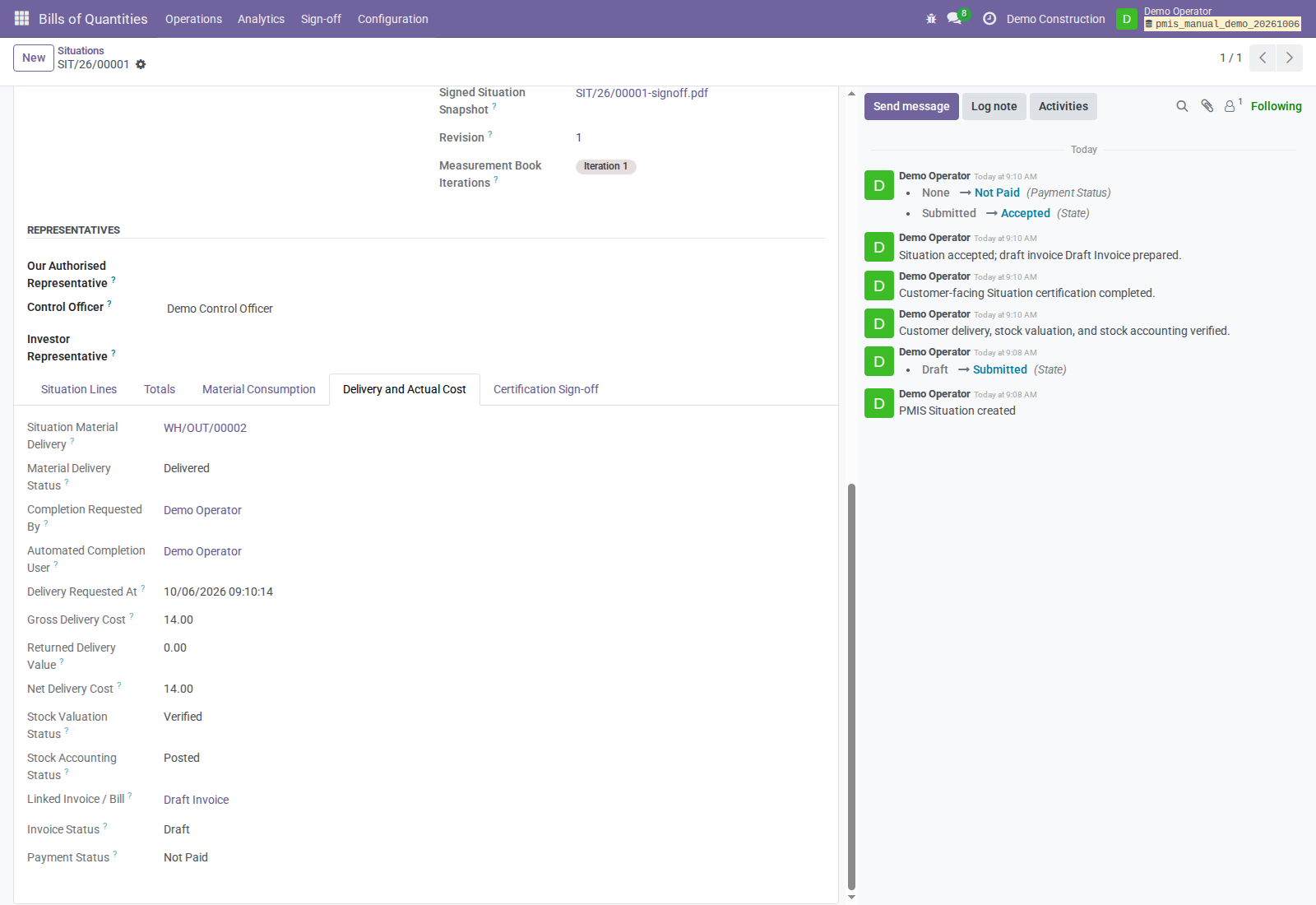
Under Certification only, no automatic invoice is expected. With draft/post invoice policies, the internal completion actor needs the applicable Accounting permissions. Portal completion uses the requesting operator's current rights; internal direct signing initially uses the final signing actor's rights.
7. Correct problems without replacing evidence
| What happened | Your next action |
|---|---|
| Daily log rejected | Read the review reason, use Return to Draft, correct, and resubmit. |
| Approved daily log is wrong | Ask the Field Service Manager to enter Correction Reason and Create Correction. Work on the new revision; do not overwrite the approved original. |
| Book/Situation returned or rejected | Read the officer's reason. Use the source document's supported rejection/draft revision flow, correct, resubmit, and prepare the new revision's case. |
| Prepared document changed or invitation became stale | Stop asking for signatures. Have the authorized operator resolve the revision/case and replace an unsigned invitation as applicable. |
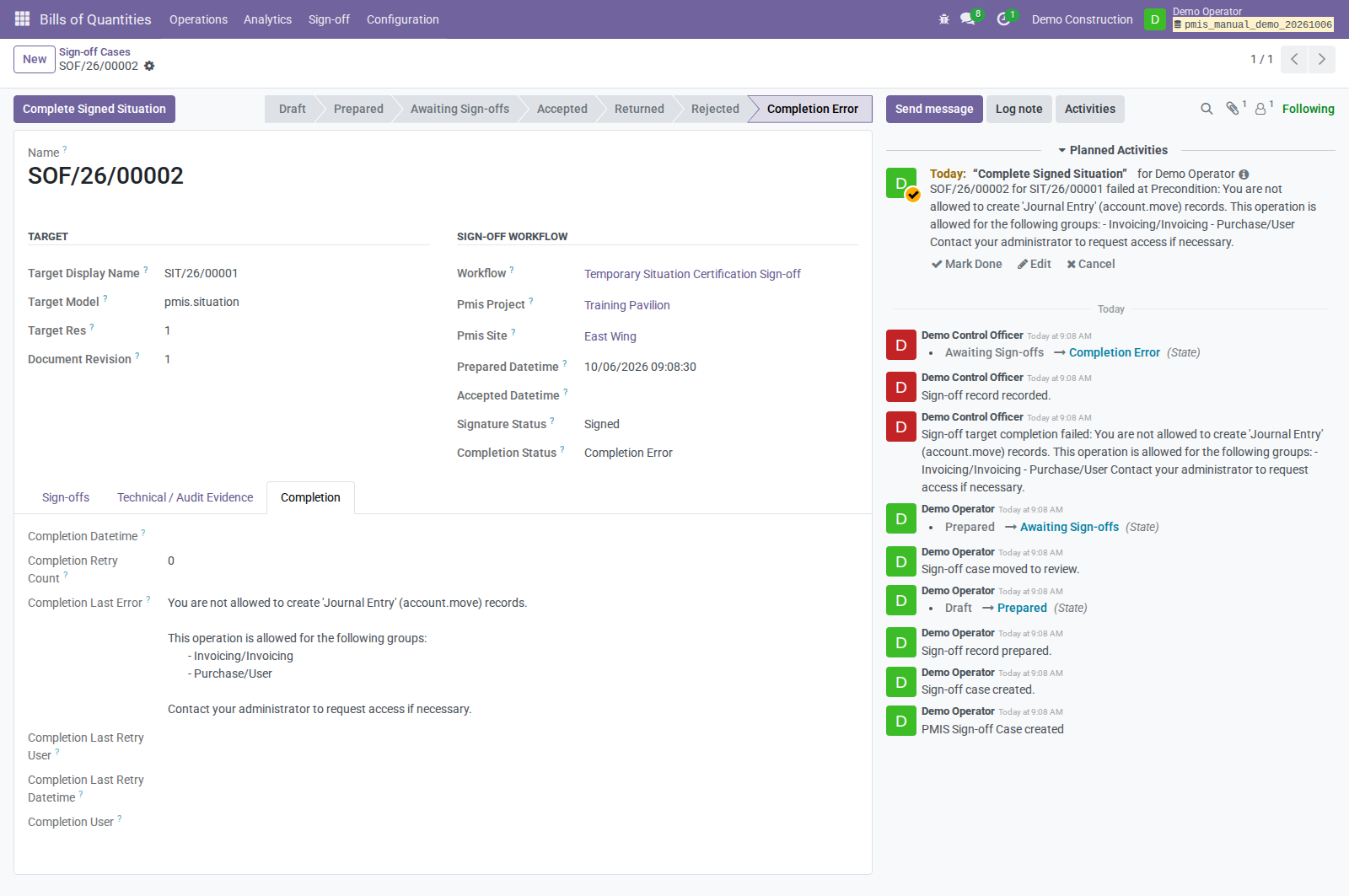
| Signature saved, completion failed | Read the case's Completion error and hand it to the configured internal completion responsible. Do not ask for another signature to fix stock/accounting rights. |
The authorized responsible can use Complete Signed Situation or Retry Delivery Completion after correcting prerequisites. That is not an ordinary encoding-user permission. Retry retains the signed revision/evidence.
Keep the original and corrected daily-log references together. Source attachments remain on the original; review what evidence the correction needs. The original is superseded when the correction is approved, not simply created.
Separate task: internal material consumption
Only use this section if you are also the authorized operational confirmer. Otherwise hand it to the responsible Operations/Stock colleague.
- Use a separate Purchase / Inside BoQ/Situation, not the customer sale certification route.
- Enter positive Internal Confirmed Quantity for applicable material lines and submit the Situation.
- With PMIS Operations Manager, Stock User, and responsibility on the project and selected site, use Confirm Material Consumption.
- Review Material Consumption and its picking. Available untracked material can complete automatically; unavailable/tracked material needs warehouse processing. Use authorized Retry Stock Completion where applicable.
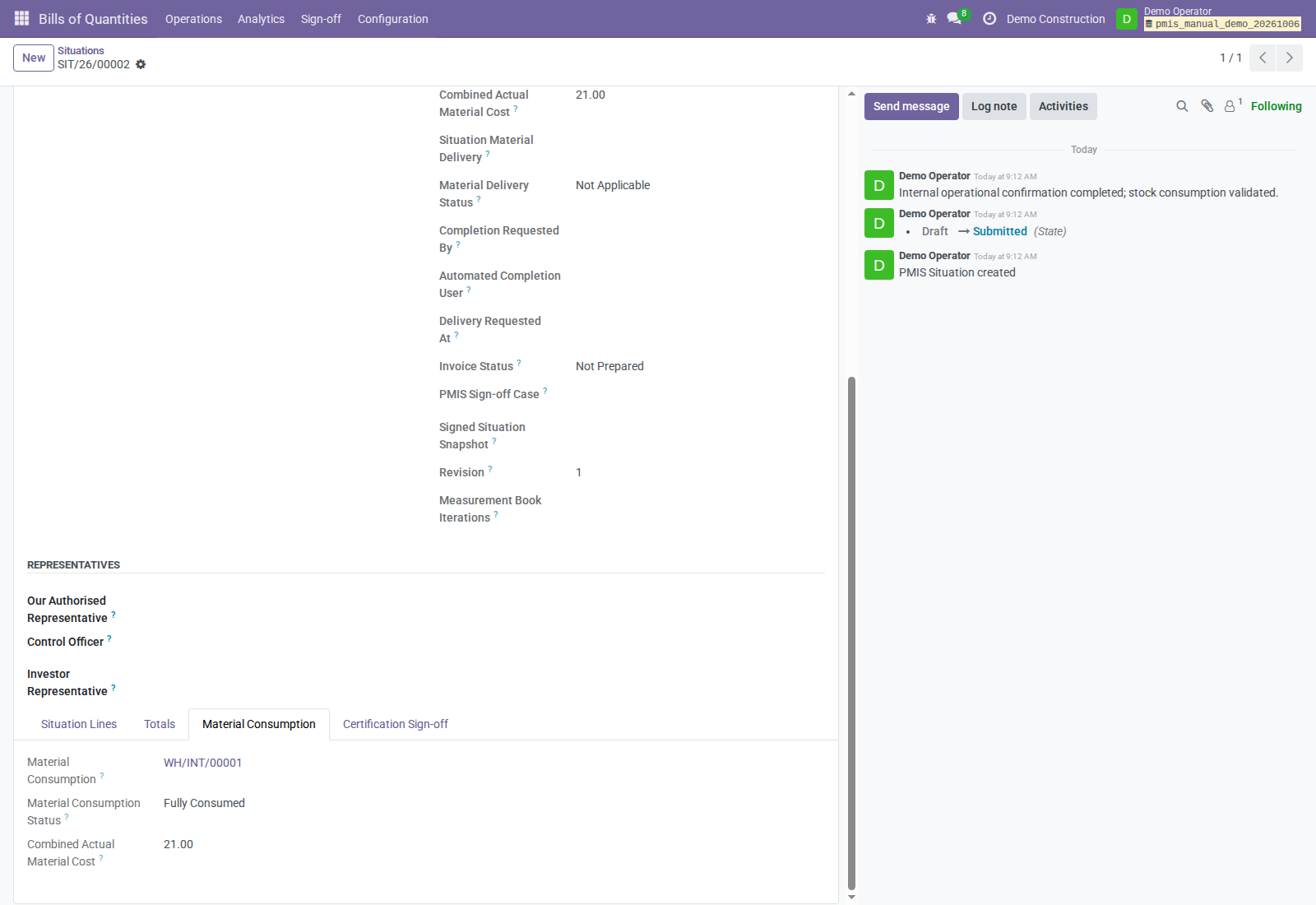
Done stock moves/valuation establish actual consumption cost. A pending picking does not. This route does not certify customer work or automatically create a vendor bill; the demo remains Submitted even after consumption is Done.
Before handing over
- [ ] Daily evidence identifies the correct date, site, people, and activities.
- [ ] Measured and accepted quantities are distinct and justified.
- [ ] Reviewers have the book/case references and supporting context.
- [ ] Situation work links to issued measurements, not guessed quantities.
- [ ] Material classification is explicit and invoice expectations are understood.
- [ ] Outstanding signatures, completion errors, and corrections have named owners.
About the screens
Screens are reused actual synthetic Odoo captures, not mockups. October 6 screens show the worked financial example; Demo Operator had several training roles, so do not assume every displayed button belongs to your account. The October 11 external-case screen is from a separate zero-value, certification-only Situation demo. Capture evidence is available for the main workflow and OCA portal option. This guide does not claim new runtime verification of repeat-period workflows, represented signing, shortages/tracking failures, or returns.