Construction work preparations: the project manager's guide
Use this guide before the crew starts work. Your job is to make the project, scope, people, review route, and material routes ready so the operative can record work without having to invent configuration on site.
Your handoff: a configured project and site, a usable Bill of Quantities, named operational and completion responsibles, and a clear Control Officer signing route. Creating these records does not certify work or move stock.
This guide uses Odoo 18 Community and the current PMIS project-delivery workflow. Use the general manual for the complete reference, the operative's guide once work starts, and the Control Officer's guide for review/signing.
Contents
- Before you start
- 1. Create the project and sites
- 2. Define the planned work
- 3. Name the people and choose the signing route
- 4. Check the sign-off workflows and authority
- 5. Set material routes and completion responsibility
- 6. Agree the invoicing policy
- 7. Hand over a ready project
- When something is missing
- About the screens
Before you start
Ask the application administrator to confirm that the project-delivery apps and their dependencies are installed, including OCA Sign for external PDF/portal signing. Installation, user-account administration, and company accounting setup are administrator tasks, not something to solve while entering a project.
Your access depends on the task, not merely on your job title:
| What you configure | Access to arrange |
|---|---|
| Project and sale BoQ | Sales access to Bills of Quantities; Program Estimation for restricted financial-estimation fields. |
| Sites | Applicable Measurement Operator or PMIS Valuation Manager access and the parent menu. |
| Sign-off workflows and authorities | PMIS Sign-off Manager and access to the Configuration menu. |
| Warehouse routes and availability | Coordinate with the authorized Stock/Operations user. |
| Company invoice policy | Coordinate with the authorized Settings/Accounting administrator. |
Select the intended company before configuring anything. Project, site, BoQ, documents, people, and populated warehouse routes must belong to compatible company contexts. Manager membership alone does not give access to every project's sign-off case.
The example is Training Pavilion / East Wing: plan 100 m² of panel installation at USD 25/m². Later, the operative records 40 m² worked and proposes 38 m² for acceptance. Do not enter those later quantities as completed work now.
1. Create the project and sites
- Open Bills of Quantities → Operations → Projects and click New.
- Enter the project name and company. Set Responsible to the internal person who owns its operational work; select the team when applicable.
- Save. If the project is missing from a list, check the company and remove the default current-user project filter before assuming it was not created.
- Open Bills of Quantities → Analytics → Sites and create the working site, for example East Wing. Select the project and the site's Responsible.
- Add site contact/owner information and useful Site Notes. Keep separate sites when responsibility or material routes differ.
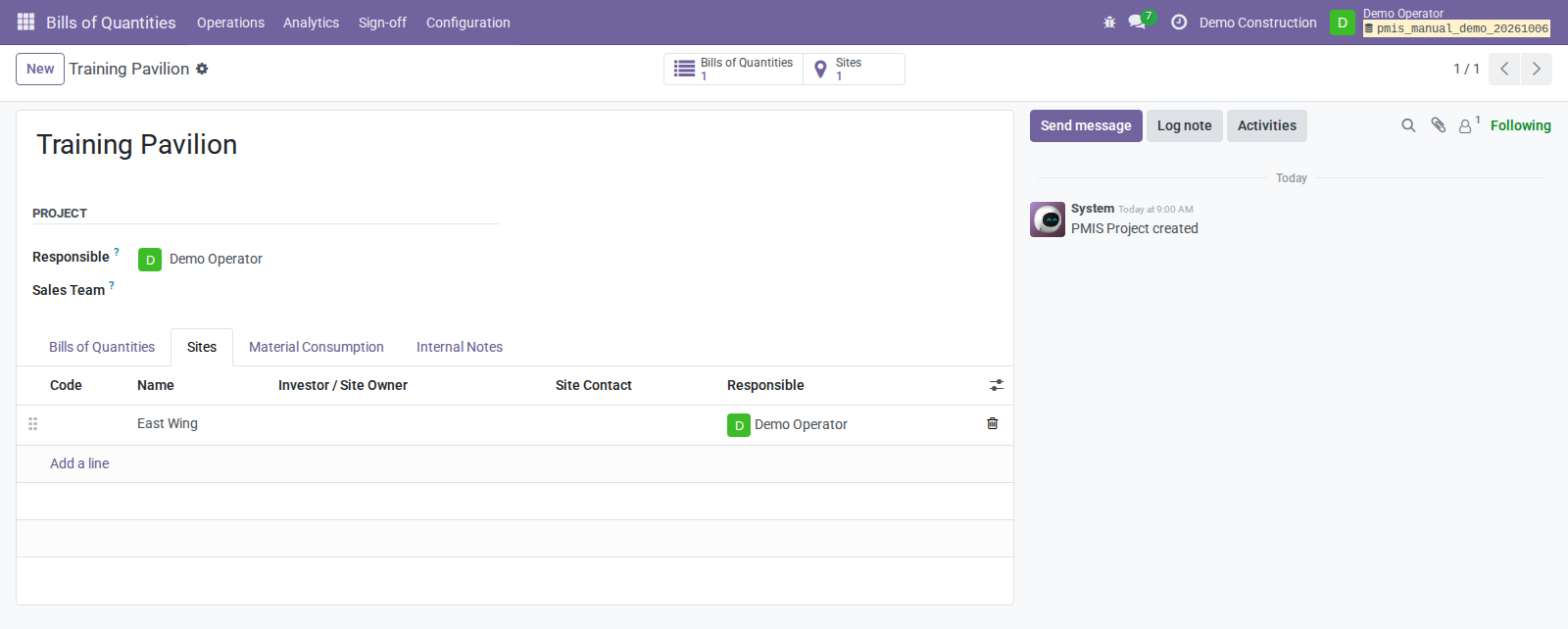
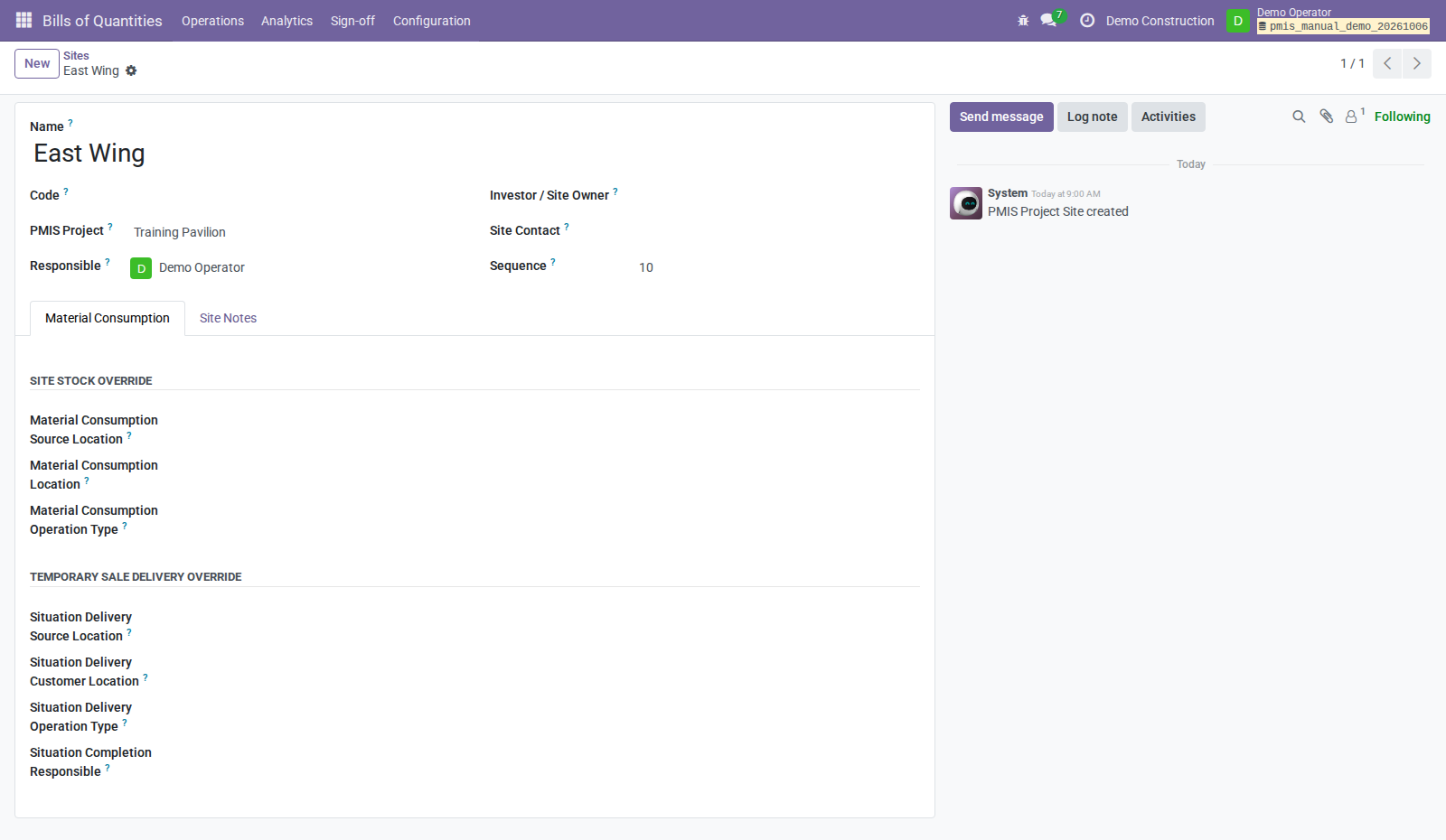
Check before continuing: the operative knows which project and site to use. Creating a site does not automatically configure a warehouse route; blank site route fields use the project's corresponding defaults.
2. Define the planned work
- On the project, open the Bills of Quantities smart button.
- Create the customer BoQ with Sale / Outside, the customer, and the correct project/company. Use Purchase / Inside for a separate internal purchase scope, not for the customer's certification document.
- Add the BoQ Items: section, clear description, product/service, unit, planned quantity, and agreed price. In the example: panel installation, 100 m², USD 25/m².
- Review units and scope with the operative. A stock item's units are not the same as the area of the service it supports.
- If a quotation or RFQ is needed, use the applicable commercial-response wizard and the normal Sales/Purchase confirmation process. Draft responses are not evidence that work was measured, accepted, delivered, or invoiced.
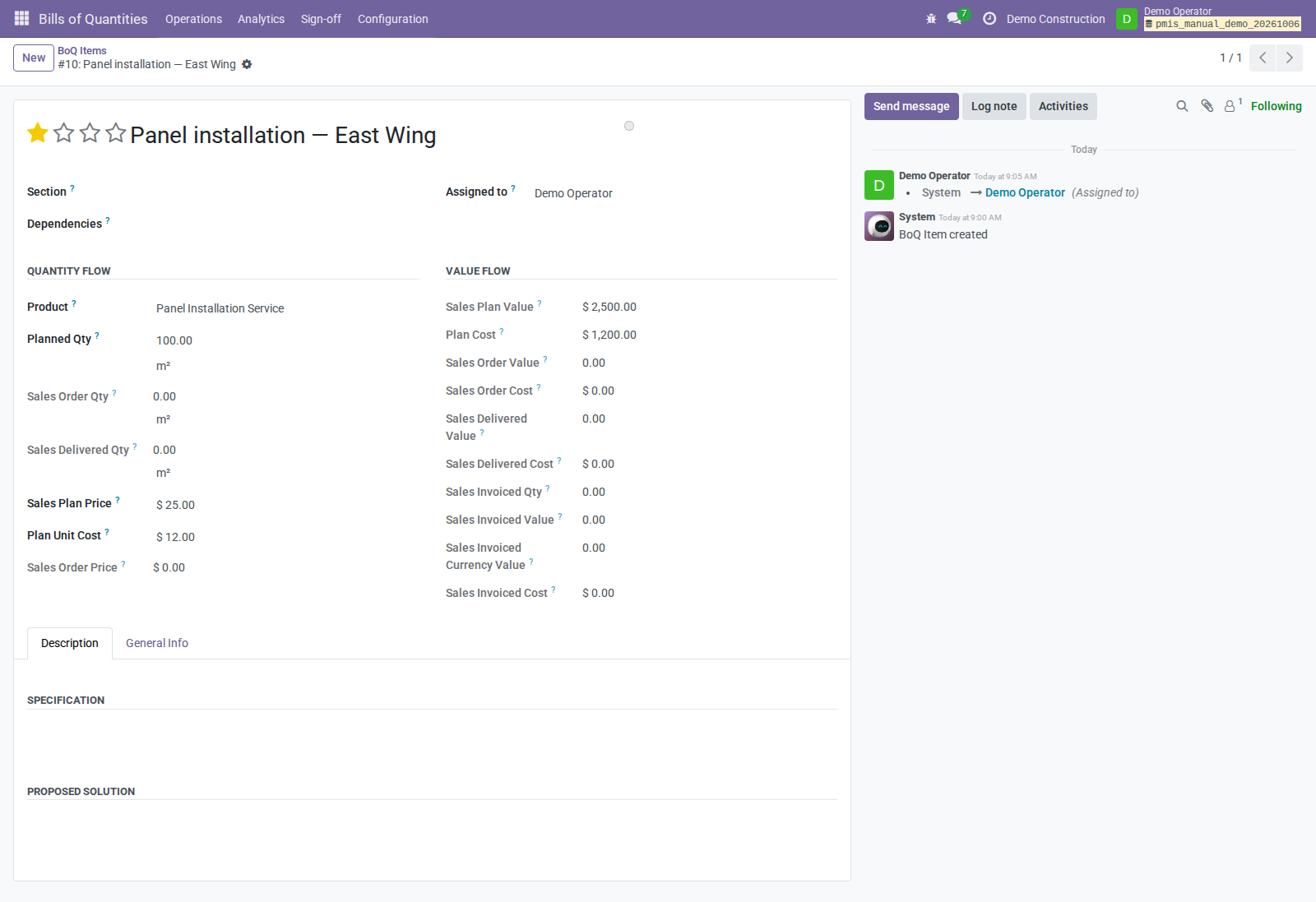
Your handoff: the operative can select the BoQ and its intended work items when creating the Measurement Book. Daily logs do not generate those items or their accepted measurements automatically.
3. Name the people and choose the signing route
Agree these assignments before the first document is submitted:
| Person | What they do |
|---|---|
| Operational responsible | Records measurements/Situations and prepares/sends their sign-off cases. |
| Daily-log reviewer | Reviews and approves site evidence with PMIS Field Service Manager access. |
| Control Officer | Reviews the prepared document and records the decision/signature. |
| Situation Completion Responsible | Resolves authorized delivery/accounting completion and retries when necessary. |
Set Responsible and Control Officer on each Measurement Book and Situation when they are created. Do not assume a project-level responsibility has automatically filled every document assignment.
Choose the Control Officer route:
| Officer's situation | Route to prepare |
|---|---|
| Active internal Odoo user | PMIS Sign-off Officer, live project/site signing authority, and the document's Control Officer contact matching that user. |
| External contact or portal user, with no active internal account | Assign the active contact and a usable email address. The operative sends the case-created OCA PDF/portal invitation. No internal signing authority is needed for that contact. |
| Situation signature recorded through an internal presenter | Arrange separate presenter access/authority. This is not the OCA portal route and is not the represented-signing route for Measurement Books. |
An external signature does not grant the operative additional business access. For external Measurement Book signing, arrange PMIS Valuation Manager access for the requesting internal operator so issuance can complete. For Situation delivery/invoicing, arrange the required internal Operations, Stock, and Accounting permissions. Do not give the external officer internal permissions just to make completion succeed.
4. Check the sign-off workflows and authority
- Open Bills of Quantities → Configuration → Sign-off Configuration → Sign-off Workflows.
- Check Measurement Book Financial Sign-off and Temporary Situation Certification Sign-off for the company. Ask the administrator to configure other companies explicitly when the supplied workflows do not apply.
- Review active step order, Role Code, declaration, and Declaration Version. The standard workflows contain a Control Officer step. Other required steps must be completed in their configured order.
- Agree the declaration before sending documents. Changing it during review can invalidate a pending external invitation.
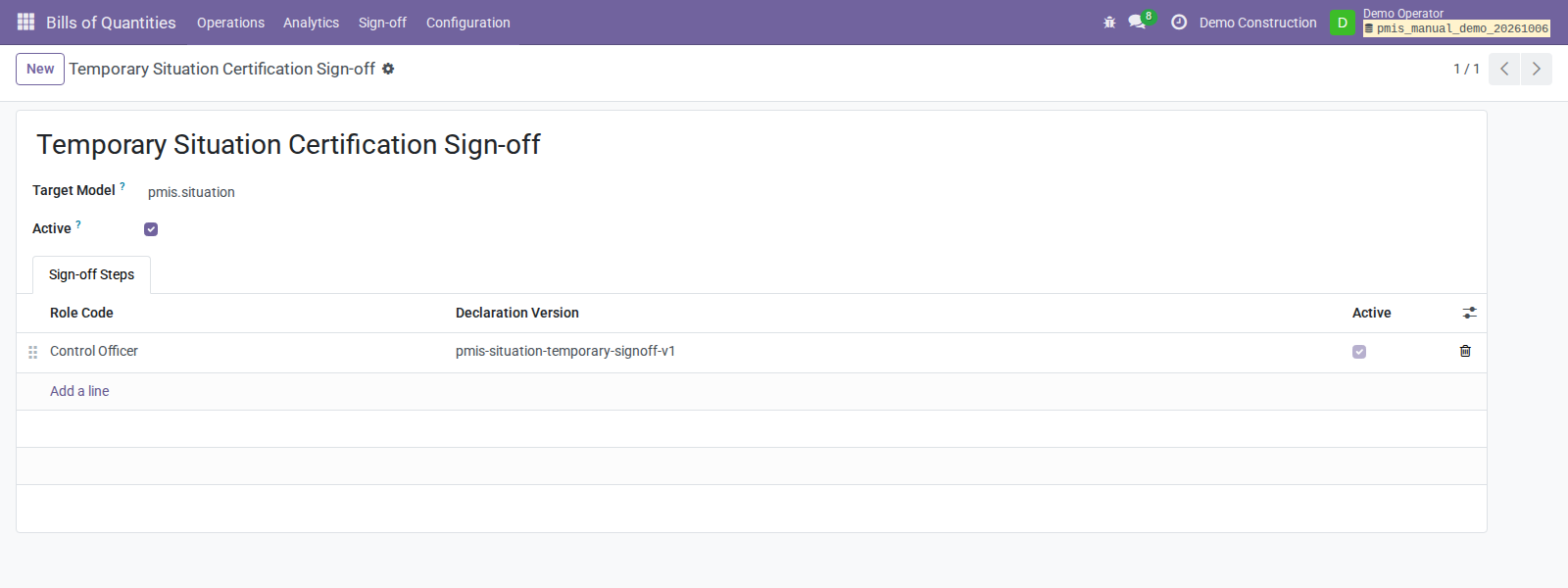
For an internal Control Officer:
- Open Sign-off Authorities. Set the project, optional site, Purpose: Workflow Signing, Role Code: Control Officer, and internal User.
- Check Active, company eligibility, and that the document's Control Officer contact matches the intended user.
- Use an exact-site authority when needed. Eligible exact-site authority takes precedence; eligible project-wide authority is the fallback.
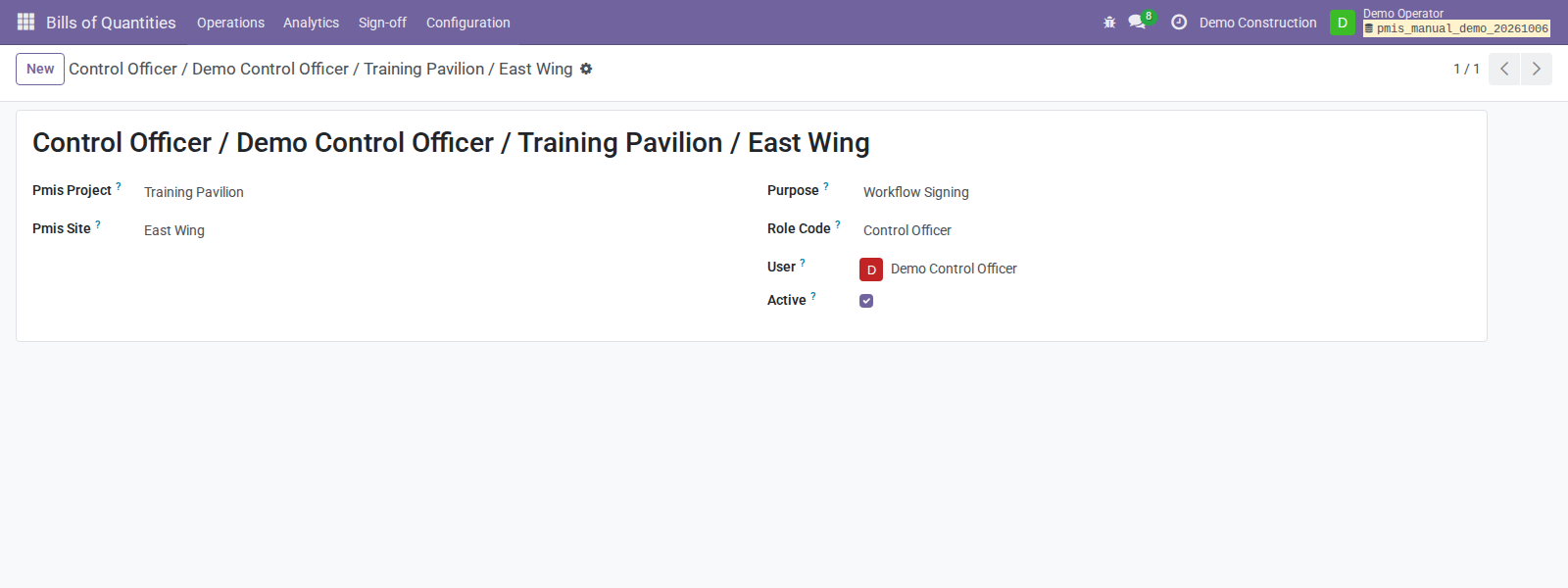
For an external Control Officer, do not create an internal authority for a contact-only signer. The operative's Send Control Officer Signature button binds the invitation to the current assigned contact, case, step, and PDF.
Check: groups alone are not an internal signing mandate. A sign-off manager is not automatically entitled to approve every project document.
5. Set material routes and completion responsibility
With the authorized Stock/Operations colleague, open the project's Material Consumption tab. Configure only the routes the project will use.
| Route | Source | Destination | Operation type / responsible |
|---|---|---|---|
| Temporary sale delivery | Company-owned Internal location | Company-owned Customer location | Company-owned outgoing operation type; Situation Completion Responsible. |
| Internal purchase consumption | Company-owned Internal location | Company-owned Production location | Company-owned consumption operation type; applicable project/site responsible. |
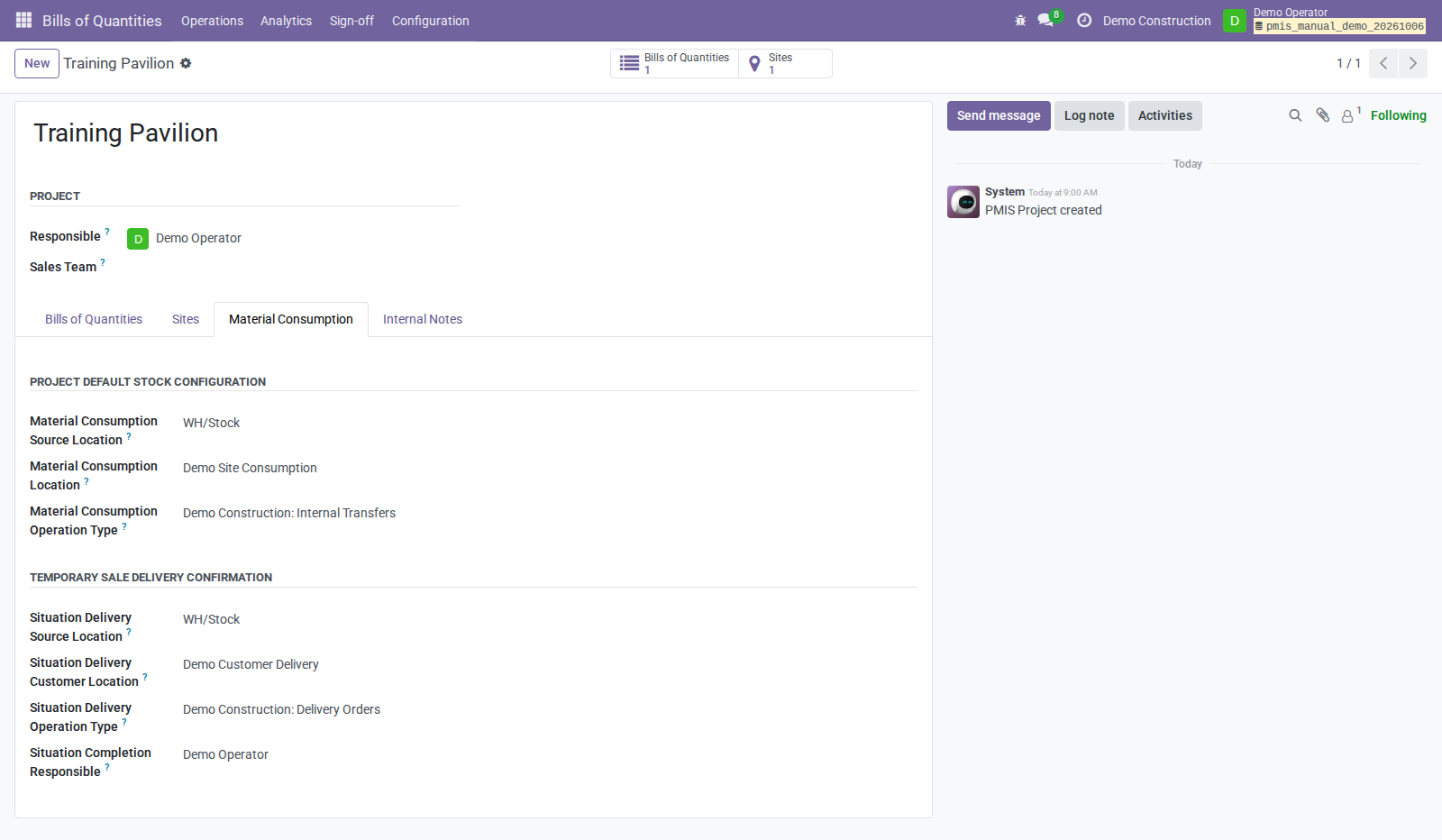
- Confirm the intended source, destination, and operation type with the warehouse.
- Set the internal Situation Completion Responsible for customer completion.
- On each site, populate only values that should override project defaults; each blank value falls back independently.
- Arrange source availability and any lot/serial allocation with the warehouse.
- For automated valuation, have Accounting/Inventory confirm valuation accounts and the stock journal before certification is due.
Stop if: a populated route points to another company or a shared destination without the company required by this workflow. Do not substitute an arbitrary location merely to remove an error.
No material needs delivery for some work lines. The operative must explicitly classify those lines rather than inventing a product/quantity.
6. Agree the invoicing policy
Ask the authorized administrator to open Settings → PMIS Bills of Quantities → Temporary Situations → Invoice policy for the active company.
| Policy | What the team should expect after successful certification/completion |
|---|---|
| Certification only | No automatic invoice; this is the default. |
| Prepare draft invoice | A linked draft is prepared; Accounting reviews/posts it separately. |
| Prepare and post invoice | The configured completion flow prepares/posts with the necessary permissions. |
This is a company policy, not a per-project promise. Agree it with Accounting and tell the operative which result to expect. Posting and payment are different events. A valid signature can remain recorded even if subsequent accounting completion fails.
7. Hand over a ready project
Before work starts, check the following with the operative:
- [ ] Correct company, project, site, customer/vendor, and BoQ are identifiable.
- [ ] Planned work, units, quantities, and prices are agreed.
- [ ] Operational and daily-log review responsibilities are named.
- [ ] Internal Control Officer authority or external contact/email is ready.
- [ ] Company workflows and declarations are agreed.
- [ ] Needed material routes, availability, and completion responsibility are ready.
- [ ] Invoice policy and the Accounting handoff are understood.
- [ ] The operative can open their project, daily logs, and Measurement Books.
If Field Service orders are used, have the responsible Field Service user set PMIS Project and PMIS Site on the order. The operative can then use Create Daily Log with the correct context rather than re-entering it daily.
Hand over the construction operations manual and send the officer the Control Officer manual. Keep configuration decisions with the project team; do not ask the officer to repair warehouse or accounting setup while signing.
When something is missing
| What you see | What to check or hand off |
|---|---|
| Missing menu or price field | Ask the administrator for the task-specific access; do not switch to another person's login. |
| Operative cannot prepare/send a case | Document/project/site operational responsibility, applicable operator groups, and company. |
| Internal officer cannot review/sign | Active internal user, company, matching assigned contact, and live project/site role authority. |
| External invitation unavailable | Assigned active external contact, email, pending Control Officer step, and installed/upgraded OCA integration. |
| Signature recorded but completion fails | Route, stock/tracking, issuance, or accounting prerequisite; the authorized internal responsible resolves/retries. |
About the screens
Screens are actual synthetic Odoo captures reused from the October 6 demo, not mockups. Demo Operator combined several training roles; your menus/buttons depend on your own permissions. These screens illustrate configuration and handoff, not proof that one least-privilege manager account can do every task. See the capture evidence and general manual. No new production configuration or installation is implied by this guide.