Slovenian FURS Control — User Manual
For accountants and accounting managers using l10n_si_furs_control
on Odoo 18 Community. For installation and access configuration,
see the Administrator Manual.
For source-document dates and report preparation, see the Slovenian Tax Addons manual. For advance receipt and settlement evidence, see the Prepayment Invoices manual.
About the screenshots: These are real browser captures from Odoo 18 running this addon in a disposable local database populated with synthetic companies, invoices, VAT mappings, and files. The FURS download is a schema-valid synthetic example, not evidence obtained from eDavki. No customer or production data is shown. Screenshots use the Invoicing application label and developer mode; your theme, language, date/number formatting, optional columns, and extensions may differ. English button and field labels are used below.
Contents
- Purpose and boundaries
- Before starting
- Obtain the FURS download
- Import and compare
- Read the result
- Investigate differences
- Correct fully omitted output VAT
- Export, file, and verify again
- Retrieve preserved evidence
- Historical controls and corrections
- Troubleshooting
- Period completion checklist
- Glossary
1. Purpose and boundaries
The addon compares the KIR/KPR books downloaded from FURS with the company's current Odoo VAT-register lines for the same reporting period. It preserves both inputs and the comparison so that subsequent accounting changes do not rewrite the earlier result.
The normal workflow is:
- Verify the accepted VAT-book state in eDavki and download its XML.
- Import the XML into Odoo and compare it with current register lines.
- Review individual documents and tax-column totals.
- Have an accounting manager assess and apply an eligible correction.
- Generate reports, submit them through the normal external filing process, and verify processing in eDavki.
- Download the updated books and create another control.
The module does not log in to eDavki, submit reports, verify digital signatures, or determine whether a portal submission was accepted. A Matched result means that the compared book values agree; it does not certify a DDV-O, RP-O, or PD-O filing or establish legal compliance.
KIR and KPR scope comes from the download header. A KIR-only download checks only KIR, even if Odoo also contains KPR transactions for that period.
2. Before starting
Ask your administrator to complete the setup checklist. You need:
- Accounting-user access for importing, comparing, and reading evidence.
- Accounting-manager access for preparing and applying corrections, plus write access to the source document and its journal items.
- The correct company selected and active in Odoo's company selector.
- The company's correct Slovenian VAT number in Odoo.
- Appropriate eDavki authorization for the taxpayer, managed outside this addon.
- A downloaded accepted-state KIR/KPR file and its FURS document/evidence reference.
The addon is reached through:
Accounting > Reporting > Tax Reports > FURS Control
Its three entries are Import FURS Download, Controls, and Preserved Tax Evidence. Depending on the installed Accounting menu labels, the Accounting application may be presented as Invoicing.
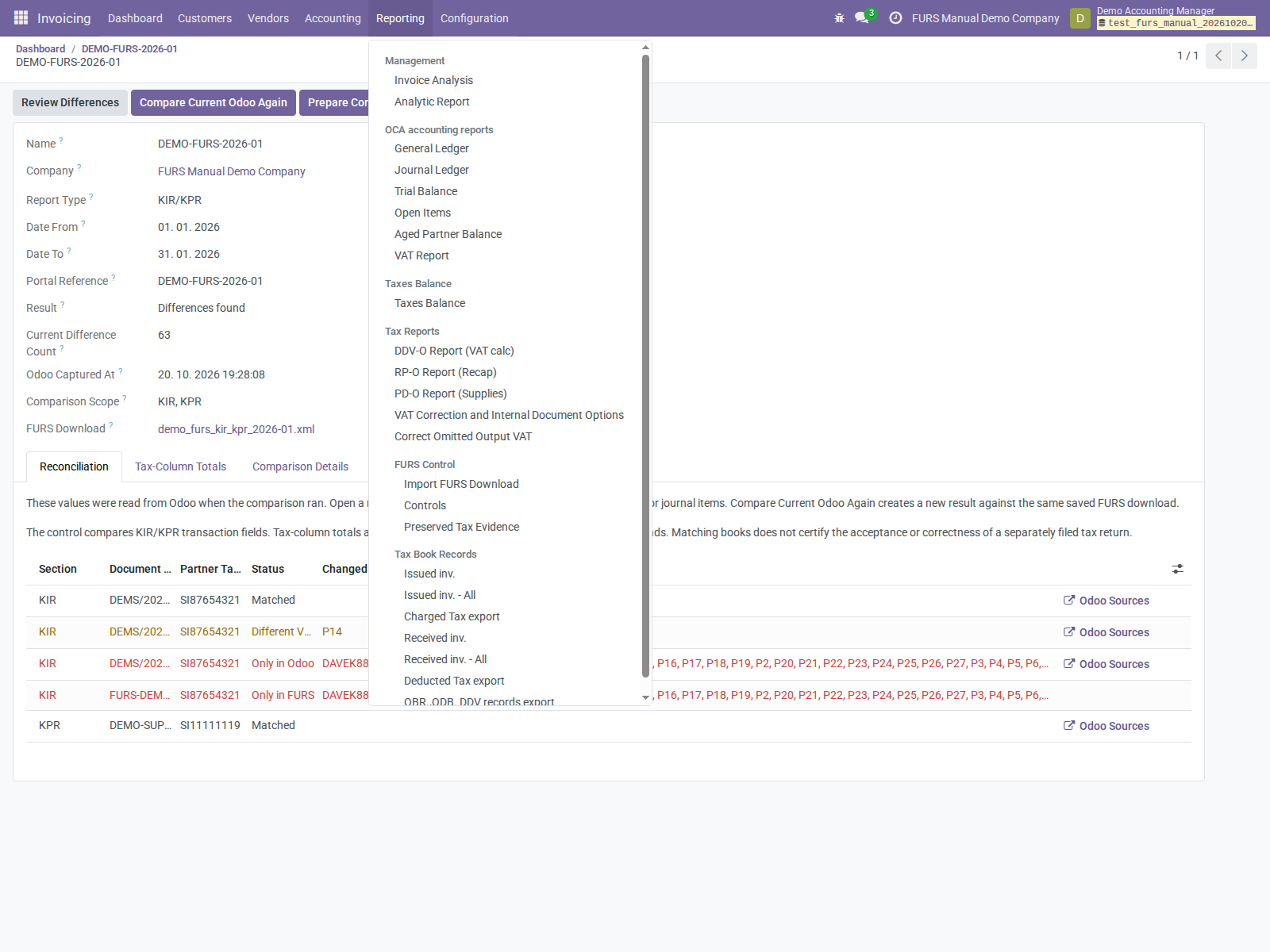
Figure 1. FURS Control entries in the running demo's Reporting menu.
3. Obtain the FURS download
- Sign in to eDavki using your organization's approved access method.
- Select the correct taxpayer.
- Open Evidenci obračunanega DDV in odbitka DDV.
- Select the reporting period and review the evidence identifier and processing status. Establish that the displayed data is the accepted state you intend to compare; do not rely only on a successful file upload.
- Use Pridobi podatke iz evidenc to download the VAT-book XML.
- Retain the corresponding reference so you can enter it in Odoo.
The latest-books view and the upload-history view have different purposes. After a submission, allow for portal processing before treating a new download as the updated state. This manual does not reproduce an authenticated eDavki screen. Portal terminology and processing notes are documented in the existing FURS download evidence, which records its source verification date; consult current portal guidance if the interface differs.
Accepted input
| Input | Accepted by Import FURS Download? |
|---|---|
KIR/KPR XML using DDV_KIR_KPR_1.xsd |
Yes, subject to validation |
| ZIP with exactly one unencrypted XML member | Yes, subject to the same validation |
| ZIP with extra files or directory members | No |
Povratnica status receipt |
No; it contains no transaction rows |
| Separate DDV-O, RP-O, or PD-O XML | No |
| An Odoo export as a second comparison input | No; current values are read directly |
| JSON, CSV, XLSX, PDF, HTML, or an image | No |
Both the uploaded file and extracted XML must be at most 20 MiB. Keep the
original XML intact; converting another format to an .xml filename does not
make it a valid input. A ZIP is an optional local packaging format accepted by
the importer, not a claim about the portal's download format.
4. Import and compare
- Select the company you intend to check.
- Open FURS Control > Import FURS Download.
- Complete the dialog:
| Field | What to enter |
|---|---|
| Company | The company identified by the download's taxpayer number |
| FURS KIR/KPR Download (XML/ZIP) | The XML downloaded in section 3, or a supported ZIP |
| FURS Document Reference | The nonblank portal reference identifying this evidence |
| I confirm this download represents the accepted FURS state for this period | Select only after checking the portal |
- Click Compare with Current Odoo.
- If validation succeeds, Odoo opens the newly created control.
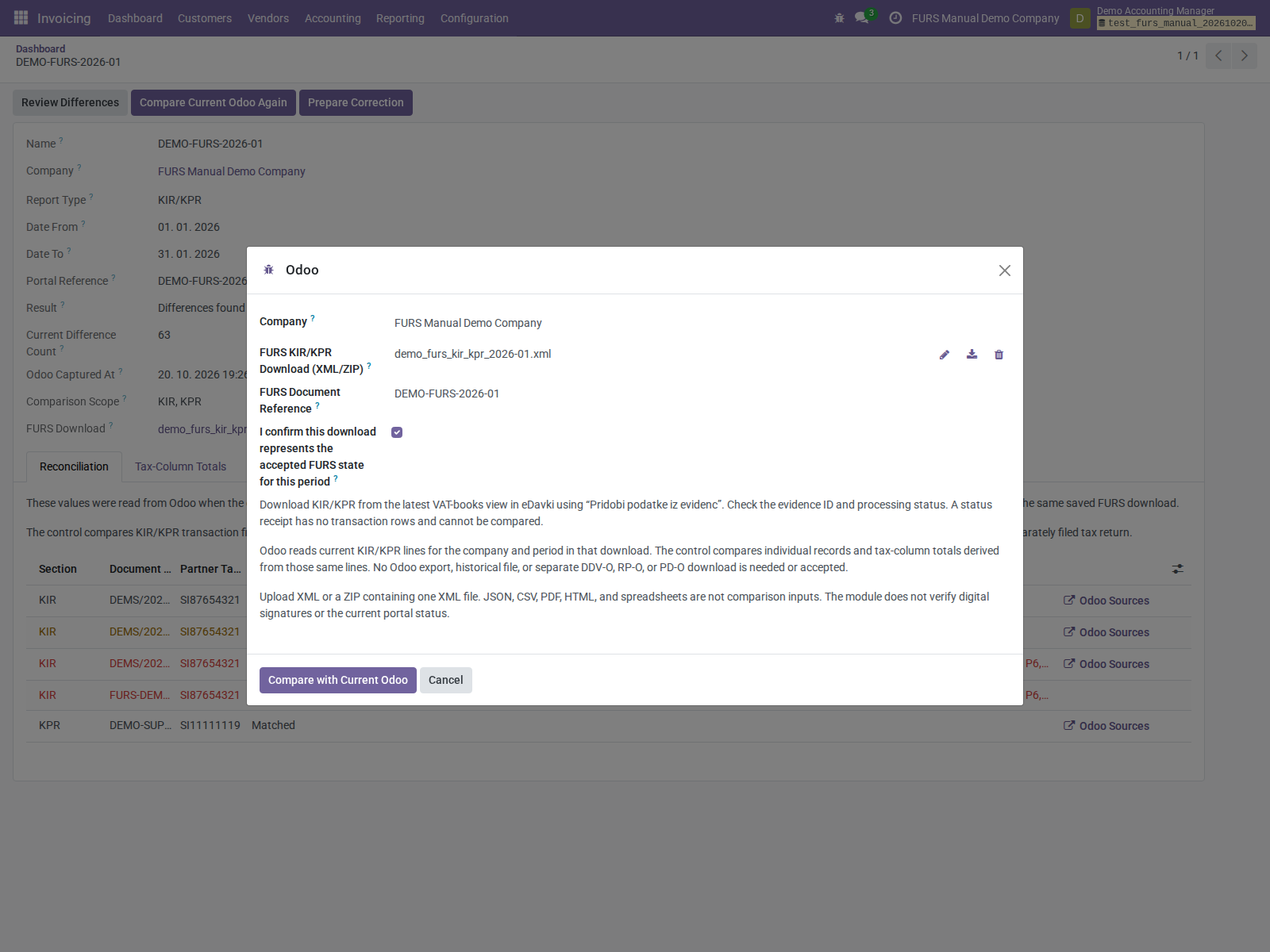
Figure 2. The populated import dialog before running the comparison.
The company defaults to your current company. There are no manual period fields: the dates come from the XML. Odoo checks the file structure, bundled schema, taxpayer, period, and included-book indicators before capturing values.
Current register lines are selected by Tax Date, not merely invoice date or accounting date. The comparison refreshes prepayment reporting allocations; it does not change accounting entries. It creates preserved evidence and a control, so it is not a transient preview.
The acceptance checkbox records your confirmation. Odoo does not independently query the portal or validate that assertion.
5. Read the result
Control header
Check Company, Report Type, Date From, Date To, Portal Reference, Odoo Captured At, and Comparison Scope before interpreting differences. The FURS Download link opens the preserved upload.
- Matched: no differences were detected within the selected books and fields.
- Differences found: at least one document or derived total differs.
- Current Difference Count counts individual comparison differences, including tax-total differences. It is not a count of invoices requiring correction; one document can contribute multiple differences.
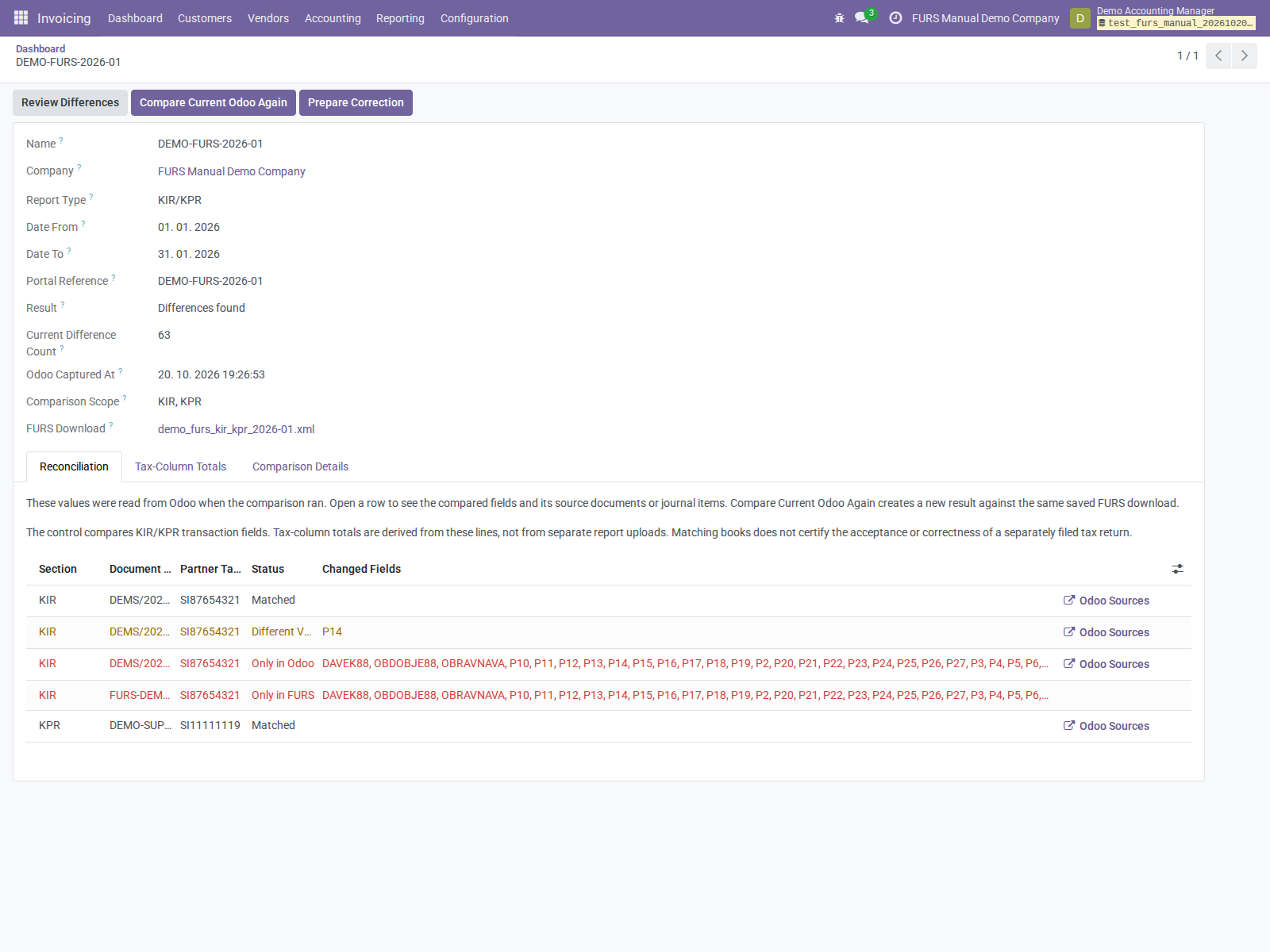
Figure 3. Live control with matched, changed, Odoo-only, and FURS-only demo rows.
Reconciliation
The Reconciliation tab lists document rows captured when this comparison ran.
| Status | Meaning | Next step |
|---|---|---|
| Matched | A document's compared values agree | No discrepancy for this row |
| Different Values | The identity matches, but fields differ | Open the row and inspect highlighted values |
| Only in Odoo | No matching FURS row was found | Check the portal state, reference, partner identity, period, and omission history |
| Only in FURS | No matching Odoo row was found | Check Odoo source records, Tax Dates, mappings, and the selected company |
| Ambiguous Duplicates | Remaining rows share an identity and cannot be paired safely | Review all candidate rows manually |
Matching uses the register, document reference, and partner tax identity. For
KIR this includes P3, P6, and P6DS; for KPR it includes P3, P7, and
P7DS. A changed reference or identity can therefore appear as two unmatched
rows instead of one Different Values row.
Equivalent numeric formatting, such as 100.00 and 100, is ignored, as are
VAT-book sequence numbers (ZAPST). Duplicate rows are preserved. Exact
duplicates are matched first; unresolved candidates remain ambiguous.
Tax-Column Totals
Open Tax-Column Totals to review sums of the same compared transaction rows.
For KIR these include monetary columns P7–P27; for KPR, P8–P21. Both
include DAVEK88.
Difference Amount = Odoo Amount − FURS Amount. A positive value means the Odoo total is greater; a negative value means the FURS total is greater. These totals are not independently downloaded return balances.

Figure 4. The demo's KIR P14 total is EUR 550 in Odoo and EUR 332 in the synthetic FURS file, giving an Odoo-minus-FURS difference of EUR 218.
Equal totals do not prove equal documents. Two opposite differences can cancel in a total while both document discrepancies remain visible.
Comparison Details
Use Comparison Details for the recorded field-level differences. The
structured detail uses Odoo as expected and FURS as actual; those technical
names do not establish which side is legally correct.
6. Investigate differences
- Click Review Differences. This opens Reconciliation Rows, initially filtered to differences for the selected control.
- Search by document, partner tax number, or changed fields.
- Use Only in Odoo, Only in FURS, or Ambiguous Duplicates to narrow the list. Use Group By > Register / Report or Status as needed.
- Remove the default Differences filter before selecting Matched if you want to see matching rows.
- Open a row. Read Field / Tax Column, Odoo, and FURS together; highlighted fields differ. Duplicate cases show the candidate rows instead of a presumed one-to-one pairing.
- Click Open Odoo Sources when available to inspect the linked documents or journal items. Source access still follows your normal permissions.
- Click Open Tax Register to inspect linked KIR/KPR register records for this control's company and original period.

Figure 5. Invoice DEMS/2026/00002 has P14 of EUR 220 in Odoo versus EUR 200 in the synthetic FURS input. The row also provides source-navigation buttons.
A FURS-only row normally has no Odoo source link. A source link opens current records, while the comparison values remain as captured. After a date correction, Open Tax Register for an old control may show no row because the source now belongs to another Tax Date period. This does not erase the saved evidence.
Before choosing a correction, establish whether the issue is an actual omission, an incorrect amount, an identity mismatch, a mapping problem, a date problem, or an outdated/unaccepted portal download. Only in Odoo alone is not proof that an entire document was omitted from a submitted return.
Recheck after Odoo changes
Click Compare Current Odoo Again to capture fresh Odoo values against the same saved FURS download. The button creates a separate control; it does not update or delete the original. Compare capture times when reviewing history.
When FURS has changed, use Import FURS Download with a new portal download. Rechecking an older saved file cannot establish agreement with a newer portal state. There is no automatic polling or scheduled refresh.
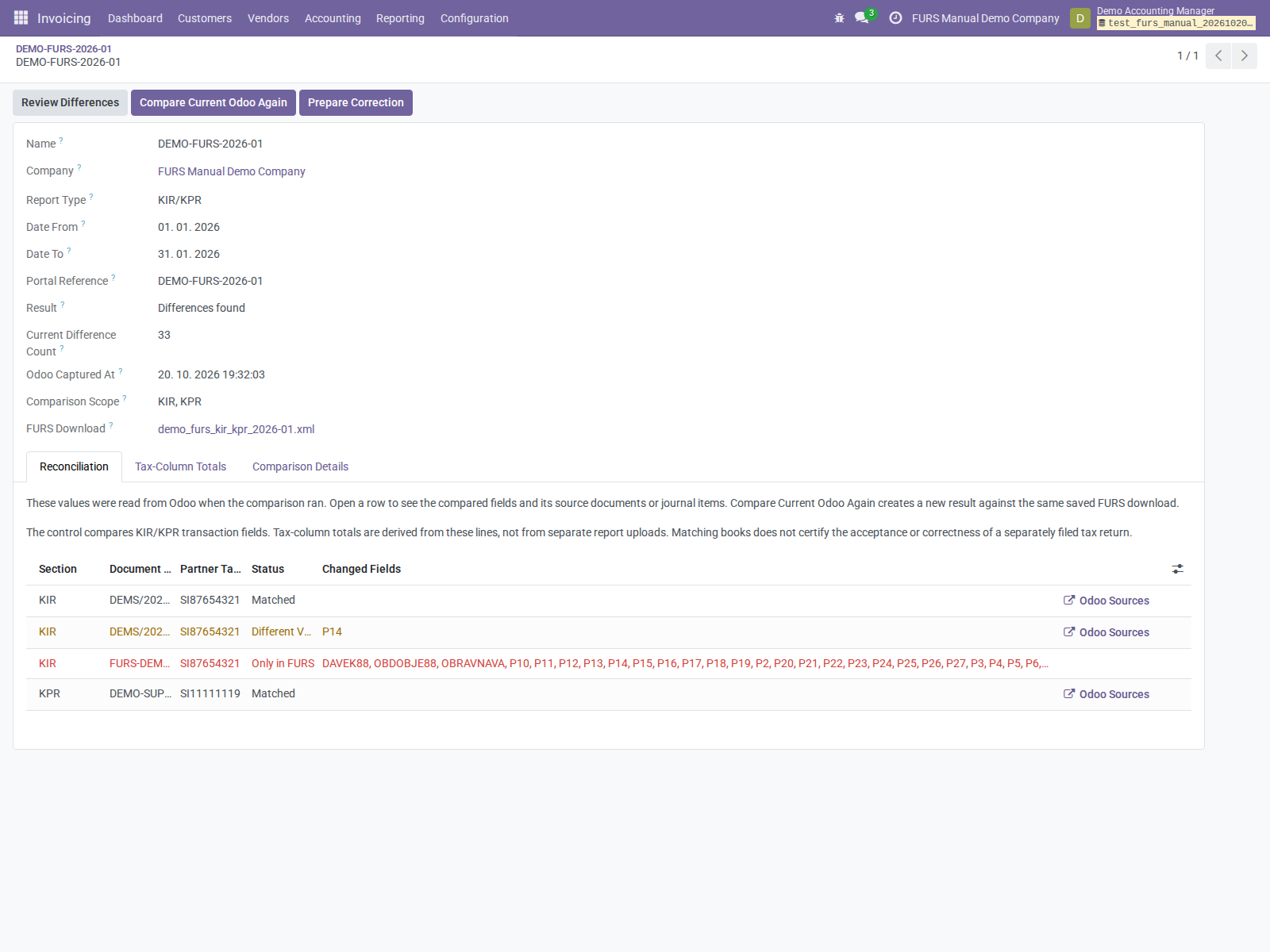
A new comparison after moving the omitted document to February. The original January control remains intact, and the remaining synthetic discrepancies still require review.
7. Correct fully omitted output VAT
This workflow is for accounting managers after a substantive omission review. There is no automatic undo. It moves reporting evidence for the entire document; it is unsuitable for correcting only part of its VAT.
Eligibility
All the following must hold:
- The document is a posted customer invoice, customer receipt, or advance VAT-on-receipt journal entry in the selected active company.
- Use Slovenian Accounting is enabled for that company.
- Output VAT is positive and the entire document was omitted from the submitted return and has not already been corrected, as confirmed by the accountant.
- The document has no existing correction treatment other than normal treatment
(
OBRAVNAVAempty or1). - It has no posted advance settlement applications requiring separate review.
- There is VAT reporting evidence and exactly one issued-register row.
- All accountable journal items share one Tax Date, or all have no Tax Date.
- The original period is a complete month or calendar quarter in one year, exactly matching the linked control's start and end dates.
- The new Tax Date is after that original period and passes Odoo's lock checks.
- The entered
DAVEK88equals the entire issued-register output VAT.
Partial omissions, input VAT, negative corrections, wrong amounts, and mixed Tax Dates require separate accountant assessment outside this action.
Apply the correction
- Open the relevant control with differences.
- Click Prepare Correction.
- Enter a meaningful Reason, select I reviewed the differences and confirm the intended correction, and click Review Omitted Output VAT.
- In Correct Omitted Output VAT, select Omitted Document. Verify its identity and source journal items independently of the control status.
- Check Original VAT Period Start and Original VAT Period End. Selecting the document defaults these to its original month. For a quarterly control, restore the full quarter after selecting the document.
- Enter New Tax Date in the intended later, open reporting period.
- Verify Omitted VAT (DAVEK88) against the full issued-register output VAT.
The required total is
col_14 + col_15a + col_15b. A default amount is not a substitute for reviewing the register. - Read the reason and source lines. Confirm I confirm this VAT was omitted from the submitted return and has not been corrected.
- Click Apply Reporting Correction. The button becomes available after confirmation. On success, the dialog closes.
- Open the source document and review the chatter note before generating reports.
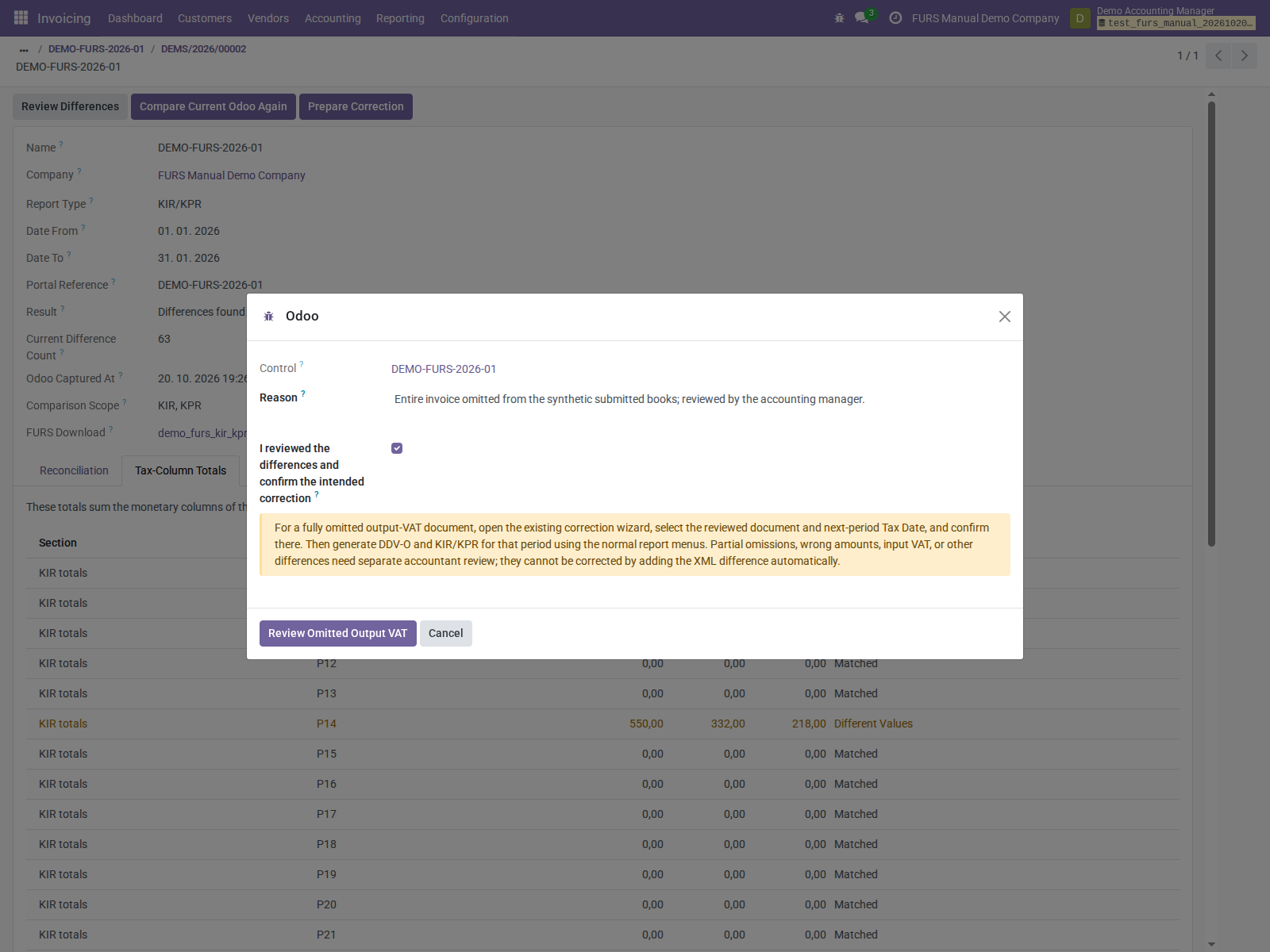
The first dialog records the review reason and opens the omitted-output-VAT workflow.

Figure 6. The demo invoice DEMS/2026/00003 carries EUR 220 of output VAT. The manager reviews its balanced source lines before moving reporting to February.
What changes
The action updates accountable journal-item Tax Dates and sets the document's
OBRAVNAVA = 2, OBDOBJE88, and DAVEK88. It adds an audit note with the
reason and linked FURS control reference. OBDOBJE88 encodes the original start
month, end month, and year: January 2026 is 01012026; Q1 2026 is 01032026.
The journal entry stays posted. Accounting dates, amounts, accounts, and reconciliation are preserved. Regenerated old-period reports exclude the document; new-period reports include it with correction treatment. Earlier preserved controls and exports keep their captured values.
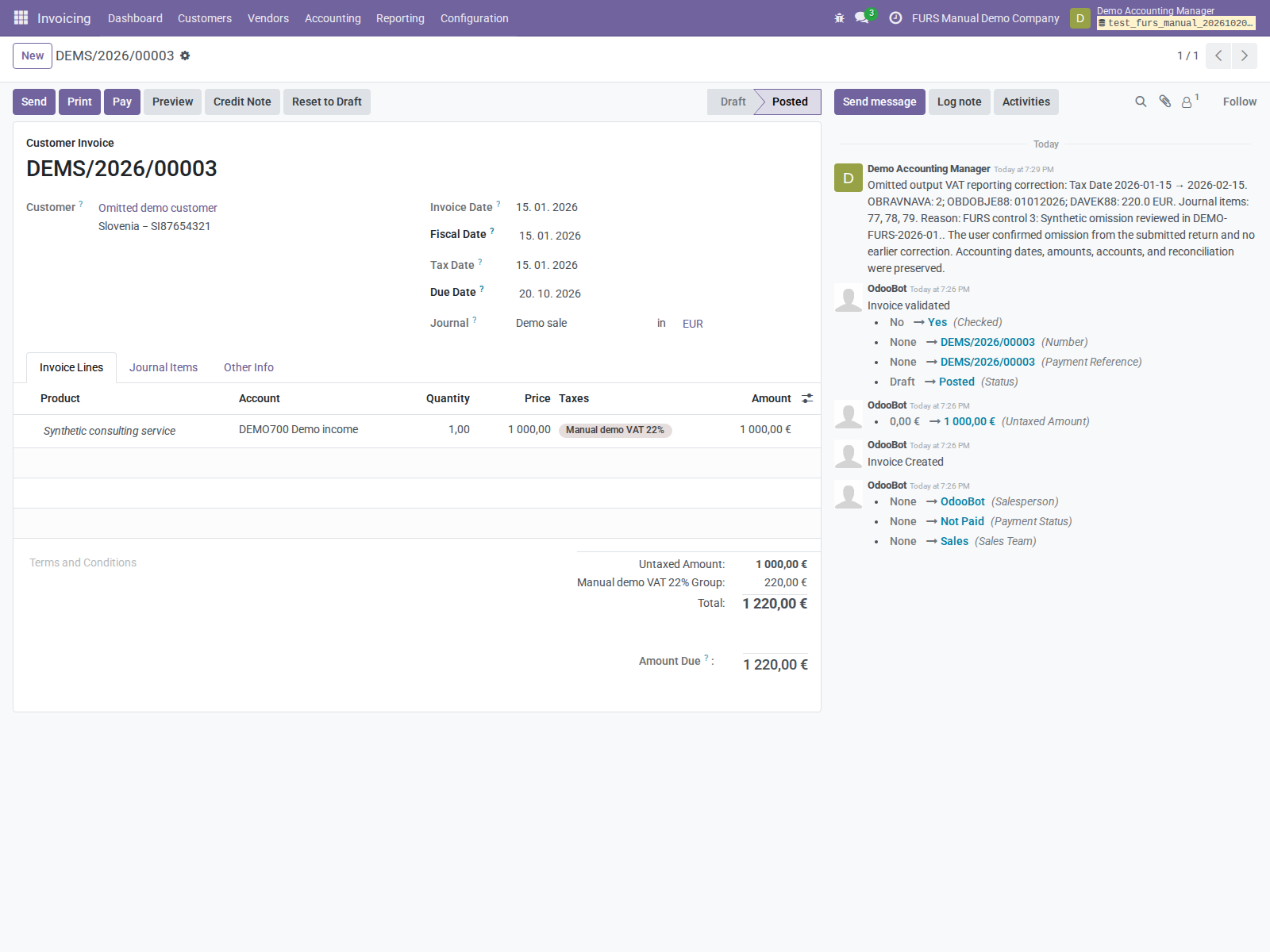
The applied correction's audit note records the old and new journal-item Tax Dates, original period code, VAT amount, reason, and FURS control reference. The document header can still display its original Tax Date; check journal-item Tax Dates when verifying this reporting correction.
Applying this action does not file a report or create a prepared RP-O/PD-O XML correction record. Its audit trail is on the source document. If you selected the wrong document or date, stop and ask the responsible accountant to assess the remedy; do not try to repeat the omission action or edit saved evidence.
8. Export, file, and verify again
- Generate the applicable reports for the new reporting period using the existing Tax Reports menus:
| Report | Menu below Accounting > Reporting > Tax Reports |
|---|---|
| DDV-O XML | DDV-O Report (VAT calc) |
| KIR/KPR XML | Tax Book Records > OBR.,ODB. DDV records export |
| RP-O, where applicable | RP-O Report (Recap) |
| PD-O, where applicable | PD-O Report (Supplies) |
- Review the generated reports and their periods. In the KIR/KPR dialog use Export XML for the filing file. Export XLSX is a separate output, not a FURS Control comparison input.
- Download the generated file. Export XML for KIR/KPR produces a ZIP named
kir_kpr_report_<period>_<year>.zipcontainingkir_kpr_report.xml. Validated XML exports through the supported actions are also saved under Preserved Tax Evidence. - Submit through your organization's eDavki filing process, outside this addon.
- Review portal processing and resolve errors there before confirming acceptance.
- Download the updated latest KIR/KPR state for each relevant period and import it as a new control. A later-period omission correction does not necessarily make every earlier-period comparison match.
- Retain related portal references and the accounting rationale with your organization's filing records.
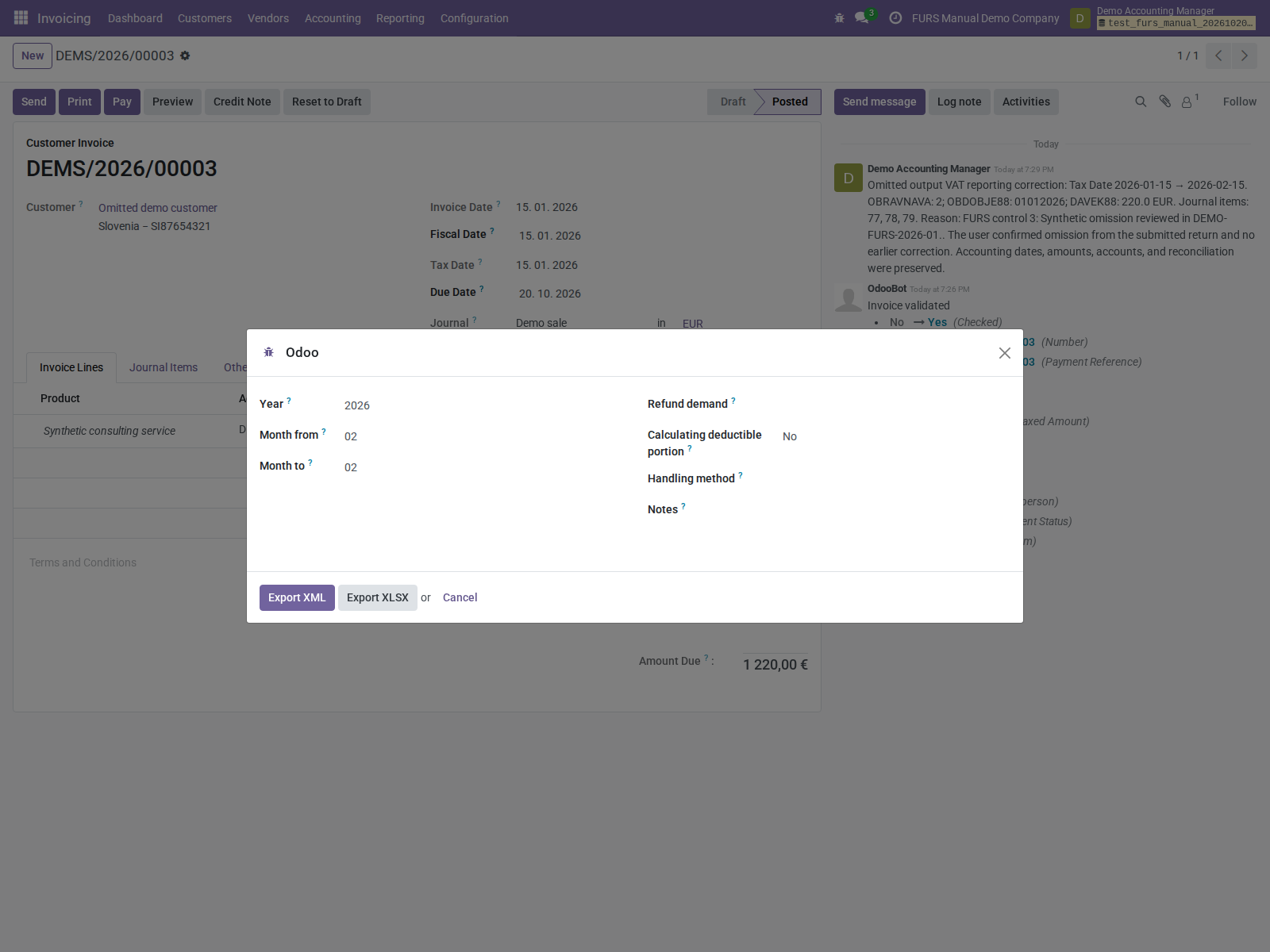
Select the later reporting period and click Export XML.
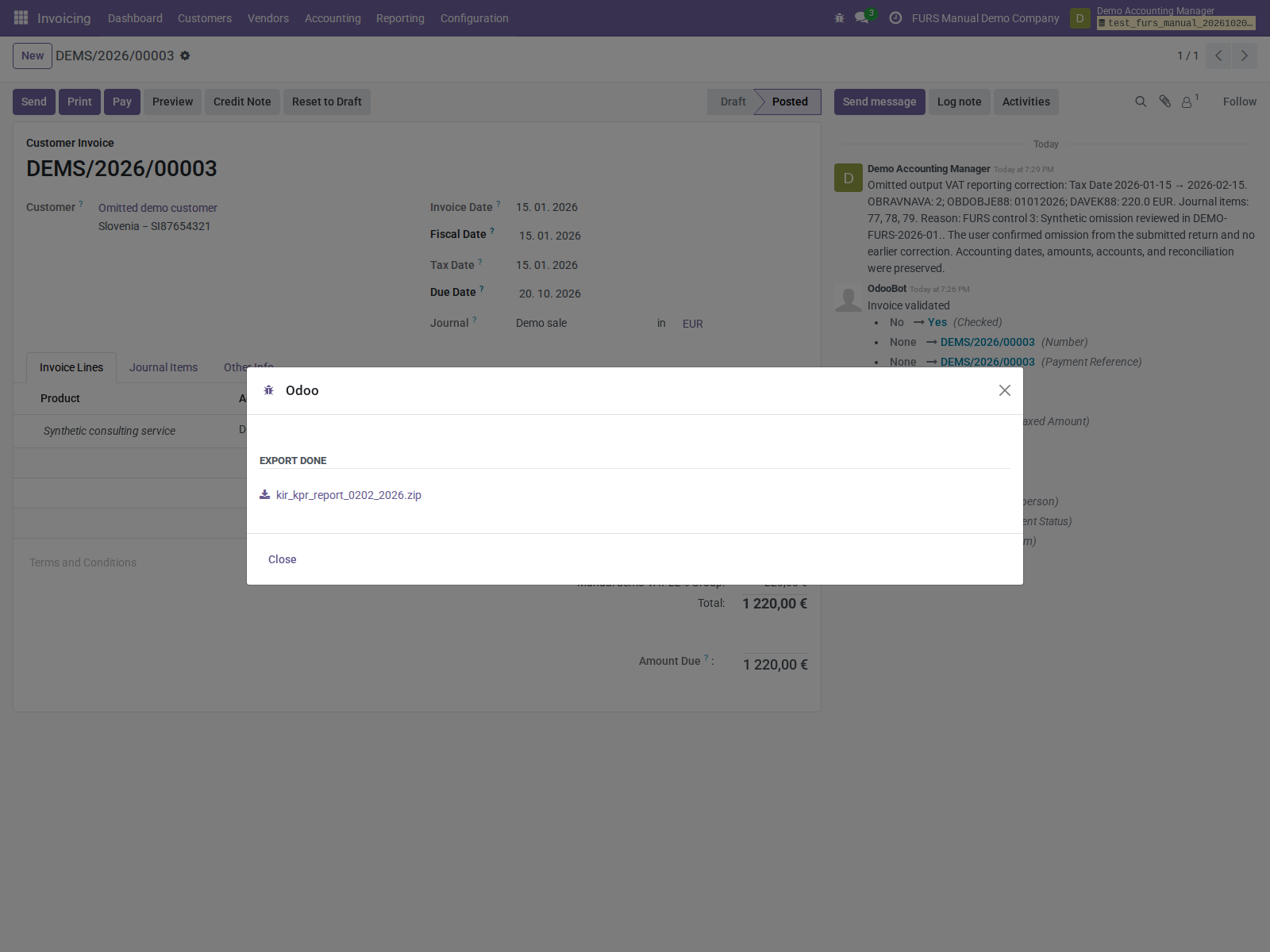
The completed demo export offers kir_kpr_report_0202_2026.zip for download.
An export snapshot proves what Odoo generated, not what was submitted or accepted. PDF exports do not create snapshots through these extensions. If XML snapshot validation fails, the report action fails rather than silently delivering an unpreserved export.
9. Retrieve preserved evidence
- Open FURS Control > Preserved Tax Evidence.
- Locate the evidence by company, period, report type, source, and creation time.
- Open it and review Name, Company, Report Type, Source, Date From, Date To, Digest, Created by, and Created on.
- Download Data when you need the preserved file.

Figure 7. The preserved synthetic FURS input, download field, digest, and metadata.
| Source | Meaning and download content |
|---|---|
| FURS download | The uploaded XML or ZIP |
| Current Odoo records | Captured values and source links in JSON; not filing XML |
| Odoo export | Validated XML captured by a supported report action |
| Uploaded Odoo export | Historical evidence; not an input to the current import dialog |
| Prepared correction | A preserved correction XML from the legacy recipient-report workflow |
The digest is SHA-256 of the stored content. A FURS ZIP upload is hashed as the uploaded ZIP, not only its extracted XML. The digest helps identify content; it does not validate a digital signature or portal acceptance.
Controls, reconciliation rows, preserved evidence, and prepared correction records cannot be edited or deleted through the module. Import or compare again to record a new state. Do not attempt deletion to correct an earlier reference.
10. Historical controls and corrections
Existing controls may display a legacy evidence notice and tabs such as Historical Odoo vs FURS, Historical vs Current Odoo, Legacy Reconciliation, or Prepared Corrections. These preserve earlier workflows. New controls accept only FURS KIR/KPR plus directly captured current Odoo register lines; there is no new DDV-O/RP-O/PD-O comparison workflow.
For an existing eligible RP-O or PD-O control, an accounting manager may still see Prepare Correction XML:
- Review the control's captured intended amounts. If they are stale, obtain accountant/developer guidance; the current import cannot create a fresh standalone RP-O/PD-O control.
- Generate an unsigned next-period Odoo export for the same company and report type using the usual report menu.
- In Prepare Correction, select that Next-Period Odoo Export, enter a reason, and confirm review.
- Click Prepare Correction XML and open the prepared record's output link.
- Download the complete next-period XML, review it, and submit it externally.
This legacy action uses captured Odoo recipient amounts as replacement totals for the checked period, not amount differences. Recipients found only in FURS receive zero. The target's current-period totals remain unchanged. Unsupported differences, ambiguous identities, a signed target, an incompatible period, existing target corrections, or already prepared evidence can block preparation. There is only one prepared XML correction per control, with an additional duplicate-evidence safeguard. It does not update source accounting or confirm filing acceptance.
The Prepared Corrections tab concerns these XML records; it is not the history of reporting-date omission actions. Use source-document chatter for the latter. For DDV-O or book controls, the supported guided correction route is the reviewed omitted-output-VAT workflow in section 7.
11. Troubleshooting
| Symptom or message | Action |
|---|---|
| FURS Control menu is missing | Ask the administrator to check installation, Accounting access, company context, and Slovenian Accounting settings |
| Confirm that the download is the accepted FURS state | Verify the portal state, then select the import confirmation |
| Enter the FURS document reference | Supply a meaningful nonblank portal reference |
| Select an active company | Activate the permitted company in the company selector; request access if needed |
| File taxpayer does not match the selected company | Check the selected company, its VAT field, and the downloaded taxpayer |
| Eight-digit taxpayer number required | Ask the administrator to correct the company VAT number; use eight digits, optionally prefixed with SI |
| Receipt contains no VAT-book rows | Download the latest-books XML rather than Povratnica |
| Unsupported report or schema | Use KIR/KPR XML for DDV_KIR_KPR_1.xsd; ask support to assess a changed schema |
| XML does not conform to the bundled FURS schema | Obtain an intact supported download; do not bypass validation or manually alter filed evidence |
| Empty file, size limit, or unreadable ZIP | Use a nonempty upload up to 20 MiB and exactly one unencrypted XML member |
| Cannot read current tax state | Give support the exact redacted error; review register mappings and required document references |
| Equal totals but differences remain | Review individual documents and identity fields; totals can conceal offsetting differences |
| Source button missing | A FURS-only row has no captured Odoo source; investigate independently |
| Source access denied | Request the required company/source permissions through the administrator |
| Prepare Correction missing | It requires Accounting Manager access and a control with current evidence and differences |
| Omission must match the selected FURS control | Restore the exact control company and original period, especially after document selection on a quarterly control |
| Mixed Tax Dates, prior treatment, or advance applications | Stop this correction route and obtain separate accountant review |
| DAVEK88 must equal issued-register output VAT | Review full-document output VAT; partial omissions are unsupported |
| New Tax Date must be in an open period | Ask the accountant to select an appropriate open later period; do not casually remove locks |
| Evidence cannot be edited/deleted | Create new evidence; the restriction is intentional |
| Old control still shows differences after correction | It is immutable; capture again, and import a fresh FURS download if the portal state changed |
For support, record the addon version, report type, selected company context, period, steps, and exact error. Share only synthetic or fully redacted examples; do not send raw taxpayer XML, screenshots containing customer data, or credentials.
12. Period completion checklist
- [ ] The company, taxpayer, period, and included books were verified.
- [ ] The imported file represents the intended accepted portal state.
- [ ] Document differences and tax-column totals were reviewed separately.
- [ ] Any omission correction was approved and its source chatter reviewed.
- [ ] Required XML reports were generated and reviewed for the correct period.
- [ ] Filing and processing were checked externally in eDavki.
- [ ] Updated downloads were compared where applicable.
- [ ] Evidence and references are accessible to authorized colleagues.
There is no Approve, Close, or Mark Filed action on a control. Track the organization's review and filing sign-off using its established process.
13. Glossary
| Term | Meaning in this addon |
|---|---|
| KIR | Issued VAT register |
| KPR | Received VAT register |
| Control | Immutable comparison result tied to saved FURS and Odoo evidence |
| Tax Date | Journal-item reporting date used to select VAT-register lines |
| Capture | Values as read at a particular comparison time |
| OBRAVNAVA | VAT-book treatment indicator; the omission action sets 2 |
| OBDOBJE88 | Original reporting-period code used by the omission correction |
| DAVEK88 | Omitted VAT amount carried with correction treatment |
| Preserved evidence | Stored file or captured values with identifying metadata and digest |