Slovenian Tax Addons — User Manual
For accountants and accounting managers working with Slovenian VAT dates, registers, and reports in Odoo 18 Community. Exports are files for review and external filing; this addon does not submit them to eDavki.
Before starting
Ask the administrator to install the addon and dependencies, enable Use Slovenian Accounting for the intended company, and configure taxes, fiscal positions, repartition accounts/tags, reporting mappings, and fiscal periods. Review the company's Tax Lock Date before posting or correcting VAT evidence.
Accounting users/managers can access reports and read-only registers. Tax-period clearance and omitted-VAT corrections require accounting-manager access. Assign Fiscal Operator or Fiscal Manager through SI Taxes under Accounting in user Access Rights when those workflows require it.
The main entry is Accounting > Reporting > Tax Reports. The application may be labeled Invoicing in your installation.
Prepare invoice and journal-entry dates
- Select the intended company and create the invoice, bill, or journal entry.
- Enter invoice/accounting dates and Fiscal Date as applicable.
- For incoming documents, enter Date Received.
- Review the header Tax Date before posting. Incoming defaults use Date Received, then Fiscal Date, then accounting date; outgoing defaults use Fiscal Date, then accounting date. Due date is not a Tax Date source.
- Post and resolve missing-date or lock errors.
- Review journal-item Tax Dates and the resulting register rows.

A January 2026 synthetic invoice. Invoice, accounting, fiscal, and Tax Dates have distinct purposes even when the example dates coincide.
For Slovenian invoices, credit notes, and receipts, posting applies the selected header Tax Date to every accountable line, including on repost. During draft editing, manually different line dates can be preserved; do not assume they will override the selected header at posting. Ordinary general entries also support a header Tax Date; generated prepayment entries have dedicated handling.
Review the VAT registers
- Open Tax Reports > Tax Book Records.
- Review Issued inv., Issued inv. - All, and Received inv. as needed.
- Compare references, partners, amounts, and reporting dates with source items.
- Review any posted general entries carrying mapped VAT tags.
Registers use journal-item Tax Dates. Mapped general entries can appear in KIR, KPR, or both; partnerless adjustments can have empty partner details. Advances and their applications use dedicated reporting allocations to avoid counting the same covered contribution twice.
Generate DDV-O, RP-O, and PD-O
- Open Accounting > Reporting > Tax Reports.
- Select the required report:
| Menu | Purpose |
|---|---|
| DDV-O Report (VAT calc) | VAT return |
| RP-O Report (Recap) | Recapitulative statement |
| PD-O Report (Supplies) | Article 76a supplies |
- Set the reporting period and confirm the active company.
- Generate/print using the report's controls and review totals against sources.
- For DDV-O, use Print PDF or Generate XML. Download the output after generation. The other reports have their own print/export controls.
- Retain reviewed files and submit through the approved external process.
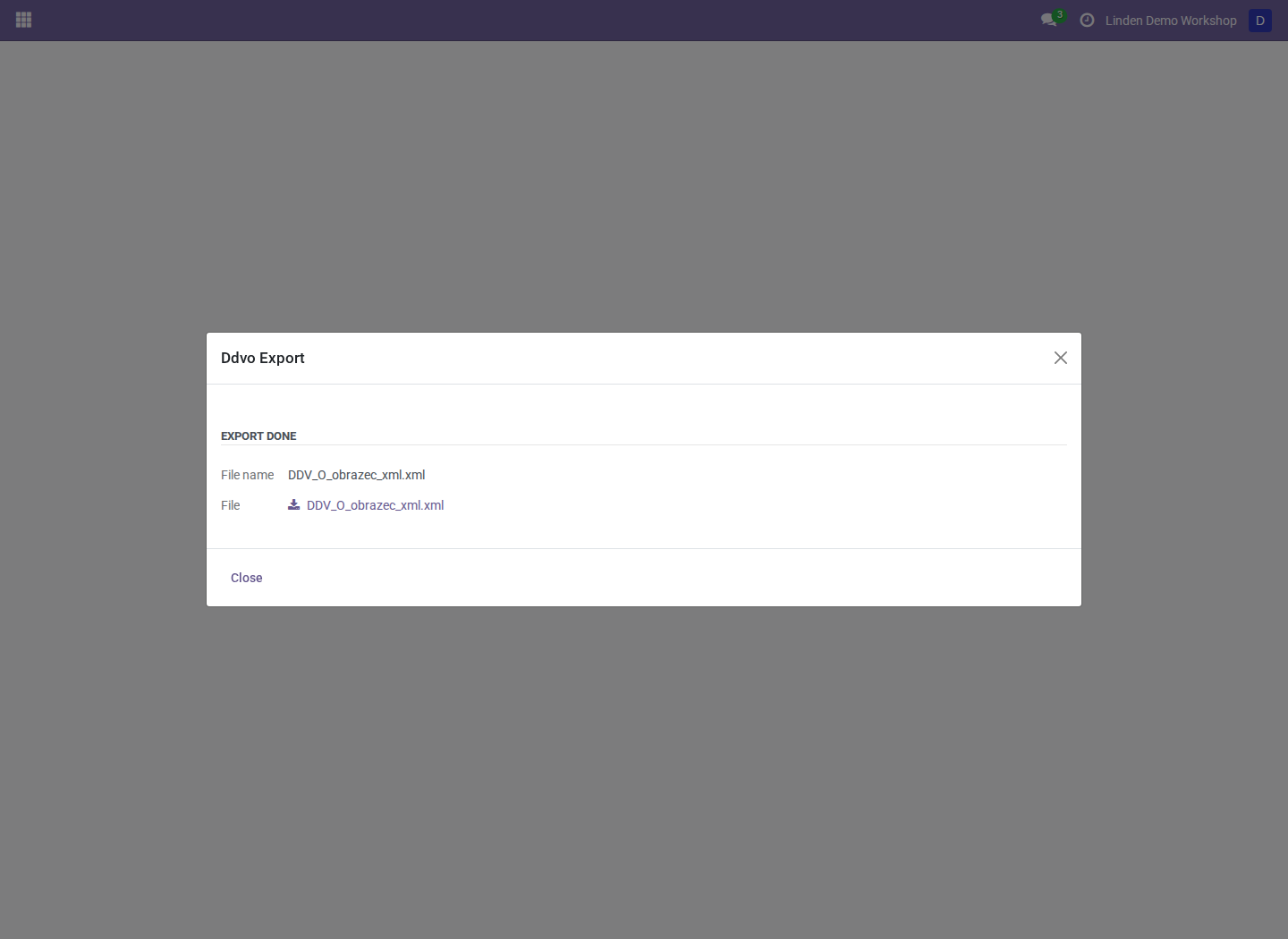
The actual DDV-O wizard after XML generation in the synthetic database. “Export done” means a file was generated, not that eDavki accepted it.
PD-O includes eligible Article 76a advances on receipt and their settlement deduction in the final-invoice period. Review advance evidence as well as the final invoice when reconciling its totals.
Export KIR/KPR
- Review the period's issued and received registers.
- Open Tax Reports > Tax Book Records > OBR.,ODB. DDV records export.
- Select year, starting/ending month, and the applicable filing options.
- Use Export XML for a ZIP containing schema-validated XML, or Export XLSX for spreadsheet review.
- Download and retain the result with the reviewed period evidence.

The combined register export after generation from posted fictional invoices.
When FURS Control is installed, export workflows also preserve tax evidence. Use its user manual to compare current Odoo registers with a downloaded accepted-state FURS file. An Odoo export alone does not establish the accepted portal state.
Compare Open Taxes with DDV-O
Open Accounting > Reporting > Taxes Balance > Taxes Balance and choose the same company and period as the return, then click Open Taxes. DDV-O tax-tag amounts is the default; choose whether to round to whole euros as filed. Standard tax balance uses tax-ID-based amounts with cent precision. Drill down to inspect the source journal items and signed tag contributions. See the tax-balance manual.
Correct a posted Tax Date
Use this workflow only after reviewing the reporting effect. It changes Tax Dates, not posting/fiscal dates, amounts, or reconciliation, and can change regenerated historical reports.
- With Accounting Manager access, select posted journal entries in the intended company and choose Action > Change Tax Date.
- Enter the proposed date and reason and confirm the report/filing review.
- If line dates differ, explicitly confirm replacing all accountable line dates.
- Click Review Changes and compare the old and proposed dates. Review again after changing inputs or source evidence.
- For missing historical dates or Tax Lock Date exceptions, a Settings Administrator who also has Accounting Manager access must open and review their own wizard and use Create One-Hour Tax Date Exception.
- Click Apply Tax Date Correction and review chatter, line dates, and reports.
The exception is user-specific, lasts at most one hour, and is revoked after successful application. It does not authorize another manager's wizard or bypass a hard lock. While active, it is a native tax-lock exception and can affect other actions by the same administrator. Company lock dates stay unchanged.
This correction does not amend a filing or populate Article 88 metadata. Use the separate omitted-VAT process for that reporting treatment.
Other correction and closing workflows
- Correct Omitted Output VAT is manager-only and requires a reviewed case of correctly posted output VAT omitted from an earlier submitted return. A FURS-only/Odoo-only difference by itself does not establish eligibility.
- VAT Correction and Internal Document Options provides guidance. Only its existing-correction-metadata action is implemented; informational options do not create accounting documents.
- Legacy-prepayment correction uses a reviewed proposal, source fingerprint, and explicit execution confirmation. Do not use it as a general adjustment.
- Accounting > Accounting > Create Tax Period Clearance prepares a draft clearance entry from posted tax-account balances. Review it before posting.
For advance posting, application, and reset, follow the prepayment manual.
Troubleshooting
| Symptom | What to check |
|---|---|
| Source invoice is missing from a register | Posted state, line Tax Dates, company, fiscal position, and book-tag mappings |
| Report and Open Taxes differ | Same period, companies, calculation basis, signs, and rounding |
| Historical Tax Date correction is blocked | Required administrator review, existing/missing dates, native locks, and hard-lock restrictions |
| Export fails validation | Read the schema error and correct source/configuration through the supported workflow |
| A guidance option creates nothing | Some selector options are informational only |
Screenshot context
Screenshots are real Odoo 18 captures from a fresh disposable database with a fictional Slovenian company, chart, and posted invoices. No customer data or submitted filing is shown. See the module overview for configuration and the technical guide for implementation details.