Slovenian Prepayment Invoices — User Manual
For accountants managing customer advances in Odoo 18 Community. This addon records advance receipts, VAT evidence, invoice applications, and related history. Vendor/purchase advances are not implemented.
Before starting
Ask the administrator/accounting manager to configure the intended company under Accounting > Configuration > Settings > Advances:
- The advance journal and incoming/received advance account.
- The incoming/received advance VAT account; both incoming accounts must be reconcilable.
- Advance Settlement Account and Advance Settlement Mode where needed.
- Auto-apply on Posting if automatic application is intended.
- The bank payment method's Outstanding Receipts Account so posting creates a payment journal entry.
- Sales-order taxes with correct posting accounts and reporting tags.

Company settings in the populated demonstration database. Review the complete Advances section and the bank payment method before posting.
Use accounting access for payments and invoices. Advance Invoice Operator provides read-only application evidence; Advance Invoice Manager provides management access. Assign the appropriate Advances role under Accounting in user Access Rights. Chain reset also requires normal accounting access.
Create and post an advance
- Create or open the customer's sales order with products, taxes, currency, and the correct commercial invoice partner.
- Use Advances > Create Advance. Alternatively open Accounting > Customers > Advances and create an inbound customer payment.
- On the draft payment, enable Advance? and link the sales order.
- Review the amount, payment date, bank journal, advance account, and printed advance number. The amount may cover only part of the order.
- Confirm the payment/order currencies match, then post the payment.
- Review the payment entry and VAT-on-receipt entry where tax postings apply.
- Print the advance report when required.
- Match the bank receipt to the original payment's outstanding receipt. The VAT and settlement entries are not additional bank receipts.
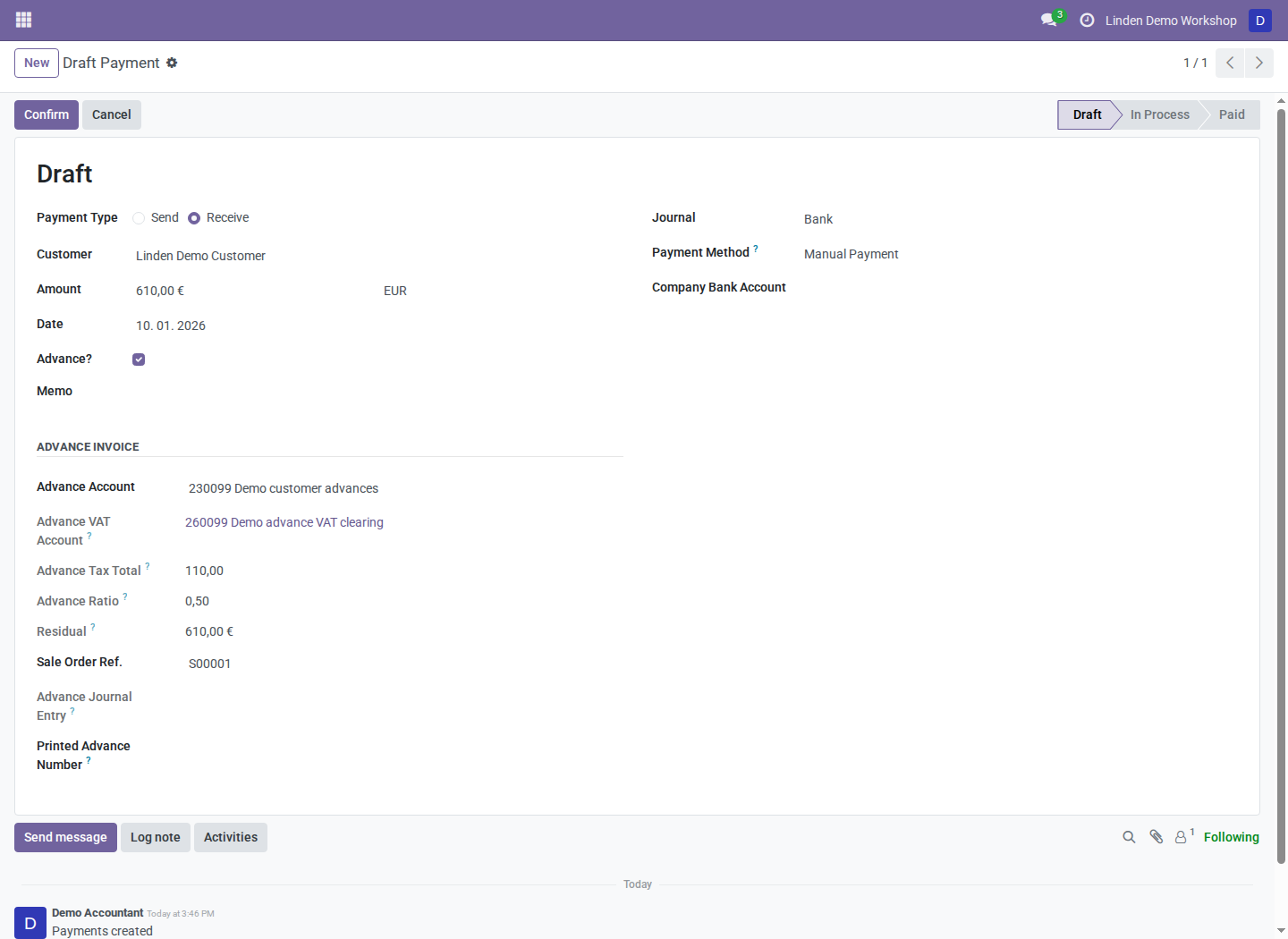
A synthetic EUR 610 draft customer advance. A draft is not a posted receipt; link and review its sales order before posting.
For eligible Slovenian transactions, standard Sales percentage/fixed down-payment invoicing can direct you to Advances > Create Advance. Follow that workflow; the warning does not create an advance automatically.
Select a settlement mode
Have the accounting manager choose the mode before processing documents.
| Mode | How it works |
|---|---|
| Auto (SI settlement entries) | Uses SI settlement processing when eligible; manual application otherwise falls back to a neutralizer |
| Settlement Journal Entry | Uses a linked settlement entry for receivables, VAT, and balanced base-reporting lines |
| Neutralizer Entry | Supports manual application; does not activate automatic invoice-posting application |
| Settlement Lines | Prepares negative base/tax lines while the invoice is draft, then posts the application entry |
SI settlement eligibility requires an SI fiscal country, settlement account, and the enabled Slovenian-accounting flag when present. Selecting only a settlement account does not activate Settlement Lines mode.
Apply an advance manually
- Open one or more posted customer invoices belonging to the same company, commercial partner, and currency.
- Use Apply Advance on the form or Apply Advances from the actions.
- Select eligible advances and review the journal, amount, and application date.
- Confirm. The wizard creates and posts the applicable settlement/VAT evidence and reconciles the consumed balances.
- Review the invoice's remaining balance and Accounting > Customers > Advance Applications.
In journal-entry modes, selecting advances whose combined remaining amount exceeds the selected invoice residual is rejected. A posted-invoice wizard cannot insert draft-only settlement lines.
Apply automatically when posting an invoice
- Enable automatic application and an eligible SI settlement mode.
- Create the customer invoice from the sales order, retaining links from invoice lines to their originating order lines.
- Review the invoice, dates, and available advance capacity.
- Post the invoice. The addon prepares allocations, adds negative lines in Settlement Lines mode, and creates/reconciles the linked application entry.
- Review the application history and remaining amount.
- Repeat for subsequent partial invoices; only remaining capacity is consumed.
Matching the customer alone does not identify an advance for automatic application. Missing order-line links, disabled auto-apply, exhausted balances, or absent SI eligibility can prevent application. Validation or reconciliation errors abort invoice posting; resolve the cause before trying again.
For example, applying EUR 610 to an EUR 1,220 invoice leaves EUR 610 due. At ordinary 22% VAT, an EUR 610 advance represents EUR 500 base plus EUR 110 VAT. Actual entries depend on configured taxes and the selected settlement mode.
Find related invoices and bank transactions
- Follow-up Invoices opens accessible non-cancelled invoices linked through applications. It is hidden when there are none.
- Without Follow-up Invoice in the Advances list finds advances without active links to draft or posted customer invoices. Partial application counts as linked; an order link alone does not.
- Find Bank Transaction is available for eligible posted bank advances still requiring bank matching. Search by partner, journal, dates, amount, and reference. Widen filters when needed.
The finder navigates to existing transactions and reconciliation tools. It does not reconcile, reassign, or undo transactions itself.
Correct an advance chain
- Have the manager review linked invoices, bank matching, dates, and locks.
- Reset invoices with active applications using the supported invoice workflow.
- Undo bank-statement matching, including partial matching, through the native bank reconciliation workflow.
- As an Advance Invoice Manager with accounting access, use Reset Advance Chain to Draft on the payment.
- Correct the draft payment, repost it, then reapply/repost invoices as needed.
- Review remaining balances and new active application evidence.
Cancelled applications remain historical evidence. Do not reset generated VAT/application journal entries directly or use their deletion as a correction. Locks and ambiguous historical ownership can blockchain operations.
Historical VAT tools
Accounting > Configuration > Prepayment VAT Backfill provides Preview and Run Backfill for eligible missing-neutralizer cases. Review the date policy and proposed applications first. Execution creates a separate linked entry; it does not edit the original posted application.
Change Prepayment Adjustment Date accepts supported posted neutralizer or settlement-application entries within their sequence period. It resets and reposts the entry while preserving its number and restoring reconciliation. It is not a date-only metadata edit. Use the Tax Date correction workflow when only reporting Tax Dates should change.
Troubleshooting
| Symptom | What to check |
|---|---|
| Posting creates no valid advance entry | Bank method's outstanding account, advance journal, reconcilable accounts, and linked order |
| Automatic application does nothing | Order-line links, company eligibility, mode, toggle, currency, and unused capacity |
| Application is rejected | Company/partner/currency match, residual, tax-bucket capacity, and locked dates |
| Reset is blocked | Remaining invoice applications, bank matches, manager role, and accounting locks |
| Historical VAT evidence is missing | Have the accountant review the separate backfill tool; do not invent historical Tax Dates |
Screenshot context
Screenshots are real Odoo 18 captures from a fresh disposable database populated with fictional records. The advance screenshot intentionally shows draft preparation. See the module overview for detailed entry examples.