Slovenian FURS Control — Administrator Manual
Setup and operation of l10n_si_furs_control on Odoo 18 Community.
The User Manual covers daily comparison, investigation,
correction, and filing workflows.
About the screenshots: All PNGs are real browser captures from a running Odoo 18 installation in a disposable local database with synthetic demo data. The company, users, invoices, tax mappings, and FURS input are examples, not production records. No eDavki account was accessed. Screenshots show developer mode and the Invoicing application label; actual appearance depends on theme, language, permissions, formatting, and installed extensions.
Contents
- Deployment scope and prerequisites
- Install the addon
- Configure each company
- Assign access
- Understand file validation
- Understand the reporting integration
- Enable the correction workflow
- Preserve and recover evidence
- Troubleshooting and maintenance
- Handover checklist
- Technical reference
1. Deployment scope and prerequisites
This addon extends an existing Slovenian accounting/reporting installation. It is not a FURS connector and has no separate dashboard application, scheduled comparison job, credential store, or portal-connection settings.
| Item | Requirement |
|---|---|
| Odoo | 18 Community and the supported Python environment for that deployment |
| Addon | l10n_si_furs_control |
| Direct Odoo dependency | l10n_si_tax_addons |
| Company identity | Slovenian eight-digit taxpayer number in the company VAT field, optionally prefixed with SI |
| Reporting | Working Slovenian tax mappings and Tax Dates |
| Users | Accounting users for controls; Accounting Managers for corrections |
| Portal | Separate taxpayer authorization and an external filing process |
| Storage | Database capacity and protected backup coverage for retained tax files and captured values |
The current l10n_si_tax_addons manifest directly requires:
pmis_account_datesaccountl10n_si2l10n_si_configaccount_fiscal_monthaccount_tax_balanceaccount_financial_reportreport_xlsxl10n_si_prepayment_invoice
These have further dependencies. Make all dependency repositories available to the deployment's addon path and resolve them using the owning deployment's versioned inventory. Listing these modules is not an instruction to install unreviewed packages. FURS Control declares no additional external Python dependency of its own; it uses the deployment's Odoo environment, including lxml.
Chart installation boundary
l10n_si2 is the replacement Slovenian chart in this repository and is
incompatible with upstream l10n_si. Installing this addon is not an automatic
conversion of an existing upstream chart.
For a fresh deployment using the repository's l10n_pmis chart-selection policy,
follow its policy guide: install that policy while
only Base is installed, finish that operation, then install Accounting/business
applications in a subsequent operation. Existing accounting needs a separately
planned chart migration where applicable. See the
repository overview and
tax addon guide.
2. Install the addon
Perform deployment changes under your organization's normal change authority. The following is the setup procedure; this documentation does not execute it.
- Identify the target Odoo service, database, release, and existing chart. Take the required restorable deployment backup before installing into a business database.
- Make this repository and the compatible dependency repositories available on
the service's configured
addons_path. - Confirm the Odoo service account can read the addon and
l10n_si_tax_addons/xsd/files. - Restart or reload the service as required by your deployment process when introducing new Python code or addon paths.
- Sign in with installation/settings privileges. Enable developer mode if needed and refresh Apps > Update Apps List.
- Clear the default Apps filter when searching: this addon has
application = False. Search for Slovenian FURS Control or its technical name,l10n_si_furs_control. - Review the dependency installation plan and install the module.
- Confirm installation completes. Then configure the company and operational users as described below.
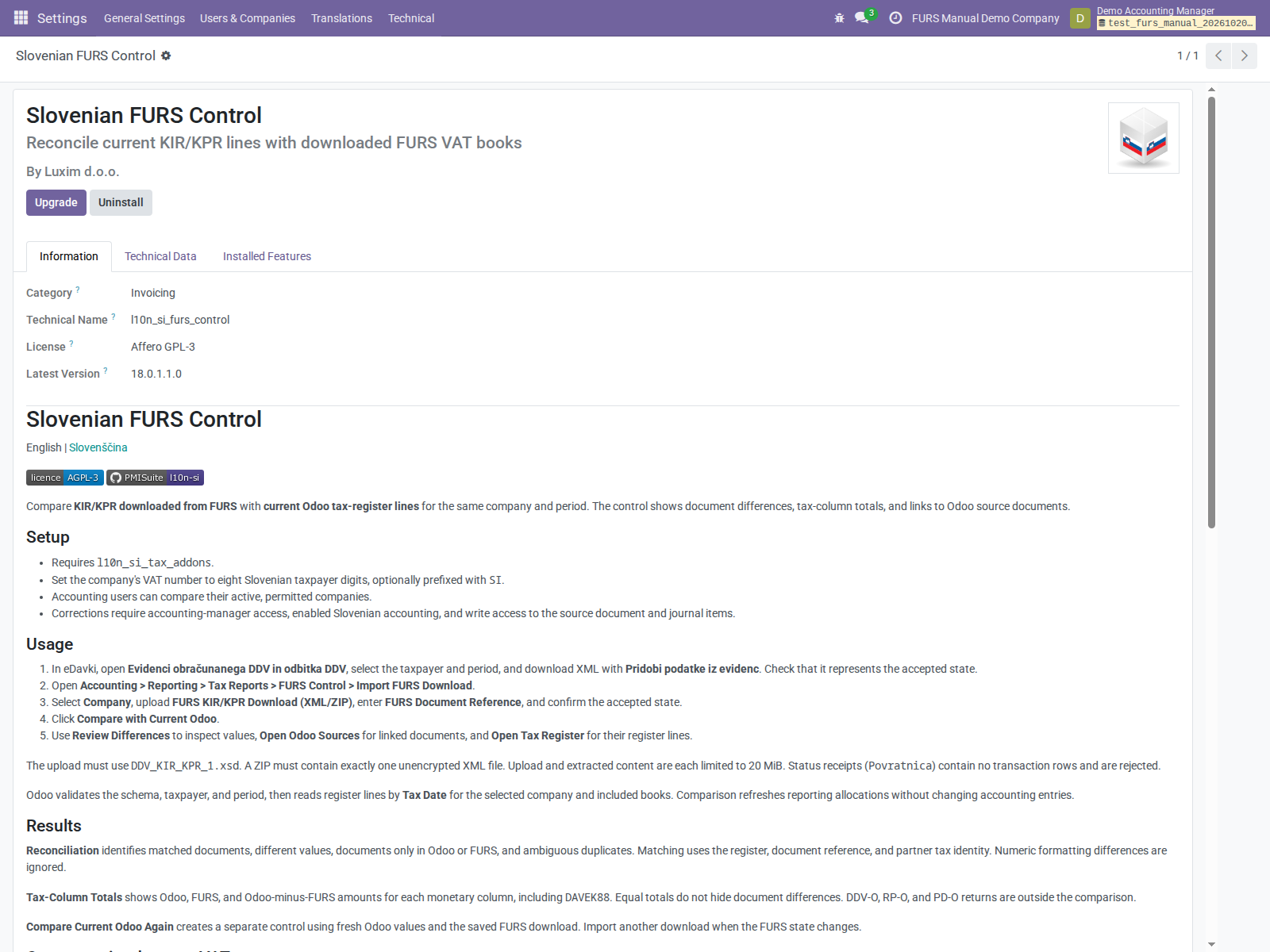
The installed demo module shows its technical name and version. Upgrade and Uninstall are deployment actions; they are not required for ordinary setup.
The module adds the following entries under Accounting > Reporting > Tax Reports > FURS Control:
- Import FURS Download
- Controls
- Preserved Tax Evidence
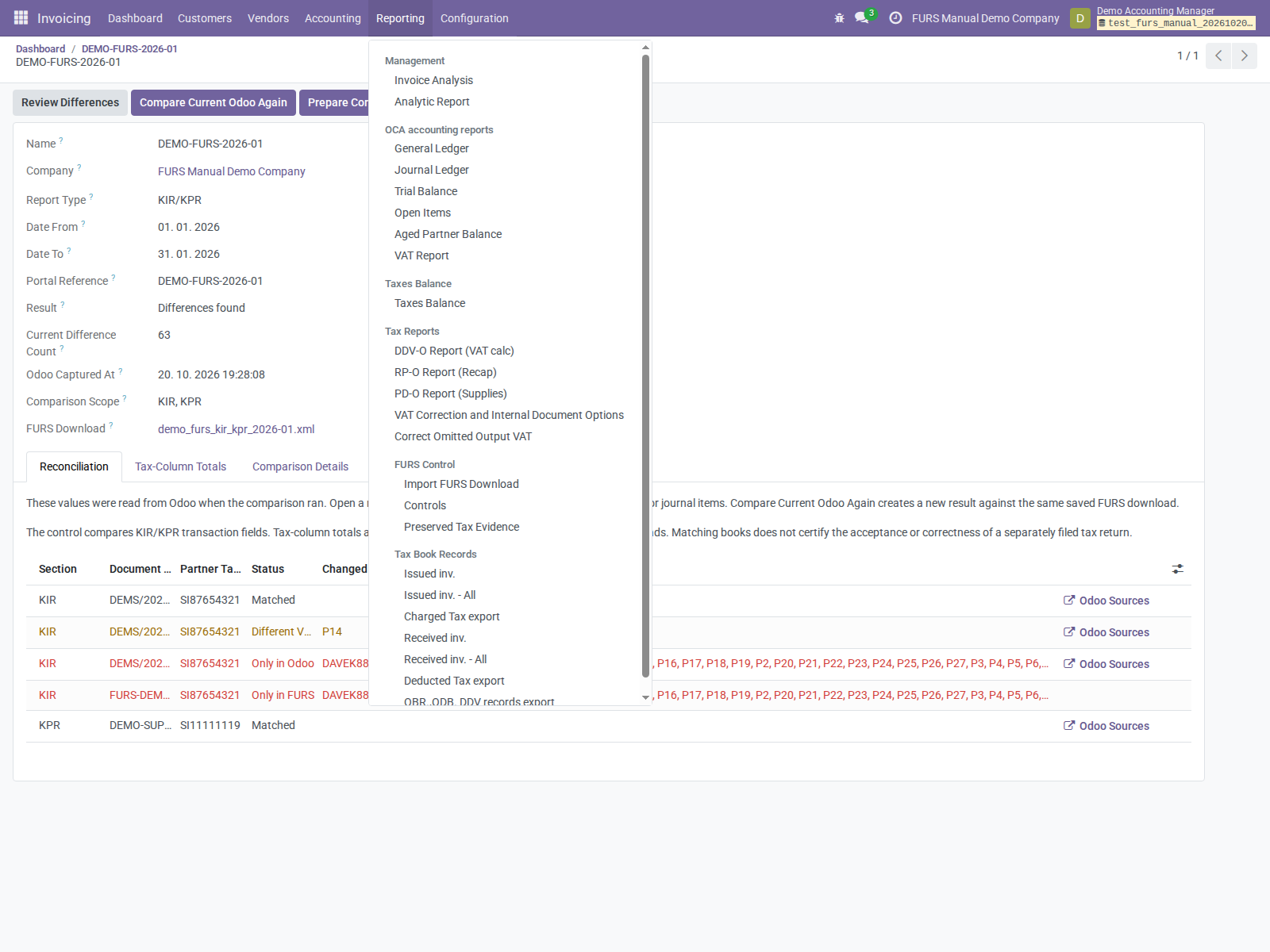
Figure 1. The installed menu structure in the running demo.
There is no additional activation key, FURS endpoint, certificate upload, API token, or scheduled-action setup in this addon. Do not put portal credentials into a document reference, correction reason, or support artifact.
3. Configure each company
Configuration and source accounting are company-specific even though addon installation is database-wide.
Company identity and accounting switch
- Select the company to configure as the current company.
- Open its company record through Settings > Users & Companies > Companies.
- Verify its actual taxpayer identity and VAT field. The importer normalizes
surrounding whitespace, letter case, and an optional
SIprefix, then requires exactly eight ASCII digits. It compares that number to the file's taxpayer. Synthetic examples areSI12345678and12345678; never replace an actual company's identity with a sample value. - Open Settings > Slovenian Accounting.
- Enable Use Slovenian Accounting for this company and save.
- Repeat for each relevant company, switching the current company explicitly.
- Reload menus or sign in again if the interface still reflects earlier company settings.
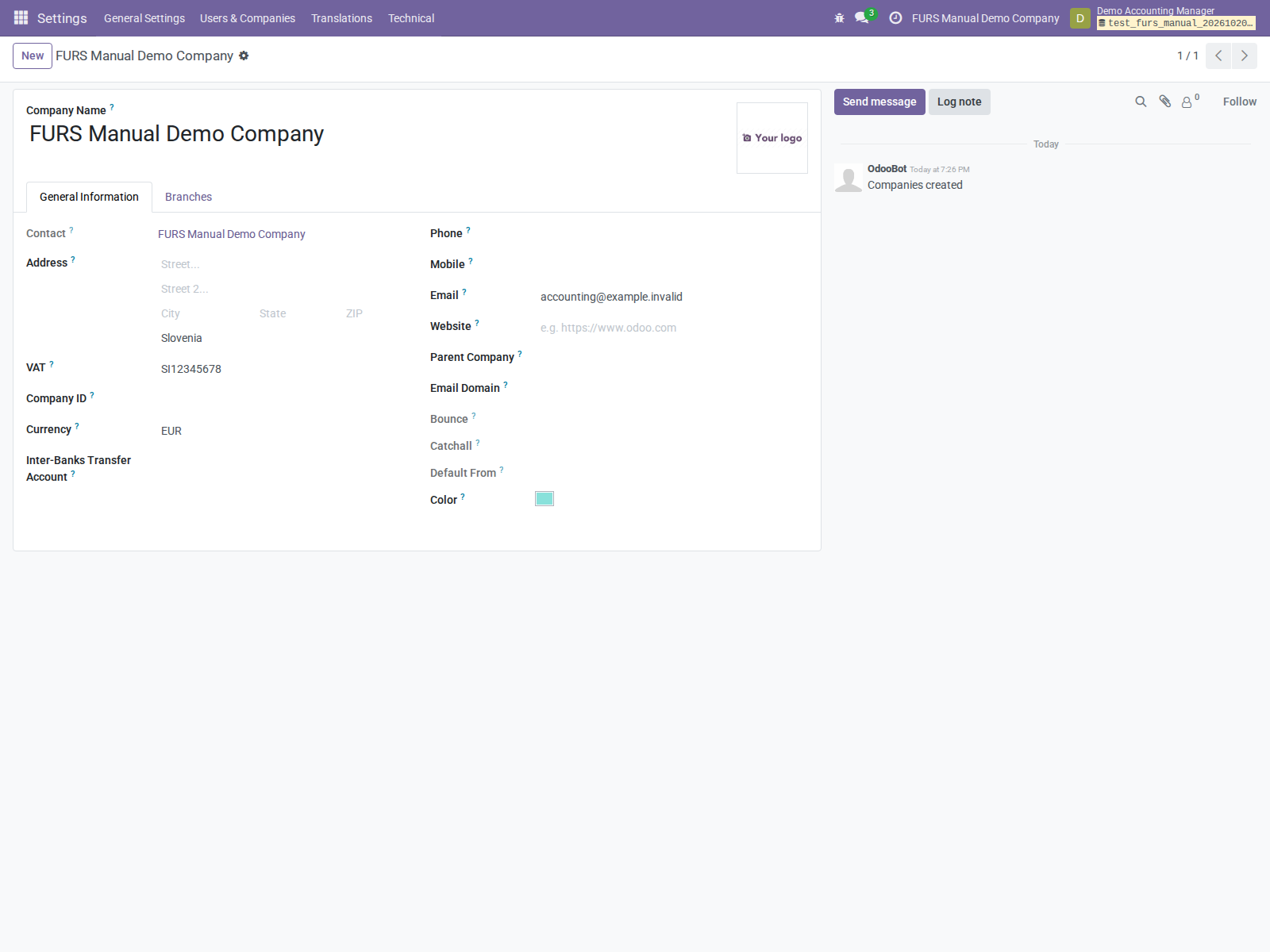
The demo company's VAT is SI12345678. Set the real taxpayer's identity in an actual deployment, and review currency before entering accounting transactions.
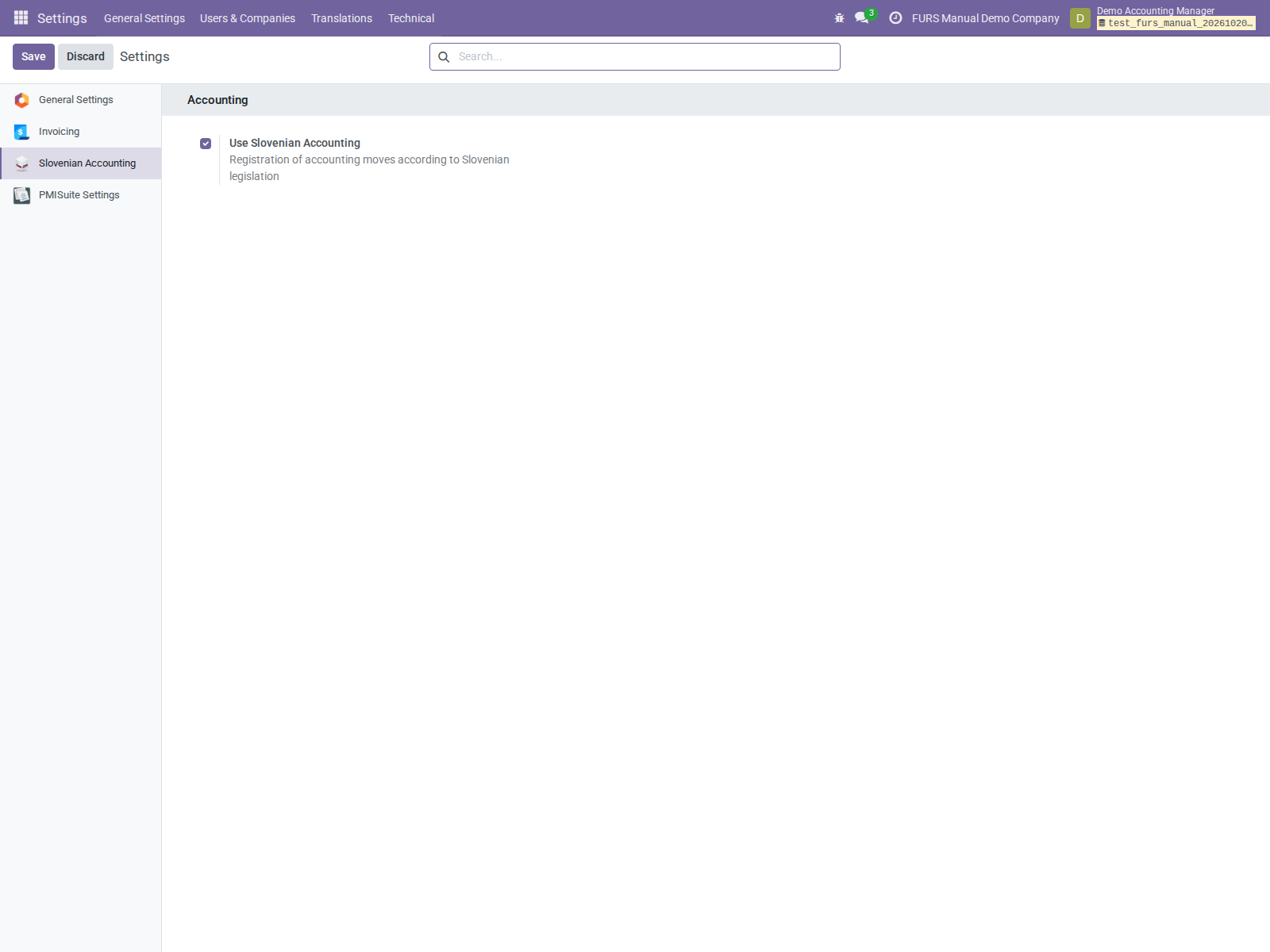
Figure 2. Use Slovenian Accounting enabled for the selected demo company.
The setting is provided by l10n_si_config and writes
res.company.l10n_si_accounting. Its settings view is the normal UI entry point;
the inherited company form does not expose this switch directly.
Slovenian menu visibility depends on the localization menu filtering and company context. The omission correction explicitly enforces this switch. The importer itself validates active-company access and VAT identity; enabling the switch does not replace those checks.
Tax reporting prerequisites
Have the accounting owner review:
- The chart, taxes, tax repartition tags/accounts, fiscal positions, and VAT-book
mappings required by
l10n_si_tax_addons. - Tax Dates on accountable journal items and the company's actual filing periods.
- Document references and partner tax identities used in KIR/KPR matching.
- Prepayment reporting allocations where advances are used.
- Lock dates and the process for selecting an authorized later correction period.
A syntactically valid taxpayer number and installed addon do not prove correct register mappings. A comparison reads current prepared KIR/KPR rows and therefore reflects any source configuration errors.
For a single-company workflow, have users activate only the company being checked when practical. The comparison capture internally scopes reads to the selected company. It uses the file's inclusive period and Tax Date, and checks only books included by the file header.
4. Assign access
Use Settings > Users & Companies > Users to configure each user's Accounting role, allowed companies, and default company. The exact role labels may differ with installed modules or translations; the technical groups below are the authoritative requirements.
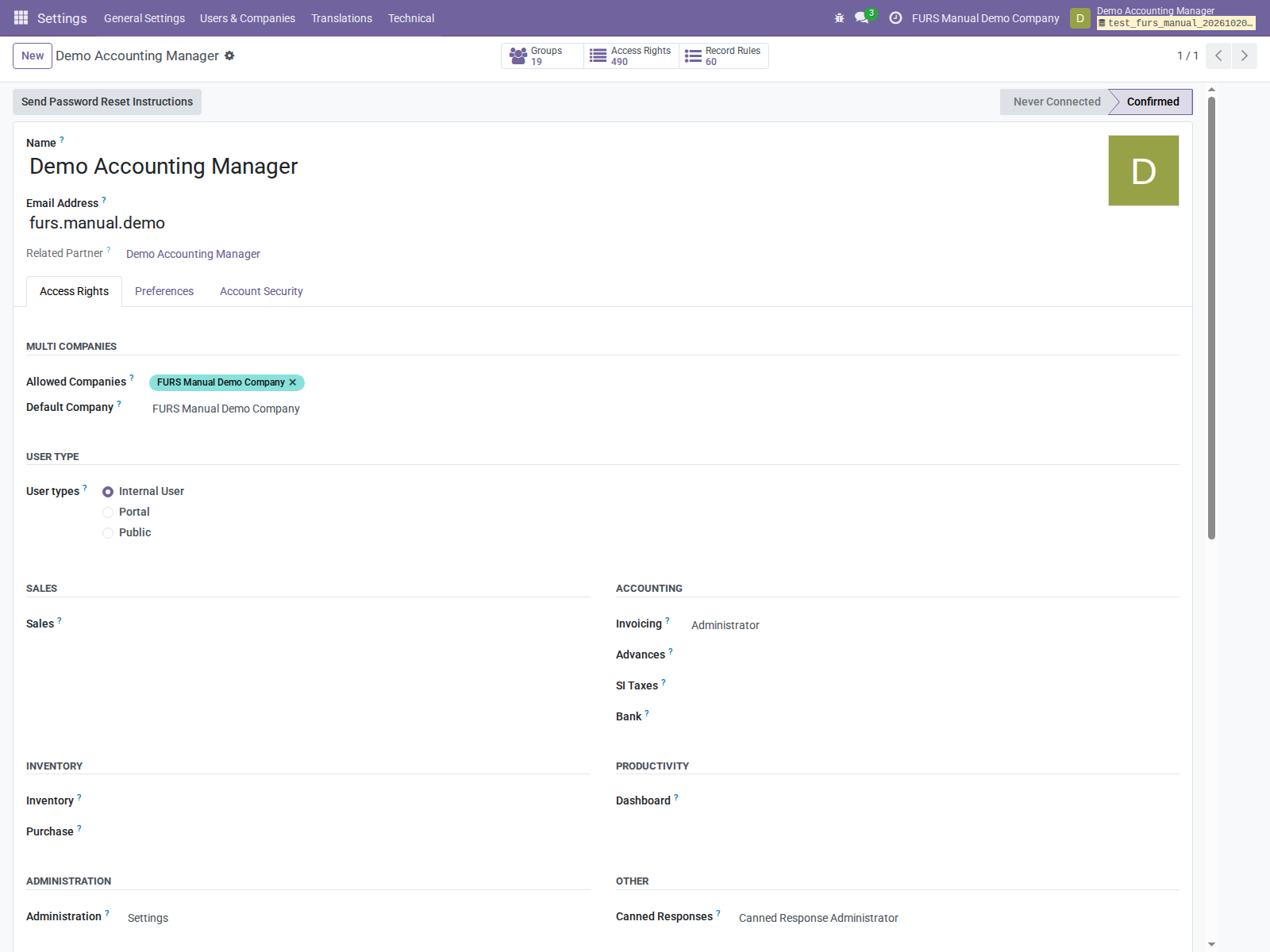
The demo manager's Access Rights tab. In this installation, the Accounting Manager role appears as Invoicing: Administrator. Settings access is included for this combined screenshot operator; ordinary accountants do not need that administrative role.
| Capability | Required group or condition |
|---|---|
| See FURS Control and import/compare | account.group_account_user |
| Read controls, rows, and preserved tax evidence | account.group_account_user, within active allowed companies |
| Open source records | Their normal account.move/account.move.line read permissions and company rules |
| Read prepared XML correction evidence | Accounting-user access |
| Prepare correction wizard / XML correction evidence | account.group_account_manager |
| Apply omitted VAT correction | Accounting Manager, active company, Slovenian Accounting switch, source-document and journal-item write access |
| Install modules or change system settings | Appropriate Odoo administrative privileges |
Accounting Manager normally inherits the necessary accounting-user access in standard Odoo. Verify the effective group membership if your deployment changes the group hierarchy. A settings administrator is not automatically the intended accounting correction operator. Read-only Accounting access alone is not the group granted access to these control models.
Company isolation
The addon defines company rules on snapshots, controls, reconciliation rows,
prepared corrections, import wizards, and correction wizards. Records are limited
to company_id within the active company_ids context. Cross-company links are
checked, and actions also reject inactive companies where required.
Users need both allowed-company authorization and active company selection. When troubleshooting an access error, verify these separately before changing permissions. Opening preserved evidence does not bypass source-record access.
Creation and immutability
Accounting-user ACLs permit creation of some evidence models so the legitimate report/import actions can save evidence. This does not make them editable business records:
- Control and evidence views disable manual creation, editing, and deletion.
- Snapshot creation validates supported input and restricts generated sources to the report/capture paths.
- Reconciliation rows and prepared correction records reject public creation.
- Model methods reject writes and deletion of preserved evidence.
- The transient import and correction dialogs remain writable for their workflow.
Do not grant broader ACLs to bypass a workflow validation. Assign manager access only to staff authorized to change reporting dates and prepare corrections.
5. Understand file validation
Import contract
The current import wizard accepts only FURS KIR/KPR XML for
DDV_KIR_KPR_1.xsd, directly or inside a supported ZIP. The actual XML namespace
must match the supported schema. A standalone payload or supported eDavki
envelope may be read; arbitrary wrappers and multiple report payloads are rejected.
| Check | Behavior |
|---|---|
| Upload size | Nonempty file, at most 20 MiB |
| ZIP | Exactly one member, XML filename suffix, not encrypted |
| Extracted size | At most 20 MiB |
| XML parser | Entity resolution, DTD loading, and network access disabled |
| Document type declaration | Rejected |
| Schema | Validated against the bundled XSD, not downloaded during import |
| Taxpayer | Must match normalized selected-company VAT |
| Period | Parsed from header dates; invalid or reversed dates rejected |
| Book scope | At least KIR or KPR included; contradictory header/rows rejected |
| Document identity | Required document reference in VAT-book rows |
| Portal confirmation | User must confirm accepted state and enter a nonblank reference |
A ZIP containing an XML plus a directory entry or another file fails the exactly-one-member check. The limit applies independently to compressed upload bytes and extracted XML bytes; a smaller proxy request limit can reject an upload before Odoo sees it. Browser upload transport adds encoding overhead, so plan service request limits appropriately without increasing the addon's own limit.
Rejected formats include receipts (Povratnica), JSON, CSV, spreadsheets, PDF,
HTML, and separate DDV-O/RP-O/PD-O comparison files. A stored internal current-state
JSON file is not an accepted import format.
Schemas used by export preservation
The evidence parser also supports validated XML export snapshots for these
report schemas from l10n_si_tax_addons/xsd/:
| Report | Bundled XSD |
|---|---|
| KIR/KPR | DDV_KIR_KPR_1.xsd |
| DDV-O | DDV_O_11.xsd |
| RP-O | VIES_KP_6.xsd |
| PD-O | PD_O_2.xsd |
Parser support for preserving these reports does not enable their use as new control inputs. Do not rename namespaces or bypass schema validation when a portal format changes. Have the maintainer review compatibility and deploy a reviewed addon/schema update.
The bundled schemas are local format contracts. Portal state and digital signatures are not verified by this addon. The operator must establish accepted state externally; see the dated FURS download evidence.
6. Understand the reporting integration
Comparison capture
An import saves the FURS file, reads the selected company's current tax-register lines, saves an internal JSON snapshot with source links, and creates an immutable control and reconciliation rows. It does not require an earlier Odoo XML export.
The current-state reader refreshes prepayment reporting allocations for the period before preparing KIR/KPR rows. This may refresh derived reporting data; it does not modify accounting entries. The result is a captured state, not a live updating view.
Tax totals are calculated from the same compared rows. The difference count contains individual field differences and derived total differences; it must not be presented as an invoice count. The resulting Matched state does not establish that a separate tax return agrees or was accepted.
Compare Current Odoo Again saves another control with a fresh Odoo capture and the same FURS file. If FURS changed, a new import is required. Repeated imports/comparisons create retained records; no automatic deduplication or purge policy is provided for normal controls and snapshots.
Export hooks
| Existing report action | FURS Control integration |
|---|---|
DDV-O action_generate_xml |
Preserve generated XML after the base action |
KIR/KPR create_report / Export XML |
Preserve generated XML after the base action |
RP-O create_export(False) |
Preserve XML |
PD-O create_export(False) |
Preserve XML |
| RP-O/PD-O PDF | No snapshot from these extensions |
| KIR/KPR Export XLSX | Separate action, not captured by the XML hook |
Snapshot validation errors propagate and block successful completion of these XML export actions. Consequently, an invalid company VAT, unsupported schema, or invalid report content can cause a previously used report export to fail after installing FURS Control. Diagnose the generating configuration or content instead of disabling preservation.
No action submits XML to FURS. There is no automatic acceptance receipt import, filing-status field update, or background reconciliation.
7. Enable the correction workflow
Assign the Accounting Manager group and appropriate source permissions, enable Slovenian Accounting, and agree on an accountant-owned review procedure. See the full user correction procedure.
The supported new-control route is:
Control with differences > Prepare Correction > reason and confirmation > Review Omitted Output VAT > Apply Reporting Correction

Figure 3. Final omission confirmation and source-line review in the running demo.
The source must be a posted customer invoice, receipt, or advance VAT-on-receipt entry, with one issued-register row and positive full-document output VAT. Existing correction treatment, posted advance applications, mixed Tax Dates, partial amounts, mismatched control periods, and locked destination dates block this workflow. Original periods must be complete months or calendar quarters. Source selection defaults to a month, so quarterly controls require restoring their exact original start/end dates.
The system verifies document eligibility and amount consistency. It does not independently prove that a selected document was fully omitted from the accepted return; that remains the accountant's explicit confirmation.
Application updates reporting Tax Dates and document correction fields and posts a chatter note. Accounting dates, amounts, accounts, posting state, and reconciliation stay intact. There is no automatic undo. The action does not create an RP-O/PD-O prepared XML correction record and does not populate that history tab; review the source-document audit note instead.
Legacy recipient-report corrections
Existing RP-O/PD-O controls may retain a prepared-XML route. New standalone recipient-report controls cannot be created through the current importer. Do not build a new administrator process around creating them manually.
For existing eligible records, preparation requires an unsigned same-company, same-report target export in a later period, no existing target correction rows, supported recipient-total differences, and reviewed captured intended amounts. It produces replacement past-period recipient totals, retains target current totals, and preserves the output. Duplicate controls/evidence and ambiguous identities are guarded. Existing historical results remain available unchanged.
8. Preserve and recover evidence
Stored records and files
| Record | Purpose |
|---|---|
| Preserved snapshot | Original file or captured JSON, parsed values, SHA-256 digest, company, report, period, and creation metadata |
| Control | Linked FURS/current snapshots and immutable comparison outcome |
| Reconciliation row | Compared values and captured source links |
| Prepared correction | Legacy XML output link, target, reason, creator/time, and duplicate-evidence key |
| Source-document chatter | Omission correction rationale, dates, amounts, items, and control reference |
Snapshot binary data is declared with attachment=False, so those files are
stored in the database rather than as ordinary filestore attachments. Captured
values also exist in JSON fields. Source documents and other modules may still
use the filestore; include the full normal database/filestore deployment backup.
Do not assume backing up only exported XML files reconstructs the audit trail.
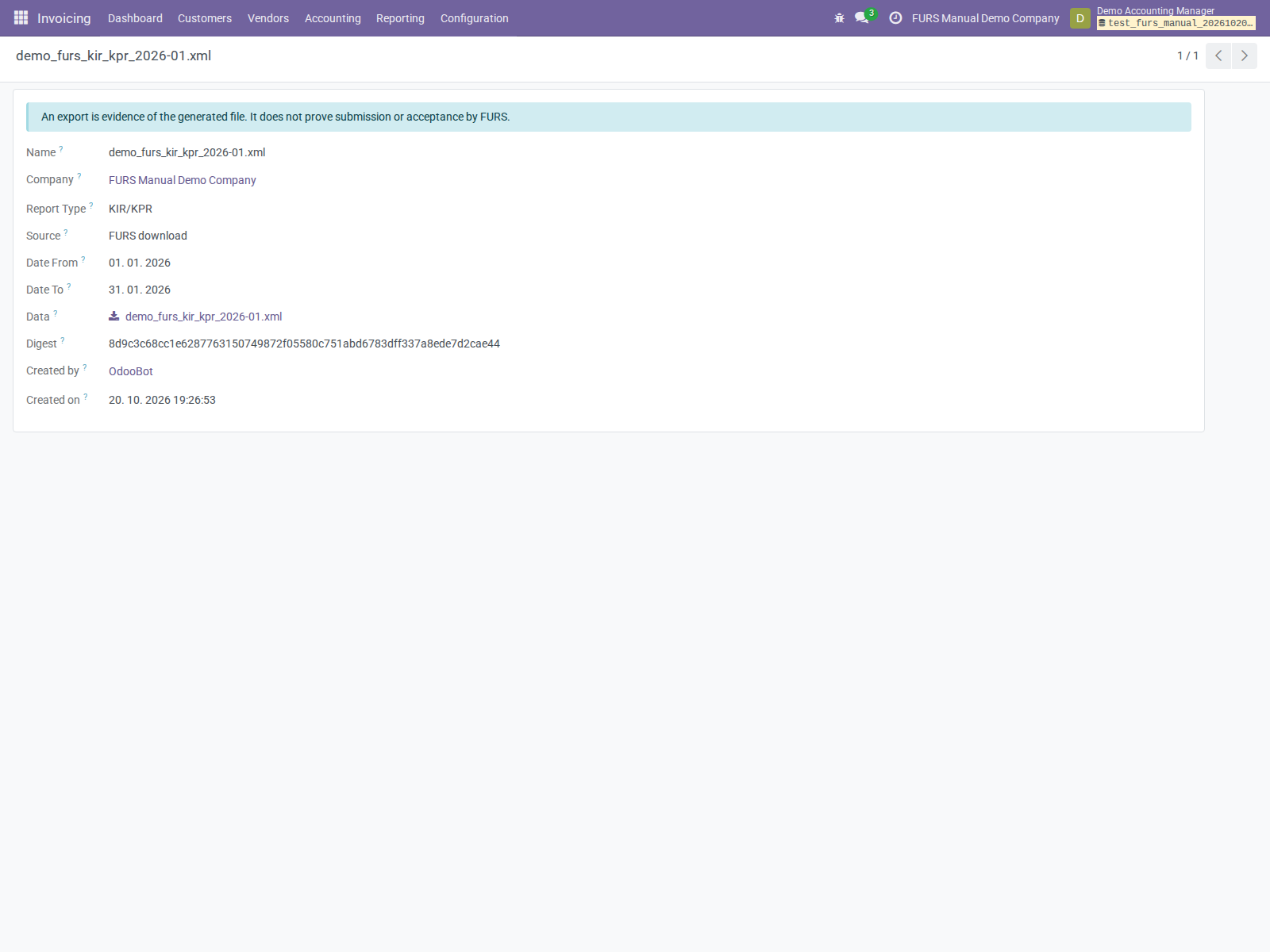
Figure 4. Downloadable content and identifying metadata for the synthetic input.
Backup and retention procedure
- Include this database in the organization's protected, consistent backup and recovery process, together with the normal filestore, code, and configuration.
- Restrict backup and restored-copy access: files contain taxpayer and partner information even when they are not exposed in ordinary invoice screens.
- Monitor database growth from repeated controls, row-level JSON, and file copies.
- Verify recovery on an isolated authorized environment using the existing operational process. Confirm control links, file download, digests, source navigation, and chatter remain available to authorized users.
- Store portal acceptance/reference evidence under the organization's separate filing-record policy; an Odoo snapshot is not acceptance evidence.
Immutability is implemented in ORM methods and permissions. It is not a cryptographic signature, external timestamping service, or protection against privileged direct database modification. SHA-256 identifies stored content; for ZIP uploads it hashes the original ZIP bytes.
Deletion and uninstall
The addon intentionally rejects editing and deletion of snapshots, controls, rows, and prepared corrections. Its deletion guards explicitly apply during module uninstall as well. Do not assume uninstall is a routine rollback or retention cleanup path once evidence exists.
There is no supplied retention/purge tool. If data removal is required, obtain an explicitly authorized retention/migration plan and maintainer assistance. Do not bypass guards with SQL or disable them as a normal support step.
9. Troubleshooting and maintenance
Deployment and access
| Problem | Investigate in this order |
|---|---|
| Addon not found in Apps | Addon path/read permissions, refreshed Apps list, cleared Apps filter, technical name |
| Missing dependency | Deployment inventory and compatible dependency checkout; do not install an unrelated similarly named package |
| FURS menu missing | Installed module, Accounting group, selected/allowed company, Slovenian Accounting setting, menu context/cache |
| Import company access error | Allowed companies and active selection; do not broaden global record rules |
| Source navigation denied | Normal source-model ACLs and record rules in the selected company |
| Correction button absent | Accounting Manager membership and current evidence with differences |
| Correction cannot write source | Required write access to account.move and accountable account.move.line records |
Upload and reporting
| Problem | Response |
|---|---|
| Rejected before Odoo displays validation | Check deployment request-size/time limits using redacted diagnostics |
| Wrong taxpayer | Verify actual company VAT and selected taxpayer; do not edit the XML to force a match |
| Wrong XML type or receipt | Obtain the latest-books transaction XML |
| Unsupported schema or invalid report | Compare deployed bundled schema and report generator versions; request a reviewed compatibility fix |
| Current register read fails | Review exact redacted error, missing document references, mappings, and prepayment reporting configuration |
| Report XML export now fails | Examine snapshot validation as well as the base generator; preservation errors intentionally propagate |
| Earlier result did not change | Expected immutable behavior; run another comparison or import updated FURS evidence |
| Totals agree but result differs | Document-level fields or identities differ; do not suppress those rows |
| Original-period source register is empty after correction | Tax Date moved to the later period; use the saved values and source document |
| Attempted uninstall/deletion fails | Evidence retention guards; follow the authorized retention/migration process |
Routine support procedure
- Establish the installed module and dependency versions and the scope of the affected company/report/period.
- Reproduce with a synthetic supported file in an authorized isolated environment when needed; avoid production-derived data in screenshots or reports.
- Identify whether failure is in upload validation, current register preparation, source permissions, correction eligibility, or export preservation.
- Correct the actual configuration or deploy a scoped reviewed fix under the normal change process.
- Have the accountant create fresh controls after relevant changes. Keep earlier evidence intact and explain the change in the filing/review records.
Upgrades
Use the deployment-owned update procedure and a restorable backup. Review addon and dependency changes together, especially schema files, tax-register field mapping, export hooks, and company/security behavior. Check an isolated copy or synthetic setup before a business deployment. Existing controls remain historical evidence; upgrading does not make their captured values current.
If the official portal begins producing another schema version, assess it with the maintainer. No runtime schema download or automatic schema migration is provided. There is no manual configuration switch to enable new formats.
10. Handover checklist
Use synthetic data in an authorized isolated setup for the initial walkthrough. Repeat these checks for your deployment and operational roles; the screenshots demonstrate the demo workflow, not acceptance of your business configuration.
- [ ] Correct Odoo 18 addon and compatible dependencies are installed.
- [ ] The selected chart is compatible; no upstream-chart conversion is assumed.
- [ ] Each company has its real taxpayer identity and required reporting configuration.
- [ ] Slovenian Accounting is enabled for each relevant company.
- [ ] Accounting users can reach the three FURS Control menus.
- [ ] Allowed/active company selection is understood and cross-company evidence is restricted.
- [ ] A supported synthetic KIR/KPR import opens a control with the correct dates and scope.
- [ ] Users can review document values, totals, source links, and preserved files.
- [ ] Accounting Managers understand full-document omission eligibility, quarterly dates, and no automatic undo.
- [ ] The responsible accountant owns correction approval and external submission.
- [ ] Supported XML exports appear in preserved evidence; PDF/XLSX are understood separately.
- [ ] Backups cover stored evidence and source-document history; retention/uninstall restrictions are understood.
- [ ] Users receive the User Manual and a support contact through the normal internal process.
11. Technical reference
| Component | Technical identifier |
|---|---|
| Snapshot | l10n_si.furs.snapshot |
| Control | l10n_si.furs.control |
| Reconciliation row | l10n_si.furs.control.line |
| Prepared correction | l10n_si.furs.correction |
| Import wizard | l10n_si.furs.import |
| Preparation wizard | l10n_si.furs.correction.wizard |
| Omission wizard, extended from dependency | l10n_si.omitted_vat_correction |
| Issued VAT register | account.tax.records.issued |
| Received VAT register | account.tax.records.received |
| Company accounting switch | res.company.l10n_si_accounting |
| Ordinary accounting-user group | account.group_account_user |
| Accounting-manager group | account.group_account_manager |
The addon loads security, model views, wizard views, and menus from its manifest. It defines no controller, cron data, or portal-submission integration. For product scope and support attribution, see the addon README.
Screenshot assets are stored in screenshots. They capture the actual Odoo interface with synthetic data; they are not HTML reconstructions.