PMIS Energy Surcharge — User Manual
Slovenski priročnik · Module overview
This manual covers the energy-surcharge workflow for glass distributors using Odoo 18 Community. The screenshots show real Odoo screens with synthetic records from a disposable database. Company names, products, customers, and prices are examples. The English and Slovenian manuals cover the same workflow.
The illustrated setup includes Sales, Invoicing, and Inventory. Inventory exposes the product's Weight field on its Inventory tab. Unit selectors and configuration menus also depend on the user's permissions. Existing pricing extensions may add product-price maintenance actions; they are not required to select another pricelist in the surcharge workflow.
Contents
- What the module does
- Access and responsibilities
- Configure the company and products
- Mark categories in bulk
- Understand the calculation and pricing
- Prepare a quotation
- Review eligibility and exemptions
- Create or update an invoice
- Review saved calculations and status
- Recalculate after changes
- Require current calculations before confirmation or posting
- Process credit notes
- Handle additional scenarios
- Resolve common problems
- Daily checklist
1. What the module does
The module adds Add Surcharge to quotations, customer invoices, and customer credit notes. It calculates eligible glass weight from the existing product weight and the document's quantities.
| Document | Result of Add Surcharge | Effect on document total |
|---|---|---|
| Draft or sent, unlocked quotation | An informational note showing weight, rate, and estimated surcharge | No increase |
| Draft customer invoice | A priced line using the configured surcharge product | Included in the invoice total |
| Draft customer credit note | A priced surcharge line for the credited quantities | Included in the credit note total |
For an invoice carrying the quotation's informational surcharge note, follow the removal step in section 8.1 before calculating its billable charge.
Clicking the action again updates the generated line or note and removes extra marked surcharge lines. If no eligible lines remain, it removes the generated charge or note. Notes, sections, and generated surcharge lines do not add weight.
The module does not calculate glass dimensions, manufacture glass, import energy indexes, or automatically set commercial rates. Your existing product-pricing workflow maintains the surcharge product's sales price.
2. Access and responsibilities
An administrator assigns surcharge roles in Settings → Users & Companies → Users → Access Rights → Sales → Energy Surcharge. Menu names depend on installed apps and the user's rights.
| Role or permission | Purpose |
|---|---|
| Energy Surcharge Operator | Access to the bulk category wizard; includes accounting access |
| Energy Surcharge Manager | Includes Operator permissions and accounting access |
| Product-management rights | Required to maintain product weights, exclusions, prices, and category flags |
| Sales rights | Required to work with quotations and orders |
| Invoicing/accounting rights | Required to work with invoices and credit notes |
| Settings/company configuration rights | Required to change the company's surcharge settings |
The surcharge roles grant accounting permissions; they are not narrow calculation-only permissions. Assign them according to the user's duties. Wizard access does not grant category write permission. Standard Odoo access rights and company restrictions still apply to every operation.
3. Configure the company and products
3.1 Company settings
- Select the company for which you are configuring surcharges.
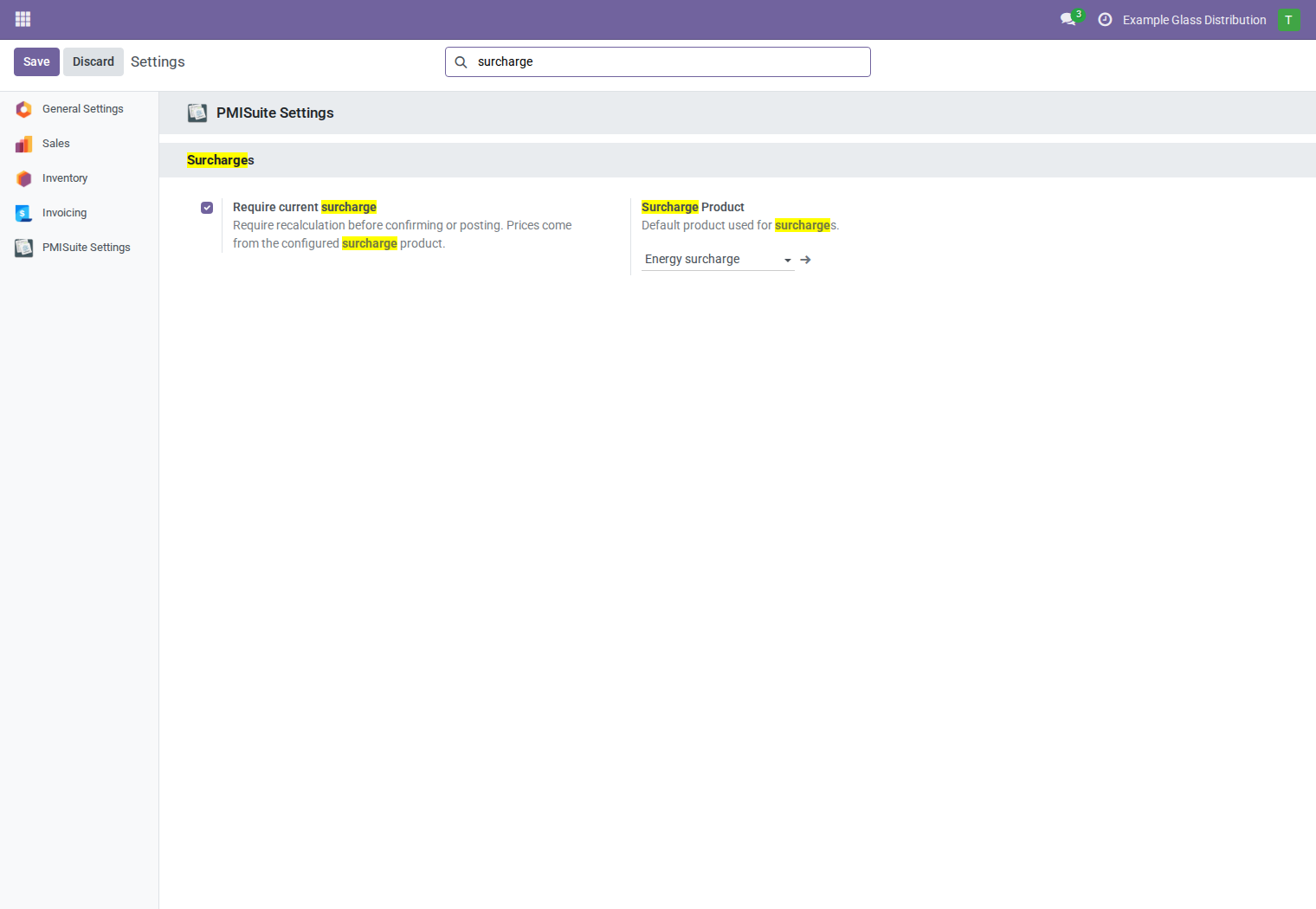
- Open Settings and select PMISuite Settings.
- Find the Surcharges block.
- Select the company's Surcharge Product and save.
- Leave Require current surcharge off until product data and the team's calculation procedure are ready. Its effect is described in section 11.
The surcharge product must be shared or belong to the document's company. Each company selects its own product and enforcement setting.
3.2 Surcharge product
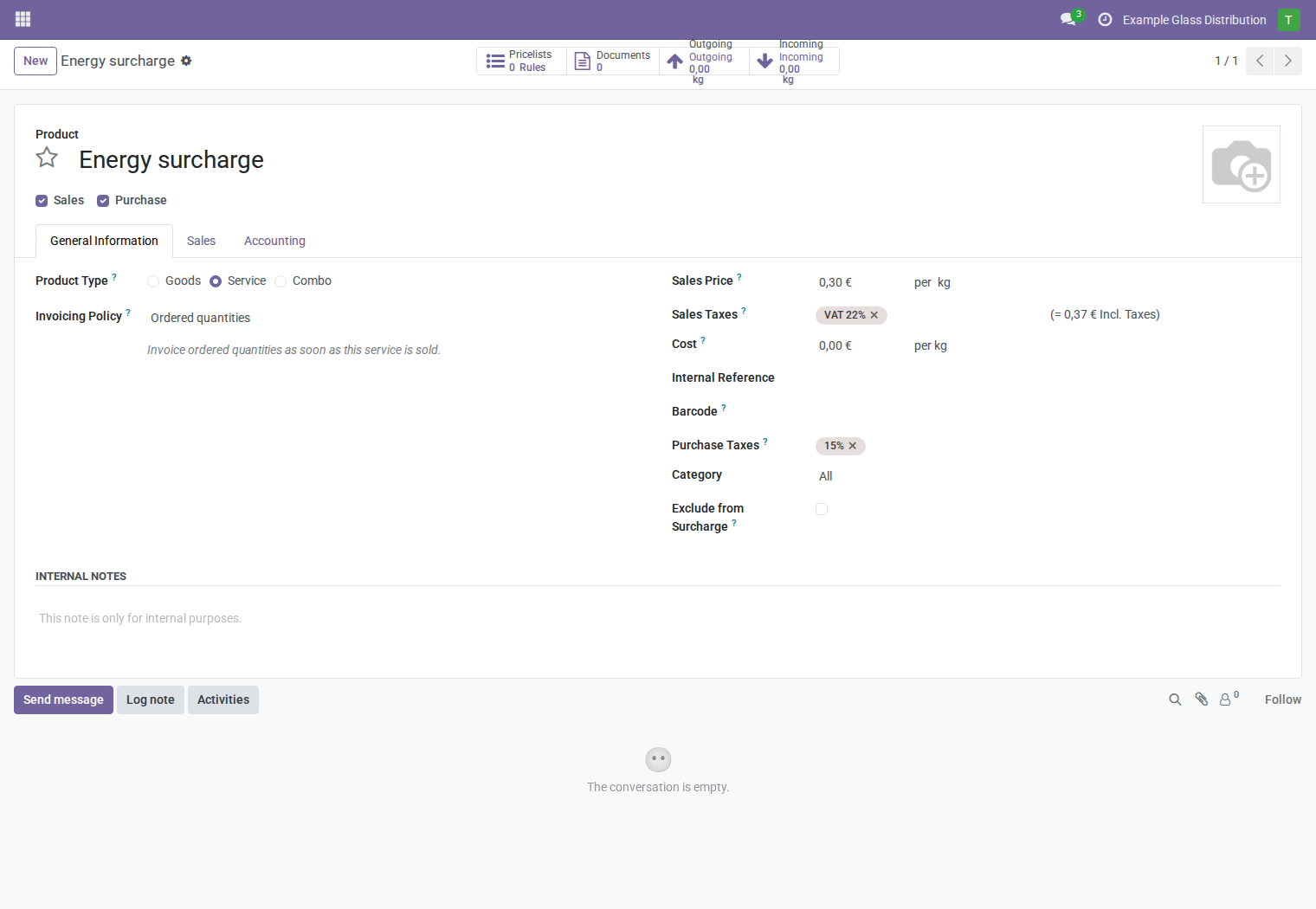
Create or open the product used to represent the charge:
- Product Type: Service.
- Unit of Measure: kg is recommended.
- Sales Price: the current charge per kg in company currency.
- Configure income accounts and taxes through the normal product/accounting setup. Review the resulting taxes and fiscal position on each invoice.
The screenshot uses a synthetic current price of €0.30/kg. This is an illustration, not a recommended commercial rate.
Existing installations using Units for the surcharge product retain their convention of one surcharge unit per kg. Do not change historical product units merely to match an example. If the surcharge product uses another weight unit, the module converts its price to a rate per kg for the generated charge.
If installed pricing extensions maintain variant sales prices from pricelists, continue using that established process. The surcharge module reads the resulting product sales price; it does not introduce another pricelist selector.
3.3 Glass products and weight
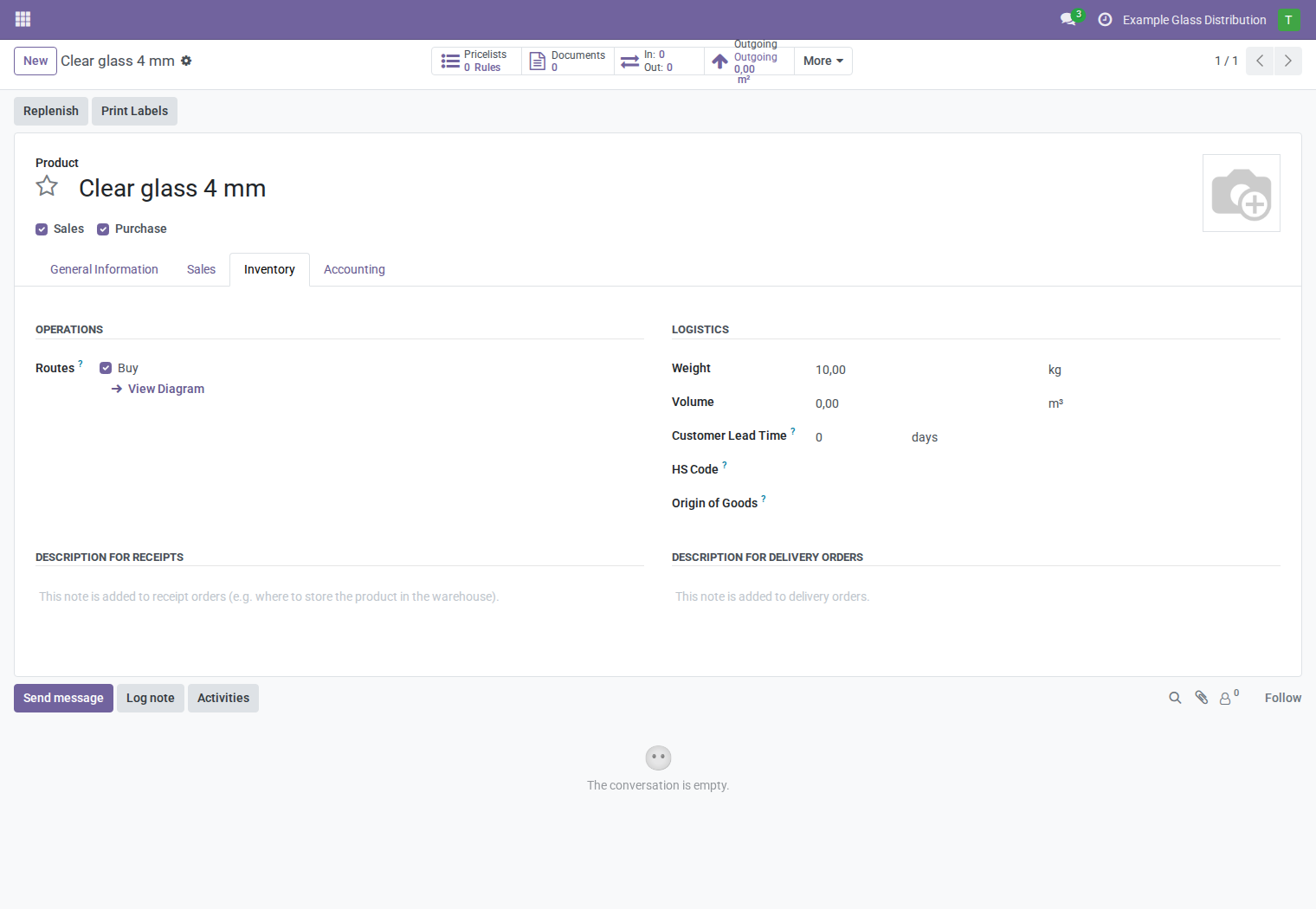
Open the actual glass product or variant and check Weight in its inventory information. For a glass product sold in m², the configured weight is multiplied by the line quantity in m². No dimensions need to be entered for this calculation.
Synthetic example:
| Product | Weight | Eligible quantity | Weight for surcharge |
|---|---|---|---|
| Clear glass 4 mm | 10 kg | 2.5 m² | 25 kg |
| Clear glass 6 mm | 15 kg | 1 m² | 15 kg |
Use the weight of the actual variant sold. Review imported or missing variant weights rather than assuming a template value will repair them. Every eligible product must have a positive weight.
3.4 Categories and product exclusions
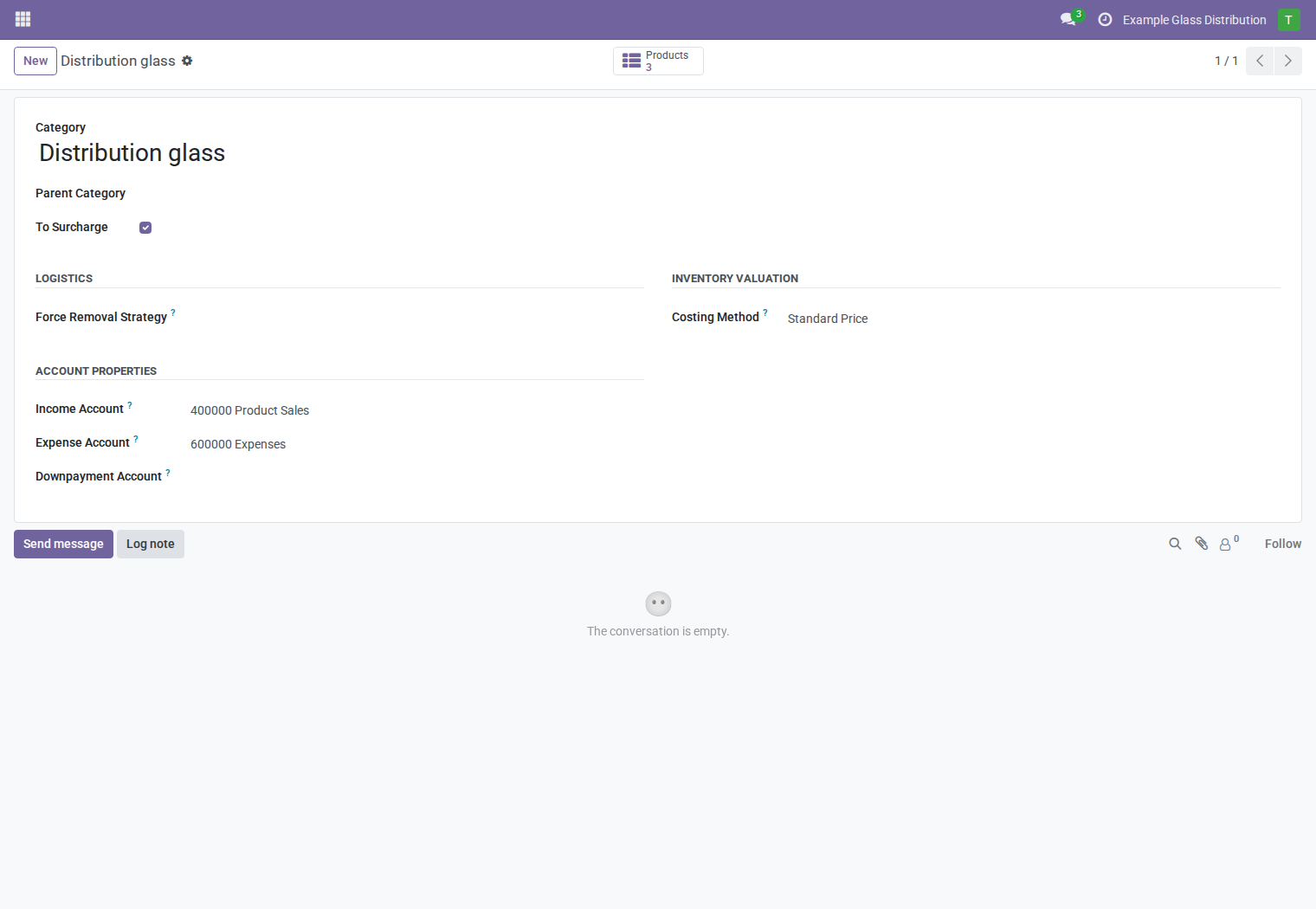
Open Product Categories, select the product's category, and enable To Surcharge. Depending on your apps, this list is available from a product configuration menu or by searching for Product Categories.
Eligibility reads the product's assigned category. Enabling a parent category does not automatically enable every child category.
For an individual product that should not be selected automatically, enable Exclude from Surcharge on its variant form. This prevents automatic selection; an explicit line decision can still include the product.
4. Mark categories in bulk
- Open the Product Categories list.
- Select the categories to enable.
- Choose Action → Mark Categories as Surchargeable.
- Review the categories in the wizard. Categories already enabled are omitted from the default selection.
- Click Mark Surchargeable, or Cancel to leave them unchanged.
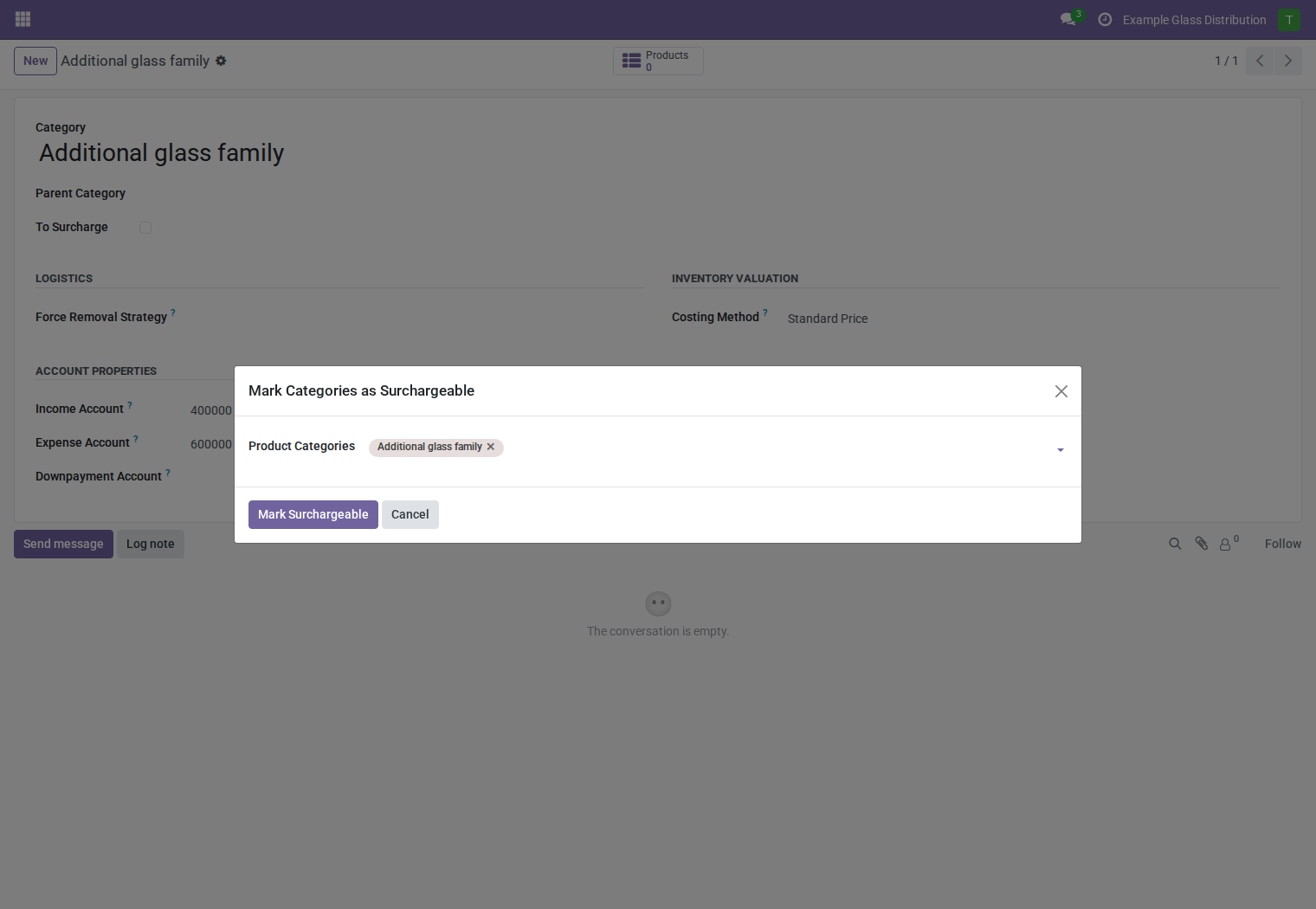
The wizard requires an Operator or Manager role plus permission to write product categories. It enables the flag; it is not a bulk disable tool. To disable a category, edit its flag directly with appropriate product-management rights. Category changes do not automatically create or reprice invoice charges.
5. Understand the calculation and pricing
For each eligible product line:
Line weight = configured product weight × eligible document quantity
Surcharge quantity = sum of eligible line weights, expressed in kg
Surcharge amount before tax = surcharge quantity × current product rate per kg
If a line uses a compatible alternative unit, the quantity is converted into the product's unit before multiplication. The configured product-weight unit is then converted into kg. For the ordinary m² workflow, where product and line use the same unit and weight is in kg, this is simply weight × quantity.
The surcharge rate comes from the configured surcharge product's current sales price. Customer discounts, quotation pricelists, and the pricelists of combined orders do not select a different surcharge rate in this module.
For another document currency, the module converts the product price from company currency using the quotation date or invoice date. If that date is absent, it uses the current date. A past document date does not select a historical pricelist rule. Maintain product prices through the existing pricing workflow; the saved document calculation records the rate actually applied.
Worked example
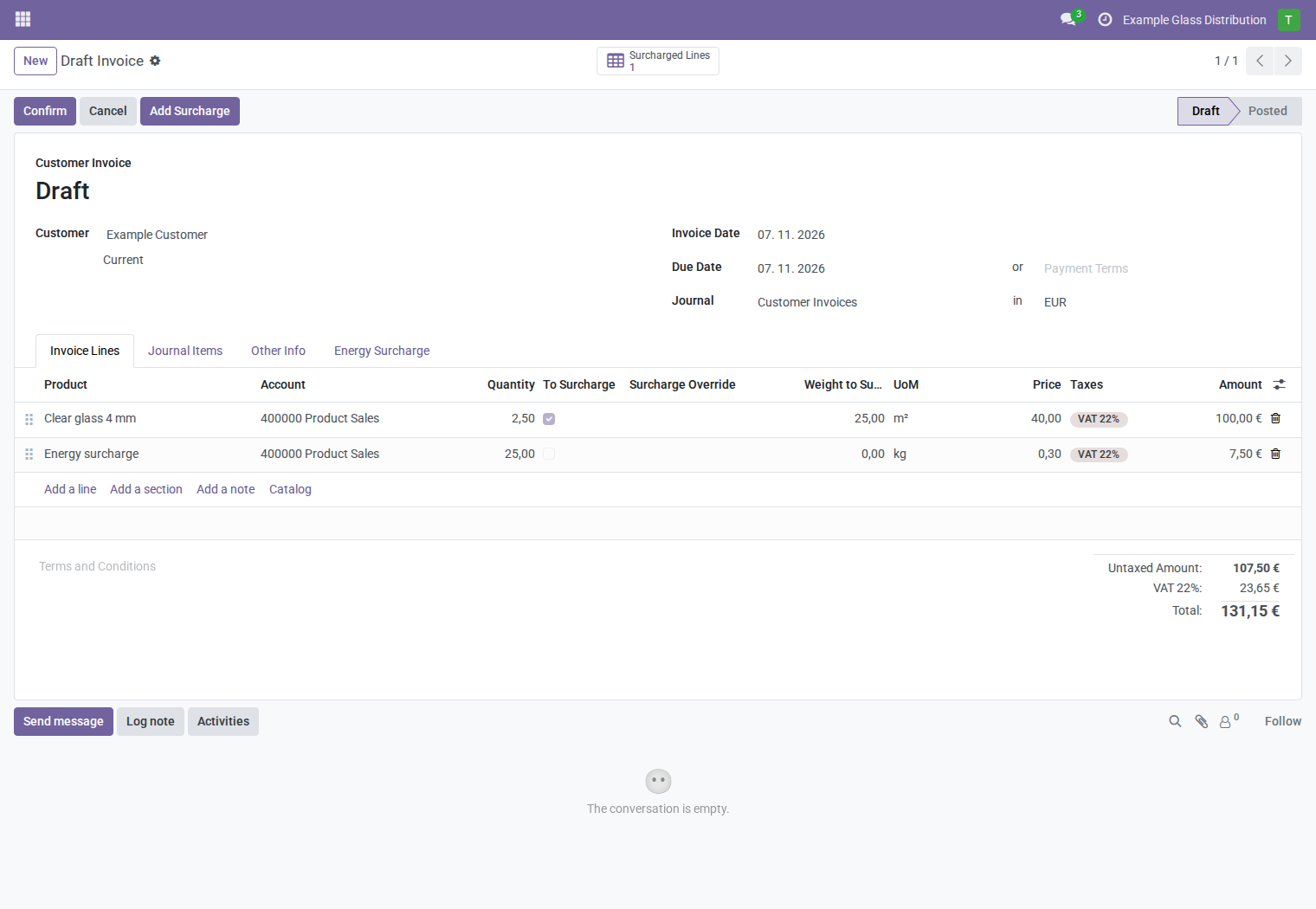
The screenshots use a 2.5 m² glass line at €40/m², weight 10, and a surcharge rate of €0.30/kg. An illustrative 22% tax is configured in the disposable environment. Your own taxes follow your configured Odoo accounting setup.
| Calculation | Amount |
|---|---|
| Glass: 2.5 × €40 | €100.00 |
| Eligible weight: 2.5 × 10 | 25 kg |
| Surcharge: 25 × €0.30 | €7.50 |
| Invoice amount before tax | €107.50 |
| Example tax: €107.50 × 22% | €23.65 |
| Invoice total | €131.15 |
The quotation total remains €122.00 for the glass with its example tax. Its €7.50 surcharge appears in the note, outside that total.
6. Prepare a quotation
- Create or open a draft or sent quotation. It must be unlocked.
- Add the customer and glass products with their quantities and prices.
- Save the quotation.
- Click Add Surcharge.
- Read the generated note and check its kg, price, and amount.
- Open Energy Surcharge to review the saved calculation.
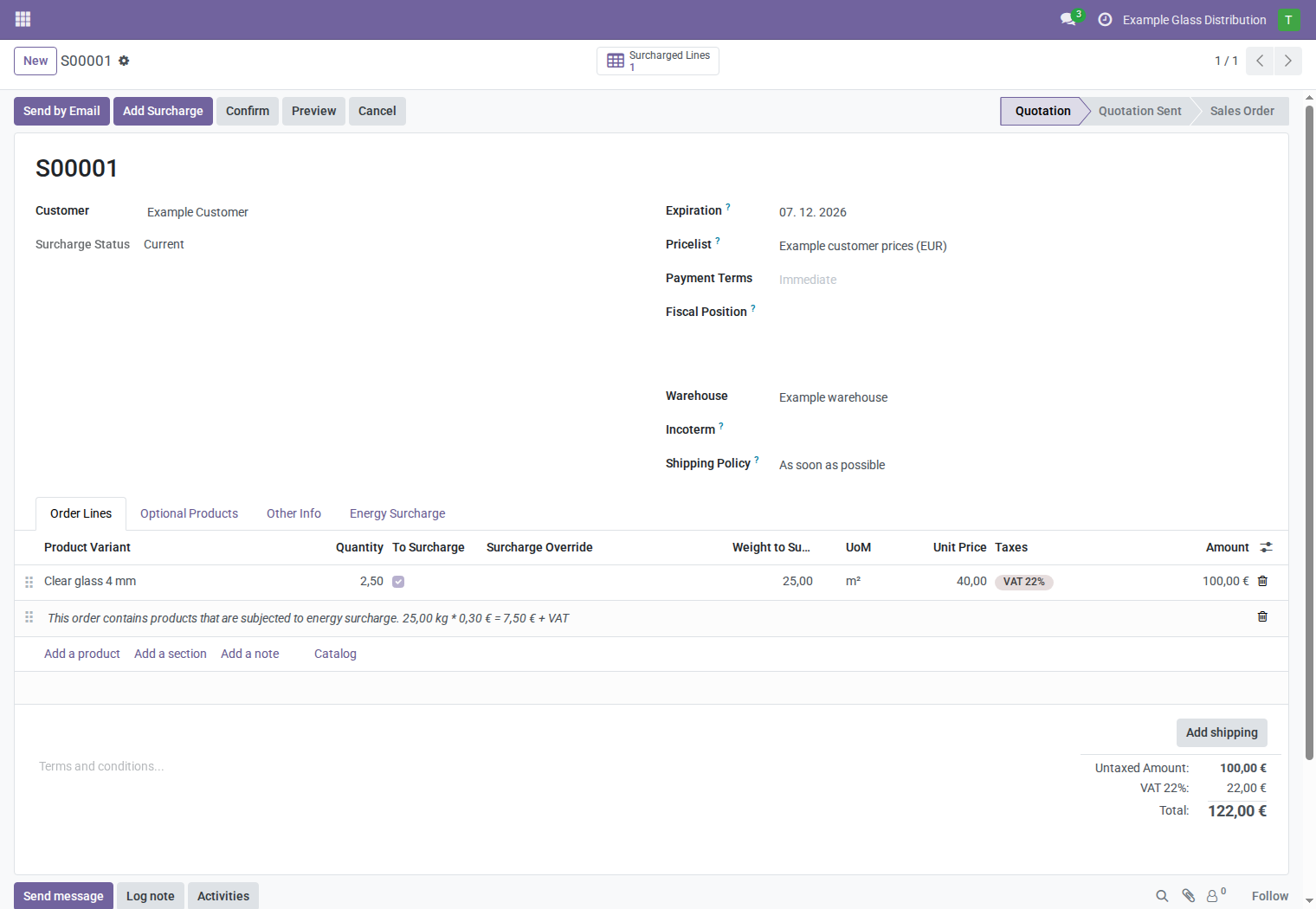
The note does not create a billable sale-order product line. Confirming the quotation does not automatically add a priced surcharge to the invoice.
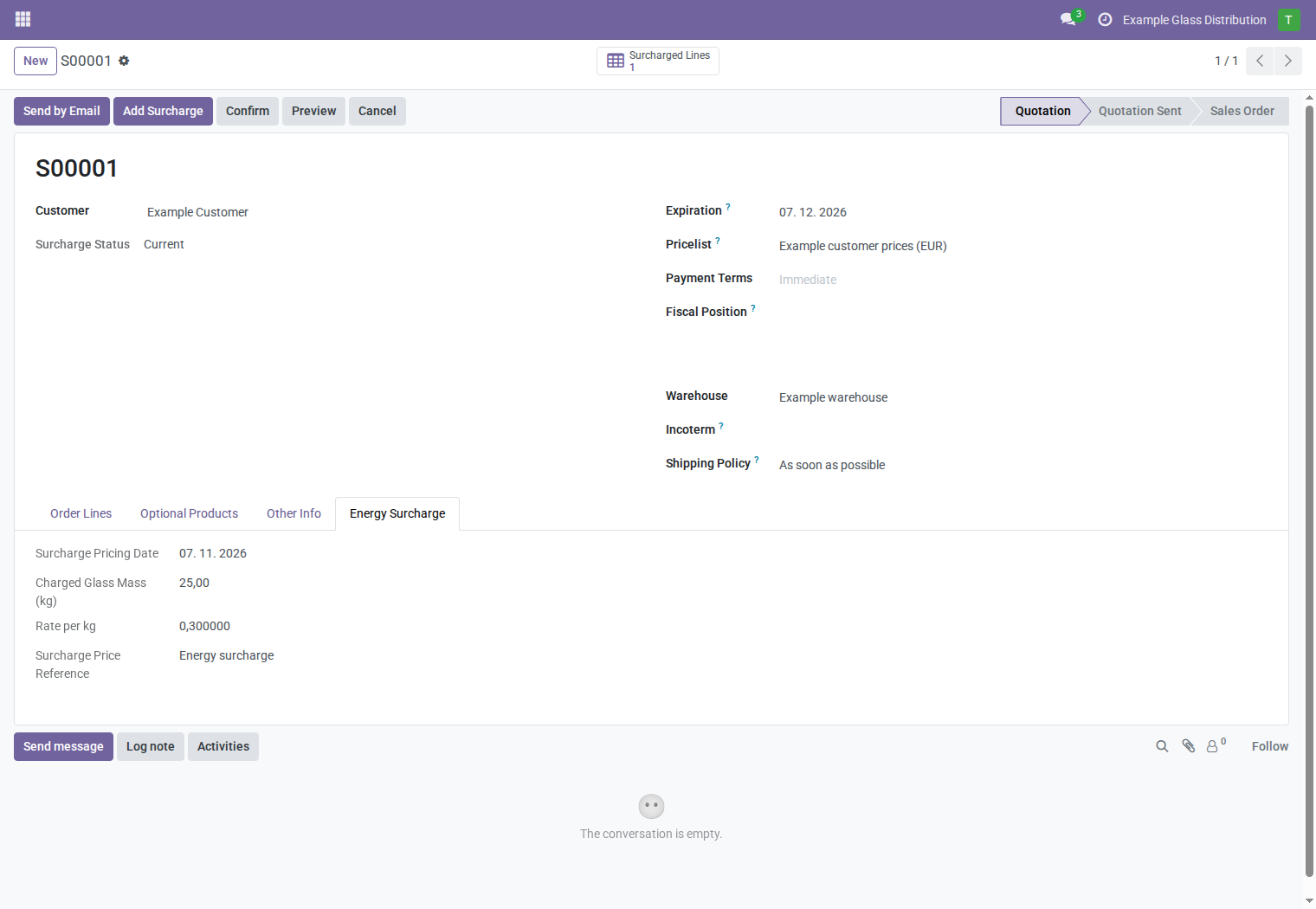
If you change quantities, weights, eligibility, or the surcharge product's price, use Add Surcharge again before relying on the estimate. The action is not available on confirmed, canceled, or locked orders.
7. Review eligibility and exemptions
Use Surcharged Lines to inspect the contributing lines. In the order/invoice line list's optional-column menu, show the fields you need:
- To Surcharge — current inclusion flag.
- Surcharge Override — persistent explicit inclusion or exemption.
- Weight to Surcharge — calculated line weight.
- Weight unit of measure label — product weight-unit label.
| Surcharge Override | Result |
|---|---|
| Empty | Use the category and product defaults |
| Charge | Include the product line explicitly |
| Exempt | Exclude the line persistently |
Clearing To Surcharge alone is not a persistent exemption. Add Surcharge re-enables category-eligible lines unless they have an explicit Exempt override or an applicable product exclusion. Category/product changes can also recompute the default flag. Use Surcharge Override for an agreed exception.
After changing an override, recalculate. Clear the override and recalculate to return to the category default. Overrides pass from sales lines into prepared invoice lines.
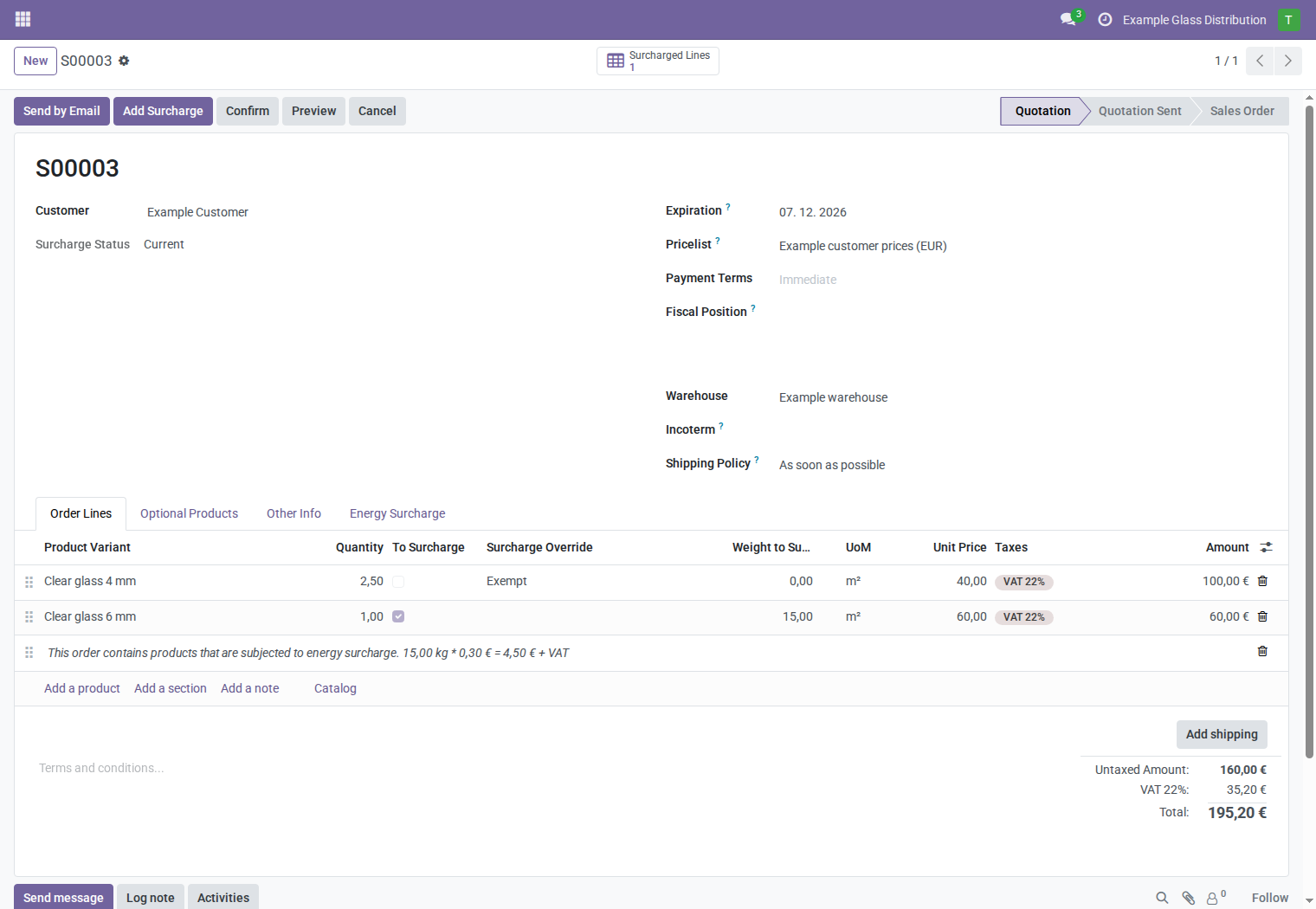
In this example, the 4 mm line is exempt and a 1 m² line of 6 mm glass remains eligible: 15 kg × €0.30 = €4.50. The quotation's product prices and totals are not reduced by the exemption; only the surcharge estimate changes.
8. Create or update an invoice
8.1 From an order
- Confirm the order through the normal sales workflow.
- Create the invoice according to your normal invoicing policy.
- Open the draft customer invoice.
- Check the actual invoice quantities and any carried eligibility decisions.
- If the quotation's informational surcharge note was carried onto the invoice, remove that note from this draft invoice and save. Keep the glass lines.
- Click Add Surcharge.
- Review the generated surcharge product line, taxes, and total.
- Review the Energy Surcharge tab, then post the invoice when ready.
Current limitation: updating a carried quotation note can leave it as an informational note even when its saved quantity and rate have been updated. Remove the carried note before recalculating so the action creates a priced product line. Check that the line has an amount included in the invoice total; a Current status alone does not prove this. Do not also add another manual charge for the same exposure.
8.2 Standalone customer invoice
Create a customer invoice normally, add the glass lines, save, and use Add Surcharge. It uses the same configured product price without requiring an order or an invoice-specific pricelist choice. Vendor bills and vendor refunds are outside this action's supported scope.
8.3 Partial invoices
The calculation uses invoice quantities, not the original order's full quantities. In the example, invoicing 1 m² first produces 10 kg and a €3.00 surcharge. Invoicing the remaining 1.5 m² produces 15 kg and a €4.50 surcharge, provided the rate remains €0.30/kg.
Recalculate each invoice separately. Review down payments and unusual manual lines: only eligible product lines with valid weights should contribute. An invoicing-policy or delivery decision remains part of standard Odoo sales.
9. Review saved calculations and status
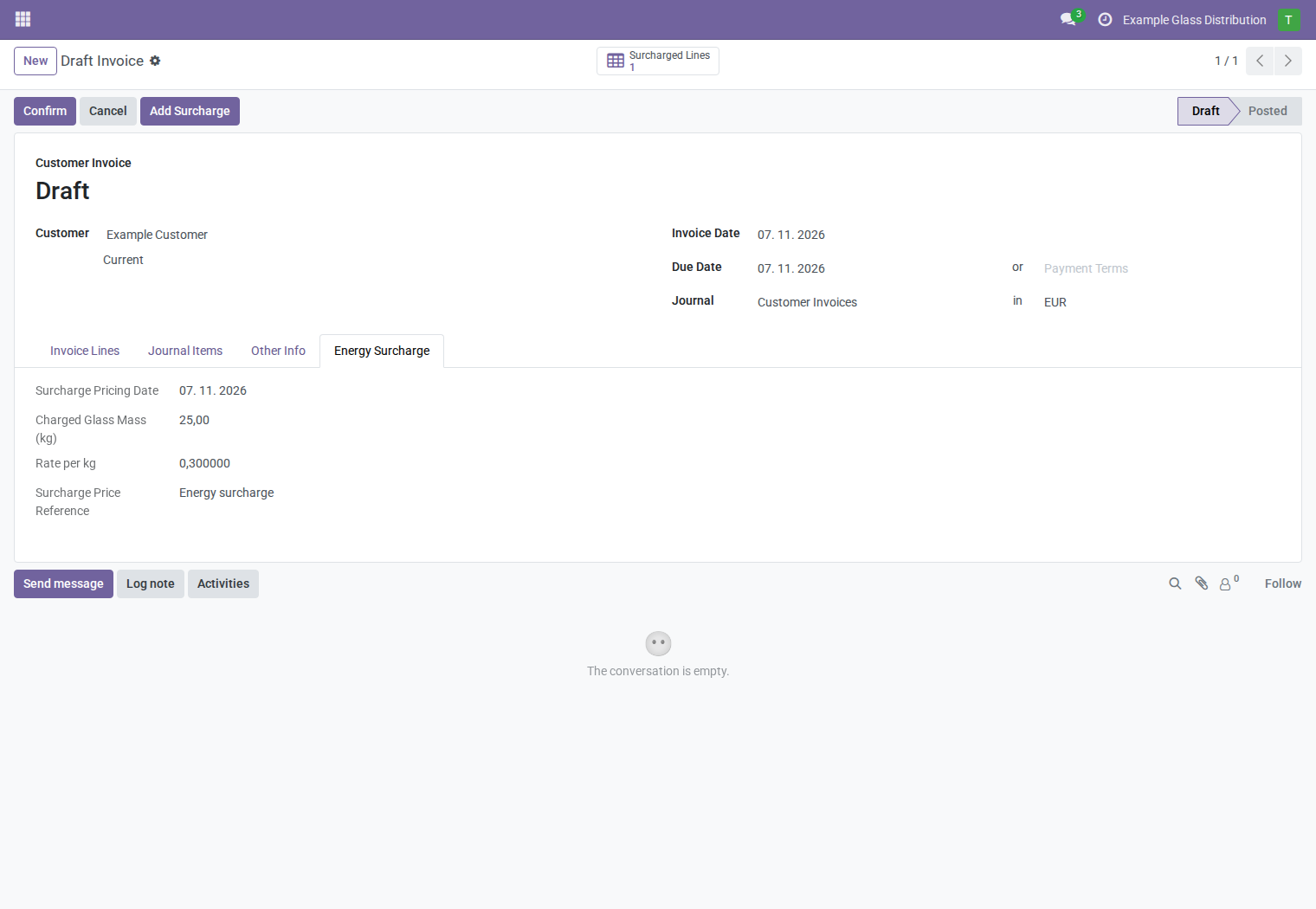
The Energy Surcharge tab shows the saved calculation, rather than silently replacing it with current product values.
| Field | Meaning |
|---|---|
| Charged Glass Mass (kg) | Eligible weight at the last calculation |
| Rate per kg | Rate applied in the document currency |
| Surcharge Pricing Date | Document date used for the calculation/currency conversion; not a separate timestamp or historical tariff selector |
| Surcharge Price Reference | Configured product reference, or the original invoice for a linked credit note |
| Status | Meaning and next step |
|---|---|
| Calculation required | No saved calculation exists. Calculate if the document needs a surcharge. |
| Current | Current inputs and the generated line/note match the saved calculation. |
| Recalculation required | Inputs or the generated content differ, or current inputs cannot be validated. Review and recalculate the draft document. |
A Current status is not approval or accounting posting. A document with no eligible lines and no generated surcharge needs no calculation for the optional confirmation check. Older documents may show Calculation required because they predate saved calculations; this does not prove their financial charge is absent.
10. Recalculate after changes
Recalculate after changing quantities, products, eligible weights, overrides, document date/currency, the surcharge product, or its current price. Editing the generated invoice line or quotation note can also make the calculation stale. Reload the document when upstream prices have changed so its displayed status reflects current values.
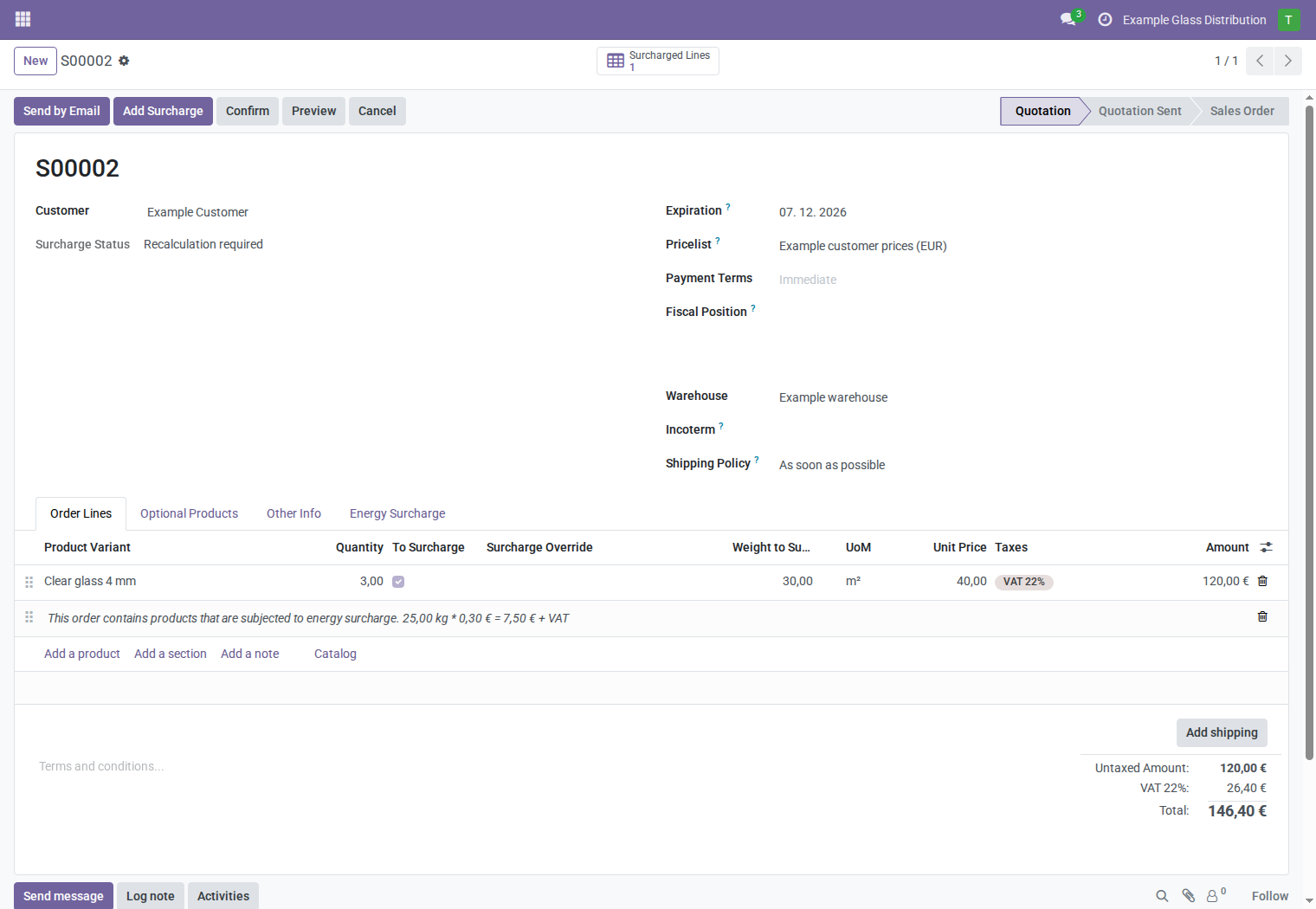
The screenshot's quantity increased from 2.5 to 3 m². The old note still shows 25 kg and €7.50 until Add Surcharge runs again. The new calculation is 30 kg × €0.30 = €9.00. Review the change before confirming the quotation.
Repeated use updates the same generated line/note. If all lines become exempt, run the action to remove the old surcharge and clear its saved calculation. Nothing is recalculated automatically by opening a document or changing a price.
11. Require current calculations before confirmation or posting
An administrator can enable Require current surcharge for the company. It is off by default and is enabled in the screenshot environment.
When enabled, an eligible quotation must have a current calculation before confirmation. Customer invoices and credit notes must have a current calculation before posting, including posting through standard automated accounting paths. A missing/stale calculation raises Recalculate the energy surcharge before proceeding. The operation stops; it does not calculate a charge automatically.
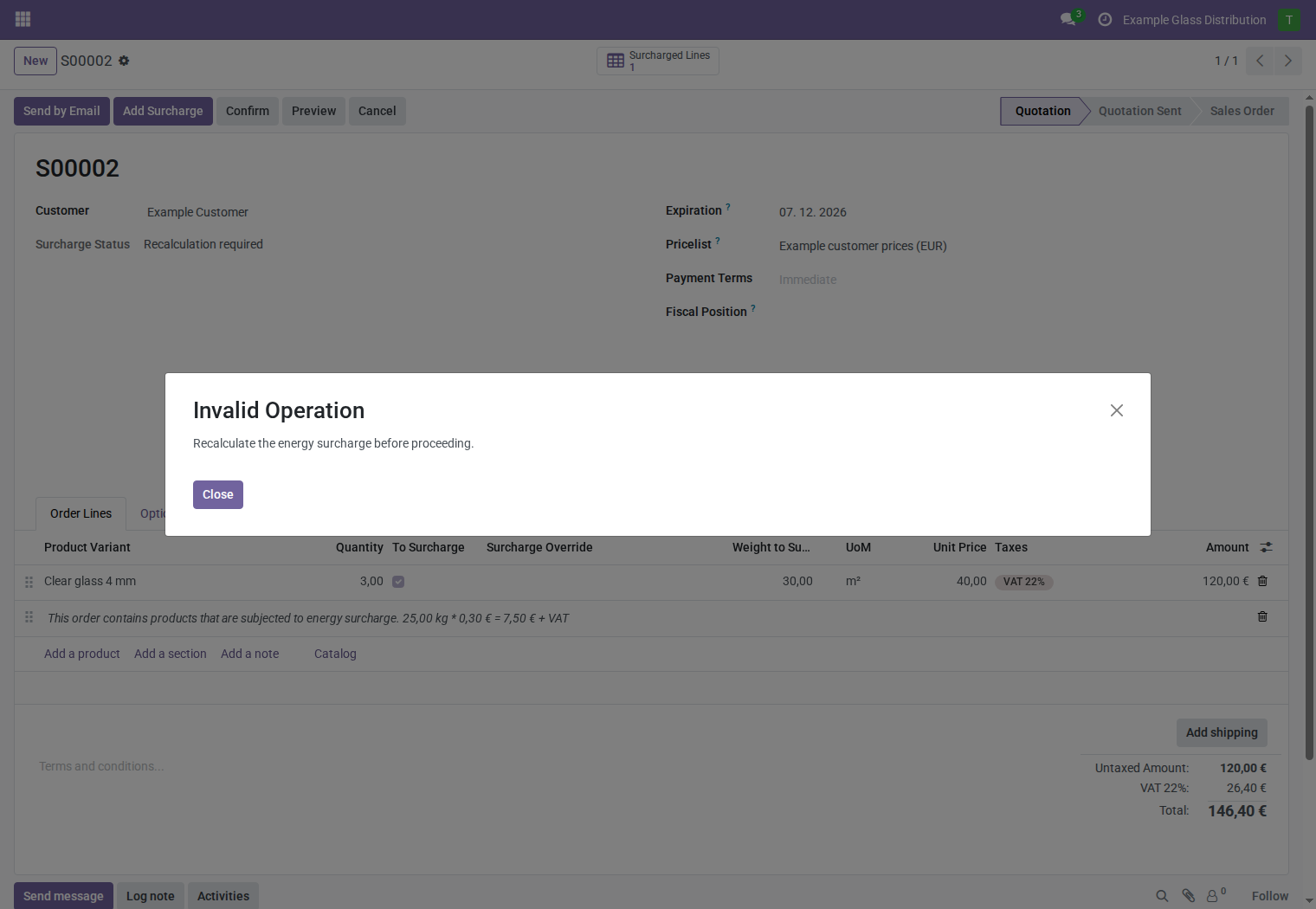
Return to the draft document, review eligibility and prices, and click Add Surcharge. Then confirm or post again. Enabling the setting also affects existing draft documents that need a surcharge; review them before enabling it. Disabling the check does not remove existing charges or recalculate documents.
12. Process credit notes
For a return or price correction linked to a customer invoice:
- Open the original posted invoice and use the standard Credit Note action.
- Create a draft credit note through the normal Odoo reversal workflow.
- Adjust the credited glass quantities to the actual return/correction.
- Click Add Surcharge on the draft credit note.
- Review the credited weight, rate, original reference, taxes, and total.
- Post when the credit note is correct.
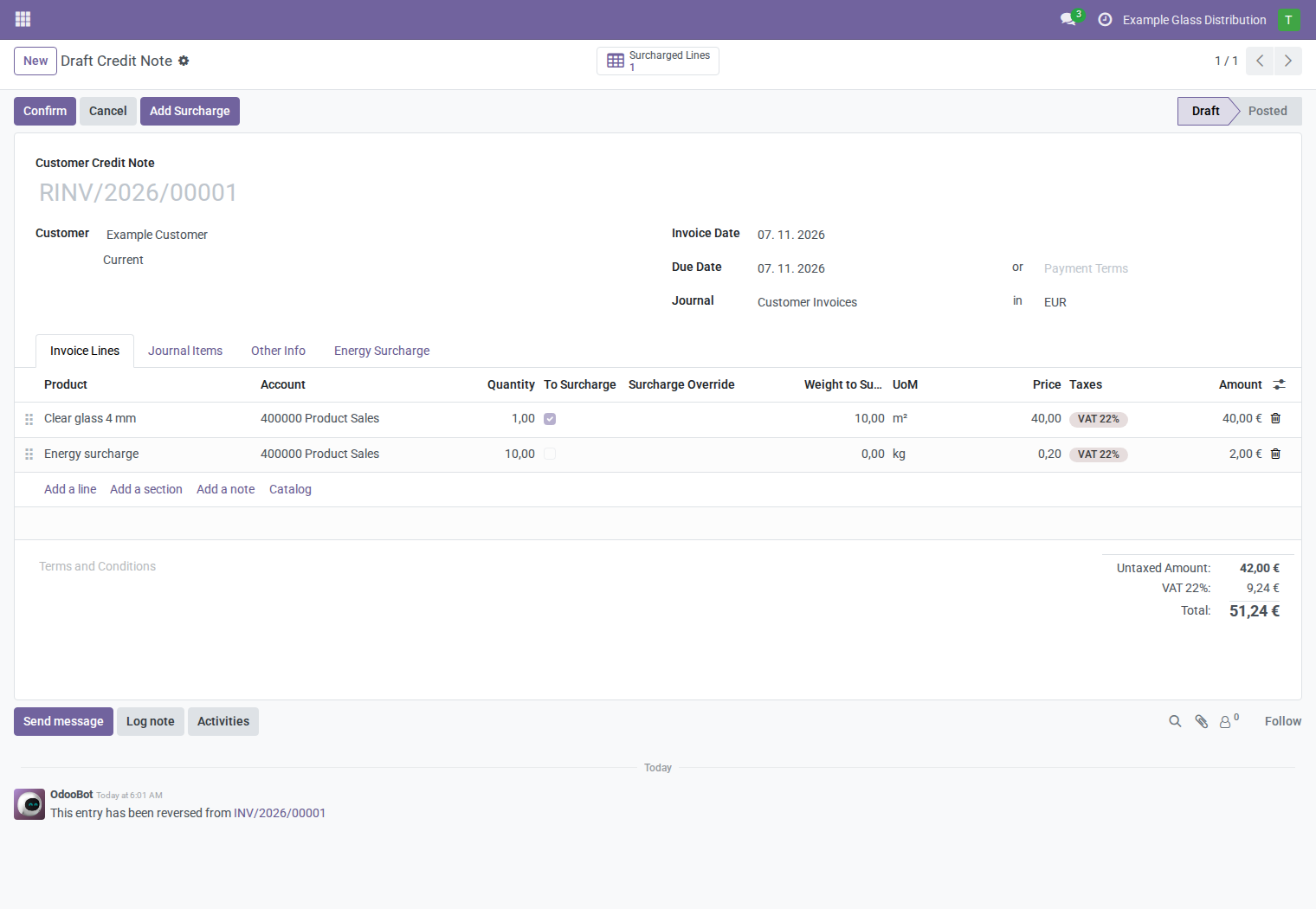
Where the original invoice contains exactly one marked surcharge line, the module retains that product and its net unit rate, including any original line discount. It converts a weight-unit price to kg and converts currency using the credit note's date where needed. The credited weight is calculated from the credit note's current eligible quantities and product weights.
The screenshot returns 1 m², giving 10 kg. The original rate was €0.20/kg, while the current product rate is €0.30/kg. The credit therefore contains a €2.00 surcharge credit, not €3.00. With €40 glass and the illustrative 22% tax, the credit total is €51.24.
This also works for older invoices without calculation snapshots, provided the original marked charge is identifiable. A standalone credit note, or a linked invoice without exactly one marked charge, falls back to the configured product and its current price. Review such cases explicitly. If product weights changed since the original sale, also review the weight used for the return. The action does not modify the original posted invoice.
13. Handle additional scenarios
| Scenario | What to do / expected behavior |
|---|---|
| Several glass products | Eligible weights are summed; the document receives one generated charge/note. |
| Mixed eligible and ineligible products | Only eligible lines contribute. Sections and notes never contribute. |
| Print or send a document | Use the standard Odoo Preview/Print or sending workflow. Check that the quotation note remains informational and the invoice charge is included in its total. The module adds no separate report or export action. |
| Product excluded by default but charged by agreement | Set the line override to Charge, then recalculate. |
| Zero commercial rate | A valid positive-weight calculation can produce a zero-value surcharge line/note. |
| Different customer pricelists on combined orders | Use Add Surcharge normally; it reads the configured surcharge product price. |
| A new commercial period/rate | Update the product price through the established pricing workflow; explicitly recalculate appropriate draft documents. Do not reprice posted documents. |
| Copy a document | Generated-line markers are copied, but the saved calculation is cleared. Recalculate the copy to refresh it without creating duplicate marked charges. |
| Change the company | Check the selected company's product and settings; cross-company products are rejected. Shared product pricing remains governed by your installed pricing setup. |
| Existing historical records | Viewing or upgrading the addon does not backfill pricing history or reprice charges. Inspect existing lines before acting on an old draft. |
| Repeated Add Surcharge | Existing marked content is updated and extra marked lines are removed; unmarked manual lines are not automatically identified as duplicates. |
14. Resolve common problems
| Message or symptom | Check and correction |
|---|---|
| Please configure a default surcharge product… | Set Surcharge Product for the document's company. |
| The surcharge product belongs to a different company. | Select a shared product or one belonging to that company. |
| Set a positive glass mass on every eligible product. | Check every eligible product variant's weight, including lines that would otherwise contribute zero. |
| The total surcharge weight is zero. | Check weights and quantities. Zero quantities or offsetting signed quantities can produce zero total weight. |
| The energy surcharge rate must not be negative. | Correct the configured product sales price in the upstream pricing workflow. |
| Recalculate the energy surcharge before proceeding. | Review the document and run Add Surcharge before confirming/posting. |
| Action unavailable or rejected | Quotations must be draft/sent and unlocked; customer invoices/credit notes must be draft. Check rights as well. |
| Category wizard denied | Check both the surcharge role and product-category write permissions. |
| A cleared inclusion flag returns | Use Exempt in Surcharge Override rather than only clearing To Surcharge. |
| Weight unexpectedly omitted | Check assigned category, product exclusion, line override, and the actual variant weight. |
| Old amounts remain after editing a quantity/price | This is deliberate: review and recalculate the draft document. |
| A second manual surcharge remains | Only marked generated lines are consolidated. Review manual lines to prevent double charging. |
| The invoice surcharge remains a note and does not increase the total | On the draft invoice, remove the carried quotation surcharge note, save, and run Add Surcharge to create a priced product line. Verify its amount and the total. |
Do not change historical posted documents merely to clear a display status. Use your normal accounting correction or credit-note procedure and review the underlying business data.
15. Daily checklist
- Confirm the correct company and current surcharge product price.
- Check glass weights, quantities, and agreed exemptions.
- Run Add Surcharge on the quotation and review its informational note.
- Remove any carried quotation surcharge note from the draft invoice, then run Add Surcharge using the quantities actually billed.
- Check the saved weight, rate, reference, taxes, and total before posting.
- For a return, use a linked credit note and review the original rate.