PMISuite Operations Governance user manual
Follow the fictional Site services pilot from a draft Sales quotation to a measured benefit in Change. The figures show the workflow in Odoo 18 with all eight addons from the Operations repository installed. Names, amounts, and measurements belong to the demonstration.
Start with pilot configuration, then follow G2, G4, and G5.
1. Prepare the company and assign roles
Make these addons available on the Odoo addon path and install them and their declared dependencies. Use the same company for the project, Sales quotation, pilot, Change initiative, and capacity periods.
| Addon | Work in the pilot |
|---|---|
PMIS Bills of Quantities (pmis_assessment) |
Maintains the project and its sale Bill of Quantities (BoQ). The quotation points to this sale BoQ. |
PMIS Risk Management (pmis_risk) |
Supplies the project risk acceptances for G2 and control-test evidence for G4. |
PMIS Project Change Management (pmis_change) |
Supplies readiness, cohort adoption, rollout decisions, sustainment reviews, and measured benefits. |
PMISuite Commitment and Release Governance (pmis_operations_governance) |
Enrolls targets, records evidence and delegated decisions, checks G2 and G4, and tracks G5. |
PMIS Sign-off (pmis_signoff) |
Continues the separate Measurement Book and temporary Situation sign-off workflows. |
PMIS Situation Stock Operations (pmis_situation_stock) |
Tracks material movements and stock costs in Situations. |
PMIS Field Service (pmis_field_service) |
Supports field journals and the Field Service work that can supply operational evidence. |
PMIS MRP (pmis_mrp) |
Provides the Manufacturing Overview entry point for work-center planning. |
Use the last four addons for their native workflows as needed. Governance checks its own capacity pools and the evidence linked to its decision gates. For example, creating work-center capacity in Manufacturing requires a separate entry in Capacity Pools if that capacity is to support G2.
Set up these internal users. Some roles can share an account when the code permits it. In the example, the sponsor also manages setup and reviews finance.
| Role | Access and responsibility |
|---|---|
| Governance manager | PMIS Governance Manager. Creates the pilot and gates and maintains grants, capacity, and guardrails. Needs project access and PMIS Risk User to configure the G2 risk list. |
| Evidence submitter | PMIS Governance User and access to the project and target. Creates evidence revisions. |
| Delegated decision-maker | PMIS Governance User, pilot access, and a current grant for the pilot and gate type. Must differ from the submitter. |
| Finance reviewer | PMIS Governance User, named on the pilot, with access to the revision. Must differ from the G2 submitter. |
| Condition owner and verifier | Two different eligible pilot users. The owner provides evidence and the designated verifier checks it. |
| Sales confirmer | Internal Sales user with write access to the quotation. |
| Change sponsor | PMIS Change User and the named sponsor of the initiative. Authorizes the native Change pilot, makes rollout decisions, and prepares the G5 handover. |
| Operational owner and action owners | Eligible internal governance participants. The named operational owner accepts G5. An action owner completes their own action. Add PMIS Change User access for an operational owner who will review benefits. |
Choose the pilot company in the company selector. Grant each participant only the native Sales, project, Change, or Risk permissions they use. Risk acceptance requires an eligible project reviewer. Governance managers can access pilots in the companies they have selected. Regular users gain pilot access through the owner, finance reviewer, or participant assignment. Give pilot participants who review Risk evidence the PMIS Risk User role and access to the project's Risk records. The example includes that access for the verifier so the condition form loads through the related records.
2. Create the project, quotation, and rollout wave
- Open Bills of Quantities → Operations → Projects and create the project. Under Operations → Bills of Quantities, create a sale BoQ for that project and enter its customer and items. With sale BoQ items in place, use New Quotation from the BoQ and complete the resulting quotation. Keep the quotation in draft or sent state until G2 is complete.
- Open Bills of Quantities → Operations → Change Initiatives and create an initiative for the same project. Enter the sponsor, owner, desired outcome, and target behaviors. Add readiness checks for the work to proceed.
- Use Rollout Waves on the initiative to create a wave. Enter the cohort, owner, planned start, and rollback plan. Keep the wave unscaled until G4. In this example, the First wave is for Site leads.
See the Change user manual for the full initiative workflow. See the Risk user manual for risk assessment, reviewer configuration, and corrective retests.
3. Configure the governance pilot
Open a row in Pilots to see the pilot setup form. Governance managers can edit it. Use New to create a pilot. Use Dashboard from the list or the saved pilot form to open the read-only dashboard.
- Open Commitment and Release Governance → Pilots and select New. Enter the name, project, company, objective, owner, and finance reviewer. Add the remaining eligible users to Participant and keep the pilot Active.
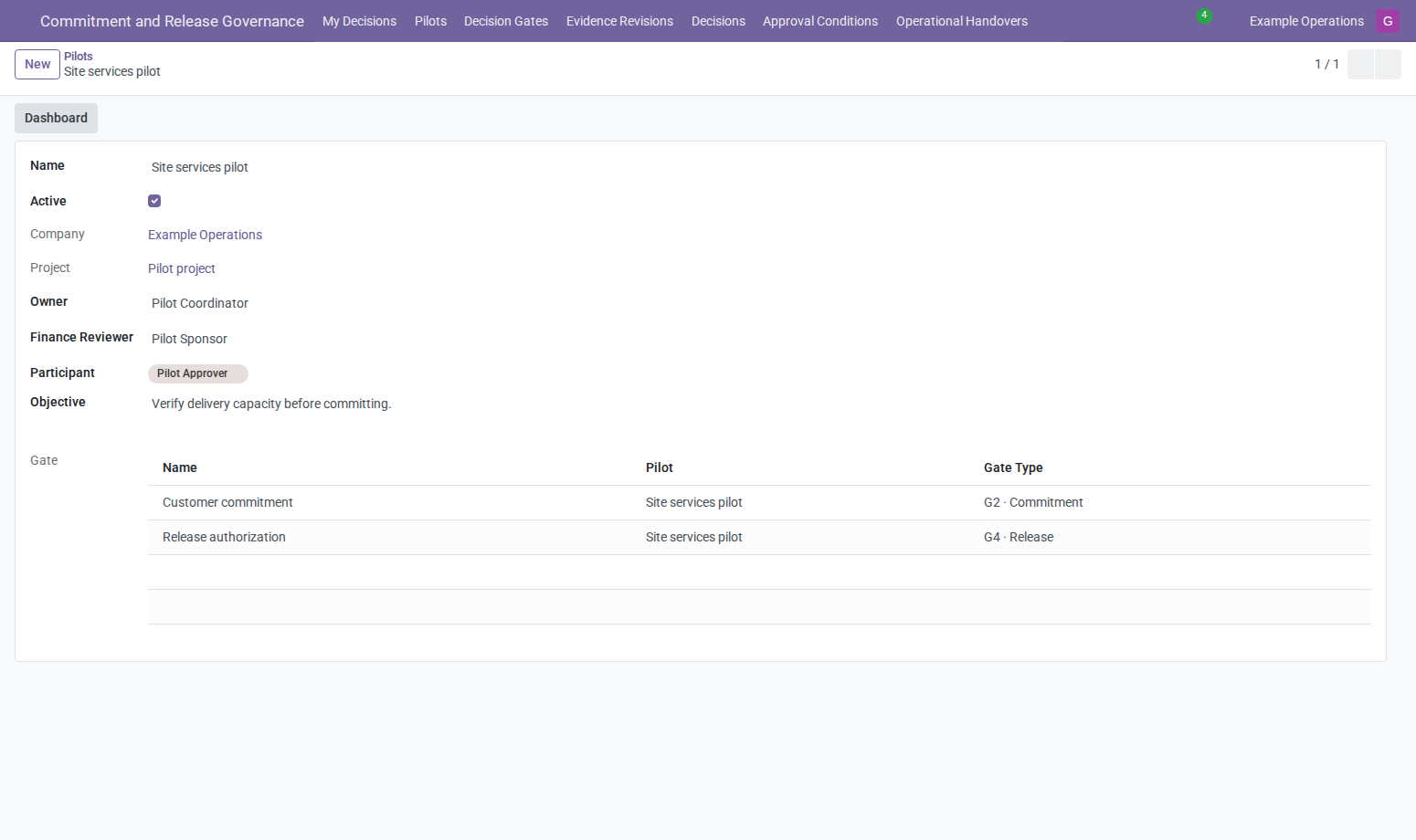
Figure 1. The pilot ties one PMIS project to the people who submit and review its evidence.
- Under Decision Gates, create G2 · Commitment and select the quotation. Create G4 · Release and select the rollout wave. Save each gate before configuring its evidence. A quotation or wave can be enrolled once. Enroll both before their native execution actions.
- Under Authority Grants, create a grant per approver, pilot, and gate type. Set Valid From and optionally Valid Until. Keep the grant active through actual execution. For G2, set Commitment Limit in company currency to cover the tax-inclusive quotation total converted to company currency.
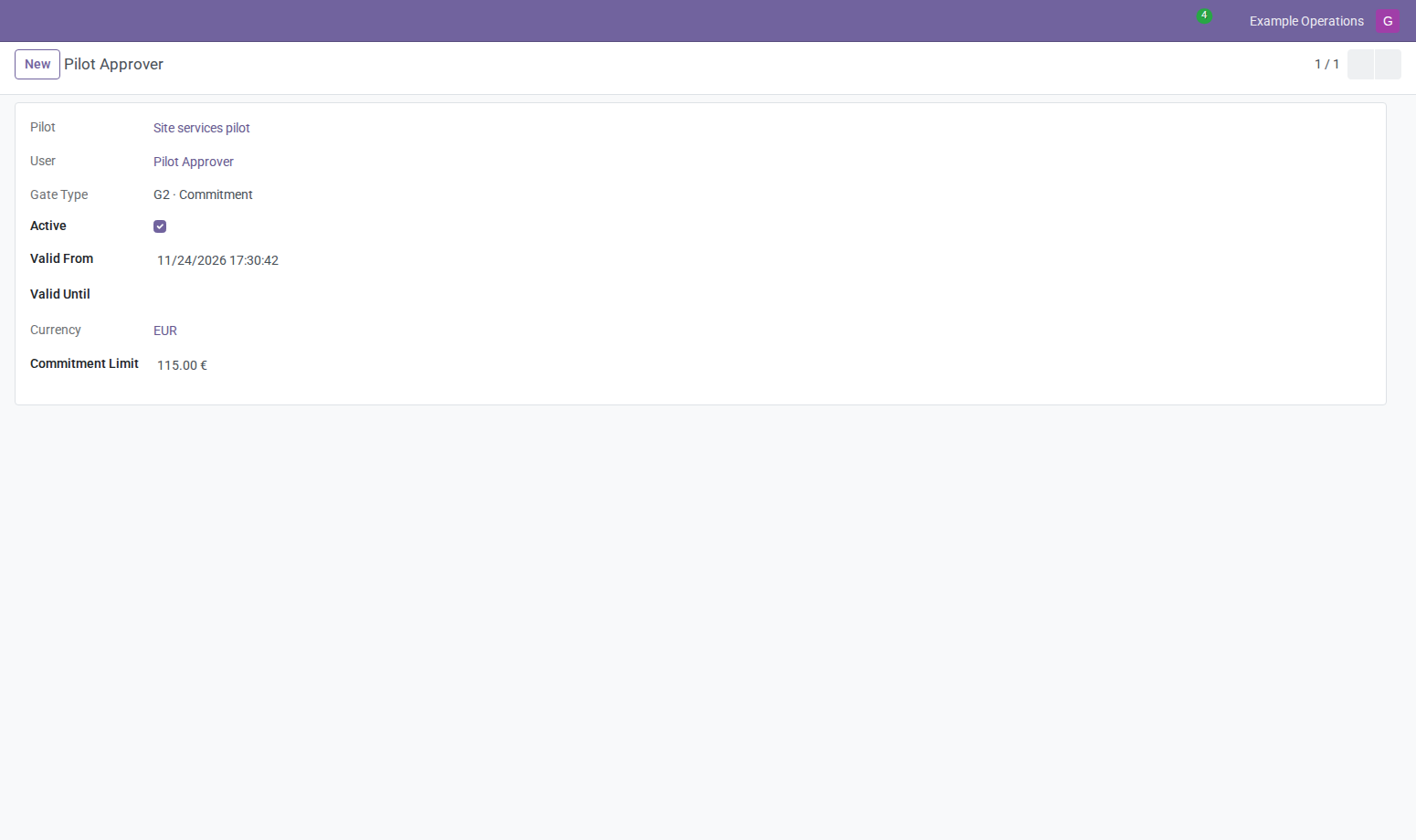
Figure 2. The G2 grant specifies the scope, validity window, and monetary limit.
- Under Capacity Pools, create the Installation resource pool for the period. Enter the period start and Capacity Hours of 100. The approved revision will request 70 hours from that period. Enter a separate capacity record for each period.
- On the draft quotation, use Governance to open the gate and Decision History to see decisions on all its revisions. The same buttons are available on enrolled waves to users who can read the gate.
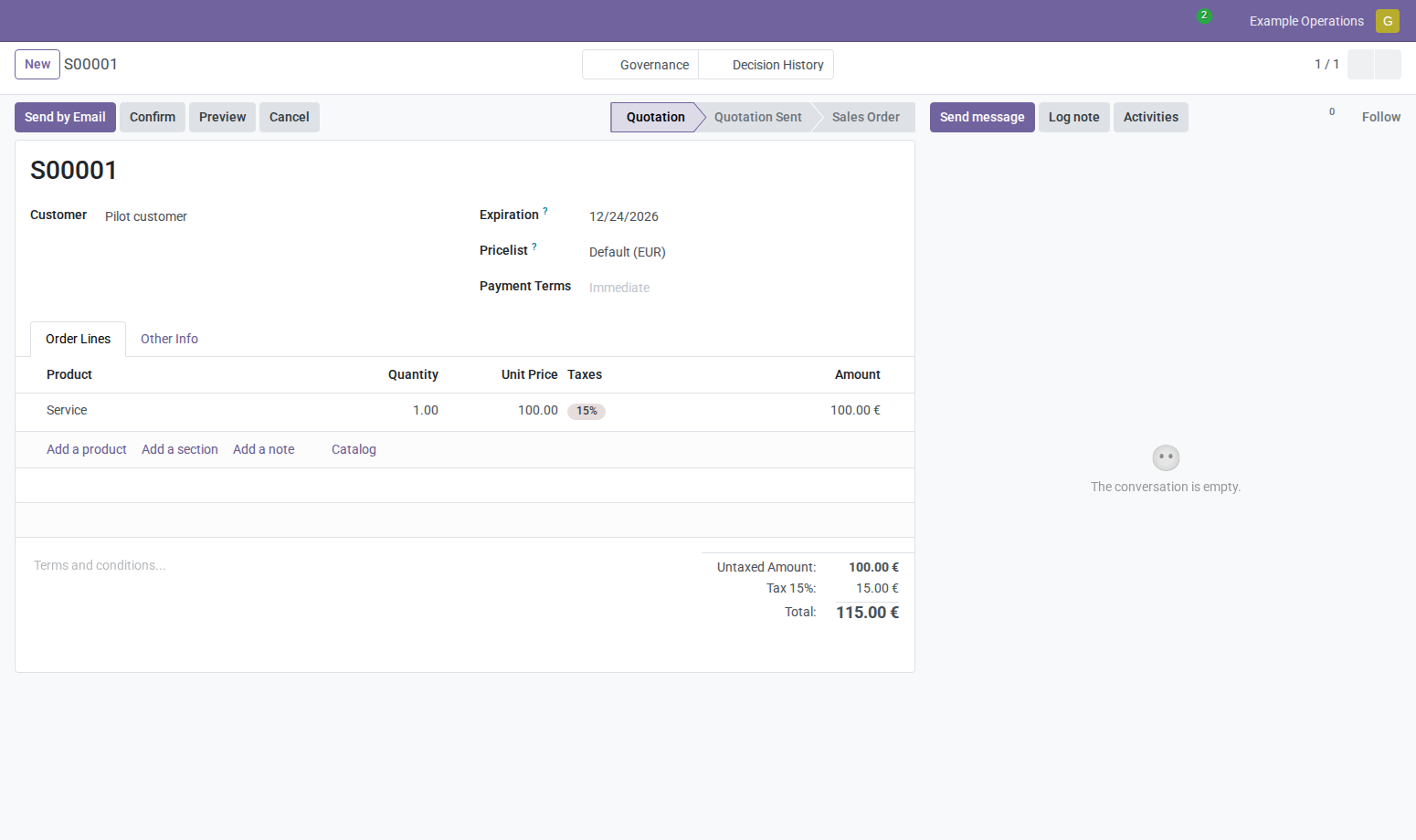
Figure 3. Sales keeps its native Confirm action. The two smart buttons open the related governance records.
4. Run G2 from project risk to Sales confirmation
- In Risk Register → Register, assess the installation dependency and obtain its current acceptance. For a risk requiring approval, use Request Acceptance. The eligible Risk reviewer uses Review Acceptance, selects Accept, enters a reason, and provides the required expiry for an impact exception. On the G2 gate, add the risk under Required Project Risk Acceptances before saving the revision.
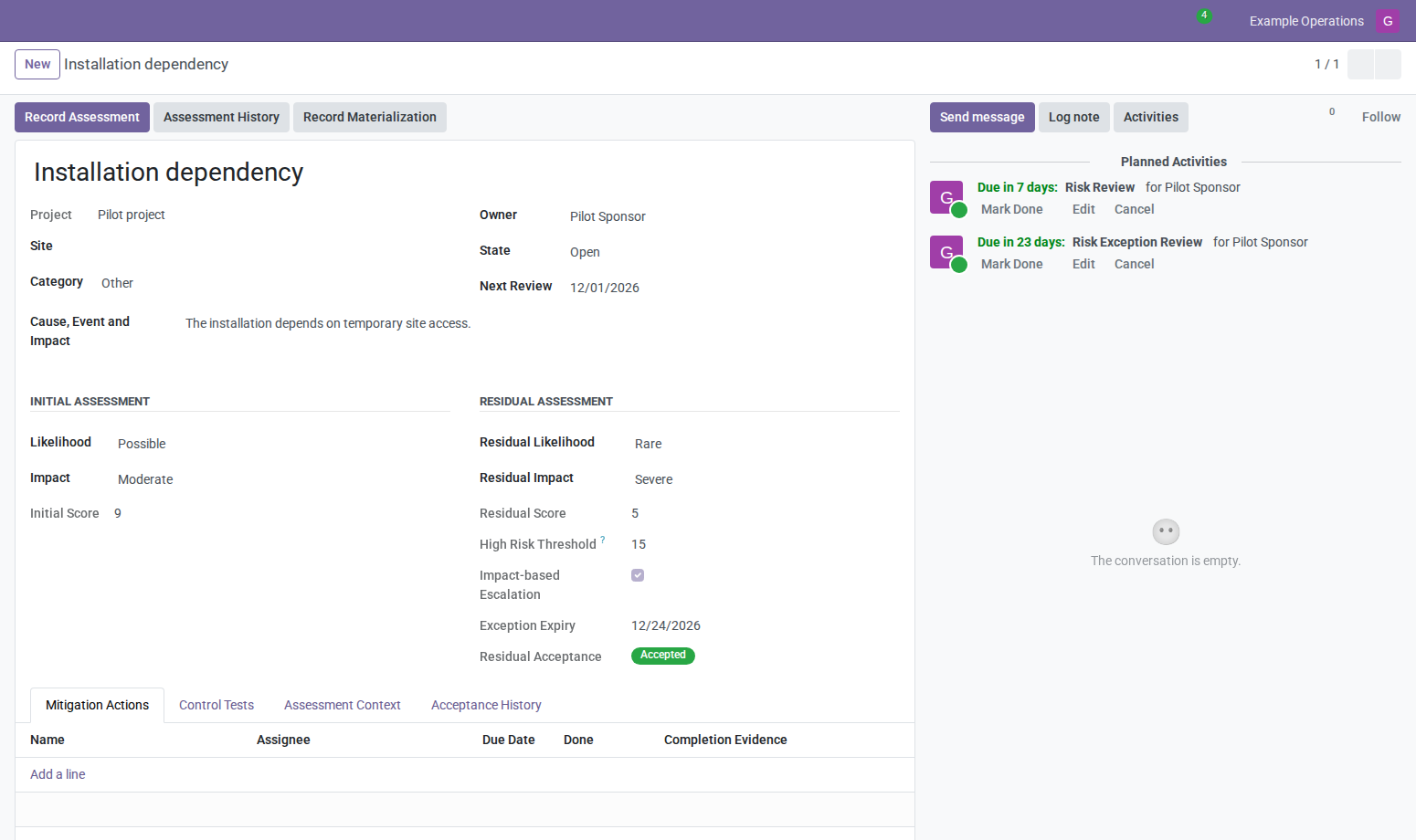
Figure 4. The current acceptance belongs to the installation risk on the pilot project.
- Open Evidence Revisions → New. Choose the G2 gate, use revision number 1, and enter a title and supporting evidence. In Capacity Requirements, choose Installation and the start date of the required period in Capacity Pool and Period, then enter 70 hours. Under G2 Finance Review, enter forecast direct cost, margin assumptions, peak cash requirement, and cash assumptions. In the example, forecast direct cost is 60 and peak cash requirement is 40. Describe the supplier deposit and when the customer pays. Save to submit. Odoo captures the current quotation and required acceptances on the revision.
- The delegate records the decision and verifies any conditions using section 5. The named finance reviewer opens the current revision, checks untaxed revenue, forecast contribution and margin, peak cash requirement, and both sets of assumptions, then selects Record Finance Sign-off. Enter the rationale and save.
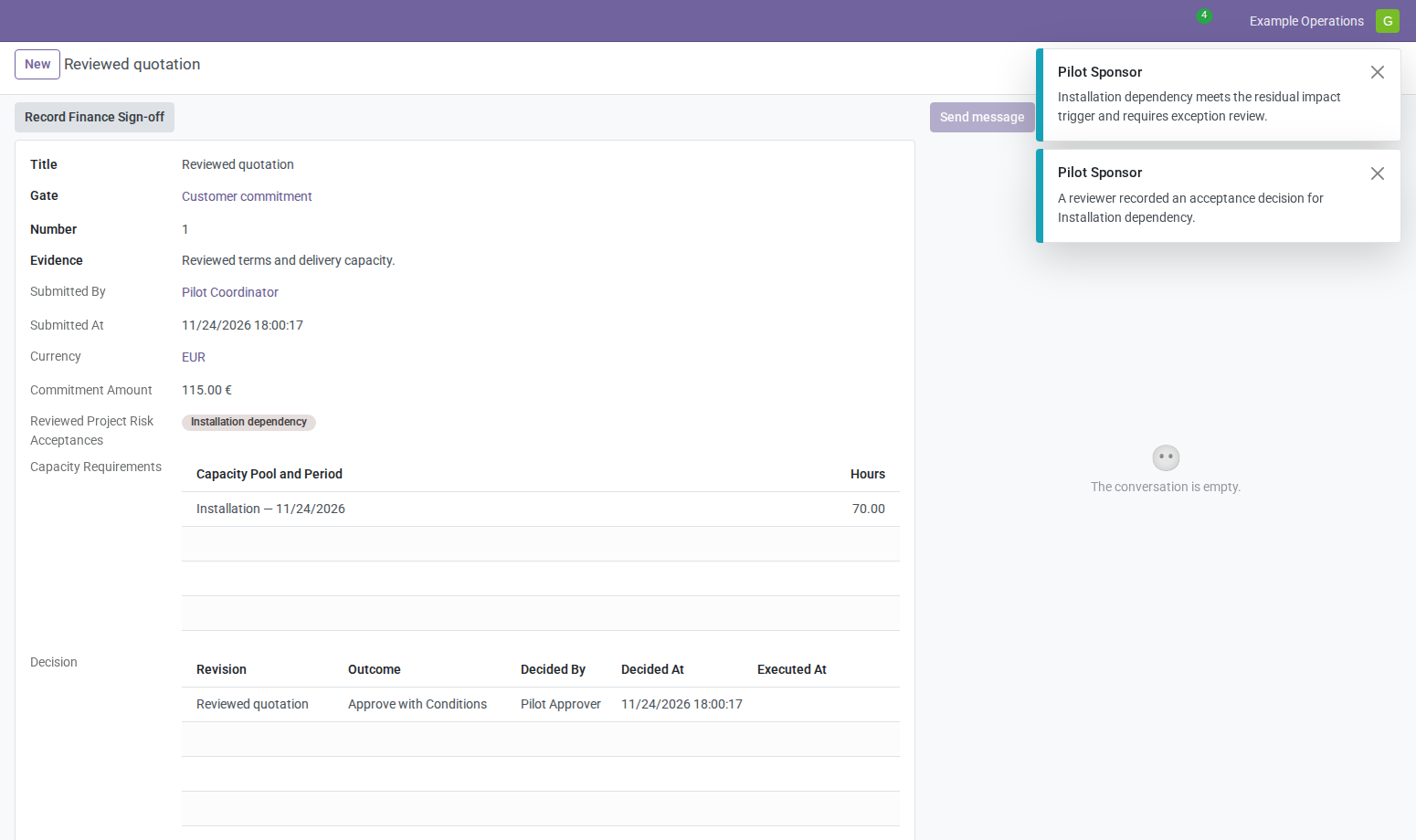
Figure 5. The finance reviewer signs off the current revision with the quotation, capacity, and assumptions in view.
- As the internal Sales user, open the quotation and select Confirm. Odoo rechecks the current approval and grant, conditions, required Risk acceptances, quotation evidence, finance sign-off, and remaining capacity. Success confirms the Sales order, records the G2 decision as executed, and adds 70 committed hours to Installation.
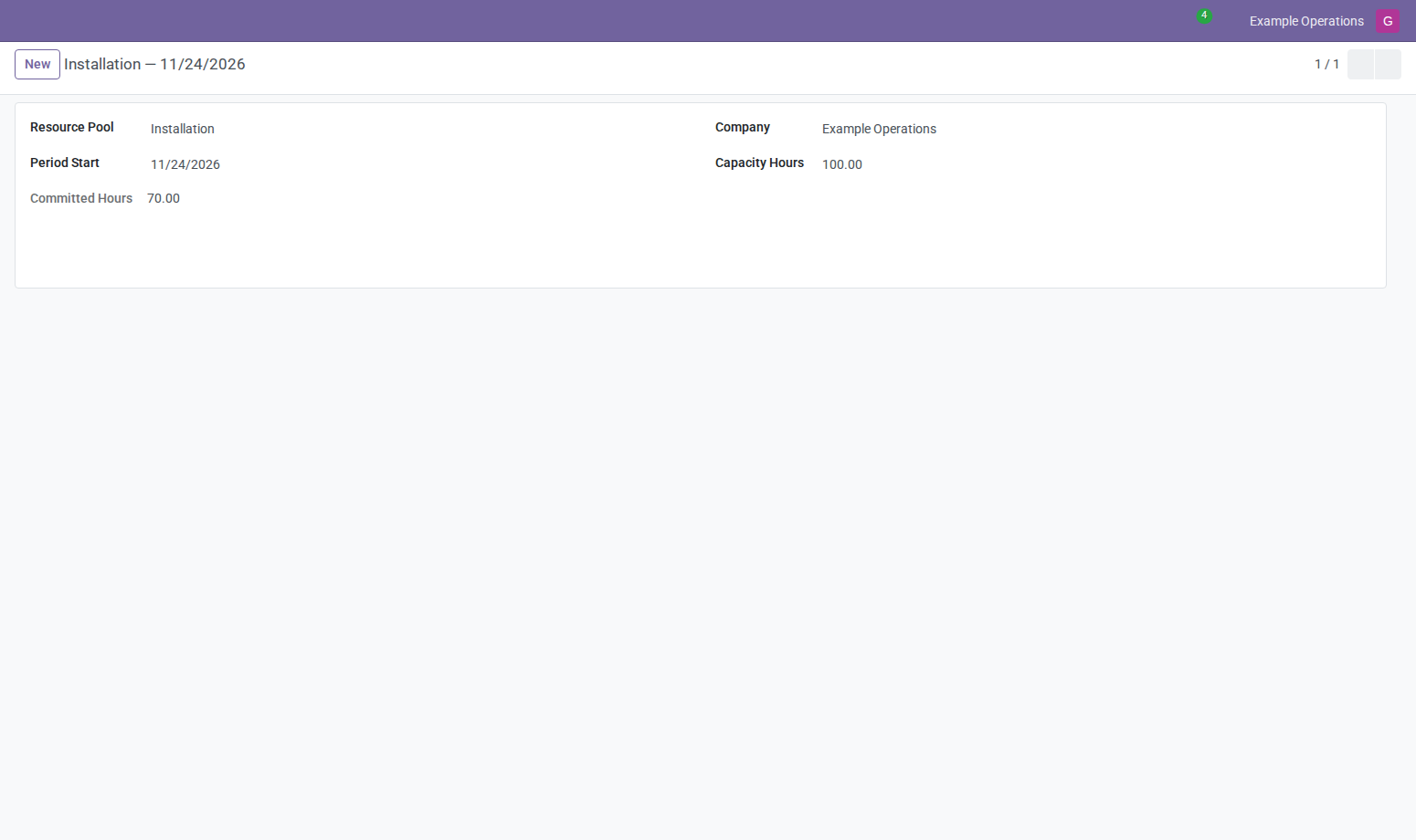
Figure 6. The capacity ledger shows 70 committed hours after the successful G2 confirmation.
- If confirmation is blocked, inspect Pilots → Dashboard → Open Blockers and the current revision. If required acceptance is missing, expired, or superseded, obtain valid Risk approval and submit a fresh revision for review. If the quotation changes, obtain a new governance decision and finance sign-off on the revised terms. If capacity is short, resolve the shortage against the affected period. To reset an already confirmed governed order, cancel it first. Cancellation releases its capacity. Obtain a fresh G2 approval to confirm it again.
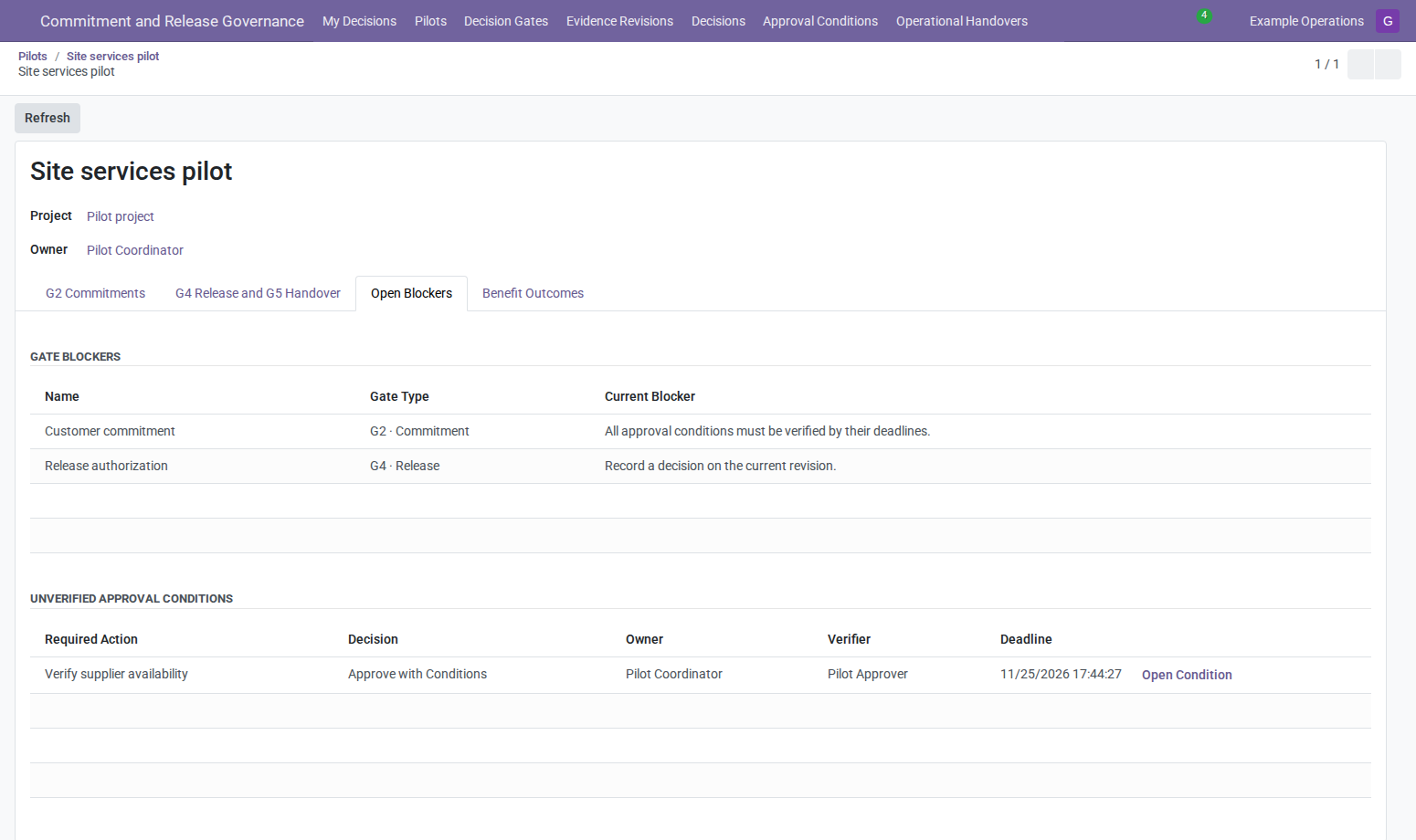
Figure 7. Open Blockers shows why Sales confirmation and rollout scale-up are waiting.
5. Record decisions and verify conditions
Use this sequence for both G2 and G4.
- As the approver, open My Decisions → Pending Approvals. Find the current evidence revision and select Record Decision. Enter the rationale and select Approve, Approve with Conditions, or Reject. A rejection requires a newer revision and a new decision.
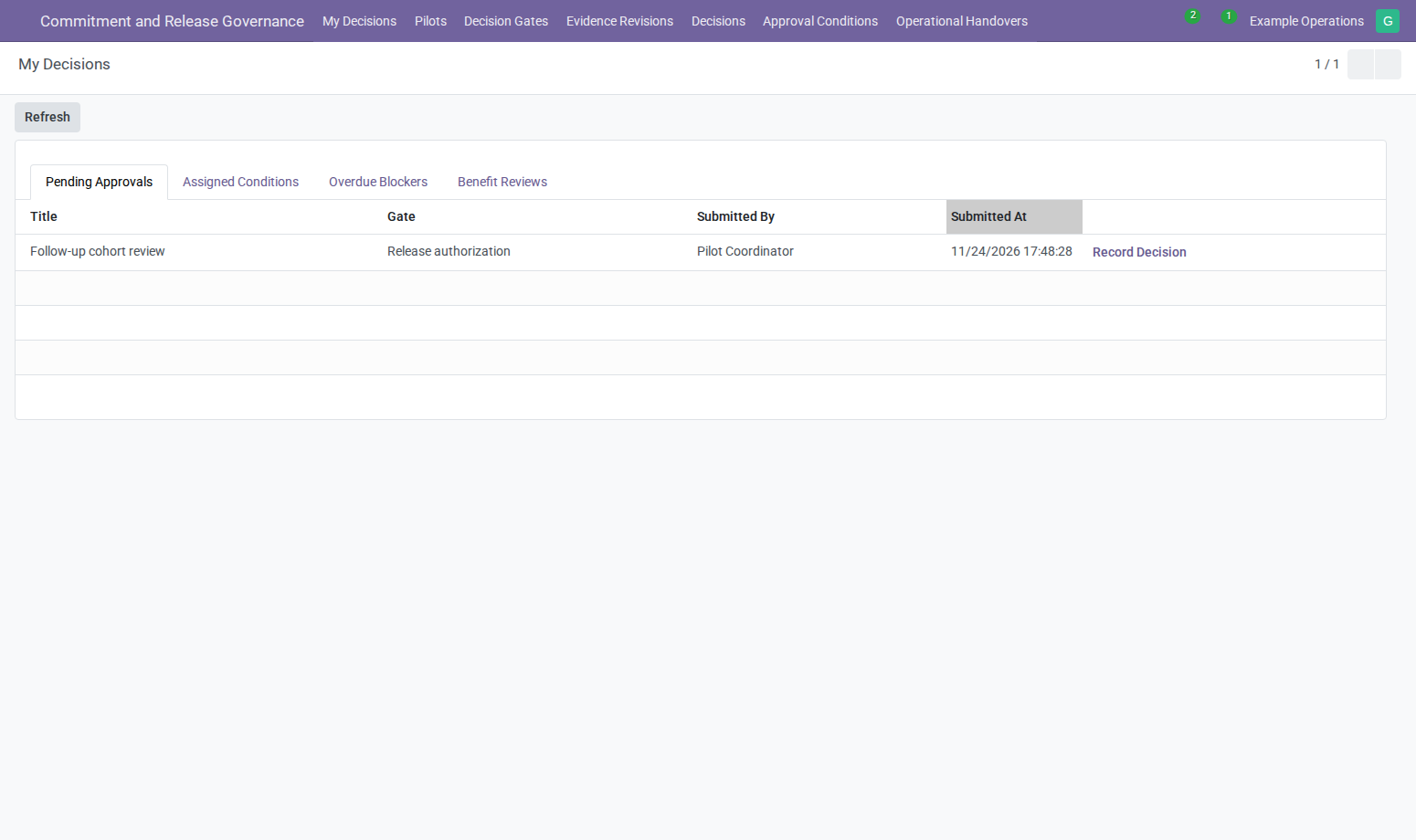
Figure 8. Pending Approvals shows the current revision the delegate can decide.
- For Approve with Conditions, create each condition with a required action, deadline, owner, and designated verifier. Use different people for the owner and verifier. The condition owner opens Approval Conditions or My Decisions → Assigned Conditions, adds evidence, and saves.
- The verifier selects Open Condition in the queue, reviews the evidence, and selects Verify Evidence before its deadline. Every condition must be verified on time. If a deadline is missed, submit a new revision and obtain a new decision.
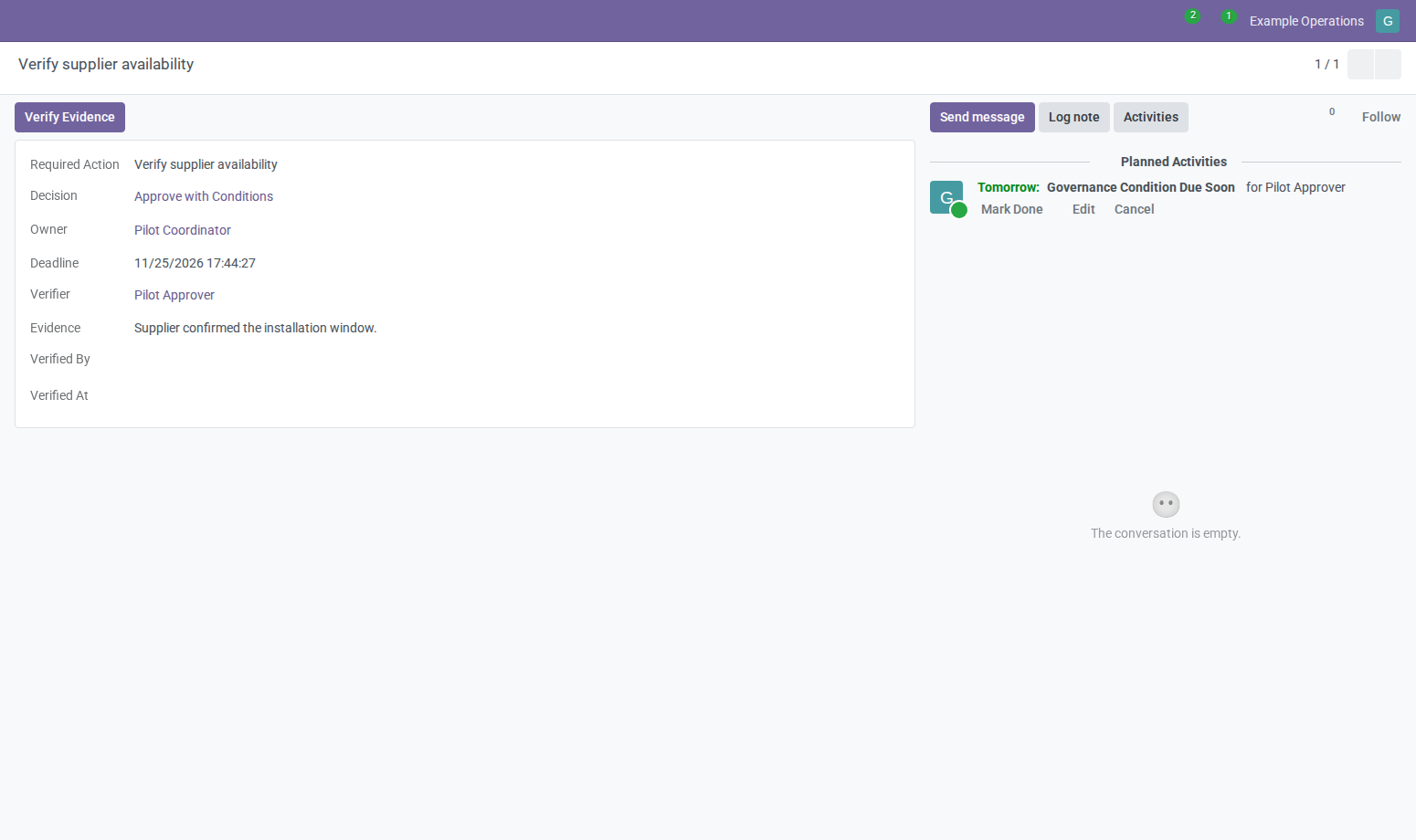
Figure 9. The owner has recorded the supplier's confirmation. The designated verifier can now check it.
My Decisions → Overdue Blockers helps identify late conditions. The hourly scheduled action creates pending approval activities. Within 48 hours of a condition deadline, it reminds the owner while evidence is missing and the verifier once evidence is present. Use Refresh to reload the queue.
6. Prepare G4 release evidence and scale
- On the G4 gate, select the original project control tests under Mandatory Release Control Tests. At least one is required for a passing baseline. Each current test must pass with evidence. If an original test has a corrective retest, the latest retest must pass with evidence and reviewer sign-off.
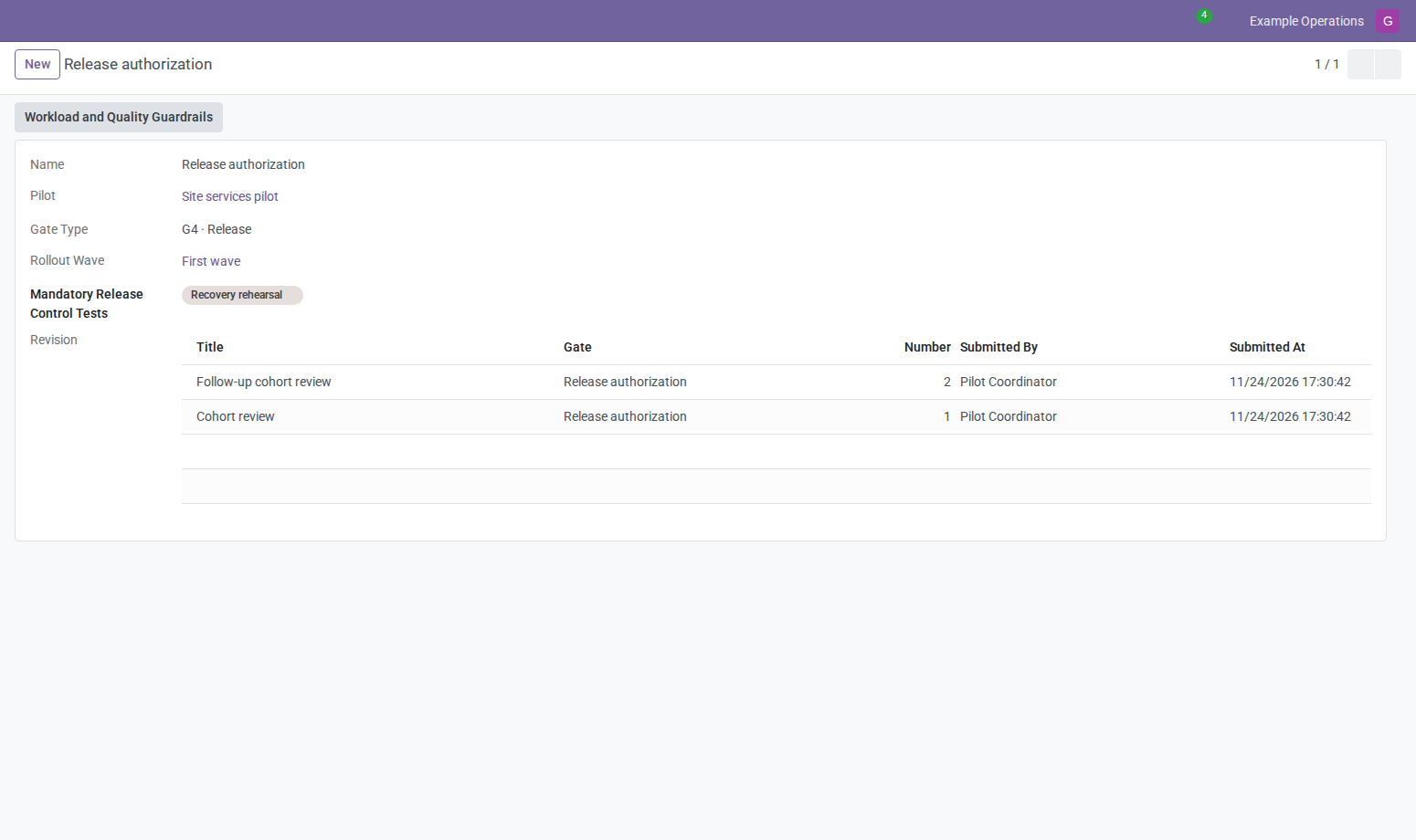
Figure 10. The G4 gate links the release to its rollout wave and original recovery control test.
- In the Change initiative, record readiness and evidence. Set critical checks to Ready when they pass. The sponsor selects Record Sponsor Decision → Authorize Pilot and enters the rationale and evidence. In Adoption Metrics, record the cohort and period, eligible and observed counts, target rate, and evidence. Use the exact cohort entered on the wave. The latest measurement for each metric name in that cohort must meet its target. Here, 9 of 10 site leads demonstrate correct use, meeting the 85% target.
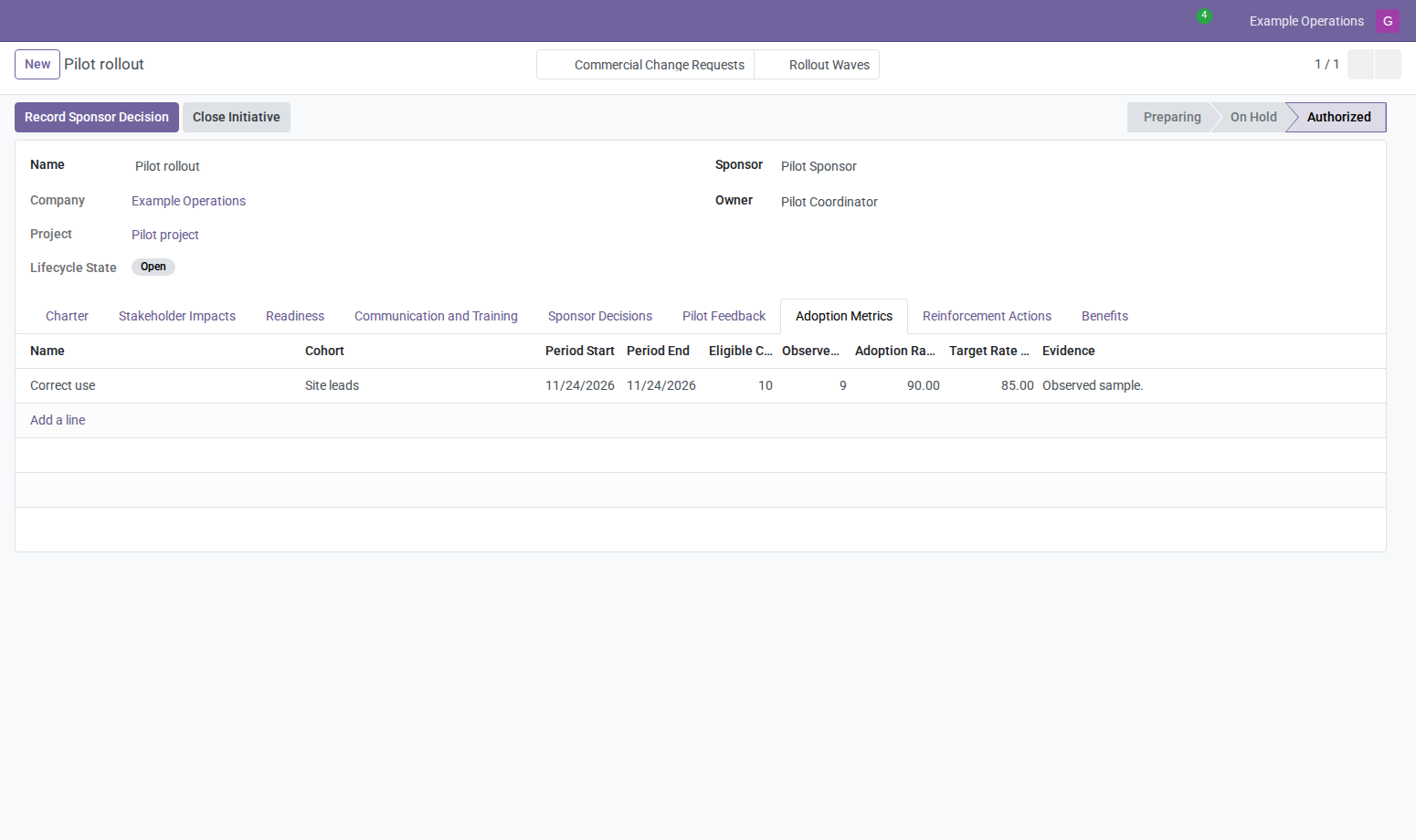
Figure 11. The latest correct-use measurement for Site leads is 90% against an 85% target.
- From the G4 gate, open Workload and Quality Guardrails. Add a name, category, unit, direction, and threshold. Mark each blocking guardrail Mandatory. Use Record Observation to enter a measurement date, value, and evidence. Keep the same unit as the threshold. Here, Weekly overtime can be at most 25 hours per week and Checklist pass rate must reach 95%. The observed rates of 28 hours and 98% mean workload must be corrected before scaling.
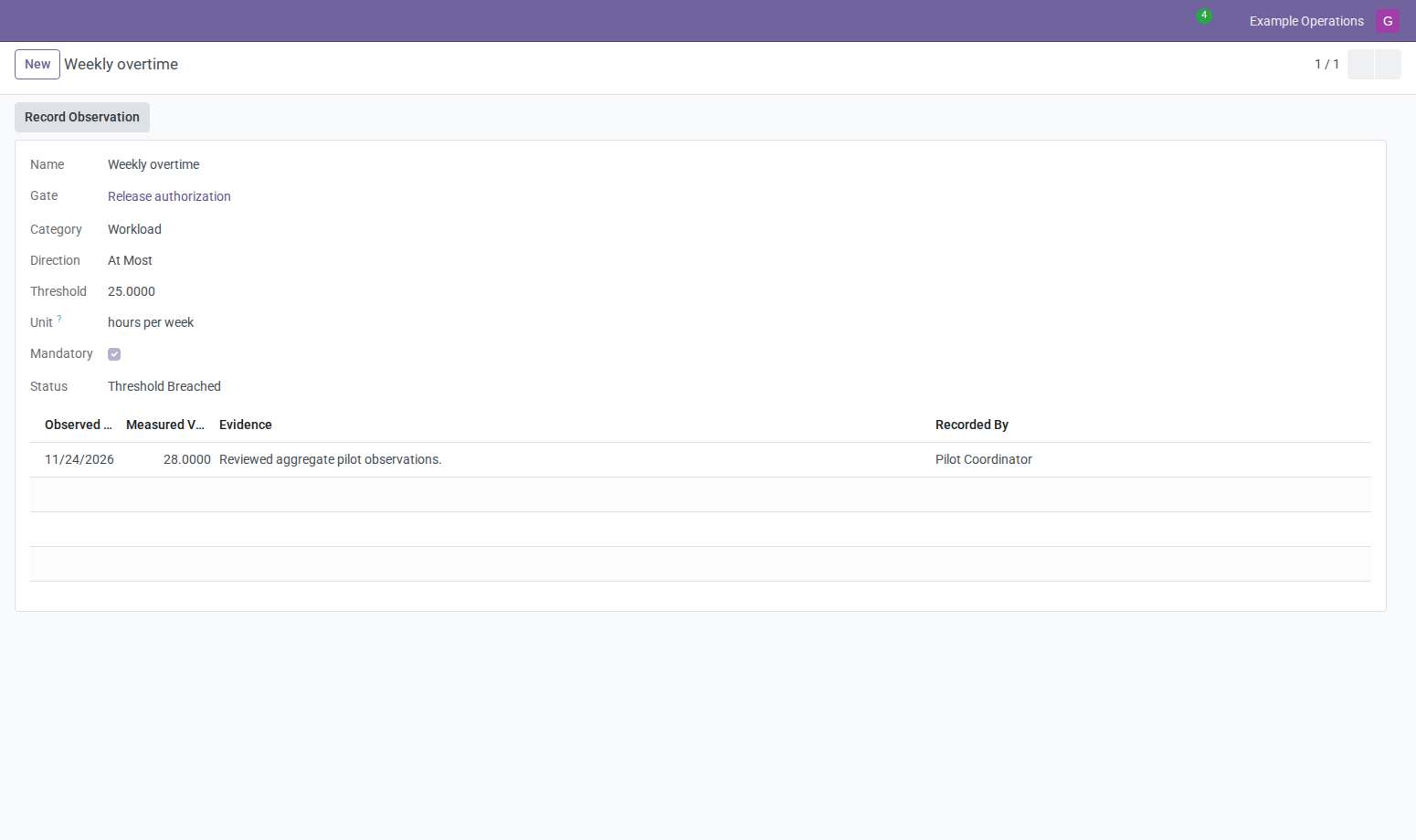
Figure 12. The mandatory workload observation breaches the threshold and blocks scale-up.
- Correct the cause and record a new observation. In the example, overtime falls to 24 hours per week. Save a new G4 evidence revision for the reviewed baseline, obtain approval and verify any conditions. A new mandatory observation changes the captured baseline. Record it before submitting the revision that will be used to scale.
- As the wave sponsor, open the wave and select Record Rollout Decision. Choose Scale, enter the rationale and evidence, and save. Odoo revalidates current controls, readiness, adoption, mandatory guardrails, and the governance decision. Success sets the wave to Scaled and records the decision as executed. If you hold a previously scaled wave and scale it again, obtain a fresh G4 approval and create G5 for the new scale decision.
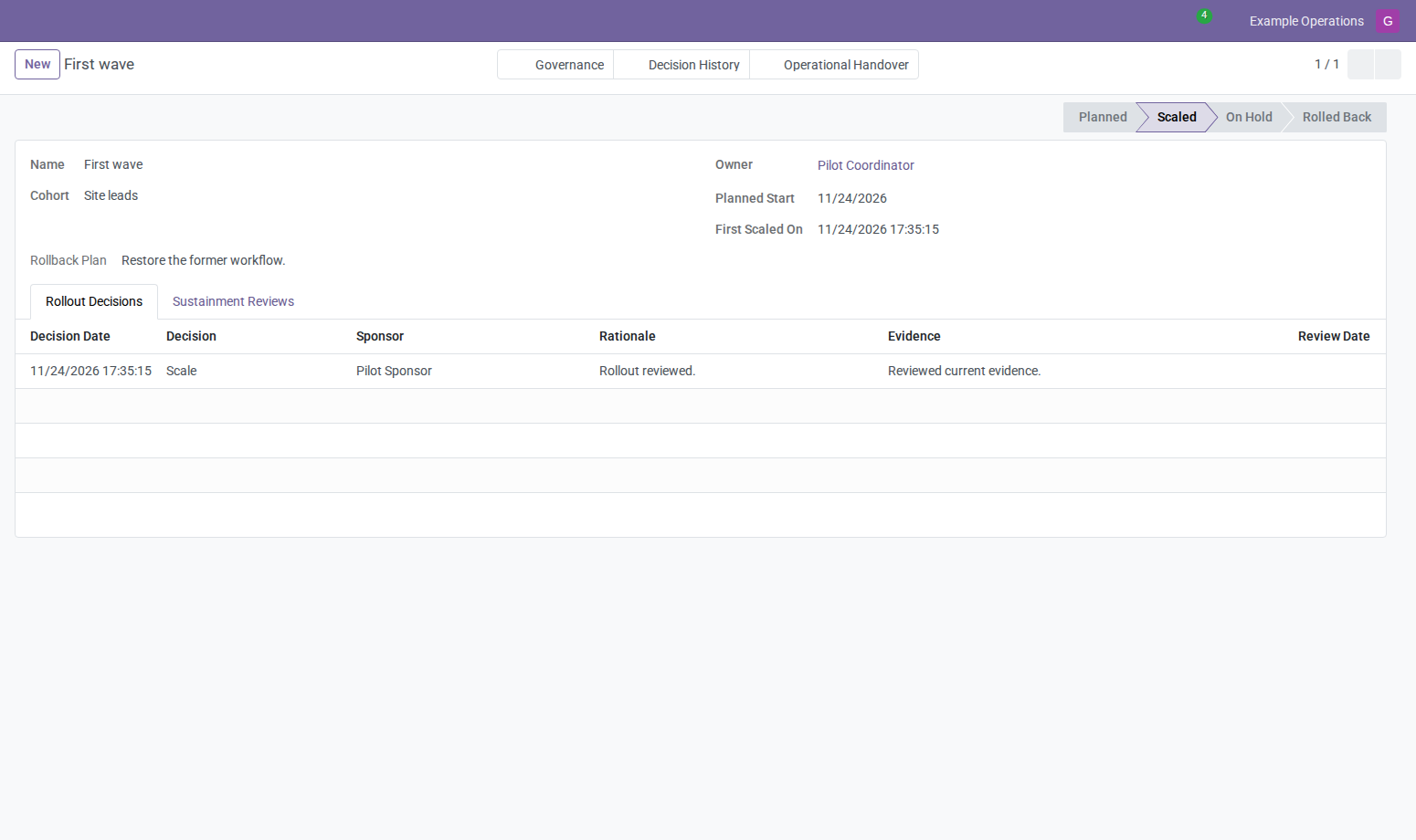
Figure 13. The wave preserves its native scale decision and gives the sponsor access to G5.
7. Accept G5 handover and review the benefit
- As sponsor, open the scaled wave and choose Operational Handover → New. Enter the operational owner and a Benefit Review Date of today or later. Add outstanding actions, each with an owner and due date, and save. Edit the plan before acceptance.
- As the named operational owner, open the handover and select Accept Handover while its planned review date remains current. The acceptance records the date and user and fixes the plan. Remaining actions may stay open. After acceptance, each action owner can select Complete on their action.
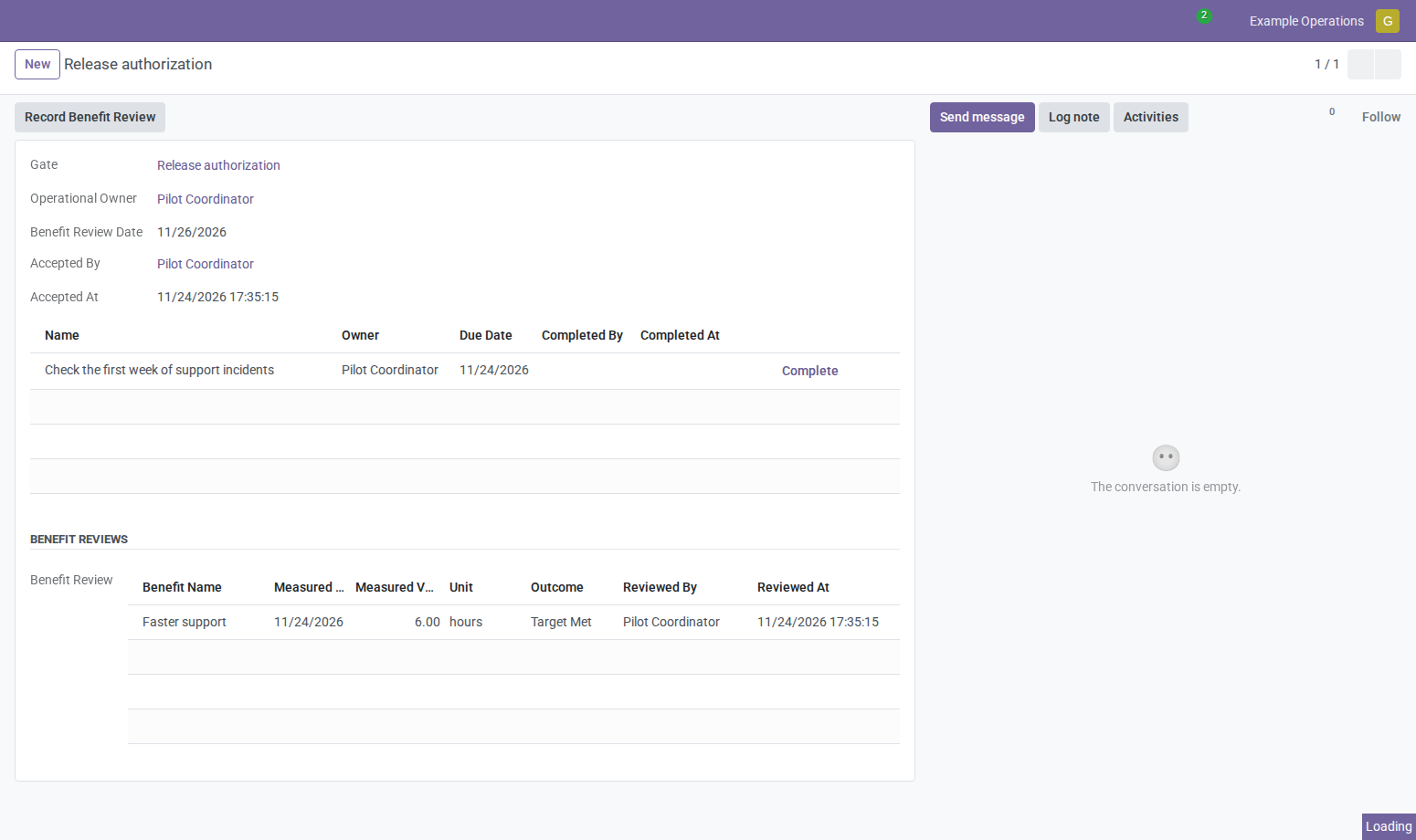
Figure 14. Operational acceptance transfers the open action to its named owner.
- In the same Change initiative, open Benefits and create or open a benefit. Set its owner, measurement method, unit, direction, baseline, target, and target date. Record the actual value, measurement date, and supporting evidence. For the example, support capacity goes from 5 to 6 hours, meeting a target of 6 hours.
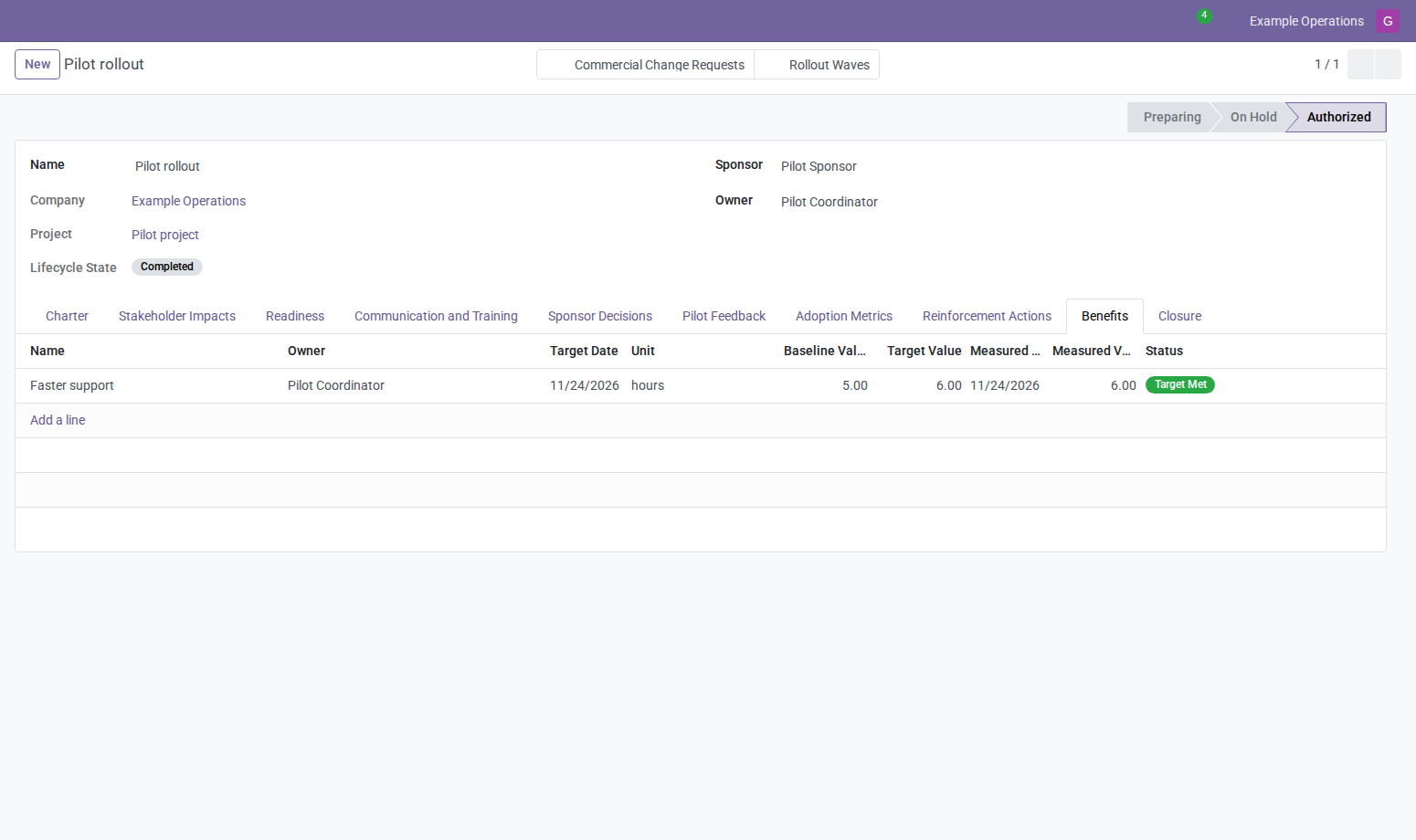
Figure 15. The native Change record is the source of the measured outcome.
- On the accepted handover, the operational owner or sponsor selects Record Benefit Review. Choose the measured benefit from that initiative, enter findings, and save. The review records a snapshot of the measurement and evidence and shows whether the target was met. If the dropdown is empty, check that the benefit has a measurement date and belongs to the current initiative.
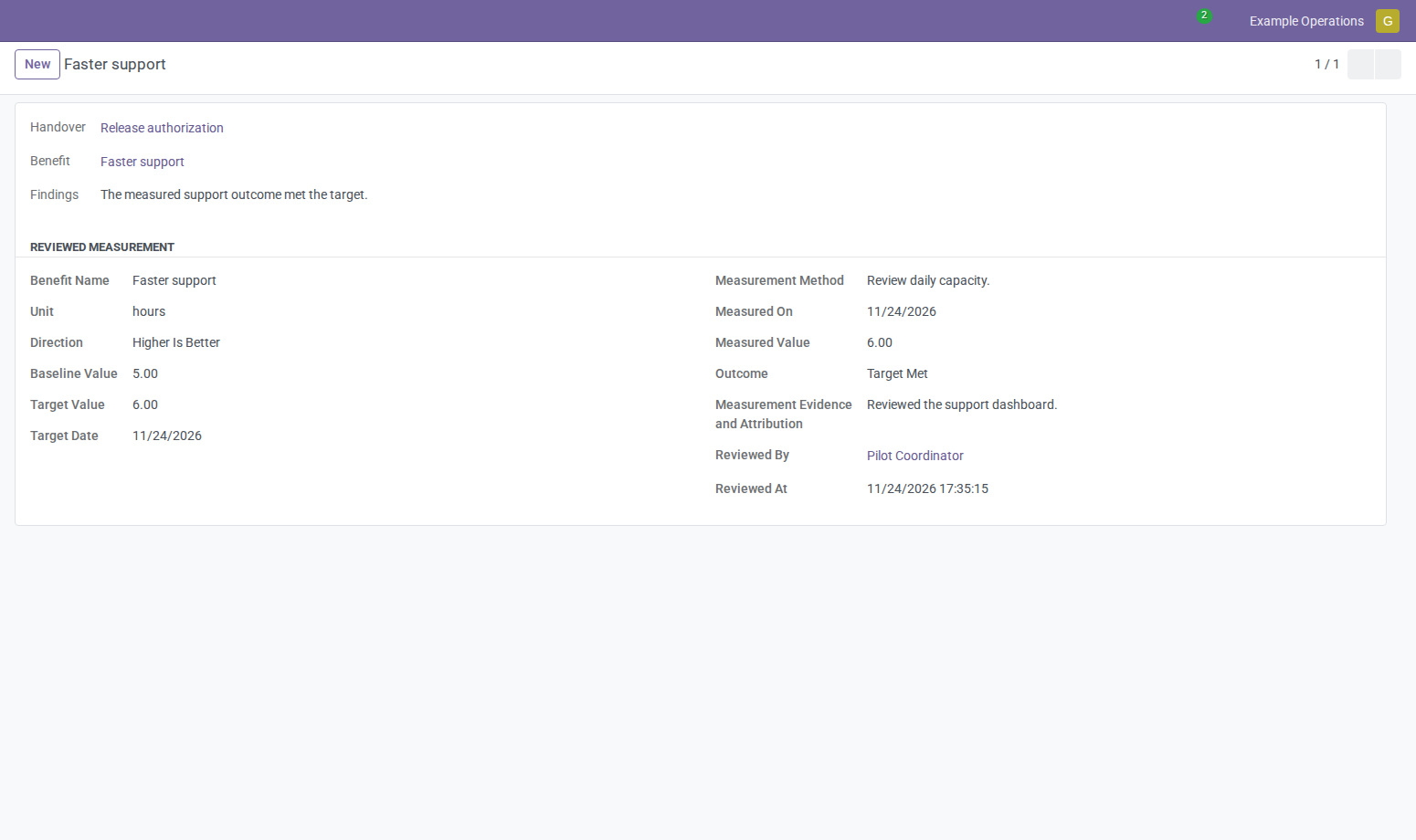
Figure 16. The review preserves the measurement and the reviewer's findings.
- On the wave's Sustainment Reviews tab, complete a dated review. As sponsor, choose Close Initiative on the Change initiative and select the completed outcome when ready. Supply the native handover details and lessons learned. Native closure requires an authorized pilot, resolved waves, a completed sustainment review for each scaled wave, and at least one measured benefit. Every enrolled scaled wave also needs accepted G5 for its current scale decision. Outstanding G5 actions can remain open and their owners can complete them after closure.
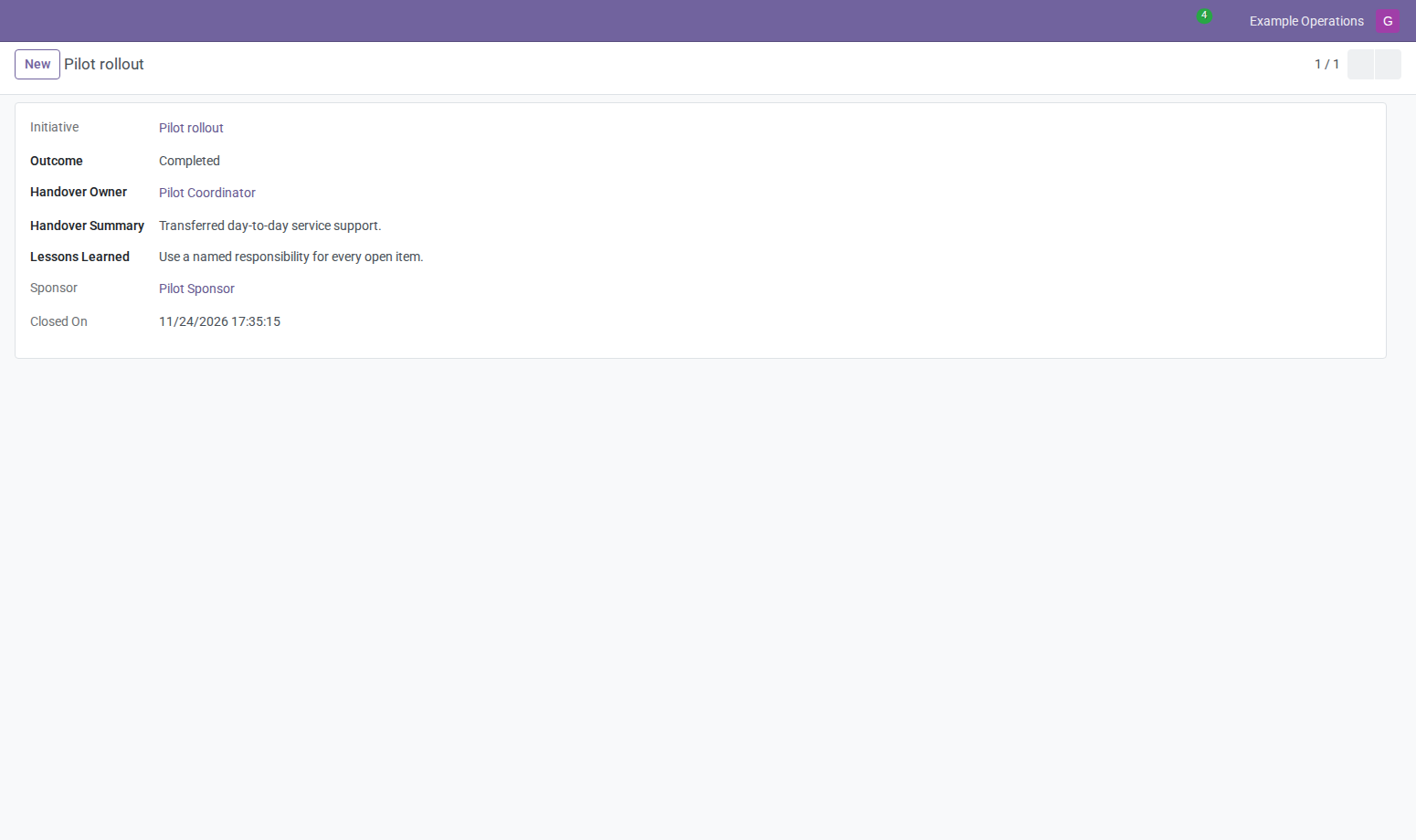
Figure 17. The sponsor's native Change closure records the handover summary and lessons learned.
8. Monitor status, activities, and handover work
- In My Decisions → Benefit Reviews, use Upcoming and Overdue to find accepted handovers on currently scaled waves that still need a review. The reminder starts two calendar days before the review date in the recipient's timezone. It goes to the eligible operational owner or, when needed, the eligible sponsor. Select Record Review from the queue. Recording the first review clears that handover's reminder.
- Open Pilots, choose the pilot and select Dashboard. Use Refresh after changes. G2 Commitments shows the quotation status. G4 Release and G5 Handover shows scale, handover, and review status and lists open handover actions. Open Blockers shows the current execution blocker and unverified conditions. Benefit Outcomes shows the latest accessible reviewed measurement for each benefit in the pilot.
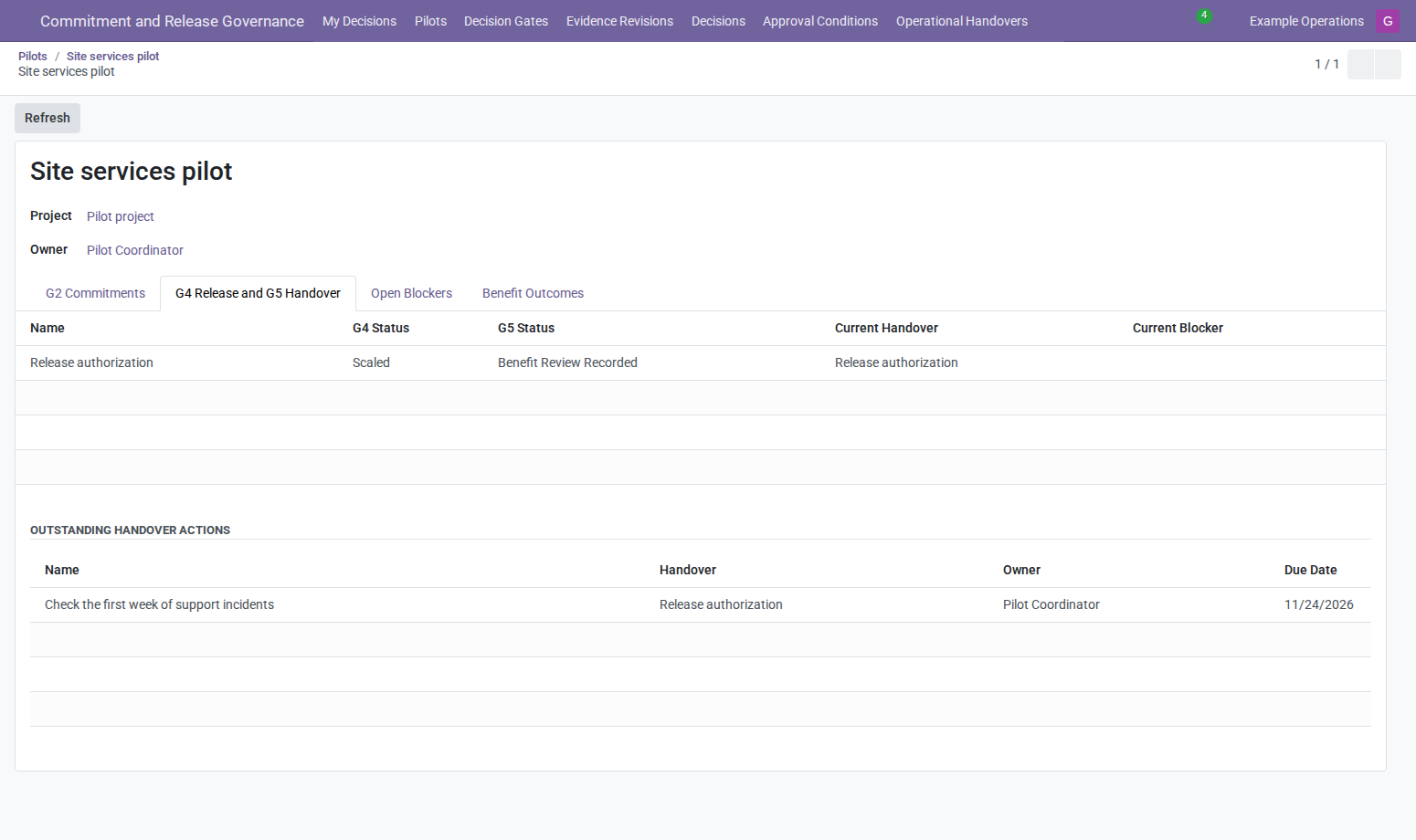
Figure 18. The rollout and review are complete, and the transferred action is still visible.
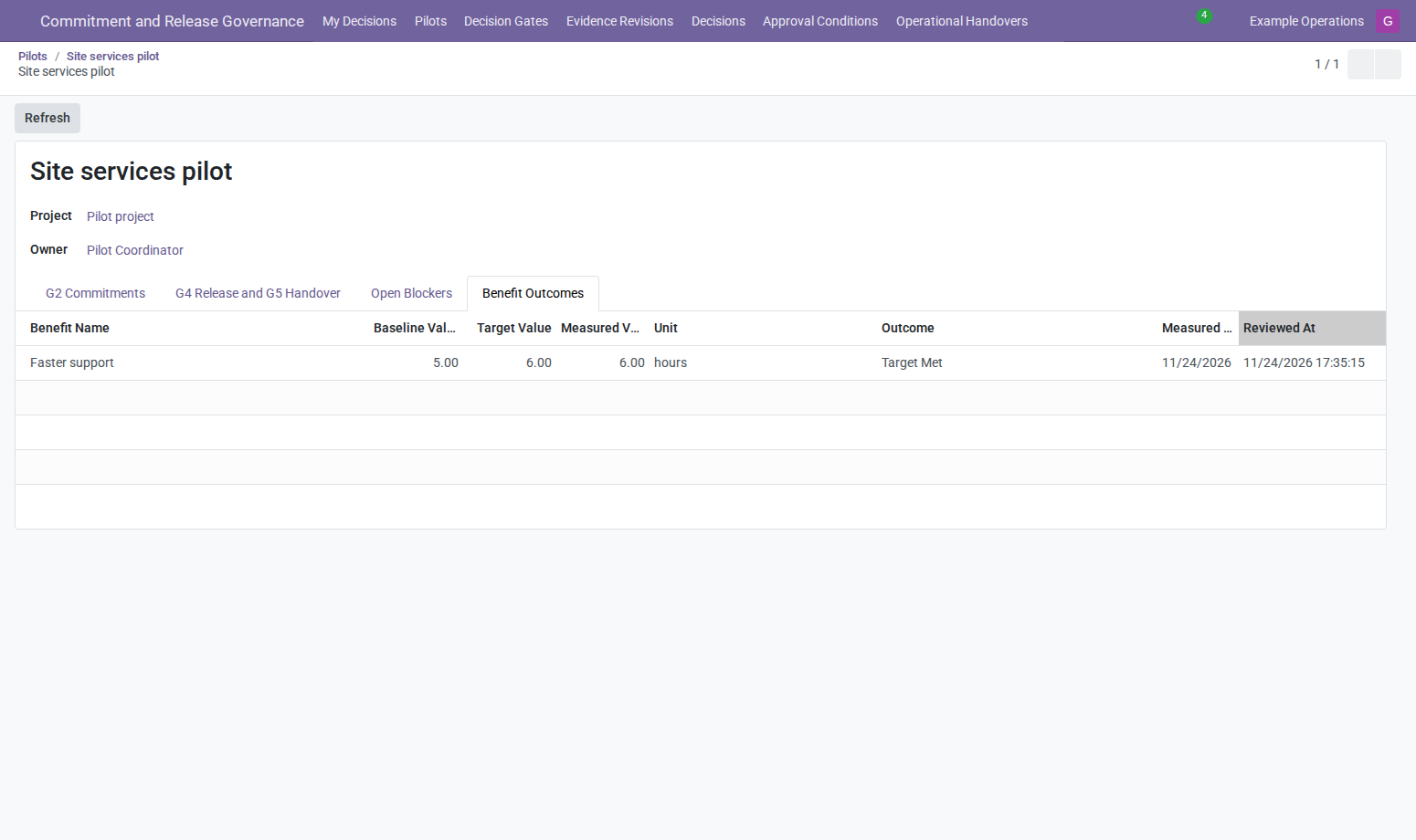
Figure 19. Benefit Outcomes shows the latest reviewed measurement for the benefit.
Diagnose a blocked action
| What you see | What to check |
|---|---|
| Governance buttons are missing on Sales or Change | Check the enrollment and the user's governance and company access. For Operational Handover, the wave must have been scaled. |
| An approval does not appear in My Decisions | Check that the pilot and grant are active, the grant covers the gate type, the latest revision is undecided, and the user did not submit it. |
| G2 still blocks after finance review | Check that the sign-off belongs to the current revision and its currently designated reviewer. Recheck conditions, Risk acceptances, grant limit, and capacity. |
| G4 says evidence changed or failed | Recheck the wave plan, Change readiness and cohort adoption, effective Risk control results, and latest mandatory guardrail observations. Submit a newer revision and obtain a new decision. |
| G5 review cannot be recorded | Check acceptance, the reviewer’s operational-owner or sponsor assignment, and native Change permissions. Measure the benefit and save its evidence in the same initiative. |
| Change initiative cannot close | Check native closure prerequisites first. Then verify each enrolled scaled wave has an accepted handover for its current scale decision. |