PMIS Change Management user manual
This walkthrough uses a fictional team introducing a digital site handover checklist. The initiative records who is affected and whether a pilot can proceed. Its linked commercial change request covers the corresponding work in the project’s sale Bill of Quantities (BoQ).
1. Set up access and the project
Install PMIS Project Change Management with PMIS Bills of Quantities. Give participants PMIS Change User along with the Operations access they need to work with projects, BoQs, and Situations. Give users who configure commercial approvals PMIS Change Configuration Manager.
On the project, set the Change Approver, Commercial Approver, and Change Verifier. Use two different approvers and a verifier who did not implement the change. Turn on Require Customer Authorization if the commercial approver must record the customer’s signed decision.
The initiative’s Sponsor and Owner manage its charter, stakeholder impacts, readiness checks, and activities. The sponsor records pilot decisions. An activity assignment records who will do the work. The initiative remains accessible to its sponsor and owner. After saving the charter, the assigned sponsor controls changes to those assignments.
2. Create an initiative and its charter
- Open Operations → Change Initiatives and create a record.
- Select the company and, if the initiative applies to one project, select that project. Choose both before saving.
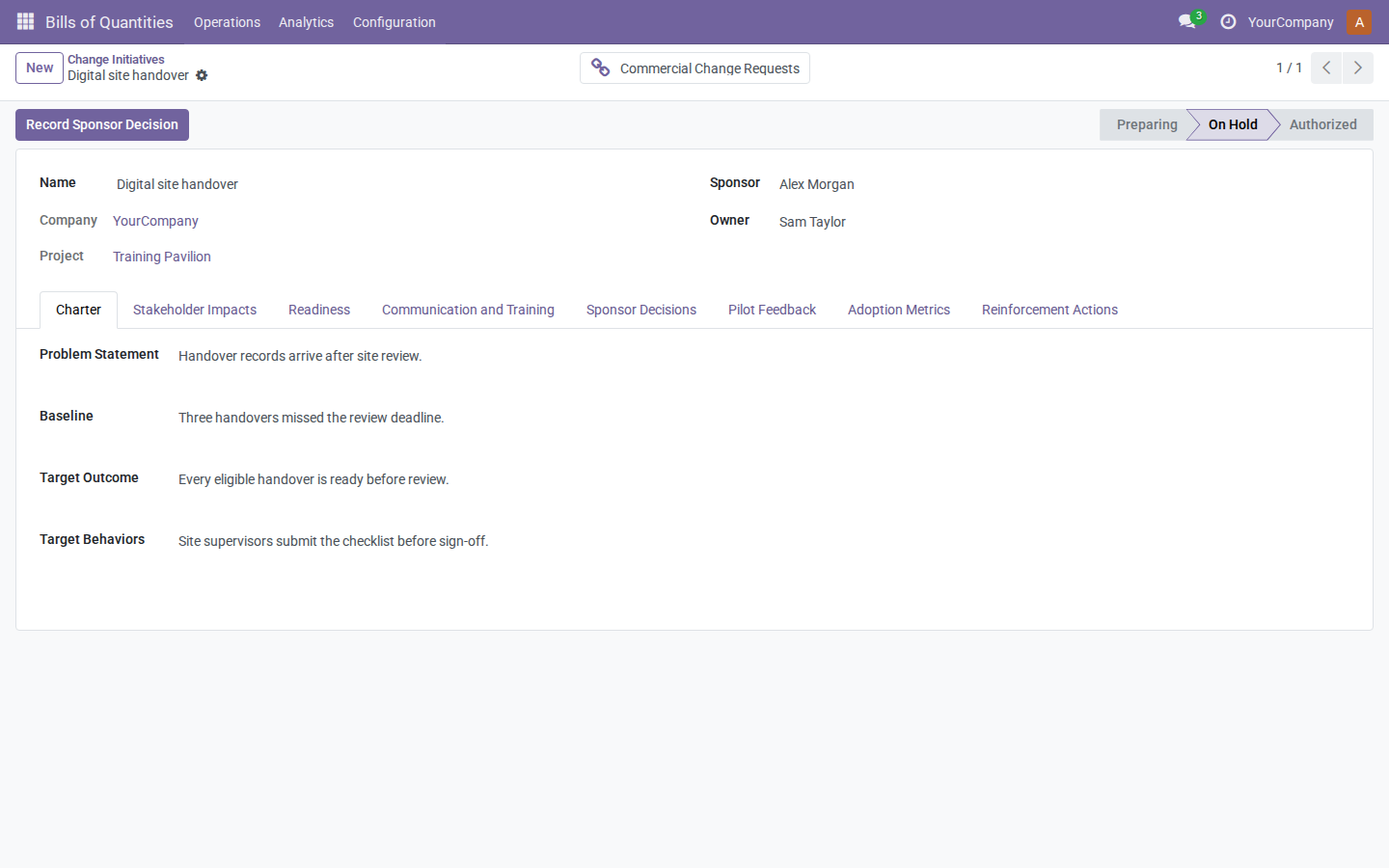
- Assign the sponsor and owner. On Charter, define the problem, baseline, target outcome, and target behaviors the team should demonstrate.
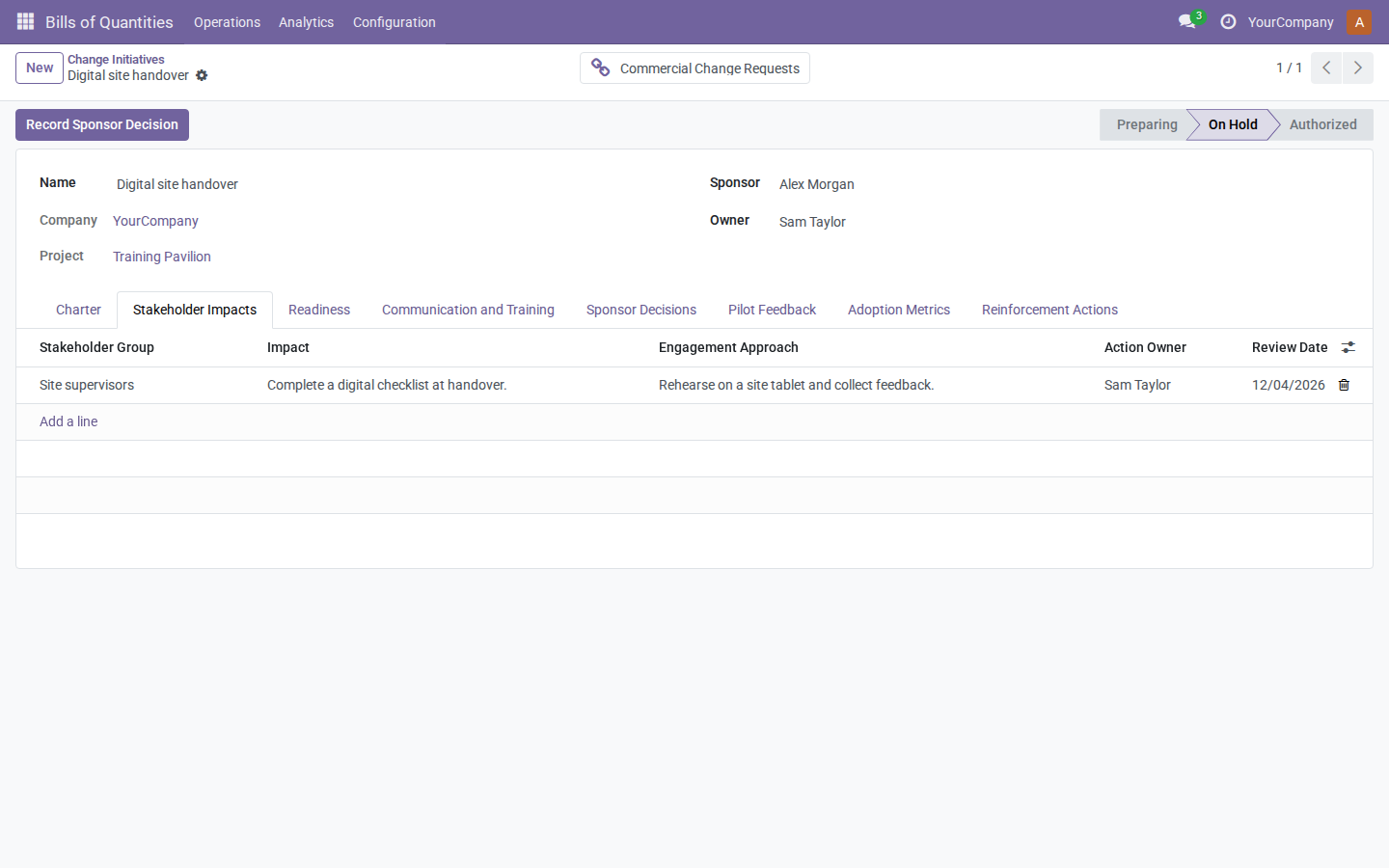
Open Stakeholder Impacts and add one row per affected group. Describe how the work changes, identify concerns, and specify an engagement approach. Assign an action owner and a review date so the team knows who will follow up.
3. Check readiness and plan communication and training
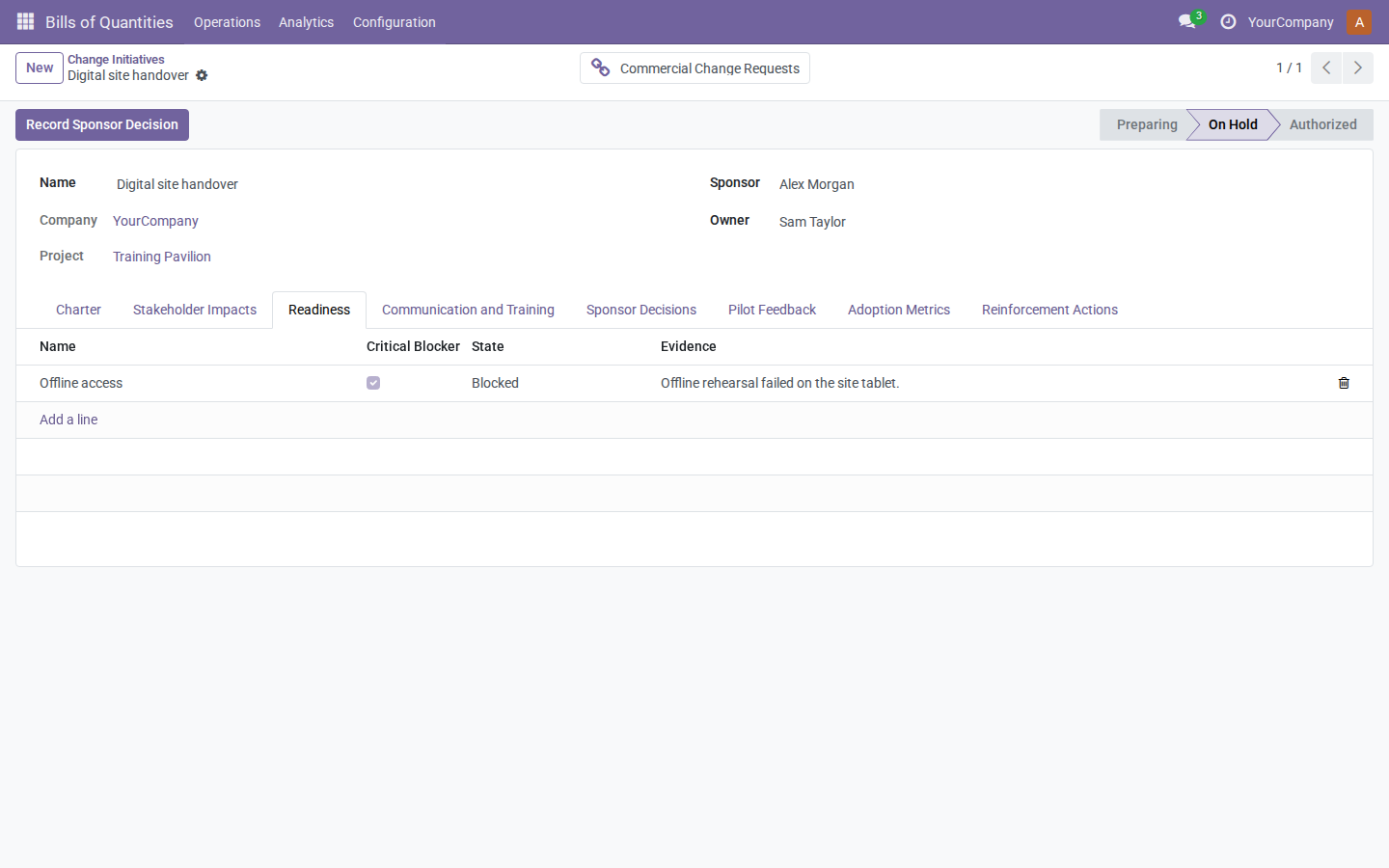
On Readiness, add the checks the sponsor needs for the pilot. Use Critical Blocker for conditions that must pass. Leave unassessed checks Pending and mark failed checks Blocked. Mark a check Ready once you can enter evidence of the result.
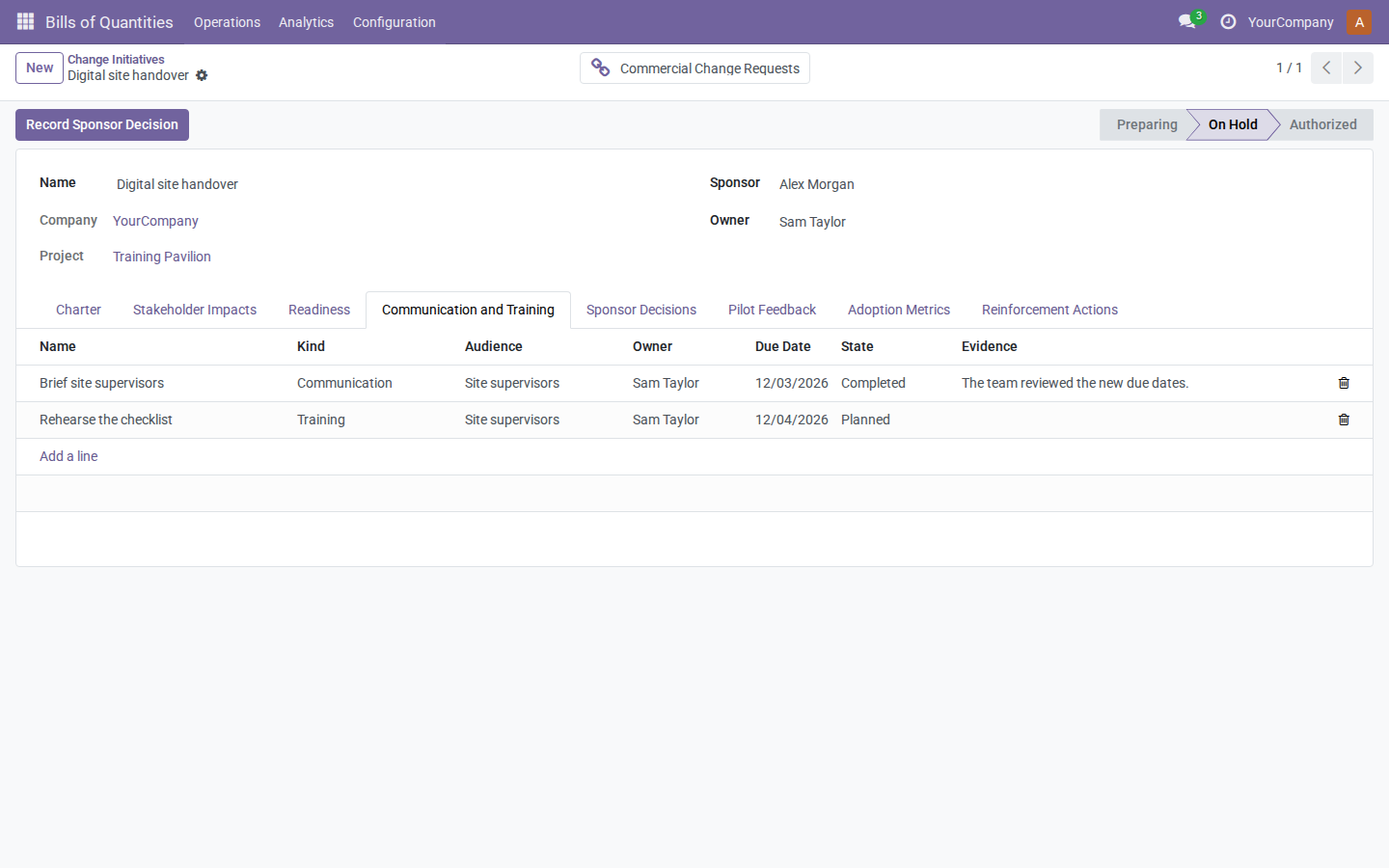
On Communication and Training, add a row for each briefing or training session. Choose the activity type, audience, owner, and due date. Record what happened in Evidence before setting the activity to Completed. Use the register to coordinate delivery and record results.
4. Record the sponsor’s pilot decision
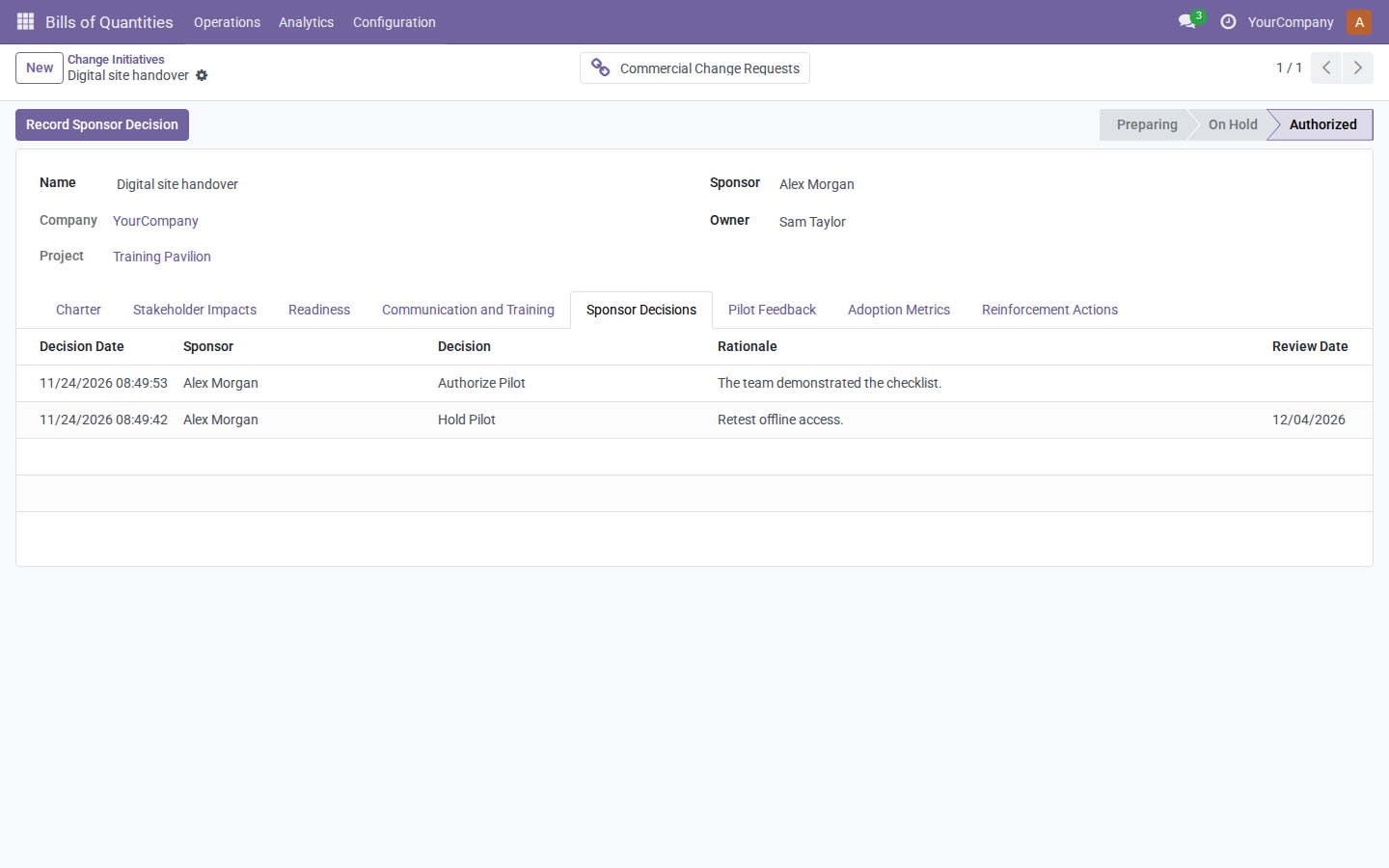
As the sponsor, select Record Sponsor Decision. Choose Authorize Pilot or Hold Pilot, enter the rationale and evidence reviewed, and add any conditions or a review date.
- Authorize Pilot requires at least one readiness check and a Ready result for every critical check. A pending critical check blocks authorization just as a failed check does.
- Hold Pilot records why the pilot should wait. Use it to reopen readiness checks if conditions change after authorization. Once checks pass again, record a fresh decision.
Open Sponsor Decisions to see who decided, when, and why. Saved decisions remain in the history. Readiness checks are locked while the pilot is authorized.
5. Review the pilot and reinforce the new way of working
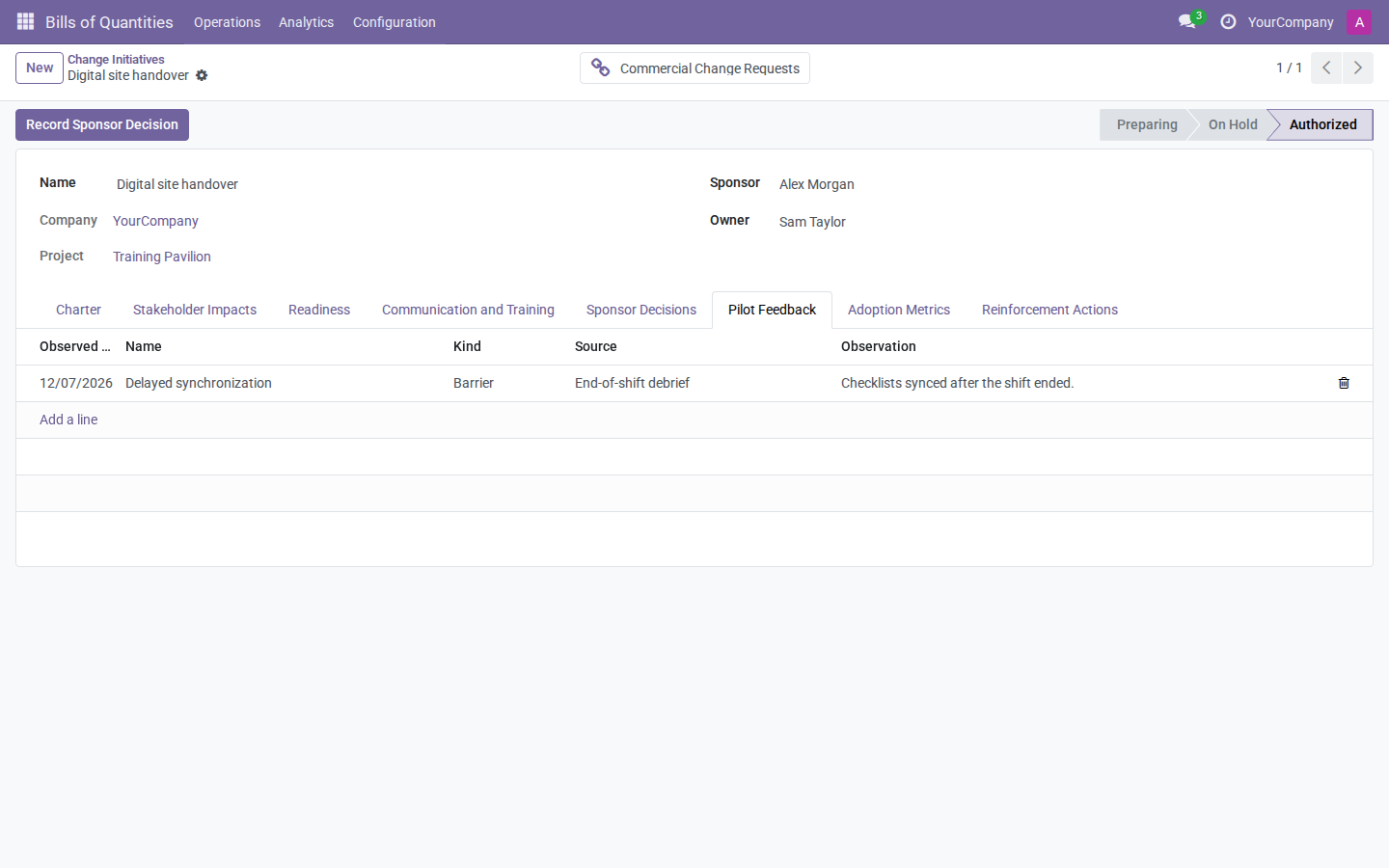
On Pilot Feedback, record when you observed the result, where the feedback came from, and what happened. Mark each finding as What Worked, Barrier, or Suggestion. For example, an evening-shift debrief might show that offline checklists reached the system after the shift ended.
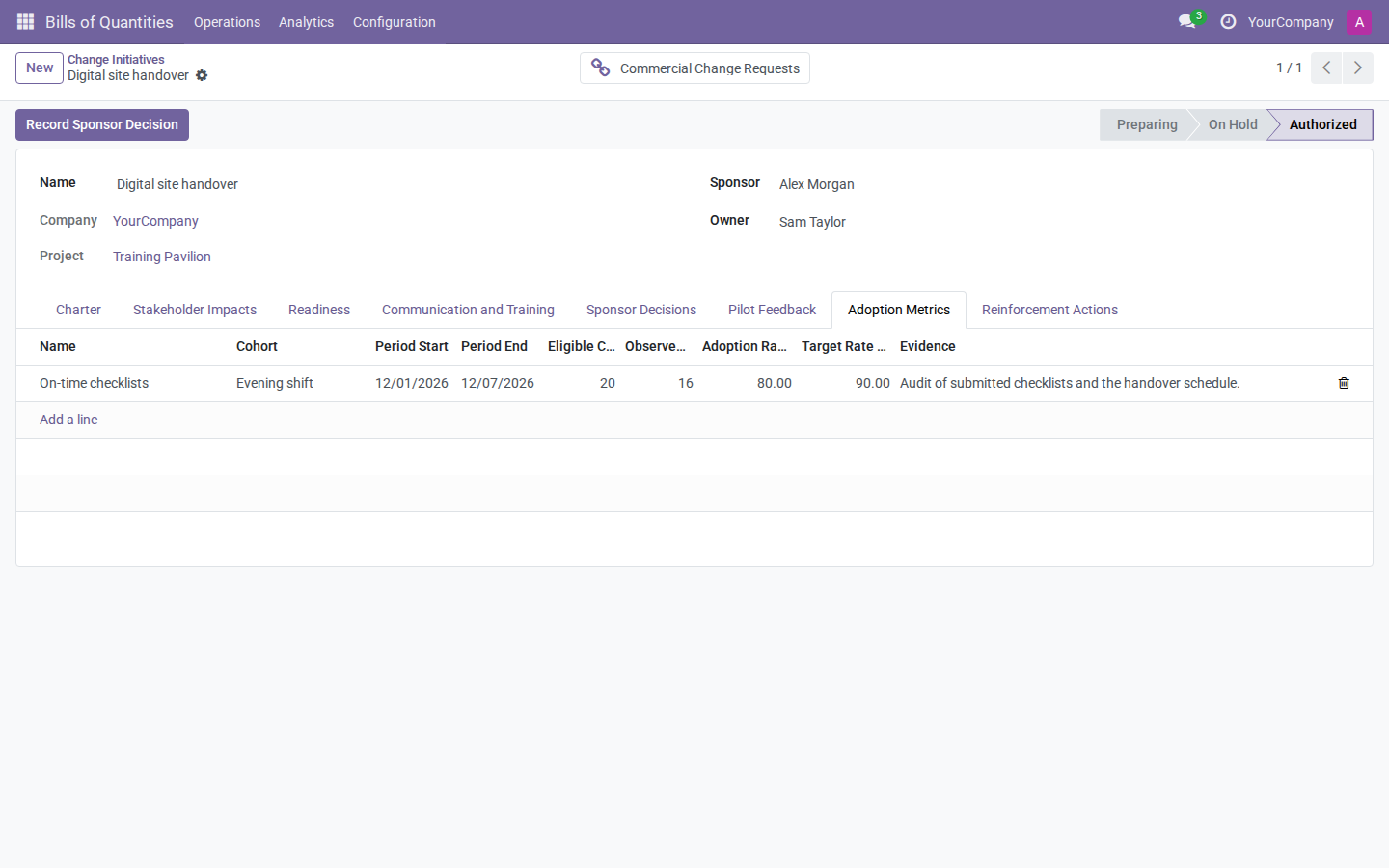
On Adoption Metrics, enter the behavior you are observing, the cohort, and the measurement period. Enter the number of eligible cases and the number in which you observed the intended behavior. Odoo calculates the adoption rate. For example, 16 on-time checklists out of 20 eligible handovers is 80%. Enter the target rate and record the data source in Evidence. Add a new row for the next measurement period to retain the comparison.
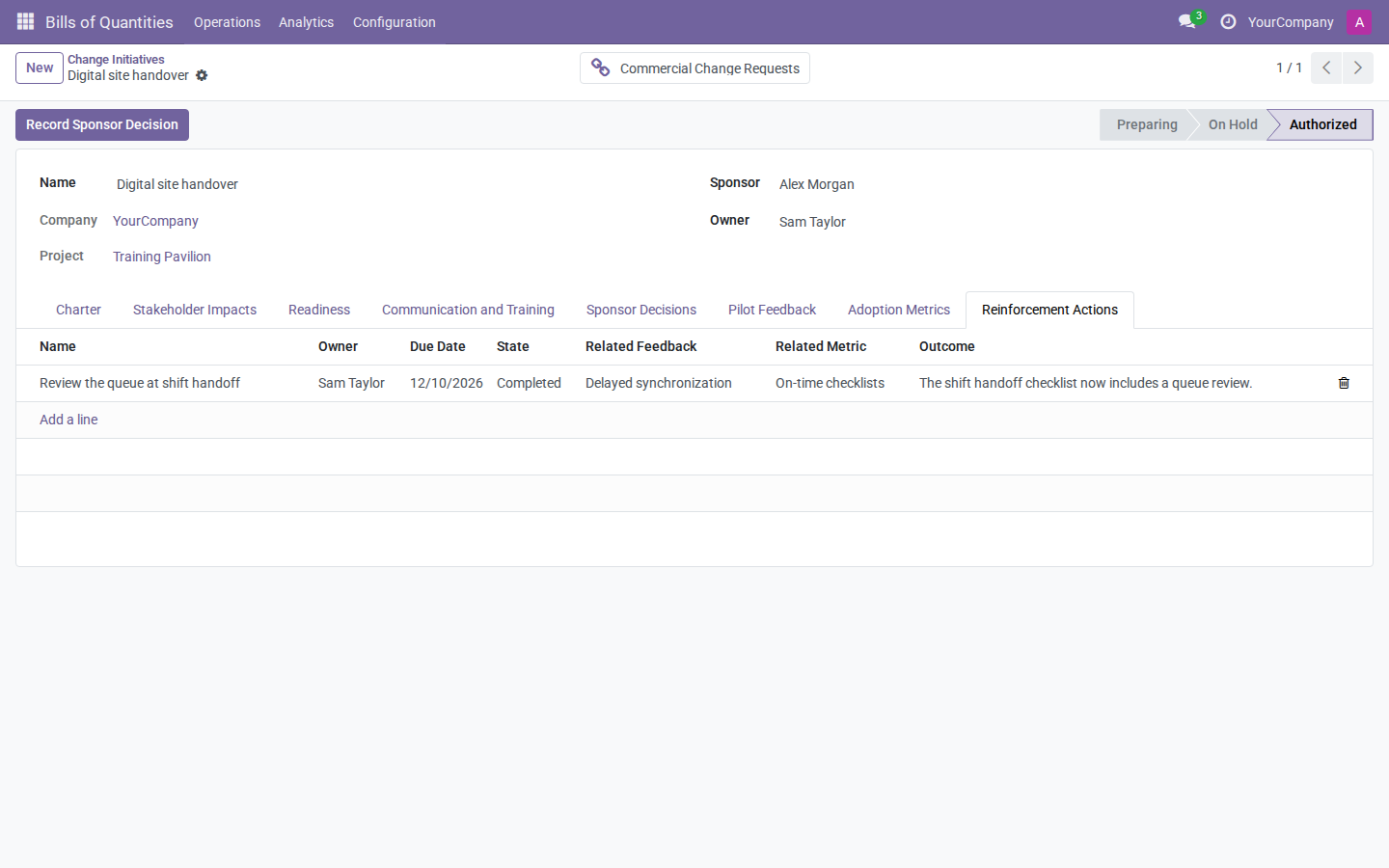
On Reinforcement Actions, assign a follow-up action, an owner, and a due date. Link relevant feedback or a metric from the same initiative. Record the outcome before setting the action to Completed. Compare the next measurement with the earlier result to assess whether the action helped. Existing evidence and follow-up remain available if the pilot goes on hold.
6. Roll out in waves and review whether the change holds
From the initiative, select Rollout Waves. Create one wave for each cohort. Assign an owner and a planned start, then document how the team will restore the prior process and reconcile work in progress if the wave must be rolled back.
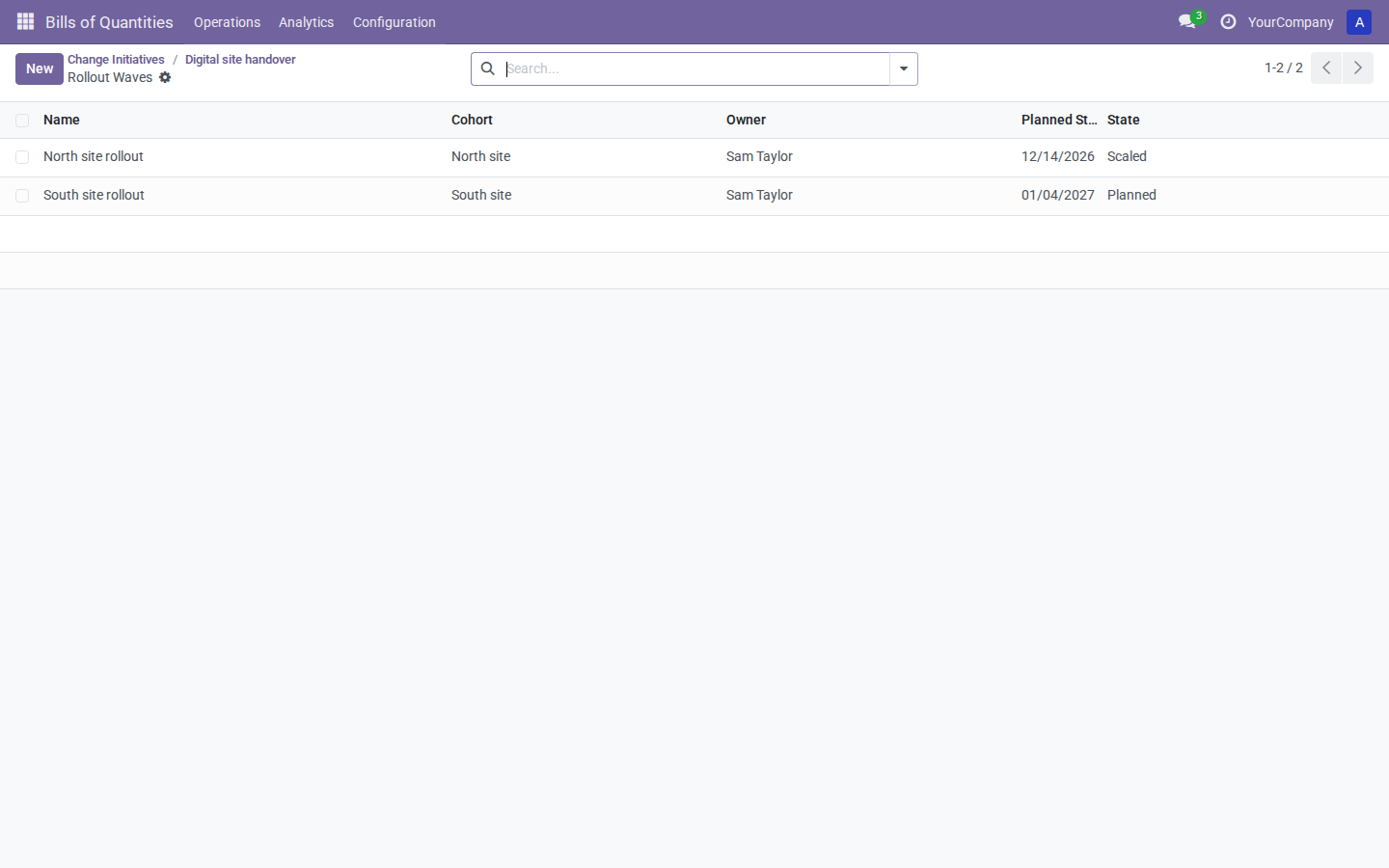
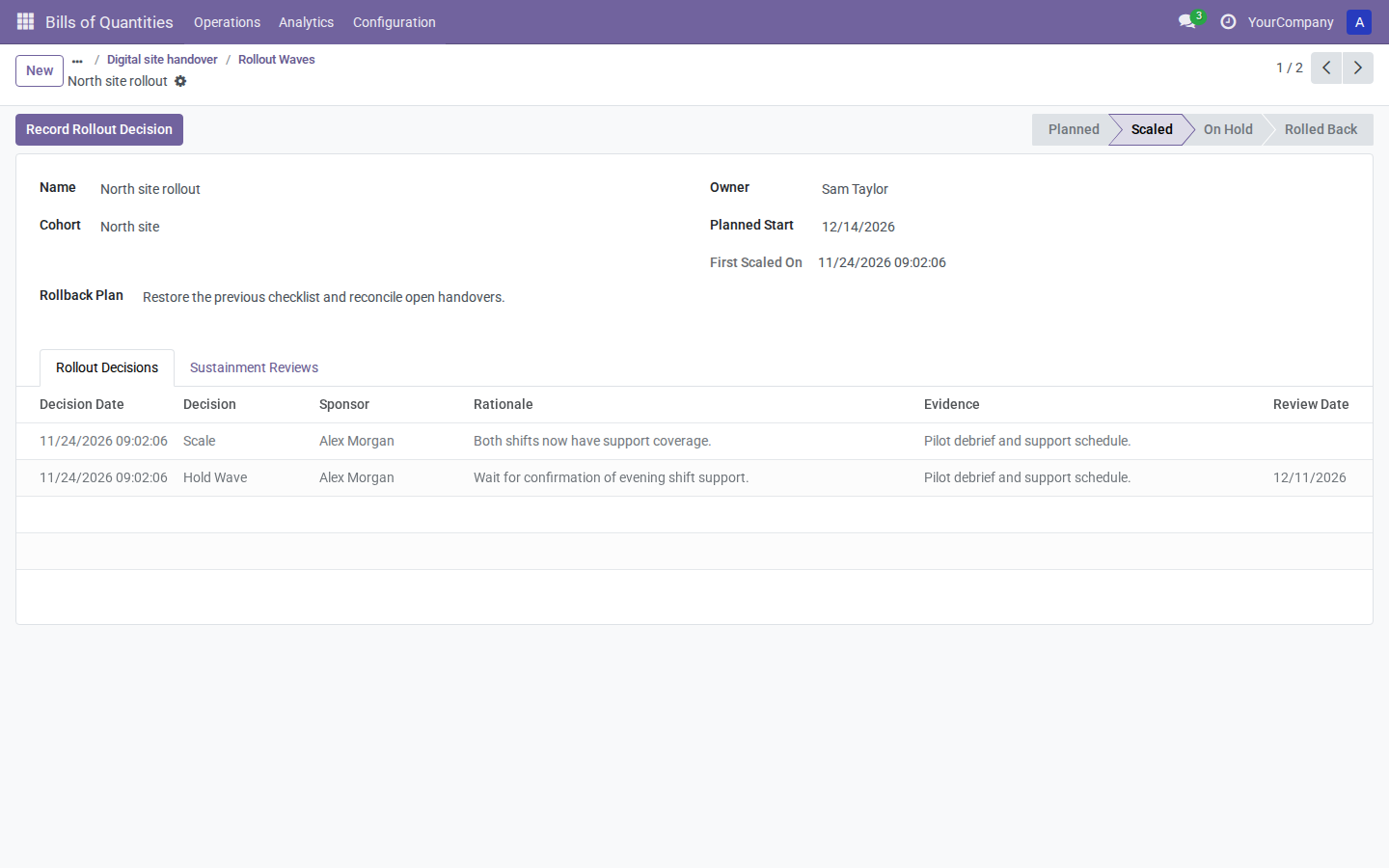
Open a wave. The sponsor selects Record Rollout Decision, enters the rationale and reviewed evidence, and can set a review date.
- Scale authorizes a planned or held wave to proceed. The pilot must be authorized, and all critical readiness checks must be ready. Cite relevant adoption results and support capacity in the evidence.
- Hold Wave pauses a planned or active wave. Record what must change before you review it again. A separate pilot hold blocks further scale decisions. Use Hold Wave to pause an already active wave.
- Roll Back Wave records the decision to restore the prior process for a wave that has already scaled. The team carries out the rollback plan. Create a new wave if the cohort will try again.
The Rollout Decisions tab keeps the timestamp, decision maker, and evidence for each decision.
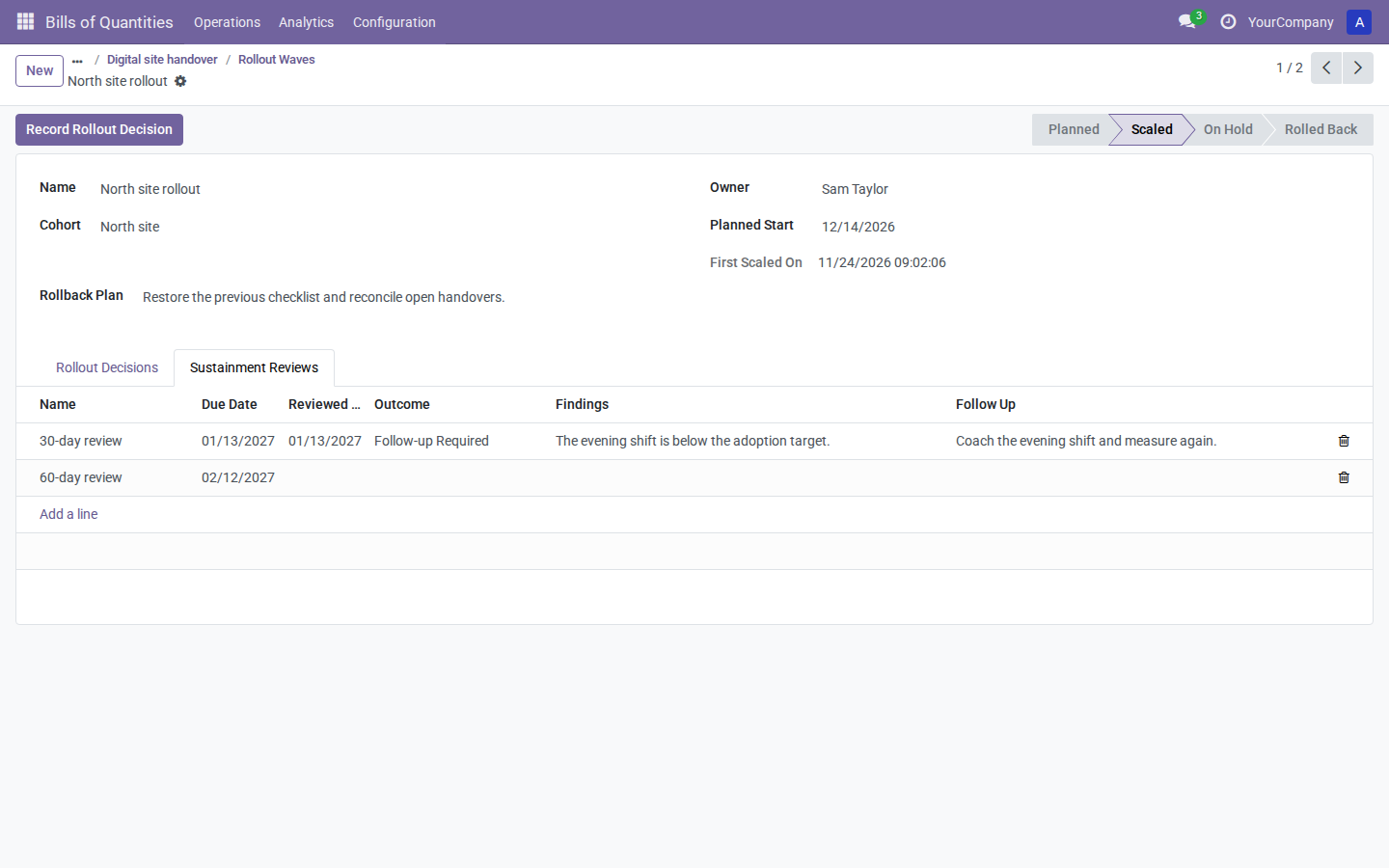
On Sustainment Reviews, schedule checks at intervals appropriate for the cohort. Enter the actual review date on or after the first scale decision, along with findings and an outcome. Follow-up Required also requires you to describe the next action. Use the initiative's Reinforcement Actions register to assign and track that work.
7. Measure benefits and close the initiative
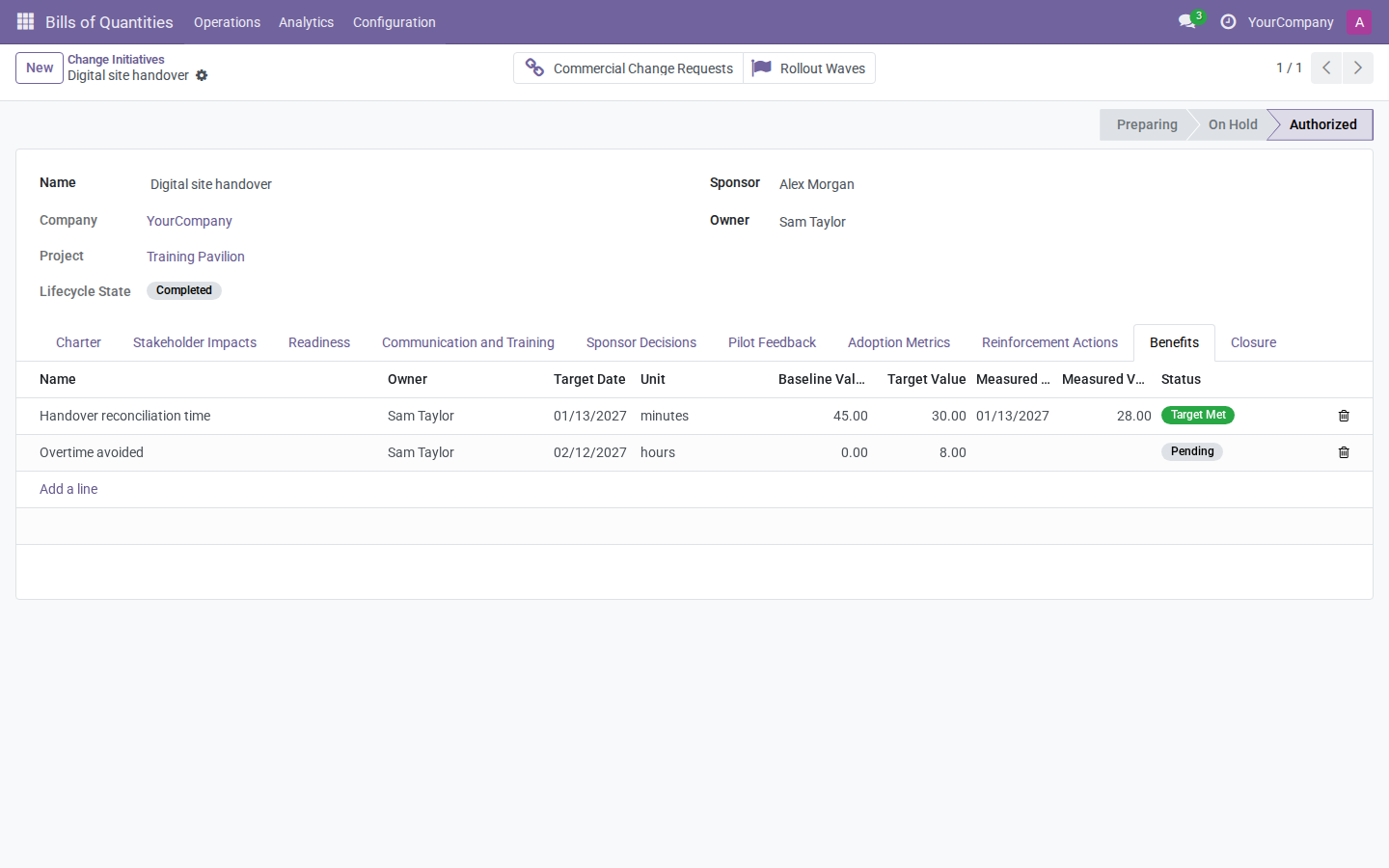
On Benefits, define each expected outcome. Assign an owner, enter the unit, baseline, target, and target date, and specify whether a higher or lower value is better. Describe how you will measure the benefit and identify the data source. For example, measure the median time to reconcile a handover, using 45 minutes as the baseline and 30 minutes as the target.
When you have a result, enter the measurement date and value. Explain the evidence and how the change contributed to the result. The status stays Pending until you enter a measurement date. Odoo then reports whether the latest result met the target.
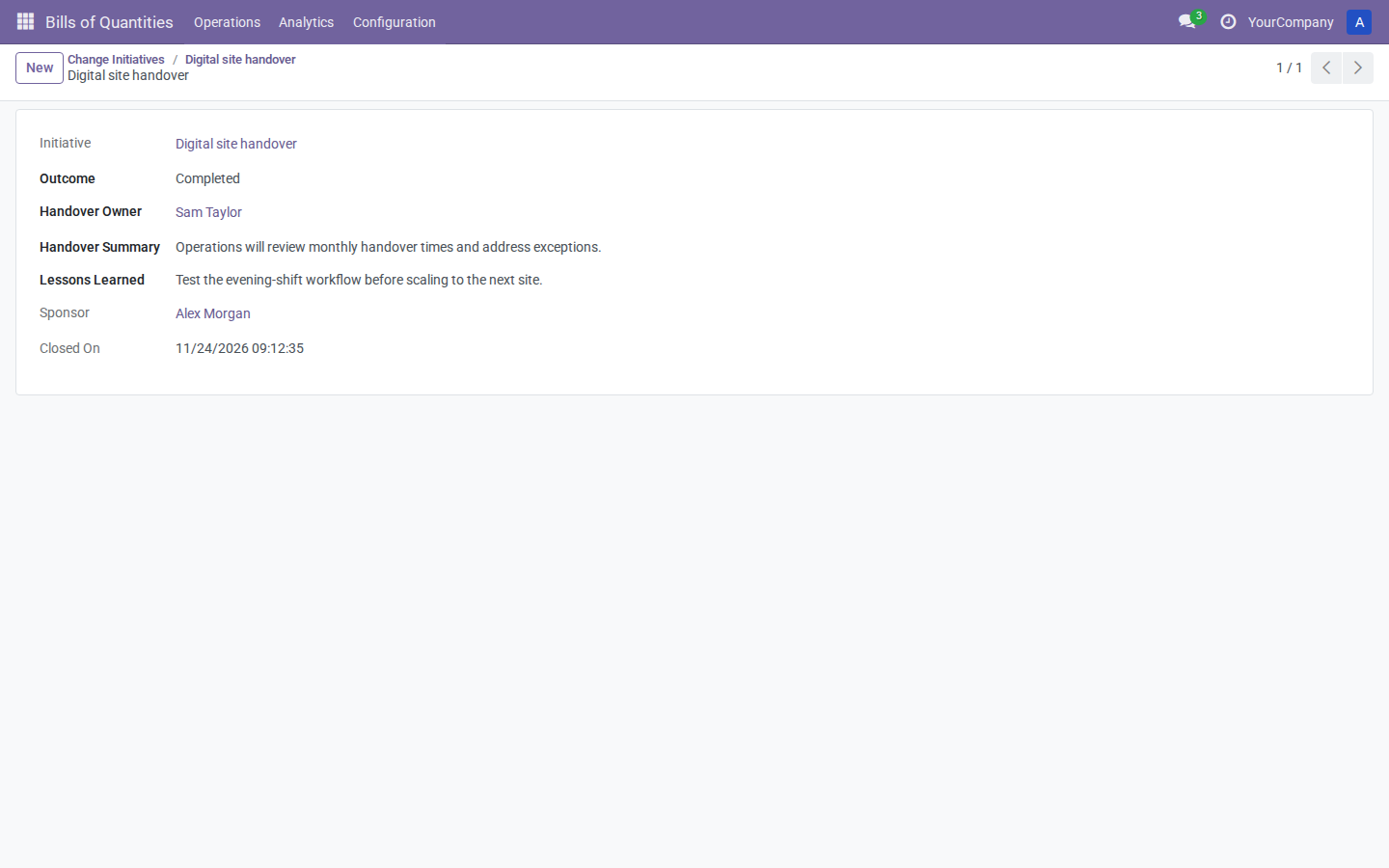
As the sponsor, select Close Initiative, choose an outcome, and record the operational handover owner, the handover summary, and lessons learned.
- Completed requires an authorized pilot, at least one scaled wave, all waves either scaled or rolled back, a completed sustainment review for every scaled wave, and at least one measured benefit. Record any unmet targets and the plan to monitor them in the handover.
- Discontinued requires every wave that started to be rolled back. Use the handover summary to explain why work stopped and who will handle any remaining obligations.
The Closure tab links to the recorded decision. Closure locks readiness checks and ends pilot decisions and rollout planning. Benefit measurements and sustainment reviews remain available for follow-up.
8. Review the change portfolio
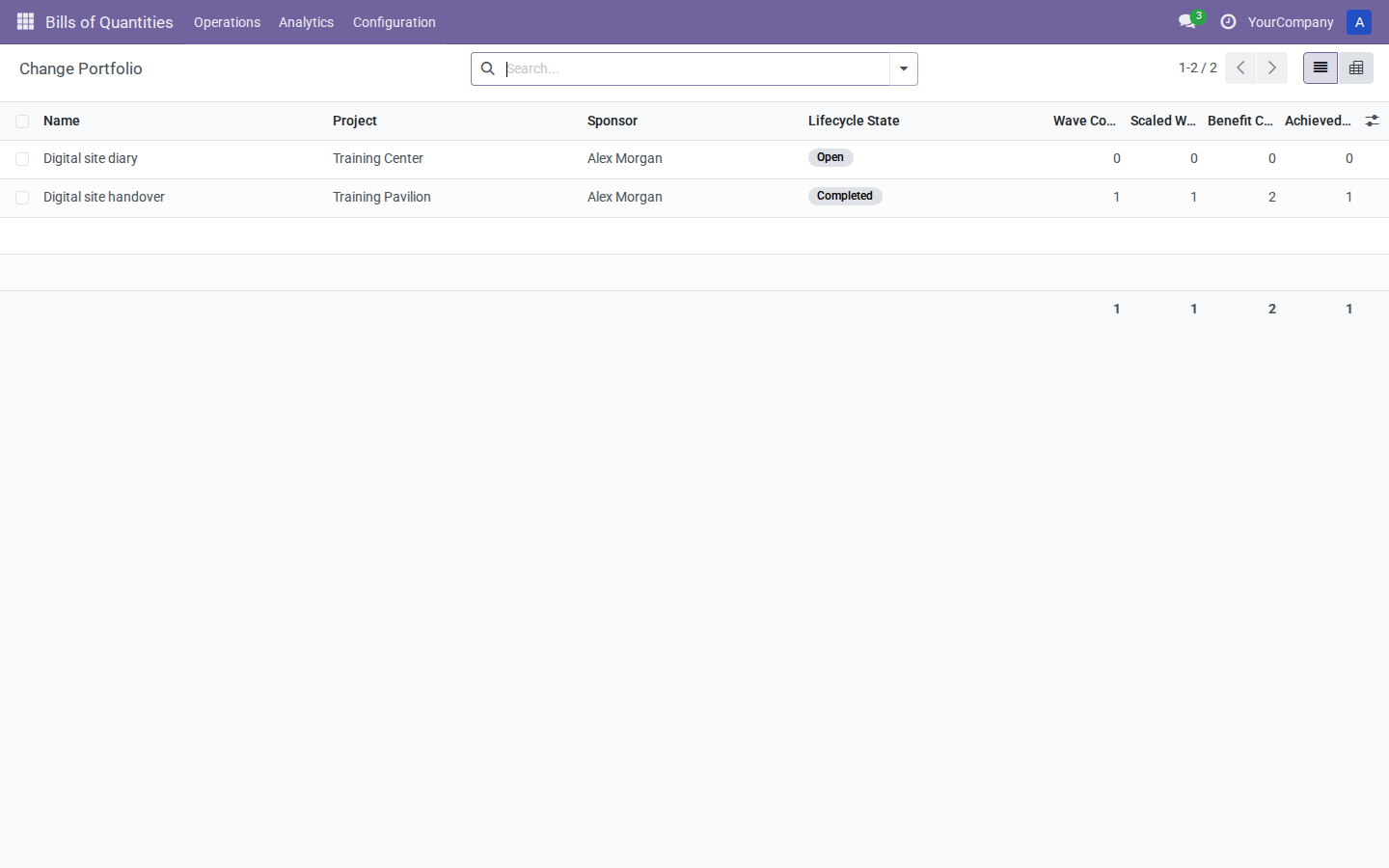
Open Operations → Change Portfolio. Filter by closure status or group by project, sponsor, company, or lifecycle state. The list shows the number of waves, scaled waves, benefits, and benefits meeting their targets.
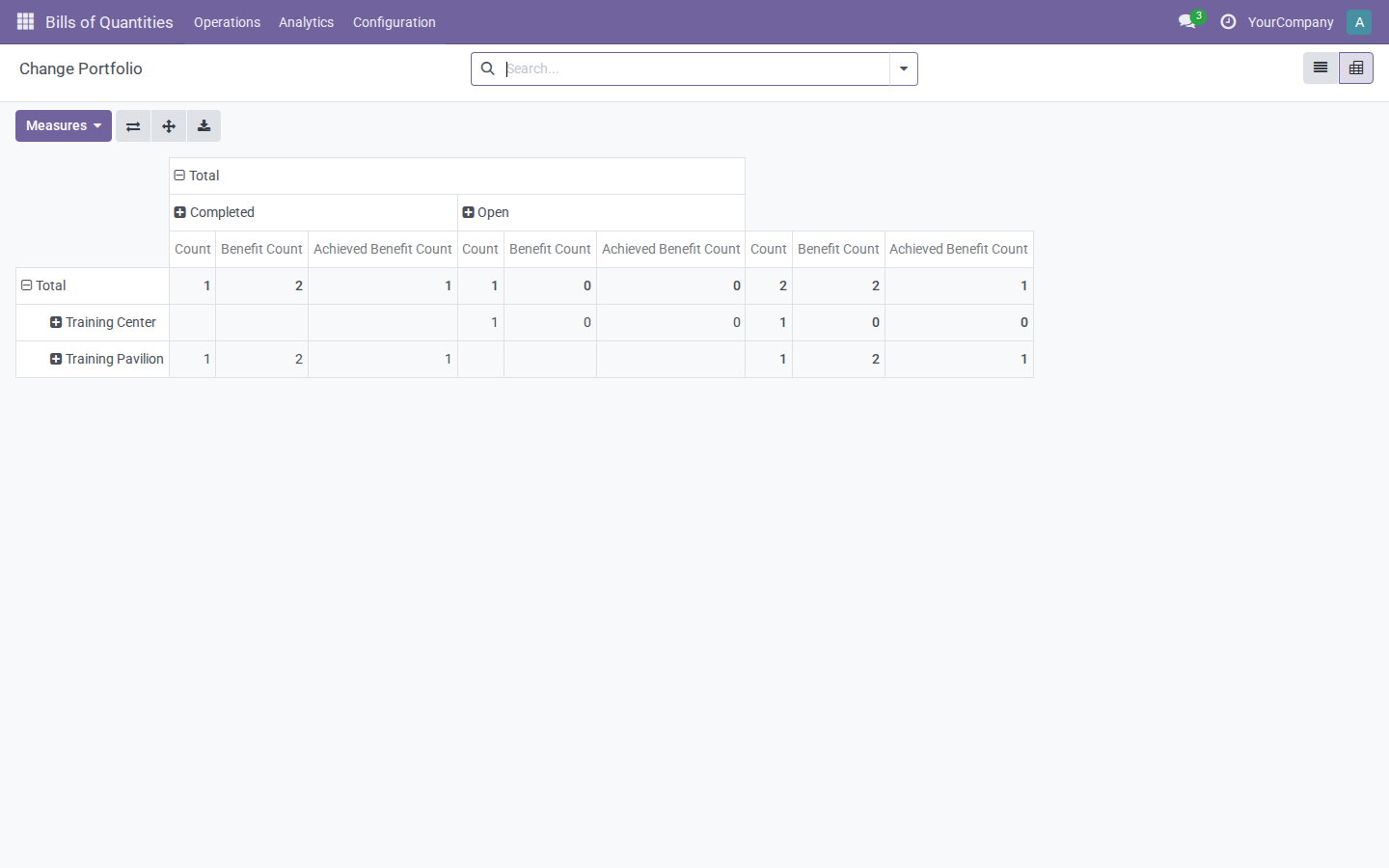
Switch to Pivot to compare totals across projects and lifecycle states. The report shows initiatives you have permission to read in your active companies. Benefit totals count records, so measures such as minutes, hours, and percentages can be tracked together.
9. Link a commercial change request
On the project or sale BoQ, open Changes and create a request. Select Open Current Revision. Record the reason, schedule impact, and BoQ impacts. For each impact, choose Add, Amend, or Omit and enter the proposed item details. Choose Submit for Review.
The internal approver reviews first. The commercial approver records the next decision and, when required, attaches the customer’s signed authorization with its date. Use My Change Reviews to find assigned proposals. Returning or rejecting a proposal requires a reason. A return opens a new draft revision while the prior revision stays in history.
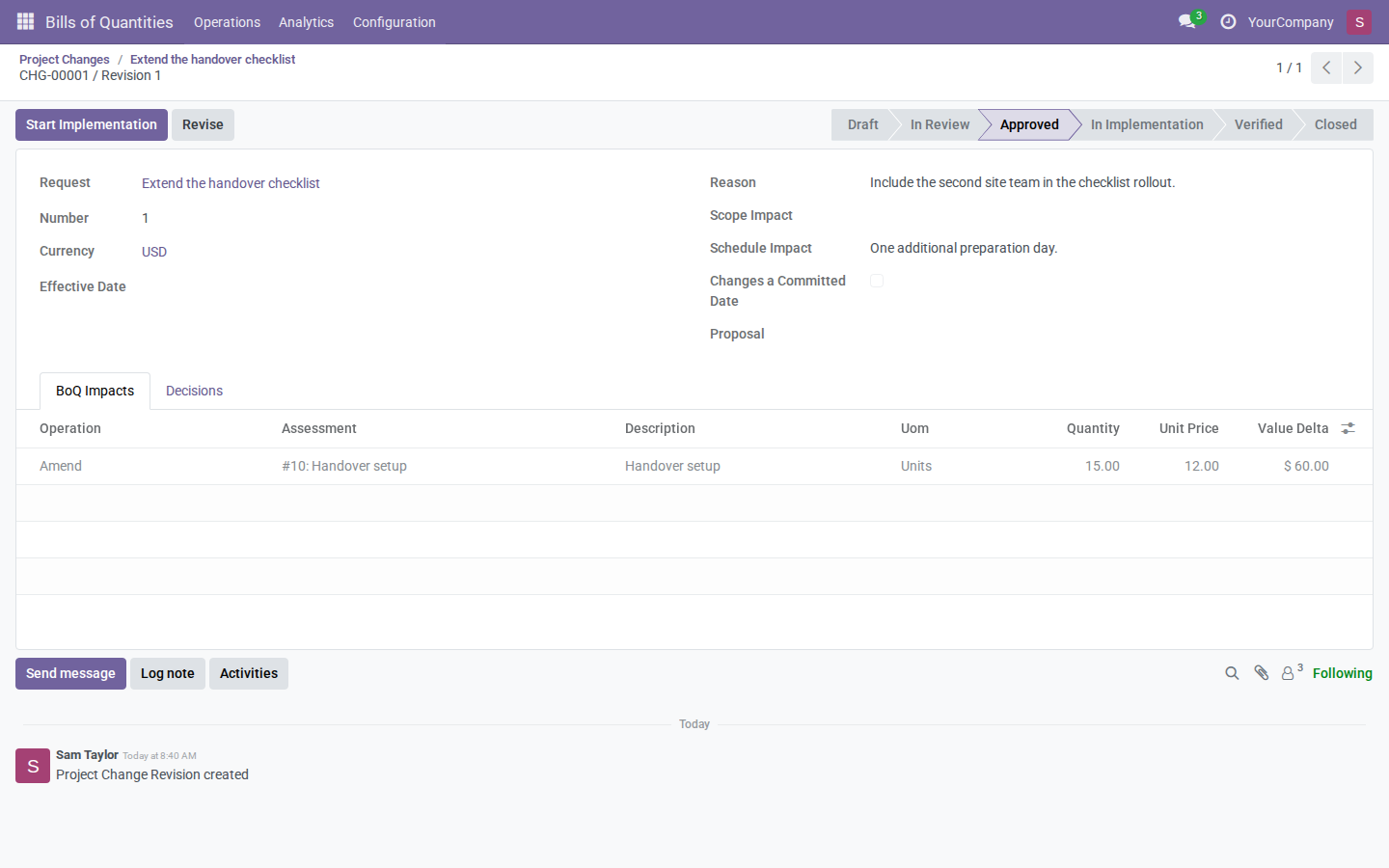
On the initiative, open Commercial Change Requests and link the request. Both records must belong to the same company and, for a project-scoped initiative, the same project. An initiative can link several requests. Each request can belong to one initiative. The link follows the request as its revision or status changes. Users need access to both records to see it.
10. Implement and verify the commercial change
- On the approved revision, select Start Implementation before editing the live BoQ. If the baseline changed, prepare a new revision. If the affected item already appears in a submitted or certified Situation, use the agreed commercial adjustment route.
- Apply the approved change in the existing BoQ workflow. For an omission, reduce the original item quantity to zero.
- From Evidence on each impact, link the resulting BoQ item and any relevant lines on draft temporary Situations. For an impact without a Situation line, use No Situation and explain why.
- Give the designated verifier read access to the linked BoQ items and Situation lines through the existing project, site, or Signoff case assignments. Once all impacts have a documented outcome, the verifier selects Verify. Then Close the verified revision.
Situation links show which work an approved change affected. Valuation, certification, and invoicing follow the existing Operations delivery workflow. For planning readiness, engagement, and later rollout, see the Organizational Change Management manual (PDF).