PMIS Lot Traceability


English · Slovenščina
Trace a shipped package back to the supplier heat, or start with a heat and find the customers whose deliveries included products made from it.
Features
Receipt and quality release
Receive controlled material against a purchase order into company-specific quarantine. Enter the physical supplier delivery note on each receipt.
Attach a mill certificate to the received lot and use OCA quality inspections per lot. The quality manager releases usable material through an internal transfer after all generated inspections for its receipts at the source quarantine location pass.
Keep material awaiting approval in quarantine. The quality manager can post scrap or a supplier return linked to the original receipt.
Pack, unpack, or repack material at the same quarantine location. Release of the material still requires quality approval.
Manufacturing, shipment, and recall
Record the actual consumed material. Each manufacturing order uses one input lot per controlled component product and has its own finished lot.
Keep lot and package history on posted movements. Correct quantities or lot assignments through stock transactions such as returns and redeliveries.
Open Package History to see posted lots and quantities alongside the Source Package and Destination Package columns, even after unpacking.
Follow Traceability from a package's finished lot back to supplier receipts. On the input lot, Customer Deliveries lists affected customer shipments.
Keep the lot details captured when a qualifying customer invoice is posted so invoice reprints retain those details after returns.
Configuration
Dependencies
Install pmis_lot_traceability with the OCB 18.0, OCA, and PMIVerse addons on the instance's addons path. The manifest directly requires
OCB purchase_stock, sale_management, sale_stock, and sale_mrp
OCA quality_control_stock_oca, quality_control_mrp_oca, and stock_picking_return_lot
PMIVerse pmis_mrp from the operations repository
Warehouse and access
Enable lot tracking, storage locations, and Packages. Enable lot printing on delivery slips and invoices where required.
Create an internal location for the company and mark it Supplier Lot Quarantine. Set up a dedicated supplier receipt operation with that destination. Keep the warehouse's customer return destination on the standard return operation.
Set the raw material to By Lots and enable Controlled Supplier Material. Set the finished product to By Lots and add the material to its bill of materials. Use metres for the steel bars in the pilot and pieces for the finished shafts.
Configure an Inspection Per Lot trigger for the supplier receipt operation with After timing and a receipt test.
Assign Inventory User to warehouse operators. Assign both Inventory User and Quality Control Manager to the person approving releases. Inventory managers configure which materials are controlled.
The pilot plan lists the operation types, stock locations, and access roles. Configure the warehouse
Usage
On the supplier receipt, enter the Supplier Delivery Note and record the heat, quantity, and Destination Package for packed material. Receive steel bars
Pack, unpack, or repack held material at the same quarantine location. Attach the Mill Certificate and complete the lot's inspections. The quality manager moves approved material to usable stock. For packed material, use Pick From and set Destination Package if it stays packed. Inspect and release each heat
Record the component lot and quantity used during manufacturing. For packed components, use Pick From to select stock from the actual package. When the input heat changes, start a separate order and assign a new finished lot. Manufacture and assign a finished lot
Pack finished goods into stock with an internal transfer at the same location, or pack on the delivery with Put in Pack. If the goods are already packed, use Pick From to select stock from the existing package. Check Destination Package for the actual shipping package. Use one finished lot per package in the pilot. Pack, deliver, and invoice
Set Destination Package on the linked return. Post repacking as a new stock movement so the original delivery retains its shipped package. Post returns, scrap, and repacking
Use Package History to follow posted movements even after a package is empty. Open the finished lot's Traceability to find the supplier heat, or open Customer Deliveries on that heat to find affected shipments. Trace a package back to its supplier · Trace a heat forward to customers
The pilot plan follows the same workflow from purchase through recall. Run the pilot
Screenshots
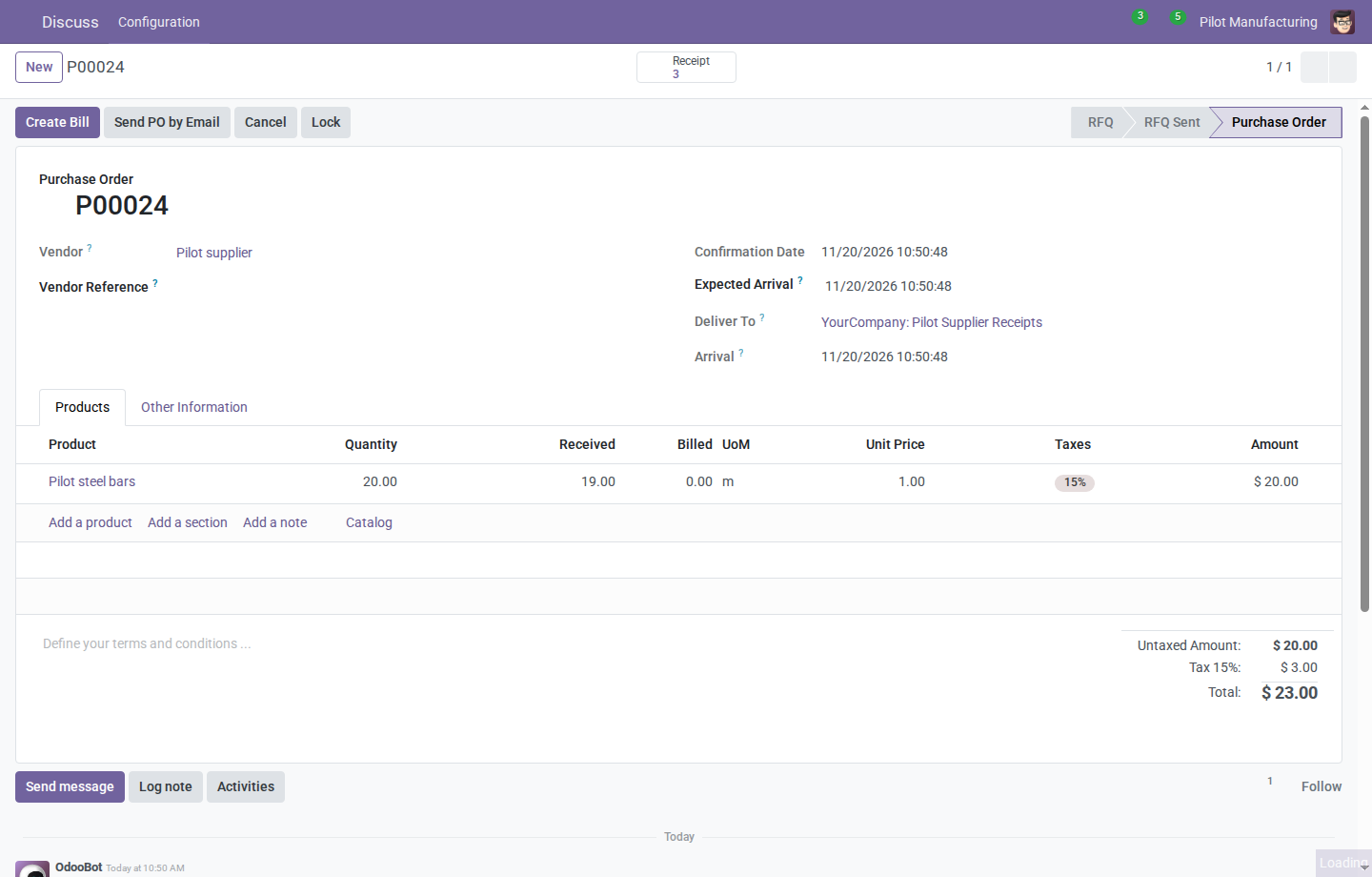
On purchase order P00024, the Receipt button at the top opens three linked transfers, including the receipt for the remaining quantity and the supplier return.
Receipt instructions in the user manual
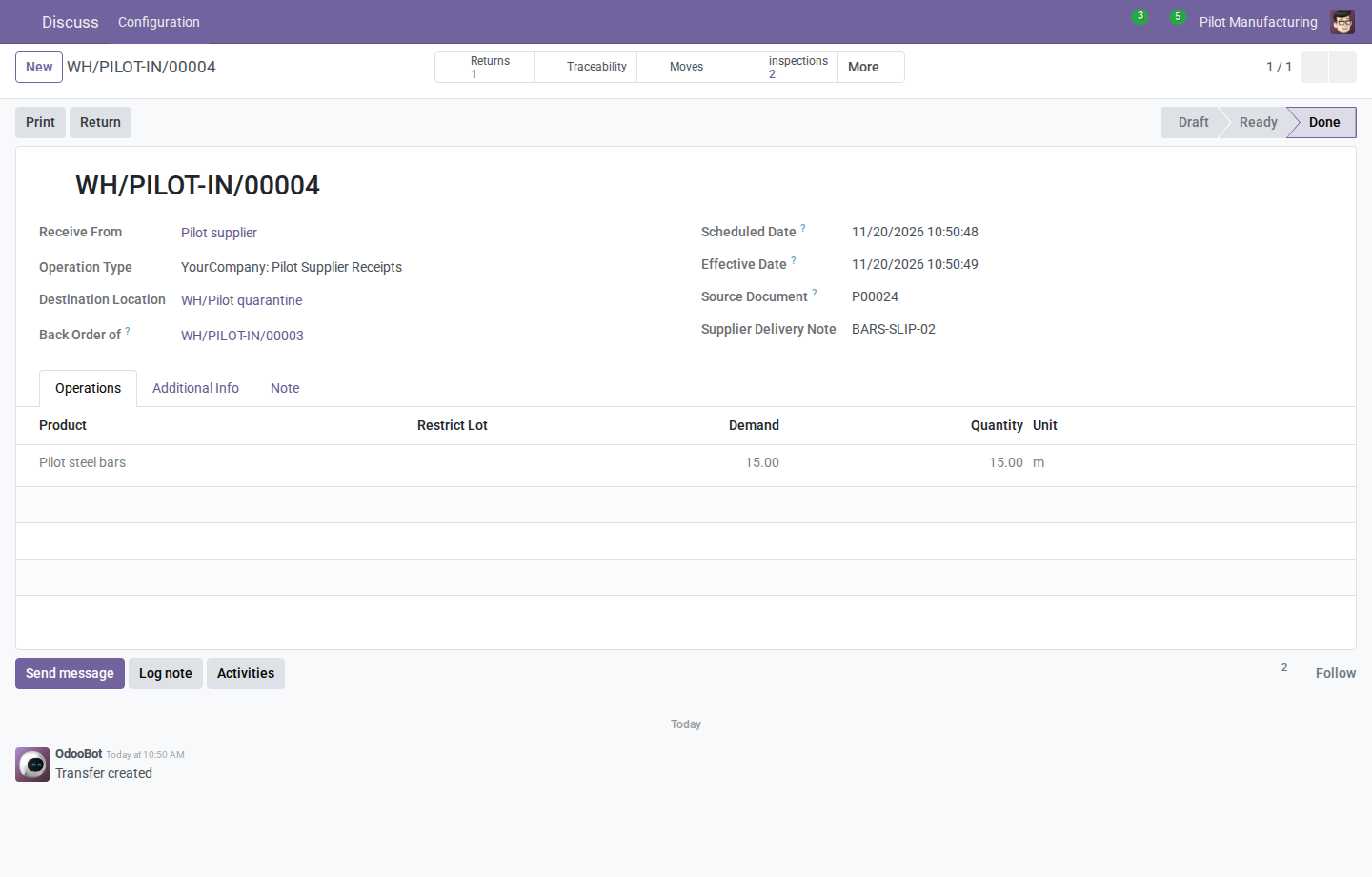
A validated supplier receipt with its delivery-note reference.
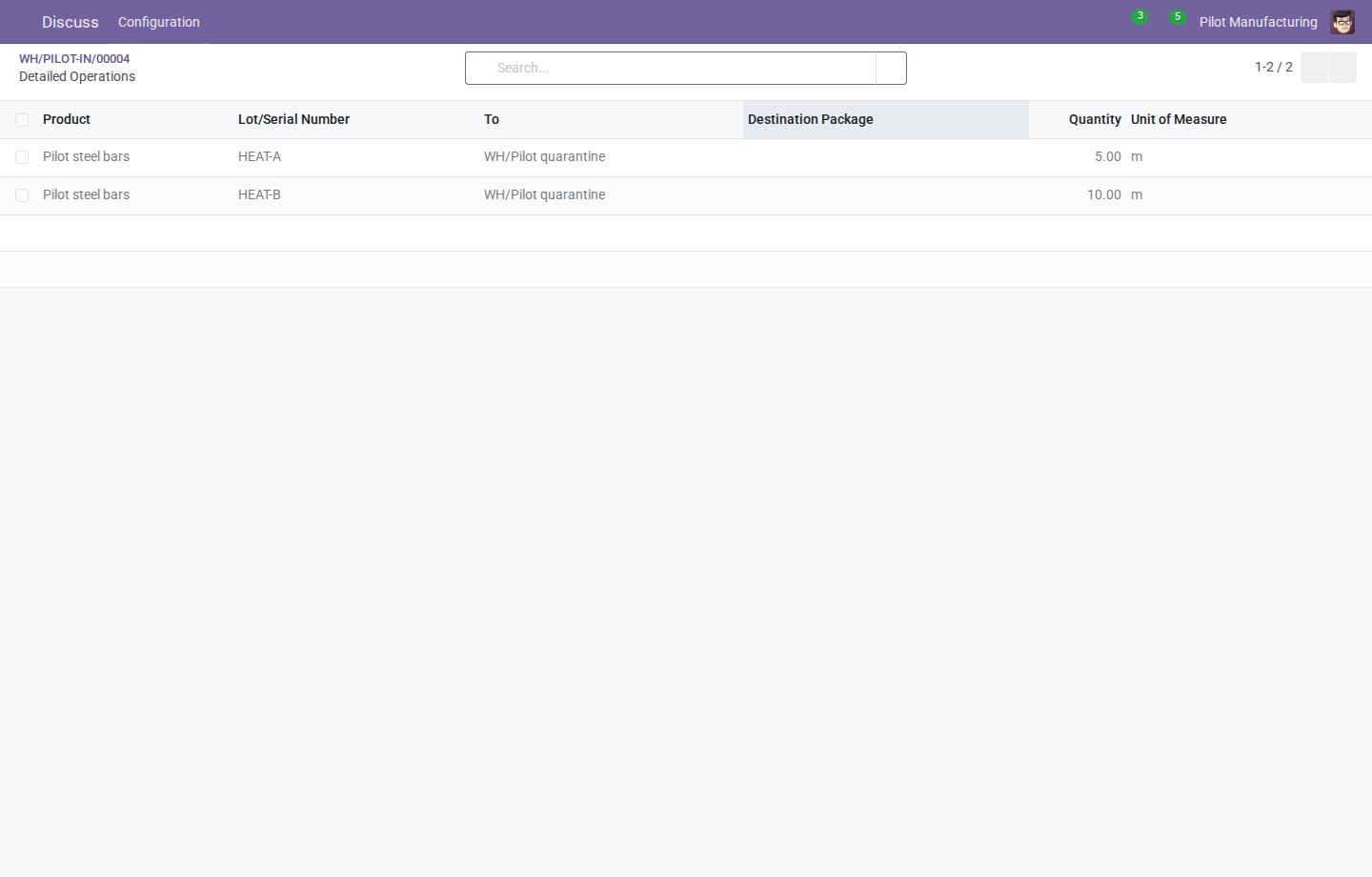
The second receipt records 5 m of steel bars from lot HEAT-A and 10 m from lot HEAT-B on separate rows. Both lots go into Pilot quarantine.
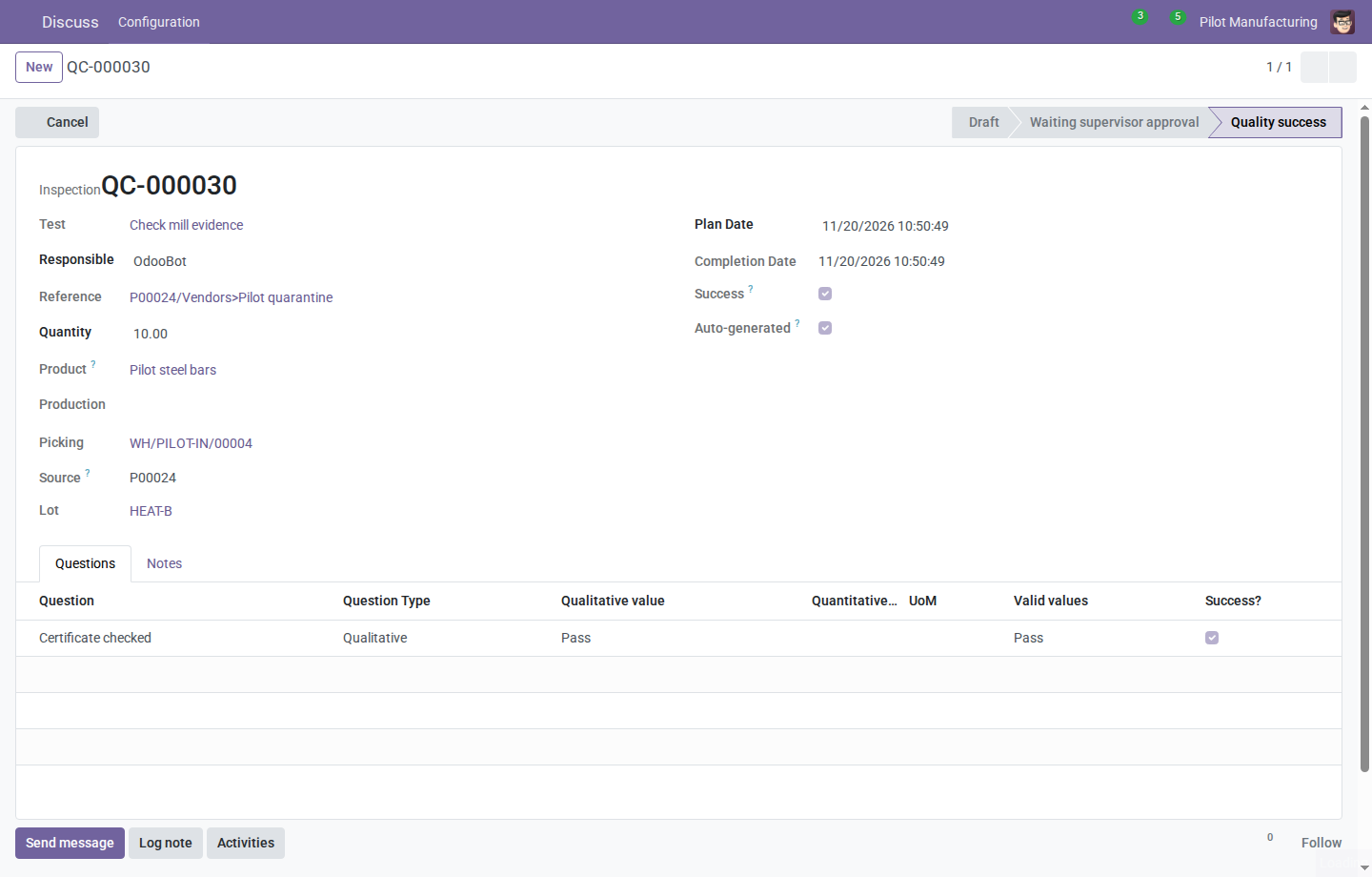
The receipt inspection identifies HEAT-B in the Lot field. The certificate check records Pass, and the inspection status is Quality success.
Inspection instructions in the user manual
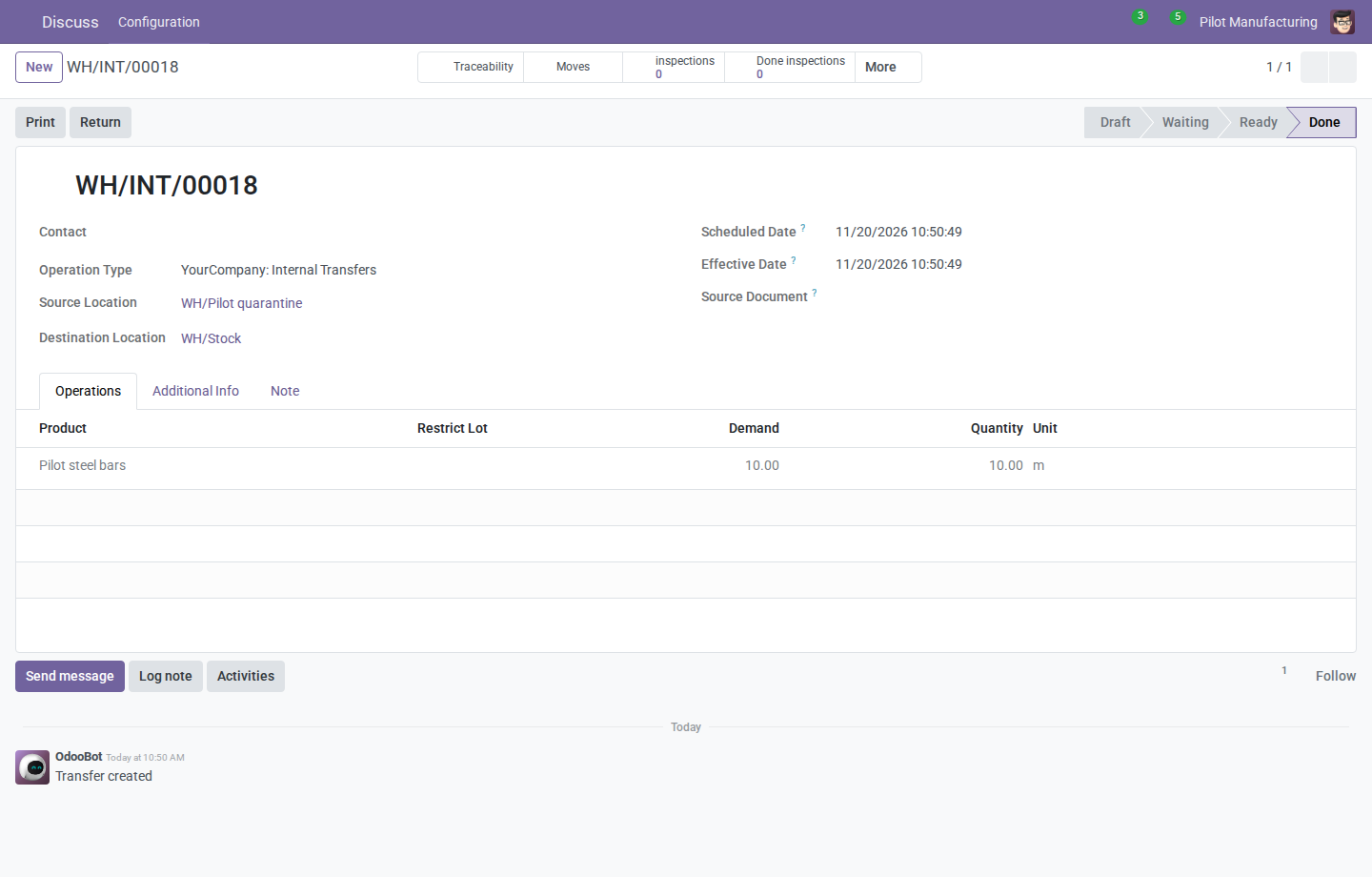
The completed release transfer moves 10 m of steel bars from the approved lot out of WH/Pilot quarantine and into usable stock at WH/Stock.
Quarantine release instructions in the user manual
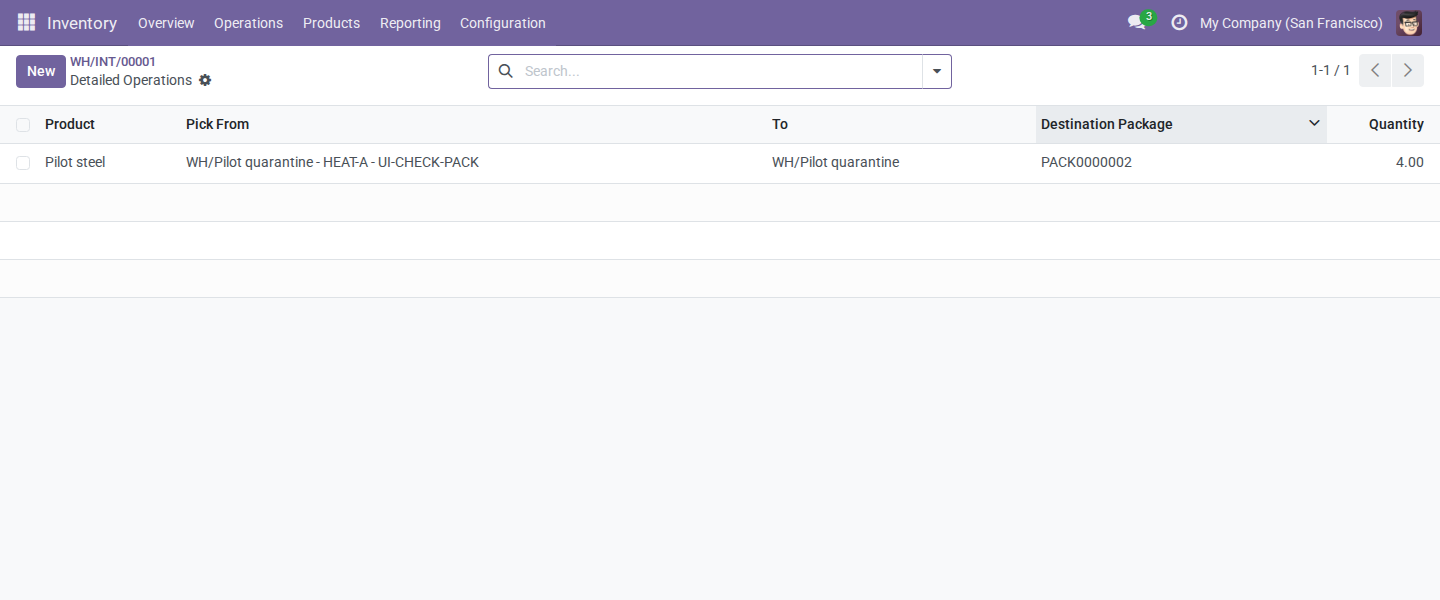
On the editable transfer, use Pick From to select lot HEAT-A in source package UI-CHECK-PACK. Under Destination Package, select PACK0000002 to receive the material.
Repacking instructions in the user manual
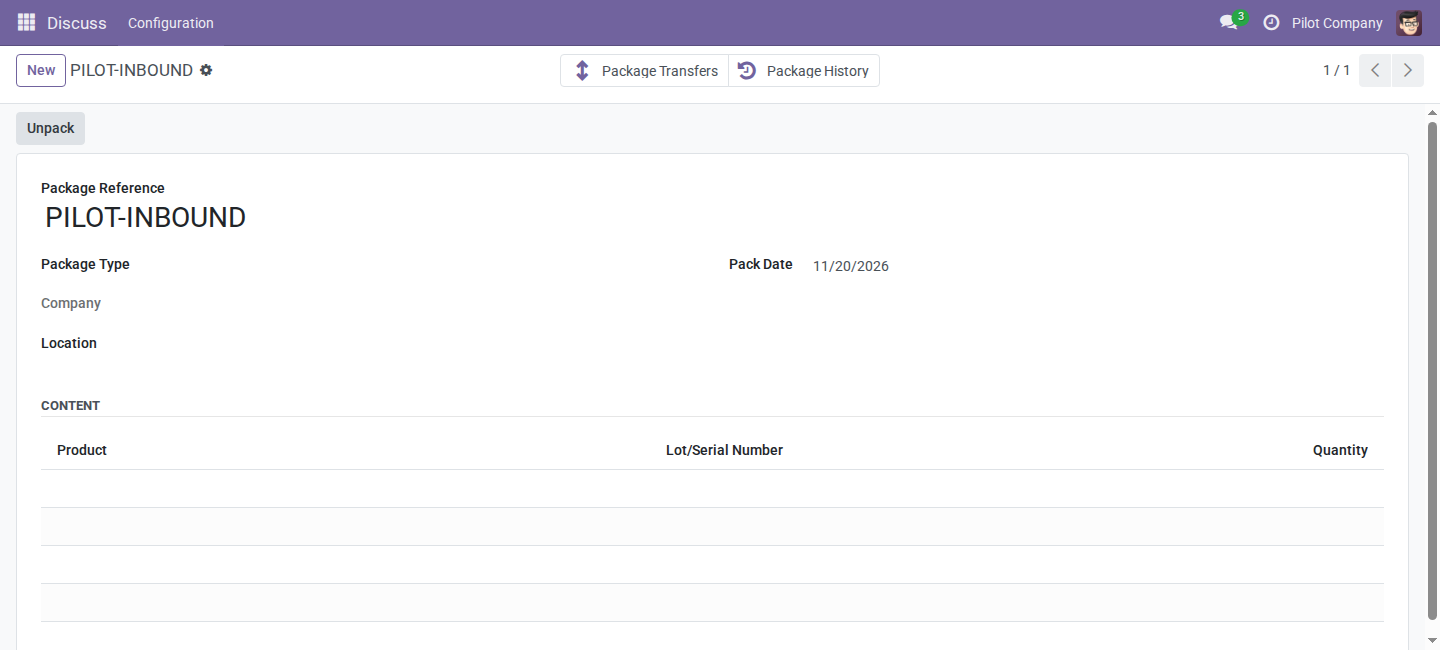
After unpacking, open the empty package and click Package History at the top, next to Package Transfers. The Content table is empty, but the posted movements are still available.
Package History instructions in the user manual
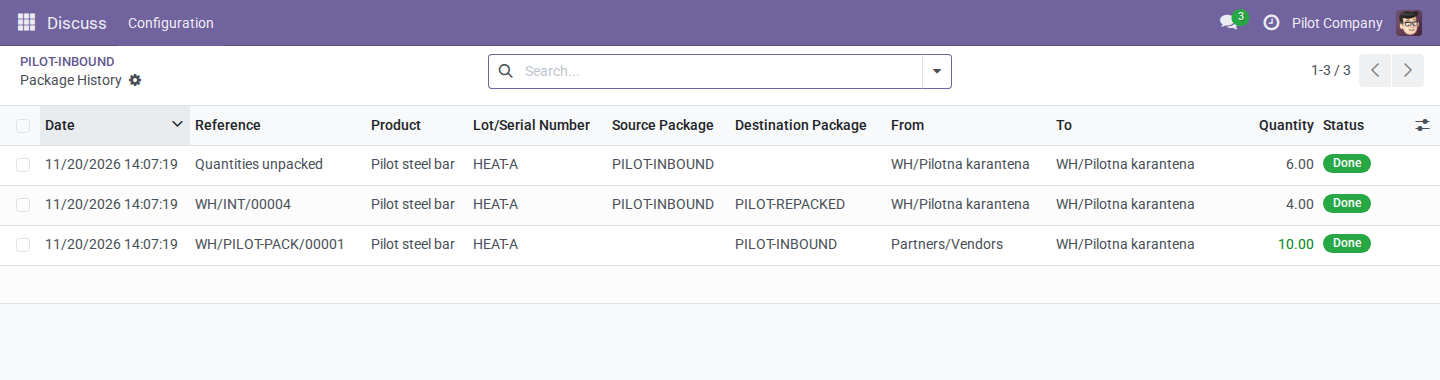
Read this Package History example from bottom to top. The receipt put 10 m into PILOT-INBOUND. The repack moved 4 m from that Source Package to PILOT-REPACKED as the Destination Package. The final row shows 6 m unpacked, so Destination Package is empty. Both packaging changes took place at the same quarantine location.
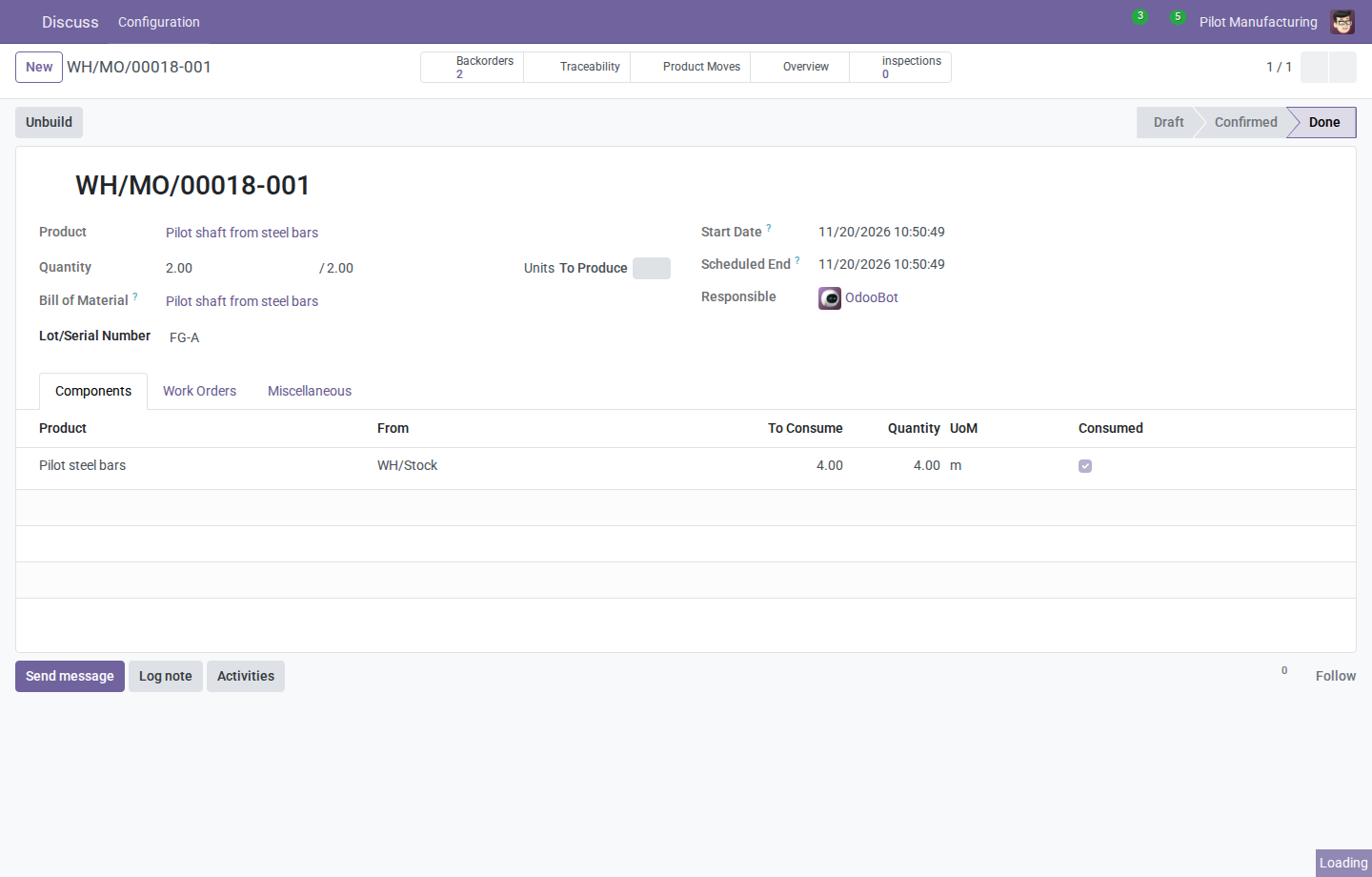
The completed manufacturing order shows two shafts in finished lot FG-A and 4 m of steel bars consumed. Open Traceability to see that the steel came from heat HEAT-A.
Manufacturing instructions in the user manual
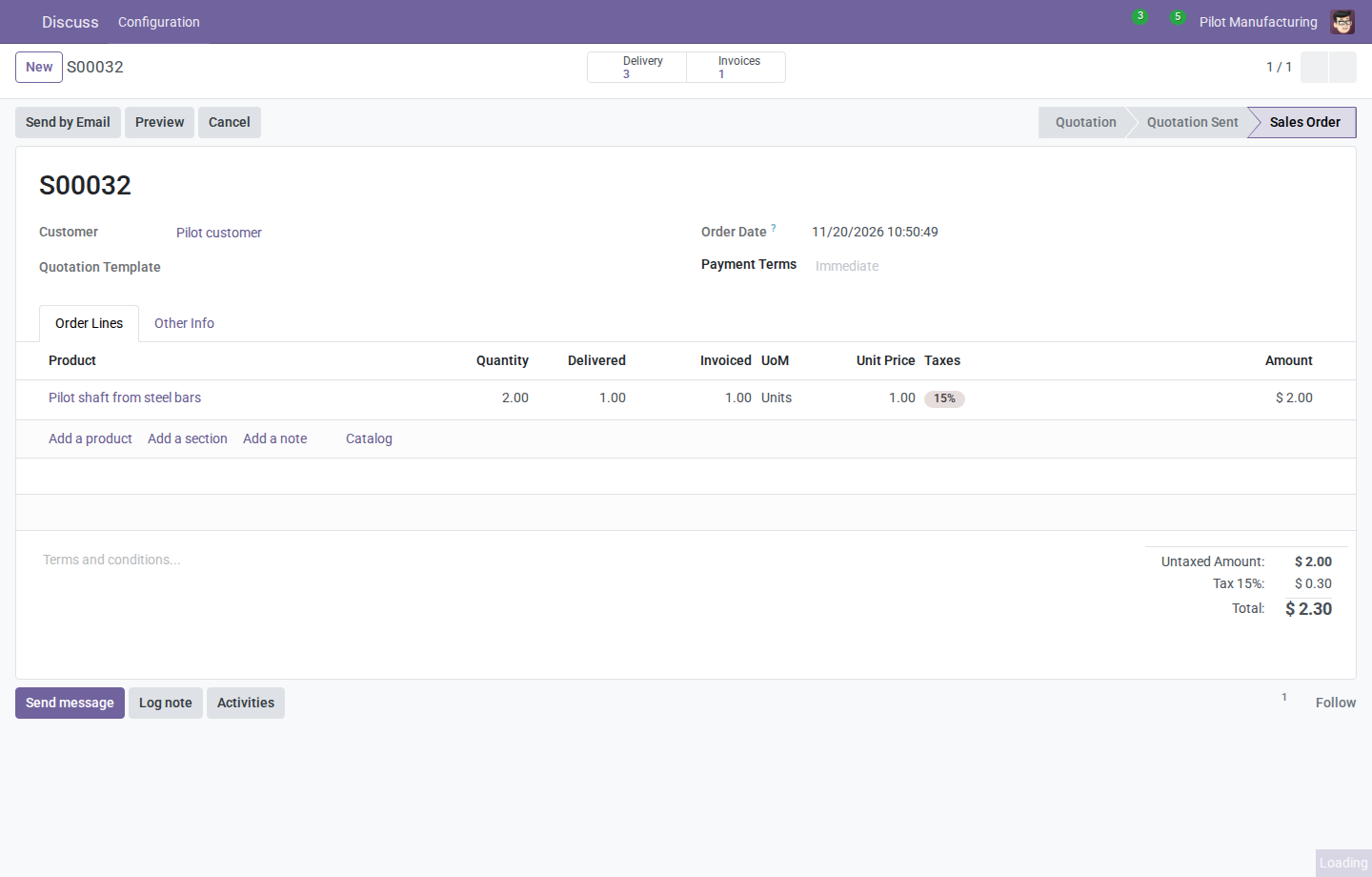
On sales order S00032, the Delivery button at the top shows three linked transfers. Click it and open the delivery for the shipment you want to check.
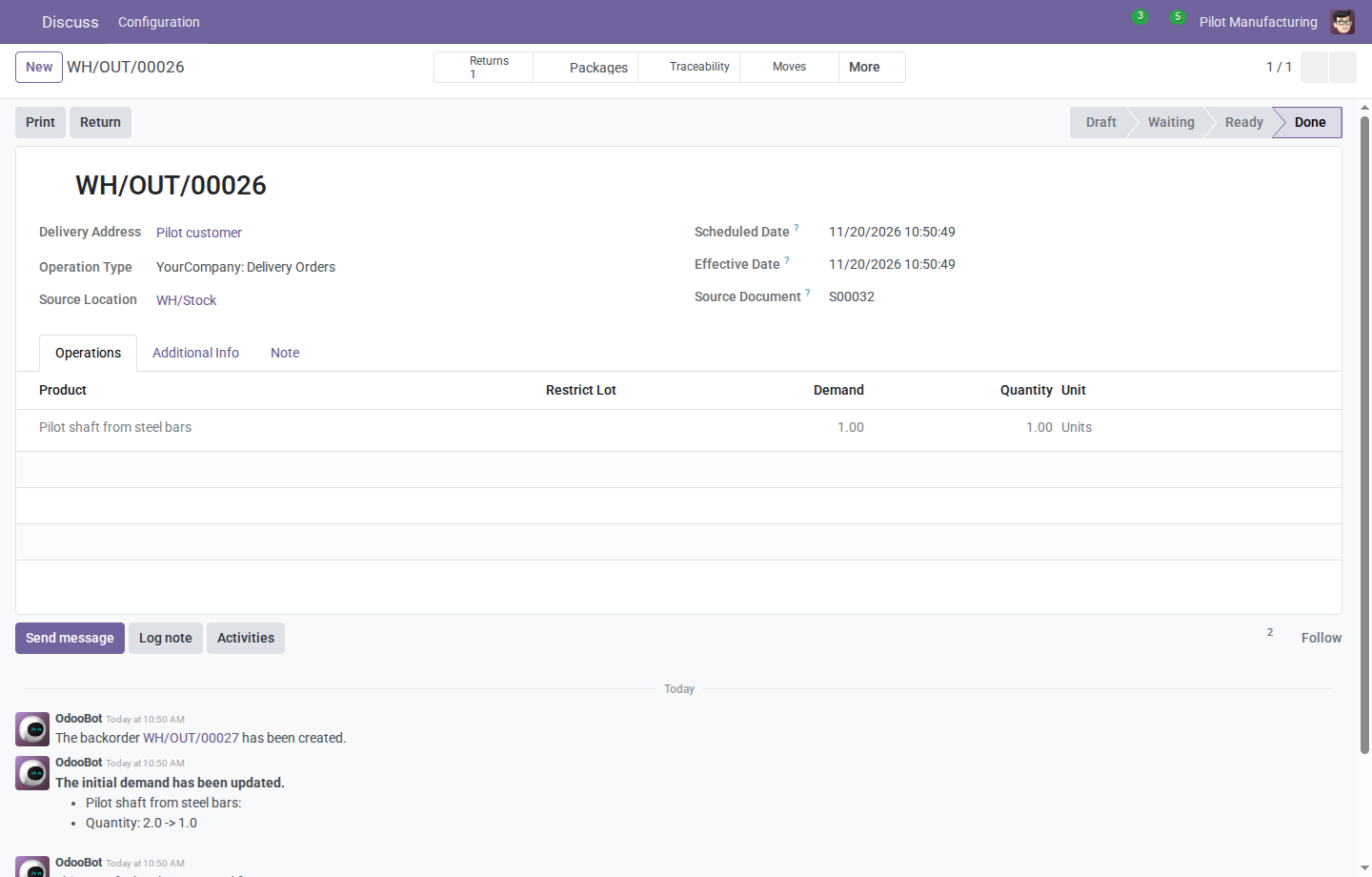
Completed delivery WH/OUT/00026 records one shaft shipped. Source Document shows S00032, the sales order for this shipment. Open Moves to check the finished lot and shipping package.
Packing and delivery instructions in the user manual
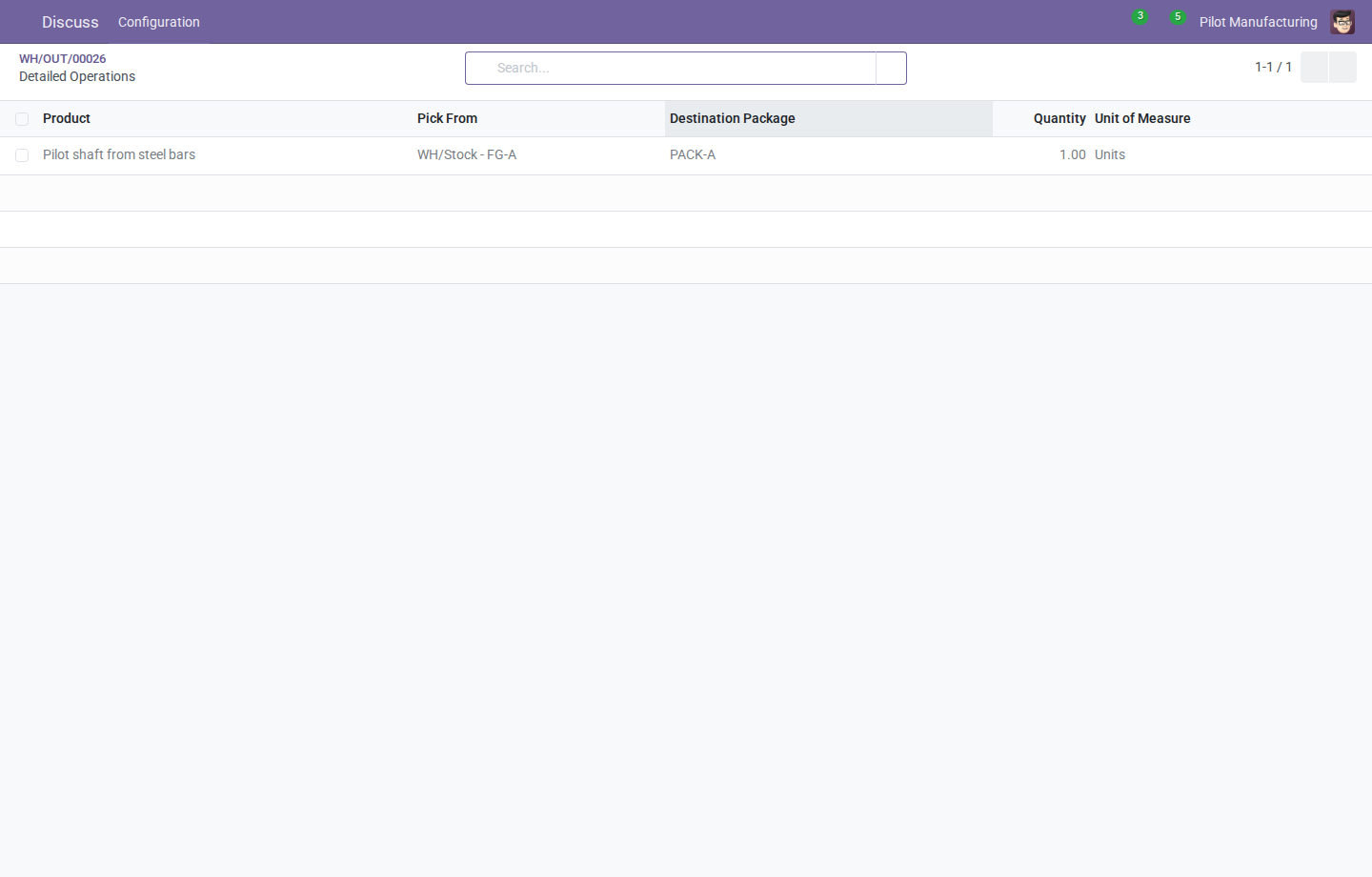
The delivery row records one shaft shipped from finished lot FG-A. Pick From shows the lot, Quantity shows 1.00, and Destination Package shows PACK-A.
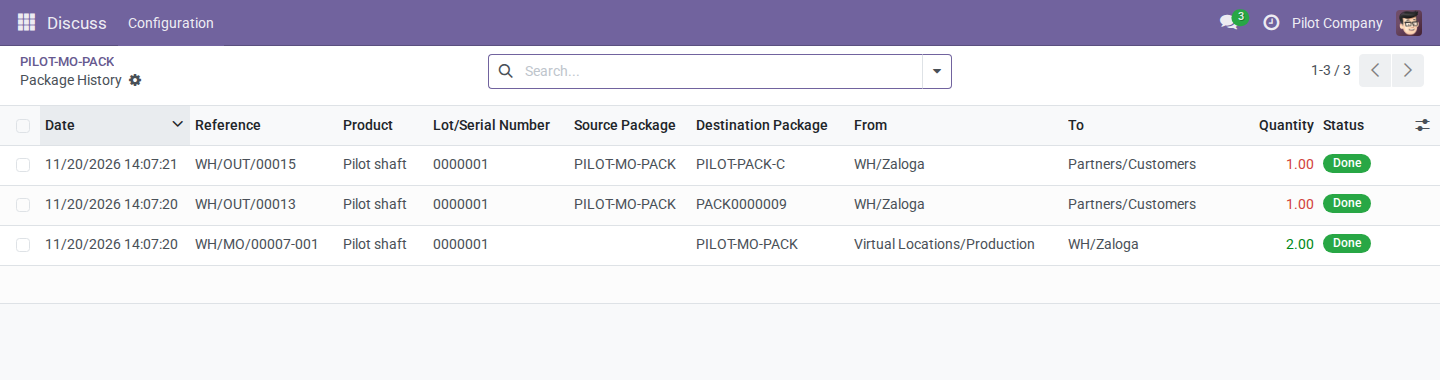
The production row at the bottom shows two shafts going into PILOT-MO-PACK as the Destination Package. On the two shipment rows above it, PILOT-MO-PACK is the Source Package. Each shipment takes one shaft into a different Destination Package.
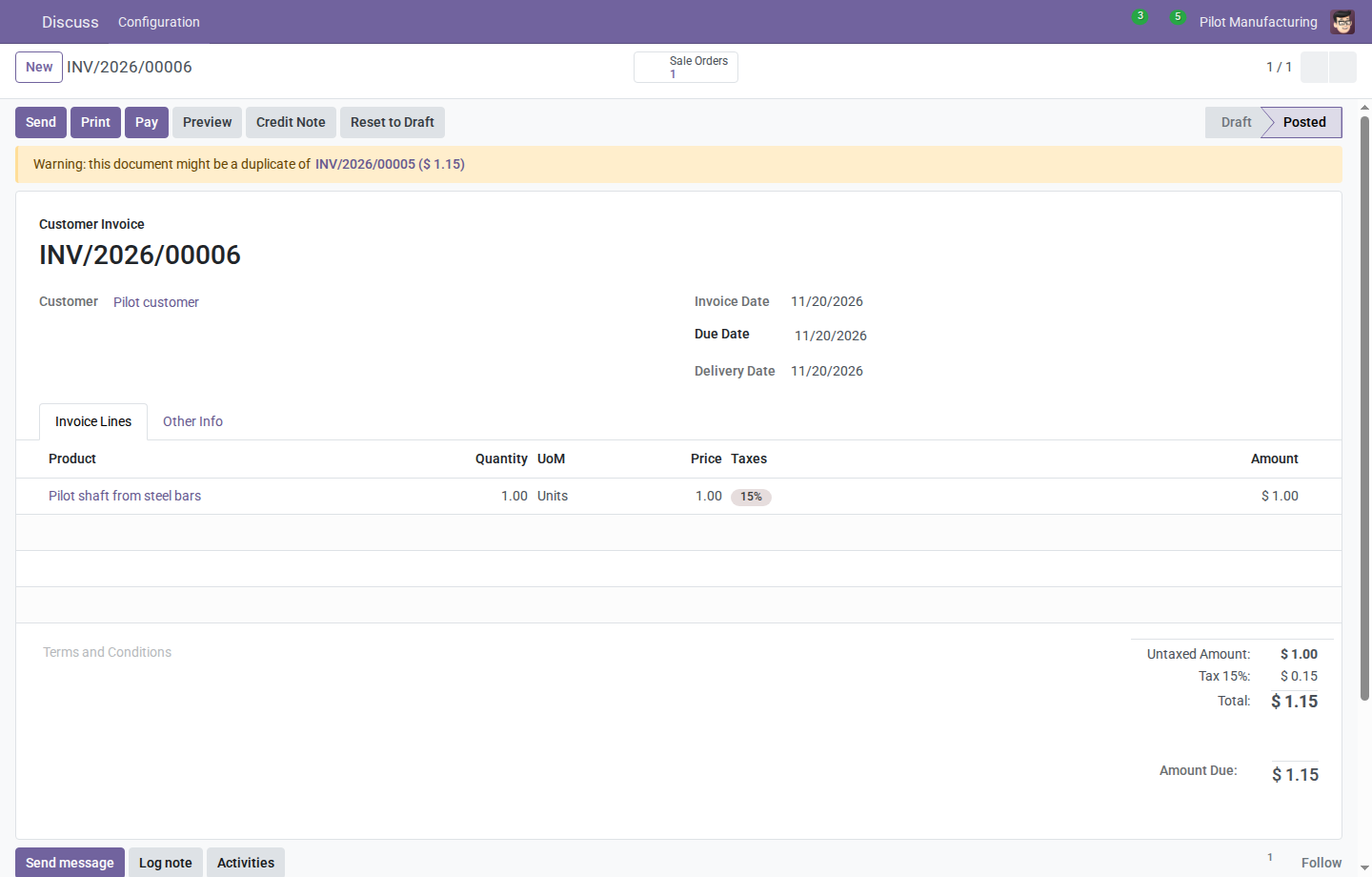
The invoice lines show one shaft billed for the first partial shipment. With lot printing enabled, the posted invoice preview lists the finished lot FG-A for that shaft.
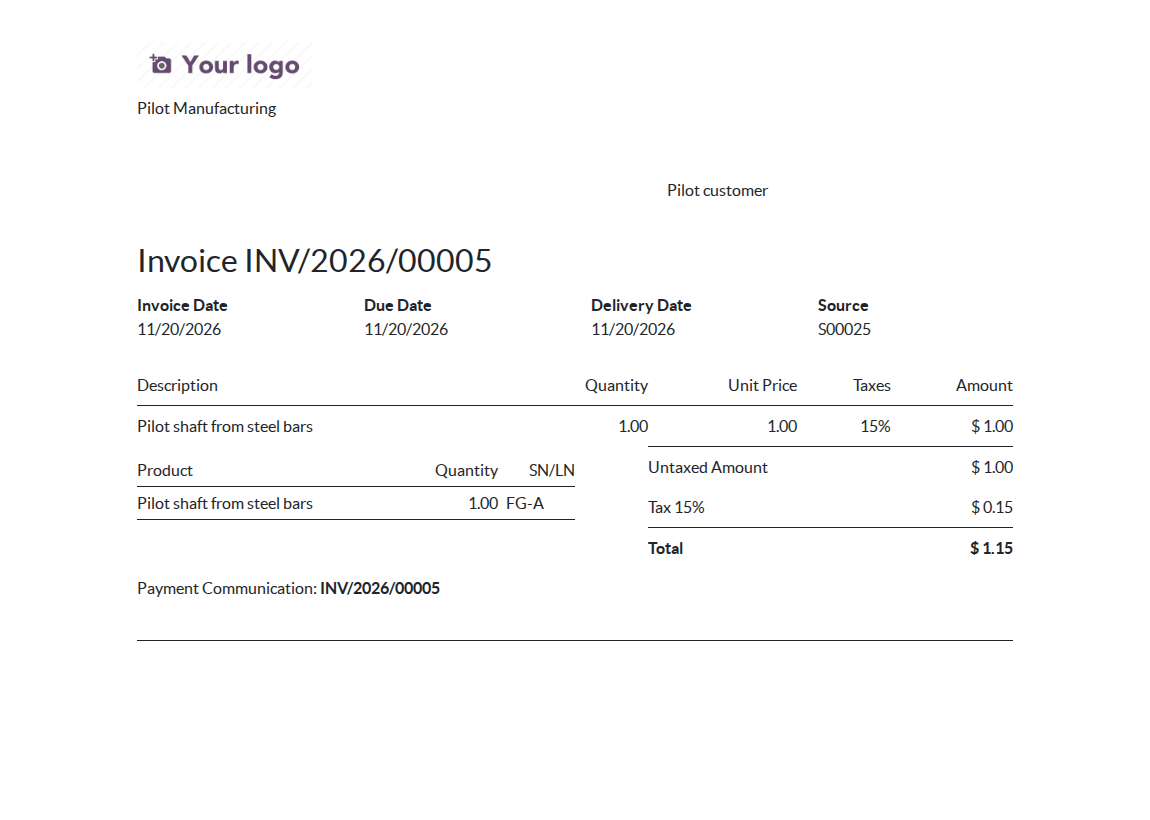
This posted preview shows a separate partial invoice for one shaft. The lot table below the invoice line shows the same quantity and identifies the finished lot as FG-A.
Partial invoicing instructions in the user manual
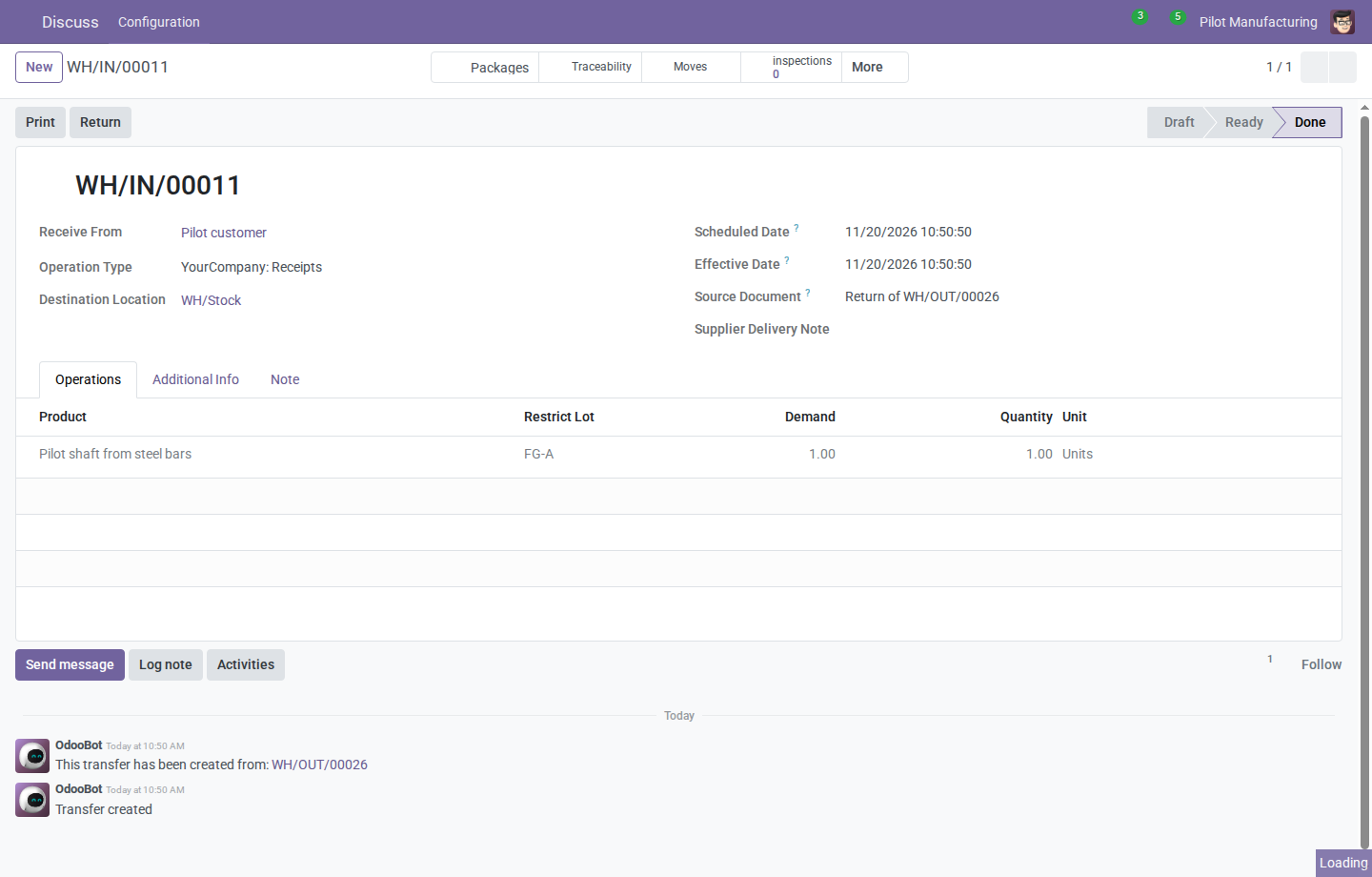
On customer return WH/IN/00011, Source Document reads Return of WH/OUT/00026, identifying the original delivery. The return records one shaft from finished lot FG-A.
Returns and repacking instructions in the user manual
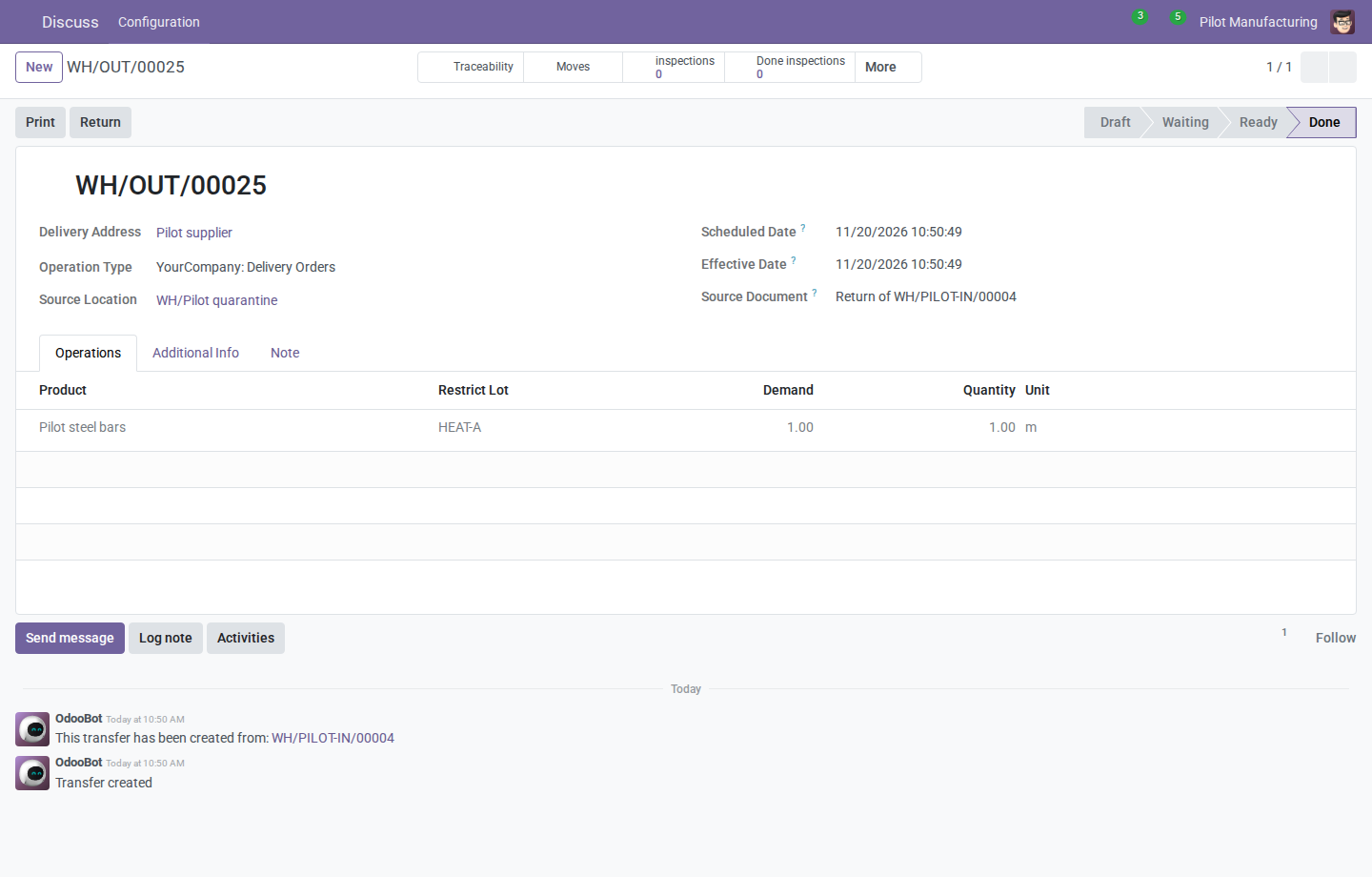
On supplier return WH/OUT/00025, Source Document reads Return of WH/PILOT-IN/00004, identifying the original receipt. The return sends 1 m of steel bars from lot HEAT-A back to the supplier.
Supplier return instructions in the user manual
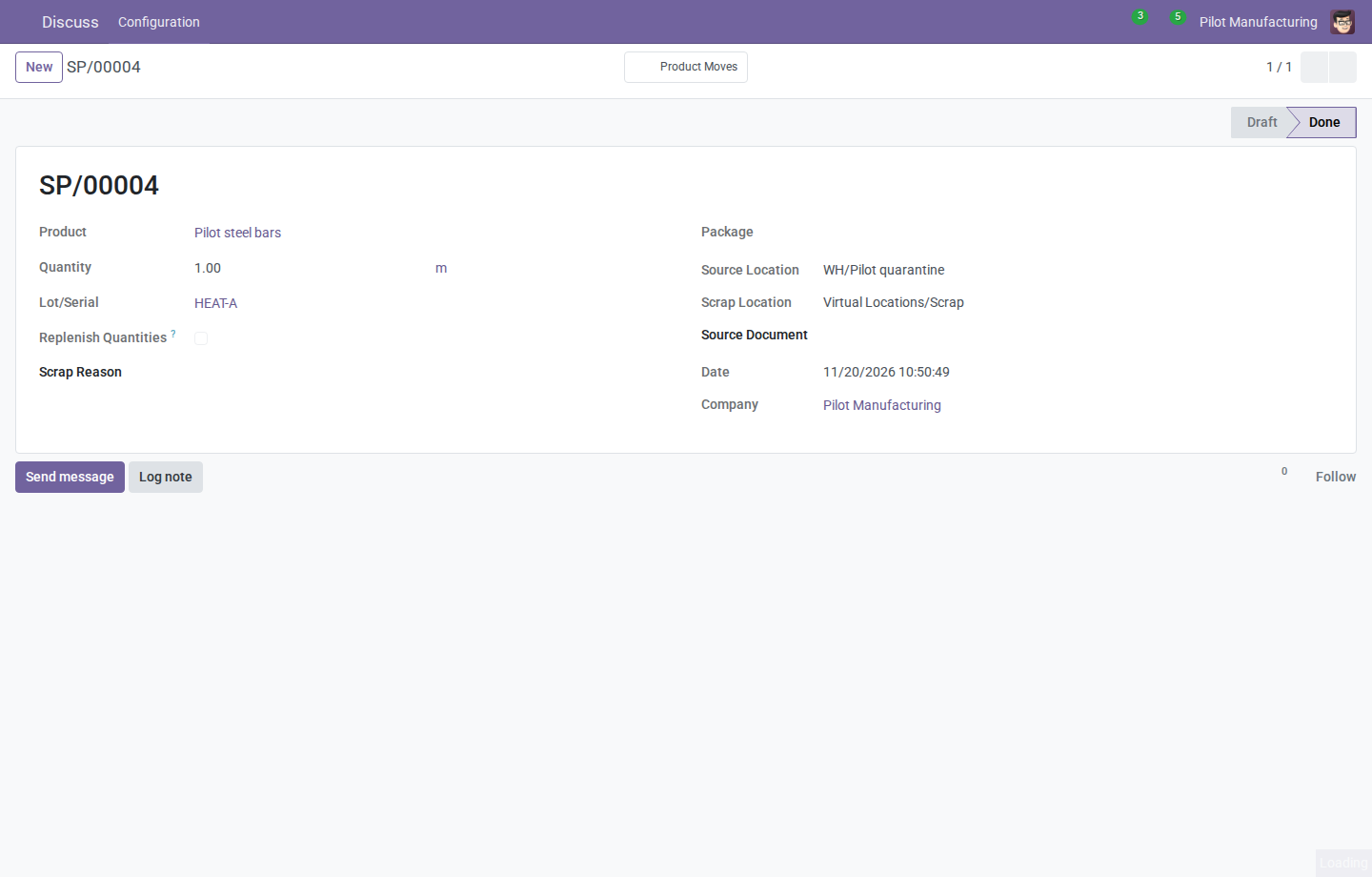
Scrap operation SP/00004 removes 1 m of steel bars from heat HEAT-A. The Source Location is WH/Pilot quarantine, and the Scrap Location is Virtual Locations/Scrap.
Scrap instructions in the user manual
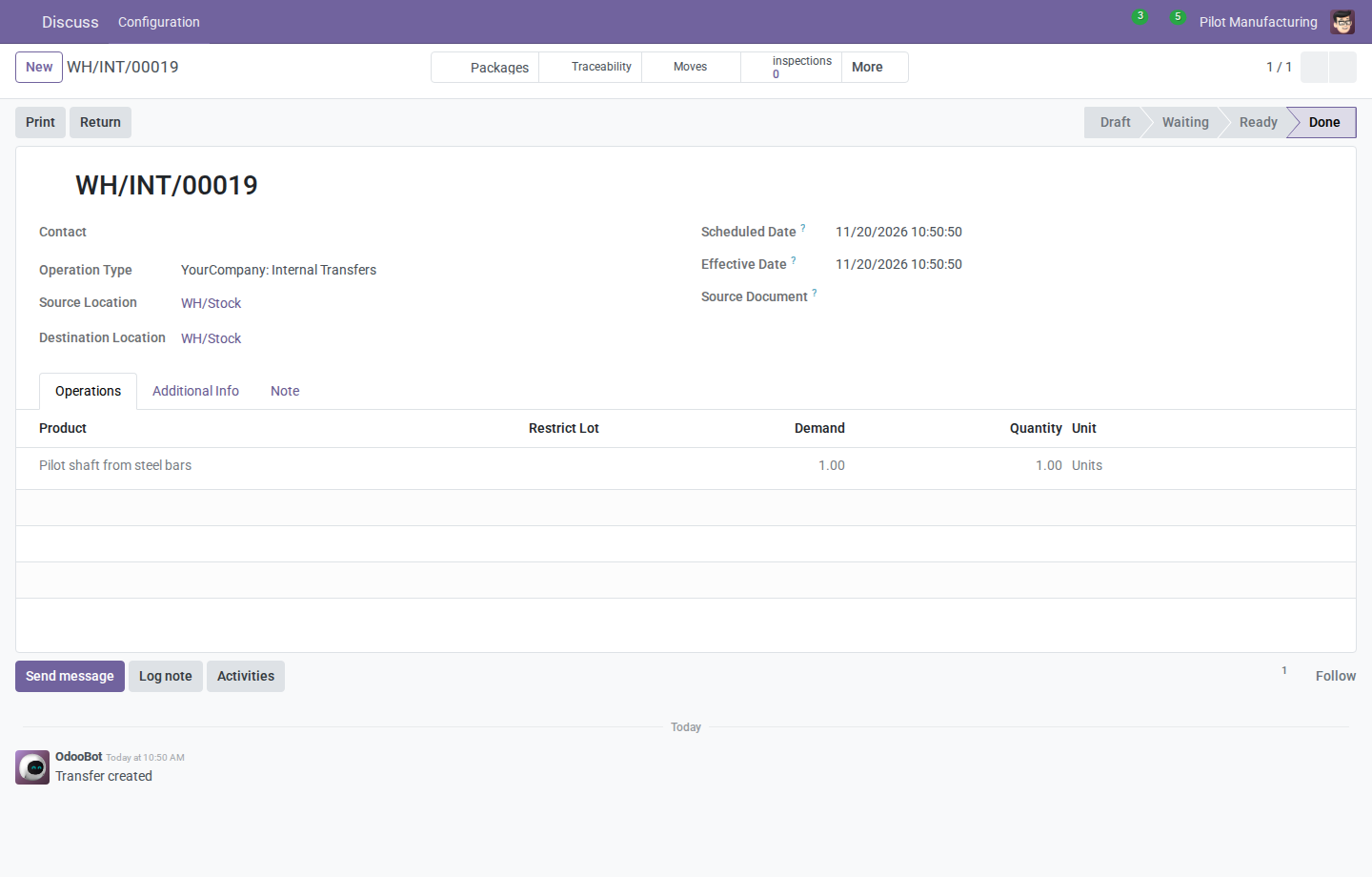
Completed internal transfer WH/INT/00019 records the repacking of one returned shaft. Source Location and Destination Location are both WH/Stock. Open Moves to check the lot and the two package references.
Repacking a returned lot in the user manual
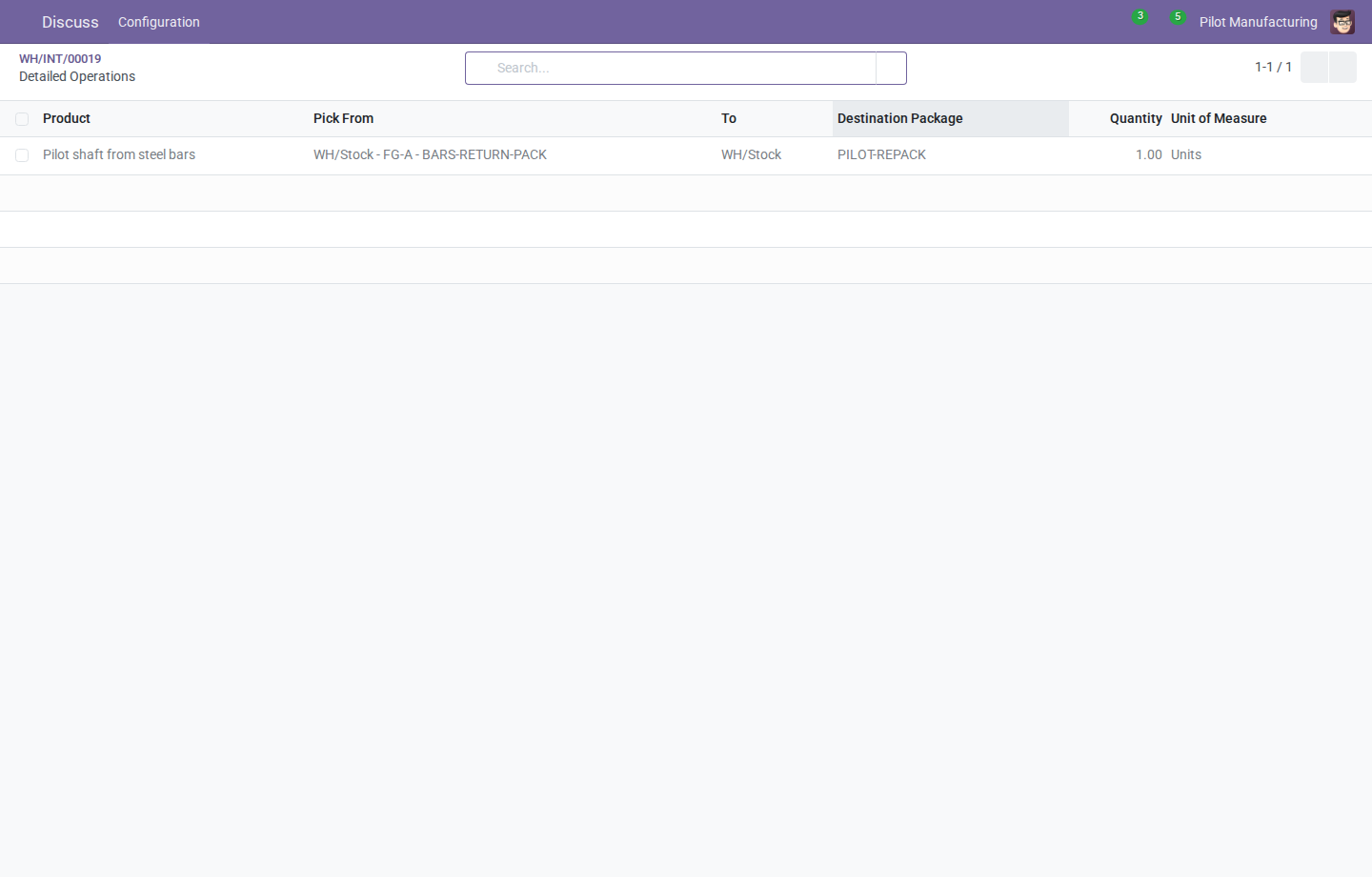
Pick From shows one returned shaft from lot FG-A in BARS-RETURN-PACK. The transfer moves it into PILOT-REPACK, shown under Destination Package, and keeps the same lot FG-A.
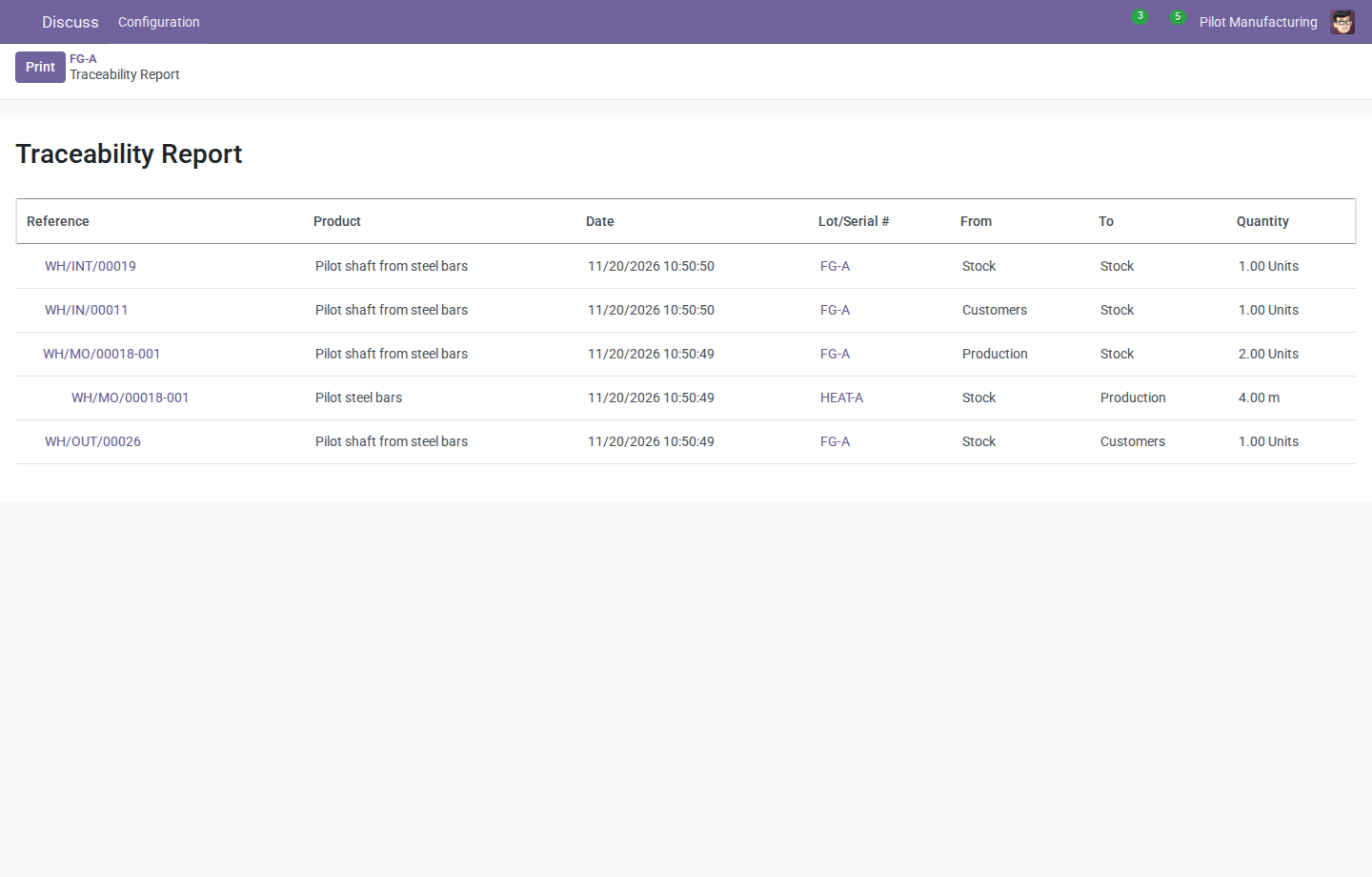
In Traceability for finished lot FG-A, expand the manufacturing entry to see the 4 m of steel bars consumed from HEAT-A. Follow the input lot's stock movements to its release transfer and supplier receipt.
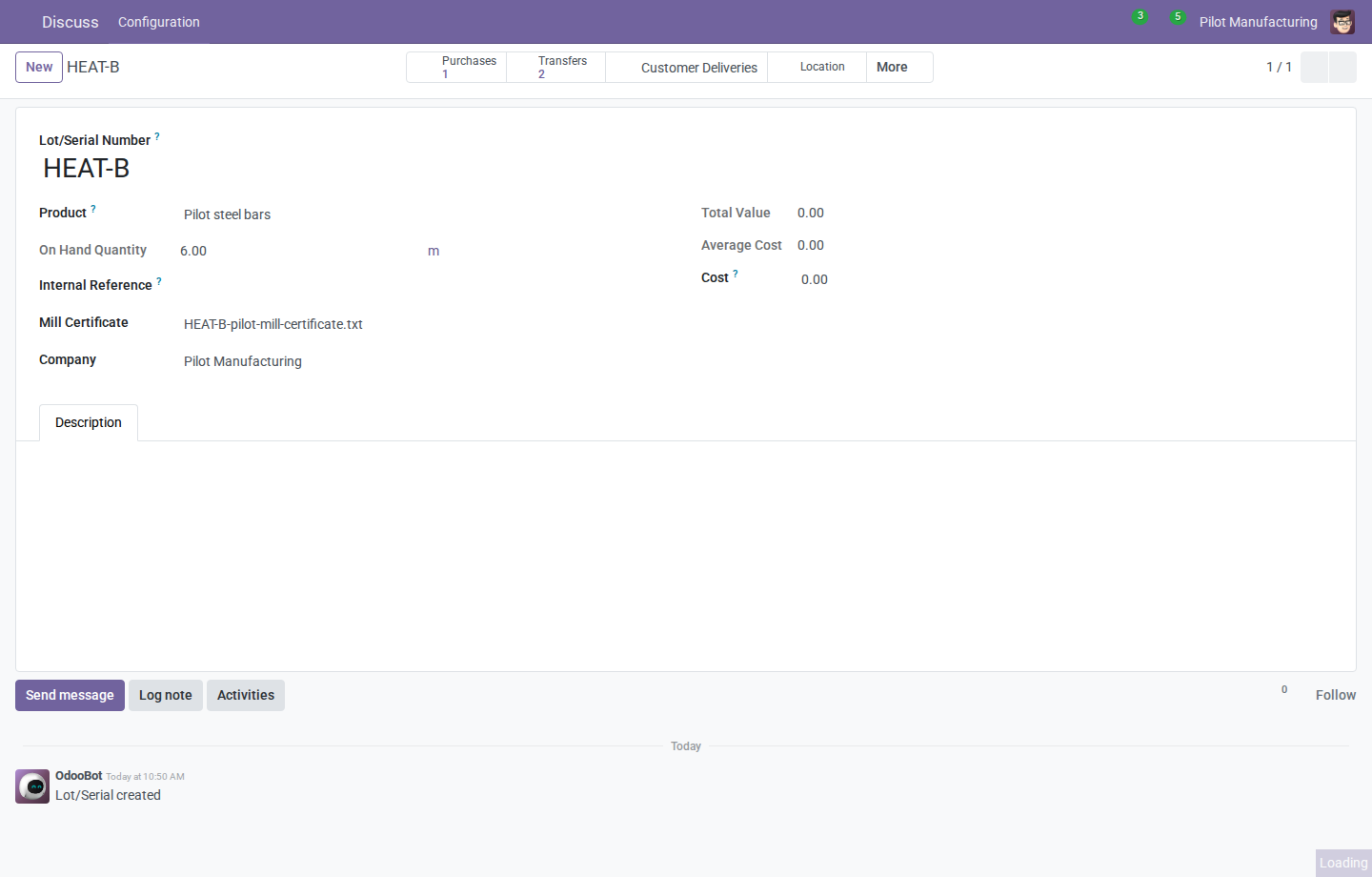
On input lot HEAT-B, the supplier's certificate is attached in Mill Certificate. Click Customer Deliveries at the top of the lot form to see the shipments affected by this heat.
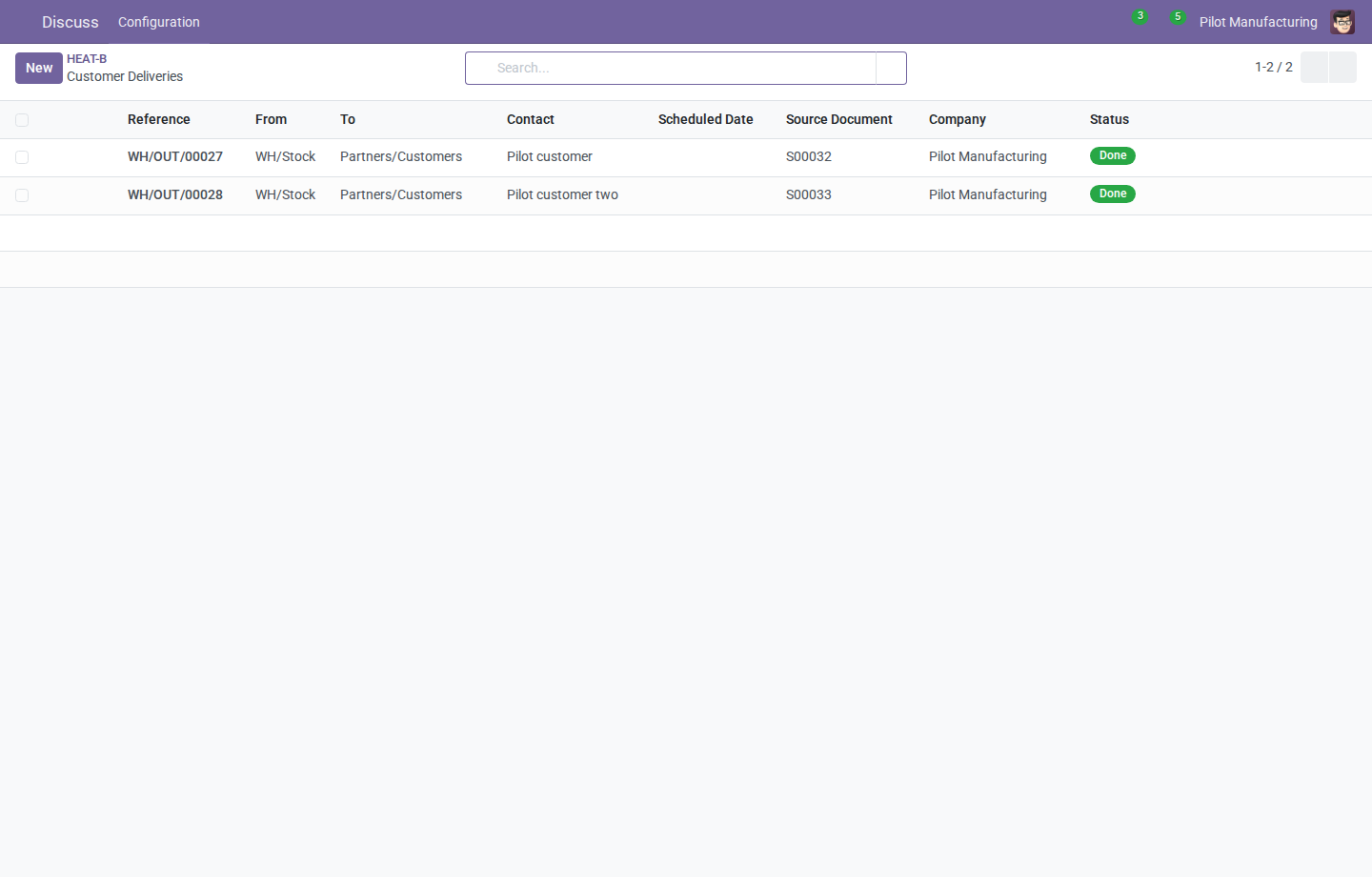
Customer Deliveries for heat HEAT-B lists two affected shipments, WH/OUT/00027 and WH/OUT/00028. The Contact column identifies the customer for each shipment.
Data model notes
product.template opts raw material into controls. stock.location identifies the company's quarantine location.
stock.picking stores the supplier delivery-note reference. stock.lot holds the mill certificate and identifies the manufacturing order that claimed a controlled finished lot.
Stock move lines retain the posted lots, quantities, and packages. Traceability uses OCB's links between consumed and produced move lines.
account.move retains the lot rows calculated at posting when the document includes a controlled finished lot.
Known limitations
The documented pilot covers one company and one warehouse. A change of heat for a controlled component requires splitting the operation into separate manufacturing orders and finished lots.
The quarantine release rule covers controlled supplier material. Automatic release of finished goods, VDA labels, and SSCC assignment require separate configuration or implementation.
Bug Tracker
Report issues in the PMISuite Beta issue tracker. Include the addon and Odoo versions, steps to reproduce, and expected and actual results. Use synthetic or redacted examples.
Credits
Contributors
PMISuite contributors
Maintainers


Luxim, Matmoz, and PMISuite contributors maintain the PMISuite Beta repository.