PMIS AI Browser Operator — User Manual
For Odoo 18 Community, addon version 18.0.1.3.0.
Language / Jezik: English | Slovenščina
PMIS AI Browser Operator turns messages in specifically authorized direct Discuss conversations into tracked commands. The default AI connection runs on the Odoo server using a company Codex access token. Actions use the assigned Odoo bot user's permissions, and a person reviews the outcome before marking work done.
Screenshots show the actual Odoo interface in a fresh disposable database with synthetic users, messages, and business records. The model catalog and final AI reports are demonstration fixtures; no live OpenAI inference or real workspace credential was used. Skill loading, contact creation, and draft quotation creation were performed through the addon's ordinary-user executor, with audit events and mutation receipts. See the image notes for capture details.
Contents
- 1. Roles and prerequisites
- 2. Configure the company connection
- 3. Configure a bot
- Inspect the starter skills
- Create or maintain a skill
- Assign skills to the bot
- 4. Authorize a requester
- 5. Send a command
- 6. Process commands with AI
- Try a skill-based quotation request
- 7. Review and finish work
- 8. Work manually as the bot
- 9. Supervise, cancel, and revoke
- 10. Supported business operations
- 11. Advanced connection alternatives
- 12. Troubleshooting
- 13. Privacy and administration
- 14. First-use checklist
1. Roles and prerequisites
Who does what?
| Role | Required access | Responsibilities |
|---|---|---|
| Settings administrator | Odoo Settings administration and access to the company | Save, test, replace, or remove the company token; configure the server executable. |
| Bot manager | Browser Operator Manager | Create bot configurations and authorizations, queue AI work, inspect captured commands and audit history, add administrative notes, and cancel active work. |
| Assigned bot user | Active internal user with Browser Operator and the required business permissions | Execute its commands, record results, reject pending work, and mark started work done or failed. |
| Requester | Active internal Odoo user named in an authorization | Send commands in the authorized direct conversation. An operator group is not needed to send requests. |
The manager group includes Browser Operator, but does not grant Settings administration, additional business permissions, or access to private Discuss history. Managers can read the captured command text for all bots; give this role only to trusted people. Other operators see commands assigned to their own user.
A manager cannot claim, execute, reject, complete, fail, or edit the outcome of another bot's command. A person who is both a manager and the assigned bot can perform those actions for that bot. Requesters without an operator role do not have access to the command queue.
Administrator preparation
Before configuring automatic execution, have the deployment administrator:
- Make the addon available on Odoo's addons path and install PMIS AI Browser
Operator from Apps. Its Odoo dependencies are
mailandbase_setup. - Provide the declared Python dependencies:
PyJWT>=2.8,<3andcryptographyin the Odoo environment, using the deployment's dependency process. - Provide Codex CLI 0.159.3 or later on the Linux Odoo server. It must be executable by the Odoo service, either through its PATH or an absolute path.
- Provide outbound HTTPS access to OpenAI, working Odoo cron workers, and a protected writable Odoo data directory. Use HTTPS for browser access to Odoo.
- Verify that the scheduled action PMIS AI: Process Server Instructions is active. In developer mode, an administrator can inspect it under Settings → Technical → Automation → Scheduled Actions. The supplied interval is one minute.
Verify the main form views
In this version, Odoo's default form selection can open the Continue with ChatGPT helper instead of the bot configuration, or Prepare ChatGPT Instructions instead of the main command. If this occurs, a Settings administrator can select the main forms explicitly:
- Enable developer mode and open Settings → Technical → Actions → Window Actions.
- Open Browser Bots for model
pmis.ai.browser.bot. In its Views list, add a Form entry selectingpmis.ai.browser.bot.form(external IDpmis_ai_browser_operator.view_browser_bot_form), then save. - Open Command Queue for model
pmis.ai.command. Add a Form entry selectingpmis.ai.command.form(external IDpmis_ai_browser_operator.view_command_form), then save. - Refresh the browser and open the bot and a command again. Preserve the other action view types; the queue still needs its kanban and list views.
The screenshot database uses these explicit action form entries. They are a configuration workaround; the addon source was not modified for the captures.
The default company connection needs no installation on a user's computer and no Odoo API key. CRM, Sales, and Website are optional apps; this addon does not install them. Available operations depend on installed apps and bot permissions.
2. Configure the company connection
Use this connection for the normal Odoo-managed workflow.
- Have the workspace owner enable token creation and local Codex access for the intended workflow owner in the ChatGPT Business or Enterprise workspace. Create a finite-expiration access token with Codex scope. A Platform API key or Workspace Agents token is not a substitute.
- Sign in to Odoo as a Settings administrator, select the intended company, and open Settings → AI Browser Operator.
- Check Company under Company Codex Connection. Enter the token in the New Codex Access Token field in the Workspace access token setting.
- Under Linux Server Runtime, set Codex Executable to
codexif it is on the service PATH, or to the deployment's absolute executable path. - Save Settings before selecting Refresh Models. Refreshing retrieves the model catalog for the saved company connection.
- Select Test Inference and confirm the request. It sends a small synthetic request using the first catalog model. It consumes workspace usage and sends no business records. A successful catalog refresh alone does not establish that the workspace may use a model.
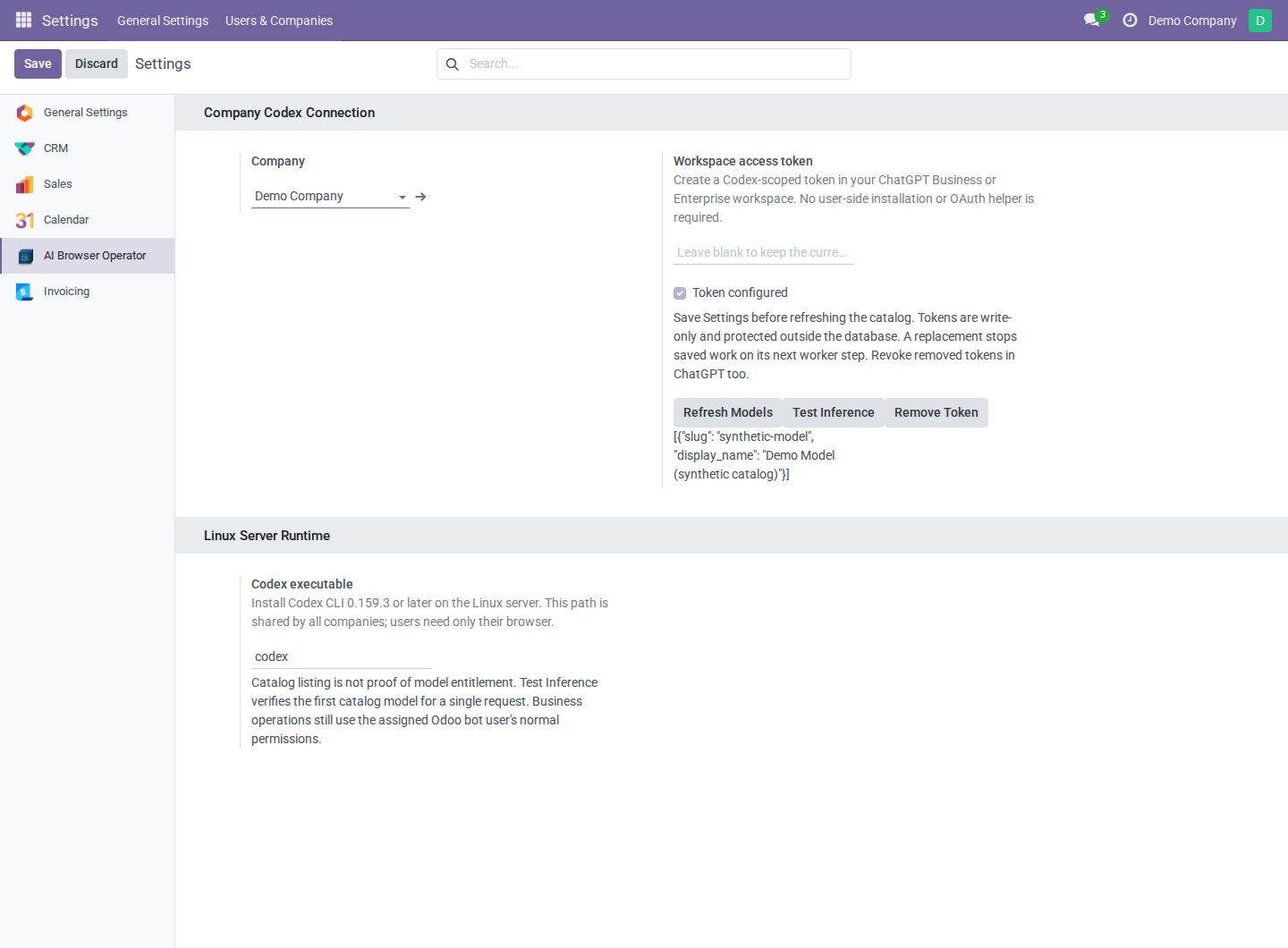
Company settings. The blank input retains an existing saved token; the checkbox shows credential presence. This capture uses synthetic connection metadata.
The accepted token is write-only and is never loaded back into the form. A blank token field after saving is expected. Token configured shows whether a token exists; leaving the input blank preserves it. The credential belongs to the selected company, while Codex Executable is shared by the whole Odoo server.
To replace an expired token, enter the replacement for the same company and save. Remove Token removes the local credential; also revoke it in ChatGPT. Replacement or removal stops saved work on its next worker step and does not undo business changes already committed.
3. Configure a bot
Create the Odoo identity
- As a user administrator, open Settings → Users & Companies → Users and create a dedicated internal user, for example Demo AI Bot.
- Give it Browser Operator access. Add only the business groups needed for its tasks, such as contact creation or Sales access, and configure its allowed companies and default company.
- Keep the user active. The superuser with UID 1 cannot be a configured bot.
Installing the addon creates no bot users and grants no business permissions to a configured user automatically.
Create the bot configuration
- As a bot manager, open PMIS AI Browser Operator → Configuration → Browser Bots, select New, and enter a recognizable Name.
- Select the existing Bot User and leave Active enabled. Only one active bot configuration is allowed for a given user.
- On Odoo Executor, enable Execution Enabled. Select Execution Company, or leave it blank to use the bot user's default company. The selected company must be among that user's allowed companies.
- On AI Connection, select Company Codex Access Token as AI Runtime. Save, then select Refresh Company Connection to load the company's nonsecret catalog into the bot configuration.
- Select AI Model from the catalog. Enable AI Enabled. Initially leave AI Auto Run disabled so each request can be checked before queuing.
- Set AI Max Steps. The default is 20 and the allowed range is 1–50 tool calls per command. Save the configuration.
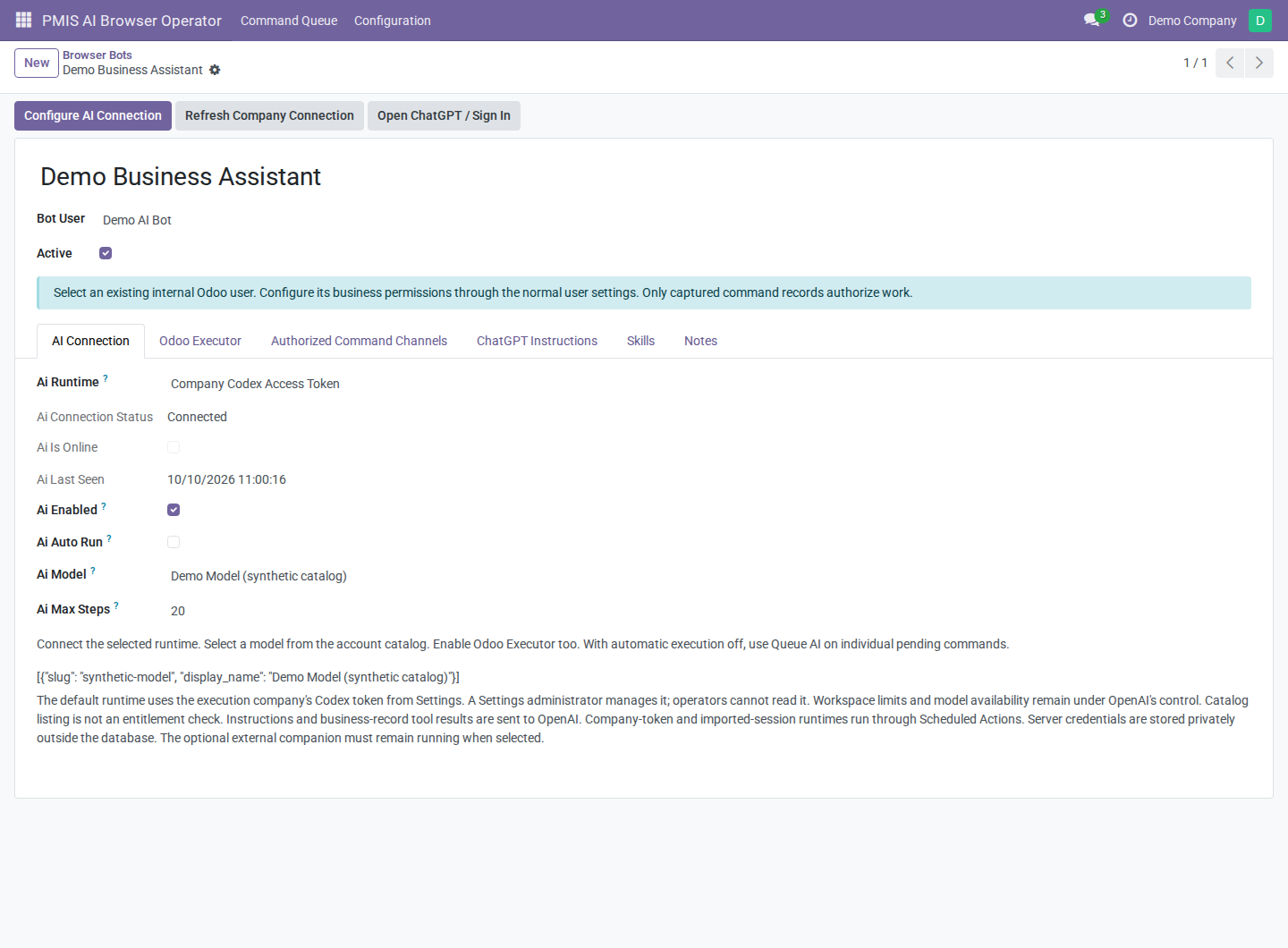
AI Connection. Select the runtime and model, enable AI, and initially leave automatic pickup off. The catalog shown here is a demonstration fixture.
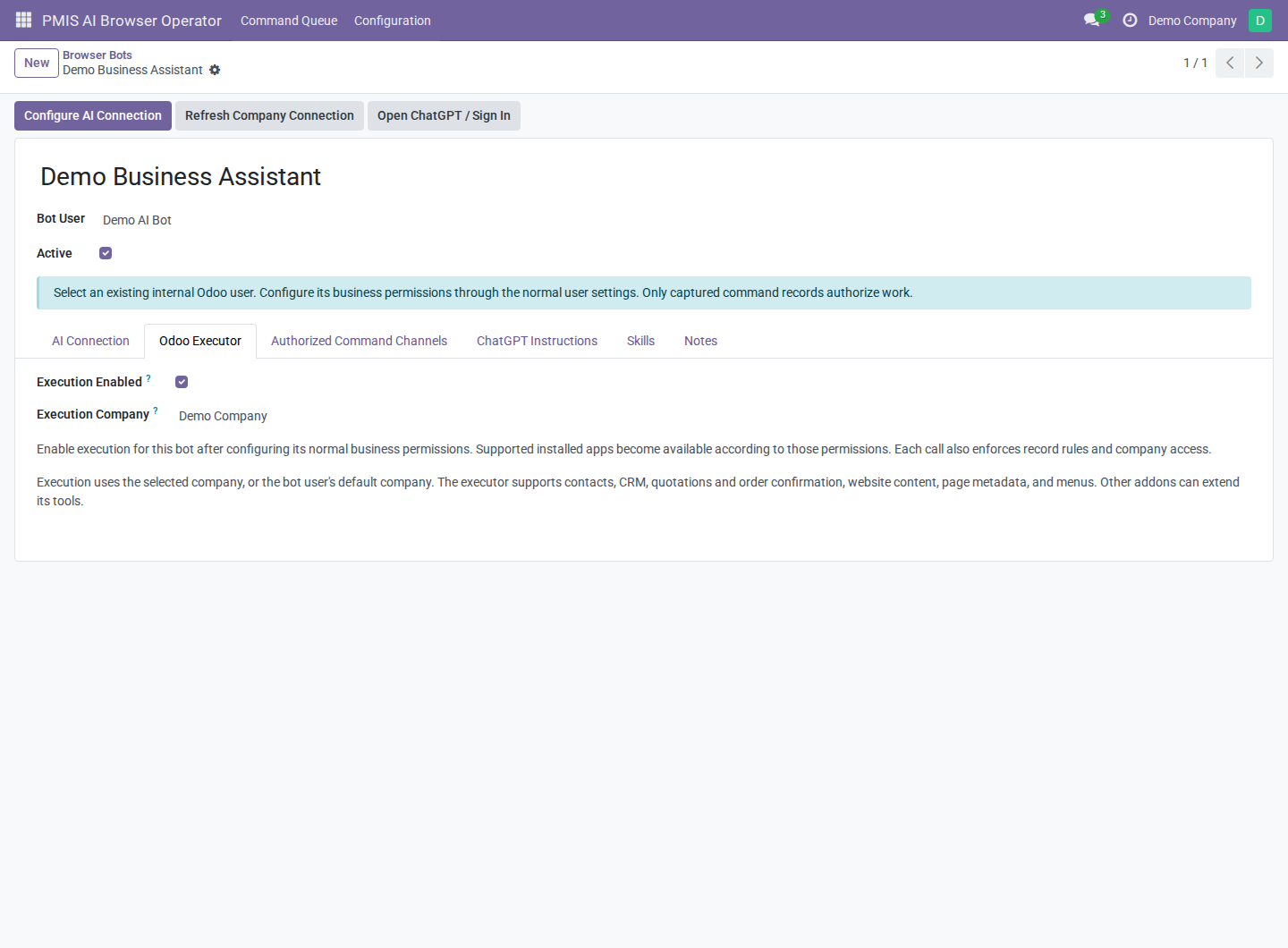
Odoo Executor. Enable supported actions and choose a company already allowed for the bot user. These controls grant no additional business permissions.
| Control | Meaning |
|---|---|
| AI Enabled | Allows the selected AI runtime to process queued instructions. |
| AI Auto Run | Lets the worker automatically claim eligible pending commands; when off, use Queue AI. |
| AI Model | Model from the connected account's current catalog; availability and usage remain controlled by OpenAI. |
| AI Max Steps | Tool-call budget for each command, not a guarantee that the task can finish within that budget. |
| AI Connection Status | Connected, Offline, Plan Permission Required, or Account Limited. |
| AI Is Online / AI Last Seen | Recent runtime activity; a stale heartbeat does not prove that the token is invalid or quota exhausted. |
| AI Server Error | A nonsecret diagnostic code for server runtime problems, when present. |
The server worker advances each active bot by at most one planning step per scheduled invocation. Multi-step requests may take several minutes. AI runs have a 15-minute time limit across scheduled turns. Loading a skill counts toward AI Max Steps, just like other AI executor calls.
Maintain operating guidance
On ChatGPT Instructions, enter Operating Instructions, for example:
Perform only the captured request. Check for existing matching records before creating anything. Ask for clarification when a required value is missing. Report the affected record IDs and any unfinished work. Do not confirm a quotation unless the captured request explicitly asks for confirmation.
Save the bot. Connected runtimes include this guidance automatically; ChatGPT custom instructions are not required. Guidance describes how to handle work, but cannot authorize additional business operations or increase Odoo permissions. Keep passwords and tokens out of these instructions and the Notes tab.
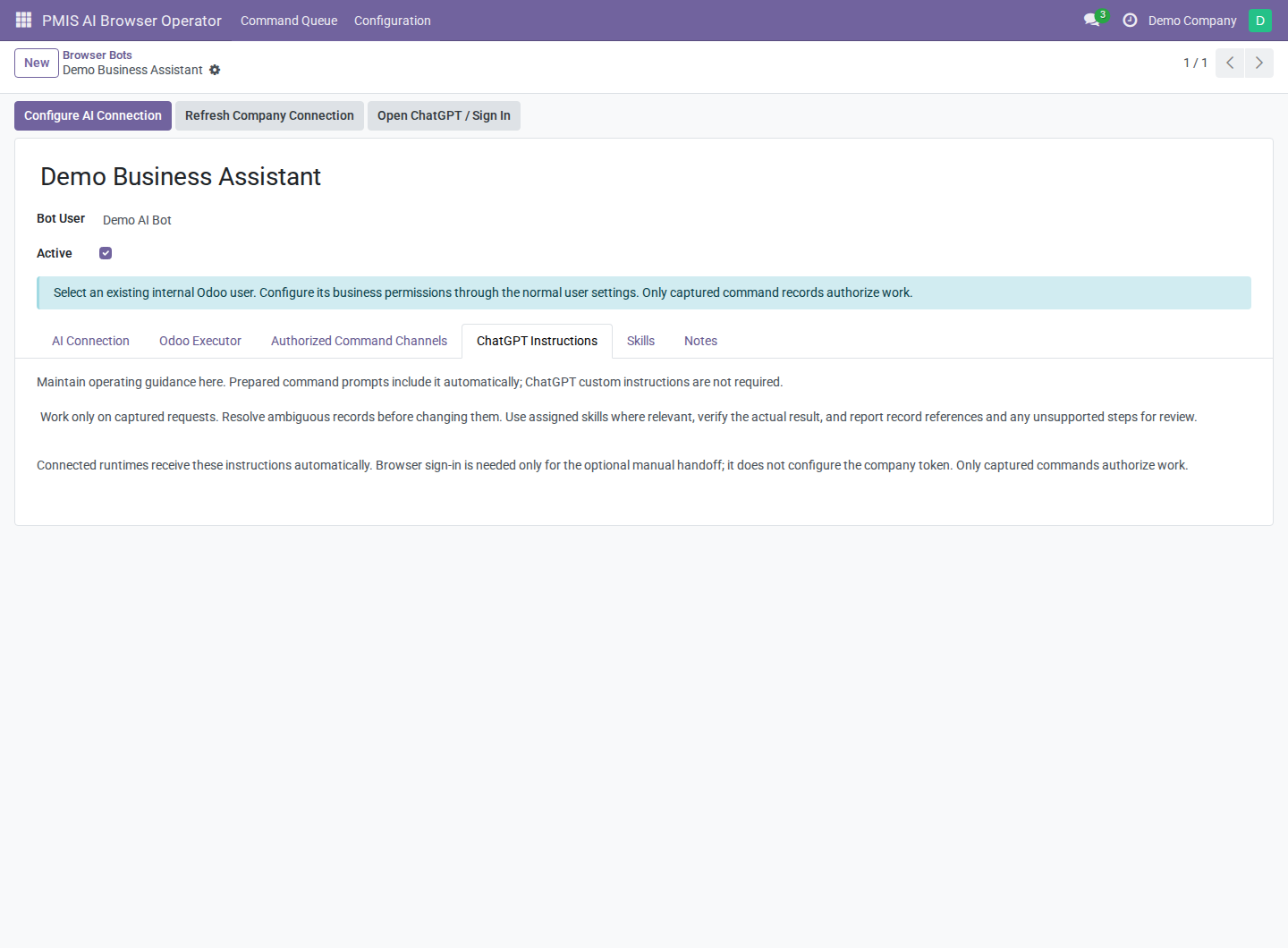
Operating Instructions apply across the bot's tasks. Use skills for reusable guidance specific to a business workflow.
Inspect the starter skills
One bot can select or combine several assigned business skills. As a manager, open PMIS AI Browser Operator → Configuration → AI Skills. Installation provides three editable starter workflows; none is assigned to a bot automatically. CRM and Sales must be installed separately to make their operations available.
| Starter skill | Use it for | Boundaries |
|---|---|---|
| CRM Handling | Find, create, or update leads and opportunities; mark won when explicitly requested and available. | Resolve ambiguous records and related contacts, teams, and stages before changing them. Messaging, activities, and lead conversion are unsupported. |
| Sale Quotation Handling | Prepare or update draft quotations, then verify lines, currency, and totals. | Creating a quotation does not authorize confirmation or sending. Use separate calls for lines and normal Odoo pricing/tax defaults unless supported overrides are explicitly requested. |
| Sale Order Handling | Inspect sales orders or confirm an explicitly authorized draft quotation. | Confirmation requires the available action_confirm capability. Confirmed-order editing, cancellation, invoicing, delivery processing, and sending are unsupported. |
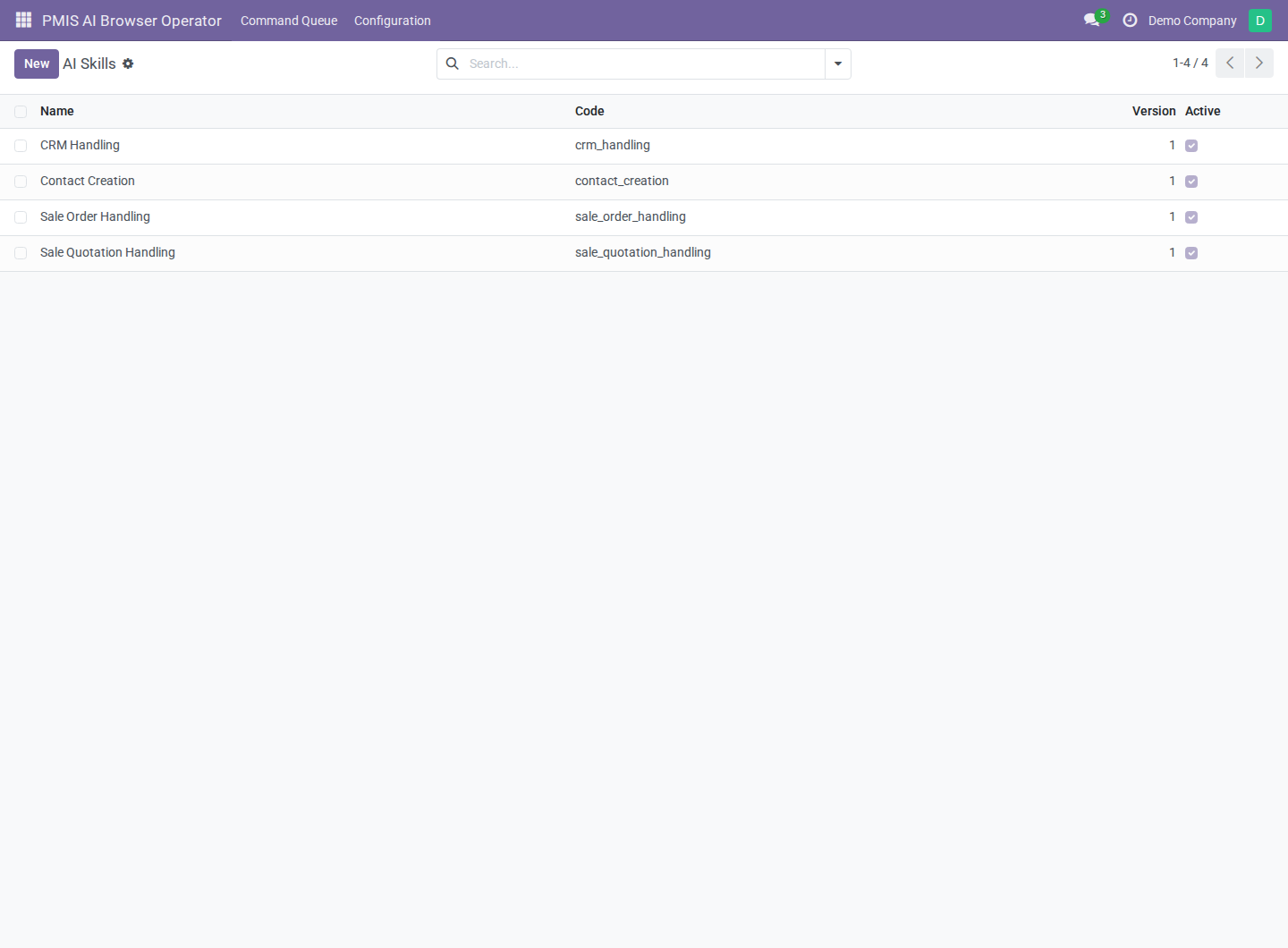
AI Skills. The CRM and Sales workflows are supplied by the addon. Contact Creation is a custom example created for this manual.
Create or maintain a skill
- In AI Skills, open an existing workflow or select New.
- Set Name and a unique Code. The code must start with a lowercase
letter and contain only lowercase letters, digits, and underscores, up to
64 characters; for example,
contact_creation. - Set Summary to explain when to select the skill, up to 1,000 characters.
- Set Requirements to a JSON object mapping models to required operations.
Supported requirement names are
search,read,create,write, andaction:<method>. A contact-creation workflow can use{"res.partner": ["search", "read", "create"]}. - In the instructions area below the guidance notice, describe how to resolve records, perform only the requested work, verify results, and report missing information. This required text may contain up to 16,000 characters. Do not enter secrets or customer data.
- Keep Active enabled and save. Version starts at 1 and increments when name, code, summary, requirements, or instructions are updated. It is automatic. Bot lists assignments for inspection; manage them on each bot.
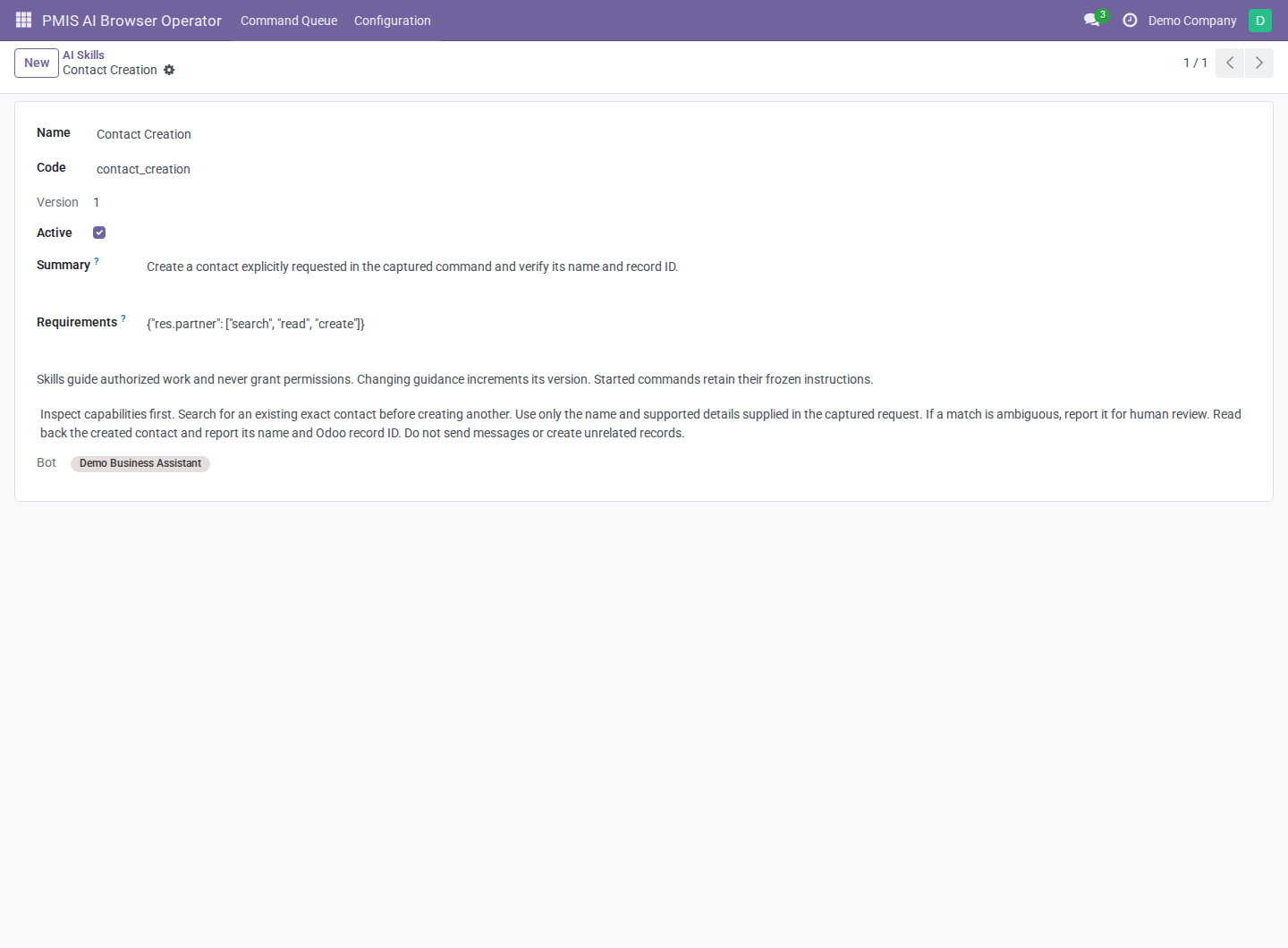
A custom skill. Requirements select workflows supported by the executor; they do not install apps, expose arbitrary operations, or grant business access.
All requirements must match the bot's currently advertised executor capabilities
for a skill to enter a started command's catalog. {} applies no capability
filter; use explicit requirements for business workflows. Availability still
does not guarantee access to a particular record: every operation checks the
bot's normal permissions, record rules, related records, and execution company.
Assign skills to the bot
- Open Configuration → Browser Bots, select the bot, and open Skills.
- Select Add a line, choose the existing workflows, and confirm the selection.
- Save the bot. Assign only relevant workflows, up to 20 per bot. Archived skills still count while assigned; remove their assignment to free a slot.
- Check Odoo Executor and the bot user's business groups. Assignment alone does not make a CRM or Sales workflow usable without its required capabilities.
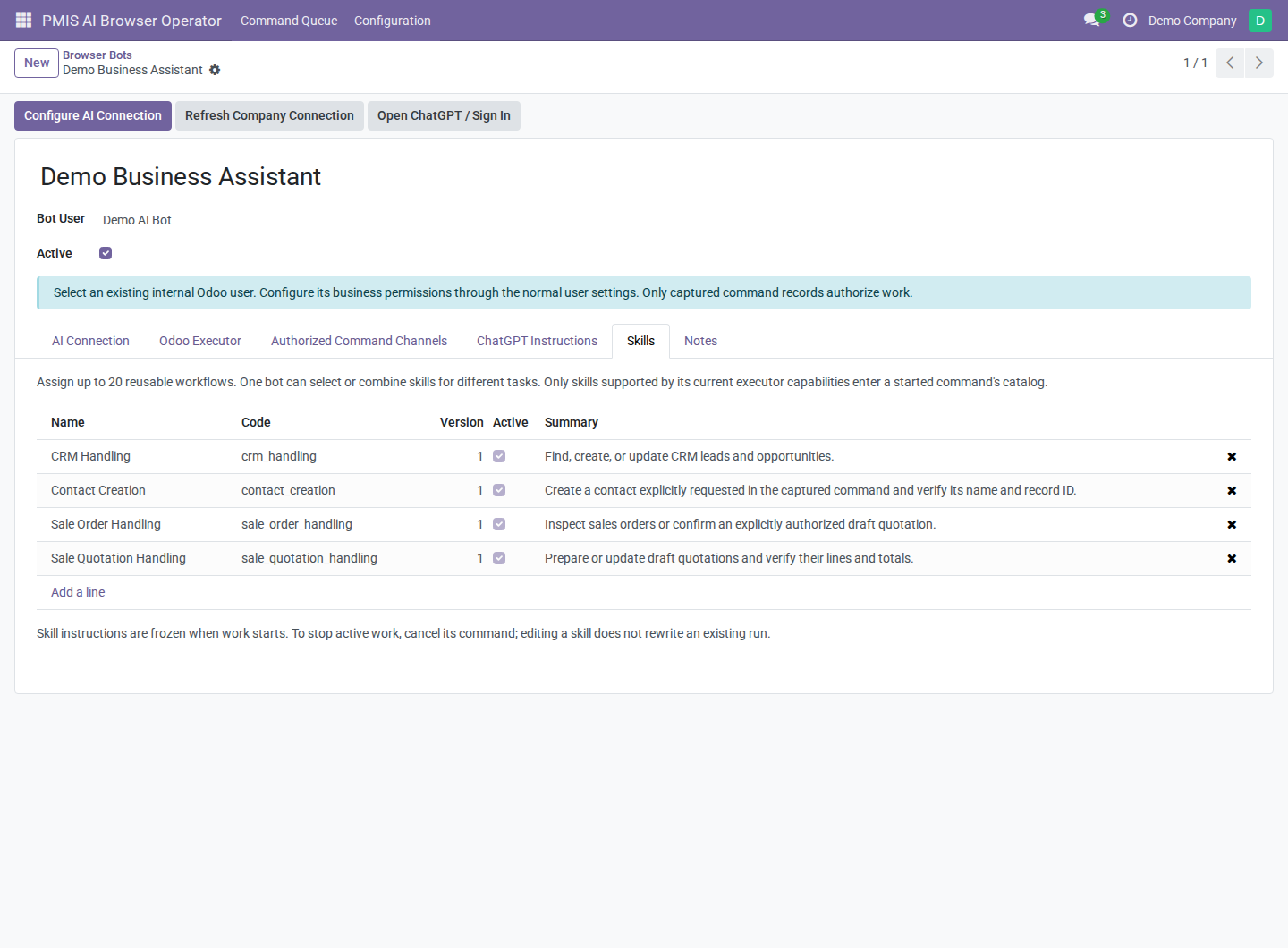
One bot, several workflows. The assignment list shows name, code, version, active status, and selection summary.
When a command changes to In Progress, available active assigned skills are frozen for that command. The AI receives their summaries and can load a relevant skill's frozen instructions before business work. It can combine workflows, such as quotation preparation and order confirmation, when both actions are explicitly requested. Skills are guidance; only the captured command authorizes actions.
Changing a skill or assigning another one affects future commands, including pending commands when they are later started. It does not rewrite an existing snapshot. Removing or archiving a skill, or losing required capabilities, blocks subsequent loads. Already loaded instructions remain in the active run. Use Cancel with Reason to stop active work. Managers maintain skills; assigned operators can read their own bot's skills. Archive obsolete workflows rather than deleting them.
4. Authorize a requester
- Have the requester open Discuss and start a direct conversation with the assigned bot user. Both users must be active internal users with distinct partners. The conversation must contain exactly those two partners and no guest participants.
- As a manager, open the bot's Authorized Command Channels tab and add a row.
- Select Requester User. If there is exactly one valid existing chat, the addon selects it. If several exist, select the intended Direct Chat.
- Open the row's form and use Resolve Direct Chat if the conversation was created after the authorization was initially prepared.
- Check Is Valid and Validation Message, then enable Active and save. You may keep an inactive row while waiting for a valid conversation. Both the authorization and bot must be active for capture.
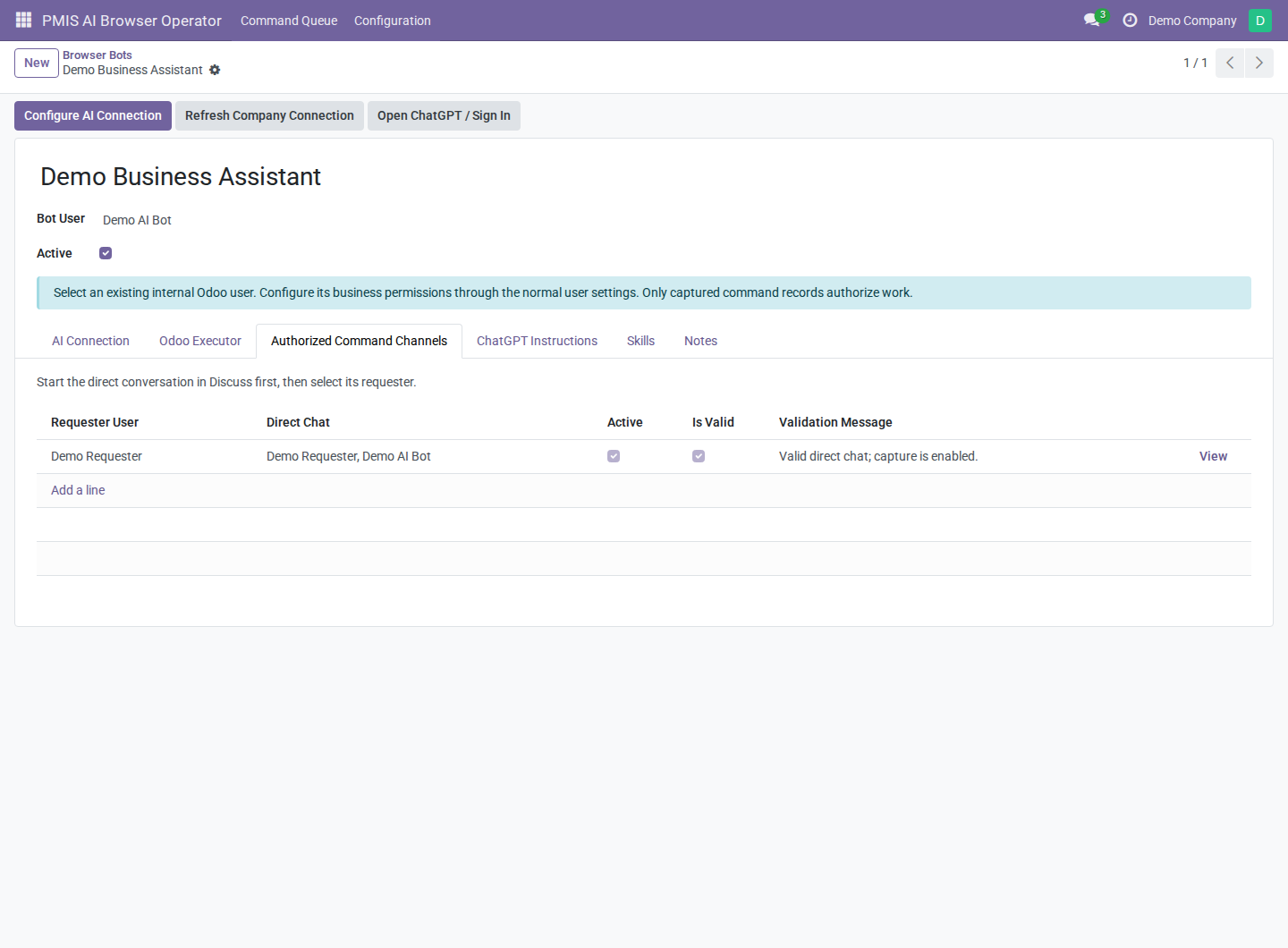
Authorized Command Channels. A checked valid authorization and the “capture is enabled” message identify a usable requester/chat combination.
The addon resolves an existing chat; it does not create a chat, add participants, or grant the manager access to its message history. An authorization identifies a requester and channel, not a company permission grant.
Use a separate ordinary conversation for general discussion. Every eligible requester message in the authorized chat becomes a command, including replies such as “thanks” or follow-up questions. No slash command or special prefix is required to capture text.
5. Send a command
As the authorized requester:
- Open the configured direct Discuss conversation with the bot.
- Write one self-contained text request with the intended records, values, and scope. For a first test in a demo database, use:
Create a contact named Demo Orchard Supplies. Do not create any other records. Report the new contact's Odoo record ID.
- Post the message. A new Pending command is captured in Command Queue. An operator or manager can verify it there.
- Avoid editing or deleting the source message while work is pending or active. Changing the source invalidates the captured command's authority. To correct a request, have active work cancelled and submit a new complete message after checking whether any business changes already occurred.
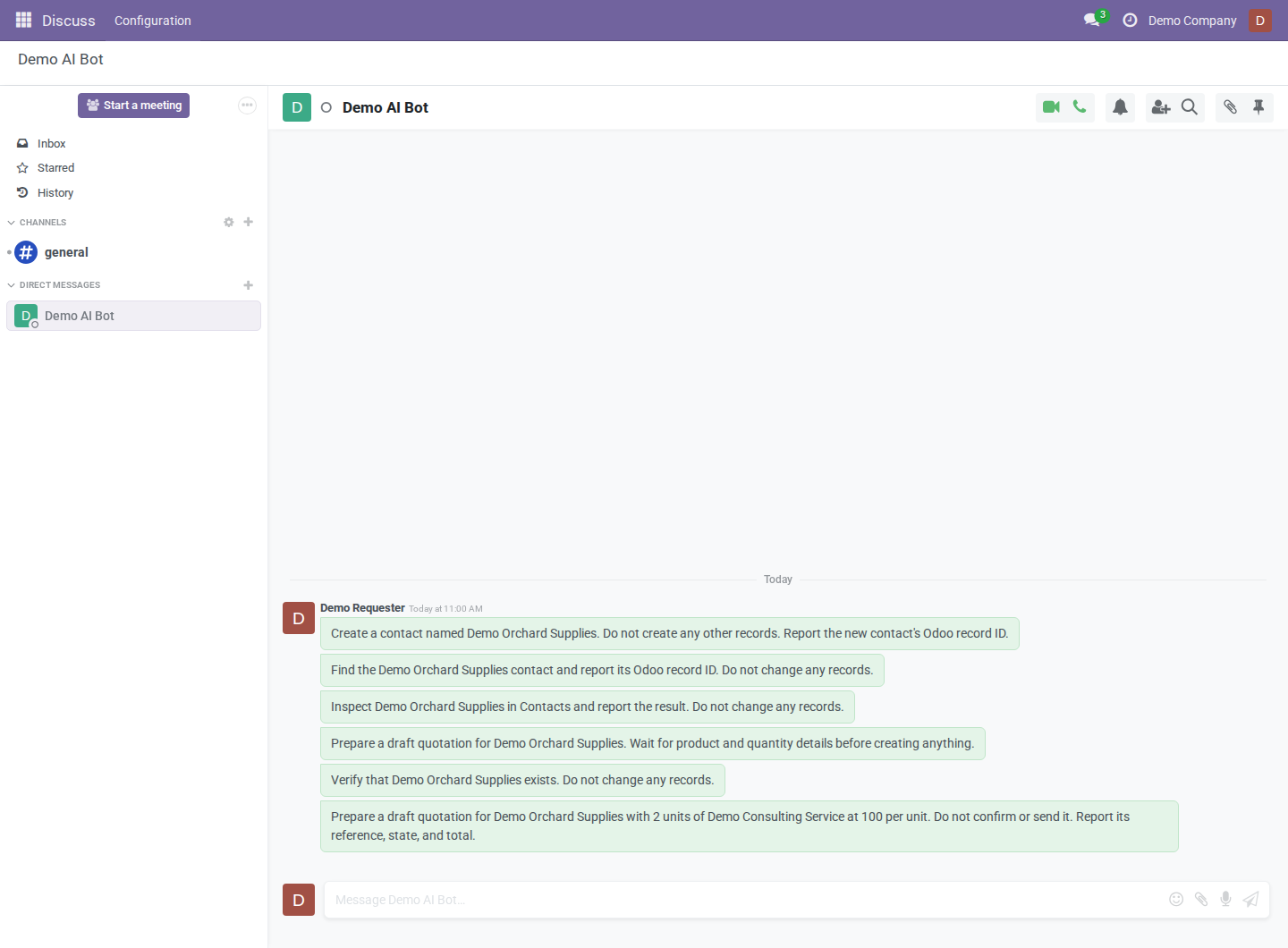
Requester view in Discuss. Each separate eligible requester message becomes a separate command; ordinary acknowledgments would also be captured.
Only the nonempty plain text captured from the new Discuss comment supplies business instructions. Old messages are not imported retroactively. Attachments, image-only messages, link destinations, notifications, email, group chats, and chatter on other records are not command sources. Put required details in the message itself. Bot replies do not match the configured requester identity.
Capture does not automatically send a status reply. Outcome notes and AI reports stay in the queue unless the bot separately posts a Discuss message.
6. Process commands with AI
Queue one request
- As the assigned bot or a manager, open PMIS AI Browser Operator → Command Queue and refresh.
- Open the pending command. Check Command, the requester, source message ID, bot, capture time, and current eligibility.
- Select Queue AI. This requests AI processing; it does not immediately complete the command. AI and the Odoo executor must both be enabled.
- Let the selected runtime claim it. The command changes to In Progress. Inspect Bot Progress / Outcome for AI run status, start time, tool-call count, and the final report.
For this workflow, let the AI worker claim pending work. Claim / Start is for manual processing; a manually claimed command is no longer pending for AI pickup.
Enable automatic pickup
After a successful supervised test, a manager may enable AI Auto Run on the bot and save. The runtime can then claim eligible pending commands without a separate Queue AI click. This can include eligible requests already waiting in the queue, so review the backlog before enabling it.
Turning automatic pickup off does not undo active work. Use Cancel with Reason to stop a particular pending or in-progress command.
Try a skill-based quotation request
In a disposable database with Sales installed, create a synthetic customer Demo Orchard Supplies and a service product Demo Consulting Service. Configure the bot's Sales permissions and assign Sale Quotation Handling. As the authorized requester, post:
Prepare a draft quotation for Demo Orchard Supplies with 2 units of Demo Consulting Service at 100 per unit. Do not confirm or send it. Report its reference, state, and total.
Queue the captured request. The runtime can load the quotation skill, resolve the customer and product, create the draft and its lines, and report the result for review. Prices use the quotation's currency; taxes depend on the database's configuration. The screenshot example uses a synthetic product with no sales taxes, so its total is 200.00 USD.
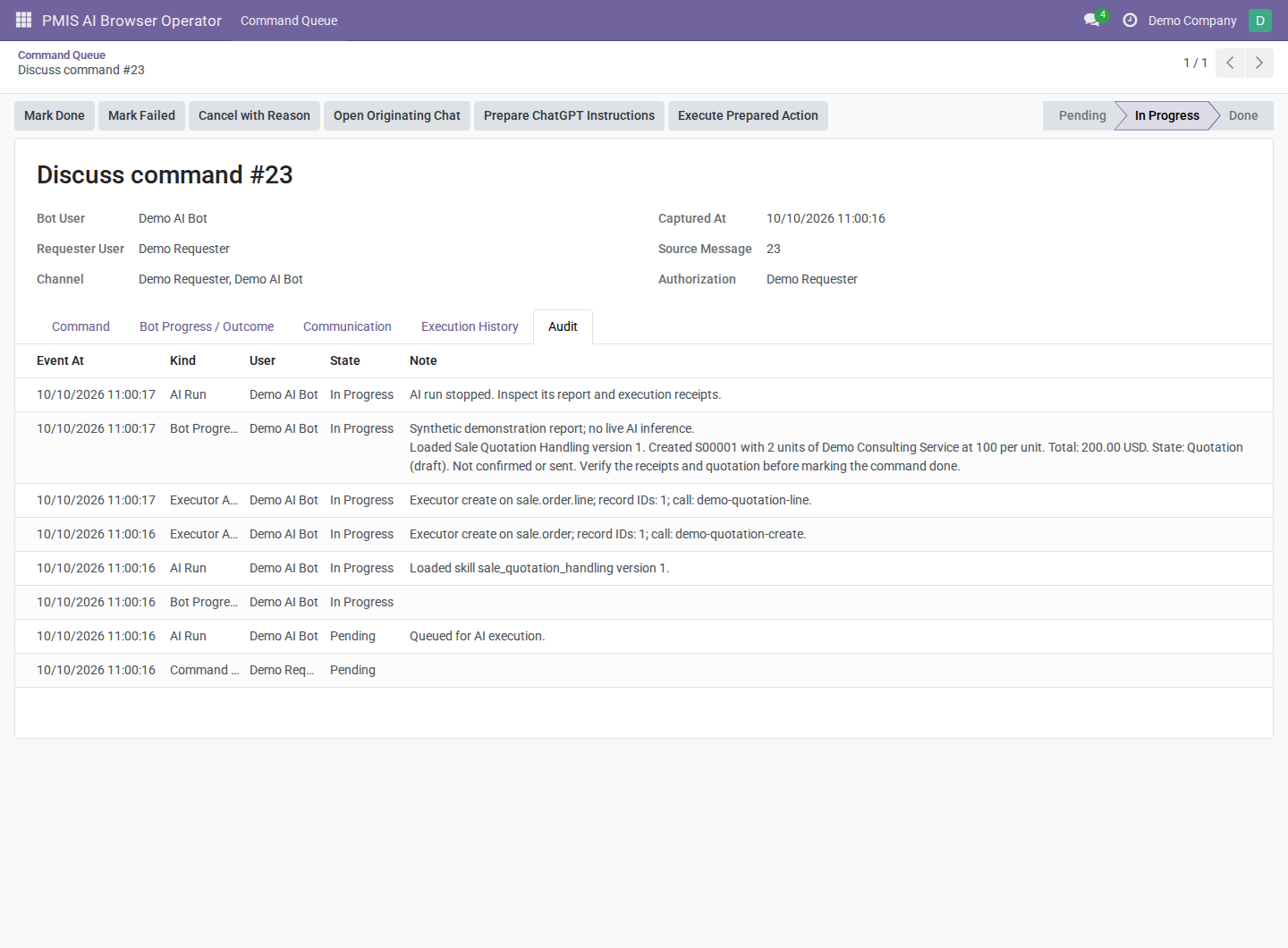
Audit records the loaded skill code and frozen version. Loading guidance does not create a business record; quotation and line creation have separate events and receipts. This example uses deterministic tool calls and a synthetic report.
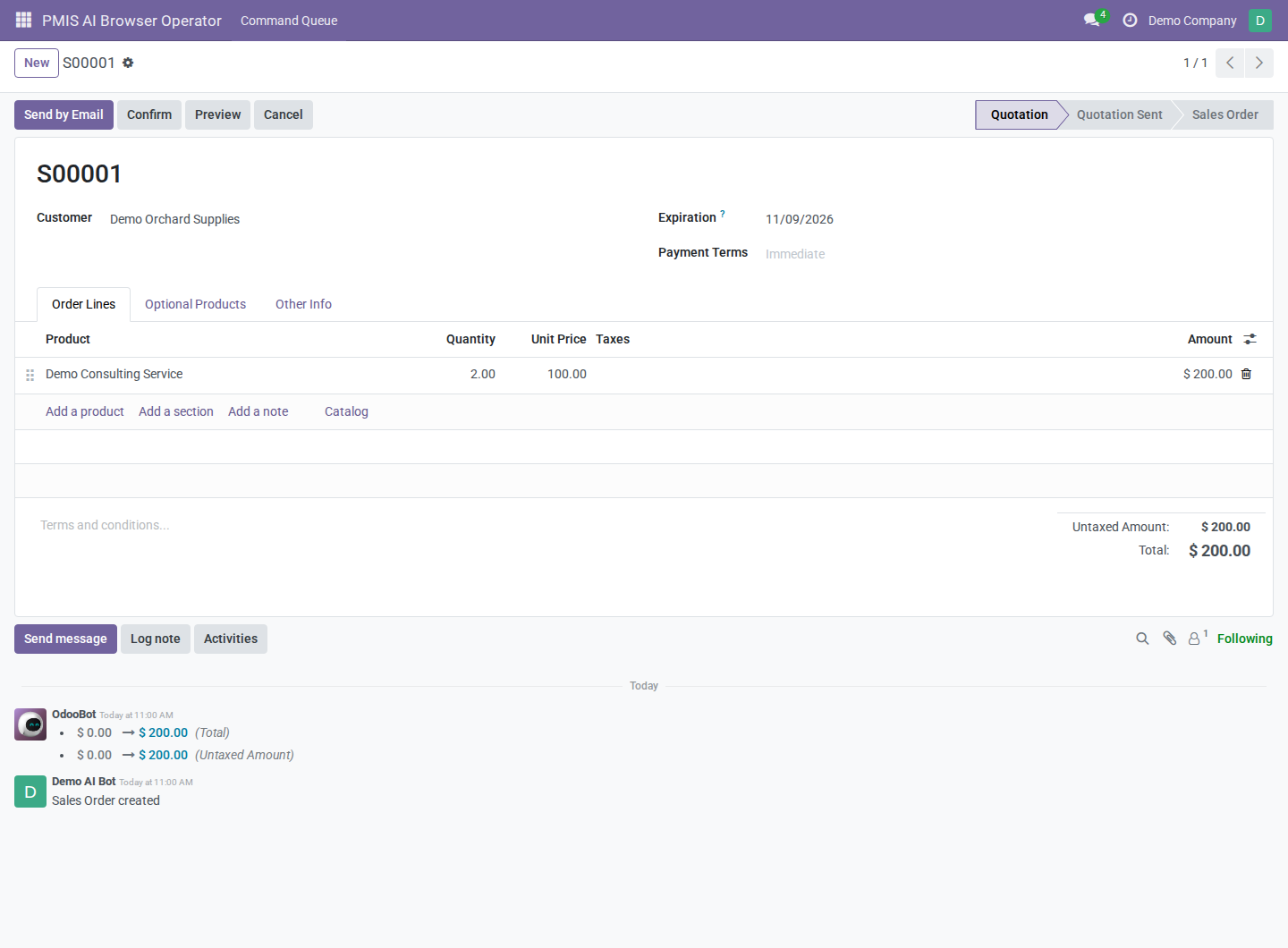
Review the actual quotation in Sales. It remains a draft, with no confirmation or sending performed. Compare the customer, lines, currency, taxes, and total with the captured request before finishing the command.
Understand the queue
The queue opens in kanban, grouped by state and ordered oldest first. Open a card to inspect full details. Switch to list view for tabular inspection.
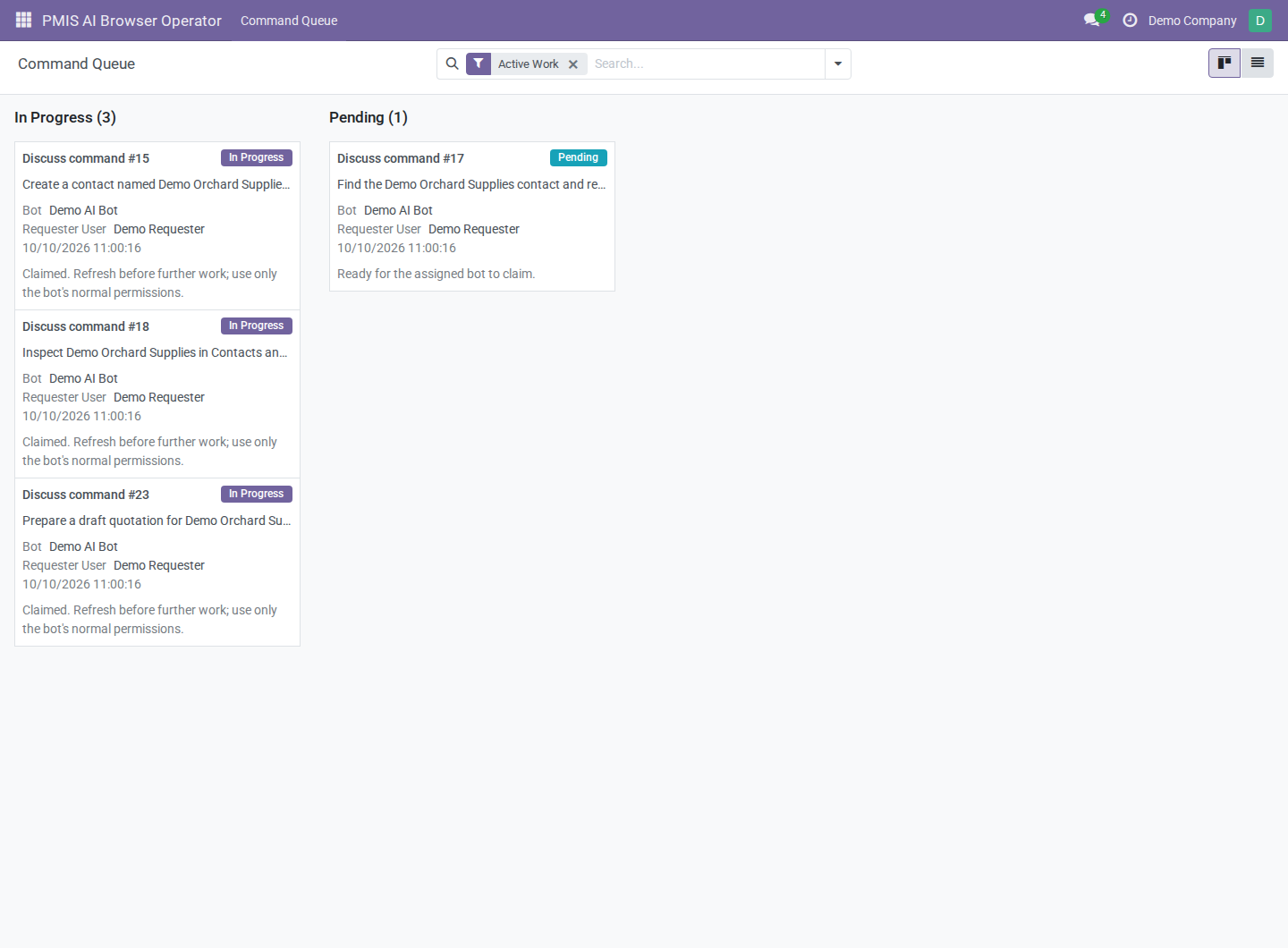
Command Queue. Active Work keeps pending requests and claimed work visible. Open a card to inspect it; state changes use buttons rather than dragging.
| Filter | Shows |
|---|---|
| Active Work | Pending and In Progress commands; enabled by default. |
| Pending | Requests waiting to be claimed. |
| In Progress | Claimed requests, including AI reports awaiting review. |
| Assigned to Me | Commands addressed to your Odoo user. |
| Terminal History | Done, Failed, Rejected, and Cancelled commands. |
Remove Active Work before searching terminal history. Search by command name, bot, requester, command text, or source message ID. Cards cannot be dragged between states; use the command's buttons.
7. Review and finish work
A final AI report sets AI Run Status to Awaiting Review. It leaves the command In Progress. Stopped / Error also leaves human review necessary: earlier successful actions may already have committed.
As the assigned bot user:
- Refresh the command and read Bot Progress / Outcome. Treat the report as a claim to verify, not proof that the request was fulfilled.
- Open Execution History. Review operation, model, actor, company, call ID, and affected record IDs in the receipt details. Receipts record successful mutations; they do not store full business-record read snapshots.
- Open the affected records in their normal Odoo apps and compare the actual values and states with the captured request. For the sample contact, check its name and confirm the reported record ID.
- Save accurate notes in Bot Progress / Outcome, including completed work, affected records, failures, or any partial changes. Recorded By identifies the result-note author when established by audit evidence.
- Select Mark Done when the request is complete or Mark Failed when started work cannot be completed. Save final notes before this transition.
- If useful, select Open Originating Chat and post a separate status reply as the bot. Reference the original source message ID. Return to the command tab afterward.
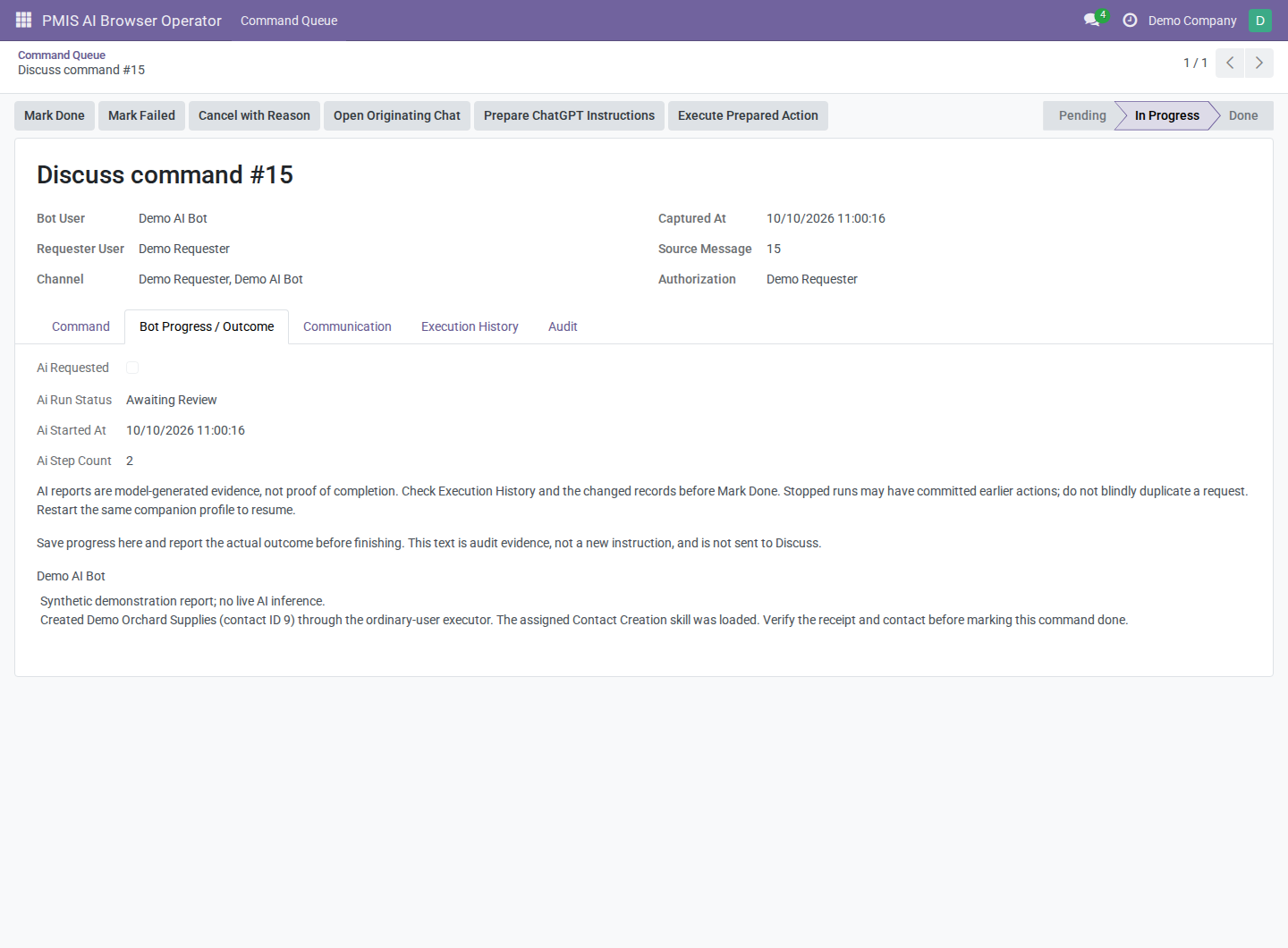
Bot Progress / Outcome. Awaiting Review is an AI run status; the command remains In Progress until the assigned bot verifies the work and finishes it.
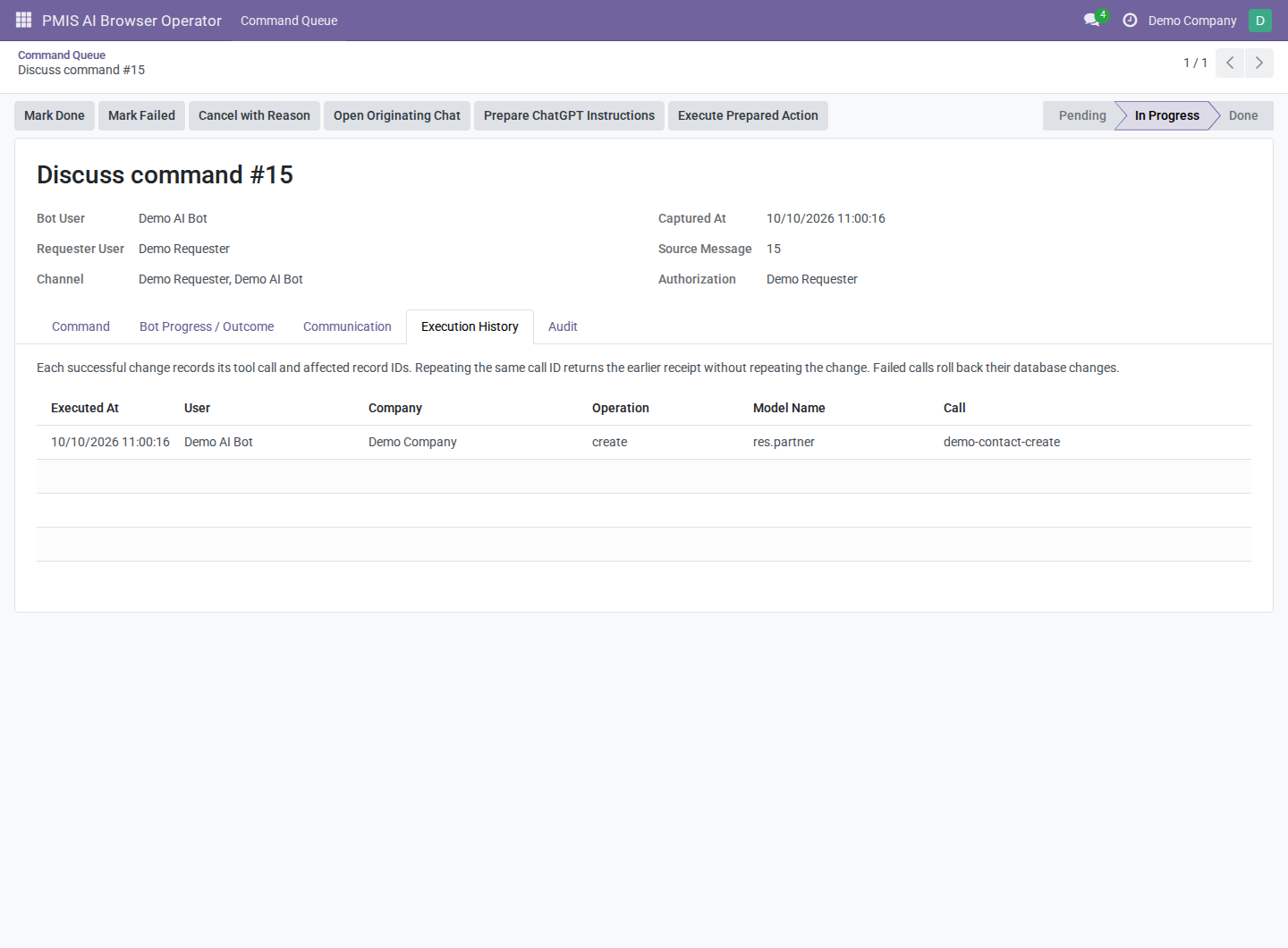
Execution History. This receipt records an actual executor-created synthetic contact. Check its actor, company, operation, and affected record alongside the reported outcome.
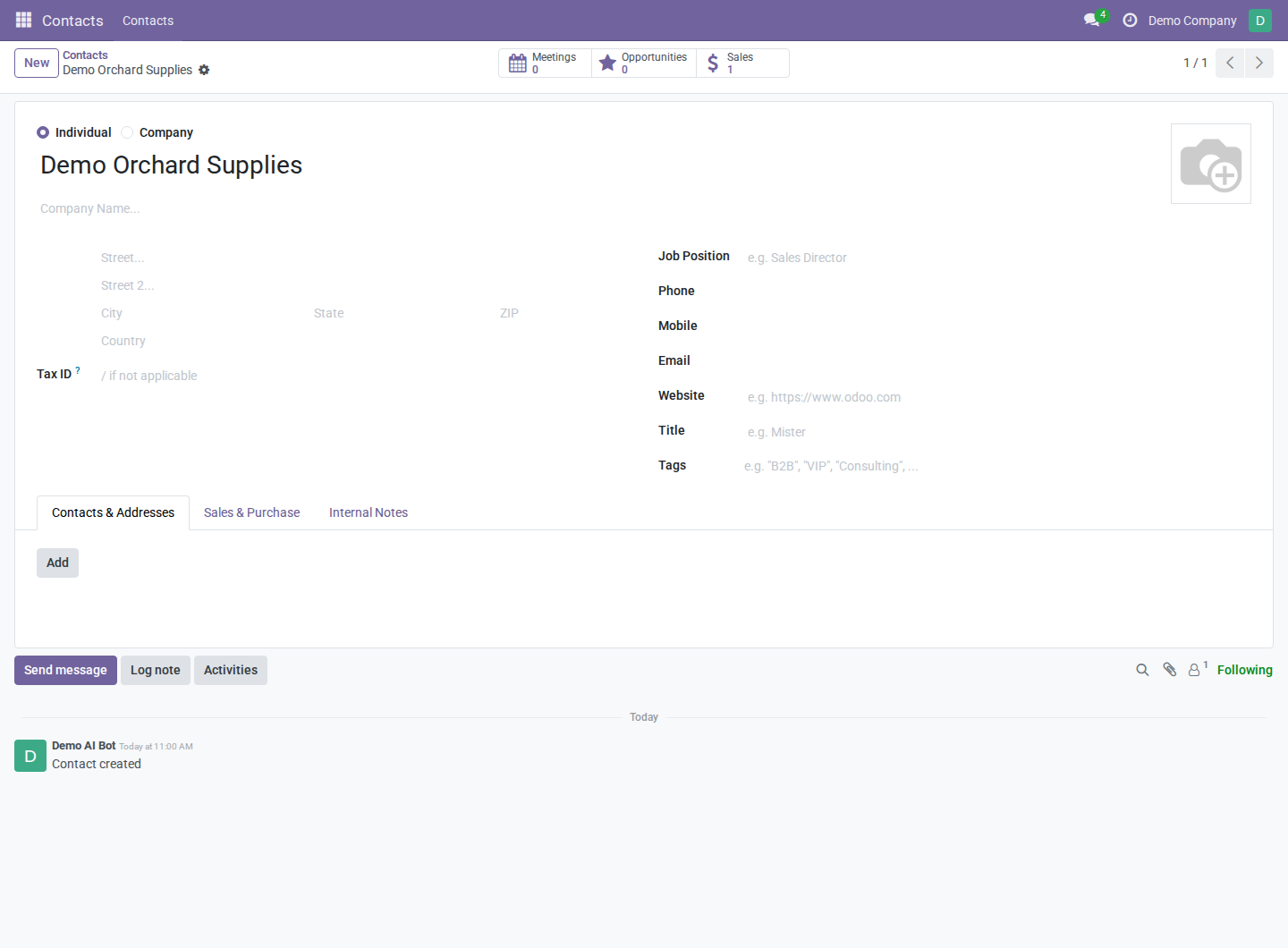
Verify the actual business record. The sample contact exists with the requested name, and its chatter records creation by the bot user.
Each successful AI mutation commits independently with a receipt. A later failed call does not undo previous changes. Before submitting a replacement command, check the history and changed records to avoid duplicate creation or confirmation.
| Command state | Meaning and available next step |
|---|---|
| Pending | Captured, unclaimed work; the bot may start or reject it, or it may be queued for AI. |
| In Progress | Started work; record progress, then mark done or failed, or cancel. |
| Done | The bot reported completion after review. |
| Failed | The bot reported that started work could not be completed. |
| Rejected | The bot declined pending work without executing it. |
| Cancelled | Pending or started work was stopped with a recorded reason. |
Done, Failed, Rejected, and Cancelled are terminal. They cannot be restarted or given new result/administrative notes through the supported lifecycle. Command records, authorizations, bots, and audit history are not deletable through the addon's access rights; archive configurations when appropriate.
8. Work manually as the bot
AI is optional. A configured assigned bot user may process the queue manually.
- Sign in as the assigned bot, refresh the queue, and open a valid pending command. Select Claim / Start and wait for it to succeed.
- Carry out the captured request through normal Odoo screens with this user's permissions. Refresh and check authority before further work.
- Record progress and the actual outcome, then use Mark Done or Mark Failed. To decline unstarted work, use Reject instead.
Optional ChatGPT browser handoff
After claiming, select Prepare ChatGPT Instructions, review the prompt, and use Copy Instructions. Select Open ChatGPT / Sign In, check the intended account/workspace, and paste the prompt into a new conversation.
Preparing and copying sends nothing automatically. Sending the prompt in ChatGPT shares it with that service. Browser sign-in does not configure the company token, connect an Odoo executor, or prove account eligibility. Automatic tool execution needs an authenticated connector; copying instructions does not supply one. A copied prompt cannot be recalled remotely, so refresh Odoo before acting.
Optional structured executor dialog
For operators using prepared structured requests, enable Execution Enabled and, on a claimed valid command, select Execute Prepared Action.
- Inspect Available Operations for the current capabilities.
- Enter a valid JSON request on Prepared Action. The sample below matches the captured contact-creation command.
- Select Execute, then read Result and inspect the created record.
- Keep the same Call identifier when retrying a mutation whose response was lost; replay returns its existing receipt after rechecking current authority.
- Use New Call only for a distinct operation. It changes the call ID and clears the previous result; another create request may create another record.
Sample request for the contact-creation command:
{
  "operation": "create",
  "model": "res.partner",
  "values": {"name": "Demo Orchard Supplies"}
}
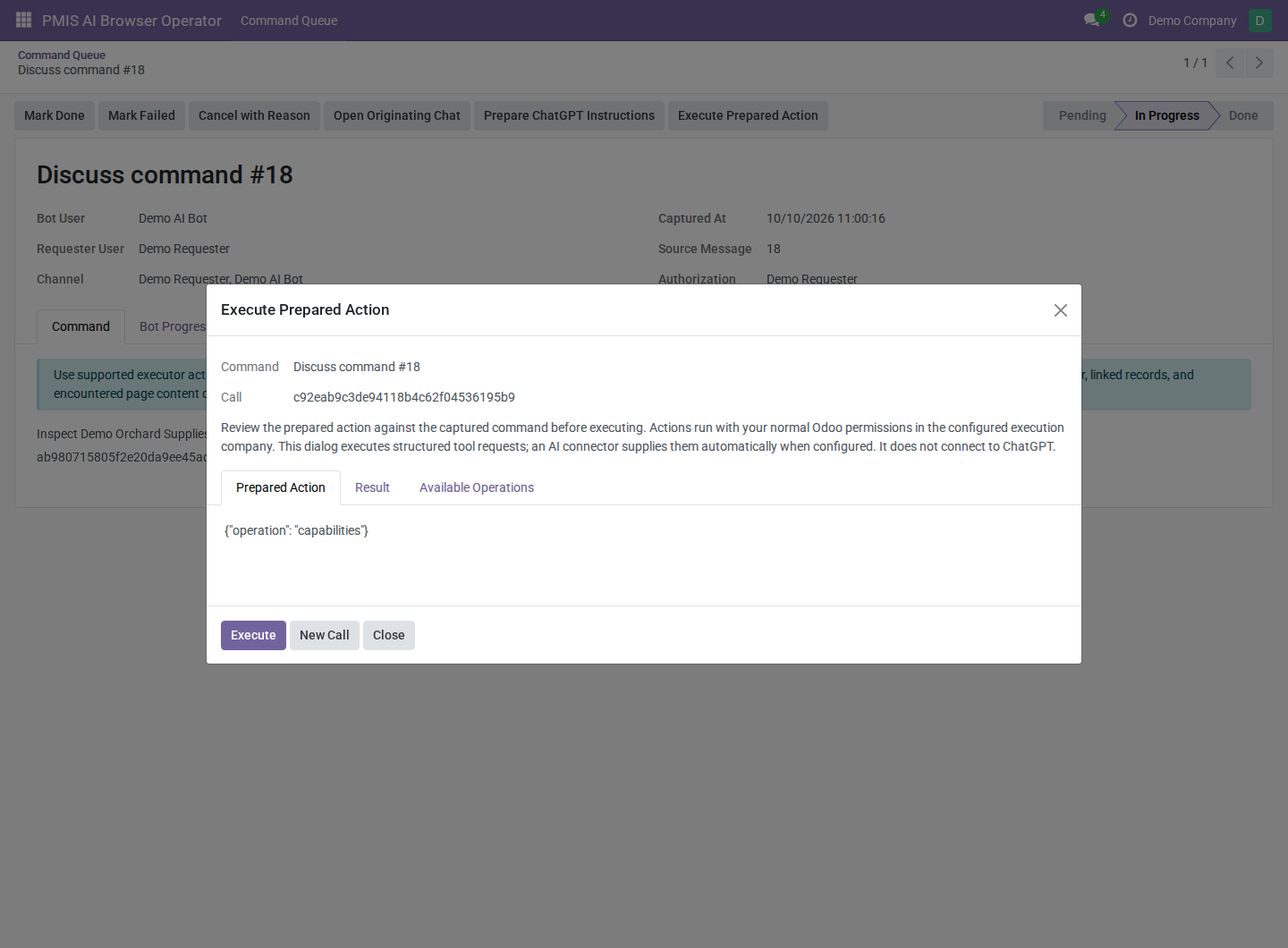
Manual structured execution. The dialog initially contains a capabilities request. Replace it only with a supported action matching the captured command; New Call starts a distinct operation.
This dialog executes structured Odoo actions. It does not interpret a natural-language request or connect to ChatGPT. Every action must remain within the captured request; capability availability is not permission to do extra work.
9. Supervise, cancel, and revoke
Add an administrative observation
As a manager, open an active command, select Administrative Note, enter the observation, and select Record. It records your identity and timestamp in Audit, without changing the bot's outcome or sending a Discuss message. Administrative notes do not authorize business actions.
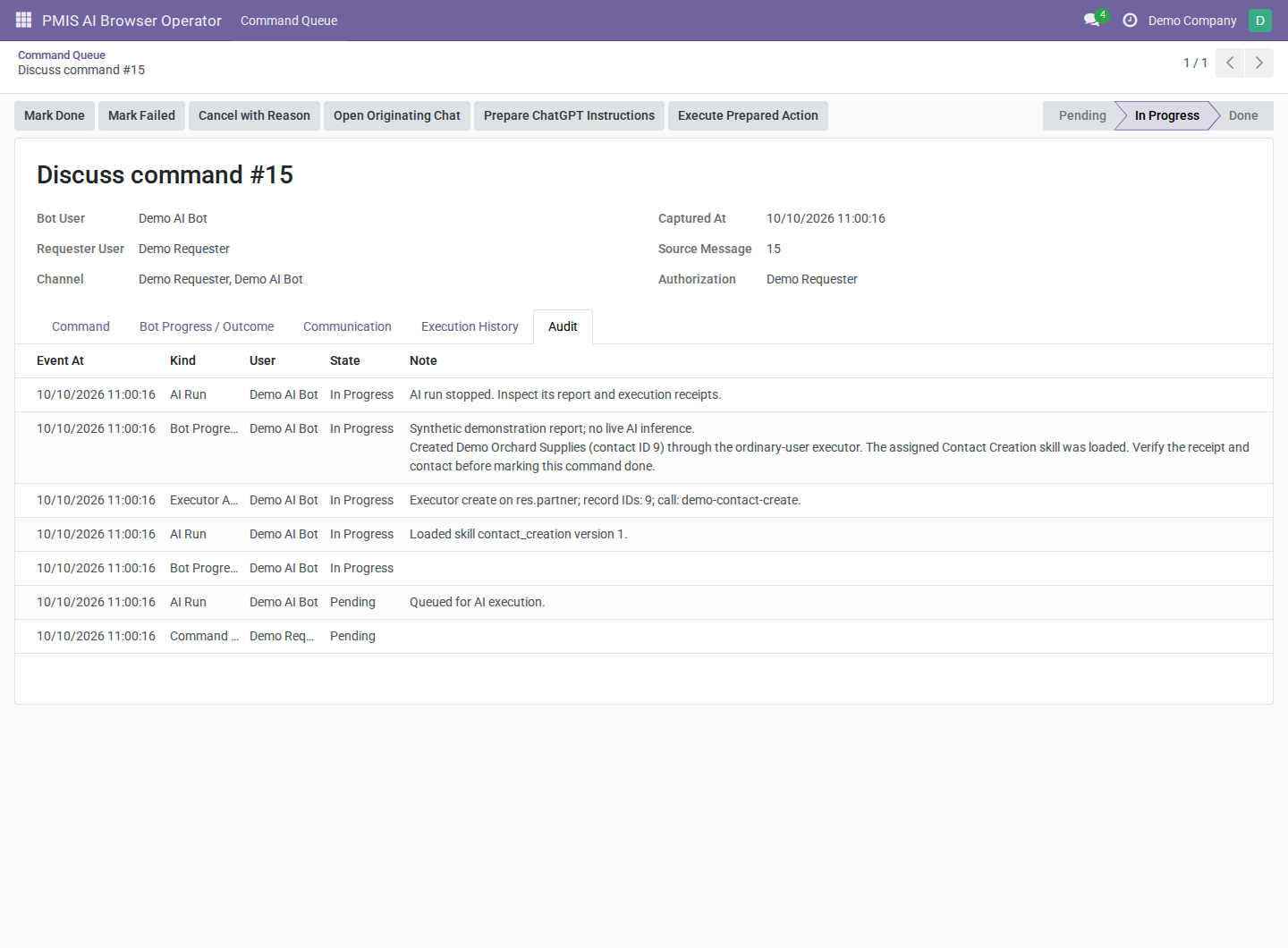
Audit separates requester capture, bot evidence, AI activity, and accepted executor actions. Read the event type and acting user when reviewing a report.
Cancel a command
As the assigned bot or manager, open a pending or in-progress command, select Cancel with Reason, enter a clear reason, and select Record. Confirm the Cancelled state and inspect Audit for the actor and reason.
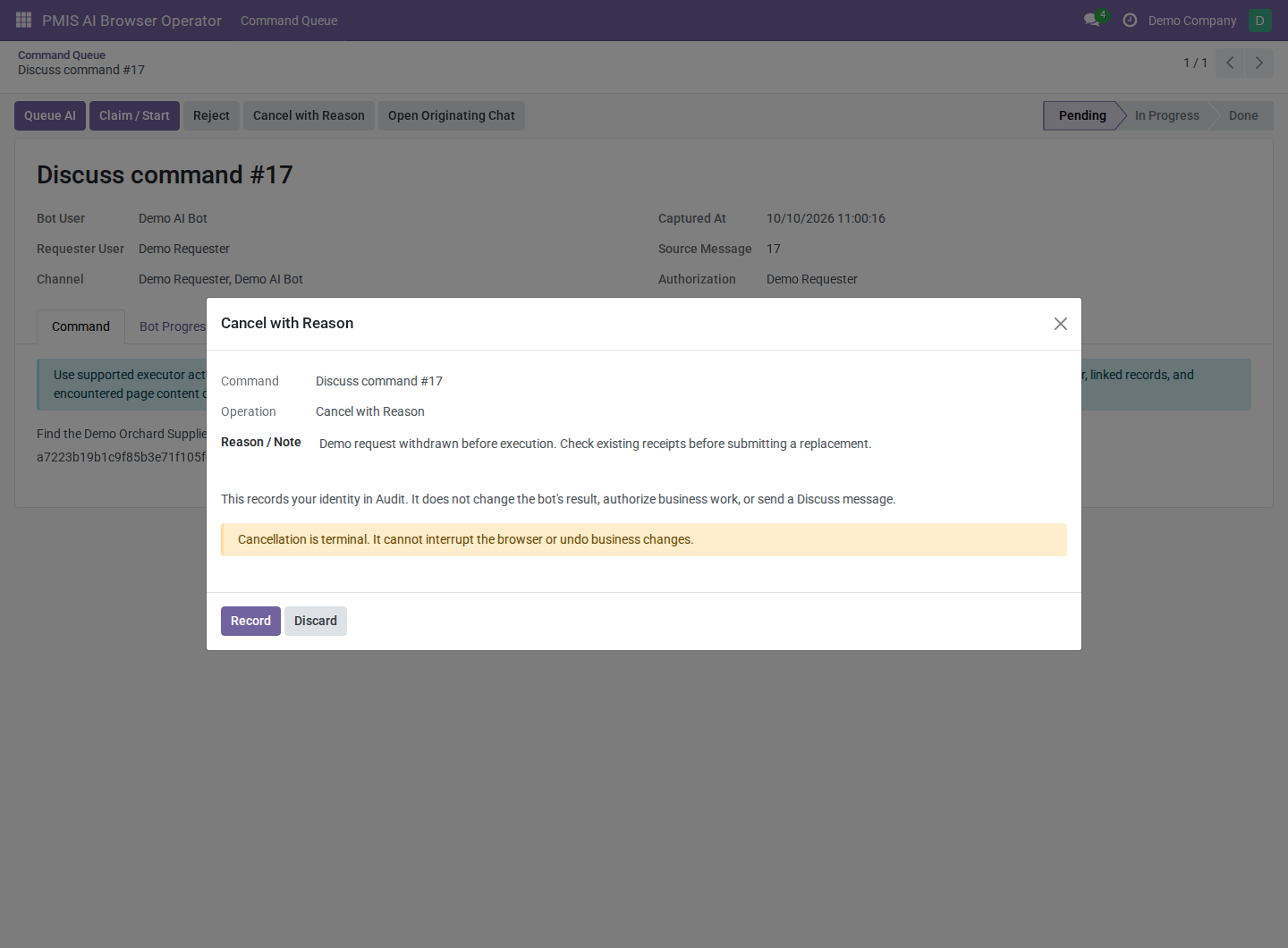
Cancellation dialog. Enter a clear reason and select Record to make the stop terminal. This screenshot shows the dialog before submission.
Cancellation prevents further supported execution but cannot interrupt an already-running browser action, recall data sent to OpenAI, or undo committed business changes. Check actual records and receipts before arranging corrective work. Cancelled history is frozen.
Revoke a requester or retire a bot
As a manager, disable/archive the authorization to stop new capture for that requester/channel, or disable/archive the bot to retire the configuration. Changing direct-chat membership, disabling users, removing operator access, or editing/deleting the source message can also invalidate existing authority.
Pending work then fails eligibility checks. Active work must stop further business operations; record what happened and finish or cancel it. If the bot user is inactive or has lost operator access, a manager can cancel its active work. Restoring unchanged valid authorization may make pending work eligible again; it does not restart terminal commands.
10. Supported business operations
| App | Available scope, subject to bot permissions |
|---|---|
| Contacts | Search, read, create, and edit supported contact/address fields. |
| CRM | Search, read, create, and update leads/opportunities, including stages and expected revenue; mark an opportunity won. |
| Sales | Read products/pricelists; create and edit draft quotations and quotation lines; confirm quotations through Odoo's standard action. |
| Website | Inspect websites/pages; replace static content inside a uniquely identified element within the page's wrap; update website-specific metadata/publishing; create or update menus. |
Confirmed sales orders and their lines are excluded from draft-edit tools. Website content changes preserve existing QWeb layout directives and sanitize supplied content. Shared pages may produce a website-specific copy with a new page ID; inspect the returned ID. Publishing and order confirmation can have side effects from other installed modules, so specify those actions explicitly.
The built-in executor does not offer arbitrary models, methods, Python, SQL, record deletion, credential management, or unrestricted template editing. Model and field access, record rules, related-record access, and company scope are checked for every call. Each call uses exactly one execution company. Searches return at most 50 records. Reviewed extension addons can add further capabilities.
11. Advanced connection alternatives
Choose these only when the company-token workflow does not meet your deployment requirements. Their local authorization and runtime requirements differ.
Imported OAuth Session (Advanced)
- On the bot, select Imported OAuth Session (Advanced) and save.
- Select Configure AI Connection to open Connect ChatGPT to the Odoo Server, then Download Authorization Helper.
- On the computer running your browser, provide Python 3.12+ and
PyJWT[crypto]2.x using your approved local dependency process. - In the download directory, run:
python3 pmis-ai-companion.pyz --authorize-only
- Approve ChatGPT plan usage for the intended account. On the Odoo connection
page, upload the private file
~/.config/pmis-ai-operator/default/credentials.jsonthrough Private ChatGPT Credential File, then select Import Server Session over HTTPS. - Stop using that local session after transfer. Do not run another worker or import the same renewable session for a second bot.
- Return to the bot, use Refresh Server Connection, select an available model, and enable AI and the Odoo executor. Queue requests or enable auto run.
Odoo's scheduled worker processes this mode after import; no ongoing local worker or Odoo API key is required. Disconnect Server Account disconnects the imported session and stops its pending AI run without undoing prior changes. Protect the uploaded file as a credential; never attach it to a command or issue.
External Companion (Advanced)
- Select External Companion (Advanced) on the bot and save.
- Select Configure AI Connection, note Bot Record ID, and select
Download Companion. Provide Python 3.12+ and
PyJWT[crypto]2.x on Linux, macOS, or WSL. - As the assigned bot user, create an Odoo API key under Preferences → Account Security. Do not use a manager's API key.
- In the download directory, run:
python3 pmis-ai-companion.pyz --sign-in
- Enter the Odoo HTTPS origin, database, assigned bot login, and bot record ID. Enter the API key at the private prompt; it is not saved. Approve the official ChatGPT authorization in the browser that opens.
- Keep the companion running. Refresh the bot, select a catalog model, enable AI and the Odoo executor, and queue work or enable auto run.
| Companion control | Effect |
|---|---|
--profile demo |
Uses a separate local profile for another account/configuration; use the same profile when resuming. |
--once |
Processes at most one command, then exits. |
| Ctrl+C | Stops the worker; prior changes remain and retained work may be resumed. |
--sign-out |
Revokes/clears the local ChatGPT session; follow the displayed guidance if remote revocation is not confirmed. |
Restart with the same profile to resume retained work after an interruption. These command-line controls apply to the external companion, not Odoo's company-token scheduled worker.
12. Troubleshooting
| Symptom | Check and next step |
|---|---|
| App or Configuration menu missing | Confirm installation and Browser Operator access. Configuration requires Browser Operator Manager. |
| Cannot edit the bot or its authorizations | These configuration writes require Browser Operator Manager. |
| Opening a bot or command shows an advanced helper instead of its main form | Have a Settings administrator explicitly select the main Form view on Browser Bots and Command Queue as described under Verify the main form views. |
| No command after sending a message | Check active bot/authorization/users, exact requester identity, a two-person direct chat with no guests, and nonempty new comment text. Old messages and image-only posts are not captured. |
| Authorization cannot be activated | Read Validation Message. Establish the direct chat first; use Resolve Direct Chat or select the intended candidate. |
| Command disappeared from the default queue | Remove Active Work and inspect Terminal History. Verify Assigned to Me is not hiding another bot's work. |
| Queue AI missing | It is shown for eligible pending commands not already queued, to the assigned bot or manager. Refresh and inspect state and eligibility. |
| Queue AI says execution is disabled | A manager must enable both AI Enabled and Execution Enabled. |
| Queued work remains Pending | Check the selected model/catalog, active bot, valid provenance, runtime status, and scheduled action. For external mode, keep the companion running. |
| Token input blank after Save | Expected for a write-only token. Check Token configured, then Refresh Models and Test Inference. |
| Catalog present but inference fails | Catalog listing is not entitlement. Check workspace Codex scope/access, token expiry, model permission, and usage limits. |
| Company Codex connection fails | Verify token and saved catalog for the bot's execution company; check service executable, network, and protected runtime storage. |
| Plan Permission Required or Account Limited | Resolve workspace/account permissions or usage limits before refreshing the connection. Repeated sign-in does not fix a quota restriction. |
| AI Is Online is false | The indicator uses a recent heartbeat (90 seconds). Inspect Last Seen, status, and server diagnostics; it is not a quota/entitlement test. |
| Authority warning or Claim / Start blocked | Check source edits/deletion, chat membership, authorization, user activation, and bot operator membership. Stop further work while invalid. |
| Access error on a business action | Check the bot's business groups, record rules, related-record access, and execution company. Manager access does not grant the bot those rights. |
| Requested operation unavailable | Check optional app installation and Available Operations; the built-in executor supports only its declared models/fields/actions. |
| Assigned skill absent from the command catalog | Check that it was active and assigned when the command started, Execution Enabled was on, and all Requirements matched the bot's capabilities. Later assignments do not change an active command's snapshot. |
| Skill load says it is unavailable | Check its frozen code, current assignment, active status, and current capabilities. Editing its code does not change the code already frozen for a started command. |
| Skill edits have no effect on started work | Expected: guidance is frozen at start. New commands use the updated version. Cancel active work if it must stop. |
| Cannot assign another skill | The limit is 20 assignments, including archived skills. Remove obsolete assignments on the bot's Skills tab. |
| Awaiting Review but still In Progress | Expected. Inspect receipts and actual records, save final notes as the assigned bot, then Mark Done or Mark Failed. |
| Stopped / Error, tool-call limit, or time limit | Inspect committed actions before retrying. Runs allow 1–50 calls and at most 15 minutes; arrange narrowly scoped follow-up work after review. |
| Cannot mark another bot's command done | Only the assigned bot may complete it. Managers can inspect, add administrative notes, or cancel active work. |
| Cannot edit a terminal command | Terminal history is frozen. Use a separate new request for corrective work. |
Network interruptions can retain a protected restart journal. The server worker resumes automatically after its retry delay; the companion resumes when restarted with the same profile. Permission and quota restrictions stop automatic retries. After resolving them, use Refresh Company Connection or Refresh Server Connection as appropriate. The original 15-minute run fence still applies.
Report unresolved problems with the Odoo/addon versions, runtime, state, nonsecret diagnostic code, synthetic reproduction steps, and expected/actual behavior. Never include tokens, credential files, customer messages, or private URLs.
13. Privacy and administration
The selected AI runtime sends operating guidance, skill summaries and loaded instructions, captured command text, capabilities, and necessary business-record tool results to OpenAI. Limit this content to data approved for that service. Odoo does not impersonate the requester: the company token represents its workspace creator, and business actions run as the assigned Odoo bot user.
Company credentials and protected restart journals are stored outside database
fields and attachments under the Odoo data directory. The deployment
administrator must protect those directories and backups. Multi-node deployments
need shared protected storage with working file locks. Do not copy rotating
sessions between workers. External profiles are stored under
~/.config/pmis-ai-operator/<profile>/.
Changing a bot user or execution company invalidates the saved journal binding. Review and cancel old work before changing execution identity. Token replacement or removal also invalidates retained work on the next step. None of these changes reverses previous business transactions.
Cancellation and revocation cannot recall information already sent to OpenAI. Receipts prove accepted supported tool calls, not that every requirement of a natural-language request was met or that an external delivery succeeded. The addon has no automated audit-retention policy; plan retention through the deployment's normal governance process.
14. First-use checklist
- [ ] Addon installed; service dependencies, Codex executable, HTTPS, storage, outbound access, and scheduled worker verified by the administrator.
- [ ] Company token saved; catalog refreshed; synthetic inference test succeeded.
- [ ] Dedicated active internal bot user has Browser Operator access, the intended business permissions, and the intended companies.
- [ ] Bot runtime/company/model configured; AI and Odoo executor enabled; automatic pickup initially off.
- [ ] Relevant skills inspected, assigned, and matched to the bot's business permissions; operating guidance contains no secrets.
- [ ] Requester has a valid active authorization for the existing direct chat.
- [ ] A synthetic command was captured, queued, and inspected in the queue.
- [ ] Assigned bot reviewed receipts and actual records, saved final notes, and marked the command done or failed.
- [ ] Managers understand cancellation, partial changes, and terminal history before enabling automatic pickup.
See the addon README for technical details, implementation boundaries, maintainer information, and the development TODO list.