Slovenian FURS Fiscal Cash Register — User Manual
For Odoo 18 Community, addon l10n_si_fiscal_cash_register, version
18.0.1.0.0. Configuration managers, accounting operators, and auditors can use
this guide to set up fiscal invoice confirmation, process invoices, and
investigate unsuccessful submissions.
Documentation was rechecked against the current working tree on October 9, 2026. This follow-up is a static documentation review, not a new live FURS or browser test.
This guide describes the current implementation. Business rules for deciding which transactions require fiscal confirmation, approved invoice numbering, operator identification, and statutory deadlines must be established with your accounting/compliance advisor. The addon’s Required indicator is a technical eligibility check, not a legal assessment.
Contents
- 1. Scope and screenshot conventions
- 2. Prerequisites and installation
- 3. Access rights and navigation
- 4. Configure the company
- 5. Configure FURS and certificates
- 6. Register a business premise
- 7. Configure a fiscal device
- 8. Fiscalize an invoice manually
- 9. Configure automatic fiscalization
- 10. Credit notes and batch operations
- 11. Review messages and retry failures
- 12. Recovery and historical backfill
- 13. Print the invoice and QR code
- 14. Daily checks, certificates, and production handover
- 15. Troubleshooting and current limitations
- 16. Evidence and official references
1. Scope and screenshot conventions
The addon adds company-specific FURS configurations, registered business premises, fiscal devices, invoice fiscal fields, request/response audit messages, and recovery runs. It sends signed JSON requests using a fiscal certificate for signing and mutual TLS authentication. It supports customer invoices and customer credit notes in Accounting/Invoicing; it does not add a Point of Sale interface.
Screenshots are real browser captures from a newly created disposable database using English UI labels and the Europe/Ljubljana time zone. All business data is synthetic. The example uses:
| Item | Example |
|---|---|
| Company | Example Fiscal Shop |
| Configuration | Example Shop - Test |
| Supplier tax number | 12345678 — illustrative only |
| Premise identifier | SHOP1 |
| Electronic device identifier | REG1 |
| Invoice amount | EUR 100.00 + EUR 22.00 VAT = EUR 122.00 |
| Certificate | LOCAL-DEMO-ONLY.p12 — locally generated, not FURS-issued |
Registered, Accepted, EOR, ZOI, and the timeout shown in the pictures were seeded or applied as simulated results. No echo, premise, invoice, or batch request was sent to FURS. Never copy these certificate files, fiscal identifiers, or tax numbers into an operational configuration. The printed QR encodes only the synthetic example.
Current navigation blockers
Browser checks of this checkout found these issues:
- FURS Configuration fails with
Name 'company_id' is not definedwhen its action context is evaluated. - Business Premises, Fiscal Devices, and FURS Messages fail with
View types not defined treebecause their actions request the legacytreeview type. Failed Fiscalizations also declares that view type. Several recovery buttons that open invoice/message lists returntree,formactions. - Some buttons and conditional fields use legacy visibility modifiers. For example, Fiscalize Now remains visible on an accepted invoice and Run remains visible on a dry-run recovery. The server still rejects these operations.
The screenshots open the installed, unchanged form views directly; the audit
list uses an explicit Odoo 18 list action. These captures do not demonstrate
working navigation through the affected menus. The menu paths below identify
where the addon defines each operation. Have your administrator resolve the
action/view issues before relying on those paths in daily operation. This
documentation task does not change application code or repair those actions.
2. Prerequisites and installation
Your administrator must provide:
- Odoo 18 Community and this repository on the Odoo addons path.
- The addon dependencies Accounting (
account), Discuss/Mail (mail), and Slovenian - Accounting V.2 (l10n_si2). The latter comes from the Slovenian localization repository, not this addon directory. - The Python packages
cryptographyandrequestsin the Odoo environment. - A configured Slovenian company, chart of accounts, sales journal, and taxes.
- An environment-appropriate fiscal PKCS#12 certificate and its password, plus the FURS public response signing certificate if response verification is used.
- Host connectivity and certificate trust for the selected FURS service.
Configure the submitting user's time zone for the intended Slovenian workflow
(Europe/Ljubljana), including users running queued work. Payload timestamps
are formatted using the user's context time zone, not a company-specific FURS
time-zone setting.
In Apps, update the app list if needed, remove the default Apps filter if the addon is hidden, search for Slovenia - Davcna Blagajna, and install it. Check the installed dependencies and company localization before creating invoices.
Localization conflict: l10n_si2 excludes the standard Odoo l10n_si addon.
A fresh Slovenian database can automatically select l10n_si when Accounting
is installed. If installation reports that Slovenian - Accounting V.2 and
Slovenian - Accounting are incompatible, have the administrator arrange the
correct localization installation order. Do not remove an established chart of
accounts or uninstall localization modules from a populated database to follow
this example. The disposable screenshot database was prepared with the standard
localization’s automatic installation disabled before installing this addon.
queue_job is optional. Installing it alone does not make the ordinary invoice
buttons asynchronous: invoice and premise queuing also requires the
furs_async context supplied by an integration. There is no user-facing queue
toggle on the FURS configuration form.
3. Access rights and navigation
Open Settings → Users & Companies → Users, select the user, and assign the needed groups under Access Rights. A Settings administrator can inspect the individual group memberships in developer mode if the generated group selector does not make the combination clear. Retain the user’s normal accounting rights and allowed-company access; FURS roles do not grant invoice posting rights.
| Role | Purpose |
|---|---|
| FURS Configuration Manager | Manage FURS configurations, private certificate fields, premises/devices, messages, and recovery records. Includes FURS Manager. |
| FURS Operator | Fiscalize/retry invoices, register premises, operate devices, and use registration/backfill wizards. Includes FURS Base Operator. |
| FURS Auditor | Read premises/devices, audit messages, recovery runs, and recovery lines. Does not grant access to the configuration model or private certificate fields. |
For a person who both configures and operates the integration, assign FURS Configuration Manager and FURS Operator. Configuration Manager does not imply Operator. The base FURS Manager group alone does not grant the configuration model’s access rights or private certificate fields. Accounting users inherit the Auditor role.
Company record rules restrict the records to allowed companies. Select the correct active company before configuring or submitting documents. The company of the invoice, journal, device, premise, and configuration must agree.
The accounting app may be named Invoicing in Community. The defined menus are:
| Location within Accounting/Invoicing | Entries | Visibility |
|---|---|---|
| Configuration → Slovenia FURS | FURS Configuration | Configuration Manager |
| Configuration → Slovenia FURS | Business Premises, Fiscal Devices | Operator |
| Reporting → Slovenia FURS | FURS Messages | Auditor, Operator, or Configuration Manager |
| Reporting → Slovenia FURS | Failed Fiscalizations, Recovery Runs, Recovery / Backfill | Operator or Configuration Manager |
The recovery/backfill wizard requires Operator access even though its menu also appears to Configuration Managers. Auditors can read recovery records through authorized record links, but do not receive the Recovery Runs menu. See the navigation blockers if opening an entry fails.
4. Configure the company
- Open Settings → Users & Companies → Companies and select the company.
- Set Country to Slovenia, confirm the legal company name and address, and verify the taxpayer/VAT information.
- Confirm the intended accounting currency and Slovenian localization. The example uses EUR.
- In the accounting configuration, verify the sales journal, receivable and income accounts, invoice numbering, and tax rates. Use the rates applicable to your transactions; the screenshot’s 22% is only a worked example.
- For test work, use a separate database with synthetic customers and products.
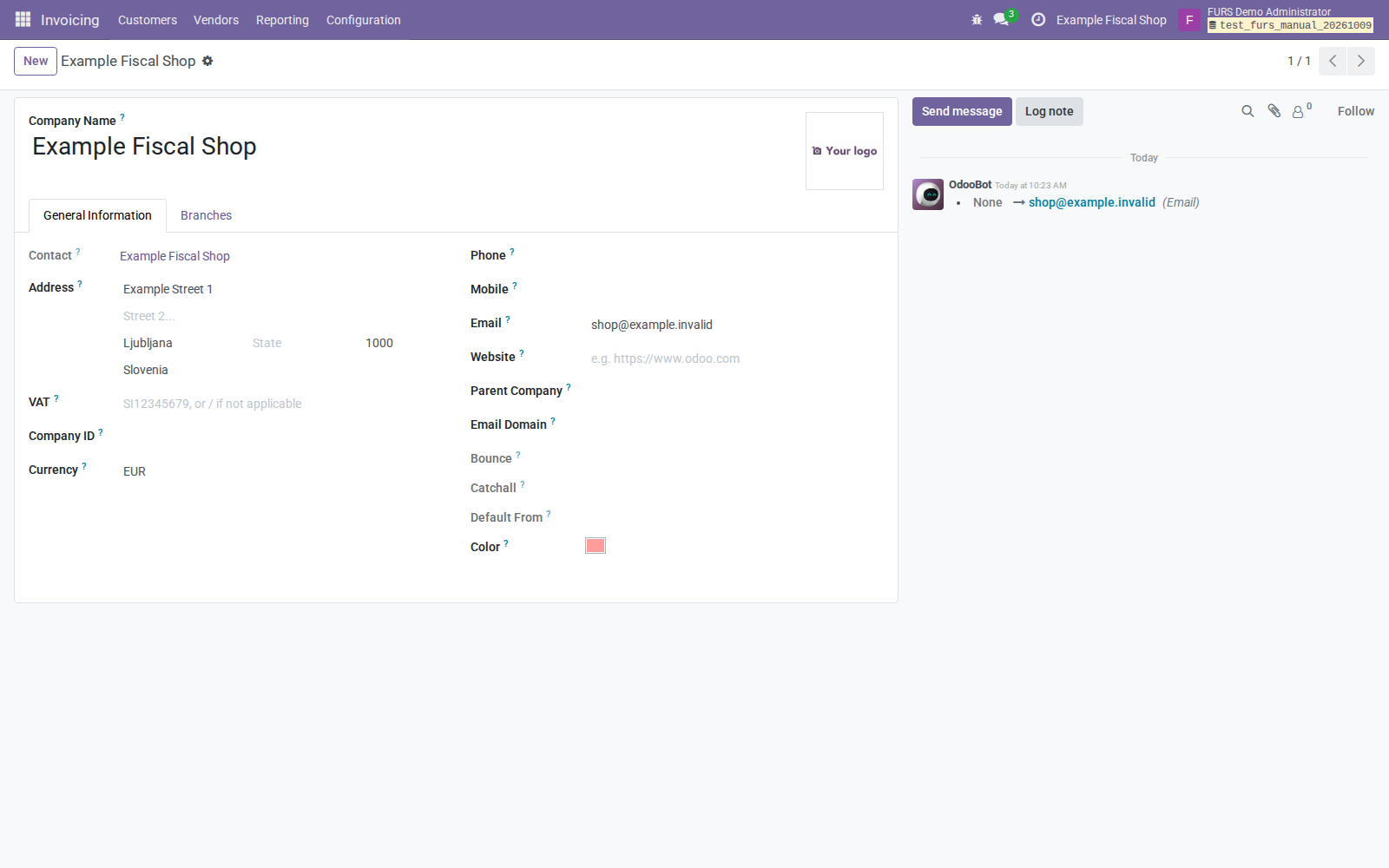
Figure 1. The example company has a Slovenian address and country. FURS uses the configuration’s Supplier Tax Number when supplied; company details alone do not establish the certificate identity.
5. Configure FURS and certificates
5.1 Choose the environment and identity
Create a configuration under Configuration → Slovenia FURS → FURS Configuration → New, once the navigation issue is resolved.
| Field | What to enter |
|---|---|
| Name | A descriptive name including company and environment. |
| Company | The company issuing the invoices. |
| Environment | Test for development/testing; Production for live submissions. New records default to Test. |
| Api Format | JSON, the only implemented format. |
| Supplier Tax Number | The tax number without the SI prefix, matching the certificate identity. In Test, use the randomly assigned number supplied with the FURS test certificate. |
| Auto Fiscalize On Post | Initially leave off; enable only after validating the intended policy. |
| Auto Fiscalize On Payment | Initially leave off; see the payment-hook limitation in section 9. |
| Timeout Seconds | Request timeout; default 30 seconds. |
| Active toggle | Keep on to make the configuration eligible for selection. |
If Supplier Tax Number is empty, the addon derives it from the company VAT,
strips an initial SI, and retains digits. Supply the correct number explicitly
for a FURS test identity; a copied company VAT is not a substitute for it.
Only one active configuration is allowed per company/environment. The current database constraint also limits inactive records per company/environment, so archiving multiple configurations may raise a uniqueness error.
Environment selection matters: an invoice normally chooses the active
Production configuration before Test. Selecting a test-linked device or setting
the premise’s configuration to Test does not force the invoice to use Test.
There is no environment selector on the invoice form. Keep test and production
in separate databases. Integrations may supply furs_environment, but ordinary
UI operation does not supply that override.
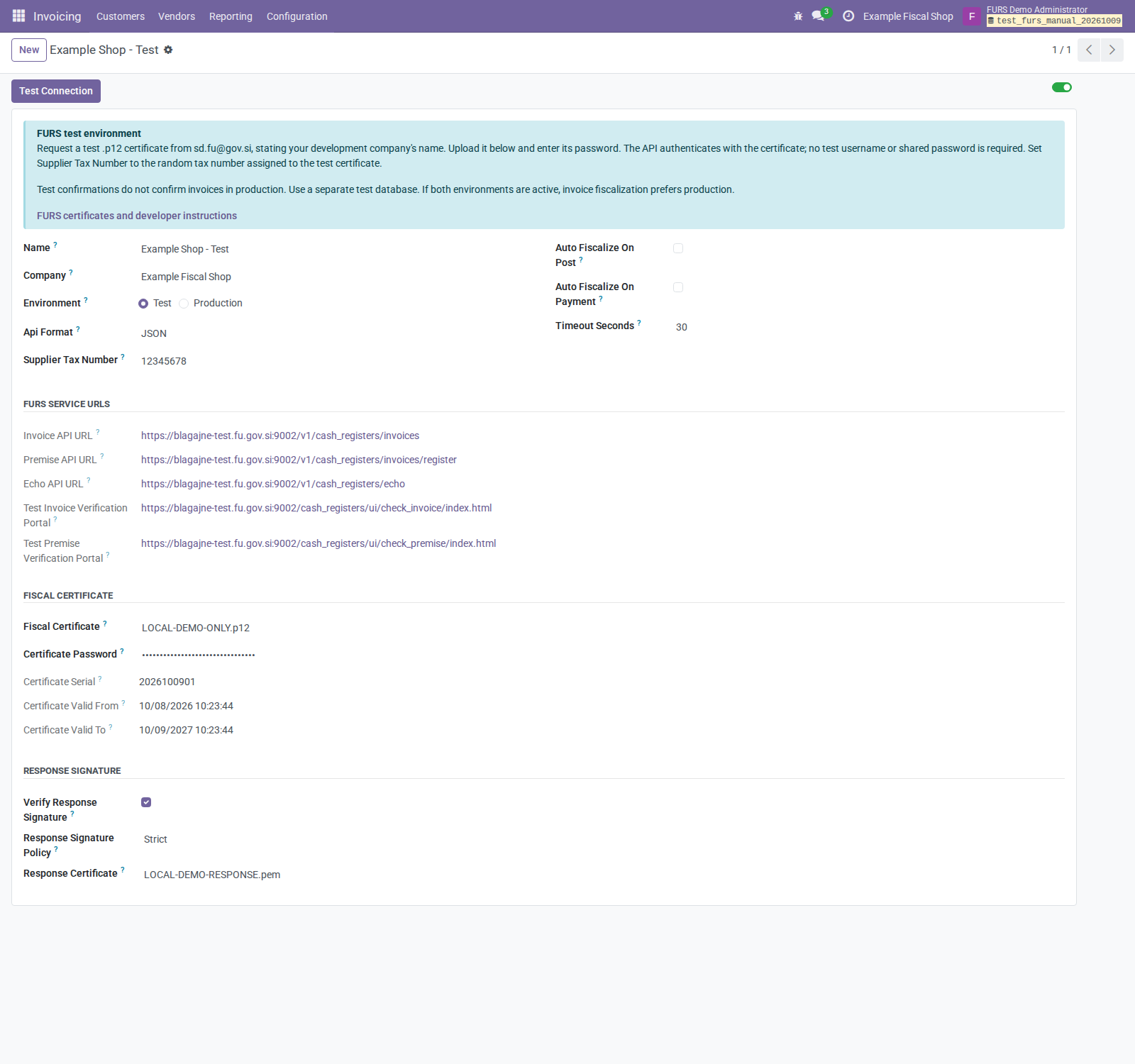
Figure 2. Configure identity and timing first, then the fiscal certificate and response verification. The local demo certificate shown here cannot authenticate to FURS. The password stays masked.
5.2 Obtain and attach certificates
For a developer test certificate, follow the current instructions on the
official FURS developer page.
FURS currently directs developers to request one through sd.fu@gov.si, stating
the development company’s name. The test .p12 is issued for an anonymized
identity and randomly assigned tax number. The same page publishes environment
specific response certificates and TLS trust-chain information.
- As a FURS Configuration Manager, open Fiscal Certificate. This field selects an Odoo attachment rather than providing a direct file-upload widget.
- Use Create and edit… in the attachment selector, give the attachment a
recognizable name, choose File as its type, and upload the issued
.p12. Alternatively, select an attachment prepared by your administrator. - Enter the certificate’s own password in Certificate Password and save the configuration. There is no shared FURS API username or test password.
- Check Certificate Serial, Certificate Valid From, and Certificate Valid To. Saving with both certificate and password loads the certificate and checks its validity. Invalid formats/passwords, missing private keys, future validity, or expiry produce errors.
- Attach the current FURS response signing certificate under Response
Certificate. PEM and DER certificate formats are supported. Test uses the
published
DavPotRacTESTcertificate; Production usesDavPotRac. - Keep certificate attachments private and associated with the appropriate configuration. Have the administrator verify attachment access; selecting a file does not itself prove that its attachment permissions are appropriate.
The fiscal certificate contains a private key. The response certificate is a public signing certificate. TLS server certificates and the host’s trusted CA chain are a third concern: uploading a response certificate does not change the host’s TLS trust store.
5.3 Set response verification deliberately
| Setting | Result |
|---|---|
| Verify Response Signature off | Effective policy is Off, regardless of the selected policy value. |
| Verification on + Off | Response signatures are not verified. |
| Verification on + Warn | Verification failures are recorded, but response processing continues. |
| Verification on + Strict | A verification failure blocks acceptance. |
New configurations default to verification off and policy Off. To exercise verification, enable the checkbox, choose Strict, and load the correct public certificate. Resolve signature errors rather than treating a transport success as verified fiscal acceptance. With Warn, an Accepted result can coexist with a signature warning; inspect both fields on the message.
5.4 Verify the routes and test connectivity
The form displays read-only URLs derived from Environment. The addon uses these fixed bases:
| Environment | Service base |
|---|---|
| Test | https://blagajne-test.fu.gov.si:9002 |
| Production | https://blagajne.fu.gov.si:9003 |
The single-invoice path is /v1/cash_registers/invoices, premise registration is
/v1/cash_registers/invoices/register, and echo is /v1/cash_registers/echo.
Batch requests use the corresponding /v1/cash_registers_batch/ paths. These
are the routes implemented by this version; confirm compatibility with the
current FURS specifications before using batch operations in production.
- Have the administrator verify DNS, outbound connectivity to the selected port, system clock, and current FURS TLS trust chain.
- Confirm the selected environment and save the configuration.
- Click Test Connection. This sends an echo request to that environment; Production means a live service call.
- A successful configuration-form test completes without an error; it does not open a results wizard. Inspect the resulting Echo entry in FURS Messages.
- If it fails, check the error, certificate, trust chain, and response policy.
An echo result verifies only that exchange. It does not register premises, validate invoice numbering/taxes, or prove that an invoice can be confirmed. The addon also defines a connection-test wizard, but does not attach it to a regular menu; the form’s button calls the echo service directly.
The Test configuration displays links to the Test Invoice Verification Portal and Test Premise Verification Portal. After a real test submission, use the assigned test tax number and the identifiers requested by the portal to check the result. The simulated screenshots cannot be verified there.
6. Register a business premise
- Open Configuration → Slovenia FURS → Business Premises → New.
- Enter Name, Company, and the correct FURS configuration in Config. Premise registration uses this configuration directly.
- Enter Business Premise: this is the fiscal identifier, such as
SHOP1, not the descriptive name. Use your approved premise identifier. - Choose Premise Type and fill the appropriate information:
| Type | Information |
|---|---|
| Real estate | Street, House Number, optional House Number Additional, Community, City, Postal Code, and property identifiers Cadastral Number, Building Number, Building Section Number. |
| Movable | Movable Premise Type: Type A, B, or C. Select the applicable category using current FURS guidance; the addon does not explain the legal classification. |
- Set Validity Date to the effective date. Add Special Notes only when appropriate; the text is included in the registration request.
- Save, check the environment through the linked configuration, and click Register Premise. This sends a registration request.
- Confirm Registered State = Registered and inspect Last Registration Message. The device cannot be used for fiscalization while the premise is Draft, Pending, or Failed.
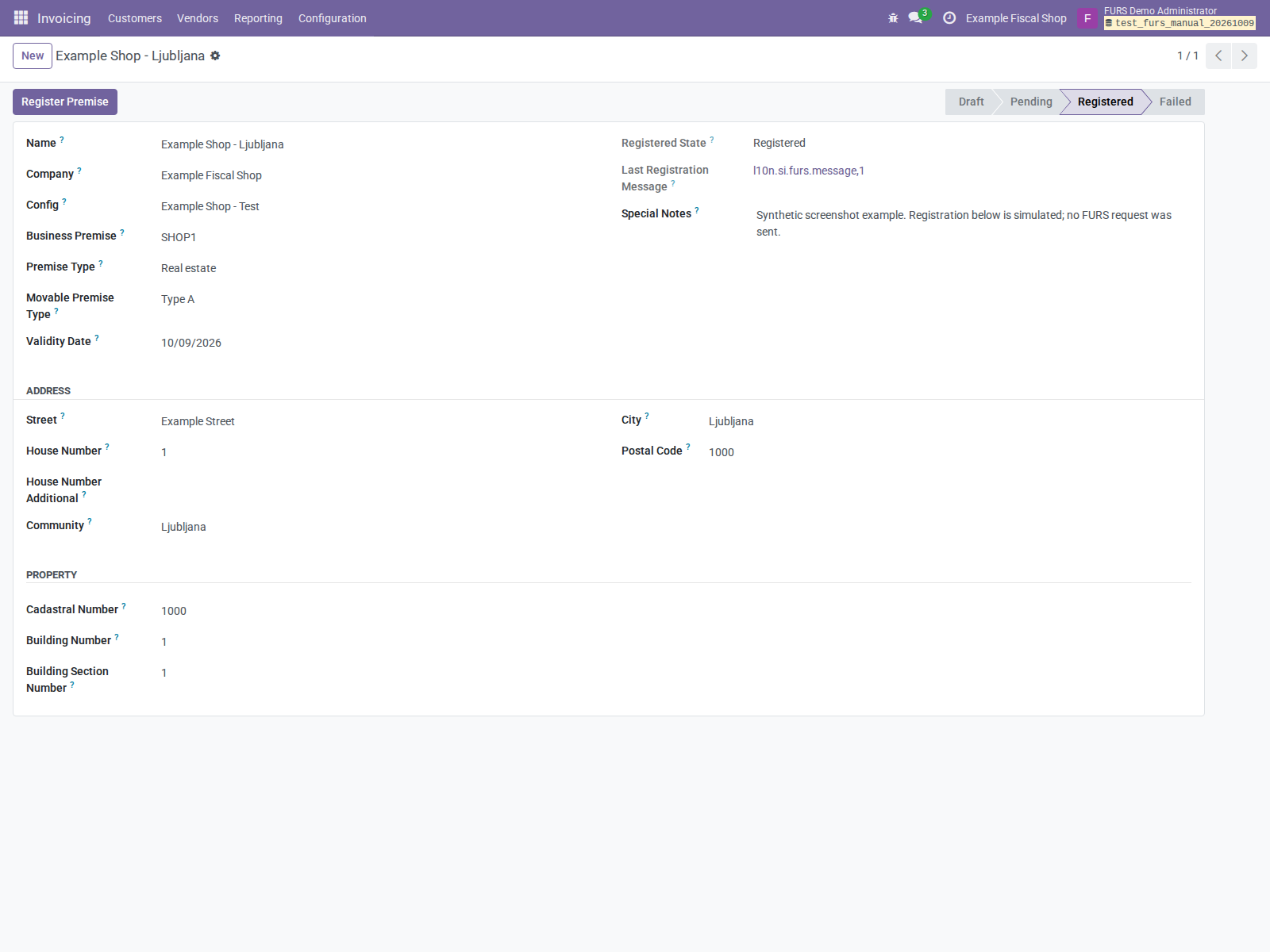
Figure 3. The descriptive name and fiscal identifier serve different purposes. The Registered result and message link are simulated in this picture; the notes explicitly identify the example.
If registration fails, examine the message and correct the setup/data before submitting again. In a configured asynchronous integration, Pending means queued work, not accepted registration. Changing a premise locally does not notify FURS until an appropriate registration request is submitted. The form has no dedicated premise-closure workflow.
Some conditional sections may remain visible because of legacy modifiers. Fill the fields appropriate to the chosen type; the payload builder selects real estate or movable data according to Premise Type.
7. Configure a fiscal device
Open Configuration → Slovenia FURS → Fiscal Devices → New after registering the premise.
| Field | Instructions |
|---|---|
| Name | Descriptive register/device name. |
| Company | Same company as the premise and invoices. |
| Business Premise | Select the registered premise. |
| Electronic Device | Fiscal device identifier, such as REG1; unique within the company/premise. |
| Sequence | An Odoo sequence used to check invoice prefix/suffix; see the numbering note below. |
| Numbering Validation Mode | Warn is the default; Strict blocks missing sequence or mismatched prefix/suffix. |
| Active | Enable for operational use. |
| Invoice Journals | Sales journals whose invoices resolve to this device. |
| Fiscal Payment Journals | Payment journals treated as fiscal channels, according to your approved cash/card/cheque policy. |
| Fiscal Payment Methods | Optional additional qualifying payment method lines. |
| Fiscal Payment Type | Cash, Card, Cheque, or Other; internal categorization, not an automatic payment mapping. |
| Auto Fiscalize on Post / Payment | Device-level automatic settings; see section 9. |
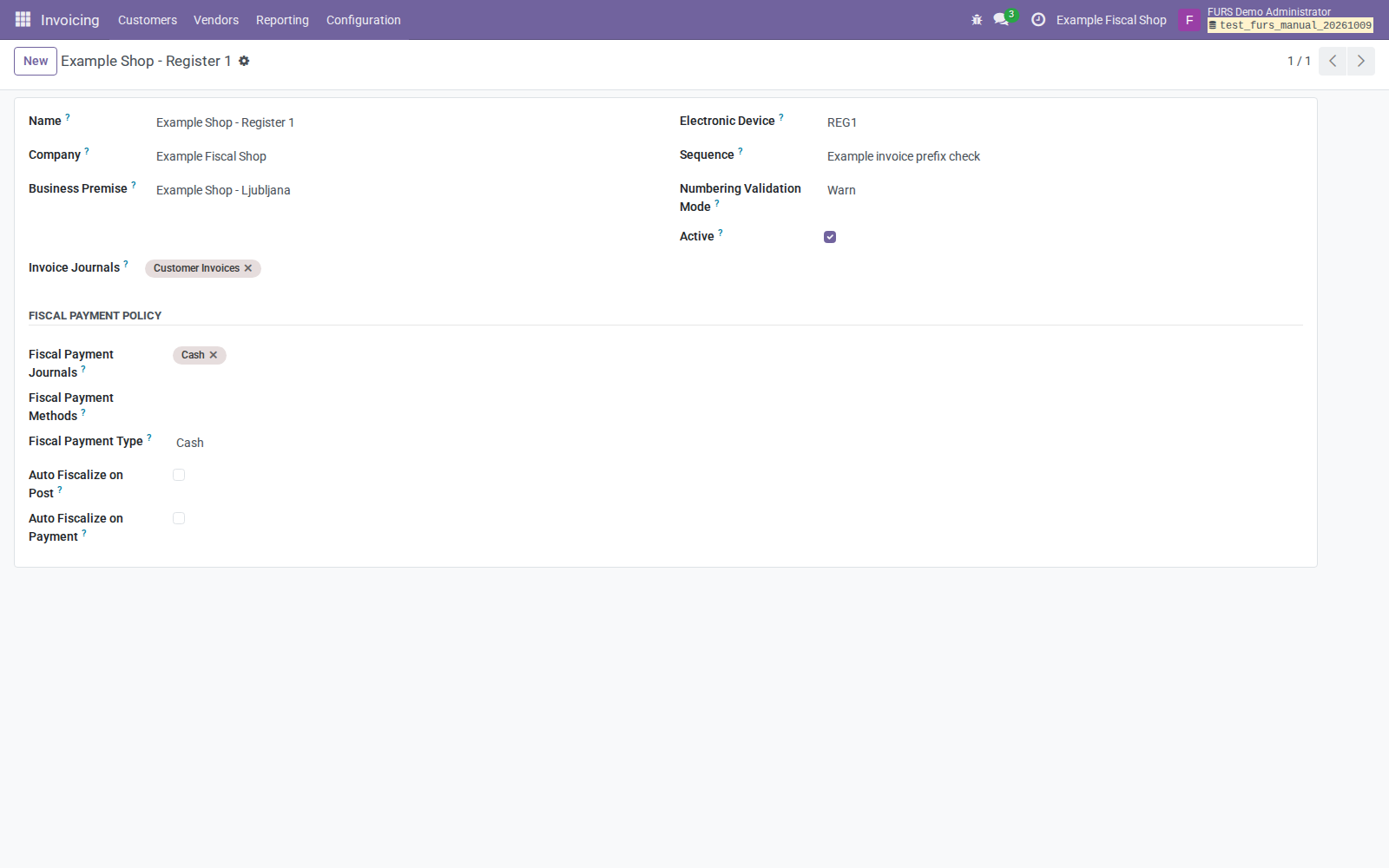
Figure 4. Invoice Journals route invoices; Fiscal Payment Journals identify qualifying reconciled payments. Both automatic flags are initially off.
Save and confirm the device is active and points to a registered premise. The addon checks journal/payment method company consistency. Avoid mapping multiple active devices to the same invoice or payment journal: automatic resolution rejects ambiguity. An invoice’s explicitly selected device takes precedence over journal matching, and its premise is resolved from that device.
Numbering is checked, not generated
The device’s Sequence does not assign invoice numbers. Fiscal submission uses the posted invoice’s existing number, generated by the accounting journal. Configure the journal numbering first, then use a sequence whose evaluated prefix/suffix matches that numbering if you want the device check.
- Warn allows submission and posts a warning in chatter when the sequence is missing or its prefix/suffix does not match.
- Strict blocks submission when the sequence is missing, cannot be evaluated, or does not match the invoice prefix/suffix.
The check does not validate gaps, numeric continuity, sequence consumption, or
the complete legal numbering structure. A sequence with empty prefix and suffix
does not establish legal numbering merely because Strict passes. The addon sends
the full invoice number and uses numbering structure B.
Payment mappings are additive
A matched fiscal payment journal qualifies even if no selected method matches. A matched fiscal payment method can also qualify a payment. The methods field does not restrict already qualifying journal matches, despite its help text suggesting otherwise. Method-only device routing is not implemented: select the device explicitly on the invoice or ensure invoice/payment journal routing can resolve it. Bank transfers qualify only when your mappings make them fiscal.
8. Fiscalize an invoice manually
8.1 Prepare and post
- Open Accounting/Invoicing → Customers → Invoices → New.
- Select the correct customer, company, sales journal, invoice date, products or descriptions, quantities, prices, and taxes.
- On the FURS tab, select the fiscal device when journal routing is ambiguous or you need an explicit device. Use the device’s premise.
- Save and Confirm/post the invoice. It must have a final invoice number.
- Review the FURS fields and chatter before submitting.
In this version, many field captions are automatically derived names, for example L10N Si Furs State, L10N Si Furs Required, L10N Si Furs Device, and L10N Si Furs Business Premise. This guide calls these the fiscal state, Required indicator, device, and premise.
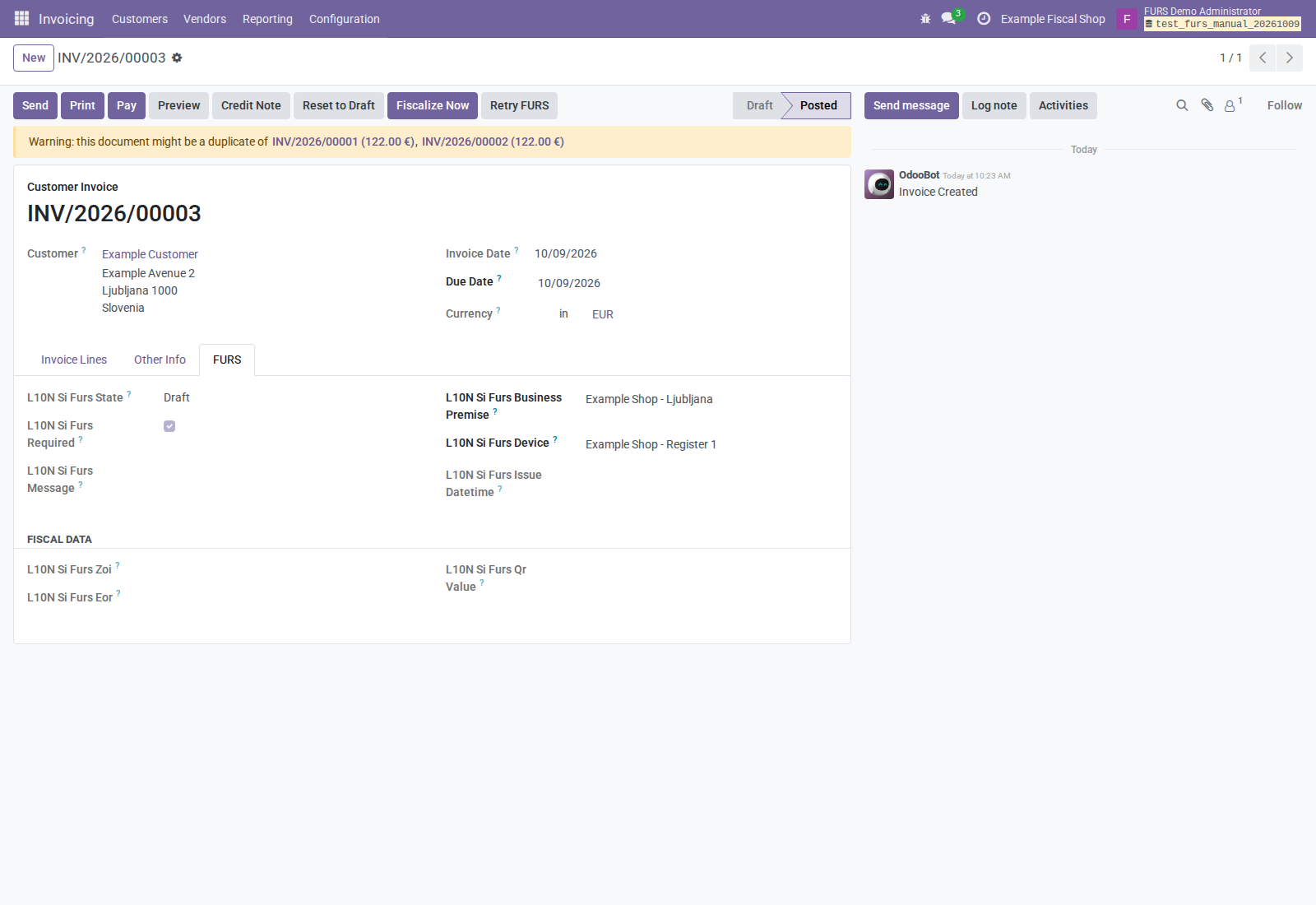
Figure 5. Accounting state Posted and fiscal state Draft are separate. A posted invoice can still await fiscal confirmation. The device and premise are already selected in the example.
Technical eligibility requires a posted customer invoice/credit note, company country Slovenia, an active configuration, an active unambiguous device, and a registered matching premise. A certificate is still required to send, even though technical eligibility alone does not load or validate it. Supplier bills, draft invoices, and already accepted invoices are not eligible.
8.2 Submit and verify
- As a FURS Operator, click Fiscalize Now.
- Wait for the synchronous request to finish. An integration using asynchronous queuing may instead leave the fiscal state at Sent.
- Check the FURS tab and the newest chatter entry.
- Open the linked fiscal message and inspect its final outcome and signature status. Confirm that it used the intended configuration/environment.
- For an accepted invoice, confirm EOR, ZOI, fiscal issue time, premise/device, and QR value before printing.
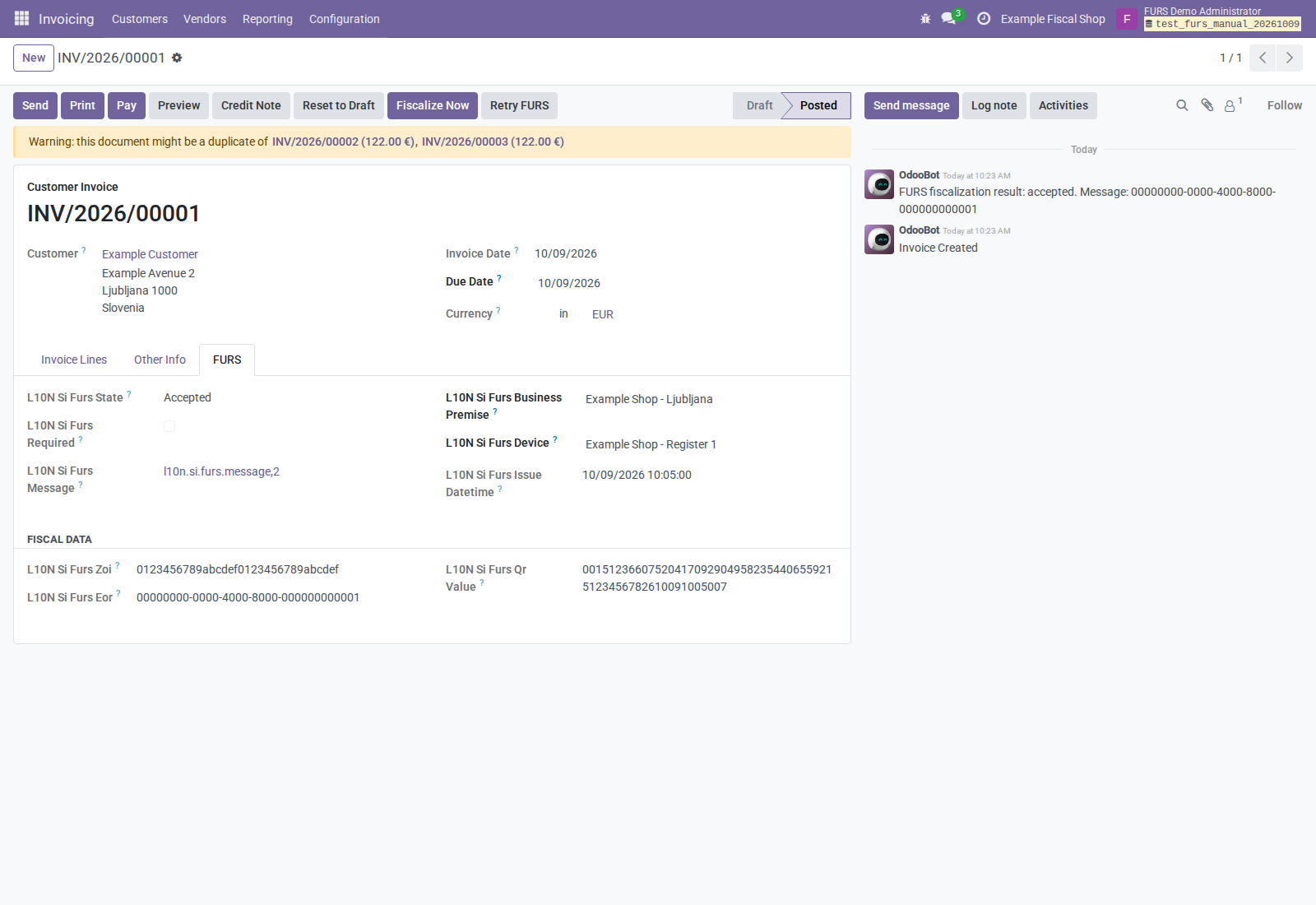
Figure 6. Accepted identifies the fiscal result. The Required indicator is now off because accepted invoices are excluded from further submission. The visible Fiscalize Now button is a current visibility issue; clicking it does not allow an accepted invoice to be resubmitted.
| Fiscal state | Meaning and next action |
|---|---|
| Draft | Initial fiscal state; not proof of submission. Check eligibility and submit if appropriate. |
| Sent | Queued or submitted work; wait for and inspect the final outcome. |
| Accepted | The addon processed an accepted response. Verify the EOR and signature evidence. Further fiscalization is blocked. |
| Rejected | A response contains an error code. Read and correct the cause before controlled resubmission. |
| Error | Another unsuccessful result. Investigate transport, response parsing, certificates, or setup. |
ZOI is generated locally from the certificate key and invoice information; EOR comes from the accepted response. A local ZOI or a printed fiscal section alone does not prove FURS acceptance. The stored fiscal issue time is established at submission and reused for subsequent attempts; it is distinct from Invoice Date.
When a transport exception interrupts a manual request, Odoo can roll back that request’s local changes, including a newly created audit message. Do not assume an error popup always leaves an Error invoice or persistent message. Check the invoice, chatter, and messages after every unsuccessful request. An uncertain network result is not proof that the remote service did not receive it.
9. Configure automatic fiscalization
9.1 On posting
Enable Auto Fiscalize On Post on the selected configuration or Auto Fiscalize on Post on the device. Either flag enables the path; a device flag off does not override a configuration flag on.
Post a representative test invoice, then inspect the FURS result and chatter. Caught user errors are written to chatter and can leave the accounting invoice posted without successful fiscal confirmation. Posting success therefore does not prove fiscal acceptance. Keep a daily review of unaccepted posted invoices.
Manual fiscalization does not depend on either automatic flag being enabled.
9.2 On payment
- Configure fiscal payment journals/methods on the device.
- Enable the configuration’s Auto Fiscalize On Payment or the device’s Auto Fiscalize on Payment. These flags also combine with OR semantics.
- In your actual test payment workflow, register and reconcile a qualifying payment. Then inspect the invoice’s chatter, fiscal state, and message.
- Test a non-fiscal bank transfer, partial payment, mixed payment channels, and the journals/methods staff will actually use.
Current limitation: the hook runs only when an ORM write explicitly includes
payment_state. A normal recomputation of this field during reconciliation does
not itself invoke that hook. Merely enabling the setting and clicking Pay
does not guarantee fiscalization in the standard workflow. Validate the deployed
integration; use a verified manual/on-post process when the payment path does
not fire.
The implementation evaluates reconciled payment journals/methods and can qualify partial or mixed payments; it does not require the whole invoice to be Paid. It submits the invoice’s full absolute total as PaymentAmount, not just the qualifying payment amount. An invoice already accepted is skipped. After a payment-trigger submission returns, an internal triggered flag prevents repeated payment triggering even if the result was not accepted; follow up through manual retry/recovery instead of expecting another payment to fix it.
Fiscal Payment Type is descriptive. It does not configure the hook, define the legal obligation, or automatically map cash/card journals.
10. Credit notes and batch operations
10.1 Customer credit notes
Use the standard accounting Credit Note workflow to create the accounting
reversal, verify its lines/taxes and reason, select the correct device, and post
it. The fiscal eligibility check accepts customer credit notes (out_refund)
and the same manual fiscalization entry point is available.
Payload limitation: the current builder uses absolute invoice/tax amounts
and does not build an original-invoice reference for a credit note. It has no
user-editable operator tax number and uses the supplier tax number for
OperatorTaxNumber. Premise requests likewise use that number for
SoftwareSupplier; there is no separate software-vendor identity setting.
These are implementation boundaries, not evidence that all
legally required correction/refund scenarios are supported. Have the intended
refund/correction payload validated before production use. Do not reset an
accepted invoice to Draft and reuse its EOR for a changed accounting document.
10.2 Invoice batch
- In the customer invoice list, select posted eligible invoices from the same company/configuration context. Exclude accepted invoices.
- Choose Actions → Batch Fiscalize (FURS).
- Inspect the batch message, each invoice’s state, and individual reply mapping. A batch can contain mixed outcomes; the overall submission is not proof that every selected invoice was accepted.
The direct batch action expects one configuration for the selection. The recovery service can group batch work by configuration/device/premise; see section 12. Unposted, unconfigured, mismatched, or otherwise ineligible records can block a batch, so review the selection before sending.
10.3 Premise batch
In Business Premises, select premises for the same configuration and choose Actions → Batch Register Premises (FURS). Review each premise’s resulting registration state and message. Do not combine different configurations in this direct action.
Batch wrapper names, routes, and reply mapping require validation against the current FURS specification/deployed service before production use. No real batch submission was performed for this manual. Premise-list navigation is currently affected by the view-type blocker described above.
11. Review messages and retry failures
11.1 Read the audit evidence
Open Reporting → Slovenia FURS → FURS Messages. Use search fields, filters, and grouping to locate invoices, error codes, dates, message types, HTTP status, transport categories, and signature results. Defined filters include Errors, Retryable, Batch Messages, HTTP 4xx, HTTP 5xx, Signature Verified, Signature Failed, Signature Not Verified, and Failed.
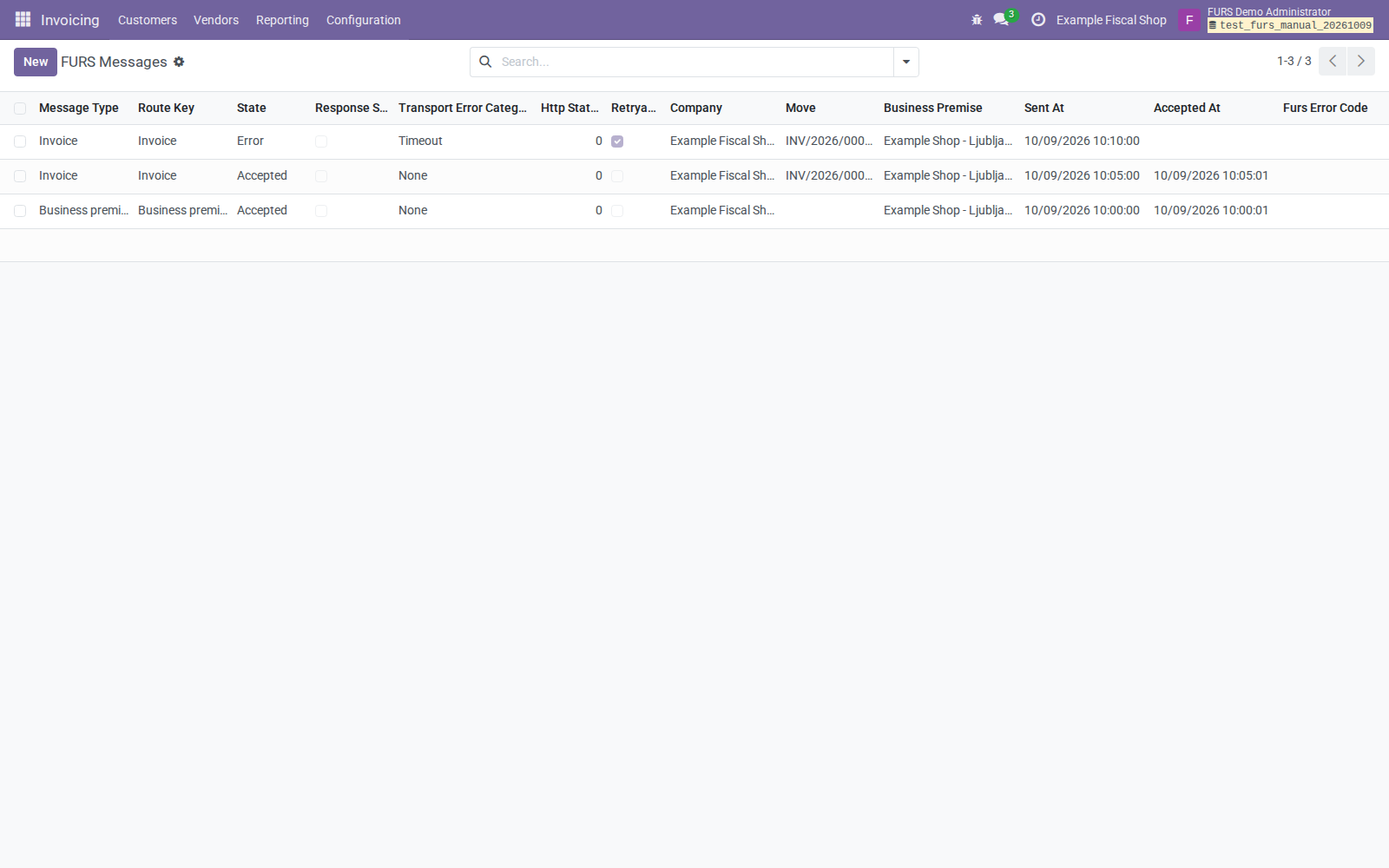
Figure 7. Compare state, retryability, transport category, invoice/premise links, and timestamps. This list was opened with an explicit Odoo 18 list action because the supplied menu action currently requests tree.
Failed Fiscalizations selects Error, Rejected, and Failed messages; it does not mean every visible message can be retried. Likewise, an unchecked signature verification field can mean verification was off, failed, or never completed. Read the policy and signature error as well.
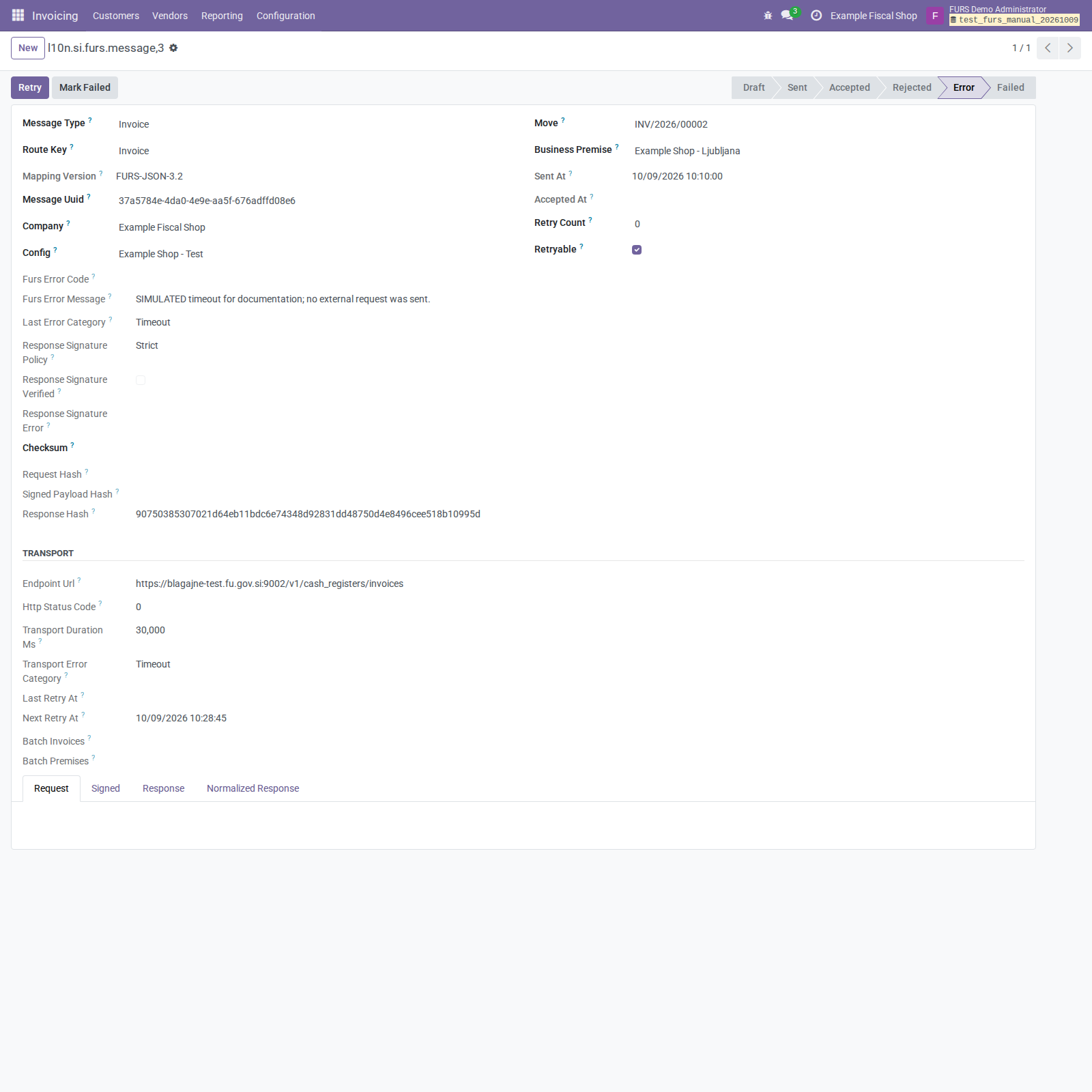
Figure 8. The simulated timeout records a 30,000 ms duration and a next retry time. No FURS request produced this example.
For each message, inspect:
- Message Type, Route Key, Mapping Version, UUID, company, configuration, and related invoice/premise or batch records.
- State, sent/accepted timestamps, FURS error code/message, retry count, retryability, last retry, and next retry.
- Transport: endpoint, HTTP status, duration, and transport error category.
- Response Signature Policy, verification flag, and signature error.
- Request, Signed, Response, and Normalized Response tabs and request/signed/response hashes when populated.
Payloads can contain taxpayer and business information. Give audit access only to the appropriate people and redact exports/support evidence. Accepted messages are protected against ordinary Operator edits, but Configuration Managers and superusers can modify them; this is not an immutable external archive. The displayed signature policy follows the linked configuration’s current settings, so changing that configuration can change the policy shown on older messages.
11.2 Choose the right retry operation
| Operation | When to use it |
|---|---|
| Invoice Retry FURS | After correcting an unsuccessful invoice’s setup/data; re-evaluates eligibility and submits again. Accepted invoices are blocked. |
| Message Retry | Error/Failed messages marked retryable and below the five-attempt limit, with a linked invoice or premise. |
| Message-list Actions → Retry FURS Messages | A selection consisting entirely of eligible retryable Error/Failed messages. An unsuitable selected message can block the action. |
| Mark Failed | Manager follow-up classification; changes message state to Failed. It does not cancel retry scheduling or change invoice fiscal state. |
A business Rejected message is not retried by the message Retry operation, even if that button is visible. Correct the cause and use the invoice’s controlled retry or the premise’s registration workflow. Preserve the failed attempt as evidence; a retry may create a new message and update the document’s latest link.
11.3 Automatic retry schedule
Timeout, connection, and HTTP 5xx categories are retryable. HTTP 4xx, business rejection, malformed responses, signature failures, and unknown failures are not automatically retried. Accepted and Rejected outcomes clear their retry schedule.
The default maximum retry count is 5 per message. Backoff is 5 minutes, 15 minutes, 60 minutes, then 1,440 minutes for later attempts. The scheduled action FURS Retry Failed Fiscalizations runs every 15 minutes, so Next Retry At is a due time, not a promised execution time. The job selects retryable Error/Failed messages below the limit and due for retry. Optional queue processing requires running queue workers.
The limit applies to a message record, not a guaranteed global limit on every new message created for an invoice. Review the newest document/message outcome and older attempts together. No scheduled action can recover an attempt whose message was rolled back or whose eligibility/setup remains invalid.
12. Recovery and historical backfill
12.1 Find and plan
Open Reporting → Slovenia FURS → Recovery / Backfill as an Operator.
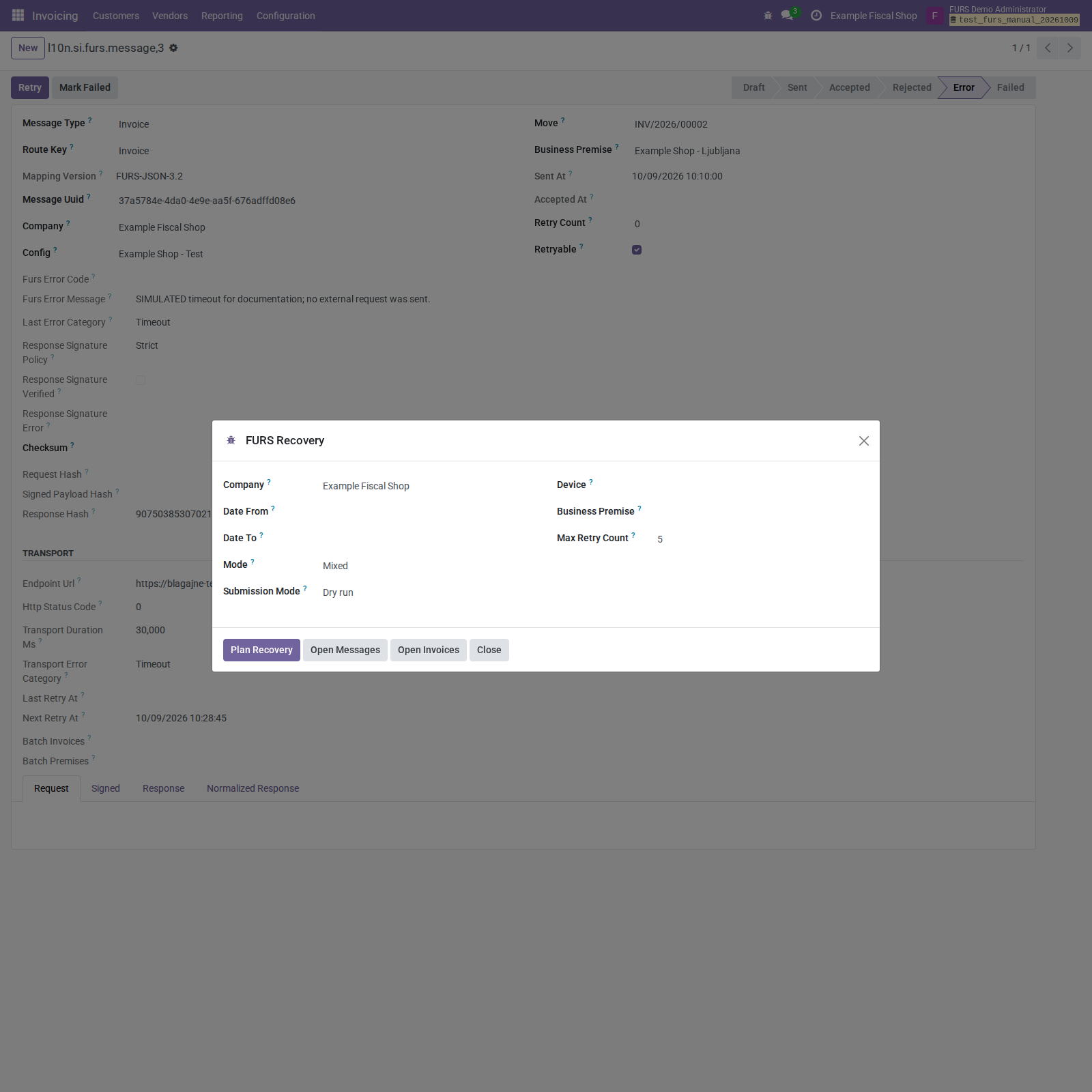
Figure 9. Start with Dry run. Plan Recovery creates a persistent selection for review without sending to FURS.
| Field | Meaning |
|---|---|
| Company | Company to investigate. |
| Date From / Date To | Invoice-date bounds for invoice candidates; sent-time bounds for message candidates. |
| Mode | Invoices, Messages, or Mixed. |
| Submission Mode | Dry run, Single, or Batch. Default: Dry run. |
| Device / Business Premise | Optional narrowing filters. |
| Max Retry Count | Only message candidates below this count; default 5. This does not limit invoice candidate selection or override the message retry ceiling. |
- Choose the company and a narrow date range.
- Start with Invoices or Messages when you want a clear single source of work; Mixed may select an invoice and its failed message as separate lines.
- Leave Submission Mode = Dry run.
- Click Plan Recovery and review the created recovery run and its lines.
- Optionally use Open Invoices or Open Messages to investigate. Their list-opening actions currently need the Odoo 18 view-type correction.
Date and filter details: Date To on messages is compared to a timestamp. Selecting a date can exclude later messages that day. To include all messages on October 9, use October 10 as the upper boundary and inspect the results. Invoice bounds use dates and include the selected final invoice date. Device and premise filters initially match fields stored on invoices/messages; an invoice relying only on automatic journal resolution may be omitted by those filters even though it is eligible. Start without these filters if expected records are missing.
Open Invoices returns posted eligible customer invoices/credit notes not accepted. Open Messages returns retryable Error/Failed messages under the limit. Recovery planning also considers Rejected/nonretryable messages and records them as skipped, so these buttons need not show exactly the same set as a Mixed run’s lines.
12.2 Review the run
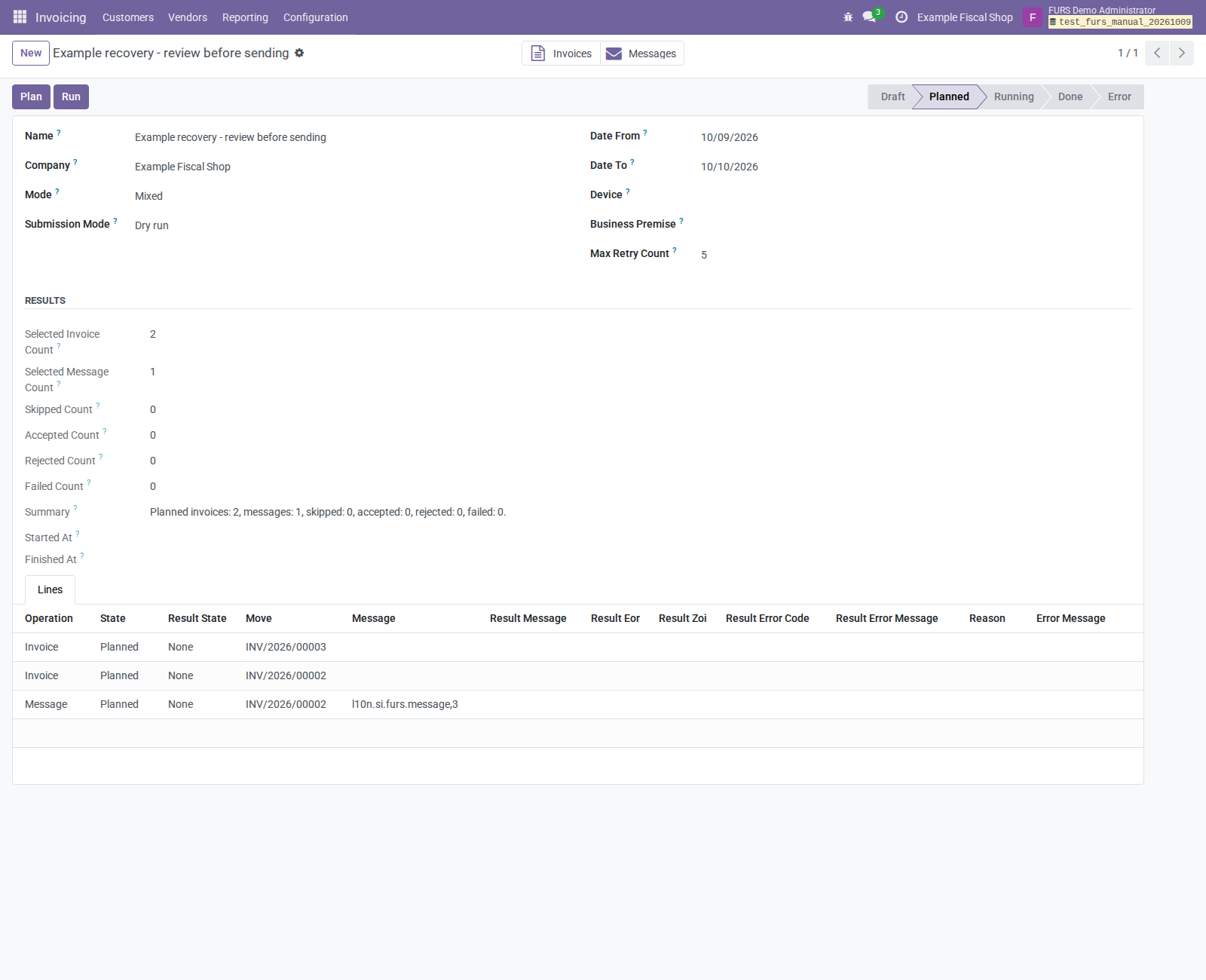
Figure 10. The example shows two invoices and one timeout-message operation. The accepted invoice is excluded. The timeout invoice appears in both sources; review this overlap before executing Mixed recovery. Run remains visible due to the legacy modifier, but the server rejects execution while Dry run is selected.
The run stores selected invoice/message counts, skipped/accepted/rejected/failed counts, summary, start/finish times, and lines. For each line, review Operation, State, Result State, invoice, source message, result message, fiscal identifiers, error details, and skipped reason. None is the normal result state for an unexecuted planned line.
12.3 Execute controlled recovery
- After reviewing a dry plan, select Single for individual submissions or Batch for grouped submissions. Use a new run when you want to preserve the original dry-plan snapshot separately.
- If filters or candidates changed, click Plan again while Draft/Planned and review the refreshed lines. Replanning replaces the previous lines.
- Confirm environment, certificate, mappings, and numbering; then click Run. Single and Batch perform external requests.
- Inspect every line’s Result State and Result Message, not just the run’s overall state or counts.
- Follow up on Rejected, Failed, Error, and unexpected Skipped lines. Open the corresponding document/message for details.
Dry-run runs cannot execute. Invoice acceptance is rechecked when running, so already accepted documents are skipped rather than sent again. Rejected and nonretryable message operations are preserved as skipped; invoice operations can attempt an eligible unaccepted invoice after its cause is corrected. Single recovery processes each planned operation. Batch recovery groups eligible invoice/message work according to configuration/device/premise and handles partial replies per record.
Done means the run finished processing; it does not mean every line was Accepted. An Error run or a Done run with failed/rejected results requires review. Completed/error runs cannot simply be run again; create a new bounded recovery selection after correcting the cause. Mixed mode can retain overlapping invoice/message operations, so acceptance checks and individual outcomes matter.
13. Print the invoice and QR code
After checking fiscal acceptance, open the customer invoice and use Print to select the invoice report. Review the resulting PDF before sending or handing it to the customer.
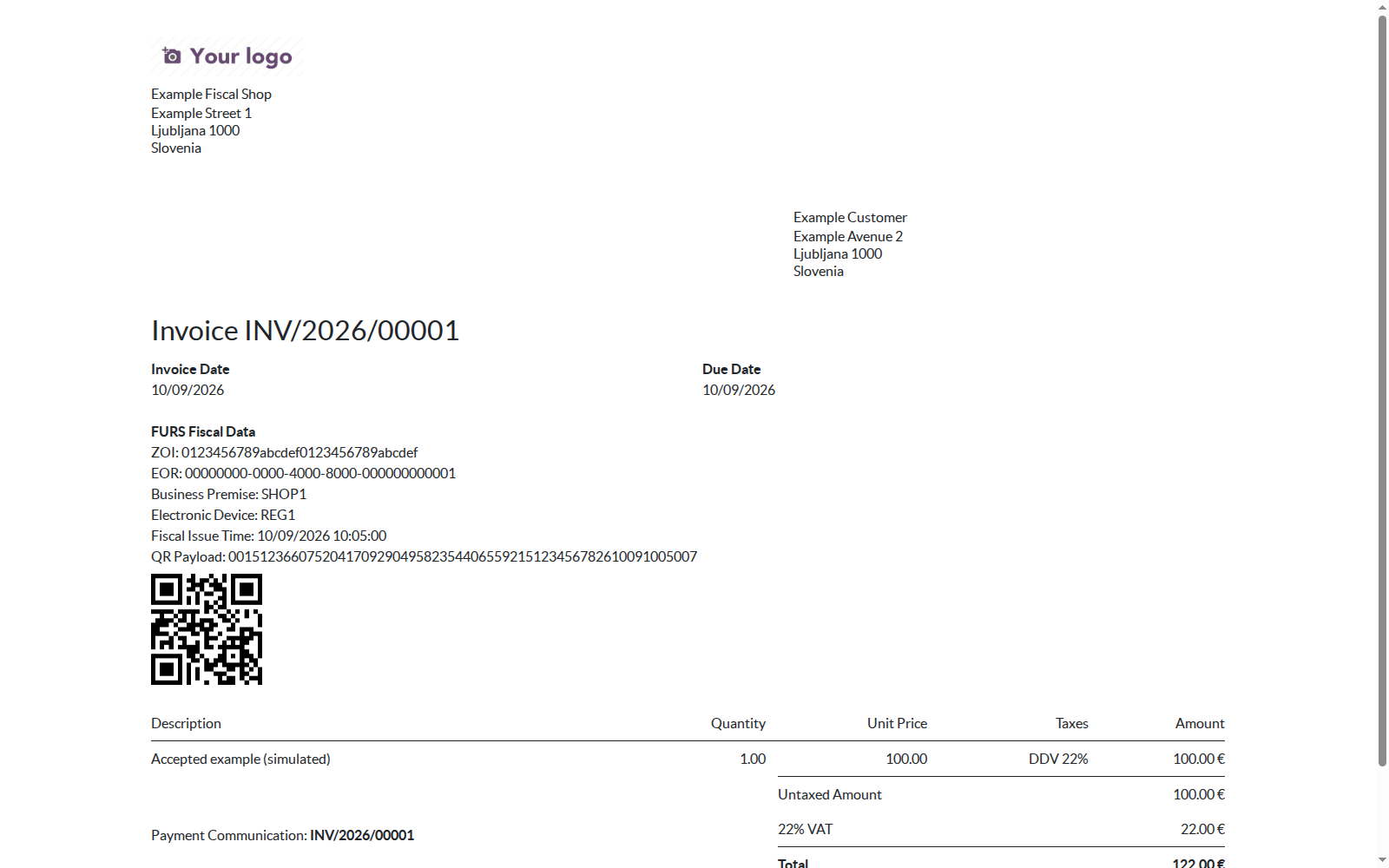
Figure 11. This browser capture is the invoice report’s HTML rendering, not a PDF screenshot. It shows the same inherited FURS Fiscal Data section used by the invoice report, with entirely simulated identifiers.
When ZOI or EOR is present, the report adds FURS Fiscal Data containing ZOI, EOR, Business Premise, Electronic Device, Fiscal Issue Time, and QR Payload. A QR image is added when QR Value is populated. The report condition is the presence of ZOI/EOR, not an Accepted-state check. A report with ZOI and no EOR can therefore still be unconfirmed.
The QR is generated from decimal ZOI, taxpayer number, timestamp, and a check digit. Verify scan readability in the actual printed/PDF layout. Custom invoice report overrides may require a separate check that the inherited section remains present. PDF rendering and printer scan quality were not validated for these screenshots.
14. Daily checks, certificates, and production handover
Daily operating routine
- Review posted invoices awaiting fiscal acceptance, including invoices whose automatic posting/payment path did not complete.
- Check Failed Fiscalizations and signature warnings/errors; classify data errors separately from retryable transport failures.
- Inspect overdue retries and queue workers when applicable.
- Check recovery line outcomes and retain the related audit evidence.
- Confirm the correct company/environment before any manual or bulk action.
- Review certificate activities and upcoming expiry; maintain protected backups of the database and filestore, including private attachments.
Certificate rotation
The scheduled action FURS Certificate Expiry Check runs daily and creates activities for active configurations with stored certificate expiry metadata: warning within 30 days, critical within 7 days, and expired after validity ends. It targets permitted Configuration Managers, with fallback users when necessary. This reminder is not automatic renewal.
Obtain the replacement certificate securely, upload it as a private attachment, update the password, save, inspect new metadata, and run a deliberate connection check. Obtain updated response signing certificates and trust-chain information from FURS when they rotate. Retain old audit evidence according to your retention policy and restrict access to retired private keys. Monitor the scheduled job: the screenshot exercise did not execute the expiry cron.
Production handover checklist
- Validate echo, premise registration, representative invoice/tax cases, signature verification, numbering, failure recovery, and report output against real FURS Test using an issued test certificate.
- Validate the particular correction/credit-note and payment-trigger workflows before claiming support for them.
- Resolve the current navigation/visibility issues and verify each role’s access.
- Approve the business rules, operator identification, numbering, and response signature policy for the deployed implementation.
- Prepare a separate Production configuration/database with the production fiscal certificate, password, actual taxpayer number, response certificate, host trust, and connectivity.
- Register Production premises separately, configure matching devices, and verify that no unintended active configuration takes precedence.
- Establish monitoring, certificate rotation, backup/restore, and an approved fallback process for outages or uncertain submissions.
Do not switch a used Test configuration to Production to migrate its results. A Test-accepted invoice remains Accepted locally and is not automatically sent to Production. Changing an environment on an existing configuration also changes subsequent retries that use that record. Local acceptance and test EORs are not production confirmation.
15. Troubleshooting and current limitations
| Symptom | Check and next action |
|---|---|
| FURS menu missing | Accounting app availability, FURS role, normal accounting rights, active/allowed companies. Managers need Operator too for operator-only menus/wizards. |
Configuration action reports undefined company_id |
Current action-context bug. Ask the administrator to correct it; changing taxpayer data will not fix it. |
List action reports View types not defined tree |
Current Odoo 18 action compatibility issue. Administrator correction is required for the affected menus/list-opening actions. |
| Incompatible Slovenian localization modules | l10n_si2 and standard l10n_si cannot coexist. Resolve installation planning without removing a populated chart casually. |
| Required is off on a posted invoice | Accepted already, wrong document type/country, no active configuration, unresolved/ambiguous device, inactive device, unregistered premise, or numbering readiness error. |
| Multiple devices match a journal | Make mappings unambiguous or select the intended device explicitly on the invoice. |
| Premise not registered | Submit registration in the intended environment and verify its message. Pending is not Registered. |
| Certificate password/format/private key error | Select the issued PKCS#12 file, use its actual password, and ensure it includes the private key. |
| Certificate not yet valid/expired | Check system time and validity metadata; obtain the correct valid certificate. |
| Missing supplier tax number | Set the configuration’s number matching the certificate identity or correct company VAT fallback. |
| TLS/connection/timeout error | Check network, correct Test/Production port, certificate environment, trust chain, and host clock. Check persisted records after the request; do not assume rollback proves remote failure. |
| Strict response signature fails | Enable verification deliberately, load the correct current response certificate, inspect the signature error, and check trust separately. |
| Numbering blocked | Post the invoice, configure the device sequence, and align its evaluated prefix/suffix with the journal’s actual invoice number. |
| Invoice posted but not fiscalized | Inspect automatic flags and chatter; posting can succeed after a caught fiscal error. Review and submit through a verified workflow. |
| Payment completed but not fiscalized | Check reconciled journal/method mappings and the explicit payment_state write limitation. Validate the deployed hook; use the manual process when needed. |
| Retry button refuses | Accepted/Rejected state, nonretryable category, reached retry limit, missing linked document, or unresolved eligibility. Correct data first; use the appropriate document operation. |
| Mark Failed still leads to retry | It does not clear retryable or Next Retry At. Manager classification is not cancellation. |
| Recovery finds too few records | Company/date limits, timestamp boundary, stored device/premise filters, acceptance, message retry count, and current eligibility. |
| Recovery is Done but invoices are unaccepted | Read individual Result State, errors, and Result Message; Done is completion, not universal acceptance. |
| Fiscal section or QR absent | Check ZOI/EOR/QR fields, accepted result, and custom report inheritance. Confirm QR generation/rendering and actual print readability. |
Additional boundaries to account for:
- The operator tax number is the supplier number; there is no per-cashier operator identity setting in this addon.
- Customer refunds use absolute amounts and no original-invoice reference in the payload builder; a complete correction protocol is not established.
- Only the implemented real-estate/movable premise fields are available. There is no dedicated vending-machine or closure form in this version.
- Fiscal Payment Methods supplement journal qualification; they do not impose a restrictive method filter on matched fiscal journals.
- Technical eligibility and prefix/suffix checks do not establish complete legal tax, numbering, payment, or correction compliance.
- The fiscal tax builder aggregates posted tax lines by numeric rate using absolute tax bases and balances. It does not consume UNECE categories, VATEX codes, or e-SLOG legal clauses. Validate exempt, reverse-charge, fixed/division, and compound-tax scenarios separately; this is not the e-SLOG tax serializer.
- A manual transport exception can roll back local message creation. Not every failed/uncertain external attempt is guaranteed to persist as retryable work.
- Batch compatibility, real FURS exchange, asynchronous queue processing, scheduled jobs, and the payment hook need deployment-specific validation.
For support, use the Bug Tracker instructions in the addon README. Provide addon/Odoo versions, selected environment, synthetic reproduction steps, final state, error category/code, and redacted evidence. Never include certificate private keys, passwords, signed production payloads, or customer data.
16. Evidence and official references
This guide and its screenshots were prepared on October 9, 2026 against the current addon’s manifest, models/services, XML views/actions, security rules, scheduled actions, report inheritance, and relevant test scenarios.
The follow-up documentation review checks these same source paths without recreating the screenshot database, running new addon tests, or submitting to FURS.
Runtime evidence covers fresh installation with the localization conflict handled in the disposable database, rendering of the forms and audit list, simulated invoice/registration/error state application, real dry-run recovery planning, HTML invoice/QR rendering, and the navigation errors listed above. It does not cover live FURS acceptance, production operation, PDF rendering, printed QR scanning, automatic payment triggering, queue workers, or cron runs.
Use the official FURS technical specifications and certificates page for current instructions, public certificates, schemas, and service notices. That page was checked on October 9, 2026 and lists technical specification version 3.2. FURS publications and your approved compliance process govern legal requirements; the present guide documents the software behavior.
For implementation/developer setup, see the English README and
Slovenian README. The files under images/ are the
captured PNG illustrations referenced throughout this manual.