Slovenian e-SLOG e-Invoicing — User Manual
For Odoo 18 Community, addon l10n_si_einvoice, version 18.0.1.3.0.
Instructions were rechecked against the current working tree on October 9, 2026. All 17 screenshots were recaptured from this version in a fresh disposable database on the same date, including the read-only company version 2.0 and the explicit local-generation message that no invoice was sent. This guide covers configuration, customer invoice and credit-note export, email attachments, optional HTTP transmission, and supplier invoice/refund import.
The addon generates e-SLOG 2.0 INVOIC v200 XML. It is not a connection to FURS fiscal confirmation, a recipient directory, or a complete exchange-provider integration. Generating an XML file, exporting it locally, emailing it, and obtaining acceptance from a recipient are separate operations.
Contents
- 1. Screenshots and example data
- 2. Prerequisites and installation
- 3. User access and menu locations
- 4. Configure the issuing company
- 5. Configure customers and transmission methods
- 6. Configure taxes and units of measure
- 7. Generate XML for a customer invoice
- 8. Send an invoice by email
- 9. Send eBill, local export, and HTTP transmission
- 10. Export customer credit notes
- 11. Configure supplier invoice import
- 12. Import supplier XML and review the draft
- 13. Supplier credit notes, duplicates, and PDF files
- 14. Validation, audit evidence, and routine checks
- 15. Troubleshooting and implementation boundaries
- 16. Reference material and verification evidence
1. Screenshots and example data
The screenshots document a current-version Odoo browser exercise in a newly created disposable database. All names, addresses, identifiers, email addresses, and transactions are synthetic. VAT values illustrate fields only; do not copy them into your company/customer records. No SMTP message or HTTP invoice transmission was sent.
The screenshot exercise verified XML generation, XSD validation, local export, supplier bill import, supplier credit-note import, and duplicate rejection against the current addon. These checks are not exhaustive business acceptance. The email screenshot shows an opened composer; its Send button was not used.
| Example | Values |
|---|---|
| Issuing/buying company | Example Invoice Company, Ljubljana, EUR |
| Customer | Example Customer, customer@example.invalid |
| Vendor | Example Supplier, supplier@example.invalid |
| Customer invoice | EUR 100.00 net + EUR 22.00 VAT = EUR 122.00 |
| Customer credit note | EUR 20.00 net + EUR 4.40 VAT = EUR 24.40 |
| Supplier invoice reference | SUP-2026-001, total EUR 122.00 |
| Supplier credit-note reference | SUP-CN-2026-001, total EUR 24.40 |
| Unit code | C62 for the illustrative unit |
The linked customer credit note reduces the original invoice’s outstanding balance. A Partial ribbon in the screenshots is an accounting result, not electronic-invoice delivery status. Invoice totals and the exported residual amount are different values.
Screenshots use the English interface. Dependencies can label the accounting app/tab Invoicing rather than Accounting; this is the label shown here. Some date/number formats reflect the installed Slovenian localization.
2. Prerequisites and installation
The administrator must provide Odoo 18 and the following addons on the addons path:
| Dependency | Purpose |
|---|---|
account |
Invoices, credit notes, journals, and accounting records. |
account_invoice_export |
Send eBill workflow and optional HTTP export. |
account_invoice_import |
Supplier bill/refund import wizard and review process. |
l10n_si_account_tax_unece |
Slovenian tax metadata setup; depends on l10n_si2 and account_tax_unece. |
l10n_si_config |
Slovenian configuration; brings additional dependencies, including pmis_ux. |
uom_unece |
UNECE unit codes. |
The OCA dependencies come from repositories including edi,
account-invoicing, community-data-files, and server-tools. The Slovenian
localization and PMIS UX dependencies come from their corresponding PMIVerse
repositories. Making only this addon directory available is insufficient.
Dependencies may also install stock, sales, and purchase functionality; check
the actual manifest/dependency selection before installation.
Use the repository’s requirements in the configured Odoo Python environment. The PDF scanning implementation imports PyPDF2 and reads embedded-file name trees and catalog associated files directly when attachment APIs are unavailable.
- In Apps, refresh the app list if necessary.
- Remove the default Apps filter if it hides this non-application addon.
- Search for Slovenia - e-SLOG e-Invoice and install it.
- Verify localization, chart of accounts, currencies, sales/purchase journals, taxes, and user permissions before using the workflows.
Localization conflict: l10n_si2 excludes standard Odoo l10n_si. A fresh
Slovenian database may automatically select the standard localization when
Accounting is installed. The administrator must arrange compatible localization
installation. Do not uninstall a populated company’s localization or replace
its chart merely to follow a screenshot. For this disposable database, standard
l10n_si auto-installation was disabled before installing the addon.
3. User access and menu locations
In Settings → Users & Companies → Users, select the user and verify both normal accounting rights and the relevant SI e-Invoice group memberships.
| Group | Use |
|---|---|
| e-Invoice User | Shows Generate e-SLOG XML and the partner recipient field. |
| e-Invoice Manager | Shows company e-SLOG settings and the partner recipient field. |
These groups independently imply Internal User. Manager does not imply User; assign both when the person configures and manually generates XML. Standard accounting user rights imply e-Invoice Manager; billing rights imply e-Invoice User through the installed security definitions.
The supplier import wizard requires normal Billing/accounting access. Transmission-method editing is governed by the dependency’s Settings or Financial Manager access, not just the e-Invoice Manager group. Retain normal company, partner, invoice, attachment, tax, and journal access. The addon does not create a separate invoice security model.
| Task | UI location |
|---|---|
| Company metadata | Settings → Users & Companies → Companies |
| Customer/vendor configuration | Invoicing → Customers → Customers / Vendors → Vendors |
| Transmission methods | Invoicing → Configuration → Accounting → Transmit Methods |
| Tax metadata | Invoicing → Configuration → Accounting → Taxes → Advanced Options |
| Unit codes | Inventory → Configuration → Units of Measure; enable Units of Measure in settings if needed |
| Outbound invoice | Invoicing → Customers → Invoices |
| Supplier import | Invoicing → Vendors → Import Vendor Bills |
| Imported records | Invoicing → Vendors → Bills / vendor refunds |
Menu visibility depends on permissions and installed apps. Select the correct company first, particularly for company-dependent customer/vendor defaults.
4. Configure the issuing company
Open the company and check its commercial details and accounting configuration.
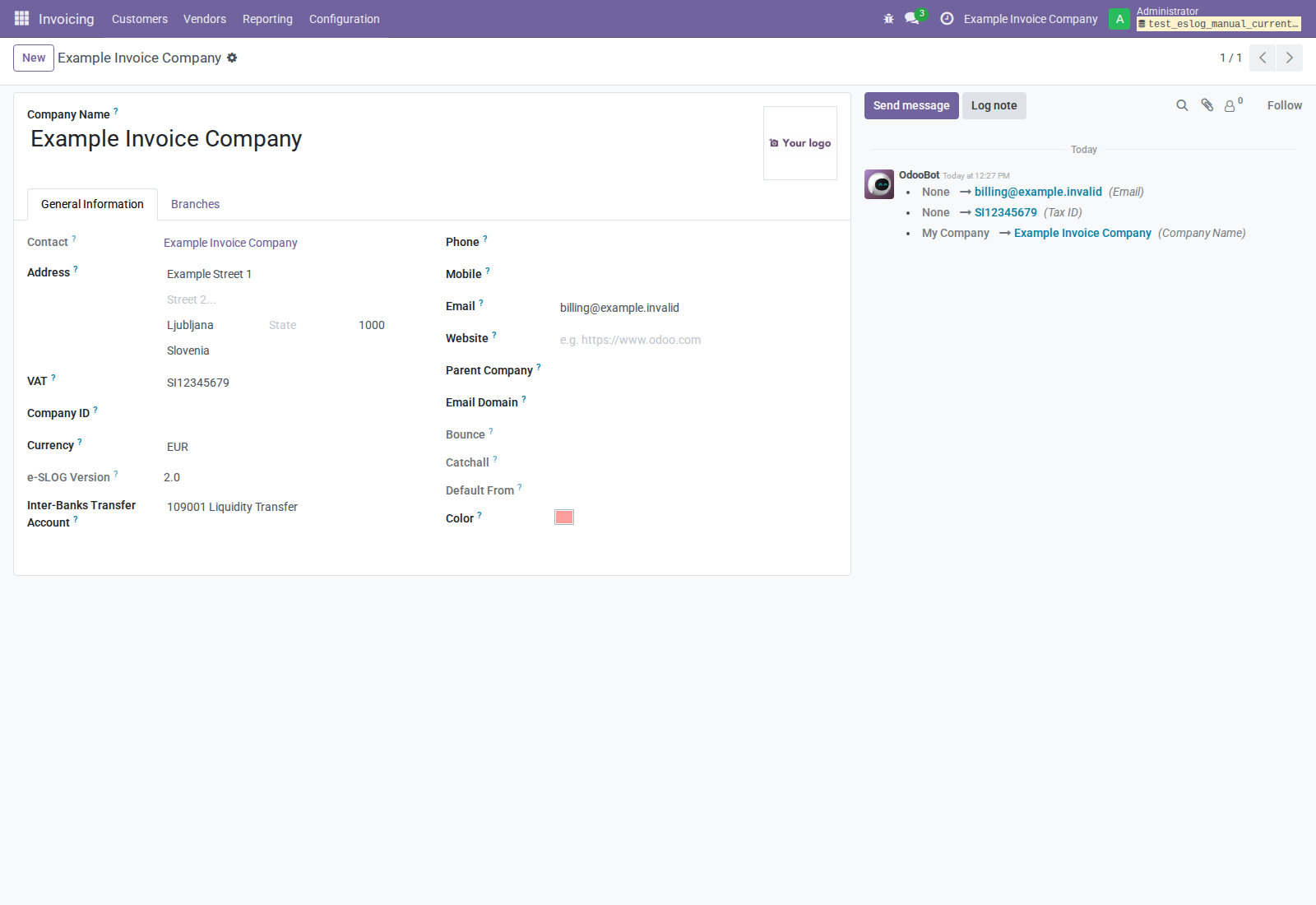
Figure 1. The company has a synthetic Slovenian address and EUR currency. The e-SLOG Version is read-only and set to 2.0.
| Data | Requirement/use |
|---|---|
| Name | Required by export. |
| Country | Required by export; the country code is included in XML. |
| VAT/tax number | Required. Use the actual taxpayer identifier appropriate to the business. |
| Street / Street 2 | At least one is required by export. |
| City and postal code | Fill accurate address data; included when available. |
| Currency and journals | Verify the intended currency, sales journal, and legal accounting numbering. |
| Bank details | Optional in this generator; confirm the correct invoice payment account before using output. |
| e-SLOG Version | Read-only 2.0, matching the active generator. |
Only e-SLOG 2.0 is supported for import and export. No migration is required for this undeployed module.
For bank information, the generator prefers the invoice’s available bank field and otherwise the first bank account of the company partner. Review multi-bank cases: a populated company bank list alone does not guarantee that the intended account was selected. Bank account/BIC information is emitted when available; this manual’s examples leave bank data empty.
A country-prefixed VAT identifier produces both VA and AHP tax references.
A number without a country prefix produces AHP only. If every categorized
product line uses category O, the generator suppresses VA references but
still requires taxpayer identifiers. This formatting rule does not establish
the business’s legal VAT classification.
5. Configure customers and transmission methods
5.1 Customer defaults
Open the customer’s commercial/company contact:
- Fill name, country, street/address, VAT/tax number, and email when email delivery will be used.
- On Sales & Purchase, set Customer Invoice Transmission Method to e-SLOG.
- Save with the intended active company selected. This default is company-dependent.
- On each invoice, verify Transmission Method = e-SLOG. Changing a customer default is not a reason to assume every existing invoice now has that method.
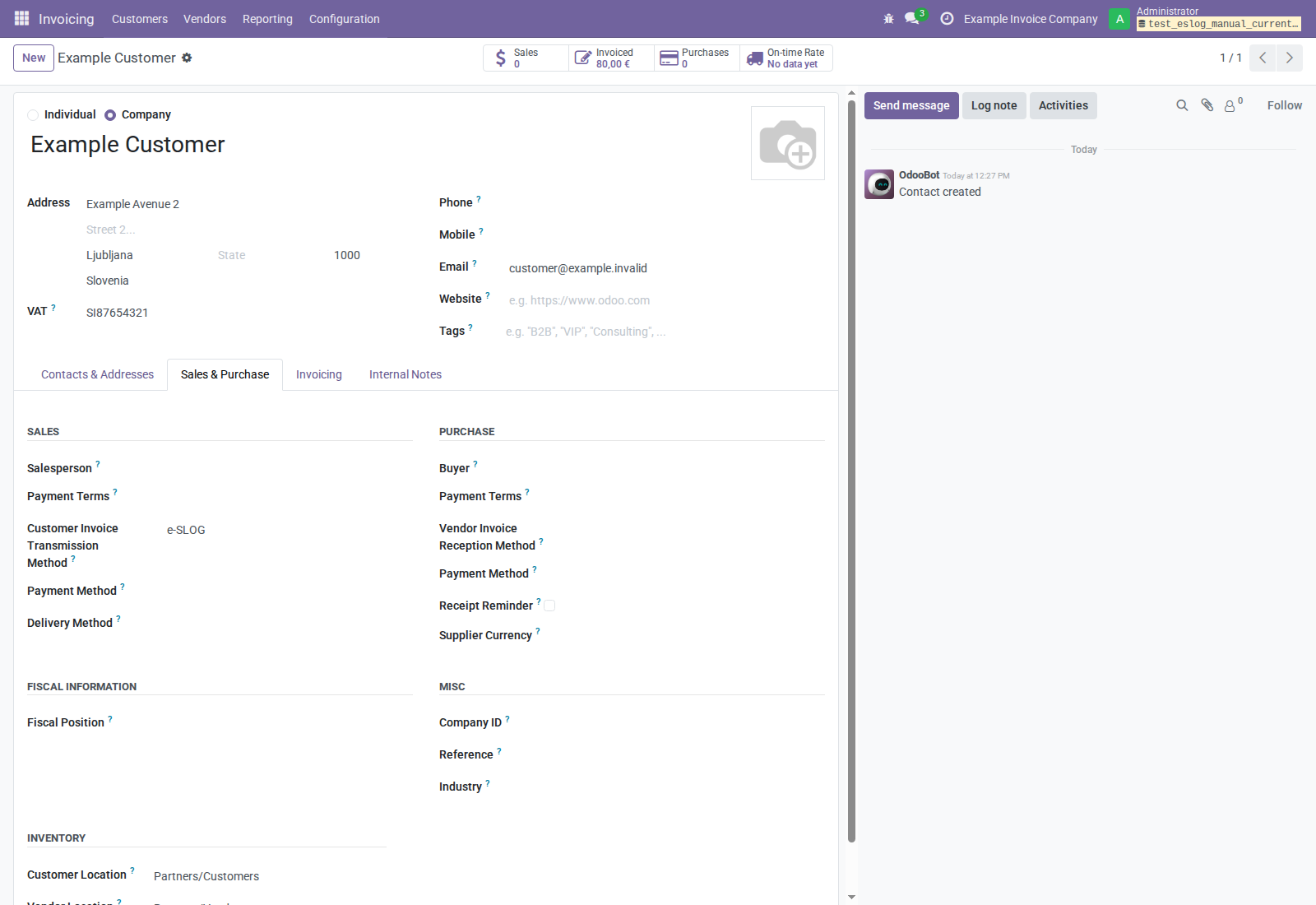
Figure 2. The customer default supplies the invoice transmission method. The vendor reception method is a separate field.
Export validates the commercial partner for the customer: a contact under a company uses the commercial company’s identifying information. Check that parent/company record when a child contact appears complete but export reports missing taxpayer/address information.
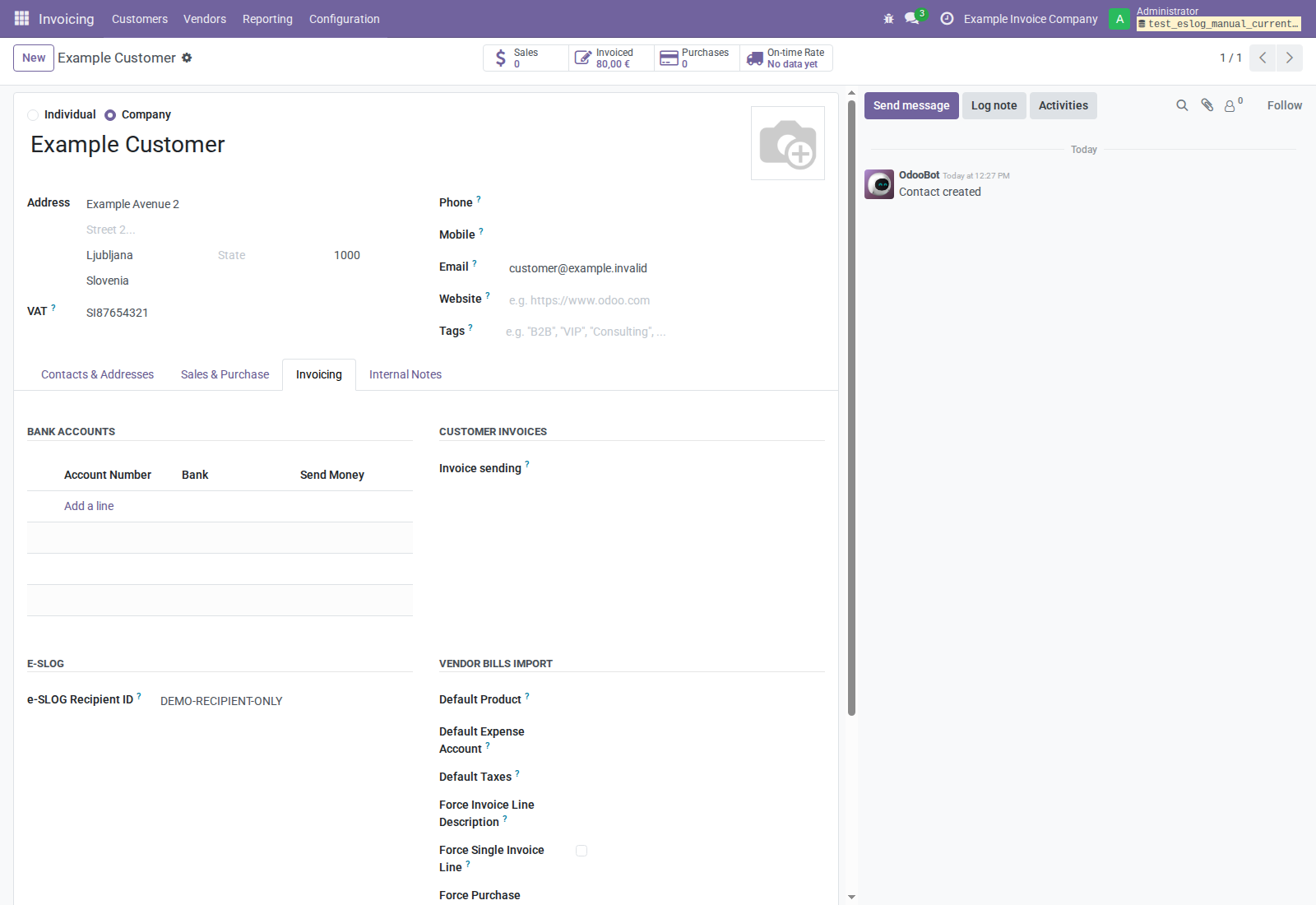
Figure 3. e-SLOG Recipient ID is visible on the Invoicing/Accounting tab.
The e-SLOG Recipient ID on the customer's commercial partner supplies the buyer's XML party identifier, taking precedence over that partner's Reference and VAT. An ID entered only on a child contact is not used for this buyer block. The company partner's ID uses the same precedence for the seller block. The field does not configure an HTTP destination, connect to a directory, or establish delivery through an exchange service.
5.2 The e-SLOG transmit method
Open Transmit Methods and select the supplied e-SLOG record.
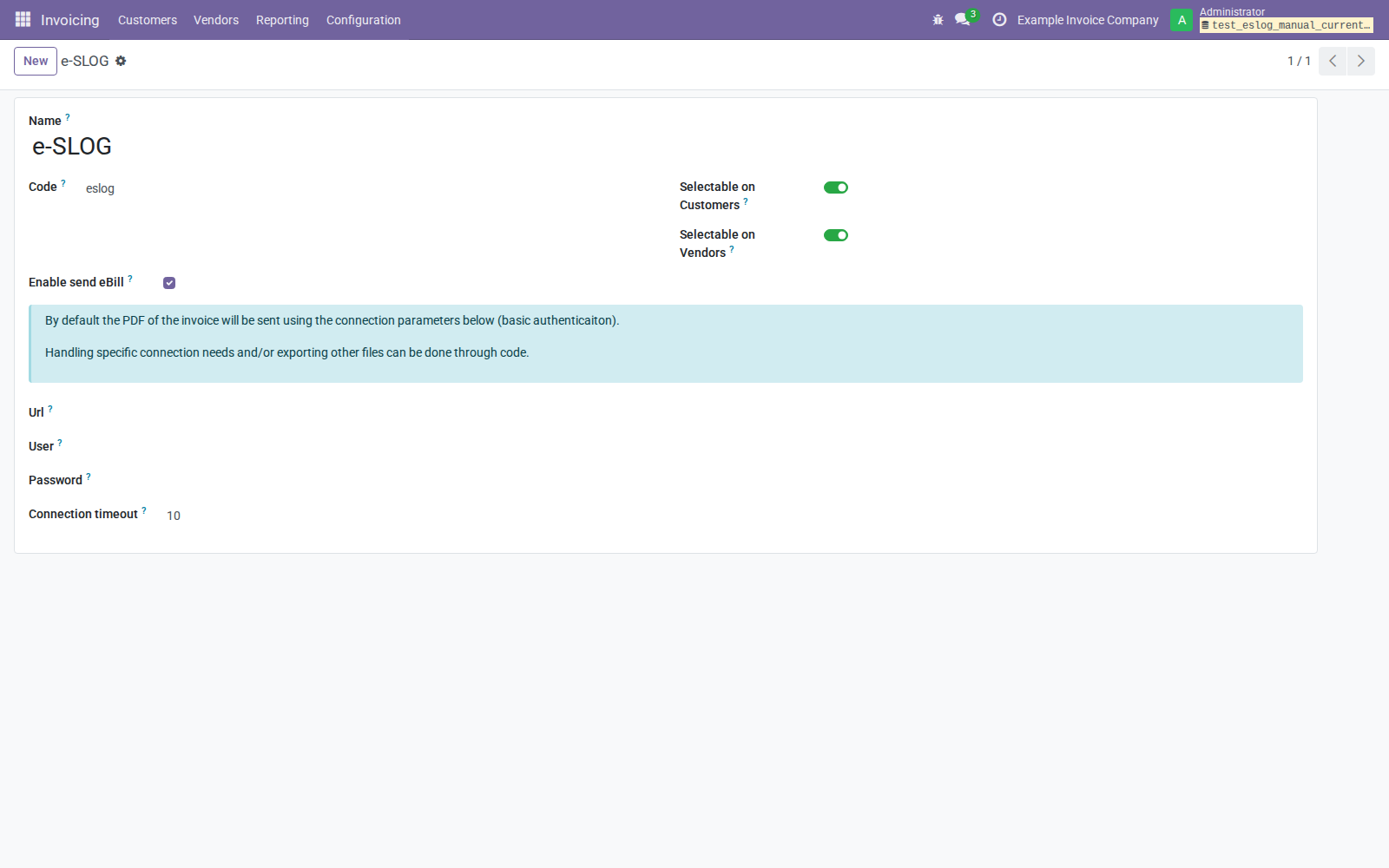
Figure 4. The supplied record has code eslog and Enable send eBill on. A blank URL leaves this addon’s export path local.
| Field | Meaning |
|---|---|
| Name / Code | Supplied name e-SLOG, code eslog. The code selects this addon’s export path; changing only a name does not create a new format. |
| Selectable on Customers | Makes the method available on customer invoices/partners. |
| Selectable on Vendors | Makes it available as a vendor reception method. Does not create a polling/import connection. |
| Enable send eBill | Controls the export button and permits HTTP behavior when a URL is also present. Supplied e-SLOG record defaults to on. |
| Url | HTTP destination shared by invoices using this method. Empty means local-only export in this addon. |
| User / Password | HTTP Basic Authentication values, configured for an authorized receiving service. |
| Connection timeout | Default 10 seconds. Zero means no timeout. |
The URL is not derived from the customer or Recipient ID. Configure a destination only after agreeing the interface with the receiving service. Manual Generate e-SLOG XML does not transmit even when a URL exists; section 9 explains the separate Send eBill operation.
6. Configure taxes and units of measure
6.1 UNECE tax metadata
Open each tax used by exported invoice lines and inspect Advanced Options.
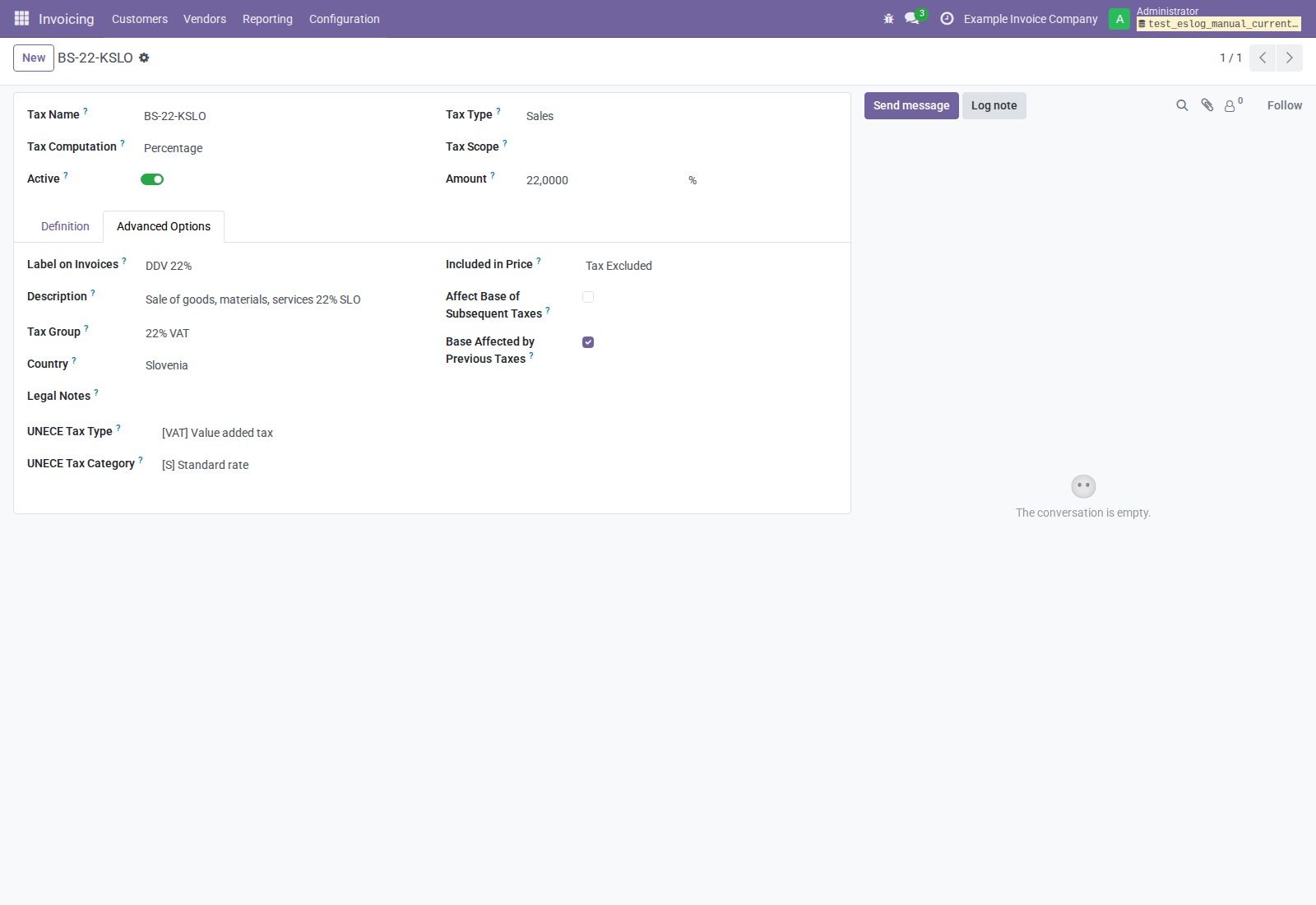
Figure 5. The ordinary example sales tax uses UNECE type VAT and category S. The rate and category must agree with the intended transaction.
Each product line must have exactly one selected tax record, resolving to one VAT classification. Its effective percentage tax needs UNECE Tax Type = VAT and an explicit UNECE Tax Category. Leaving taxes empty is an export error, including for untaxed supplies. The Slovenian tax-metadata dependency supplies mappings for recognized localization taxes, but verify the actual records, especially custom taxes, additional companies, and changed charts.
For a 0% tax, select the correct explicit category, such as E, K, AE, G,
O, or Z, using your approved tax treatment. Zero percent alone is not enough
and the generator raises an error if its category is missing. Do not use O
as a generic substitute for missing metadata.
Configure Notes on the fiscal position selected on the invoice with the
actual legal basis. Several fiscal positions can share the same tax but require
different clauses; for example, l10n_si2 uses S-KEU for both EU and non-EU
service positions. Configure UNECE Tax Category on the fiscal position's
Tax Mapping rows: EU B2B service mappings use AE, and non-EU services outside
VAT scope use O. The shared tax has no single global category. The generator
uses the selected mapping category consistently for line and summary taxes,
with tax-level categories as fallbacks for unmatched or unclassified mappings.
Conflicting categories for the same destination tax block export because the
invoice no longer identifies the original product tax.
The tax-mapping addon fills known categories on chart creation, installation,
and every module update. Existing mapping categories and notes are preserved;
changed mappings and custom positions need explicit configuration. Qualifying
EU goods use K, qualifying exports use G, and Article 76.a uses AE.
Tripartite positions require explicit configuration because the template does
not identify the company's transaction role. These defaults do not establish
place-of-supply or exemption eligibility. The addon leaves clause configuration
to fiscal positions.
The generator resolves clause text in this order:
- The invoice's fiscal-position Notes.
- The effective tax's Legal Notes.
- The selected parent group's Legal Notes, for supported groups.
- The effective tax's VAT Exemption Reason name, or the parent group's reason.
- Reverse charge for category
AEwhen no configured text is available.
HTML notes are converted to plain text; empty notes are skipped. Tax notes and VATEX records remain fallbacks for invoices without a fiscal-position clause. Existing tax notes are preserved; review any previously assigned clauses when configuring fiscal positions. Tax Description is not Legal Notes. The exporter uses the fiscal position already selected on the invoice without inferring an exemption article or changing the shared tax.
Categories E, AE, K, G, and O require a nonempty clause and use the
invoice-level AGM segment. Consequently, missing text and VATEX configuration
block export for E, K, G, or O; K/G often already have VATEX
configuration from the tax dependency, but verify the actual record.
Repeated identical texts are deduplicated; different texts are combined.
The optional tax VATEX code is omitted when fiscal-position Notes supply the
clause, since the shared tax's code may describe a different exemption. For tax
fallbacks it is emitted only for one distinct text and one distinct code.
Combined exemption text longer than 512 characters raises an error rather
than being truncated. Legal text on other categories is emitted as a GEN note.
If any flattened product-line tax is due Based on Payment
(tax_exigibility = on_payment), a Cash accounting GEN note is also added.
Z is not a
substitute for exemption and is not applicable to domestic Slovenian supplies.
The generator does not infer the place of taxation from partner addresses.
Supported export structures are:
- A line with one percentage VAT classification, including explicitly categorized 0% tax.
- A supported group resolving to one percentage child.
- A supported reverse-charge group with equal-and-opposite percentage rates,
no non-percentage children, category
AEon the positive child, no conflicting configured category/type codes, and the same taxable base. A pair in which the first child affects the second child's taxable base is rejected. - Untaxed lines require an explicit 0% tax with the correct VAT category.
Fixed/division taxes, non-VAT line tax types, mixed groups, and separately selected multiple taxes raise export errors. Duties included in a VAT base must be represented in the taxable price or appropriate separately modeled invoice items; arbitrary Odoo compounded-tax configurations are not converted automatically into e-SLOG. XML unit prices exclude taxes even when the Odoo price includes them. Sections/notes do not substitute for a product line: at least one actual invoice line is required. Check the tax assigned after fiscal-position mapping, not only the product’s default tax.
Supplier import matching: several chart taxes may share the same percentage and UNECE codes. The importer can select a tax with the correct amount/category but an inappropriate business purpose. The example imported bill initially selects A-22-DSLO, an advances tax; review and change it to the appropriate purchase tax before posting an ordinary services bill. Matching totals alone does not validate the tax/account selection.
6.2 Units of measure
Open the unit of measure used on the product/invoice and set its UNECE Code to the code required for that unit. Verify the rounding precision too.
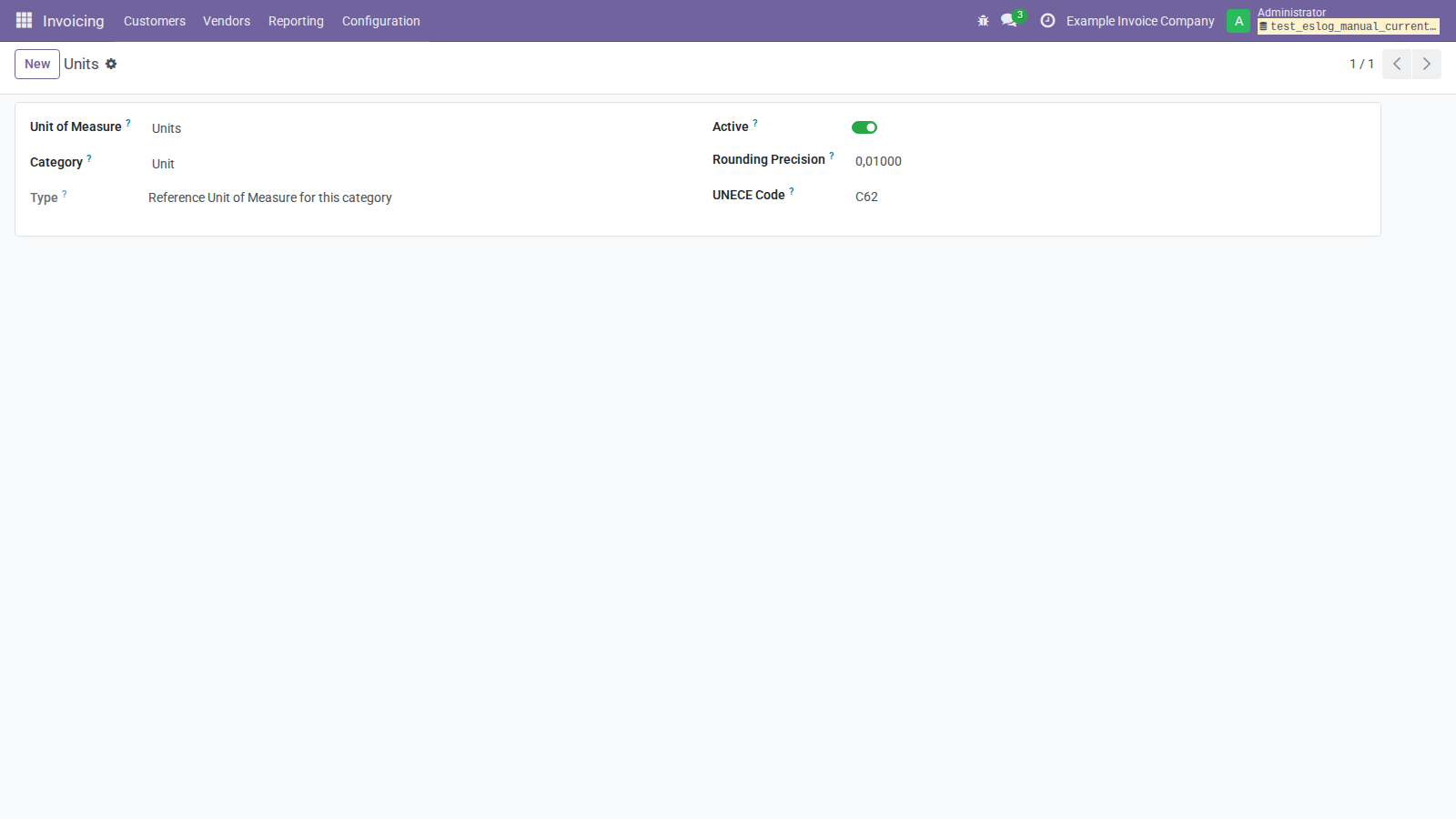
Figure 6. The illustrative unit uses C62. Configure each unit actually used, rather than copying the example to other measurement types.
The generator uses the invoice line’s unit code when populated and rounds its quantity using that unit’s rounding. A missing code is omitted; it is not always an export-blocking error. Check recipient requirements before treating an otherwise valid file as usable. Import maps an available UNECE unit code through the installed import framework; review unmatched/default units.
7. Generate XML for a customer invoice
7.1 Prepare and post
- Open Customers → Invoices → New.
- Select the customer, sales journal, invoice date, due date/payment terms, currency, products/descriptions, quantities, prices, discounts, and taxes.
- Confirm Transmission Method = e-SLOG on the invoice.
- Set a payment reference and payment bank account when applicable. Narration is included as plain-text narrative; verify any information you enter there.
- Save and post/confirm the invoice so it has a final accounting number.
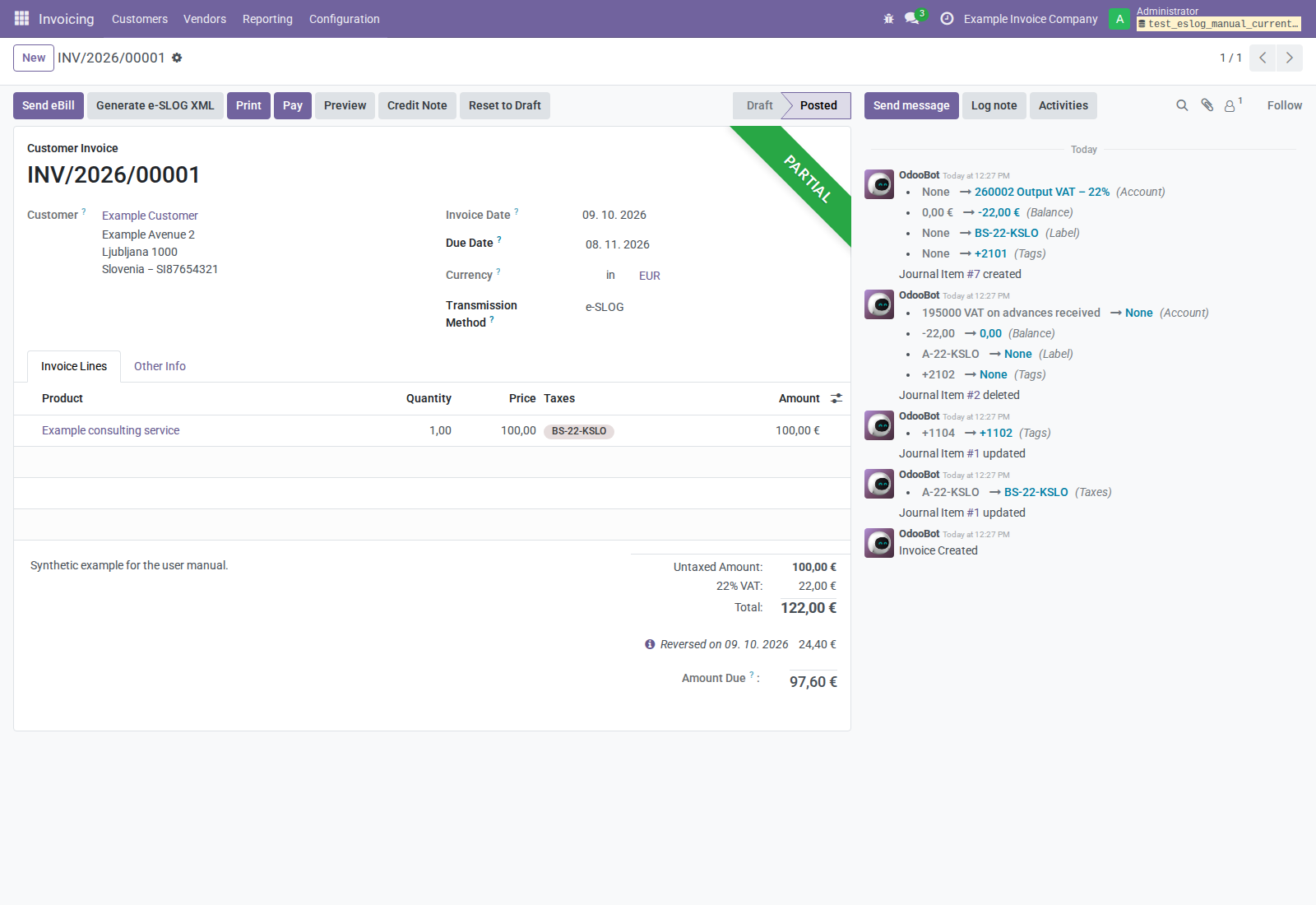
Figure 7. Generate e-SLOG XML appears only for posted customer invoices/credit notes using e-SLOG, for an e-Invoice User.
7.2 Generate and inspect
Click Generate e-SLOG XML. This creates or reuses two invoice attachments:
| File | Purpose |
|---|---|
<report-base-name>.eslog.xml |
Actual electronic invoice document. Slashes in the base name are replaced by underscores. |
<report-base-name>.eslog.json |
Normalized outbound metadata: direction, mapping version, invoice/company/partner references, currency, total, route, and configured transport. |
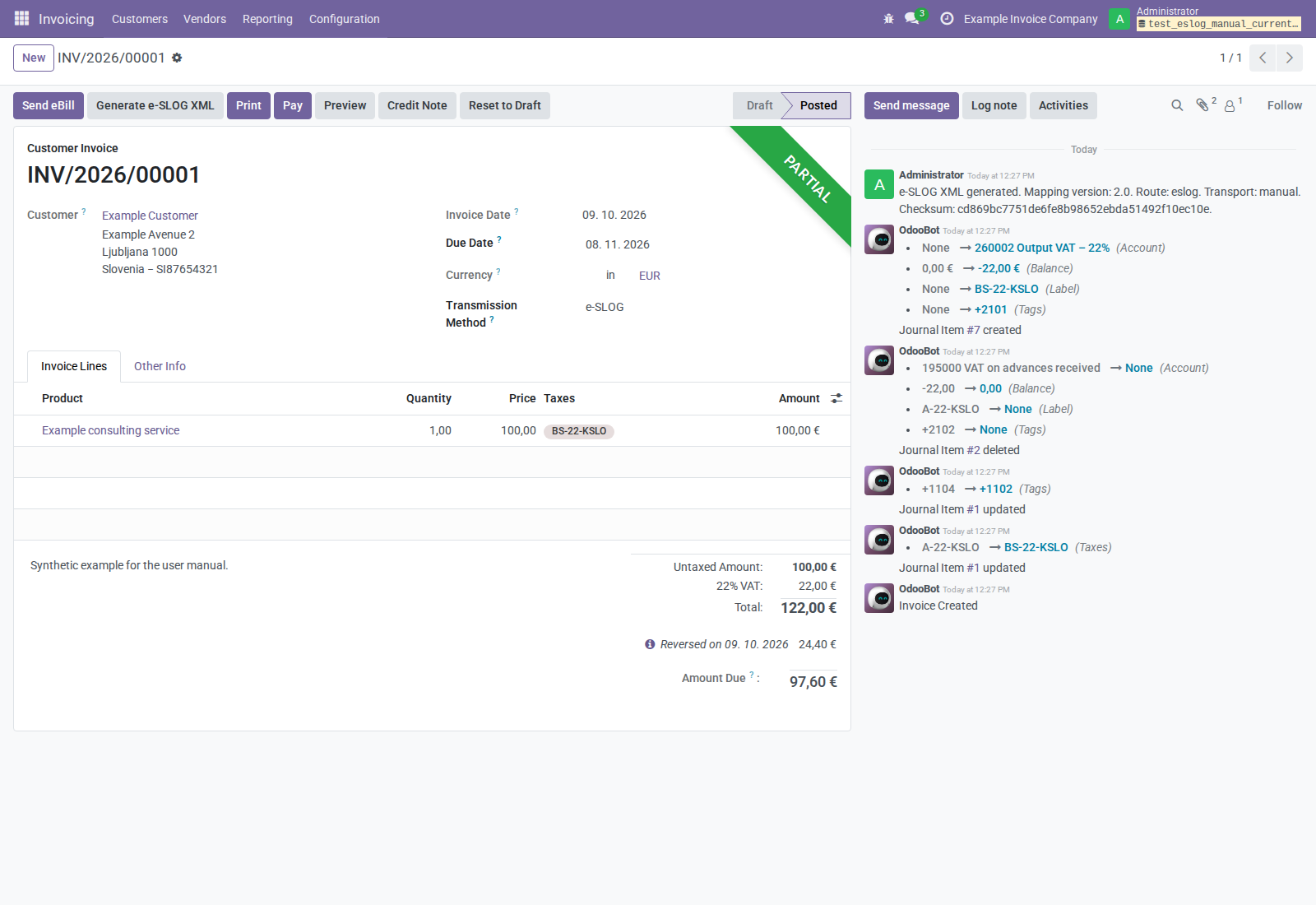
Figure 8. The generation chatter message records mapping version, route, configured transport, and checksum. It records generation, not delivery.
Use the invoice’s paperclip/attachment controls to view or download the files. The next screenshot shows the same files in Odoo’s attachment list; normal users can use the invoice attachment controls without opening a technical list.
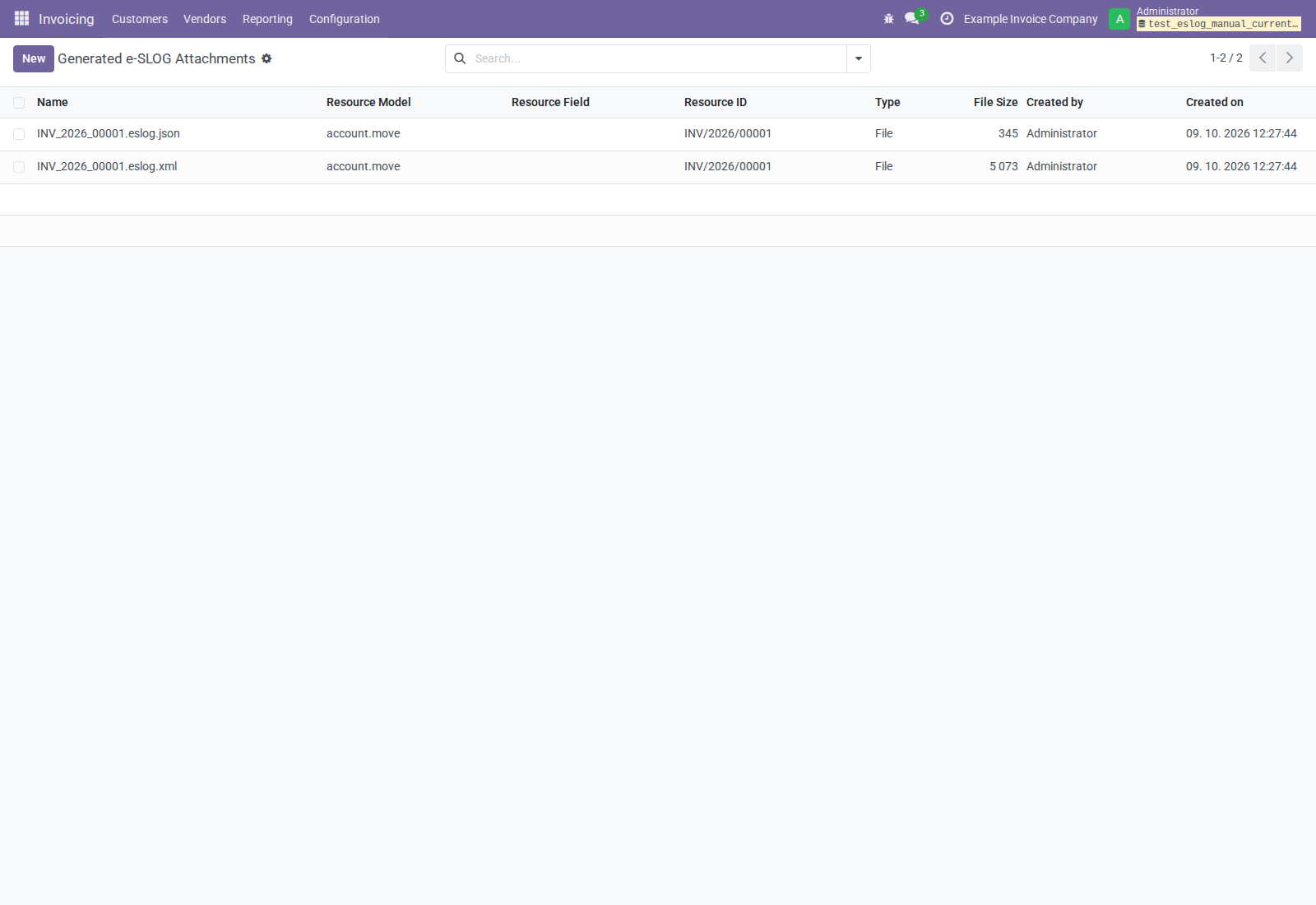
Figure 9. The XML is the exchange document; the JSON is local tracking metadata. JSON is not an additional invoice file to submit unless an agreed integration explicitly requires it.
Repeated generation deduplicates attachments by record, content checksum, and MIME type. An unchanged file may be reused even though another generation message is posted. Changed content can create another attachment with the same filename; the name alone does not identify the latest content. For example, residual balance changes can change XML. Review the intended attachment before downloading or resending, and retain historical evidence according to your retention policy.
Manual generation does not set the export-confirmation flags and does not call the HTTP destination. A generation message’s Transport: http describes the configuration, not proof that this button transmitted the file.
7.3 What the output contains
The active format is an Invoice document in namespace urn:eslog:2.00, with
the M_INVOIC segment structure. It includes document type/number, issue and due
dates, seller/buyer information, currency, product lines, quantities/units,
discount information, tax summaries, totals, and amount remaining due.
Payment reference, reversed invoice reference, narration, and seller bank details
are included when available, together with the configured tax clauses described
in section 6.1. XML unit prices and discount allowance amounts exclude VAT,
including when the Odoo price includes VAT.
The amount remaining due follows the accounting residual; it need not equal the invoice total. The screenshot’s original EUR 122.00 invoice has a related EUR 24.40 credit. Review both the document total and outstanding balance when exchanging already paid or credited invoices.
8. Send an invoice by email
The addon extends Odoo’s Print & Send wizard to include the applicable XML once alongside the invoice PDF. Opening this wizard can create/reuse XML even before you actually send a message. This path does not automatically attach the normalized JSON or post the manual-generation chatter message.
The transmit-method dependency hides the invoice-form’s ordinary Send button when e-SLOG is selected. In the customer invoice list, select the invoice and use the list’s Send operation to open the standard wizard. For one invoice this is Print & Send; a multiple-invoice selection uses the batch send workflow. Keep e-SLOG as the invoice transmission method if you want the automatic e-SLOG attachment hook to apply.
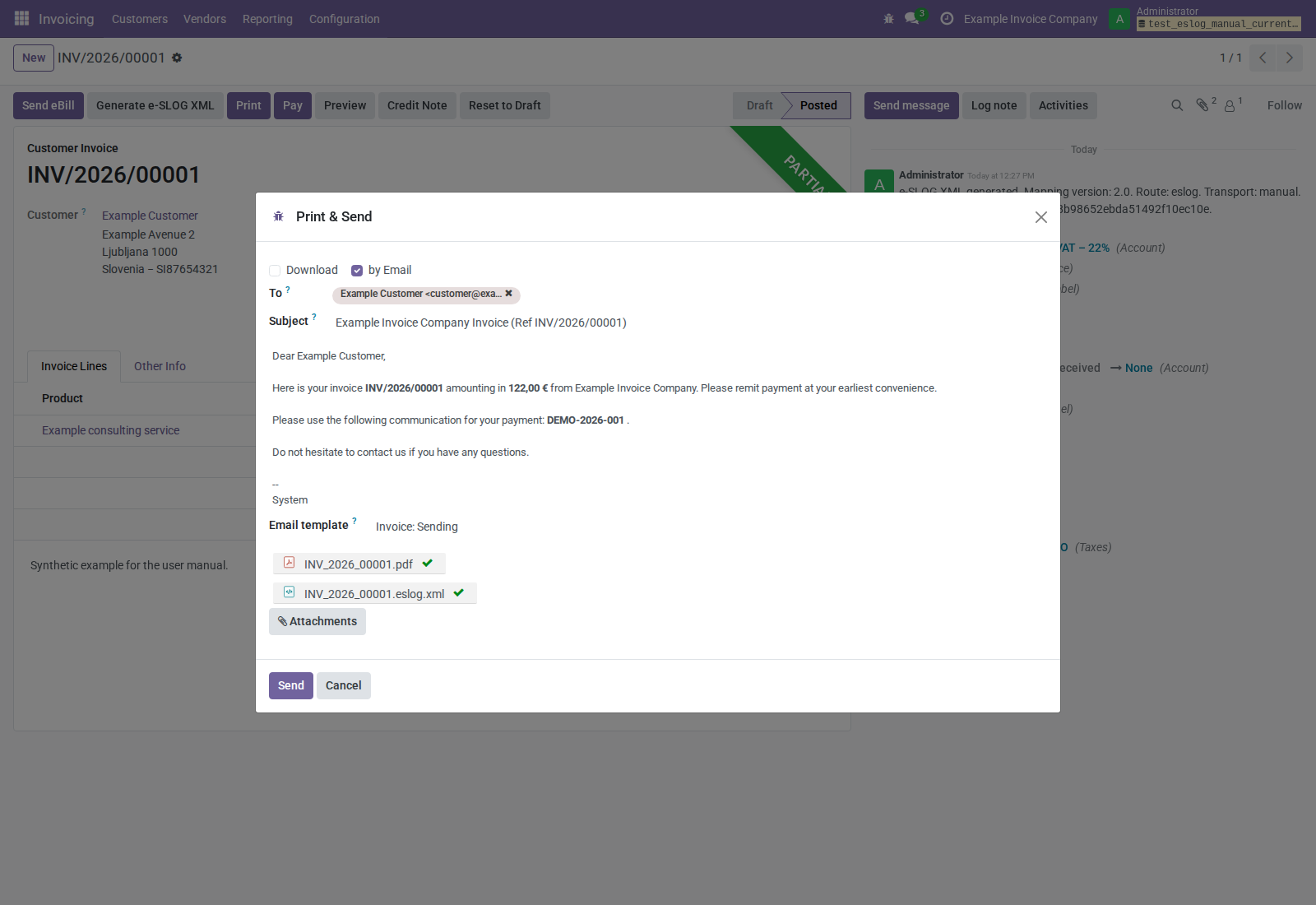
Figure 10. The XML is included with the PDF. This screenshot only opens the composer; no email was sent.
- Verify recipient email addresses, subject, message, and the XML/PDF attachments.
- Confirm the intended delivery method in the wizard.
- Send only through your configured/authorized email process.
- Review Odoo’s message/email outcome and any recipient acknowledgement through the agreed business process.
The automatically added XML is marked protected from deletion in the attachment widget. The JSON payload is not automatically added. Neither the presence of the attachment nor opening/closing the wizard establishes delivery. SMTP setup, bounce handling, recipient processing, and acknowledgement are separate from XML generation. The screenshot exercise did not test email delivery or PDF generation/printing.
9. Send eBill, local export, and HTTP transmission
9.1 Choose the operation deliberately
| Operation/configuration | Behavior |
|---|---|
| Generate e-SLOG XML | XML + JSON attachments and generation chatter; no transmission. |
| Open standard Print & Send | Adds/reuses XML for email with the PDF; does not send until the user submits the wizard. |
| Send eBill, e-SLOG with no destination URL | Local XML + JSON generation; sets exported and leaves export-confirmed false. |
| Send eBill, HTTP enabled and destination URL set | Generates XML + JSON, then attempts HTTP upload of XML through the dependency. |
The supplied e-SLOG method enables Send eBill but does not supply a URL. Consequently, clicking it before configuring a destination marks an invoice exported locally and leaves it unconfirmed.
The local path is also used if Enable send eBill is off, even when a URL is stored. Turning that flag off hides the invoice-form Send/Resend eBill buttons; it does not disable manual XML generation. The dependency's bound list action has no equivalent flag-based visibility condition.
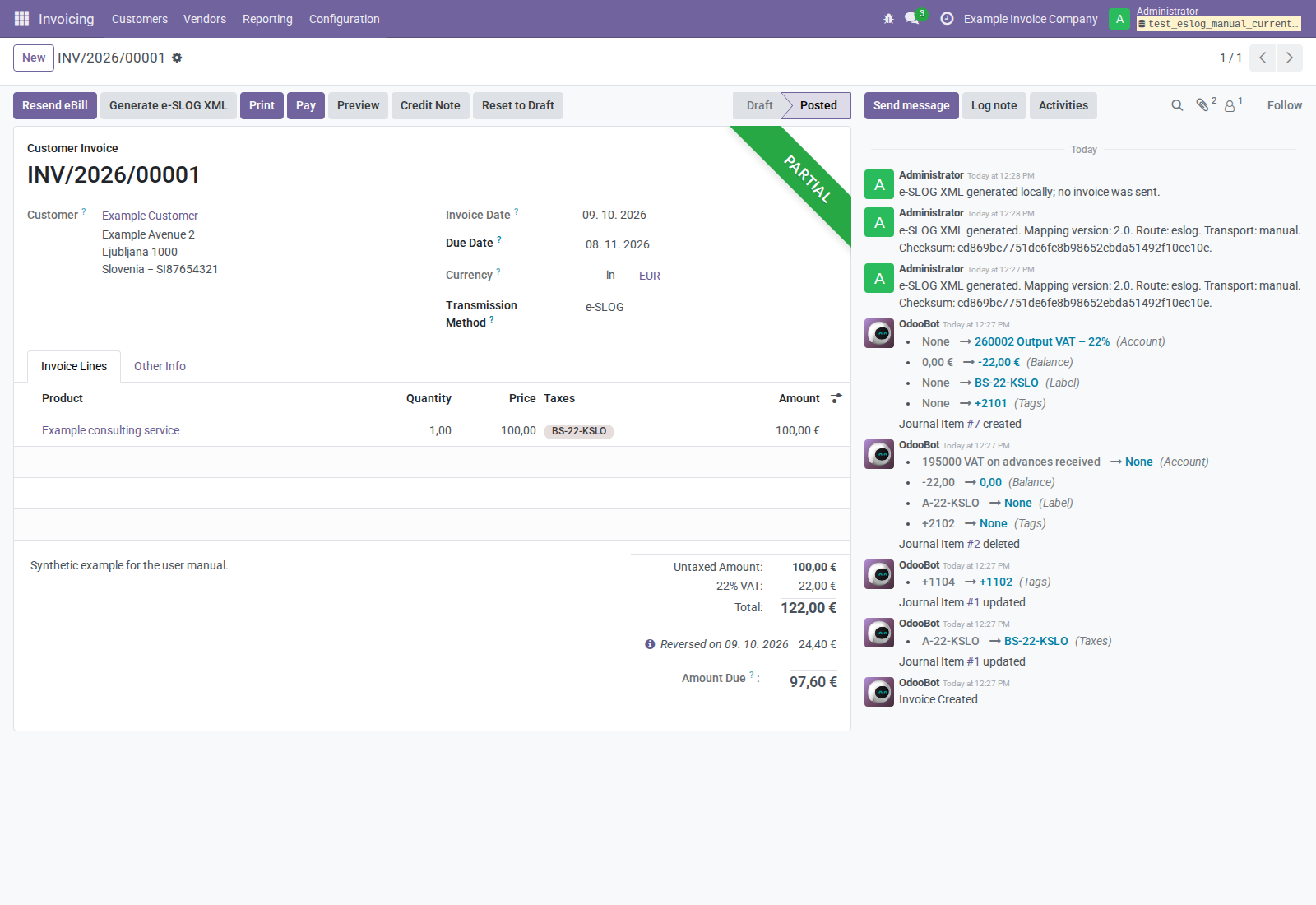
Figure 11. With no destination URL, local export shows Resend eBill and “e-SLOG XML generated locally; no invoice was sent.” The export is unconfirmed.
Local invoice_exported is not evidence of remote confirmation;
invoice_export_confirmed remains false. The current chatter explicitly records
e-SLOG XML generated locally; no invoice was sent. Unresolved delivery
activities are preserved. Manual Generate e-SLOG XML has its own generation
message and does not set either export flag.
9.2 Configure HTTP for an agreed receiver
Have the administrator configure the e-SLOG transmit method’s destination and authentication only after confirming the receiver’s actual contract. The current implementation sends:
- An HTTP POST to the transmit method’s URL.
- HTTP Basic Authentication from its User/Password values.
- A multipart
filecontaining.eslog.xmlwith MIME typeapplication/xml. - The configured timeout, with zero interpreted as no timeout.
The transmit form’s generic description mentions sending PDF by default; this
addon overrides the transmitted file for code eslog to XML. It does not upload
the normalized JSON or PDF through this HTTP path.
This is not a built-in UJP, bank, Peppol, or exchange-provider connector. The recipient ID field is not used to route requests, and one shared transmit method URL applies to all invoices using it. A provider that needs another authentication scheme, envelope, signature, routing parameter, or receipt protocol needs an appropriate integration beyond these settings.
9.3 Submit, inspect, and resend
- Confirm the invoice is Posted and uses the intended method.
- Verify destination, credentials, and invoice/XML contents through the approved integration configuration.
- Click Send eBill or select eligible invoices and use the available Send eBill list action.
- Review chatter, error activities, HTTP outcome, and the receiver’s actual acceptance evidence.
The dependency considers HTTP 200 successful and then sets both export flags. It does not parse the response body as a business acceptance decision. Other status codes, including other 2xx responses, are treated as errors by the current implementation. Do not equate HTTP 200 with an accepted electronic invoice unless the receiving contract establishes that meaning.
An exported invoice shows Resend eBill, with a confirmation prompt. Resending can repeat an external submission; determine the receiver’s duplicate policy and uncertain-attempt handling first. The list export action can also re-export already exported records. This dependency’s job-named method is called synchronously here; the addon does not provide an automatic retry schedule or delivery-status dashboard.
If export fails, inspect its error activity/chatter and correct configuration or document data before retrying. External request failure and transaction rollback can leave different local/remote outcomes; verify an uncertain submission with the receiving system before resending.
10. Export customer credit notes
- Use the original invoice’s Credit Note workflow to create the appropriate accounting reversal/correction.
- Review amounts, taxes, dates, and reason, and retain the original-invoice link.
- Verify Transmission Method = e-SLOG.
- Post the customer credit note, then use Generate e-SLOG XML or the agreed email/export process.
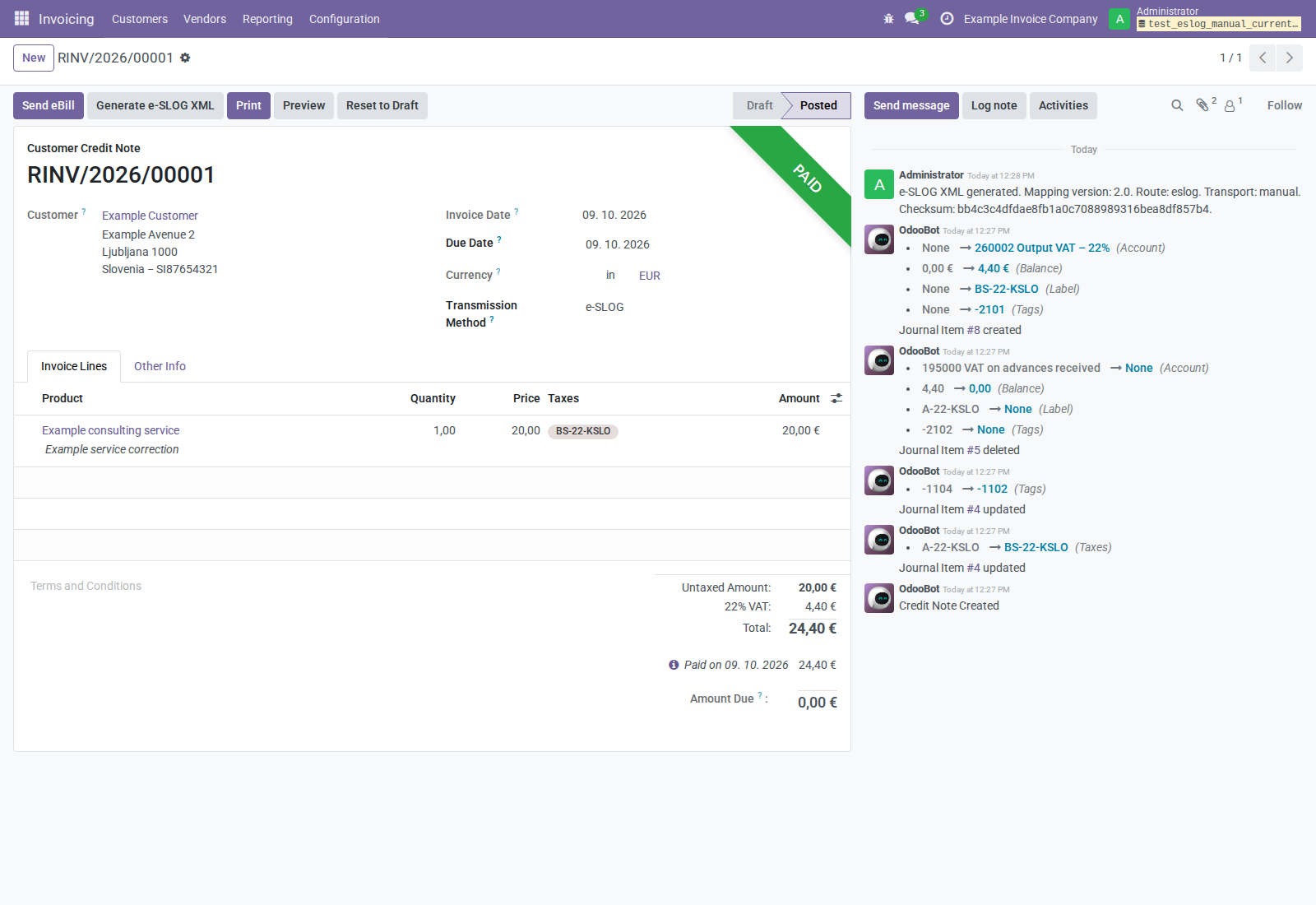
Figure 12. The example credit is EUR 24.40. It is an accounting credit note and has its own generated electronic document.
The generator emits document code 381 for a customer credit note and 380
for a customer invoice. When the reversed invoice link is present, it includes
the original invoice number as an OI reference. An independently created credit
without that link does not gain a reference just because its description names
an invoice.
Credit-note export does not delete or replace the original invoice’s XML or establish that the recipient applied the correction. Verify the complete correction workflow and recipient requirements before operational use.
11. Configure supplier invoice import
11.1 Company and journal setup
Verify the active company’s VAT identity, currency, purchase journal, payable accounts, expense accounts, purchase taxes/UNECE metadata, and units of measure. Incoming customer/buyer details must correspond to the company for which you are importing. Check the selected company rather than relying on a filename.
In Invoicing → Configuration → Settings → Vendor Bills Import, the import dependency exposes company-level settings when accounting entries are available:
| Setting | Purpose |
|---|---|
| Adjustment expense/debit account | Expense account used when the framework must create a positive adjustment line. |
| Adjustment income/credit account | Income account for the opposite adjustment direction. |
| Mail Gateway: Destination E-mail | Company routing for a separately configured incoming mail gateway. Setting it alone does not configure that gateway. |
| Auto-create Bank Account of Supplier | Allows the import framework to create supplier bank accounts when supported parsed data is provided. |
Keep adjustment accounts appropriate to your accounting policy. Review adjustment lines and tax-total corrections before posting. The current e-SLOG 2.0 parser does not extract all bank/payment information emitted by the generator, so the bank auto-create setting is not proof that e-SLOG bank details will be imported. Mail gateway operation was not exercised in this guide.
11.2 Vendor-specific defaults
Open the vendor, verify name/VAT/address, and select the intended company. On Invoicing (or Accounting), configure Vendor Bills Import.
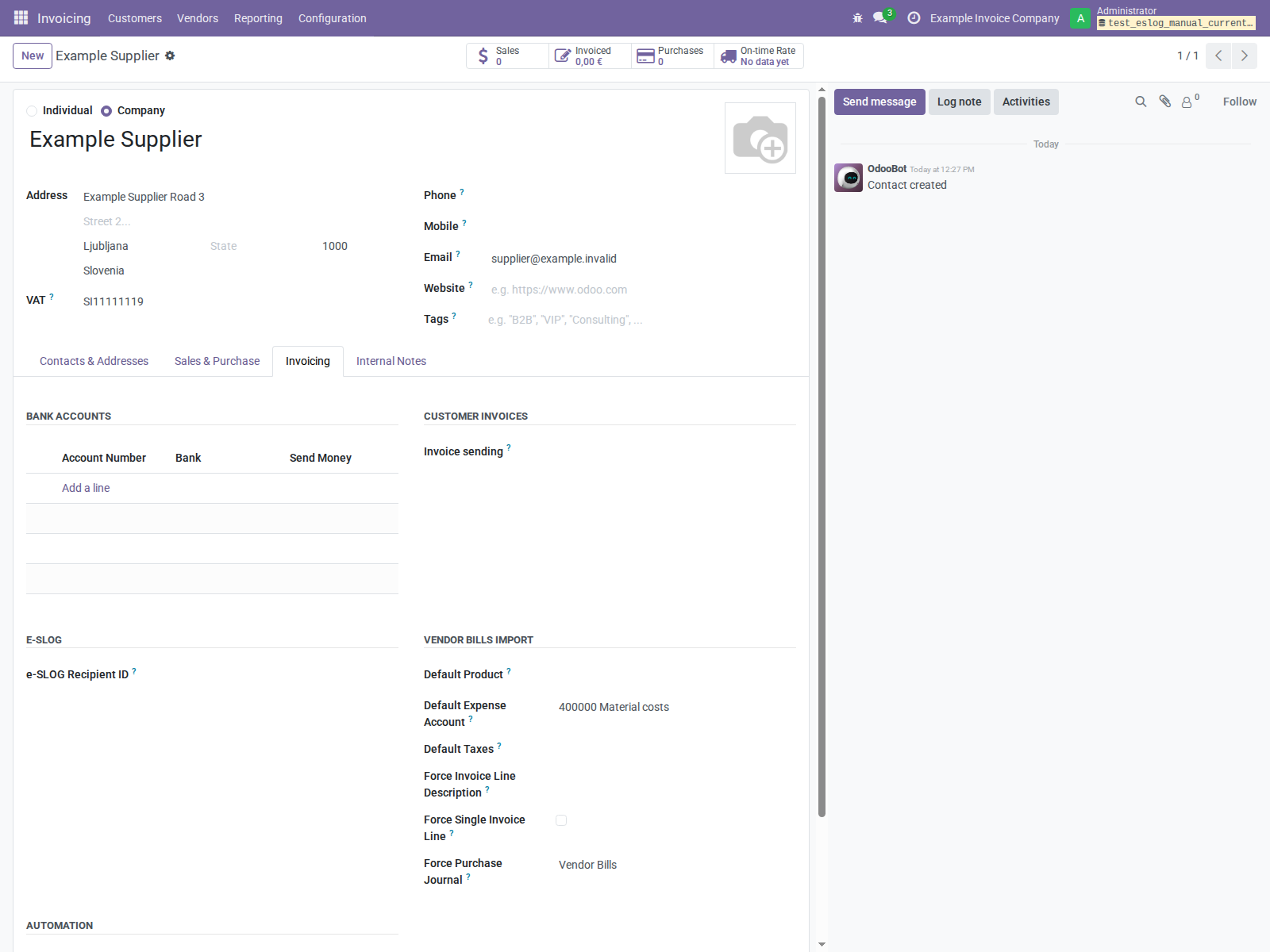
Figure 13. The example supplies an expense account and purchase journal. Choose accounts appropriate to your own purchases; the shown localization account is illustrative and still requires review.
| Field | Use |
|---|---|
| Default Product | Assigns a default product when the import framework needs one; its accounting/tax setup matters. |
| Default Expense Account | Expense fallback when no Default Product is configured. |
| Default Taxes | Purchase-tax defaults when no Default Product is configured; explicit parsed tax matching also needs review. |
| Force Invoice Line Description | Overrides the resulting line description. |
| Force Single Invoice Line | Collapses the imported detail according to the framework’s configuration. Leave off to retain line detail. |
| Force Purchase Journal | Fixes the purchase journal. With no forced journal, the framework uses an available purchase journal. |
Most vendor defaults are company-dependent. Configure them for each appropriate company. Setting Vendor Invoice Reception Method = e-SLOG on Sales & Purchase can describe the vendor’s method but is not required to recognize an uploaded e-SLOG XML file and does not enable automated receipt.
The parser provides descriptions, quantities, prices, units, and taxes; do not assume it recreates the vendor’s product catalog. Review assigned products, expense accounts, analytic information, purchase matches, and tax records.
12. Import supplier XML and review the draft
12.1 Upload and import
- Obtain the supplier’s actual electronic XML, not just a printed PDF view.
- Open Invoicing → Vendors → Import Vendor Bills.
- Upload the file under PDF or XML Invoices to Import. Multiple files can be selected.
- Verify the company when the company selector is available. With only one company, the selector can be hidden.
- Click Import.
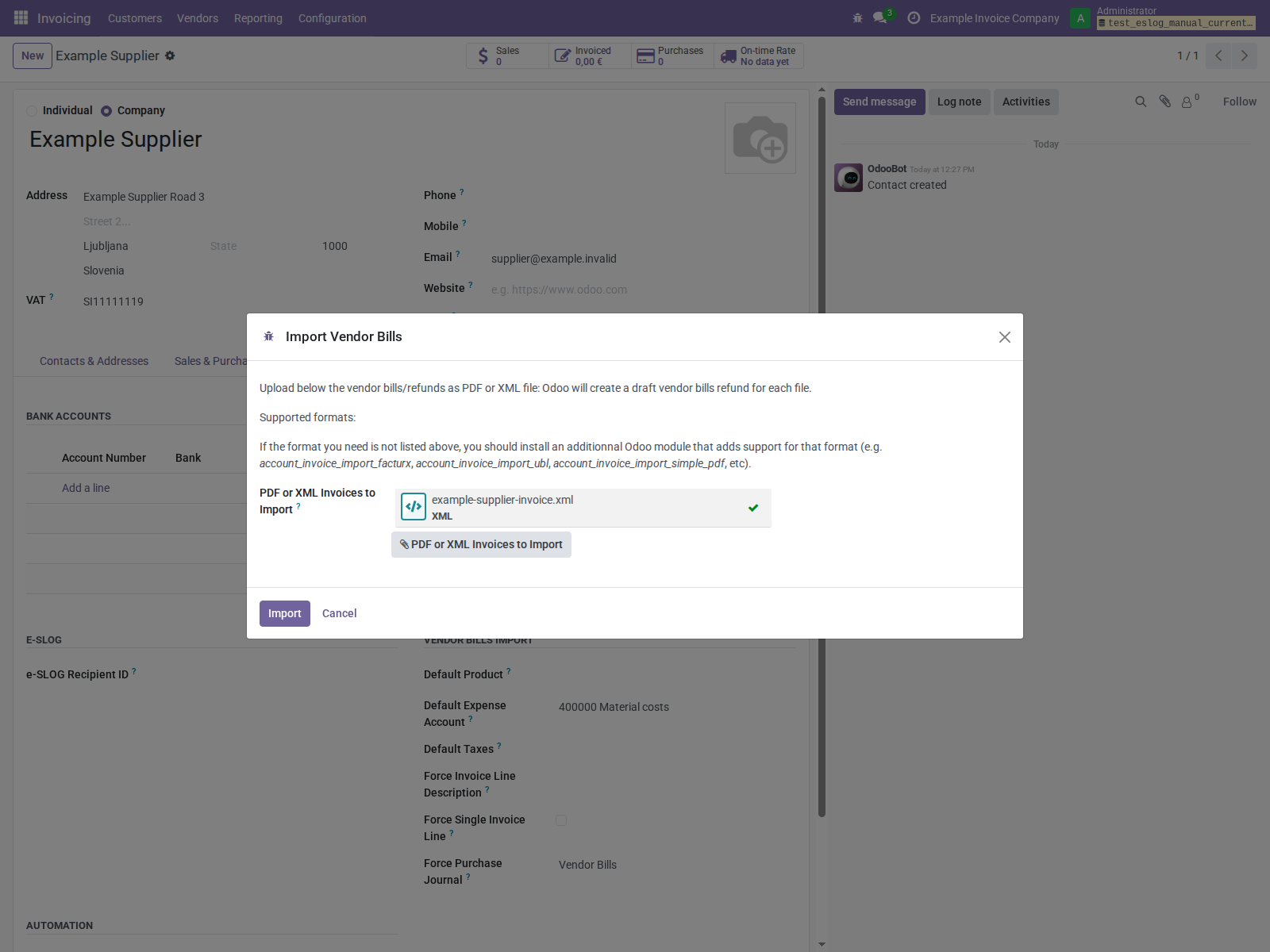
Figure 14. The screenshot uses standalone XML. The generic supported-formats help may not explicitly list e-SLOG, but this addon intercepts recognized e-SLOG XML in the import framework.
The wizard recognizes e-SLOG, parses its contents, applies import matching and defaults, and creates a draft vendor bill or draft vendor credit note. It does not post the bill or create a payment.
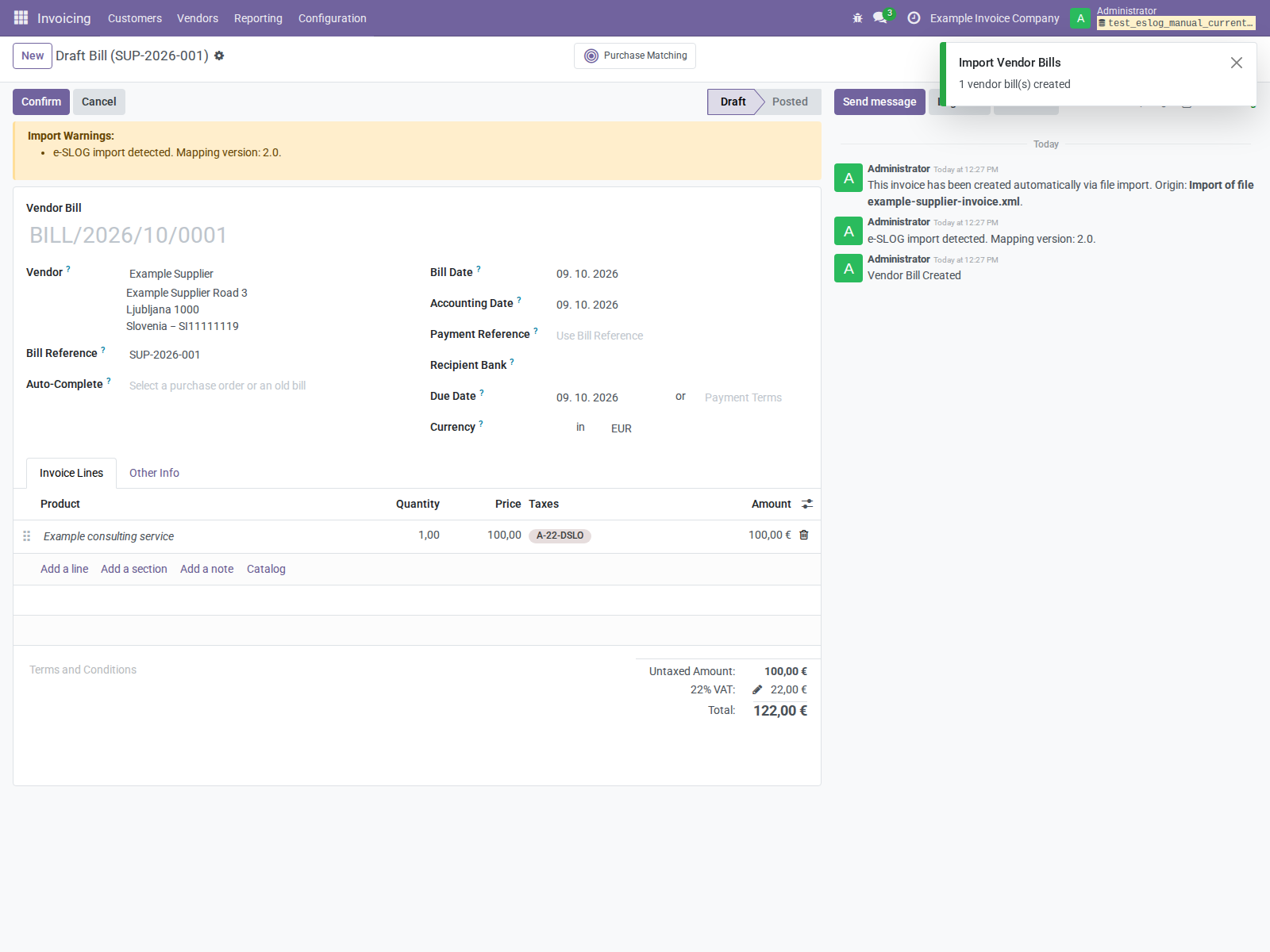
Figure 15. The actual import created one draft bill with reference SUP-2026-001 and total EUR 122.00. The A-22-DSLO tax chosen by matching must be reviewed for an ordinary purchase. The “e-SLOG import detected” warning is informational.
12.2 Review before posting
Compare the draft with the original supplier XML and supporting document:
- Vendor/commercial partner and buying company.
- Bill Reference, bill/accounting dates, currency, and totals.
- Description, quantity, unit, price, account, taxes, and any adjustment lines.
- Due date/payment terms, payment reference, bank account, and original-document information on a credit note.
- Import Warnings and chatter, including unmatched data or forced totals.
The current e-SLOG 2.0 parser does not map every exported field into the bill: due date, payment reference, bank details, original-invoice reference, narration, and separate allowance/discount information are not all preserved as corresponding Odoo fields. Net line pricing may reflect a discount without a separately imported Discount percentage. Enter/verify the missing accounting information before posting; generated output and imported input are not a lossless round trip.
The parser can replace header totals with totals recomputed from lines when they differ by more than 0.01. Schema-valid XML can therefore yield different imported amounts if its header/line information is inconsistent. Compare the original totals, not only Odoo’s internal balance or the normalized JSON.
If the supplier is unmatched, the framework may create a bill needing partner review and offer Create or Update Partner/Set partner workflows. Complete the intended supplier record and matching before posting. Do not create duplicate vendors merely to clear the warning.
After resolving the review items, use normal accounting Confirm to post. Posting a bill does not acknowledge receipt to the supplier or send an external acceptance message.
12.3 Attachments and evidence
The import retains the original uploaded XML (or PDF) on the bill. A recognized
e-SLOG import also attaches <uploaded-filename>.normalized.json and posts an
e-SLOG import detected. Mapping version: 2.0. message.
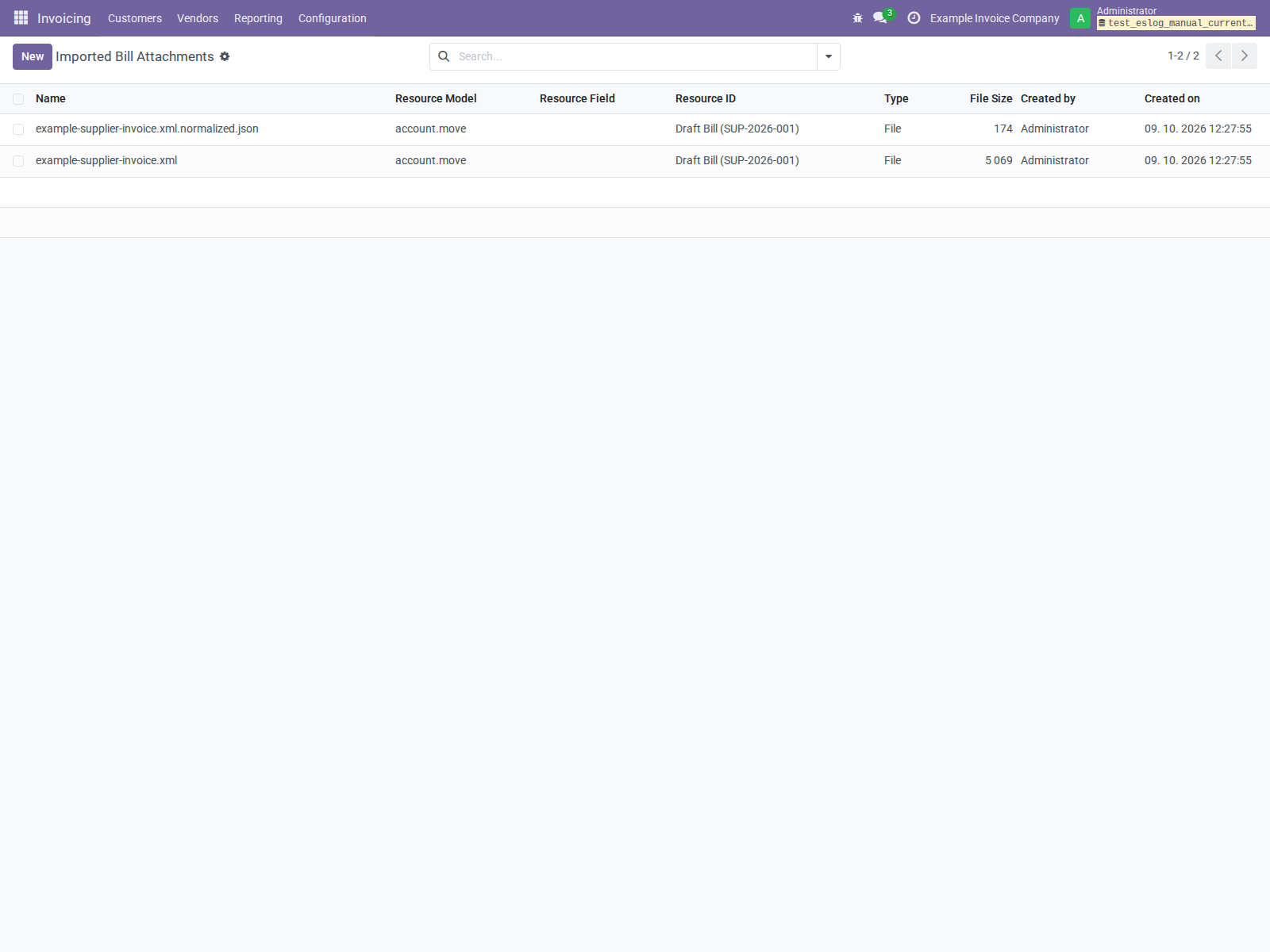
Figure 16. The original file and normalized import metadata remain associated with the draft bill.
The normalized import JSON is a compact metadata record, not a full copy of all invoice lines or an external receipt. Retain the original file and bill/chatter together for traceability.
13. Supplier credit notes, duplicates, and PDF files
13.1 Supplier credit notes
Upload the supplier’s credit-note XML through the same wizard. Document code
381 maps to vendor credit note (in_refund). Review the original bill,
reason, quantities, tax treatment, dates, and amount before posting/reconciling.
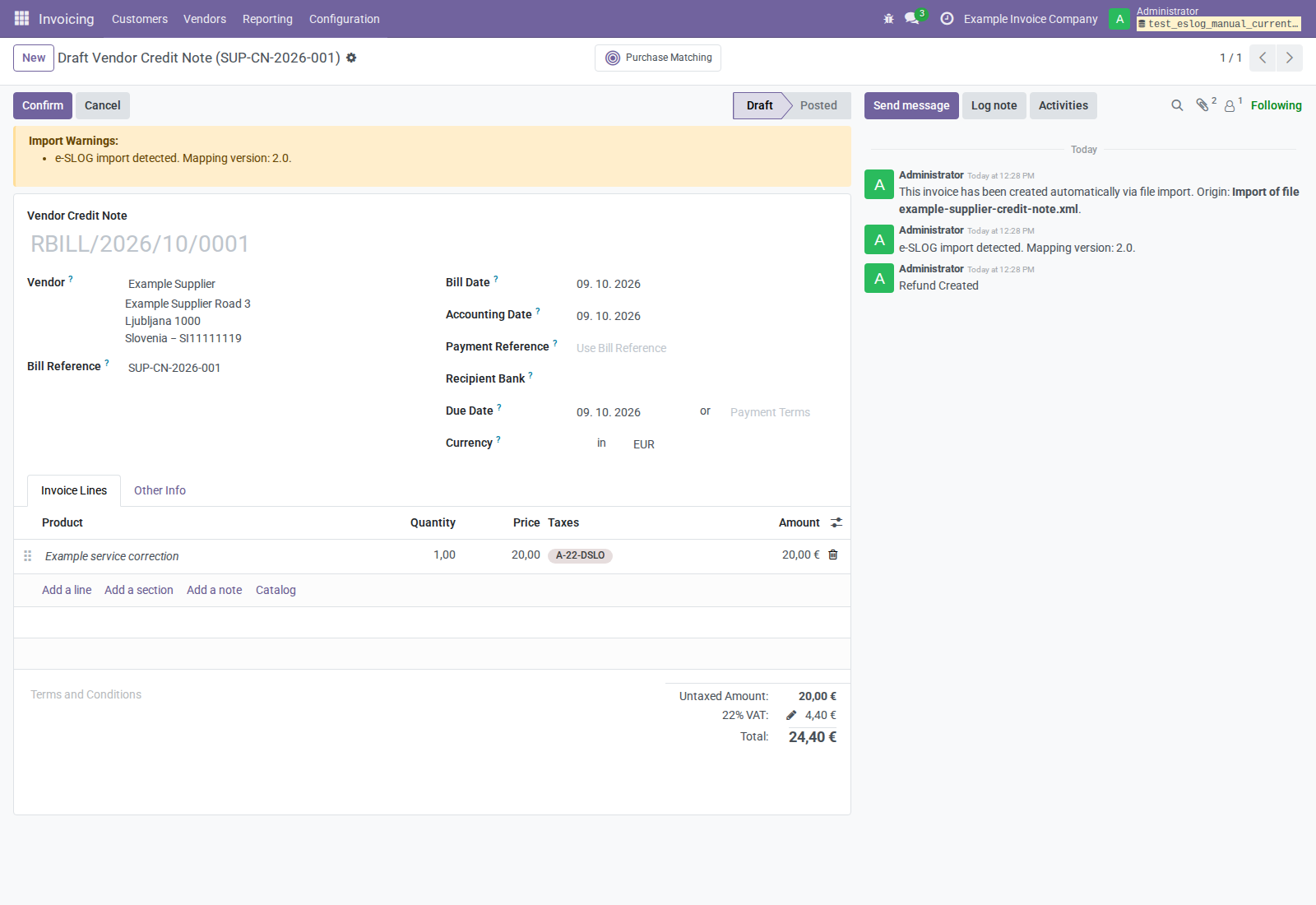
Figure 17. The actual import produced a draft vendor credit note of EUR 24.40, with reference SUP-CN-2026-001. It was not posted or paid.
The e-SLOG 2.0 parser maps other document codes to a vendor bill in its current dispatch; this is not evidence of support for every possible electronic document type. Use the supported invoice/credit-note profiles.
13.2 Duplicate detection
When the framework matches a supplier, it checks for an existing record with the same company, commercial partner, invoice/refund type, and case-insensitive supplier invoice number in Bill Reference.
- With only duplicates selected, Import raises an already-exists error and creates no additional bill.
- A mixed selection can skip duplicates, create new bills, and return a warning notification listing duplicates.
This depends on supplier matching and reference data; it is not a global checksum
deduplication system. The reference comparison uses case-insensitive =ilike;
references containing % or _ can act as patterns rather than literal
characters. Do not change a file's invoice number or create another
supplier just to bypass detection. Investigate the existing bill instead. The
screenshot exercise reimported SUP-2026-001 and verified that only one bill remained.
13.3 PDF with embedded XML
The addon extracts XML through reader attachment interfaces, embedded-file name trees (including nested nodes), and catalog associated files. Deterministic tests create real synthetic PDFs with the installed PyPDF2 writer and import their XML using the actual reader.
Attachment selection uses the embedded filename's guessed MIME type: the file
must be recognized as XML (normally a .xml filename). The first attachment
successfully parsed by the configured XML import chain is used; this is not
a multi-invoice PDF importer. Malformed XML attachments are skipped. A recognized
e-SLOG attachment with a schema or semantic error raises an error instead of
silently falling back to PDF parsing. A malformed/unreadable PDF also raises
a user-facing error.
A plain PDF without embedded XML uses the installed PDF fallback and may require manual invoice entry. Receiver-specific PDF layouts still require representative validation.
14. Validation, audit evidence, and routine checks
XML validation
The addon validates documents in namespace urn:eslog:2.00 against its bundled
eSLOG20_INVOIC_v200.xsd, including documents that use namespace prefixes.
Malformed or schema-invalid documents and a missing bundled schema produce errors.
Other formats are left to their corresponding import parsers.
The importer supports only the official 2.0 segment structure.
The removed urn:eslog:invoice:1.0 structure was synthetic, not an official
historical e-SLOG profile. A successful schema check validates structure, not accurate
accounts, correct business tax classification, complete recipient requirements,
or recipient acceptance.
Import additionally requires exactly one line VAT group, type VAT, and an
explicit category. It does not guess an exemption category from a zero rate.
These are targeted checks, not a complete semantic validator: the parser does
not import or independently validate every statutory clause or invoice-level
charge. Review original XML as well as the draft, especially when the document
contains charges or adjustments that are not represented by parsed line taxes.
See verified requirements for FURS invoice rules, the official e-SLOG semantic mapping, and the distinction between VAT bases and stacked taxes.
Routine operating checks
- Before generation, verify posted state, e-SLOG method, parties, invoice lines, actual taxes/UNECE data, currency, and numbering.
- Verify XML/JSON attachments and generation evidence; keep delivery/acceptance evidence separately.
- Check failed export activities before retrying. Confirm whether the operation was local-only, email, or HTTP.
- Review imported drafts against source files, with particular attention to tax selection, dates, payment details, and adjustment lines.
- Check duplicates through matched supplier/reference data.
- Revalidate custom taxes, new companies, modified units, and updated receiving interfaces before using them operationally.
Protect attachments and normalized payloads according to normal invoice access and retention rules. XML/JSON may contain commercial/tax identifiers and internal record IDs. Redact support examples and never include private endpoint URLs, HTTP credentials, or customer invoice data in bug reports.
15. Troubleshooting and implementation boundaries
| Symptom | Check / next action |
|---|---|
| Addon unavailable or installation dependency error | Add the declared localization, OCA, and PMIS dependency repositories; verify their module availability and Python requirements. |
| Incompatible Slovenian localization modules | Resolve l10n_si2 versus standard l10n_si installation planning; preserve populated accounting data. |
| Generate e-SLOG XML missing | Posted customer invoice/credit note, Transmission Method code eslog, and e-Invoice User membership. |
| Company e-SLOG setting missing | e-Invoice Manager membership and company form access. |
| Missing company/customer VAT or address error | Check the company partner and customer’s commercial partner, including name, country, tax number, and street. |
| Missing UNECE type/category | Configure metadata on the actual invoice tax after fiscal-position mapping; explicit category is needed even at 0%. |
| Unsupported tax combination | Use the supported one-tax percentage/group structures; review fixed/division taxes and separately selected multiple taxes. |
| Missing line VAT classification | Select one explicit percentage VAT tax, including an appropriately categorized 0% tax for untaxed supplies. |
| Missing fiscal-position Notes / tax clause | Configure Notes on the invoice's fiscal position, or a fallback on the effective tax or supported parent group. |
| Exemption clauses exceed 512 characters | Review the combined distinct legal texts; current AGM serialization rejects oversized text instead of truncating it. |
| XML contains no UoM code | Populate UNECE Code on the invoice unit; verify recipient requirements. |
| Recipient ID does not change delivery | It changes the XML party identifier; the HTTP destination is configured separately. |
| Send button hidden on e-SLOG invoice | Transmit dependency hides normal form sending; use the customer invoice list’s Send operation for standard email composition. |
| Email XML missing | Keep invoice Posted, customer type, and e-SLOG method; inspect composer attachments and permissions. Opening it can itself generate XML. |
| Send eBill leaves invoice unconfirmed | Local-only path generates attachments and leaves confirmation false. Configure and verify the intended transport separately. |
| HTTP request fails | Confirm receiving interface, shared URL, Basic Authentication, timeout, response status, and XML requirements. |
| HTTP 200 but recipient rejects | Current exporter does not interpret business acceptance in the body. Obtain the receiver’s acceptance evidence. |
| Multiple same-name XML files | Changed contents create new attachments; compare content/checksum and intended document state. |
| Import says unsupported XML | Check the recognized e-SLOG namespace/structure, filename/type, valid XML, and addon installation. |
| Import reports schema error | Fix the source document with the issuer/integration; inspect the error rather than editing business totals blindly. |
| Imported tax amount is right but tax is wrong | Several chart taxes can share matching UNECE/rate metadata. Select the business-appropriate purchase tax before posting. |
| Supplier/product/account missing | Review partner matching, vendor defaults, purchase journal, expense accounts, and product/unit mapping. |
| Imported bill totals differ from XML | Parser can recompute totals; framework may add adjustments or force totals. Compare source header and line amounts, tax mapping, and warnings. |
| Imported due date/payment reference missing | Not all export fields are parsed inbound; set verified values before posting. |
| Duplicate import error | Review existing bill by supplier/company/type/reference; do not bypass matching. |
| PDF import finds no embedded XML | Verify that the PDF contains invoice XML in embedded-file names or catalog associated files; plain PDFs use fallback parsing. |
The addon has no dedicated remote acceptance dashboard, automatic exchange polling, e-SLOG routing service, FURS confirmation, or automatic retry schedule. HTTP 200 and its export-confirmed flag are the current dependency’s outcomes, not a general electronic-invoice compliance or delivery guarantee. Provider specific interfaces, full inbound/outbound parity, and production business requirements need separate validation.
16. Reference material and verification evidence
Rechecked on October 9, 2026 against the current working-tree manifest, imported source modules, XML views, access definitions, bundled schema, and relevant tests, plus the local import/export/transmission dependency sources. The screenshot refresh installed the current addon in a fresh disposable database and ran a real Chromium browser session. That refresh changed only the manual and images, not application code. No invoice was sent externally.
The latest scoped run on October 9, 2026, after the tax-default corrections, reports 133 e-invoice tests passed and 100% line coverage for 1,092 measured production statements. The tax-mapping addon separately reports 8 tests passed and 100% line coverage for 57 production statements. This includes 16 export cases using actual chart defaults for customer invoices and credit notes, without manually repairing tax metadata. Coverage is not proof of every legal business scenario. IDE inspections, Ruff, and formatting passed for the changed files; the tax addon also passed its pylint gate.
Checks performed for the current version's screenshots:
- Fresh disposable database installation with declared dependency paths and compatible Slovenian localization selection.
- Real customer invoice XML/JSON generation and customer credit-note generation.
- XSD validation of the synthetic incoming invoice/credit-note XML.
- Standard email composer opening with PDF placeholder and e-SLOG XML attachment; no message sent.
- Actual supplier bill and supplier refund imports, verifying Draft state and totals of EUR 122.00 and EUR 24.40 respectively.
- Preservation of original XML/normalized JSON and rejection of repeated import.
- Actual no-URL export setting exported to true and confirmed to false, with the current local-generation chatter message and no HTTP transmission.
- Company form displaying the read-only e-SLOG Version 2.0.
- PyPDF2 attachment API inspection using a synthetic PDF with embedded XML.
The updated addon has automated real-PDF XML extraction and import tests. Live HTTP delivery, SMTP delivery, remote recipient acceptance, PDF generation/printing, mail-gateway ingestion, every tax scenario, and comprehensive role/multi-company browser acceptance were not exercised by the screenshot session. Automated tests cover selected cases separately; do not infer live delivery or exhaustive business validation from their coverage.
Current behavior is defined by:
- Manifest, views, and security groups for dependencies and UI access.
- Invoice actions and email attachment hook for generation and export.
- Generator for party IDs, taxes, clauses, amounts, and attachments.
- Parser and import wizard for inbound mappings and PDFs.
All 17 illustrations are direct browser captures from the current addon; none has been edited to simulate application output.
The addon includes e-SLOG specification PDFs, schema, and examples under
official/. Use those for format details while
checking the requirements of the actual receiving system independently.
See the English README and Slovenian README
for developer context, support, licensing, and credits. Report problems through
the README’s Bug Tracker process with versions, synthetic steps, error messages,
and redacted evidence. All illustrated files are under images/.