Slovenian Invoice UPN QR — User Manual
For invoice clerks preparing customer payment instructions in Odoo 18 Community. This addon adds Slovenian UPN QR data to invoice reports. A QR code provides payment instructions; it does not execute or reconcile a payment.
Before starting
Ask the administrator to install the addon and account_qr_code_sepa.
You need normal customer-invoice access. Configure:
- A company whose Country is Slovenia. This feature checks the company country independently of Use Slovenian Accounting.
- An EUR invoice and a valid beneficiary IBAN selected on that invoice.
- Complete company/beneficiary and customer names and addresses.
- A payment reference and invoice due date suitable for the payment.
- QR display enabled in the applicable invoice/accounting settings.
Review and trust beneficiary bank details through Odoo's normal bank-account workflow before posting if Odoo requests it.
Prepare an invoice
- Open Accounting > Customers > Invoices and create the customer invoice.
- Select the customer and enter the invoice lines, taxes, dates, and due date.
- Review the payment reference and selected company bank account.
- Review the QR method. New customer invoices and receipts for Slovenian companies default to the Slovenian UPN method unless another value was explicitly supplied.
- Select Purpose if required. Leave it empty when no specific category is
needed; the payload uses
OTHRas its fallback. - Post the invoice through the ordinary accounting workflow.
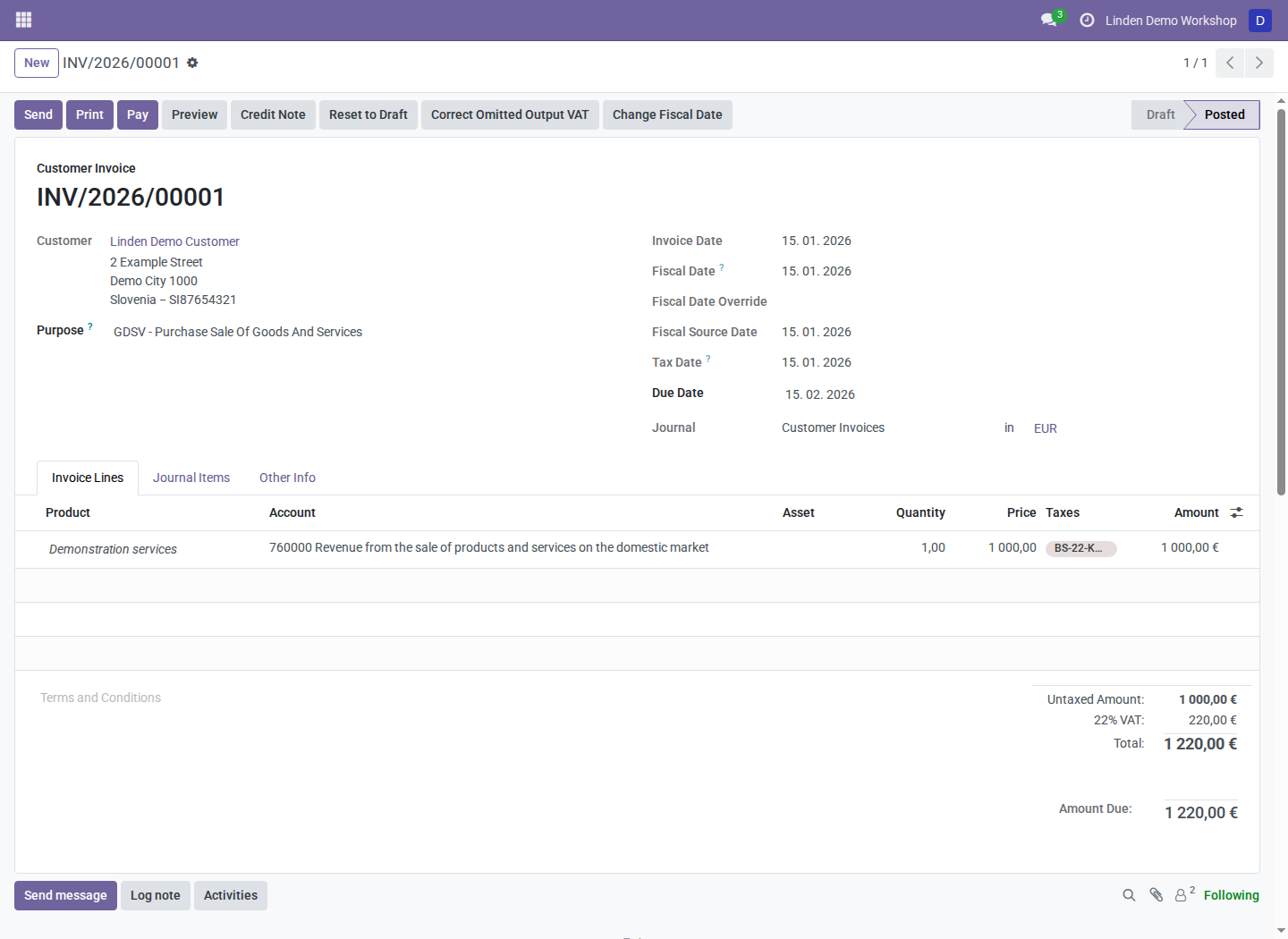
A synthetic EUR 1,220 invoice: EUR 1,000 base plus EUR 220 VAT. The selected purpose is purchase/sale of goods and services.
Print and review the QR code
- Open the posted invoice and use its normal Print invoice action.
- Inspect the invoice report's UPN QR block.
- Check beneficiary, IBAN, reference, due date, and amount before sharing it.
- If scanning as part of your review, inspect the banking application's proposed payment details before any separately authorized payment.
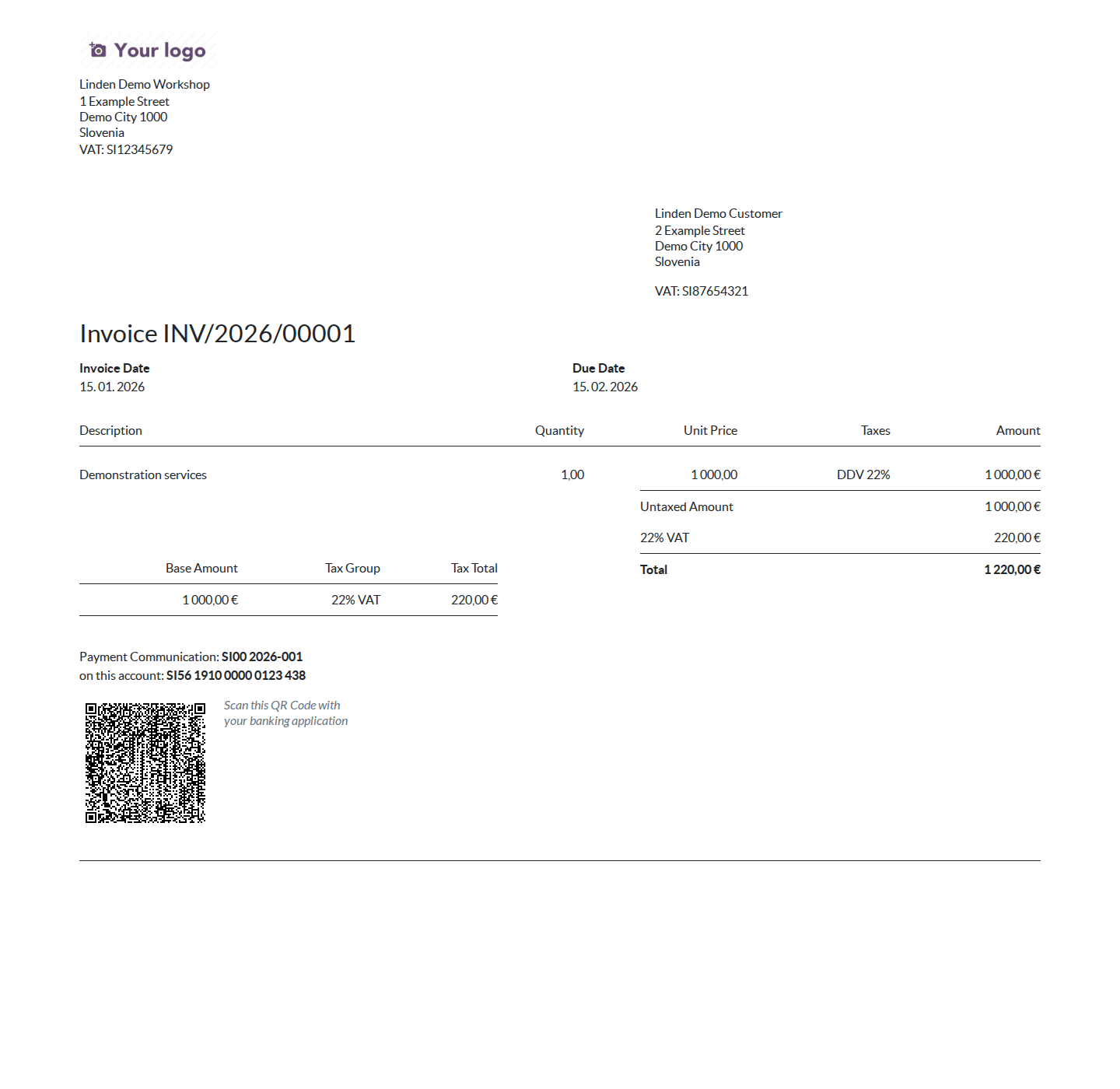
Actual Odoo HTML invoice report from the disposable database. The IBAN and all business details are documentation examples; do not send a payment.
The code uses the remaining amount due, so a partially paid invoice can produce a different amount than its original total. A fully paid invoice has no payment QR image. UPN QR requires EUR and does not silently convert a foreign-currency balance.
Use another QR method
Select the required method explicitly on the invoice and print through the normal report workflow. Other methods delegate to the installed QR provider. An explicitly selected method is preserved rather than replaced automatically.
Troubleshooting
| Symptom | What to check |
|---|---|
| No QR image | QR method, display setting, positive residual, beneficiary IBAN, currency, and address details |
| Foreign-currency invoice has no UPN QR | UPN QR supports EUR; choose an appropriate supported payment method |
| Printed amount differs from invoice total | Partial payments and the current remaining amount |
| Bank-account warning blocks posting | Verify beneficiary ownership and complete Odoo's normal trust workflow |
| Reference or purpose is wrong | Correct the invoice payment fields through the permitted document workflow and regenerate the report |
Screenshot context
Screenshots are real browser captures from Odoo 18 in a fresh disposable, synthetically populated database. The report capture is HTML; the surrounding paper layout may differ in PDF. See the module overview.